PNG QR Code: The Complete Guide to Sharp, Scannable Exports
Learn everything about PNG QR Codes and how they are your best bet for websites, social media campaigns, and prints. Create high quality PNG QR Codes for your next use case.
A PNG QR Code is a QR Code saved as a PNG file, which means it is made up of a fixed grid of pixels. Creating one is straightforward: just enter your destination content, tweak the design if you wish, choose PNG as your export format, and hit download. Many people think of PNG as a backup option, but in reality, it is often the best choice for most QR Codes. The key is to pick your format based on where your code will be used, not just what looks crispest on your screen.
In this guide, you will find out when PNG is the smarter choice over SVG or JPEG, the four key specs that make sure your PNG QR Code scans every time, a simple four-step process to create one, three scenarios where PNG QR Codes shine, and the five common mistakes to avoid. If you haven’t settled on static versus dynamic yet, start with our guide to dynamic vs. static QR Codes; this one picks up once you already need a PNG specifically.
What is a PNG QR Code?
A PNG QR Code is a QR Code saved as a PNG (Portable Network Graphics) file. Unlike vector formats that use instructions to draw images, PNG stores your code as a fixed grid of pixels. Think of it as a snapshot, capturing every detail just as it is. PNG sits in the same family as JPEG and GIF, but here’s the difference: PNG compresses images without losing a single pixel, no matter how many times you save or resave the file.
Why does this lossless quality matter for QR Codes? The answer lies in the crisp edges between the black and white modules, which is where the data lives. If those edges get blurred by lossy compression, your scanner might struggle to read the code. And since a PNG is a raster image, its pixel count is set in stone the moment you export it. Try to stretch it beyond that, and you’ll find there’s no extra detail to fill in the gaps.
PNG is also the web’s favorite image format. According to W3Techs, nearly 76% of websites rely on PNG for their images and graphics, more than any other format. So, when you save your QR Code as a PNG, you can be confident it will open smoothly in almost any browser, design tool, or print workflow. No need to worry about compatibility.
PNG vs. SVG vs. JPEG: choosing the right QR Code format
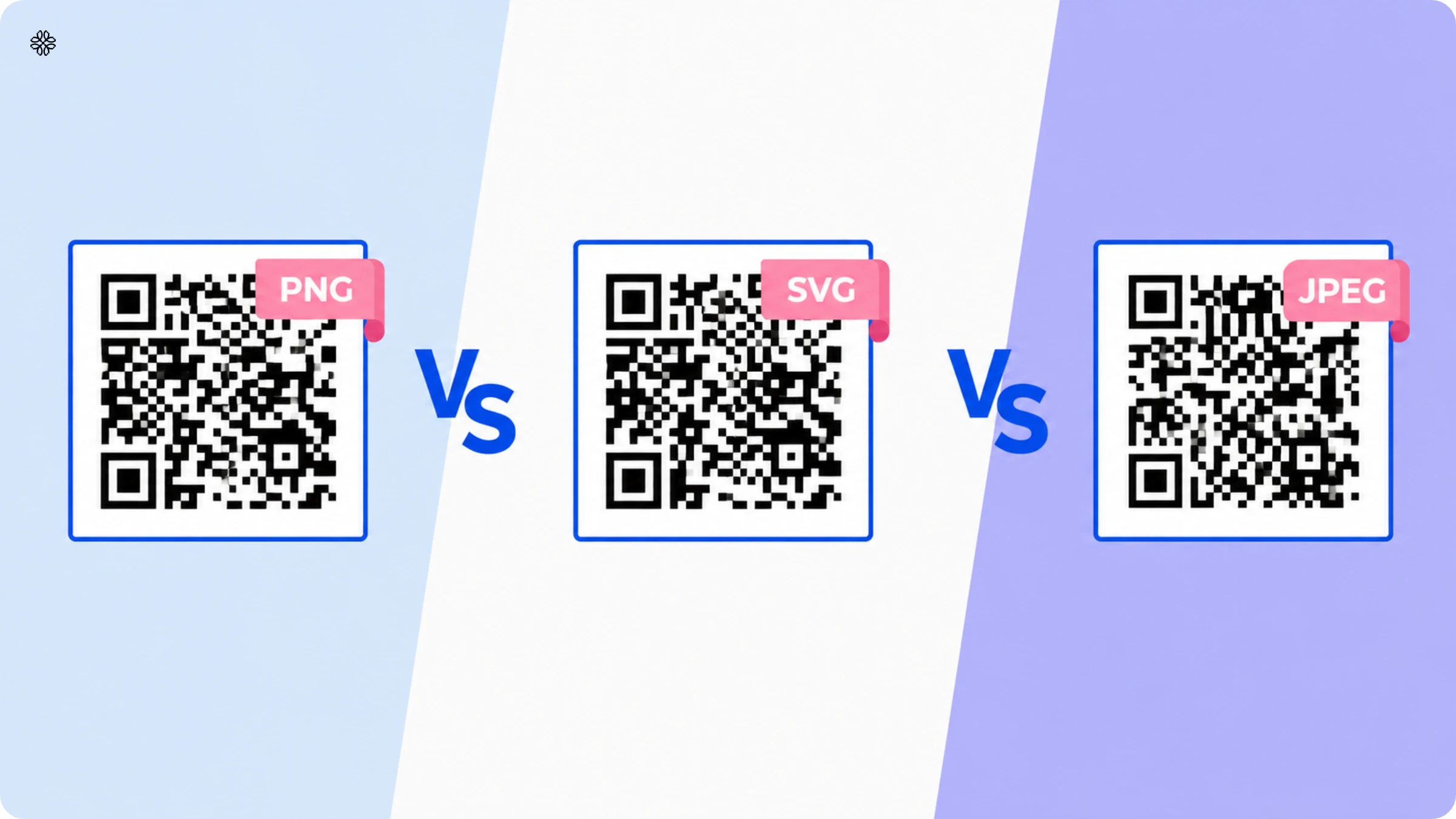
PNG is the right export format for most QR Codes; SVG is the right choice when a code needs to scale to a large format without quality loss; and JPEG offers no real advantage for QR Codes at all. The key difference lies here: PNG and JPEG are raster formats, made up of a fixed grid of pixels, while SVG is a vector format, defined by mathematical instructions that redraw the image at any size.
This difference determines what holds up and what falls short. Export a raster QR Code at 500 by 500 pixels, and it will look sharp until you try to stretch it across a poster, where it quickly turns blurry. In contrast, a vector QR Code adapts to any size, so one SVG file can serve both your business card and your billboard, no extra work needed. There is a bonus: file size. While a PNG QR Code can range from tens to hundreds of kilobytes depending on resolution, an SVG version of the same code typically stays under 5 kilobytes, since it stores instructions rather than pixel data.
PNG does have the same raster limitation, but it brings two advantages over JPEG: lossless compression and support for transparency. JPEG reduces file size by discarding image data, which means every time you resave, those crisp QR Code edges get a little fuzzier. Plus, JPEG cannot handle transparent backgrounds at all. SVG sidesteps both issues by being vector-based, but it is not always supported everywhere. Some older print software, embroidery, or engraving tools still require a raster file, and pasting an SVG into a slide deck or email can sometimes lead to inconsistent results.
| PNG | SVG | JPEG | |
|---|---|---|---|
| Type | Raster | Vector | Raster |
| Scales without quality loss | No | Yes | No |
| Transparent background | Yes | Yes | No |
| Compression | Lossless | N/A (math-based) | Lossy |
| Universal software support | Yes | Partial | Yes |
| Best for | Most digital and print use | Large-format print, vector-based brand systems | Nothing QR-specific |
When it comes to choosing the right file format, here’s a simple rule of thumb: opt for PNG if you need a transparent background, whether it’s for social media, email, or most print projects. SVG is your go-to for billboards, vehicle wraps, or any design system that relies on vector files. As for JPEG, you can safely skip it in this context. If you’re working on a billboard campaign, export your QR Code as an SVG for crisp, scalable results, and then convert it to PNG for your Instagram stories. Just remember, starting with a low-resolution PNG and trying to scale it up for print is where most people trip up.
What makes a PNG QR Code scannable
There are four essentials that decide whether your PNG QR Code will scan successfully: the quiet zone around the code, its error correction level, the export resolution, and the size compared to how far away it will be scanned. Overlook any one of these, and a code that appears perfect on your screen might refuse to work once it’s printed or displayed elsewhere.
The quiet zone is the blank margin that frames your QR Code’s pattern. According to ISO/IEC 18004, the global standard for QR Codes, you need at least four modules (those tiny squares that make up the code) of empty space on every side. This margin is not just for looks; a scanner relies on it to separate the code from its background. If you trim the margin to squeeze the code into a template, you risk.
Error correction is another key factor, but it works a bit differently. Every QR Code is created at one of four levels: L, M, Q, or H. As DENSO WAVE. The inventors of the QR Code explain that Level L can recover from up to 7% data loss, Level M up to 15%, Level Q up to 25%, and Level H up to 30%. If you plan to add a logo or cover part of the code, you’ll need a higher error correction level to make up for the missing data. On the other hand, a clean digital code with nothing on top can safely use a lower level, since there’s no missing data to reconstruct.
Resolution and scanning distance go hand in hand, following a simple rule of thumb: for every ten units of scanning distance, your code should be at least one unit in size. For example, if someone scans your code from 10 inches away, make sure it’s at least 1 inch wide. Anything smaller than 2 centimeters (about 0.8 inches) is risky, no matter how close the scanner gets. For more details, Uniqode’s QR Code sizing guide offers placement-specific helpful charts. Remember, a PNG that looks crisp on your screen can turn blurry and unusable the moment it’s enlarged for print if the resolution is too low.
Most free QR generators simply export at your browser’s default resolution, without warning you if that’s actually safe for printing or display. Uniqode’s editor, on the other hand, checks contrast, quiet zone, and export resolution all at once as you customize your code. It even gives you a scannability rating, from Poor to Excellent, before you download, so you can catch any issues right away instead of discovering them after your print run is already at the shop.
How to create a PNG QR Code with Uniqode?
You can create a PNG QR Code in four steps using Uniqode:
- Log in to the dashboard and choose the QR Code campaign type
- Upload content or paste a URL
- Customize your QR Code
- Download the QR Code in PNG format
Before you proceed… If you don’t have access to the dashboard yet, sign-up for a 14-day trial to create PNG QR Codes. No credit cards needed.
During the trial, you can use all the premium features, such as adding a white or transparent background to the QR Code, editing the QR Code content after printing, tracking scans, retargeting, etc.
1. Log in to the Uniqode dashboard and choose the QR Code campaign type
Click "+Create" in the top right corner of the screen and choose "QR Codes." Choose a QR Code type from the options displayed: images, PDFs, websites, or anything else you want as the destination. For this walkthrough, choose a website.
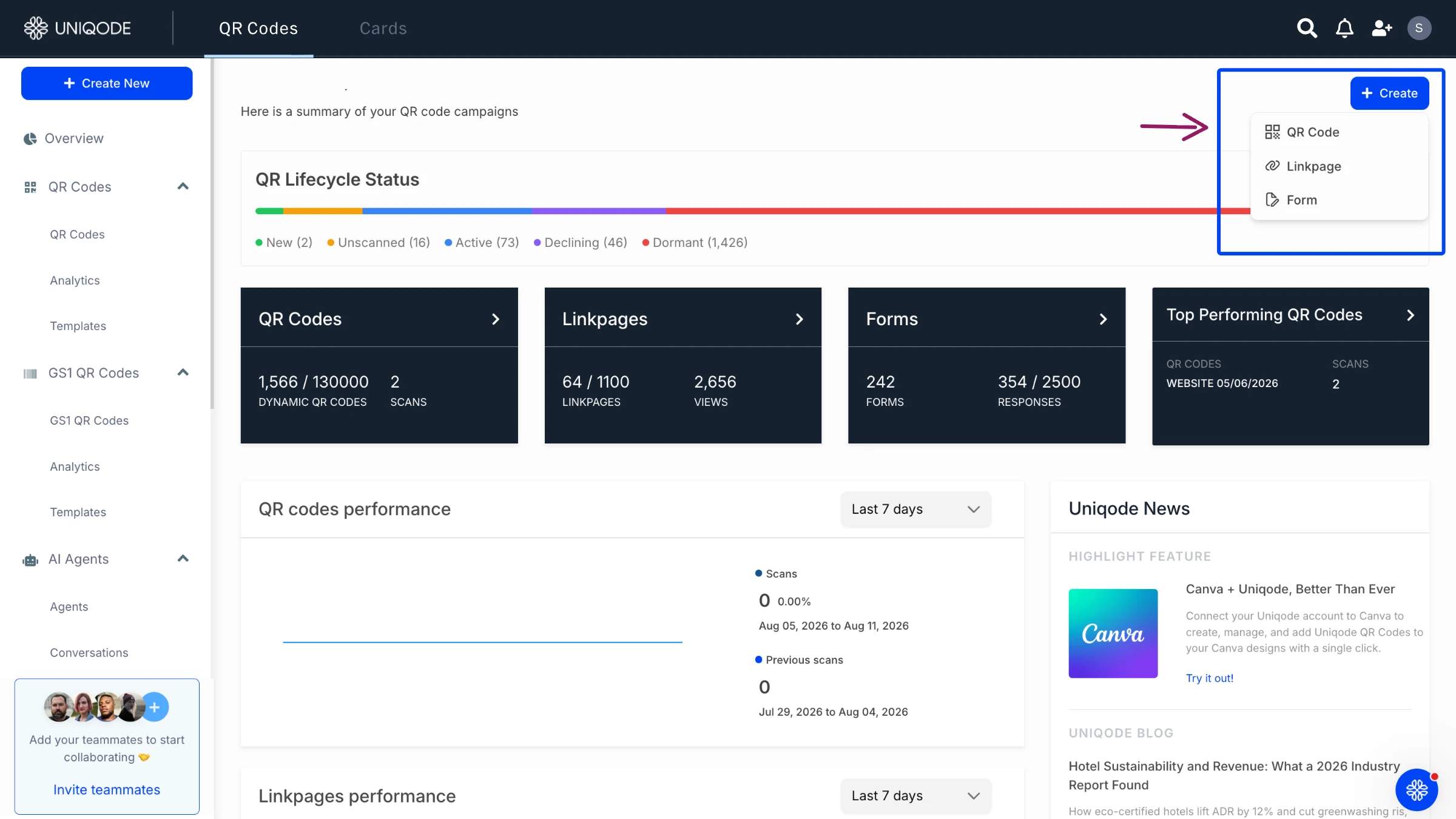
2. Paste the URL of the website
In the field provided, paste the QR Code's destination link and click "Next."
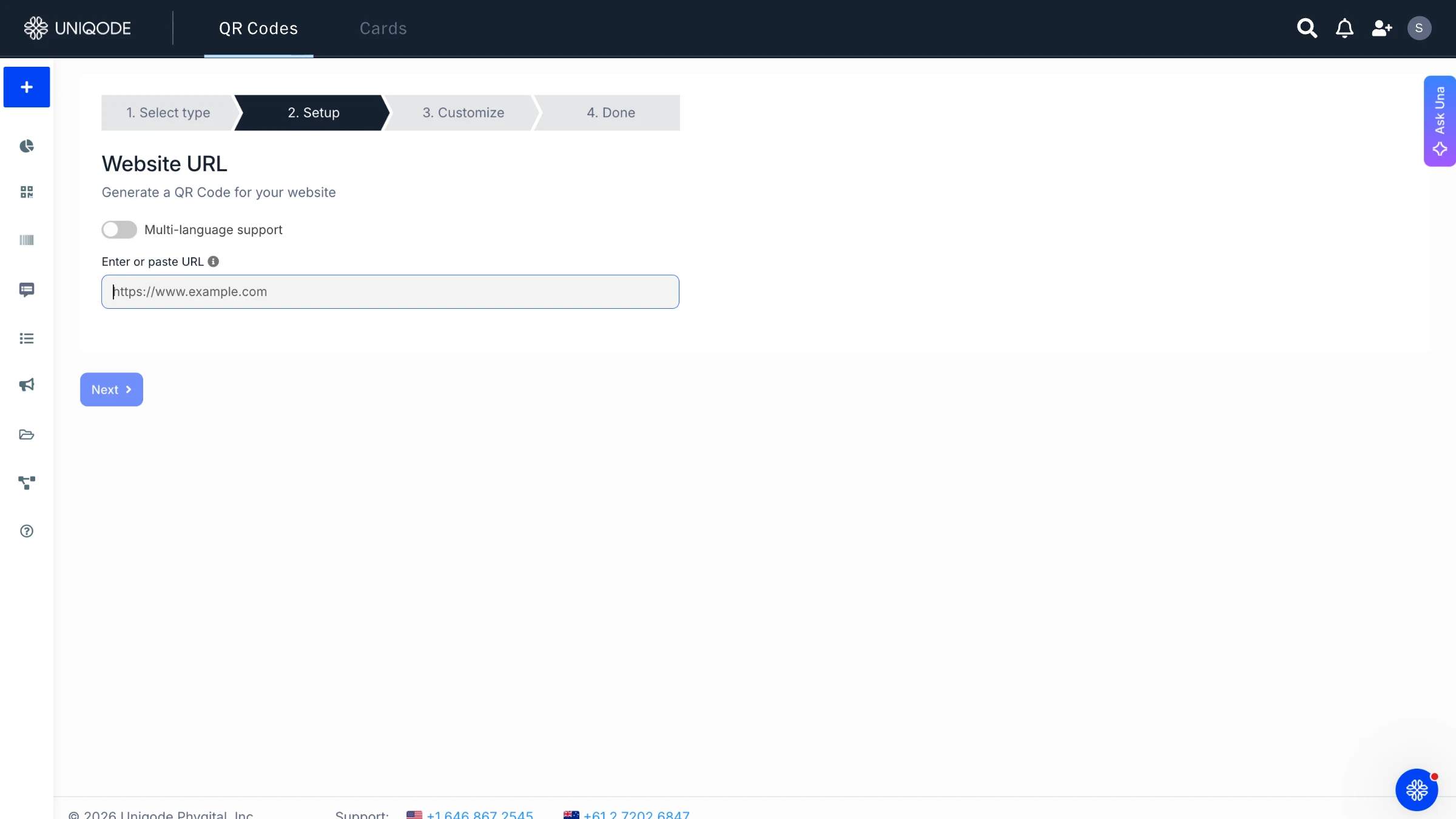
3. Customize your QR Code
Add a logo, change the color, adjust the eye patterns, and set the background to align the code with a brand or campaign design. Add a frame that prompts people to scan or tells them what the code leads to, then click "Next."
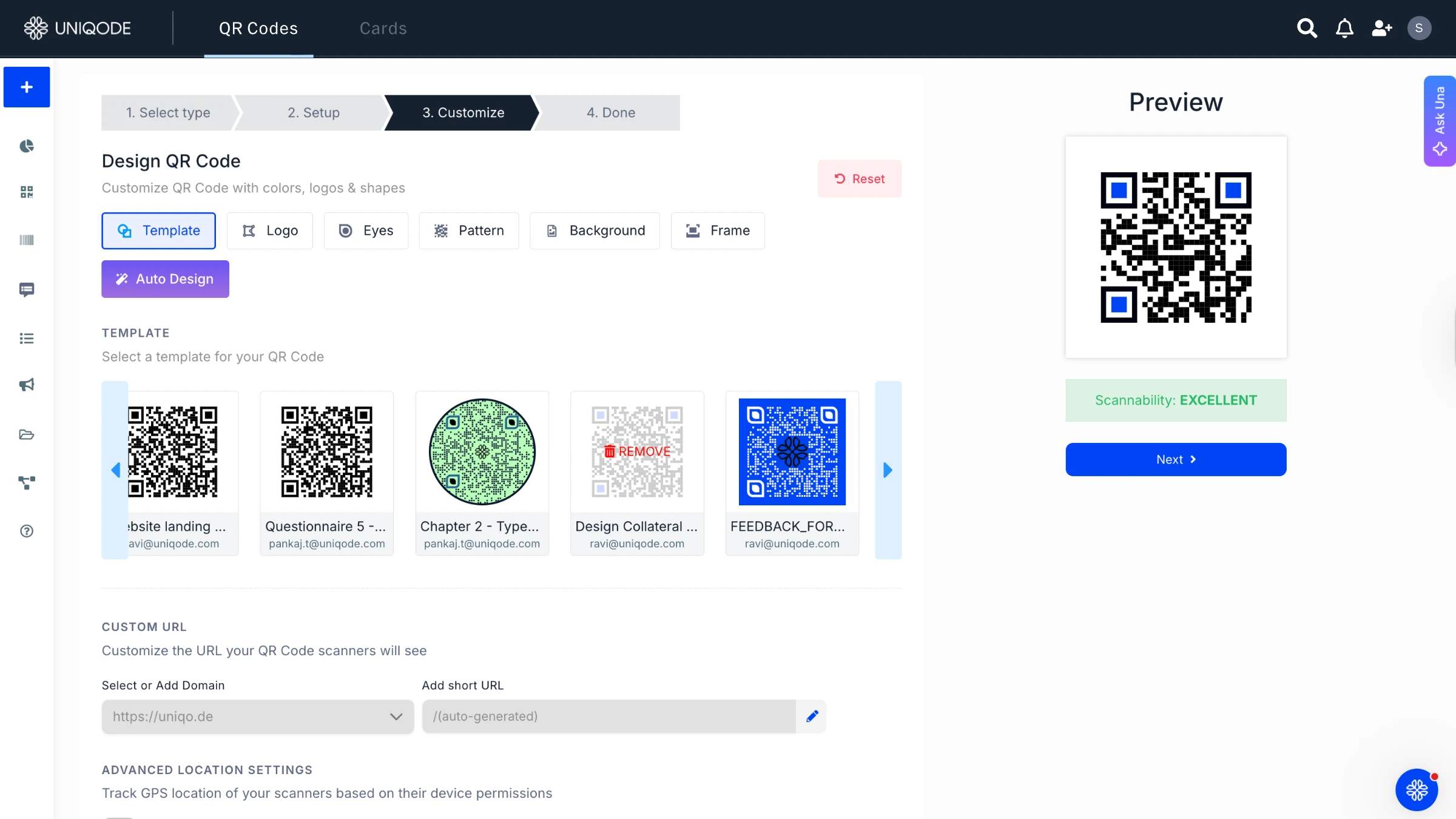
A preview of the QR Code and its scannability status appears on the right side while customizing. That status checks quiet zone, contrast, and export resolution together in one pass. Aim for an Excellent rating to keep the code sharp and scannable.
4. Download the QR Code in PNG format
Click "Download QR Code" and choose "PNG." The code is ready to use across the use cases below.
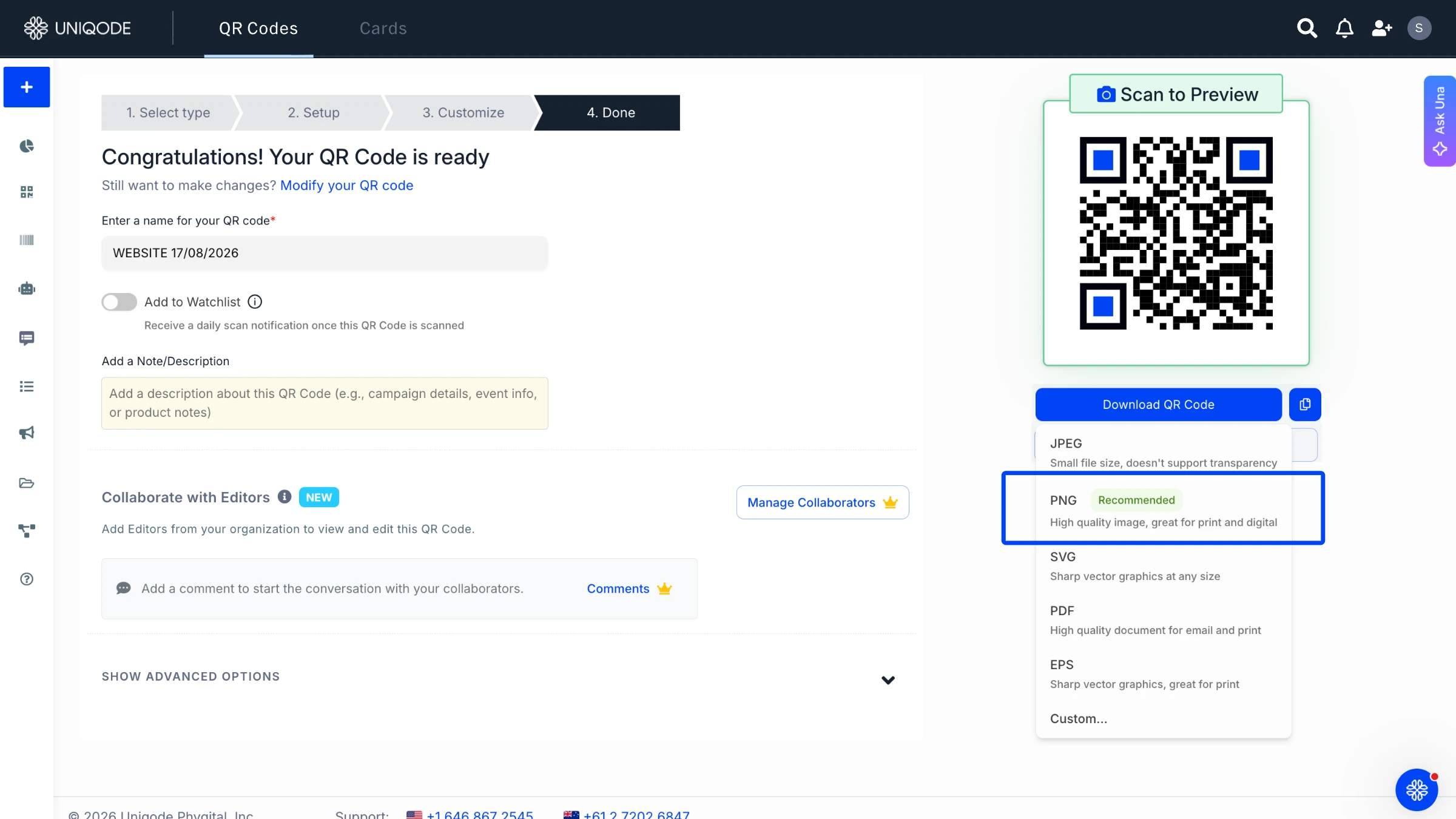
Use cases of PNG QR Codes
PNG QR Codes are versatile, working seamlessly across the channels that matter most to marketers: social media, digital ads, print, and product packaging. According to Uniqode’s State of QR Codes 2026 report, PNG is used by 64% for social media, 60% for digital ads, 50% for print, and 42% for product packaging. The best part? You do not need a different format for each channel.
1. Social media campaigns
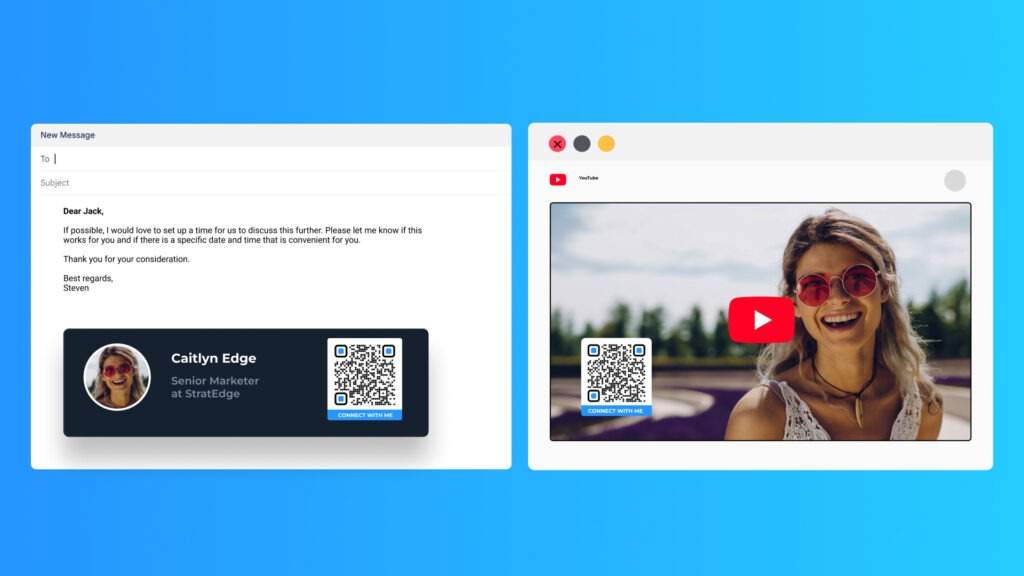
PNG QR Codes are remarkably resilient, maintaining their clarity even when compressed to fit the unique size requirements of different platforms. For instance, an event host can easily add a QR Code to an Instagram or TikTok post that links directly to a ticket page. No matter how much the image is resized, the code remains perfectly scannable. If you pair this with a dynamic QR Code, you also gain the advantage of scan tracking, allowing you to see exactly which platform is driving your ticket sales. Curious about the difference? Take a look at dynamic vs. static QR Codes.
2. Printing and packaging
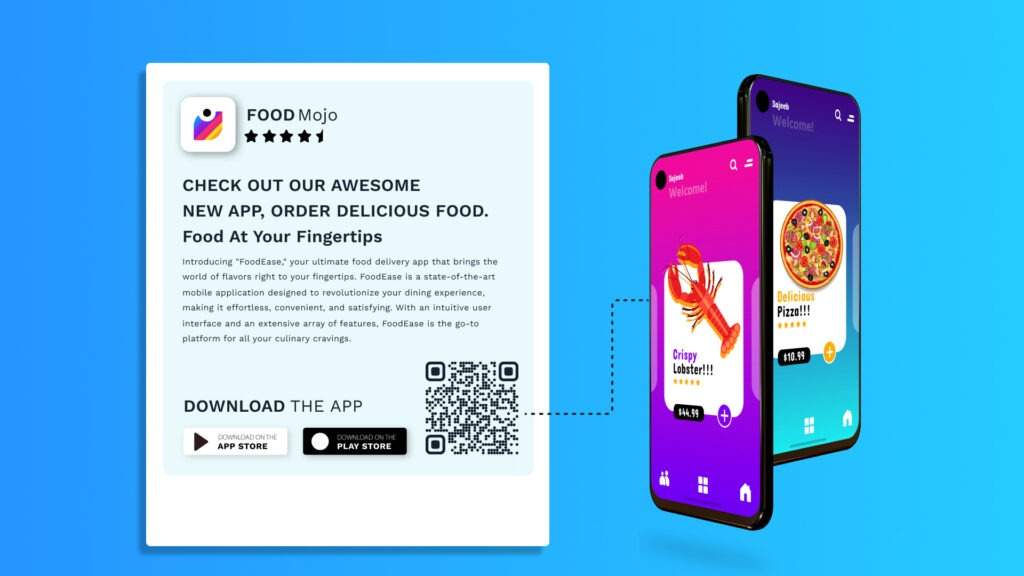
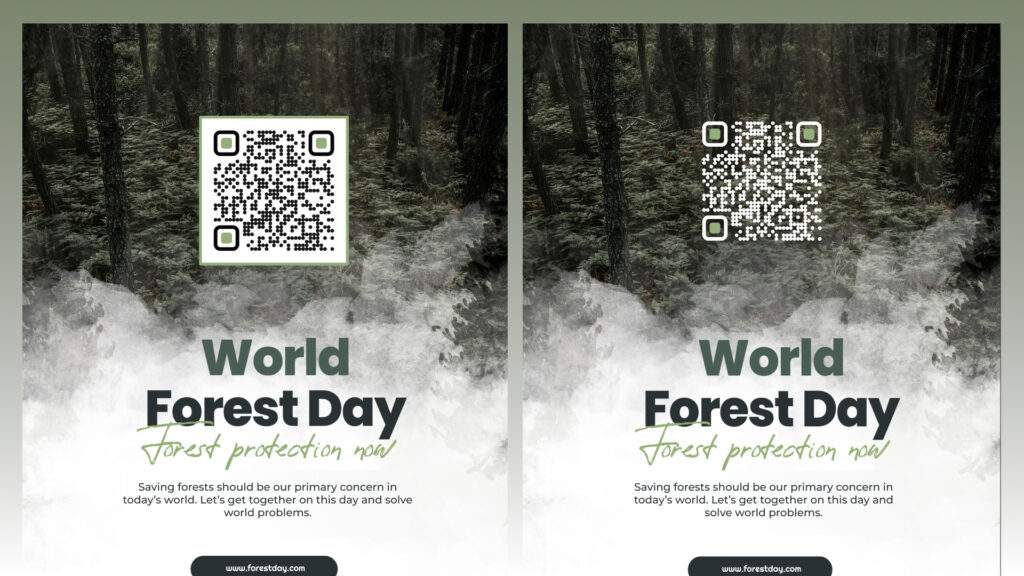
PNG QR Codes use lossless compression, so they stay sharp when printed. Marriott Aruba saved $150,000 by switching guest materials to dynamic QR Codes, since you can update a dynamic code’s destination without reprinting the PNG. Maesa uses QR Codes on CBD packaging to link to Certificates of Analysis. If a code can’t be scanned, it’s considered a defective unit under state rules. Keeping codes scannable helps Maesa avoid about $10 million in losses each year. PNG is also the only format that allows transparency. To blend a code into your print design, choose “Transparent” under “Select Background” in Uniqode’s customization step.
3. Web pages and applications
Because many programs support PNG files, a QR Code for a OneDrive document or Dropbox link will look the same on your phone or laptop. You can also use the same file in a YouTube description or an email footer without losing quality. Read: creating a QR Code for a OneDrive file.
Common mistakes that stop a PNG QR Code from scanning
Five common mistakes can prevent a PNG QR Code from scanning: low export resolution, too much styling, a missing quiet zone, a busy background, and a stretched aspect ratio. These issues are not unusual. Uniqode’s State of QR Codes 2026 report found that 36% of consumers have come across a QR Code that would not scan, and 29% have found an expired or dead link.
- Low-resolution exports are the usual suspects when QR codes fail to scan. What looks crisp on your screen can quickly lose clarity once printed at a larger size, especially if it drops below the recommended 10:1 scan-distance ratio. Remember, a low-res PNG simply cannot invent extra pixels when you try to enlarge it.
- Over-styling is another pitfall to watch out for. Logos, bold colors, or custom eye patterns can look appealing, but if they cover too much of the code, even the error correction cannot save it. For example, if your logo covers 20% of the QR code, you need at least Q-level error correction for it to work. Place that same logo on a code set to L-level, and the scanner simply cannot fill in the blanks.
- Design templates often cause trouble by cropping or covering the quiet zone. If a border, text box, or any graphic element creeps closer than four modules from the edge of your code, the scanner gets confused. It cannot tell where the QR code ends, and the rest of your design begins.
- Placing a code over a busy or textured background creates a contrast problem distinct from the quiet zone issue. A photo or patterned surface behind the code, even with the quiet zone intact, can make the black-and-white modules hard for a scanner to distinguish from the background.
- Stretching or squashing a PNG QR Code during resizing breaks its fixed-pixel grid. A code resized disproportionately distorts the modules into rectangles rather than squares, and most scanners fail to read a distorted pattern.
Best practices for creating a PNG QR Code
While implementing a PNG QR Code, remember these tips to provide an excellent experience to your users:
1. Have a contrasting background
How the data patterns (dots with which QR Codes are made of) are visible in a QR Code determines how well-scannable it is.
This is why choosing a background that enhances the data patterns is key.
For instance, you can have a classic white or transparent background for a QR Code. If you want to create a custom QR Code, use contrasting colours use colors, so the data patterns stand out and the scannability is intact.
2. Ensure optimal size and positioning
The minimum size recommended for a QR Code is 1 cm x 1 cm. We suggest not resizing PNG QR Codes to fit larger dimensions.
You can downscale it but ensure the image doesn’t look skewed. Then again, for scannability, ensure the QR Code is large enough.
We recommend at least 1 cm of white space around the QR Code to improve scanning accuracy.
Also read: Want to resize QR Codes for your next use case? Read our QR Code sizing guide.
3. Add a CTA
A clear and direct CTA (call to action) can help increase QR Code scans. Having text below the QR Code gives people a preview of what the code leads to, and nudges end-users to scan it.
For instance, you display and verbally address a PNG QR Code in your YouTube video. However, CTAs like “Scan for merch” will help get more context for someone viewing the video on mute.
Create PNG QR Codes and use them across physical and digital mediums
The ability to host transparent backgrounds and support lossless compression means PNG QR Code is versatile for online and offline materials.
Create a QR Code using a PNG QR Code generator and customize it for use across mediums without hassle.
By upgrading to dynamic PNG QR Codes, you can access Uniqode’s dashboard to get insights such as the number of scans and top-performing QR Codes, etc.
Frequently Asked Questions
- How do I create a QR Code for a PNG?
For a QR Code in PNG, you need to create a QR Code and download it in PNG format. Here’s how you can do that using Uniqode.
Login or sign up with Uniqode’s dashboard
Choose the QR Code campaign type
Upload the file or paste the URL
Customize your QR Code
Download the QR Code in PNG format
- Do you lose quality with PNG?
PNG is a lossless compression format, it means the file won’t lose its quality when you compress the file size. However, the PNG image can look pixelated if you resize it to make it big.
In the case of PNG QR Codes, a pixelated QR Code hampers the scannability of the users.
- What is the difference between PNG and JPEG QR codes?
PNG QR codes maintain lossless compression, meaning they retain 100% of their quality when compressed, while JPEG QR codes lose quality every time you re-save or compress them. PNG format supports transparency and offers a wider range of color depths for printing, making it superior for both digital mediums like websites (used by 82% of websites globally) and print materials where color accuracy is critical for scannability.
- Can you use PNG QR codes for printing?
Yes, PNG QR codes are excellent for printing as long as you don't need to significantly scale up the size, since PNG is resolution dependent and only loses quality when upscaled. PNG format offers a wider range of color depths compared to JPEG, ensuring colors don't appear faded in print and maintaining optimal scannability of your QR codes on physical materials.
- Do PNG QR codes support transparent backgrounds?
Yes, PNG QR codes fully support transparent and semi-transparent backgrounds, which is a key advantage over JPEG format that doesn't support transparency. This feature allows PNG QR codes to seamlessly blend into any design, website, or marketing material without the need for a solid white or colored background box, making them ideal for professional branding and modern design aesthetics.
- Can a QR Code be PNG?
Yes. PNG is one of the most common export formats for a QR Code, alongside SVG and JPEG, and it's the default download format on most QR Code generators.
- Is PNG or JPEG better for a QR Code?
PNG. JPEG's lossy compression degrades the sharp edges a QR Code's data pattern depends on, and JPEG doesn't support a transparent background at all. PNG has no equivalent downside for QR Codes.
- How can I turn an image into a QR Code?
Turning an image into a QR Code means styling the code's visual design to look like a photo, a separate feature from exporting a QR Code as a PNG file. Most QR Code generators offer image styling and PNG export as two different steps: pick the destination content first, then style the code's appearance, then choose the export format.
- Should I download a QR Code as PNG or JPEG?
Download as PNG. PNG keeps full image quality through lossless compression and supports transparent backgrounds. JPEG loses quality on every re-save and can't support transparency. There's no scenario where JPEG is the better export choice for a QR Code.
About the Author
Ektha is a QR code expert with years of research and analysis into the evolution of QR codes. Having written over 70 in-depth articles on QR technology, she has developed a comprehensive understanding of how QR codes are transforming industries. Her insights, including The State of QR Report, have been featured in leading publications. With a passion for simplifying complex topics and providing actionable strategies, Ektha helps businesses leverage QR codes to enhance their 'phygital' connections.
Related Posts
How to Design a QR Code: Best Practices, Mistakes to Avoid, and Real Examples
High Resolution QR Code : Ensure Clarity and Scannability
Vector QR Codes Explained: SVG vs EPS, DPI, and Print-Ready Setup
QR Code with a Background Image: How to Create One That Still Scans
How to Add a QR Code Border (and Keep It Scannable)