How to Create a QR Code for a OneDrive File
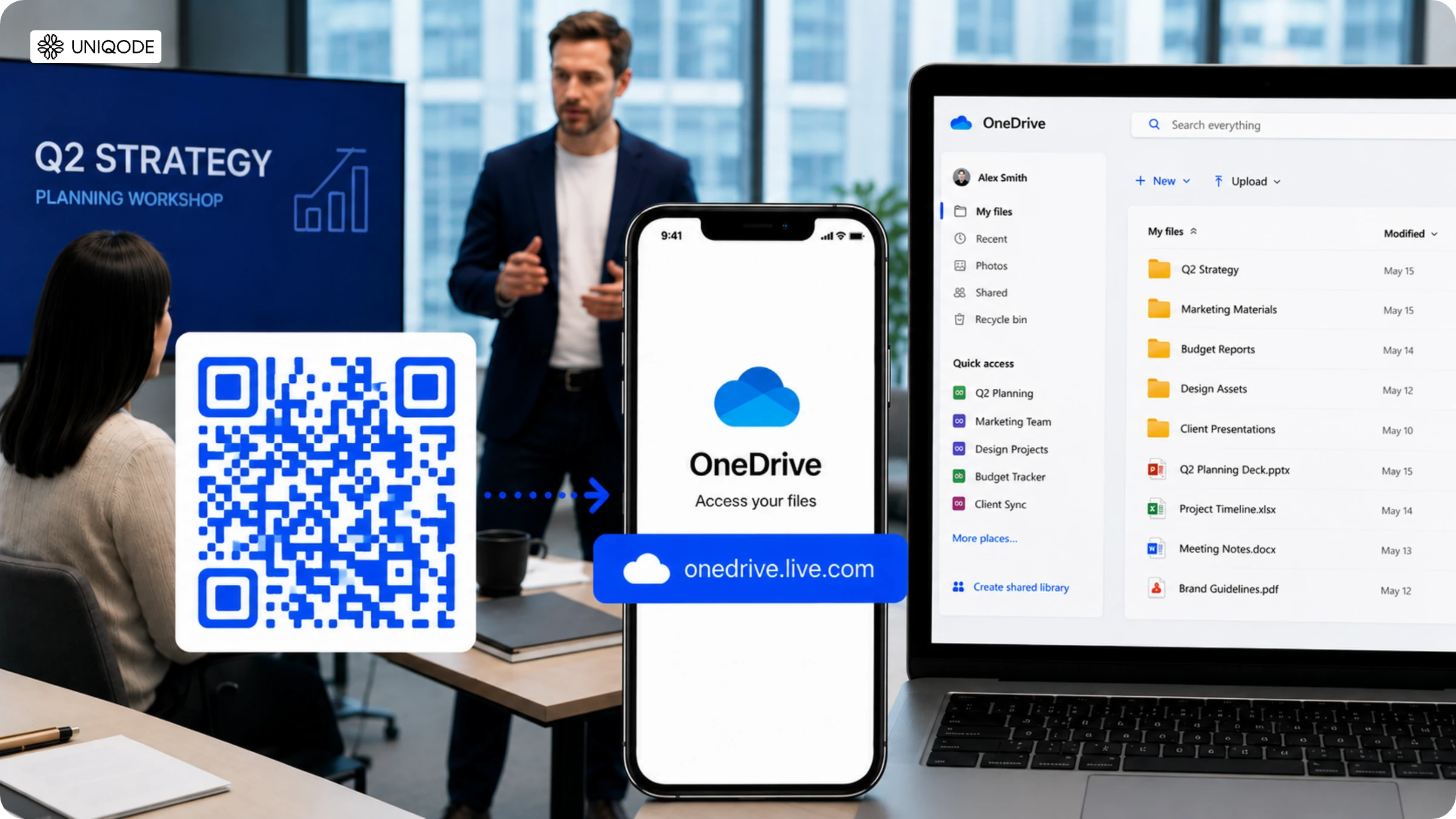
Replace lengthy and confusing OneDrive URLs with customizable QR Codes! Read on and learn to create QR Codes for OneDrive files.
Creating a QR Code for a OneDrive file comes down to three steps: grab the file's shareable link from OneDrive, paste it into a QR Code generator, and download the resulting image. No software installs, no separate account, just make sure the link's sharing permission is set correctly before you generate the code, or scanners will hit an access-denied screen instead of your file. Here's how to do each step properly.
How to create a QR Code for a OneDrive file in 4 steps
Here is a simple four-step guide to create a QR Code for a OneDrive file. We’ll use Uniqode’s dynamic QR Code generator for this demonstration.
Remember, the process is the same for any file type. All you need is the OneDrive URLs of the file you want to share.
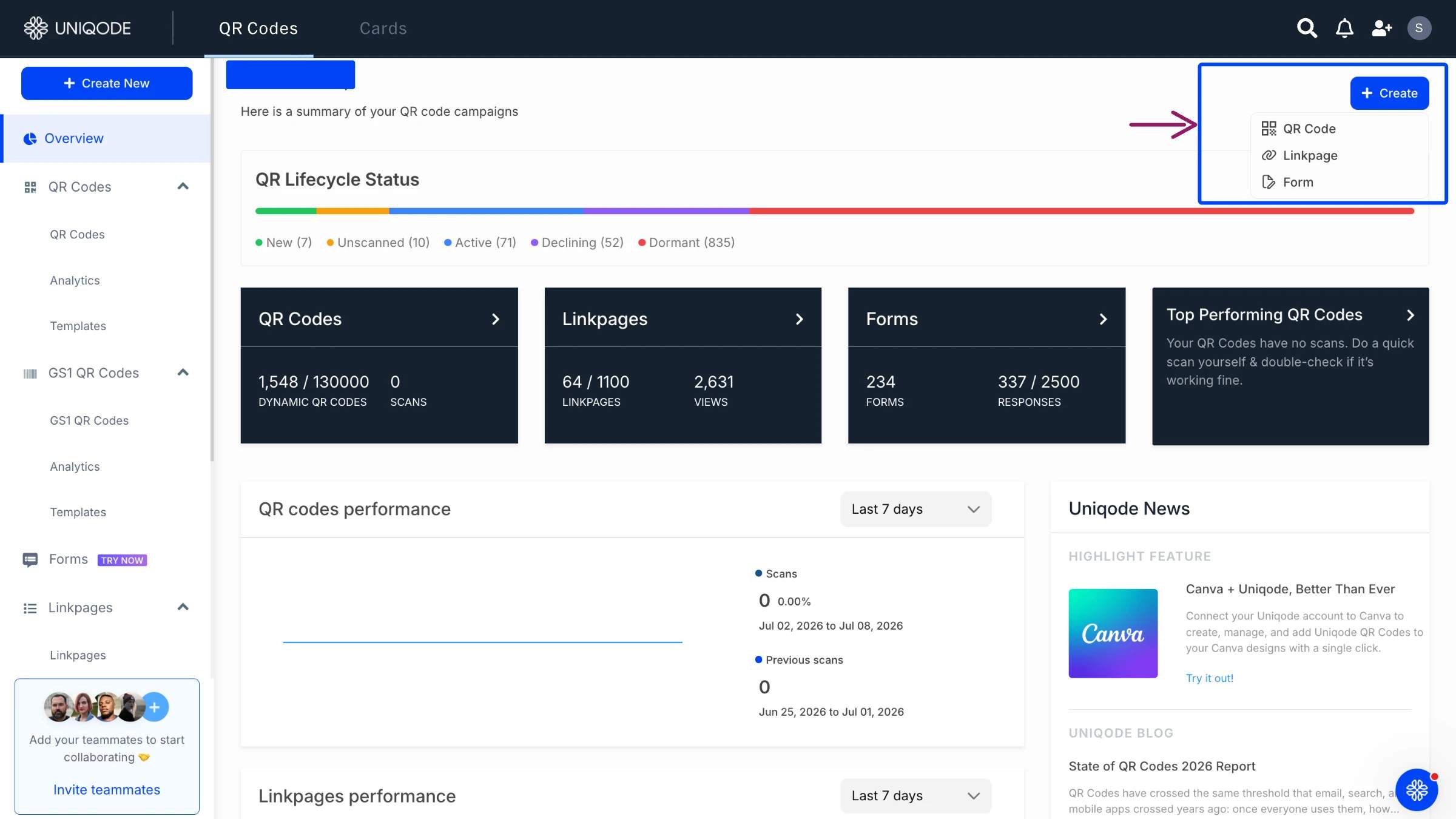
Step 1: Sign in and choose "Website" as the campaign type
Log into the Uniqode dashboard, click +Create, then QR Codes, and choose Website from the campaign types. Sign up for a 14-day trial first if there's no account yet. You can immediately start editing the destination, adding a logo, and tracking scans.
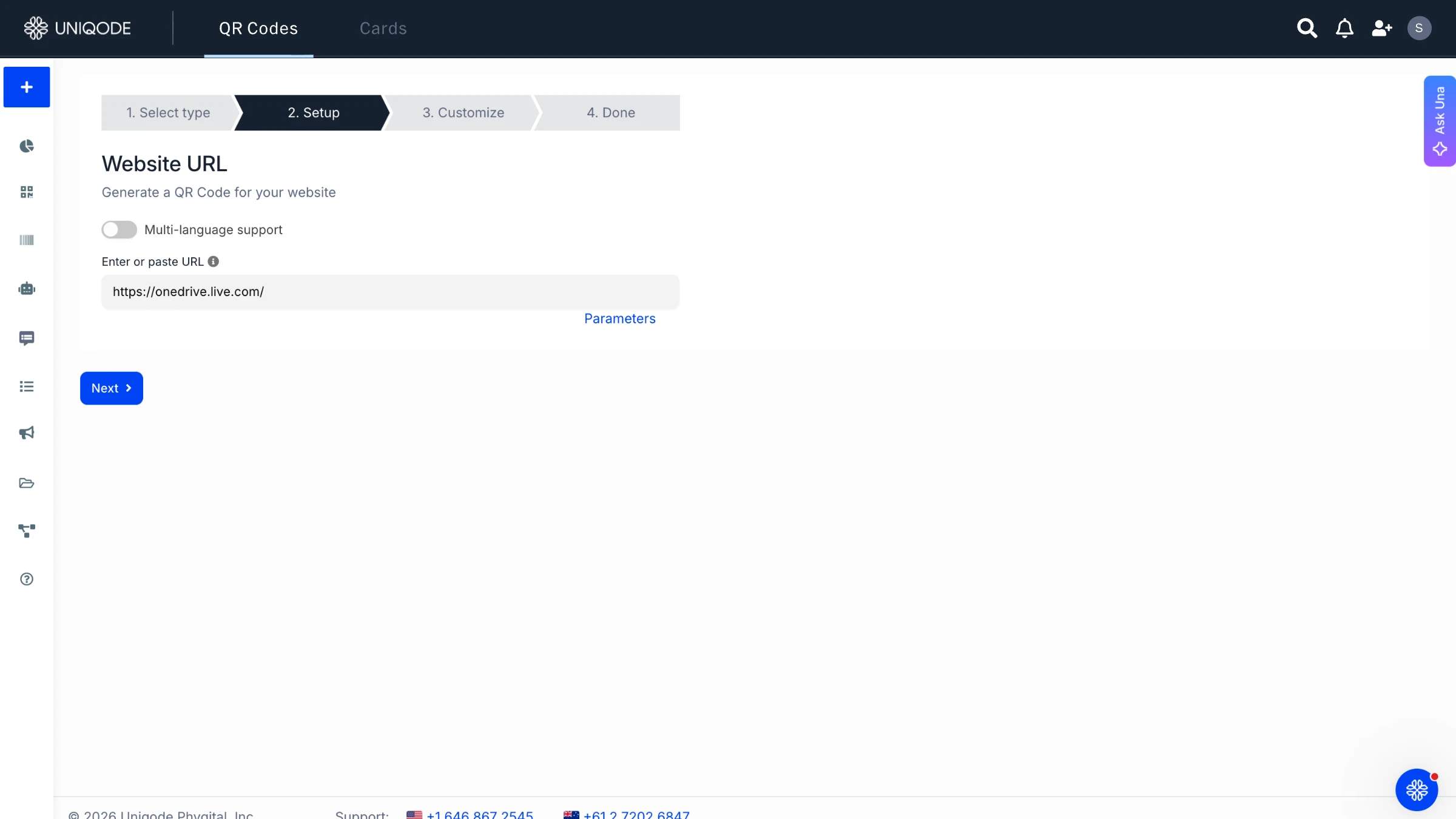
Step 2: Paste the OneDrive file or folder URL
Copy the OneDrive share link and paste it into the URL field. Before you begin distributing the code publicly, ensure OneDrive sharing permissions are set appropriately, as anyone who scans it will receive the same access as the link provides.
Step 3: Customize the QR Code's design
Change the eye shapes and pixel pattern, add a logo to the center, add a call-to-action label, and set a background color or image. None of this touches the destination, so design changes never break a code that's already printed.
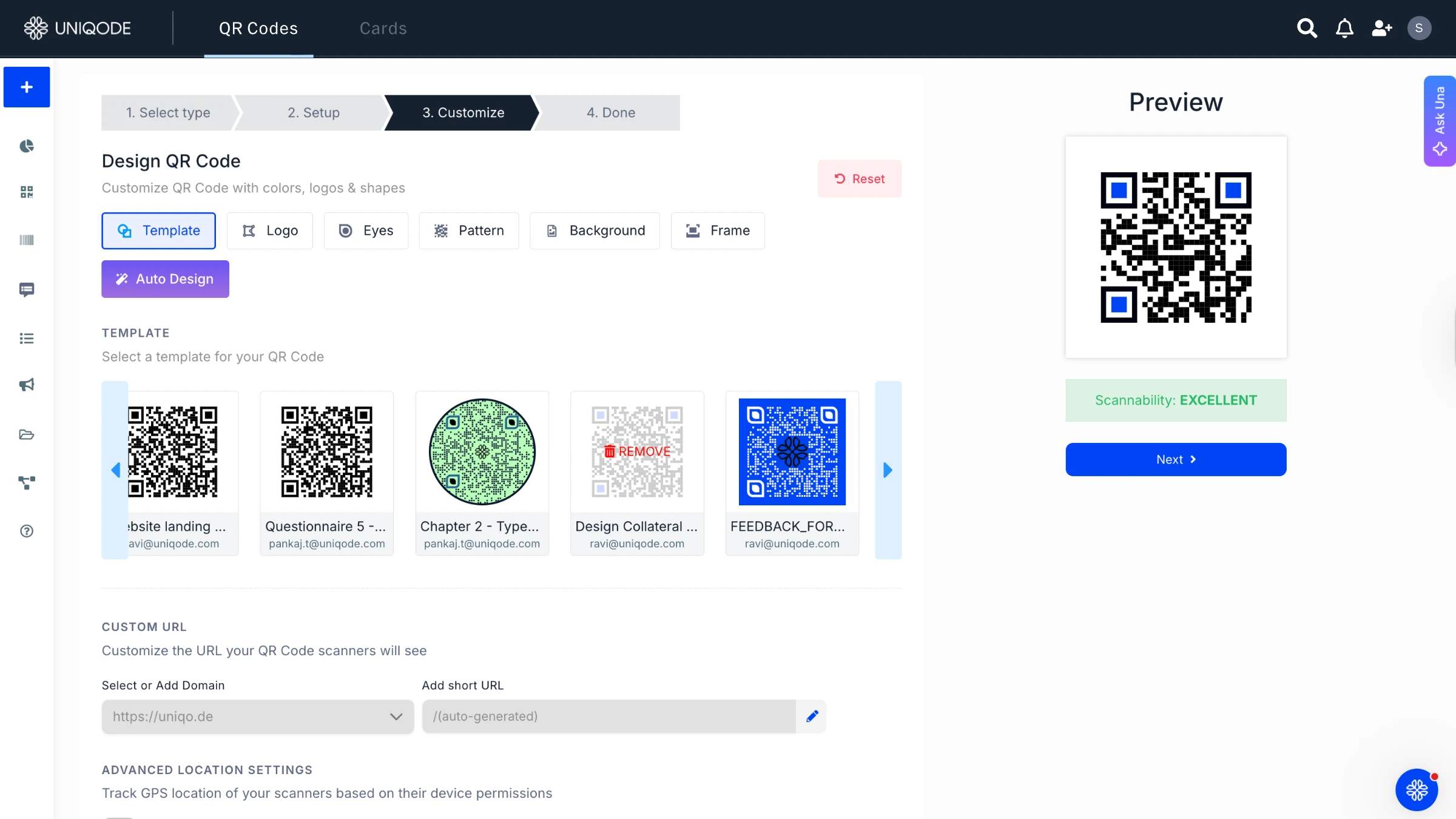
Step 4: Download the OneDrive QR Code
Use SVG for presentations or any high-resolution need and PNG, EPS, or PDF for printing at any size without quality loss. To share over email or a messaging app, PNG or JPG are the best options.
What are the benefits of converting OneDrive files into dynamic QR Codes?
When you share any content hosted on OneDrive using dynamic QR Codes, you get features that elevate your sharing experience.
Here are some of such features (available only with dynamic QR Codes):
- Update or change the OneDrive URL at any time. The QR Code will get updated, and you don’t have to reprint or reshare a new QR Code.
- Use QR Code scans tracking to monitor user interaction and access data like the number of scans and more. Easily export the insights through the dashboard
- Get extensive customization options for your QR Code.
- Password-protect the QR Code for only authorized users to access your OneDrive files.
- Set an expiry date for your campaign. Post expiry, people scanning the QR Code won’t be redirected to the OneDrive file.
- Bulk-create QR Codes for multiple OneDrive URLs
Why a dynamic QR Code beats a static link
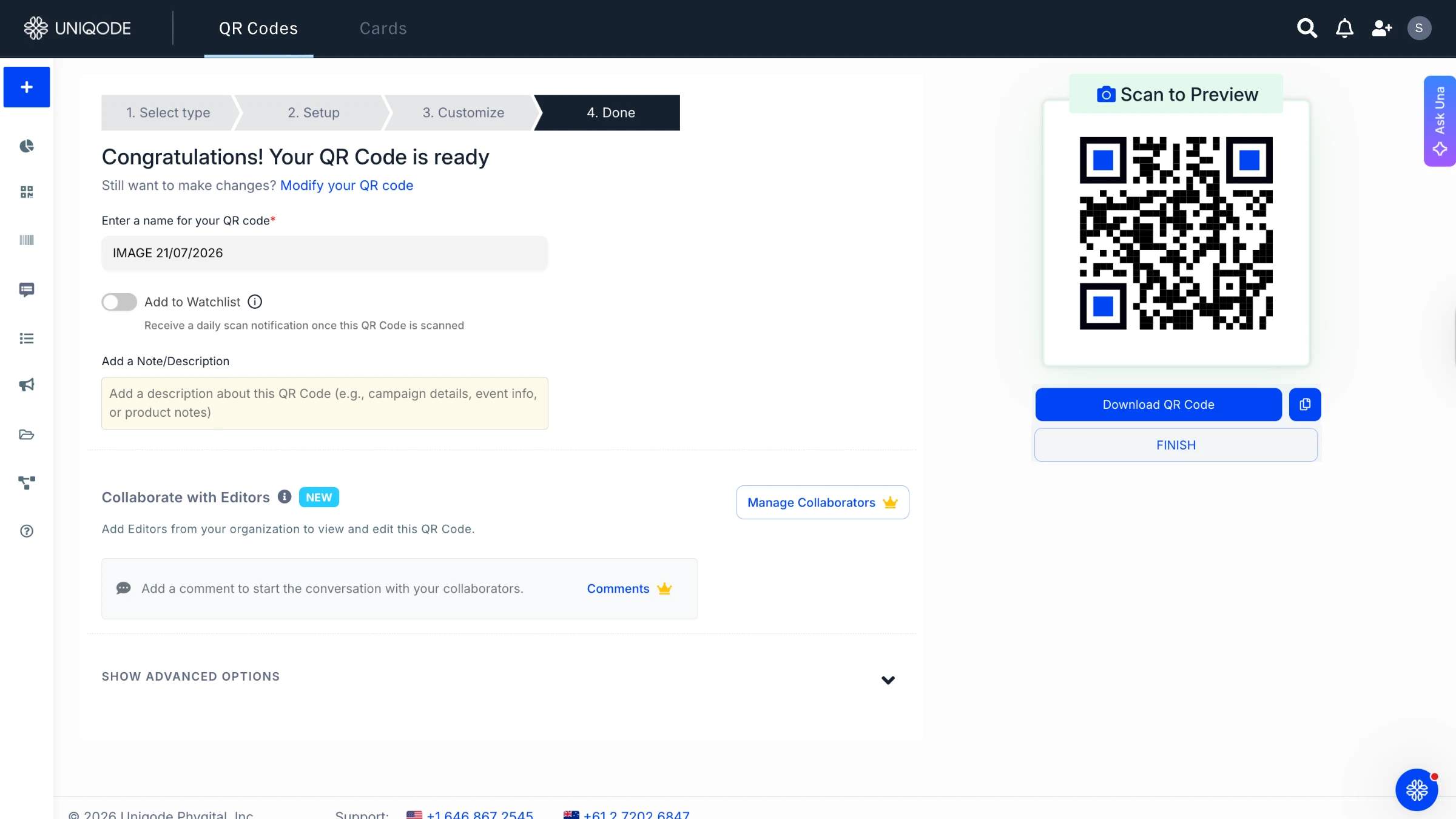
A dynamic QR Code remains functional even if you change its destination, while a static QR Code always points to the original link. If you move a file or need to fix a broken link, a static code must be reprinted. With dynamic codes, on the other hand, you can update the OneDrive destination from the dashboard at any time, and all existing codes will automatically direct users to the new file. The dashboard also allows you to track total and unique scans, export this data, and monitor file access, which is unavailable for static QR Codes. You can also add a password for additional security beyond OneDrive permissions, and set an expiry date so the code stops working according to your chosen schedule.
Does a OneDrive QR Code expire automatically?
No. A OneDrive QR Code is only as secure as the underlying share link, which does not expire automatically. According to Microsoft's sharing guidance, you must set the link to "Anyone with the link" before generating a QR code, and this permission remains active until it is manually revoked. As a result, a QR Code created for a specific meeting or presentation will continue to provide access to the file as long as both the link and file exist. To enhance security, you can password-protect the QR Code, requiring a password to access the file regardless of the link's permissions. Alternatively, setting an expiry date restricts access after a specified date.
Native tools vs. a dedicated QR Code
Microsoft already ships two free ways to make a QR Code, and neither one is built for sharing a OneDrive file the way a dedicated tool is.
| Microsoft Edge QR generator | Microsoft 365 Copilot Chat | Uniqode dynamic QR Code | |
|---|---|---|---|
| OneDrive share link support | No. Only makes a QR Code for the current browser tab, not a pasted link | No. Generates from a text prompt, not a link | Yes. Paste any OneDrive share link directly |
| Editable after creation | No, static | No, static | Yes. Change the destination anytime |
| Password protection | Not offered | Not offered | Yes |
| Expiry / scheduling | Not offered | Not offered | Yes |
| Scan analytics | Not offered | Not offered | Yes. Total and unique scans |
| Cost | Free | Free, included in Microsoft 365 Copilot | Free to start, 14-day trial |
If you only need to do a one-time share with trusted people, Edge or Copilot Chat works. However, switch to a dedicated tool once the destination needs to change, the access needs tracking, or the code needs to lock down after printing.
8 ways teams use OneDrive QR Codes
- Employee onboarding packets - Point one code at a shared folder of onboarding documents so new hires scan once instead of chasing email attachments.
- Conference and event handouts - Print a code on a session handout linking to slides hosted on OneDrive, and swap the file after the event without reprinting.
- Real estate portfolios - Share a consolidated folder of listing photos and disclosures from a yard sign or a printed flyer.
- Educational resource distribution - Hand out a code linking to a OneDrive folder of course materials that keeps updating throughout the course duration.
- Internal team file access - Post a code in a shared workspace that always points at the current version of a working document.
- Folder-level sharing - Point the code at an entire OneDrive folder instead of a single file. Scanners get the same access the folder link grants.
- Client deliverable handoff - Share a folder of final files with a client instead of emailing large attachments back and forth.
- Print-to-digital handoff - Turn a printed report's OneDrive backup link into a code so readers pull the live file instead of a static copy.
Best practices for a OneDrive QR Code
- Always check the OneDrive link's permission before generating the code. "Anyone with the link" means anyone who gets the QR Code gets the file.
- Password-protect any code that will sit in a public place, like a printed handout or a lobby poster.
- Set an expiry date on a code tied to a single event or a single audience.
- Test the code on both iOS and Android before printing, since camera apps handle OneDrive redirects slightly differently.
- Update the destination in the dashboard when the file moves, instead of reprinting a new code.
Pro Tip: Before printing a OneDrive QR Code for a public handout or slide, set the code to expire or add a password to it. Doing so ensures that once the QR Code has served its purpose, it is no longer exposed and accessible to the public.
Replace OneDrive URLs with QR Codes and make offline sharing easy
Easily share OneDrive content via QR Codes to an offline audience and track the interactions with Uniqode dashboard.
Uniqode is GDPR compliant and SOC® 2 Type 2 certified. It means all the data you upload to the dashboard and data from the audience scanning the QR Code are always safe.
Frequently Asked Questions
- Can you password-protect a QR code for OneDrive files?
Yes, dynamic QR codes can be password-protected to ensure only authorized users can access your OneDrive files. This security feature is exclusively available with dynamic QR codes and allows you to control who can scan and access your shared documents, presentations, PDFs, or photos.
- How do you share OneDrive folders with multiple people using QR codes?
You can share OneDrive folders with multiple people by converting the folder's URL into a QR code in 4 simple steps: log into a QR code generator dashboard, select Website campaign type, paste the OneDrive folder URL, then customize and download the code. People scanning the QR code will have the same level of access to files as they would via the URL, so ensure permissions are set appropriately before sharing publicly.
- Can you track how many times someone scans your OneDrive QR code?
Yes, dynamic QR codes provide scan tracking analytics that monitor user interactions including the total number of scans and other engagement data. These insights can be easily exported through the QR code generator dashboard, allowing you to measure how many people are accessing your OneDrive files through the QR code.
- Does OneDrive have a built-in QR Code feature?
No. There's no QR Code option anywhere in OneDrive, Share or Settings. Sharing a file or folder as a QR Code always requires pasting its share link into a separate tool, like Uniqode.
- Can I make a OneDrive QR Code that stops working after a certain date?
Yes. A dynamic QR Code can be set to expire on a specific date, after which scanners see a page you control instead of the live file. A static code or a raw OneDrive link can't do this on its own.
Related Posts
How to Create Resume QR Codes (and Best Practices for a Standout Digital CV)
How To Create a QR Code for Sharing Photos
How to create a QR Code for Google Slides
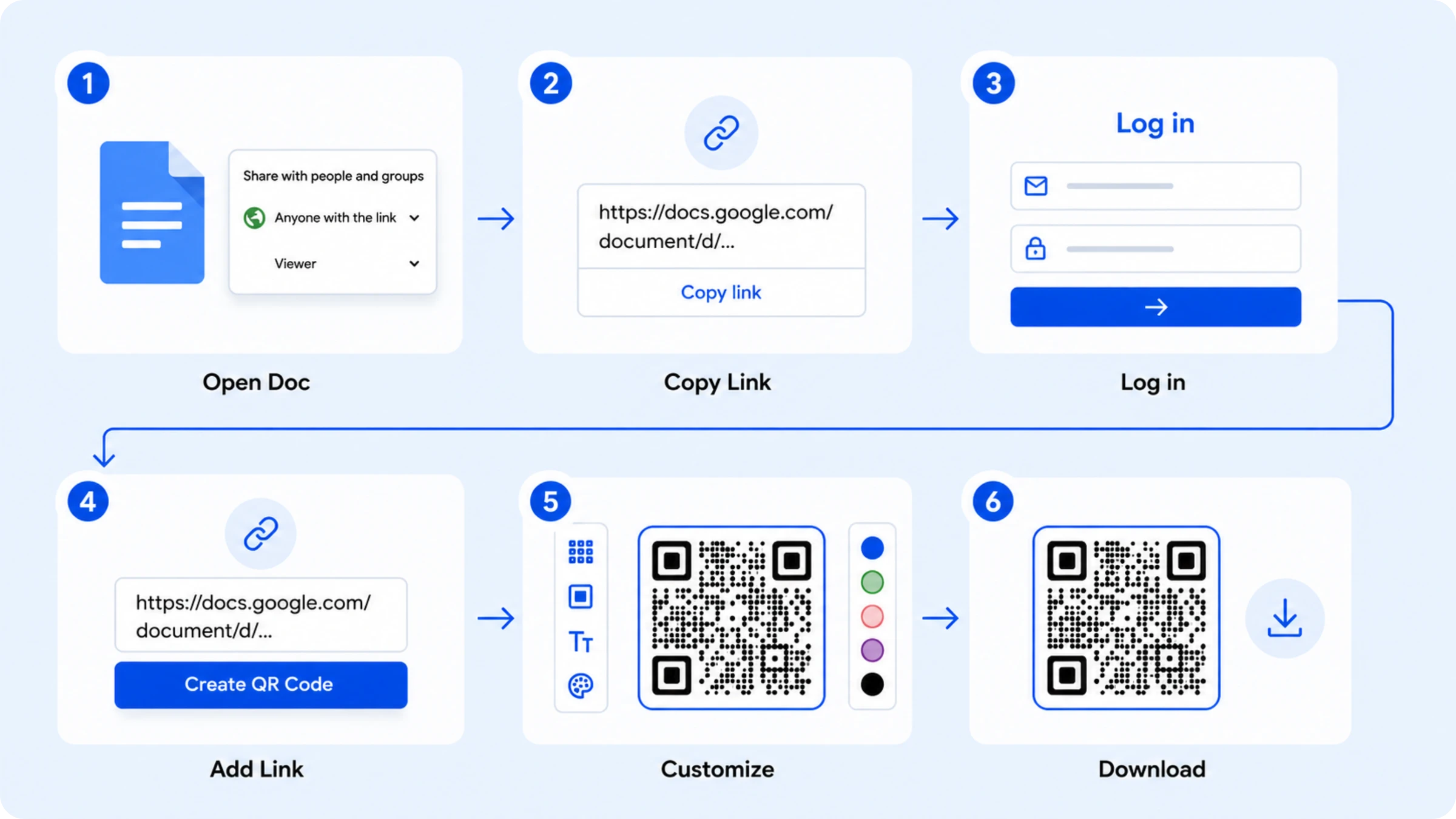
How to Create a QR Code for Google Docs (Step-by-Step Guide)
Chrome QR Code Generator: 4 Ways to Create a QR Code in Chrome