
White QR Code: What It Is and How to Create One
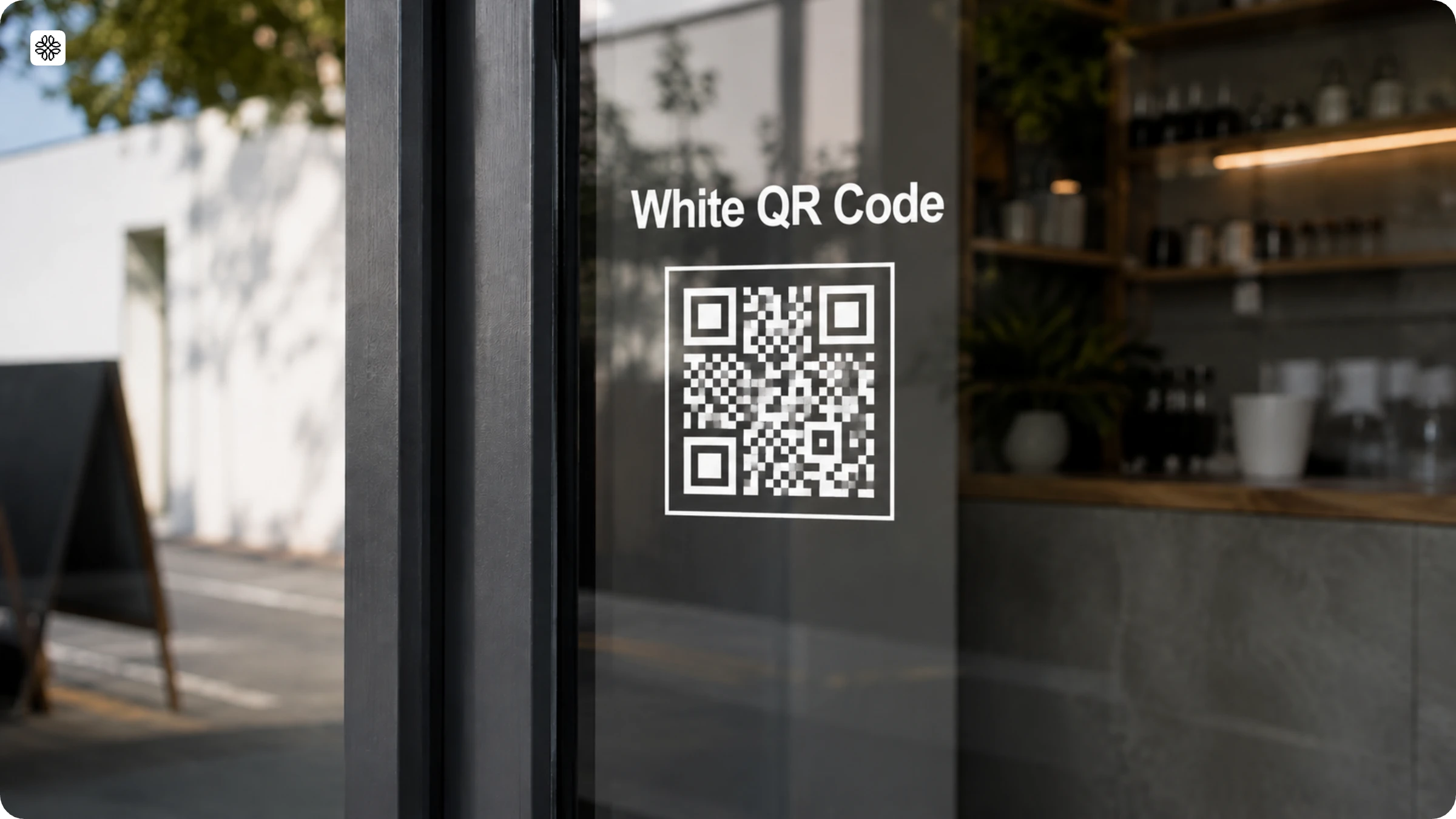
A white QR Code swaps black modules for white so it scans on dark surfaces. Create one with a transparent background in 4 steps, plus brand examples and scan tips.
A white QR Code is a regular QR Code with its modules and three corner eyes turned white instead of black. The trick is to place it on a dark or high-contrast background, so it stands out where a standard black code would blend in. Functionally, nothing changes. You get the same data, the same quiet zone, and the same error correction. The only difference is that the colors are flipped to make sure your code pops on dark packaging, black merchandise, or even dark-mode screens.
Custom QR Codes like these are quickly gaining popularity, right along with the booming QR Code market. In fact, the market is expected to jump from $13.04 billion in 2025 to $33.14 billion by 2031, as per Mordor Intelligence. Remember: you need a minimum contrast ratio of 4:1 for your white QR Code to scan as smoothly as a standard one.
What is a white QR Code?
A white QR Code is simply a regular QR Code with white squares instead of black ones. White QR Codes replace the standard black modules with white ones, including the patterns and the three large corner squares (the eyes). The main difference from a standard QR Code is this color reversal, which provides strong contrast against deep-toned surfaces.
White QR Codes work within the same technical limits as any QR Code, just flipped. Three specs decide whether the inverted version actually scans: a contrast ratio of at least 4:1 between the modules and the background, a quiet zone at least 4 modules wide left completely clear, and an error correction level of Q or H (25–30% redundancy) to cover for contrast loss at the edges of a print run.
The white elements in this QR Code stand out against deeper-toned surfaces and printing materials. For example, a brand with a dark navy packaging design can stick a white QR Code directly on the box without affecting its design.
How to create a white QR Code in four steps
You can create a white QR Code by setting the pattern and eyes to white, placing it on a dark background, and testing scannability before download. Follow the steps to create and customize your white QR Code on Uniqode.
Step 1: Log in to Uniqode and choose a QR Code type

Create an account on Uniqode QR Code generator (or log in to your account if you already have one). Click +Create, then select QR Code. Choose a QR Code type according to your use case. For example, choose Website to link to a webpage.
Step 2: Change the pattern and eyes to white

Choose the shape of your QR Code. Then set the color to white.
Click Eyes and change both the eyeball and eye-frame to white (#FFFFFF). Next, click Pattern and set it to white.
Step 3: Choose a dark or contrasting background
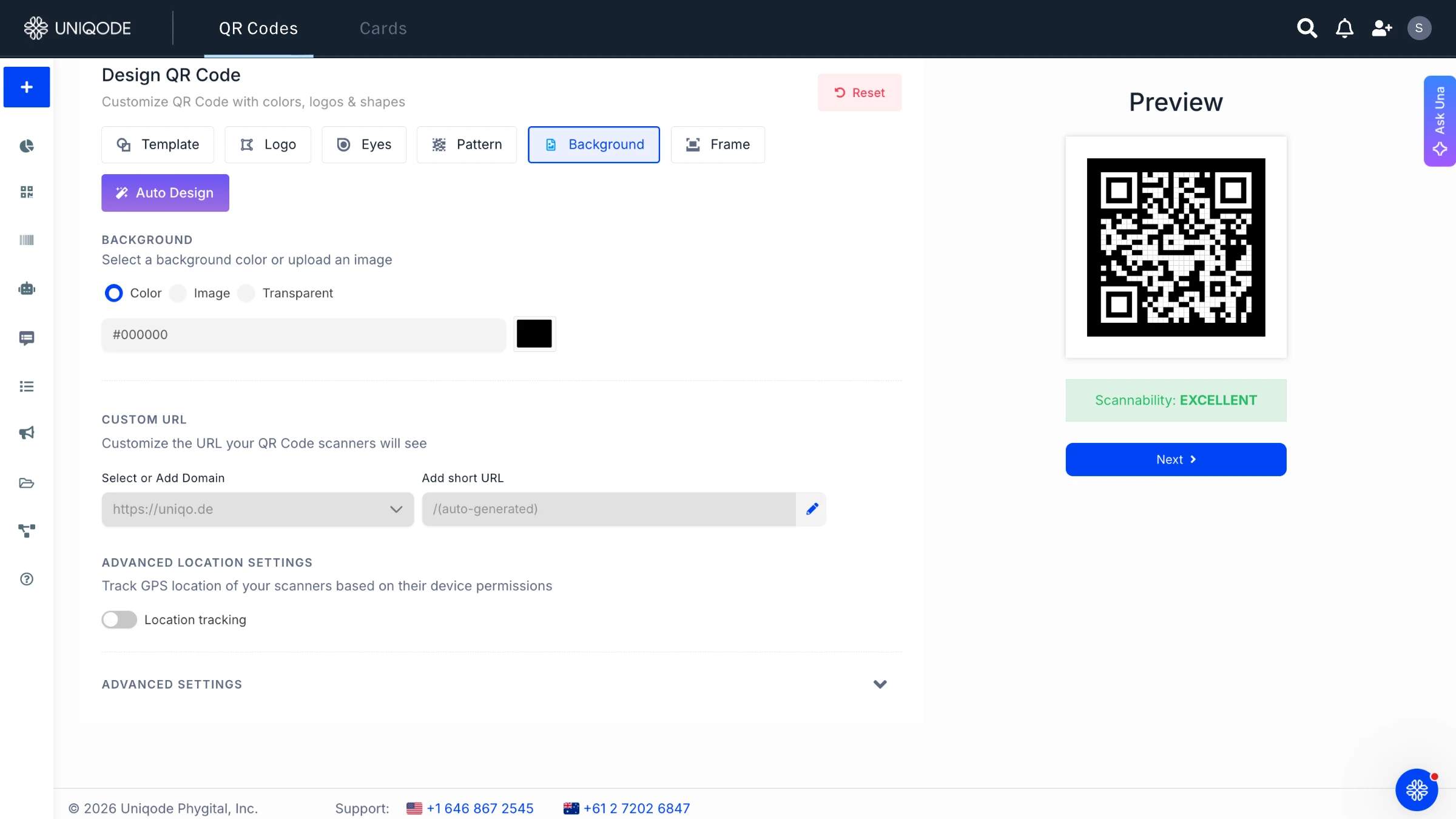
Select Background and choose a contrasting color to ensure the QR Code remains visible. You can also choose a background image or a transparent background as long as the final placement is dark.
⚡Pro Tip: A white QR Code with a transparent background only works on dark or high-contrast surfaces. If placed on light backgrounds, it will not scan. In Uniqode, the preview may show a low scannability score because it uses a white background by default. Download the transparent QR Code and test it on your final design with the actual background before printing.
Step 4: Test scannability and download

Use the real-time scannability preview on the right and adjust the background color until the score shows GOOD or EXCELLENT. Then, click Next and name your QR Code. Download it in your preferred format. Uniqode offers JPEG, PNG, SVG, PDF, and EPS formats.
Where to use white QR Codes
White QR Codes are not a design choice. They are a functional requirement in any context where a dark background makes a standard black code unscannable or visually inconsistent.
- Dark product packaging. Luxury, tech, and cosmetics brands that use black or navy boxes need a white code to maintain both scannability and the premium feel of the packaging.
- Event materials with dark themes. Concert posters, film premiere collateral, and nightlife event print all use dark palettes where a black code disappears entirely.
- Premium print collateral. Black business cards, dark-themed brochures, and metallic finishes are surfaces where white codes scan reliably and hold the visual hierarchy of the design.
- Digital dark mode interfaces. App splash screens, dark-themed websites, and digital signage all benefit from white codes that stay legible without disrupting the interface aesthetic.
- Branded merchandise. Dark t-shirts, black shopping bags, and dark retail signage are high-visibility surfaces where white codes are the only scannable option.
- Automotive and tech product surfaces. Dashboard labels and device cases with dark finishes need white codes to remain both functional and on-brand.
- Augmented reality and interactive digital experiences: Codes that trigger an augmented reality overlay, an interactive video, or a branded filter often sit on dark title cards, packaging inserts, or event signage, where a white code stays visible without breaking the visual design of the experience.
What are examples of white QR Codes used by brands?
Brands use white QR Codes to match dark visuals while keeping scans reliable. White QR Codes are a strong fit for minimalist designs, premium packaging, and campaigns where a subtle, blended QR Code placement matters more than a bold scan prompt. The examples below show how popular brands put that approach into practice.
The Billboard Run campaign by Adidas

Adidas launched The Billboard Run to reignite runners' passion across Stockholm, Sweden.
Adidas placed white QR Codes on dark, motion-heavy billboard creatives, featuring a runner in full stride against a near-black background. Scanning the QR Code connects runners to an app that tracks their real-time progress as they race between four designated billboards across Swedish districts.
World Music Day campaign by boAt
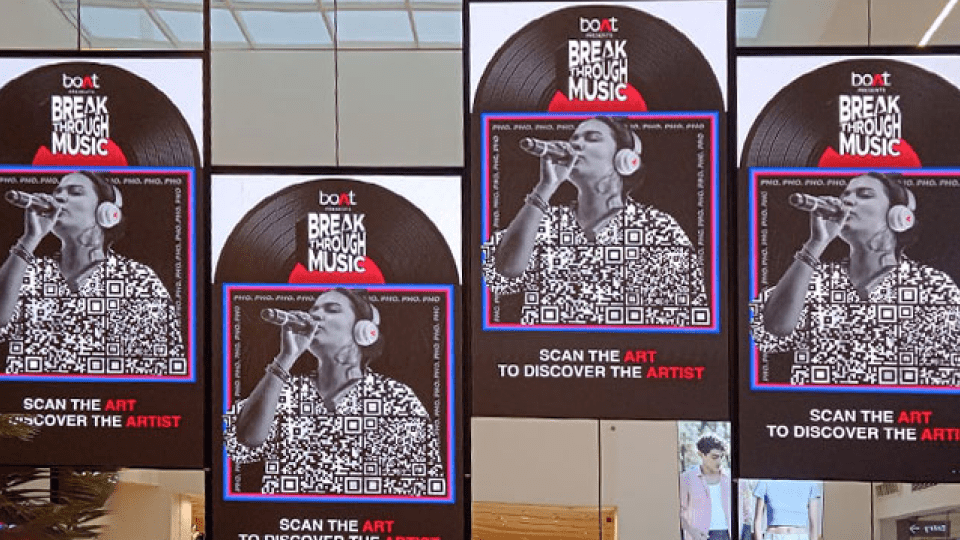
boAt Lifestyle, one of India’s leading audio-wear brands, launched a campaign to promote emerging artists who often struggle to gain visibility on streaming platforms.
boAt used white QR Codes in YouTube ads and billboards with dark backgrounds to drive scans. Users who scanned the QR Code landed on boAt’s website to discover artist profiles and music on platforms such as Spotify and YouTube.
#ThisAdIsMyStore campaign by Cadbury

Cadbury Celebrations launched #ThisAdIsMyStore to support small business owners.
Cadbury placed white QR Codes on image-heavy, dark-toned backgrounds to ensure visibility and scannability. Scanning the QR Code opens a WhatsApp Business chat, allowing users to connect with and purchase from local businesses.
Interact Run “Black” sneakers by Nike

Nike launched the Interact Run "Black" to champion sustainability and circularity in everyday running footwear.
Nike placed a white QR Code directly on the tongue of the all-black shoe, blending into the shoe's aesthetic while remaining scannable. Scanning the code reveals information about the company's sustainability goals, tips to extend the shoe's life through its Care-Repair program, and guidance on how to recycle or donate the pair once it has run its course.
Common mistakes that break white QR Codes and best practices
- Assuming "transparent" means "goes anywhere." A transparent PNG only stays scannable on dark or high-contrast surfaces. Drop it on a light background and it disappears the same way a black code would on white on white.
- Eyeballing the contrast instead of measuring it. A white QR Code needs a 4:1 contrast ratio against its background, minimum. Run it through a contrast checker before printing, not after.
- Adding a logo without raising error correction. A logo covers part of the code's data. Without bumping error correction to Q or H first, that coverage is enough to break the scan.
- Printing on glossy or metallic stock without testing. Glare from a glossy finish or metallic foil can wash out white modules under normal lighting, even when the file looks correct on screen.
- Shrinking the code below minimum size. Under 2 × 2 cm in print or 240 × 240 pixels on screen, white modules lose their edge definition faster than black ones do at the same size.
- Making it static. A one-time link baked into a printed white QR Code can't be fixed once it's wrong or outdated. A dynamic QR Code lets the destination change without reprinting anything.
Here are the best practices you should follow while creating a white QR Code:
- Use a high-contrast background: Pair a white QR Code with a dark background to ensure visibility and scan reliability. If you use a transparent QR Code, place it only on dark surfaces.
- Maintain a minimum 4:1 contrast ratio: A white QR Code needs at least a 4:1 contrast ratio between the code and its background to scan consistently. Use a contrast checker tool to verify the ratio before printing or publishing.
- Avoid gradients, shadows, and textured backgrounds: Place a white QR Code on a flat, solid-color background. Gradients, drop shadows, and textured surfaces reduce contrast in certain areas of the code and cause partial qr code scan failures.
- Test on older phone models: Some older smartphones struggle to scan light-on-dark QR Codes, especially in low-light conditions. Test your white QR Code on at least 2–3 older devices before launching a campaign to catch compatibility issues early.
- Leave enough space: Avoid clutter near the code. Keep clear space on all sides to prevent scanning issues and improve detection. Consider adding a QR Code border for better clarity.
- Add a call to action (CTA): Tell users what they get after scanning. For example, “Scan to view menu” or “Scan to watch video.”
- Choose a dynamic QR Code: Edit the content your white QR Code leads to anytime with a dynamic QR Code. For example, you can update a white QR Code on printed flyers to point to a new landing page without reprinting the materials. You can also track user engagement, including the number of scans and scan locations.
- Keep it above minimum size: At least 2 × 2 cm (0.8 in) per side in print, or 240 × 240 pixels on screen. White QR Codes lose contrast definition faster than black ones when shrunk below that.
- Add a logo to a white QR Code: Center it clear of the three corner eyes and bump error correction to Q or H. The added redundancy offsets the data lost under the logo. Keep it on a small light backing plate (≤20-25% of the code’s area) so contrast holds, and push brand color into the frame or background instead, since the modules and eyes must stay white to scan.
- Match the substrate to the finish: Matte and uncoated surfaces hold contrast better than glossy or metallic ones. Glossy coatings and metallic foil create glare that washes out white modules under overhead lighting or a phone's flash camera, which is the most common reason a white QR Code fails to scan.
Create and add white QR Codes to any design with Uniqode
A white QR Code works when it maintains strong contrast and fits naturally into dark designs. By switching the pattern and eyes to white and placing it on a dark or transparent background, you keep both design consistency and scan reliability.
With Uniqode, you can create and customize white QR Codes for different use cases, test scannability before publishing, and update the destination later with dynamic QR Codes.
Start creating dynamic, fully customizable white QR Codes with Uniqode today.
Frequently Asked Questions
- 1. How do I create a white QR Code?
To create a white QR Code, sign up for or log in to the Uniqode dashboard and select a QR Code type. Add your destination file or URL, then change the eyes and pattern color of the QR Code to white. Next, choose a dark color from the palette for the background to maintain contrast and ensure scannability. Finally, test the QR Code and download it.
- 2. Can you make a QR Code white instead of black?
Yes, you can create a white QR Code by inverting the traditional black-and-white color scheme, making the patterns and eyes (the three corner squares) entirely white. White QR Codes require a contrasting dark background to remain scannable and work best when downloaded as transparent PNG files that can be placed on dark-colored materials or designs.
- 3. Are white QR Codes with transparent backgrounds scannable?
White QR Codes with transparent backgrounds are fully scannable as long as they're placed on dark or contrasting backgrounds. The scannability score may appear poor because it is set to a default white background when downloaded from a QR Code generator dashboard. But once applied to materials with high-contrast colors, such as black packaging or navy blue coupons, they scan perfectly on mobile devices.
- 4. What file format is best for downloading white QR Codes?
PNG format is the best choice for downloading white QR Codes, especially when you need a transparent background. PNG files preserve the transparency layer, allowing you to place the white QR Codes on any dark-colored background while maintaining scan reliability, unlike formats that may add a default white background.
- 5. Why is my white QR Code not scanning?
The most common cause is insufficient contrast between the white code and its background. Make sure the background is dark enough for a scanner to separate the modules cleanly. Beyond contrast, check that the quiet zone (the blank border around the code) is intact, the code has not been stretched or distorted in design software, and the file has been exported at a high enough resolution for the surface it is printed on.
- 6. What's the best format to download a white QR Code for print?
SVG or PDF formats are great for print materials. Both are vector formats, which means the code scales to any size without losing sharpness or scan reliability. PNG works for smaller print applications but can pixelate at large sizes. It’s best to avoid JPEG for print entirely, as compression artifacts around the modules can cause scanning errors.
- Does the color of a QR Code matter?
Color doesn't change what the QR Code stores. It changes whether a scanner's camera can distinguish the modules from the background. A QR scanner reads luminance contrast, not color, so a light green code on a slightly darker green background can fail to scan even though a human eye can tell the colors apart. Black-on-white and white-on-black work because they sit at opposite ends of the contrast scale, not because of the specific hues.
- Can QR Codes be any color?
Yes, as long as the modules and the background sit far enough apart in contrast, not just in color. A 4:1 contrast ratio is the baseline most scanners need. Two colors that look different to a person, like a mid-tone blue on a mid-tone red, can still register as too similar in luminance and cause scan failures.
- What error correction level should I use for a white QR Code?
Set error correction to Q or H when generating a white QR Code. QR Codes use four Reed-Solomon error correction levels: L (7% of the code can be damaged or misread and still scan), M (15%), Q (25%), and H (30%). White QR Codes get printed on more variable surfaces (textured packaging, fabric, matte finishes) where contrast dips at the edges, so the extra redundancy in Q or H gives the scanner more room to recover the code.
Related Posts

How to Design a QR Code: Best Practices, Mistakes to Avoid, and Real Examples

High Resolution QR Code : Ensure Clarity and Scannability
Vector QR Codes Explained: SVG vs EPS, DPI, and Print-Ready Setup
QR Code with a Background Image: How to Create One That Still Scans

How to Add a QR Code Border (and Keep It Scannable)