
QR Code Forms: How to Capture Leads, Registrations, and Feedback in One Flow
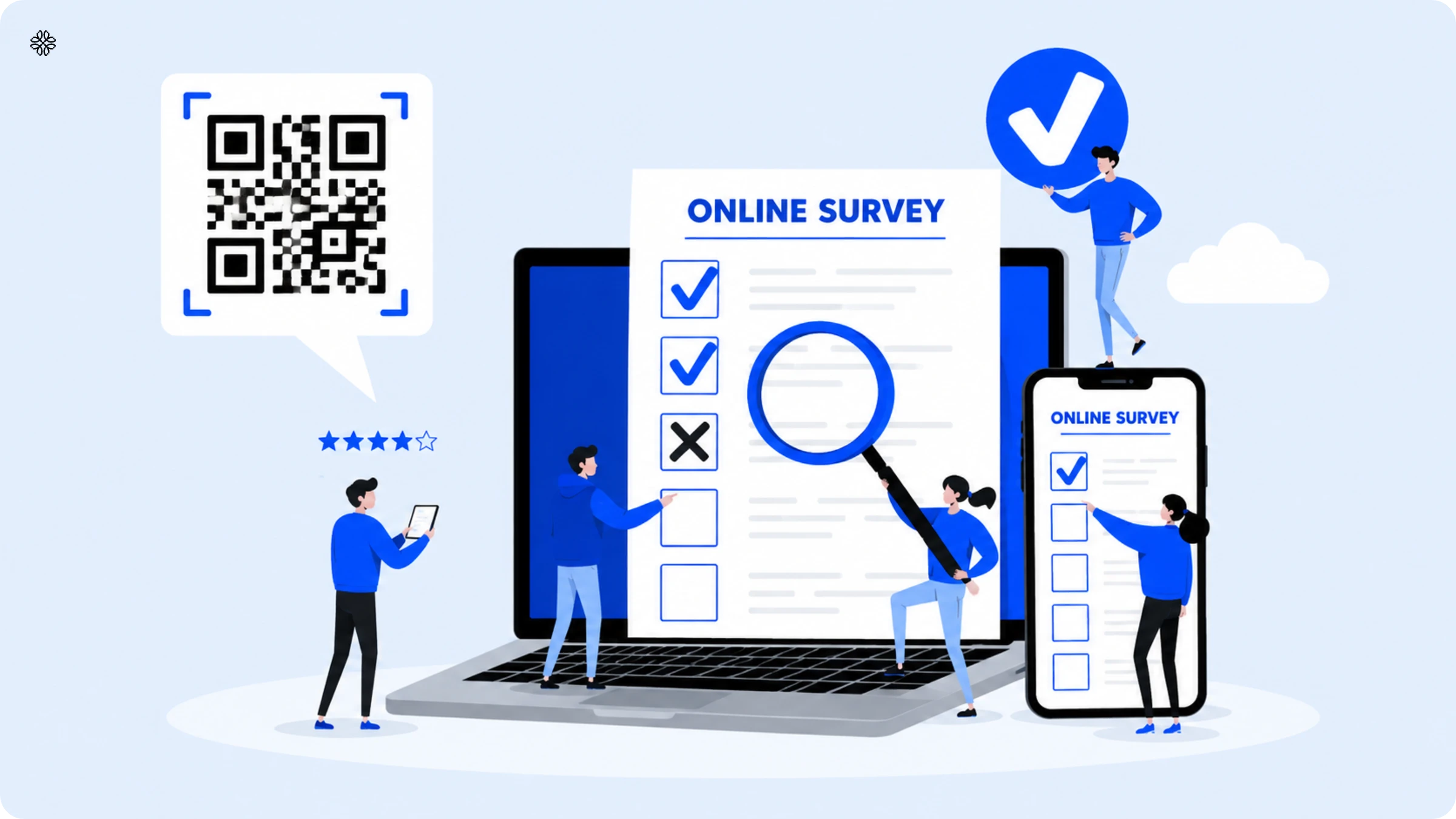
Streamline event registration, feedback collection and lead generation with Uniqode’s QR Code forms. Let your target audience access digital forms in a single scan. Check out this article to learn more.
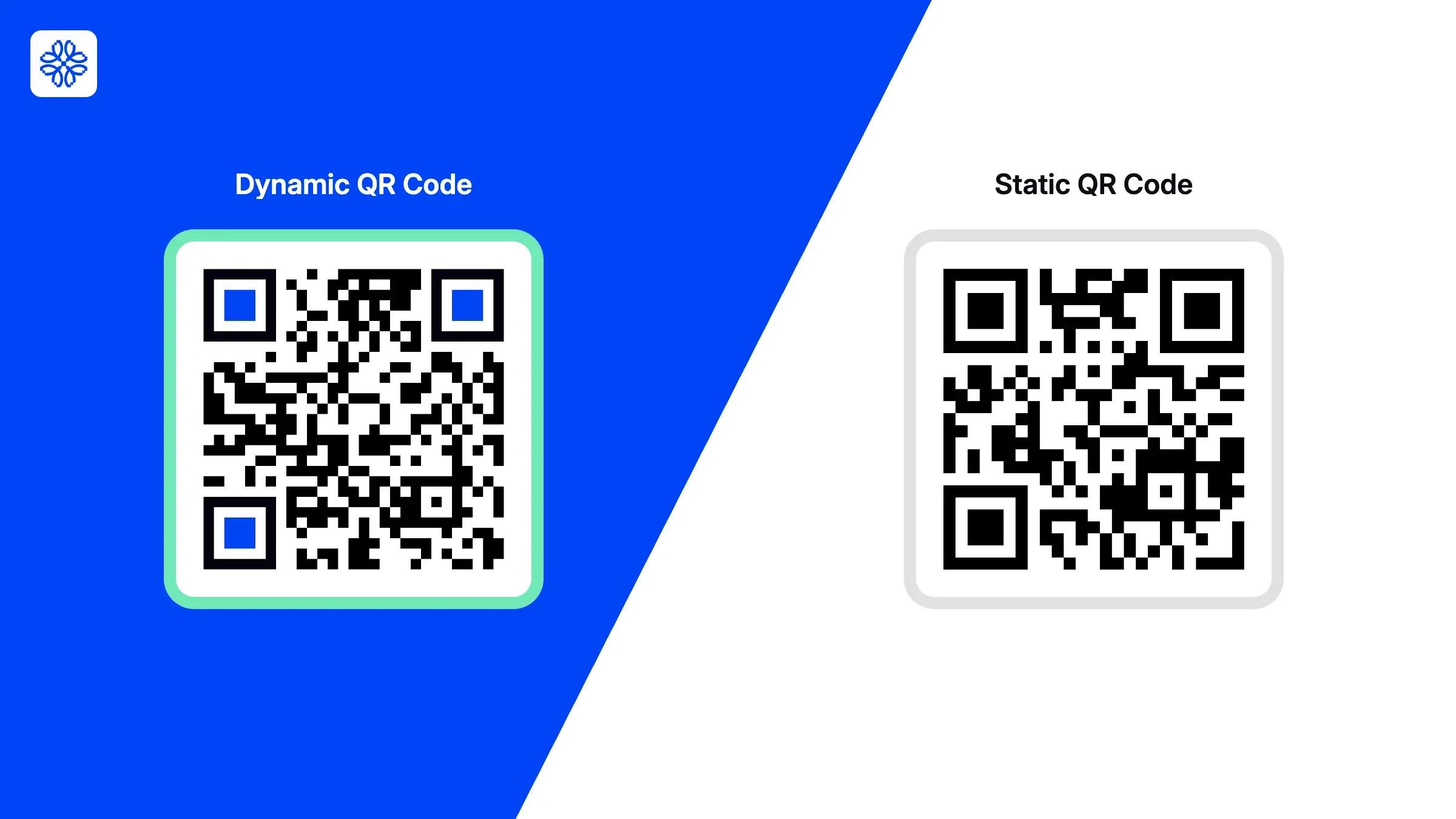
A QR Code form is a digital form, like an event registration, a feedback survey, or a lead capture flow that people can access by scanning a QR Code rather than clicking a link or filling out a paper form. The QR Code itself can be static, meaning it is generated once and always points to the same place, or dynamic, which allows you to redirect it to a new destination even after it has been printed.
If you search for how to create a QR Code for a form, you will find that most guides focus on the static approach: copy your form link, paste it into a free generator, download the image, and you are done in four steps. While this method works, it overlooks a crucial detail: the code becomes obsolete the moment you update your form.
If you change a question, reschedule a session, or retire a promotion, every QR Code already printed on badges or store windows will still direct people to the outdated page. The only solution? Reprint every single code.
Dynamic QR Codes address the hassle of reprinting, but they often introduce a new challenge: data fragmentation. While the code can be updated easily, it typically exists on a separate platform from your form. Your form tool might show 200 submissions, while your QR Code dashboard reports 450 scans. Neither platform reveals which of your breakout rooms or store locations contributed to the difference, or whether those who scanned but did not submit dropped off because of the form, its placement, or the timing.
Uniqode Forms bridges this gap by bringing both the form and its dynamic QR Code together on a single platform. When you update your form, the QR Code updates automatically, no need to reprint or juggle multiple dashboards. Scans and submissions are tracked side by side, giving you a clear view of where people drop off and why.
In this article, we will explore how this seamless experience works across three key workflows: event registration, lead capture, and feedback collection.
Why QR Codes and forms belong together
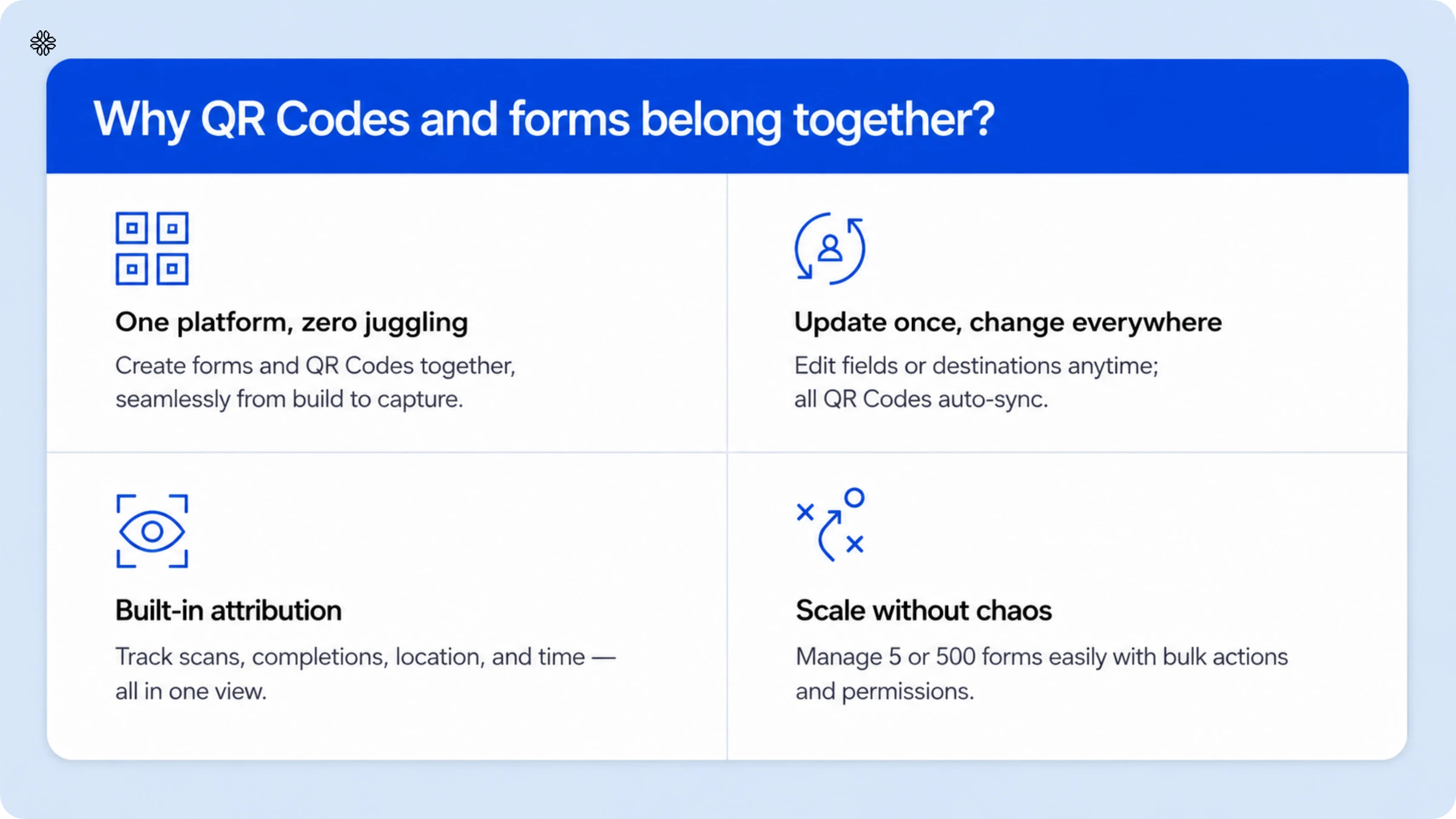
A QR Code-first approach to your forms will tell you who scanned where. Currently, platforms just add a “share this form via QR Code” feature. Sadly, that’s just for distribution, and not a sound strategy for creating dynamic, context-aware forms.
When the QR Code is native to the form builder:
- You don’t need to juggle tools or vendors. The form and QR Code are created together and are inseparable from creation to capture.
- Campaigns stay flexible. If you forgot a field or need to change destinations, you simply need to update once, and your existing QR Codes instantly reflect the change.
- Attribution is baked in. You see not just how many completed the form, but also how many scanned, from where, and when.
- Grow without chaos. Whether running five forms or 500, bulk actions, permissions, and governance help you scale safely.
Let’s break down the three areas where this foundation matters most: registrations, lead generation, and feedback.
1. Event registration: From scan to sign-up in one flow
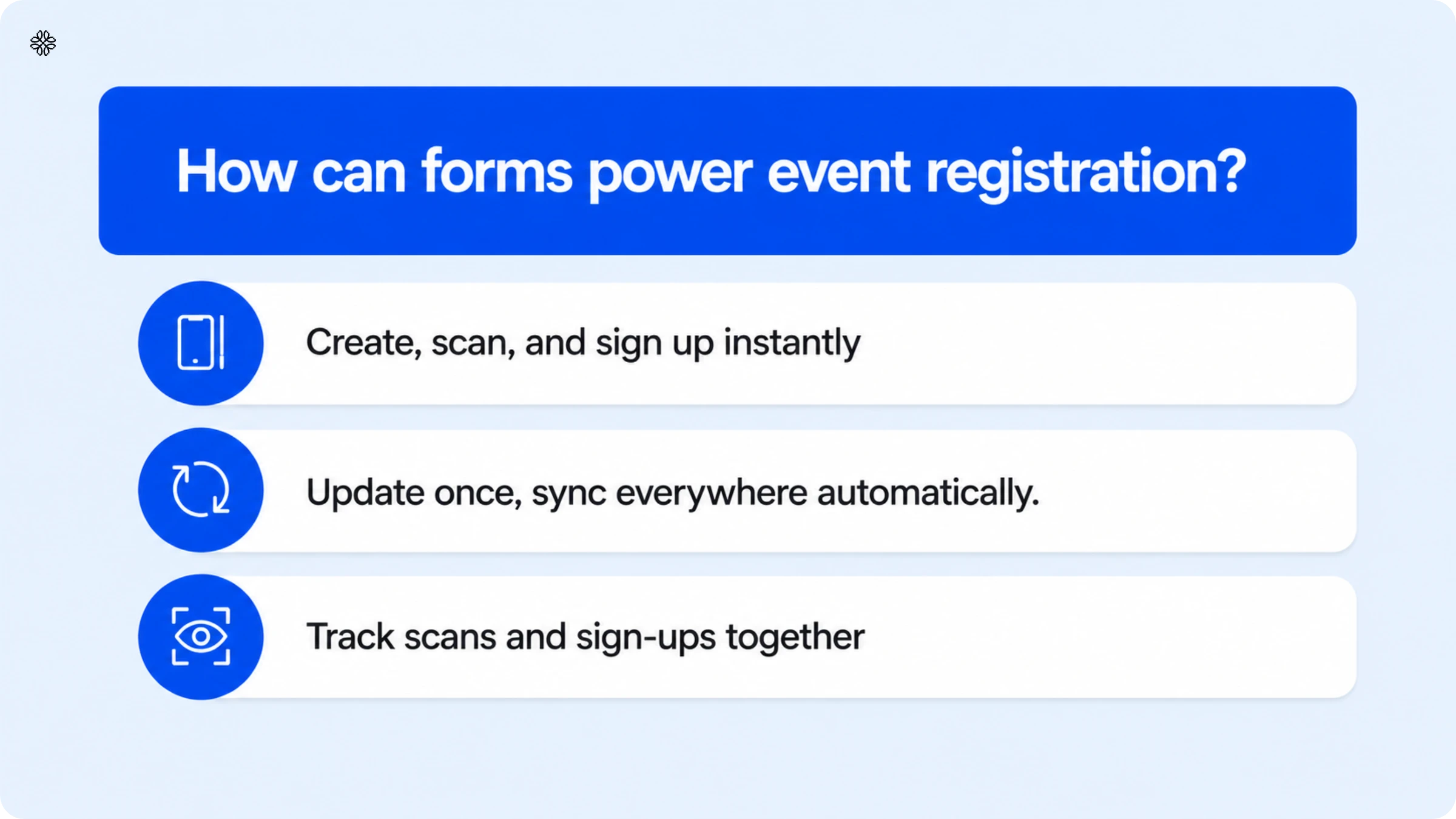
Event sign-ups happen in two stages: registration for the main event, then separate sign-up for individual sessions. In a multi-day conference with breakout sessions, workshops, and networking events, attendees first register for the event itself, then choose and sign up for specific sessions across the weekend.
QR Codes placed at the point of decision let attendees register without switching context. Three placements cover the key moments: posters at the venue entrance (event registration on arrival), attendee badges (session sign-up throughout the event), and table tents outside session rooms (on-the-spot sign-up right before a session starts).
Fragmented registration tools cause attendees to drop off before completing sign-up. When event registration, session sign-up, and check-in each run on a different platform, every QR Code or link hands the attendee to a new tool. Each hand-off is a drop-off point: attendees who must bounce across multiple disconnected tools to finish registering frequently abandon the process partway through, which lowers session attendance relative to the event's actual audience size and interest.
What do most teams do?
They create a registration form in their form tool (Google Forms, Typeform), generate a QR Code through a separate dynamic QR Code platform, and print it across multiple touchpoints. If a session gets moved, hits capacity, or needs to be canceled, they log-in to the QR Code platform, update the destination URL to point to a new form, and hope attendees catch the change.
Where does that break?
You’re managing two dashboards, one for form data (submissions, drop-offs) and another for QR Code analytics (scans, locations).
You see 500 scans and 200 registrations, but can’t connect them. Which QR Code placement converted best? Did the lobby poster drive more sign-ups than the badge code? Why did 300 people scan but not submit? Was it the form design, the placement, or the timing? You’re left guessing.
And if you’re running 12 breakout sessions, that’s 12 separate forms and 12 QR Codes to track. One mislabeled code or outdated form link, and attendees hit a dead end. There’s no single source of truth.
What to try instead?
Use a QR Code-first form builder where the QR Code and form are managed together. When you update the form, the code updates instantly. You see scans and submissions side by side. This means you now know which placement worked, when interest dropped, and where people abandoned the flow.
You can also set conditions so one QR Code adapts based on context: register attendees for Session A in the morning, Session B in the afternoon, or show a waitlist if capacity is hit. The code stays the same; the destination changes automatically. For events with digital waivers, you capture e-signatures directly in the form without resorting to paper or separate tools.
You don’t have to go far to find a tool to do all the above. That’s exactly how Uniqode Forms handles registration.
Everything lives in one system: the form, the QR Code, the analytics, and the integrations. Your various teams don’t have to play a game of whispers or relay to get information across. Marketing, ops, and event staff all see the same data in real time.
With Uniqode Forms:
Unlock smarter QR Code experiences with Smart Rules. You can automatically route scanners by time, device, location, and more in one dynamic code.
2. Lead generation: From in-store scan to CRM in real time
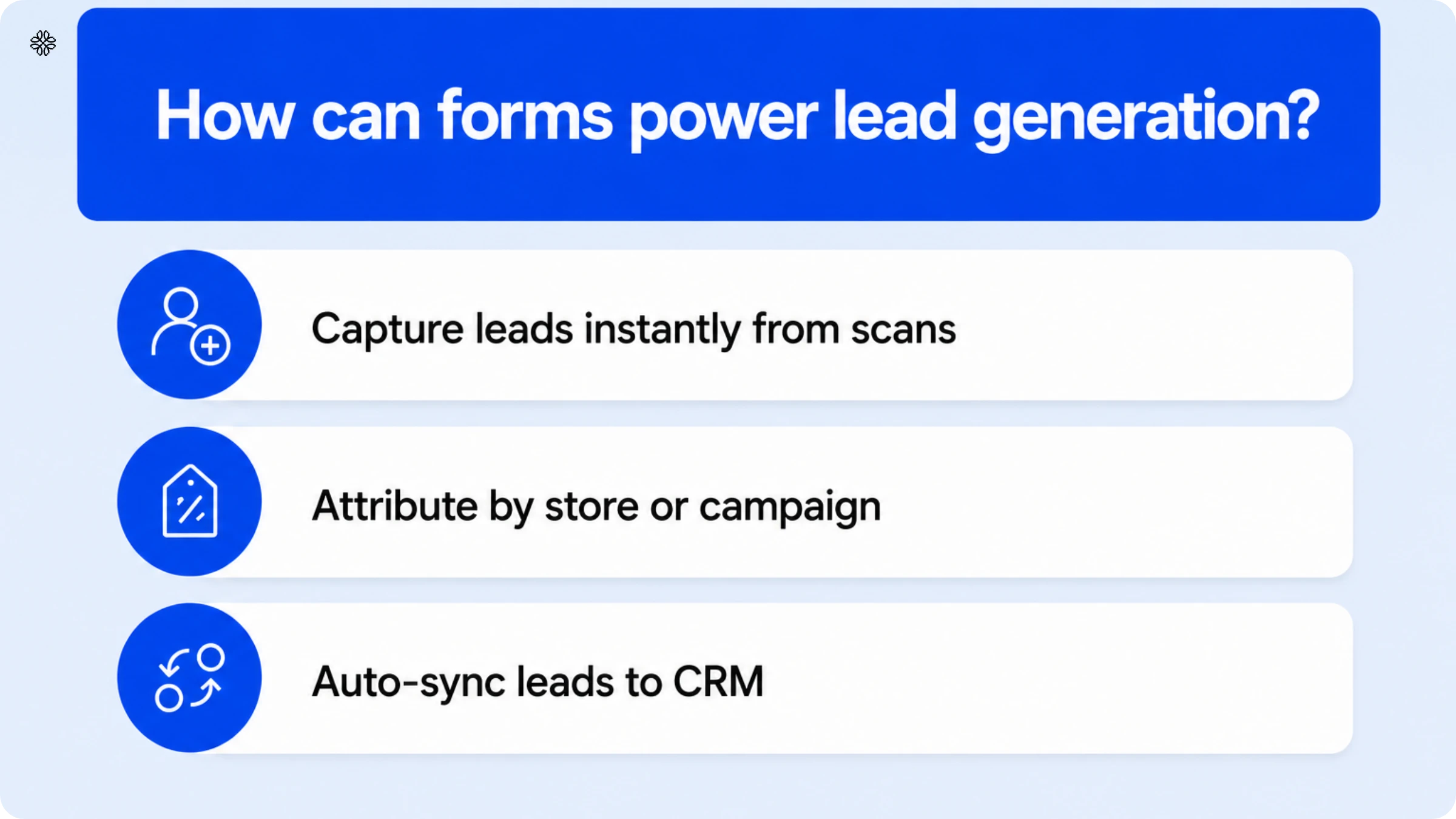
Lead generation campaigns depend on forms, and QR Codes are increasingly the bridge between an offline moment and that form. A retail promotion running across 50 store locations illustrates this: shelf signage and checkout counters carry QR Codes that let customers enter a giveaway, redeem a discount code, or join a loyalty program on the spot. Completing that action requires the customer's contact information, stated preferences, and consent, all of which need to reach the CRM immediately so sales can follow up while interest is still active.
QR Code-based data collection qualifies as first-party data because each data point ties back to a specific, voluntary action. A scan signals explicit intent (the customer chose to engage with a specific in-store touchpoint), a form submission is opt-in rather than inferred, and the resulting record carries context like which location, which promotion, which moment, that passive tracking methods like cookies or purchase-history inference cannot provide.
The common failure point is connecting the offline scan to a usable CRM lead. A scan alone doesn't guarantee data quality: campaigns lose value when the store location, submission timestamp, or promotion source isn't captured alongside the contact details, when the form data sits in a spreadsheet instead of syncing to the CRM in real time, or when duplicate entries across store locations aren't deduplicated before reaching sales.
What do most teams do?
They create a lead capture form in their form tool, generate a QR Code through a separate platform, and print it across all locations. Once submissions come in, someone manually exports the data from the form tool and uploads it to Salesforce or HubSpot. Or they set up a third-party connector like Zapier to automate the handoff.
Where does that break?
By the time the lead reaches your CRM, hours or even days have passed. The prospect who scanned in-store on Saturday doesn’t hear from sales until Tuesday. Interest has cooled. Worse, you have no idea which store location drove the most scans, which signage placement converted best, or why some stores saw 100 scans but only 20 submissions. Your form tool shows completions. Your QR Code platform shows scans. But you can’t tie them together by location or campaign.
And if you’re running multiple campaigns—one for the giveaway, one for the loyalty program, one for a product demo—you’re now managing dozens of forms and QR Codes with no centralized way to track performance. Leads end up in spreadsheets, which opens compliance risks if you’re handling sensitive data like phone numbers or birth dates.
What to try instead?
Use a QR Code-first form builder that syncs leads directly into your CRM the moment someone submits. Now you don’t have a waiting period or manually export. Sales gets the lead in real time, with full context: which store they scanned at, what campaign they responded to, and when.
You also get attribution you can trust. Every scan is tied to its placement (store, shelf, or campaign creative). You can see that the checkout QR Code in your Dallas location converted at 60%, while the shelf signage in Austin converted at 35%. Now you know where to double down.
For campaigns that need custom fields, such as date of birth for age-gated offers, consent checkboxes for GDPR compliance, or referral codes, you can build the form to fit the campaign instead of forcing your campaign into a rigid template.
And if you’re running 100+ QR Codes across locations, you can manage them in bulk: update destinations, apply templates, and set permissions without clicking through each code individually.
Uniqode pro tip: Advanced campaign extras
- Add a Facebook Pixel or Google Conversion ID to retarget people who scanned or filled out your form.
- Use prefill with URL parameters to capture UTM data or pre-populate fields (e.g., referral codes).
- Set response limits and quotas if you’re running contests or giveaways.
3. Feedback collection: From customer scan to actionable insight
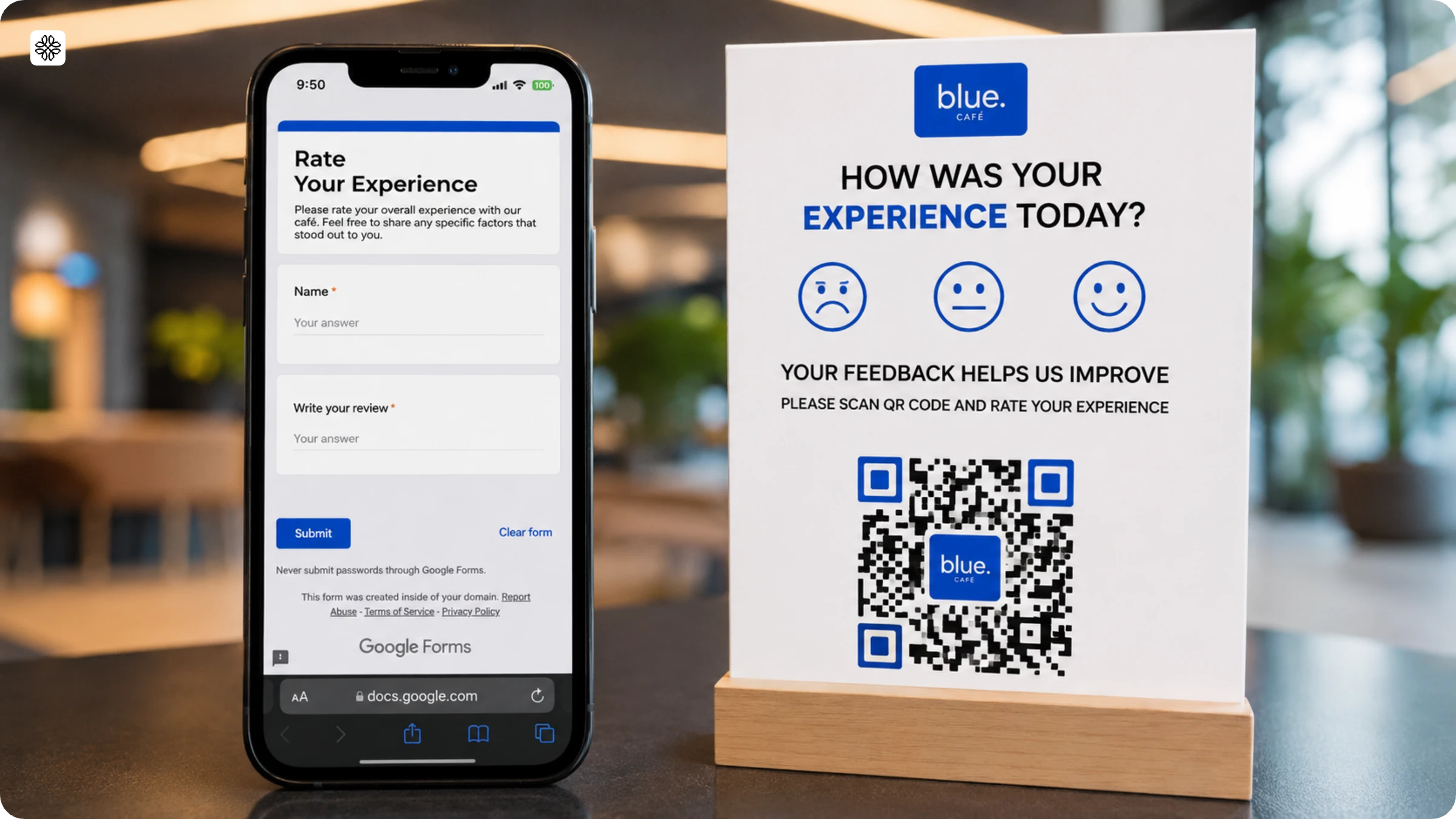
Customer feedback is one of the most valuable signals a business can capture, and QR Codes let a business collect it at the exact point of experience. A retail chain operating 30 locations can place QR Codes on receipts and counter signs at checkout, at the exit, or near the service desk, each labeled with a direct prompt like "Tell us how we did." Feedback captured at that moment rather than through a follow-up email days later reflects what worked, what broke, and which specific locations need attention while the experience is still fresh.
Feedback is also one of the hardest signals to capture well, and the common cause is a generic survey redirect. Most QR Codes on receipts, posters, or counter signs link out to a general-purpose survey tool such as Google Forms, with no connection to the specific store, transaction, or moment that triggered the scan.
A generic, disconnected survey link produces a clunky experience that most customers abandon before submitting. Because the destination isn't tailored to the location or the interaction that prompted the scan, customers encounter a form that feels impersonal and unrelated to what they just experienced, which suppresses completion rates and undercuts the value of the signal a business set out to collect.
What do most teams do?
They create a feedback form in a survey tool such as Google Forms or SurveyMonkey, generate a QR Code, and print it across locations. Customers scan, fill out the survey, and their responses get stored in the survey platform. Someone on the team manually exports the data once a week, sorts it by location, and forwards relevant feedback to regional managers or service teams.
Where does that break?
First, the experience is clunky. Customers scan a QR Code, get redirected to a generic survey that doesn’t acknowledge where they are or what language they speak, and often don’t complete it. Even when feedback does come in, it’s stripped of context. You know what was said, but not which location, which time of day, or which moment triggered it. Was it the morning shift at the downtown store or the evening shift at the suburban location? You’re left guessing.
Second, feedback sits in the survey tool instead of flowing to the people who can act on it. When a regional manager sees a complaint from three days ago, the customer is gone and the issue has likely repeated itself. There’s no real-time alert or automatic routing.
What to try instead?
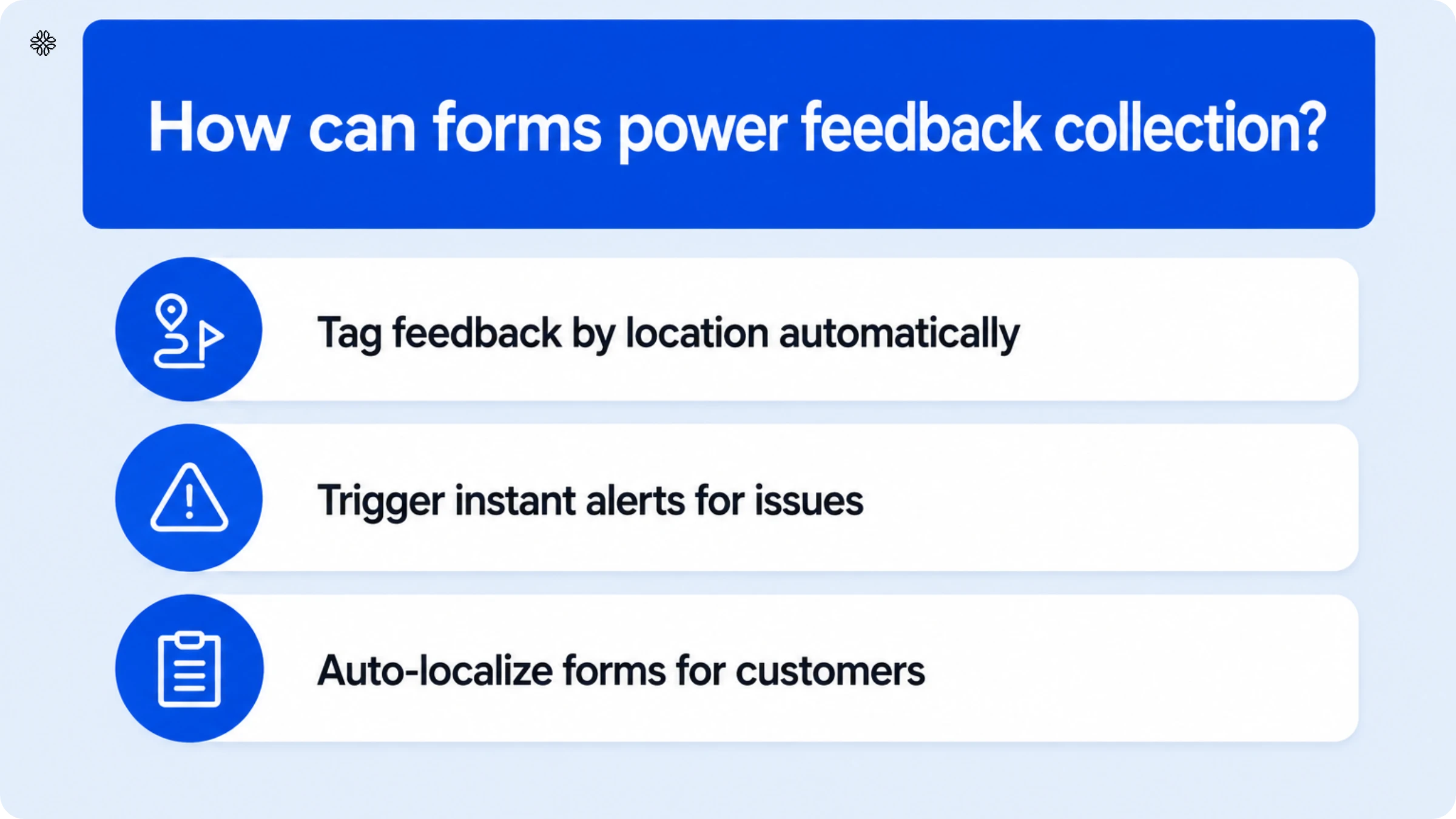
Use a QR Code-first native form builder where feedback is automatically tied to context. Each location gets its QR Code; every response is tagged with the branch, outlet, or station that triggered it. You can also set conditions so the form adapts: show the Spanish version to customers who scan during certain hours or ask different questions based on the service type.
You see the whole picture in one dashboard: scans, form starts, completions, and drop-offs by location. If your downtown store has 200 scans but only 40 completions, you know something’s wrong with the form or the experience. You can compare performance across locations without exporting spreadsheets or manually tagging data.
Responses flow in real time to wherever you need them: Salesforce, Google Sheets, or your internal API. You can set up email or webhook alerts so negative feedback gets flagged immediately. A one-star rating at the suburban location triggers an alert to the regional manager within minutes, while the customer is still nearby. Now you have a chance to recover the relationship.
You have all this bundled into Uniqode Forms. The scan-to-response flow is smooth. Context is captured automatically. Insights are visible in real time. And the right teams get the right feedback when it matters most, not days later in a weekly export.
Uniqode Forms can be set in over 20 languages with auto-detection available, making your customers feel understood and safe to share. So ultimately, your form isn’t just collecting feedback; it’s creating trust.
How to create a Uniqode Form?
Now that you’ve read all about the unique benefits of creating a QR Code for forms, here’s how you can make one using Uniqode’s custom QR Code generator:
First, create a Form on Uniqode’s dashboard
1. Log in to Uniqode’s dashboard and click +Create. Select the option Form
You can get started by signing up for a 14-day free trial or purchasing a plan suitable for your organization.
2. Select the form template.
Choose your form layout from 20+ ready-to-use templates. Select Create New if you wish to make a customized online form from scratch.
3. Set up your form and click Next
Uniqode’s form editor comprises four different sections. You can customize them according to your requirements.
⚡Pro tip:
- Pick from 15+ question types, like text, ratings, or file uploads, mark essentials as mandatory, and drag-and-drop to build forms quickly.
- Use logic jumps to show only relevant questions and calculators to score or quote instantly.
- Personalize every response path and capture high-quality data without manual sorting.
4. Design your form as per brand aesthetics.
Choose from ready-made themes or customize the form layout and colors to match your brand style.
You can create a custom theme, edit colors (background, text, button), and save themes for reuse. Preview the form in mobile view to ensure CTAs and copy read well on phones.
5. Finish setting up your form
Now that you’ve added content and designed your form, finish setting it up in a few more steps.
Smarter form management without the guesswork
- Get instant email alerts (with summaries) so you never miss a hot lead.
- Prefill answers with UTM links or referral codes to save time and boost accuracy.
- Stay in control, respond faster, and make every submission count with Uniqode.
Attach the form to a QR Code in 5 easy steps
1. Go to QR Codes at the top left of your dashboard. Click on +Create QR Code at the top-right corner.
2. Select the campaign type Form.
3. Select the form you created and enable multi-language support if required.
You can see your form’s mobile view on the dashboard’s right side. Click Next to create a QR Code.
Note: Use a unique QR Code per placement (store, poster, billboard) so the response shows which QR Code/placement generated each submission (attached QR Code metadata is stored with the response).
4. Customize your QR Code.
Select a QR Code template, modify the CTA frame, QR Code shape, color, and much more to suit your preference.
You can also set a custom domain / branded short URL to increase trust. Use the preview to confirm scannability and design.
Click Next.
5. Download your QR Code for the form.
The QR Code for your digital form is now ready. Download it in any of the available formats (PNG, JPG, SVG, EPS, and PDF) that best suit your requirements.
Bonus: Uniqode’s dashboard will be your one-stop shop for all insights. You can view survey results and track QR Code performance without switching platforms.
Responses can be viewed individually or as aggregated summaries (question-level charts). Exports are available as CSV, and export files are password-protected when emailed for security.
Benefits of using dynamic QR Codes for forms
Static codes help you share information, but dynamic codes give you a complete, flexible system. Here’s what you gain by using them.
- You can correct errors without needing to reprint anything. Whether it’s a wrong field, old pricing, or a session moved to another room, you just update the form once. The code, no matter where it’s printed, instantly shows the change. For example, using a chain that uses the same welcome-card code at 40 locations can update the form for a single dashboard, instead of sending new cards to every front desk.
- You can track not just how many people submit the form, but also where they came from. If your tool says 200 people finished the form, that number alone doesn’t show if the lobby poster or the badge code brought in more sign-ups, or if 300 people scanned but didn’t finish. By linking the code to the form, you can compare these numbers and see where people drop off—whether it’s the design, placement, or timing.
- You can send people to different destinations with the same code, depending on the situation. This could be based on time of day, device, location, or language. For example, a restaurant can use one code on every table to show a breakfast form before 11 a.m. and a dinner reservation form after 5 p.m., all without changing the sign.
- Managing access and control grows with your needs. Handling five forms by yourself is easy in a spreadsheet, but managing fifty forms across twelve teams isn’t. With role-based permissions, a local manager can update their own store’s form without affecting others, while someone higher up can view performance for all fifty forms in one place.
- You can keep compliance strong. Forms that collect names, emails, phone numbers, or health details need a clear audit trail, not just a guess about who can access the data. If your forms handle HIPAA or GDPR-protected information, make sure your QR and form platform can provide that audit trail before you expand your campaign, not after a regulator asks for proof.
8 use cases for QR Code forms
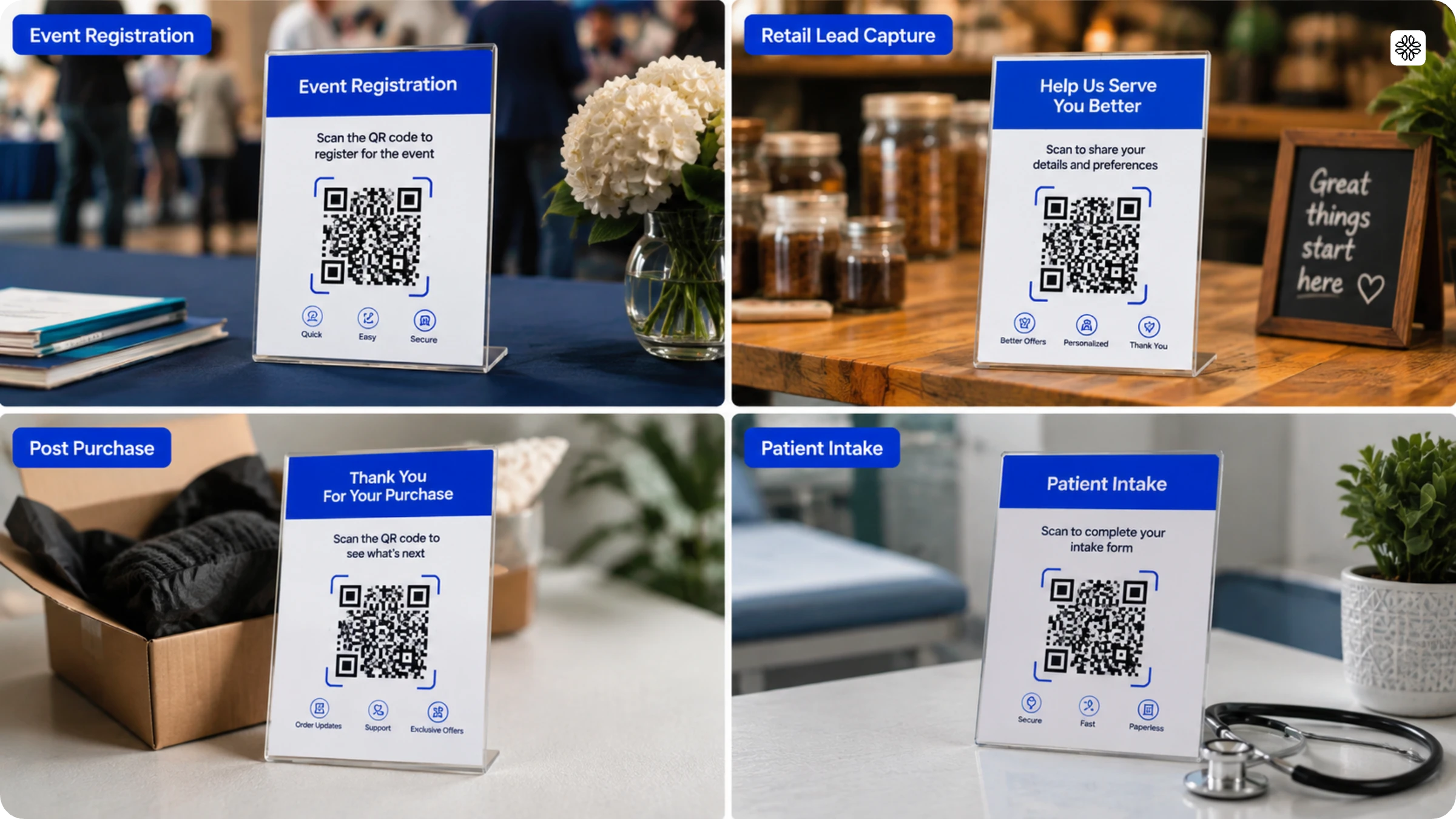
- Event registration and session sign-ups: Place one code on the entrance sign for general admission, and use separate codes for each breakout room so people can sign up for specific sessions. If a room fills up, the code can send people to a waitlist form.
- In-store and retail lead capture: Put codes on shelf signs or at the checkout counter to collect contact details for a giveaway, loyalty program, or discount. Each code can be linked to the specific store and shelf where it was scanned.
- Post-visit and post-purchase feedback: A code on a receipt, a table tent, or a packing slip that opens a short survey while the experience is still fresh, instead of an email that arrives two days later and gets ignored.
- Job applications and candidate intake: Add QR Codes to recruiting booth signs or job fair banners that open a mobile-friendly application form. Applications go directly into your applicant tracking system, not just a shared inbox.
- Patient and visitor intake: Place codes in the waiting room or at the check-in desk to open pre-visit forms. This reduces the need for paper forms and manual data entry, while still providing the audit trail required in healthcare.
- Property showings and real estate inquiries: Add a code to yard signs or window displays that opens an inquiry form. The form collects contact details and viewing preferences, and tags each lead by property address so agents know which listing it came from.
- Warranty and product registration: Place a code inside the packaging that opens a registration form when the product is unboxed. This replaces the old mail-in card and gives the manufacturer a direct way to contact customers for support or recall notices.
- Donation and volunteer sign-up: Put codes on event banners, printed materials, or donation kiosks that open a form for one-time donations or volunteer sign-ups. This lets people sign up directly, without having to go through a general website first.
Best practices for QR Code forms
A dynamic code solves technical issues that appear after the code is printed and people have started scanning it.
- Design your form for people scanning it, not for desktop users. Most visitors will use their phone camera. Avoid long dropdowns, small buttons, and anything that assumes a mouse. Test the full scan-to-submit process on a phone, in the real location where the code will be used, not just in a browser preview.
- Request only the information you truly need. Each extra field increases the chance someone will leave. If you only need a name and email, skip asking for job title or phone number unless you have a clear reason. Only add fields when you know exactly how you will use them.
- Always test where the code will be placed, not just the link itself. A code on glossy signage under bright lights can scan differently than one on a matte flyer. Print a sample, take it to its real spot, and scan it with a few different phones before printing the full batch.
- Always provide a backup. Print the short URL below the code. Some scanners might not work, and some people prefer to type the link. Without a fallback, you risk losing those users.
- Use UTM parameters or placement tags on every version you print. If the same form runs on a poster, a table tent, and a badge, tag each one separately. Without that, you’ll have a submission count with no way to tell which physical location it came from.
- Set an expiration or renewal reminder for time-bound campaigns. A code tied to a subscription that lapses goes dark everywhere it’s printed, all at once. If the campaign runs on printed signage with a shelf life longer than a season, put a calendar reminder on the renewal date now.
- Route submissions into your CRM or inbox the moment they happen, not on a batch export. A lead that sits in a spreadsheet for three days before someone uploads it to Salesforce has already cooled off. Real-time sync is the difference between a warm follow-up and a cold one.
Close the gap between scan and submit with Uniqode Forms
If you’ve been managing QR Codes in one tool and forms in another, you already know the cost: fragmented data, manual exports, and blind spots everywhere.
Uniqode Forms collapses that workflow.
From registrations that adapt in real time, to leads that qualify at capture, to feedback that reaches the right team without delay, Uniqode turns QR Codes into more than entry points. They become the infrastructure for measurable growth and campaigns that scale without chaos.
See every scan. Capture every opportunity.
👉 Start your free 14-day trial of Uniqode Forms and turn every scan into a signal you can act on.
Frequently Asked Questions
- What are QR forms?
QR Code forms are digital forms that can be easily accessed with a single scan. Create an online form on Uniqode’s dashboard and attach it to a dynamic QR Code.
Users can scan the QR Code and access your forms in a contactless manner without having to type in a URL or fill-out paper forms.
- How do I create a QR Code for a form?
You can create a QR Code for a form in 6 quick steps:
- Go to Uniqode’s QR Code generator.
- Log in to your dashboard and click on ‘+Create QR Code’. (If you don’t have an account, sign up for a free 14-day trial)
- Select ‘Form’ as the QR Code type.
- Create your form and save it.
- Attach the form and generate your QR Code.
- Test and download the QR Code.
- Can I use QR Code to fill out form?
Yes, you can use QR Codes to fill out forms. Most Android and iOS devices now have a built-in scanner within the camera app. You can open your camera app, and point it at the QR Code to scan and access the online form.
- How to link a QR Code to a Google Form?
You can link a QR Code to Google Forms in 5 easy steps:
- Log in to your Uniqode dashboard and click on ‘+Create QR Code’.
- Select ‘website’ as your campaign type.
- Input your Google form URL in the space provided and click ‘next’.
- Customize your QR Code as per brand aesthetic.
- Your QR Code for Google Forms is ready for download.
- What's the difference between a static and dynamic QR Code form?
A static QR Code form points to one form permanently. Print it, and that's the destination forever, even after the form changes. A dynamic QR Code form redirects through a short link you control, so updating the form updates every printed code instantly. If you're printing the code more than once, on badges, table tents, or packaging, dynamic is the version that survives changes.
- Can I edit a QR Code form after it's printed?
Only if the QR Code is dynamic. A static code, the kind most free generators create, is locked to whatever URL you gave it at creation. A dynamic QR Code form lets you update the form's questions, destination, or design after printing, and every already-printed code reflects the change automatically. No reprint needed.
- Can QR Code forms track where a submission came from?
Only if the platform ties the QR Code to the form natively. A QR Code generated separately from your form tool can tell you how many people scanned, and your form tool can tell you how many people submitted, but neither shows which physical placement, a poster, a badge, a shelf sign, produced which submissions. That requires the code and the form to report through the same system, tagged by placement.
- Are QR Code forms secure enough for sensitive information like health or payment details?
It depends on the platform behind the form, not the QR Code itself. The QR Code is just a pointer, the security lives in how the form collects, stores, and grants access to the data behind it. If the form touches health information, payment details, or anything else regulated, confirm the platform can produce a compliance attestation, SOC 2, HIPAA, or GDPR, before you scale the campaign.
About the Author
Shashank - Enthusiastic about marketing and improving the ROI of businesses.
Related Posts
How to Create a QR Code Survey (+ Best Practices for Higher Response Rates)
How to Create a QR Code for Data Collection

A Simple Guide to Generate Leads Using QR Codes

14 Effective Real Estate Lead Generation Tactics (Online & Offline)

The Ultimate Guide To Automate Lead Generation From Offline & Online Channels