How to Create a QR Code Menu for Free (Step-by-Step Guide)
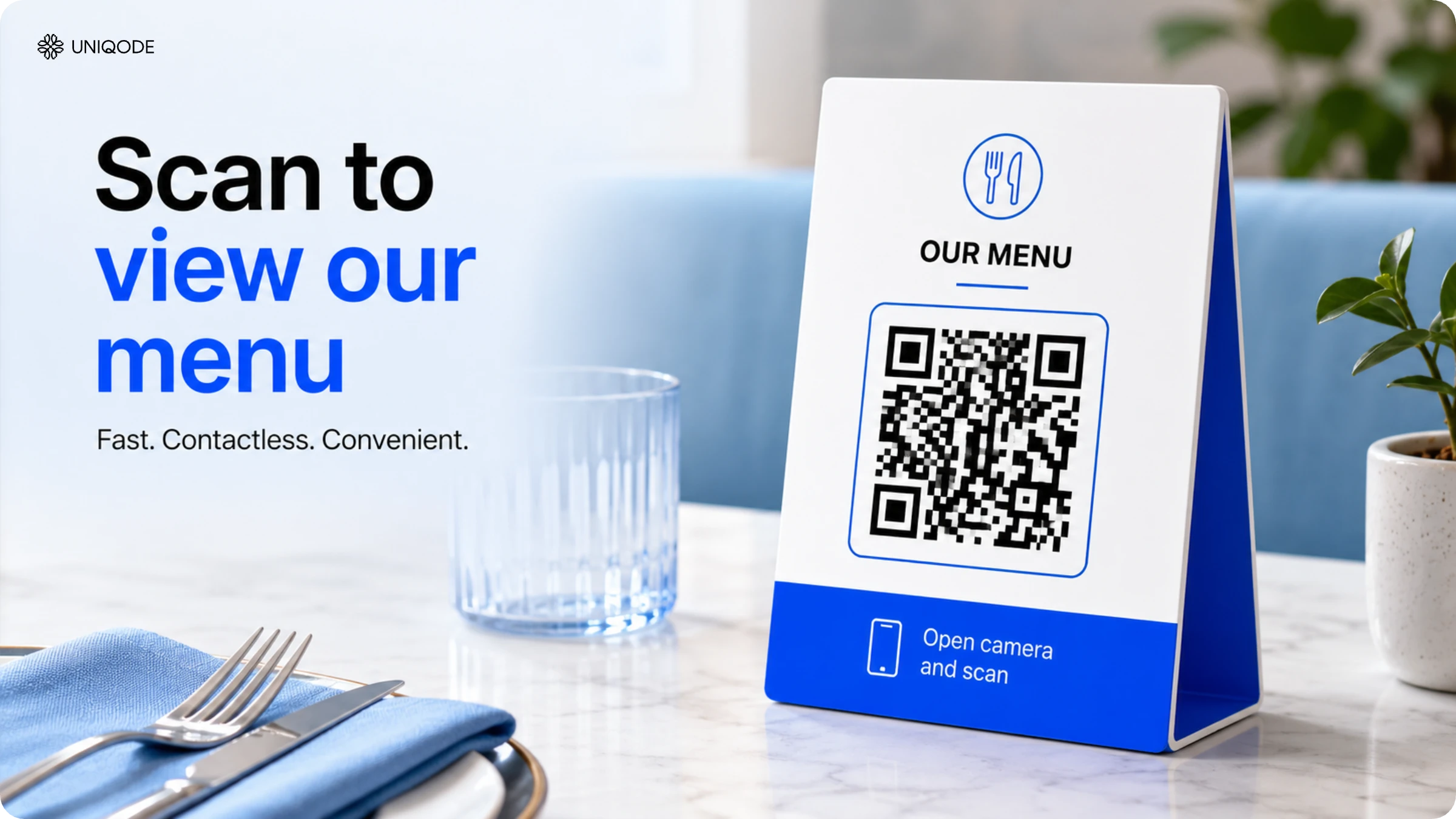
Find out how to create QR Code menus, along with some tips and best practices to install them in your food outlet. With QR Code menus, eliminate the hassle of distributing and shuffling menus at restaurants.
A QR Code menu is a scannable code that displays a restaurant's menu on a customer's phone, eliminating the need for an app or printed booklet. With Uniqode's QR Code generator, you can create a menu in under a minute by simply pasting the menu URL, downloading the code, and printing.
A menu QR Code addresses three key challenges for restaurants: it provides instant menu access at every table, reduces ongoing printing costs, and eliminates the need for staff to distribute paper menus during busy periods.
QR Code menus vary in functionality. A static, free code is suitable for menus that remain unchanged, while a dynamic code, which has a higher cost, allows for updates such as price changes or seasonal specials without reprinting. Choose Method 1 below for a free option, or Method 2 for a flexible, updateable menu.
What is a menu QR Code and how does it work?
A menu QR Code is a scannable pattern that links directly to a restaurant's menu, rather than a homepage or promotion. Customers scan the code with their phone camera to access the menu in their browser, without the need for any app or a physical menu.
From the diner's perspective, the process is straightforward. The menu QR Code can be placed on tables, windows, or receipts. When scanned, the camera detects the code, displays a link, and the menu opens with a single tap. The same code can be used across dine-in, takeout, or delivery materials, as it directs users to the same destination regardless of where it is printed.
A menu QR Code differs from a generic website QR Code in its destination. While a generic code may link to a homepage, social profile, or form, a menu QR Code directs users specifically to a hosted menu page or menu PDF. This distinction makes the following creation methods menu-specific rather than general-purpose.
Why use a menu QR Code?
A menu QR Code accelerates service, reduces printing costs, and provides scan data unavailable with paper menus.
Speed is the most noticeable benefit. Customers can access the menu immediately upon being seated, eliminating the wait for a server. This is especially valuable during busy periods when delays between seating and ordering impact overall service.
According to Uniqode's State of QR Codes 2026 report, 75% of consumers scan a QR Code primarily to access more information. For menus, this means diners are seeking details, not just trying a new feature. A menu QR Code meets this need immediately, removing the wait to ask a server about available options.
Cost savings are another key benefit. Printed menus require reprinting whenever a price or item changes. A menu QR Code, particularly a dynamic version, eliminates these recurring expenses.
Scan data is the third reason, and the key reason why restaurant owners continue using menu QR Codes after the initial novelty fades. Paper menus provide no actionable data, while digital menus reveal which items are viewed, peak scanning times, and weekly trends.
None of this is a pandemic-era holdover. While contactless menus gained popularity in 2020 for hygiene reasons, by 2026, restaurants continue to use them for speed, marketing reach, and data, rather than solely for contactless service.
How to create a free menu QR Code
Two methods create a menu QR Code on Uniqode. Pick Method 1 if the menu is final. Pick Method 2 if it will change even once, since Method 2 is the only one of the two that survives a change without a reprint.
Method one: Upload the menu URL to the free generator
Step 1: Paste the menu URL
Go to Uniqode's free QR Code generator and paste the menu URL. The "URL" option is set by default when the generator loads.
Step 2: Customize the code
Customize the color and shape of the code next. Choose any color, and pick between a square or a circle template.
Step 3: Scan to test
The QR Code preview on the right side is scannable at this stage. Scan it with a phone to confirm it opens the intended menu page before downloading.
Step 4: Download
Download the finished code in PNG format once the design looks right. Further customization, changing the pixel pattern, the eye color, adding frame text, or downloading in formats like EPS, requires upgrading to a dynamic QR Code with a free trial.
Method two: Build a dynamic QR Code in the Uniqode dashboard
Step 1: Start a new QR Code
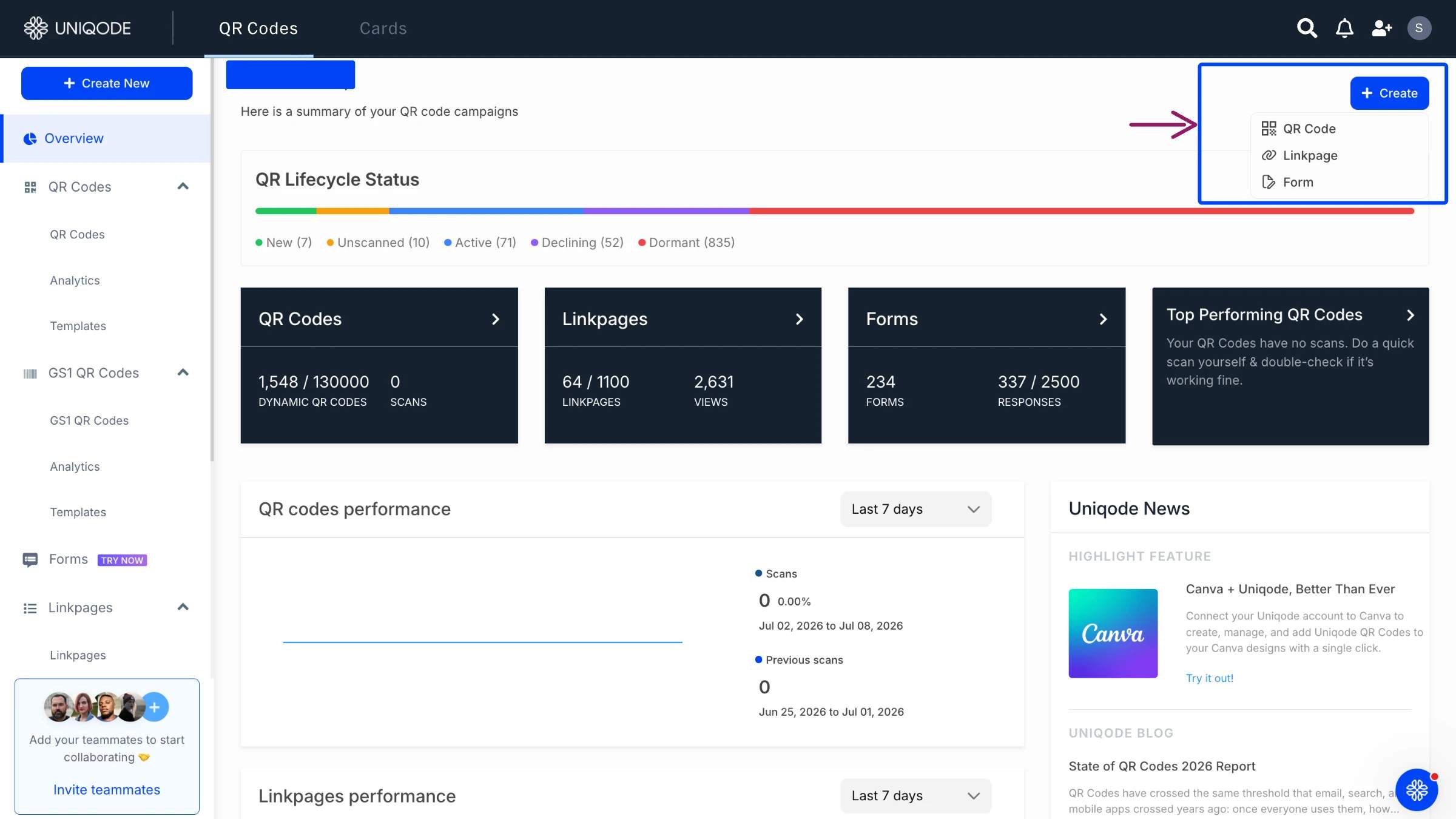
Sign up for a free trial to open the Uniqode dashboard. Click "+CREATE," then choose QR Code from the top right of the page.
Step 2: Choose the Restaurant Menu and add the menu content
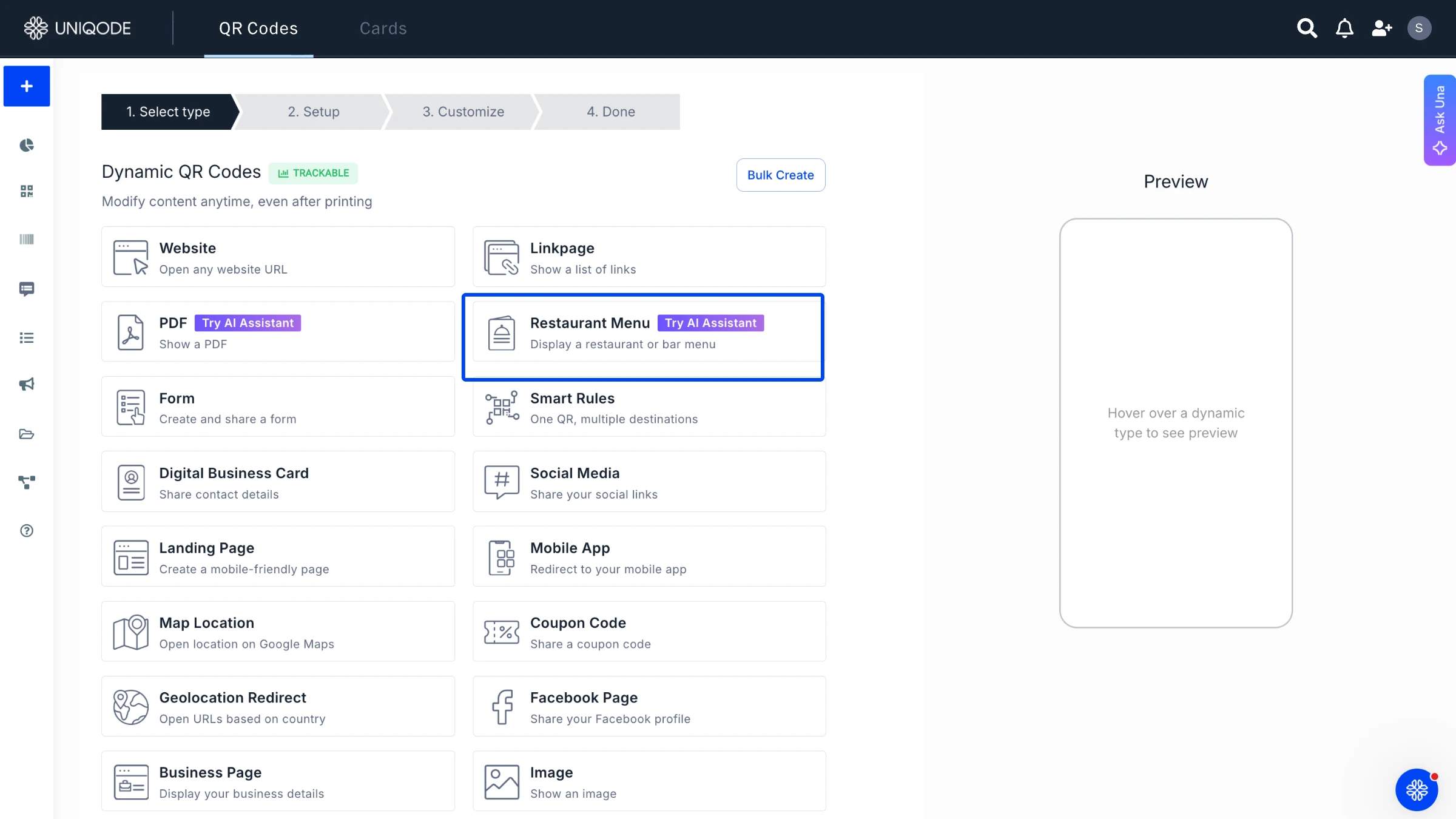
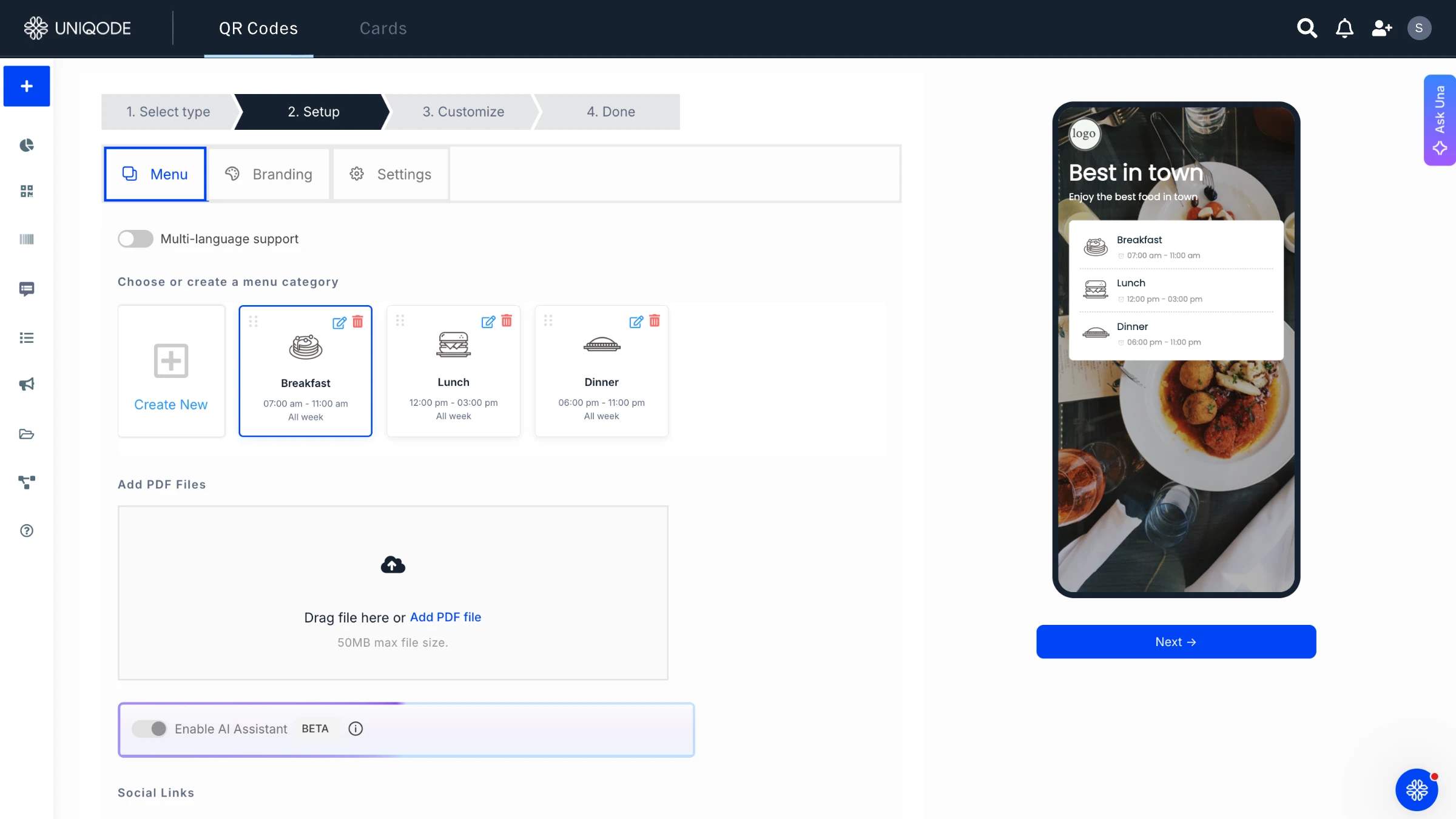
Choose "Restaurant Menu" as the campaign type next. This routes to a Setup tab with three sections: Menu, Branding, and Settings. Start with the Menu tab: add a category for each type of food on offer, starting from the default breakfast, lunch, and dinner groups, or add a new category with the "Add New" button. Upload the menu as a PDF under "ADD PDF FILES."
Add social links so customers can find the restaurant's Instagram or Facebook page while viewing the menu.
Step 3: Brand the menu
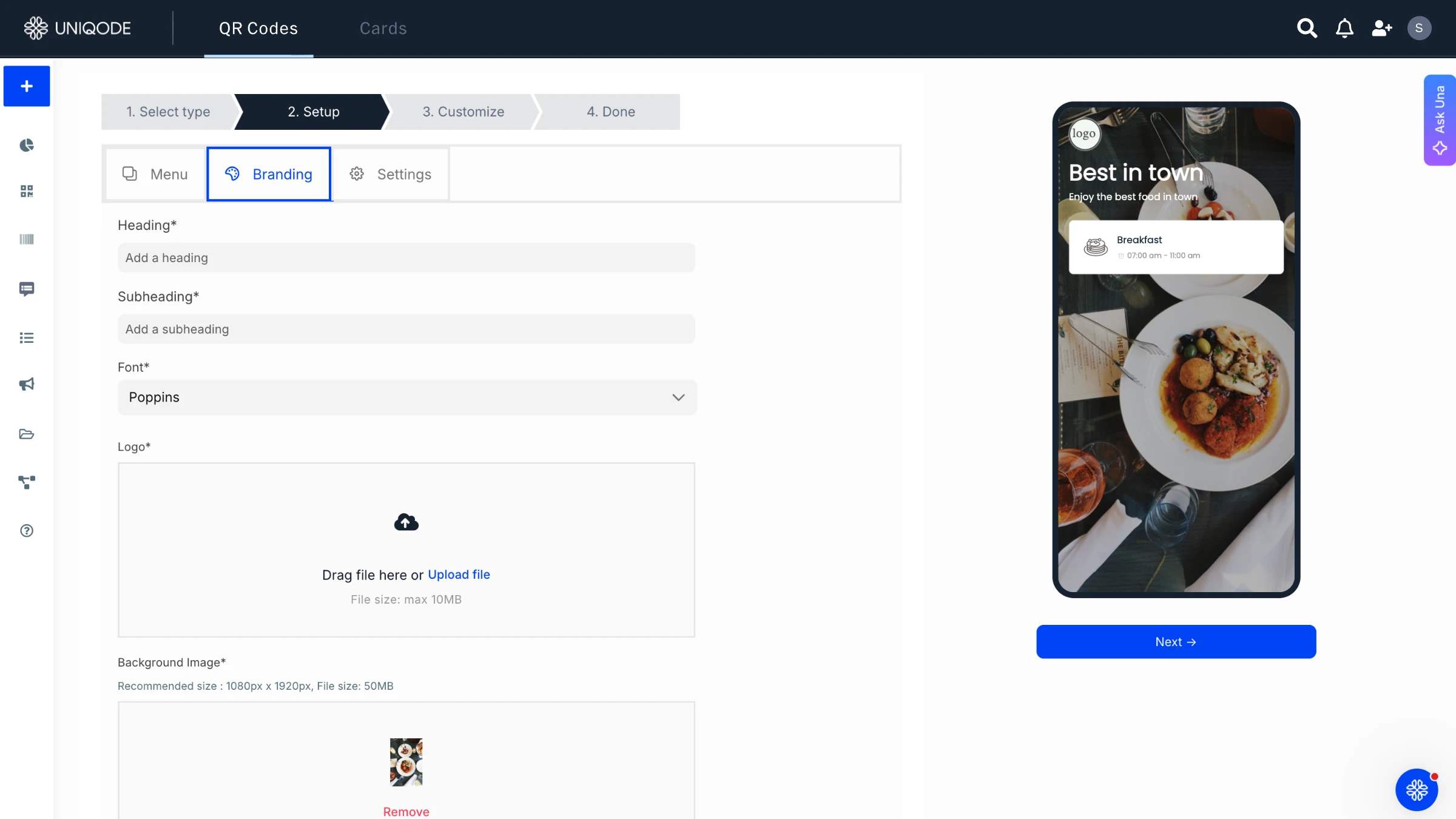
Switch to the Branding tab to make the menu look like the restaurant's own. Add a heading (the restaurant name works well) and a subheading with any value-added detail about the place. Change the font to match the brand, and add a logo plus a supporting background image. One editor's note: a background image looks good, but some images hurt readability. Pick one that supports the menu instead of competing with it.
Step 4: Set menu visibility hours
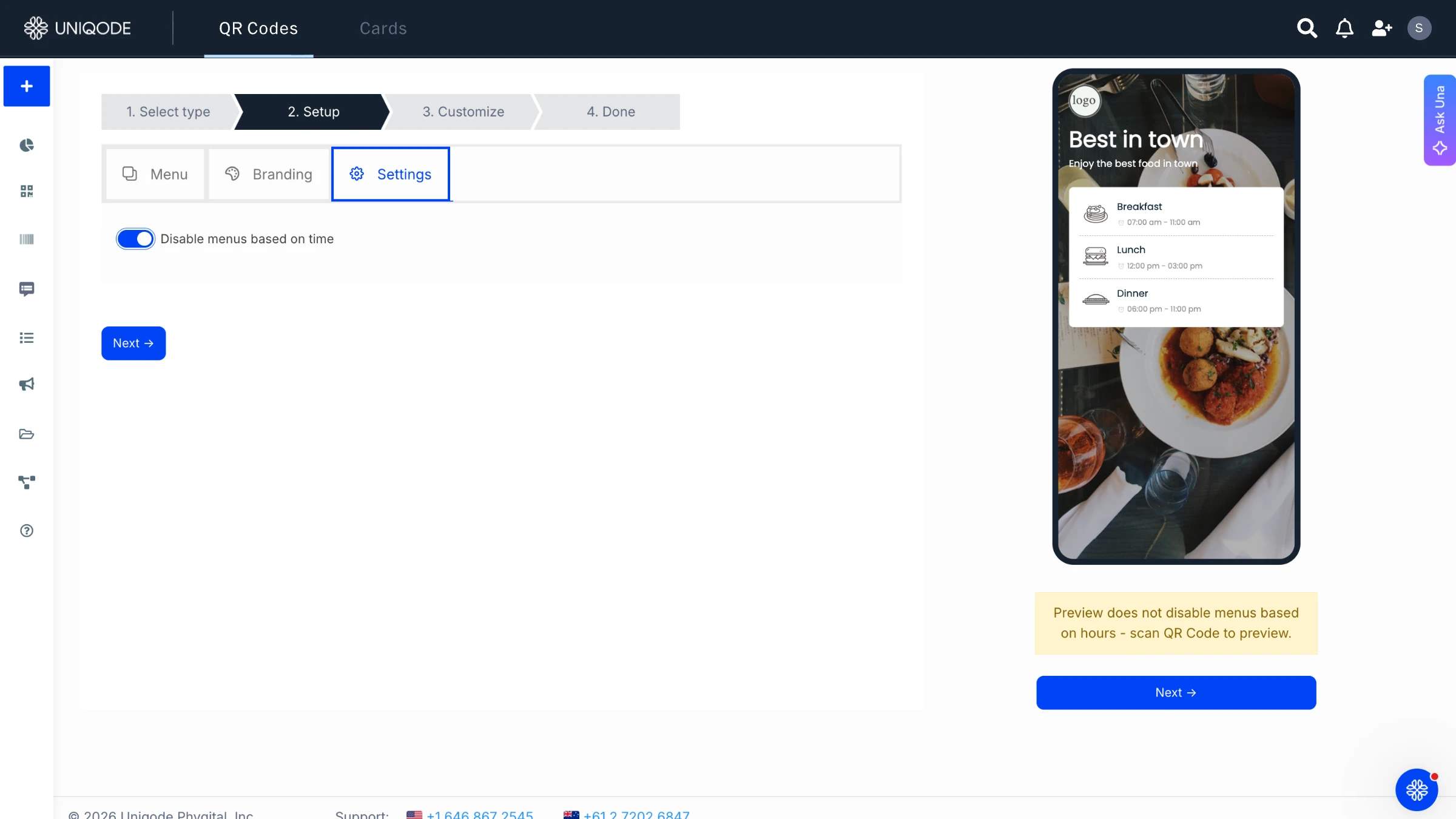
The Settings tab controls when the menu shows. Toggle "disable menus based on time" if the restaurant doesn't want the menu visible outside working hours, then click "Next."
Step 5: Customize the QR Code design
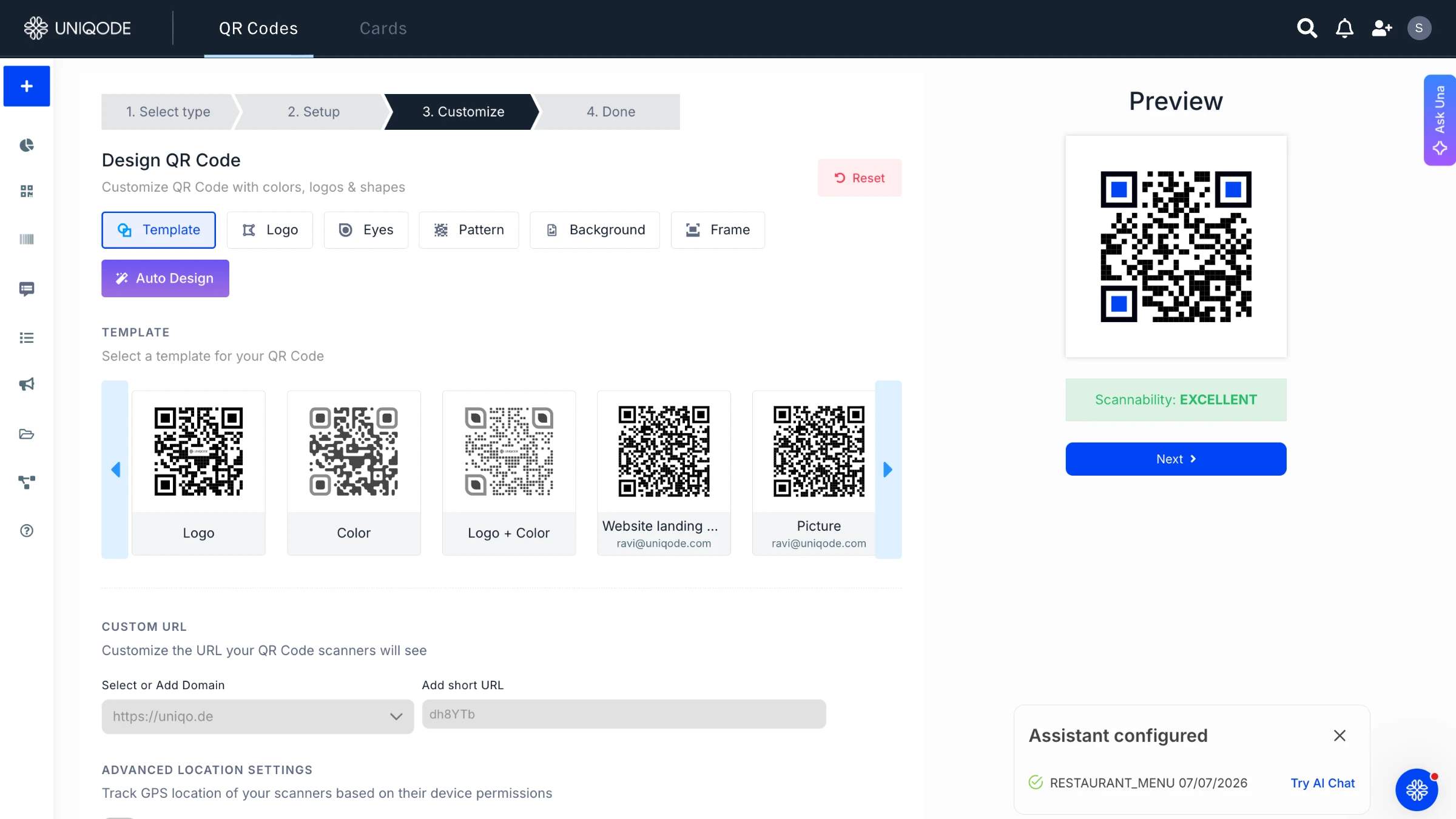
Add a brand logo, and change the eye color, pattern, and frame from the available options. Match the design to the material it prints on, whether that's a table tent, a cutlery holder, or a display stand.
Step 6: Preview and download
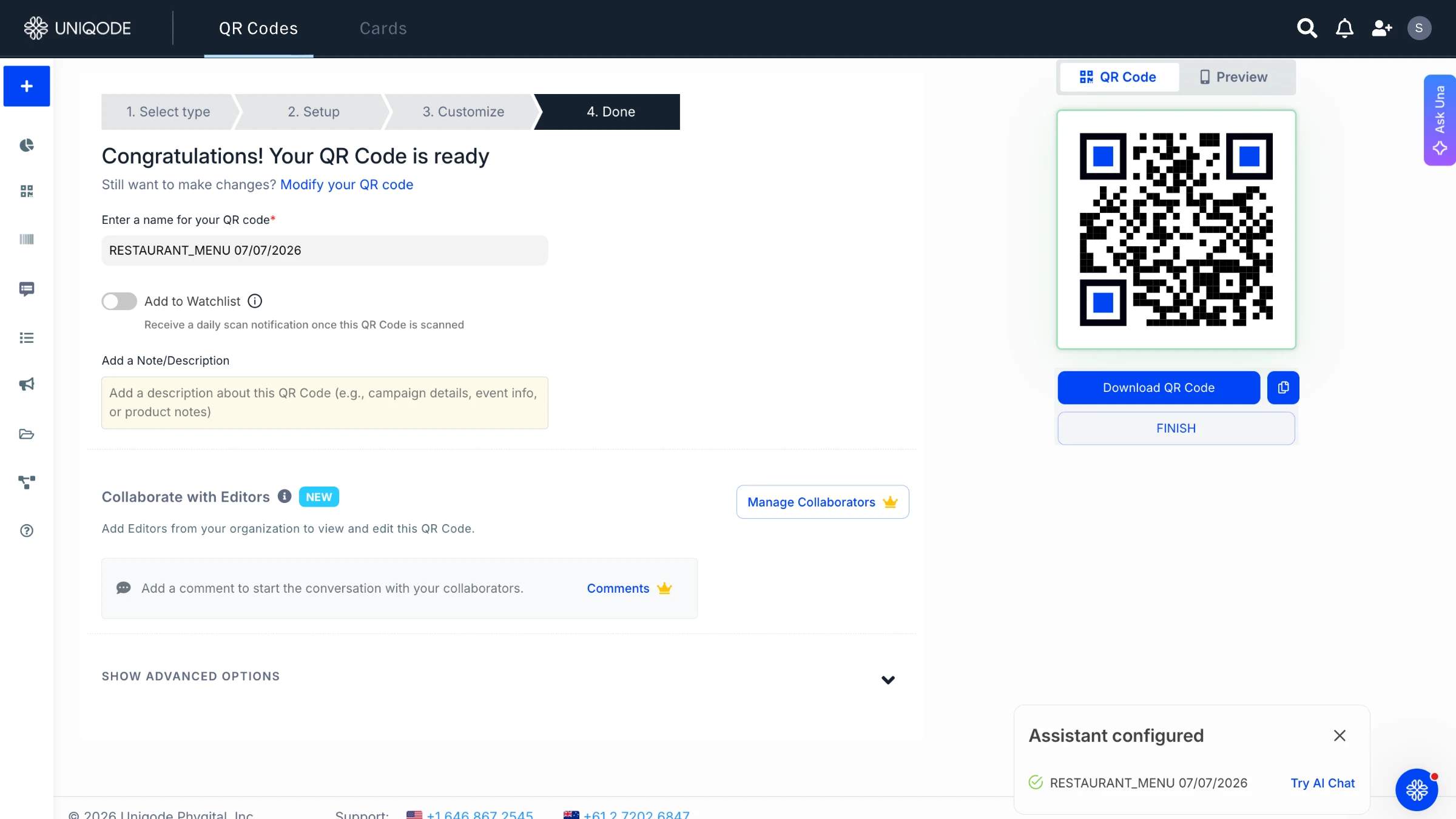
Preview the finished code on the dashboard, then download it in the format needed.
Restaurants serving multilingual customers can enhance their service by using a single printed code that directs users to the menu in their device's language. This allows tourist-area restaurants to print one code for all languages, ensuring each guest automatically accesses the menu in their preferred language.
6 use cases for a menu QR Code
A menu QR Code supports multiple use cases, from dine-in service to takeout and delivery. Unlike a static table tent, the same QR Code works across dine-in, counter service, and off-premise orders.
1. Dine-in table service
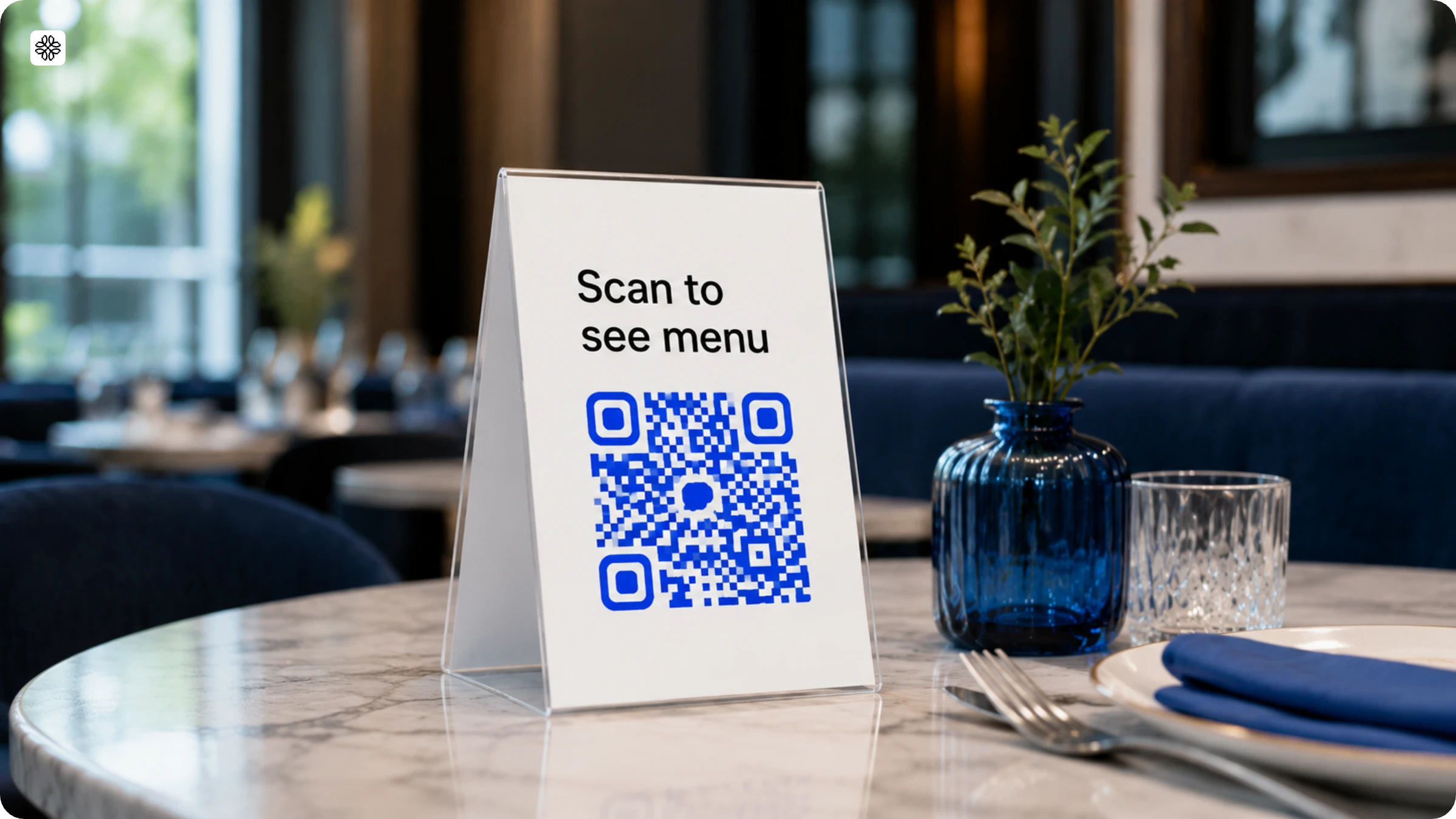
For dine-in service, a code displayed on a table tent, menu holder, or window cling allows guests to access the full menu immediately upon seating, eliminating the need for a physical menu.
2. Takeout and delivery orders
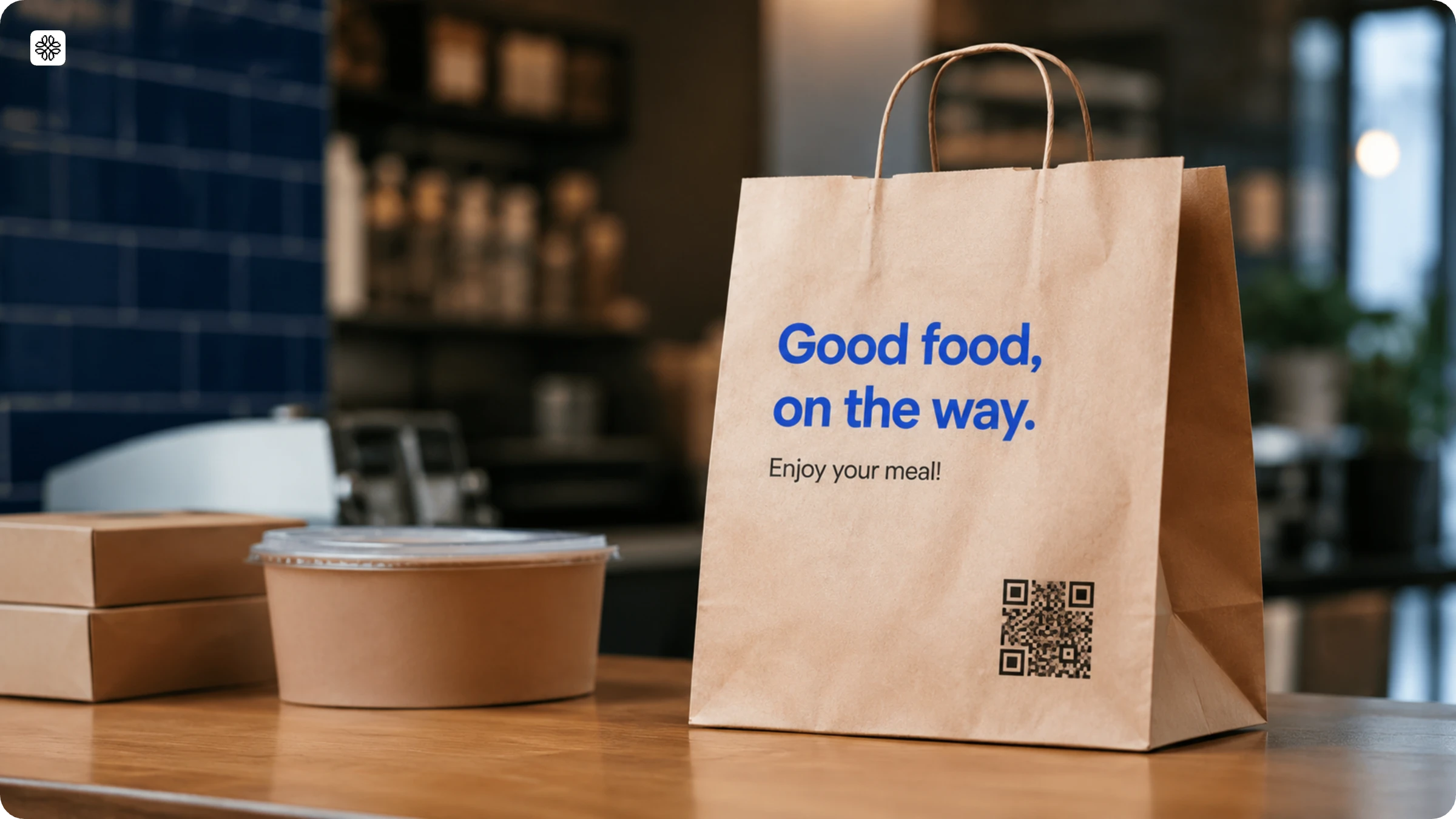
Placing a menu QR Code on a takeout counter sign, receipt, or delivery bag insert allows customers to browse the menu remotely. Uncorked Jamaica, a Jamaican food and beverage business, used Uniqode's menu QR Codes to boost takeout orders and streamline operations by encouraging customers to place orders directly via the code rather than by phone.
3. Bar and age-restricted drink menus
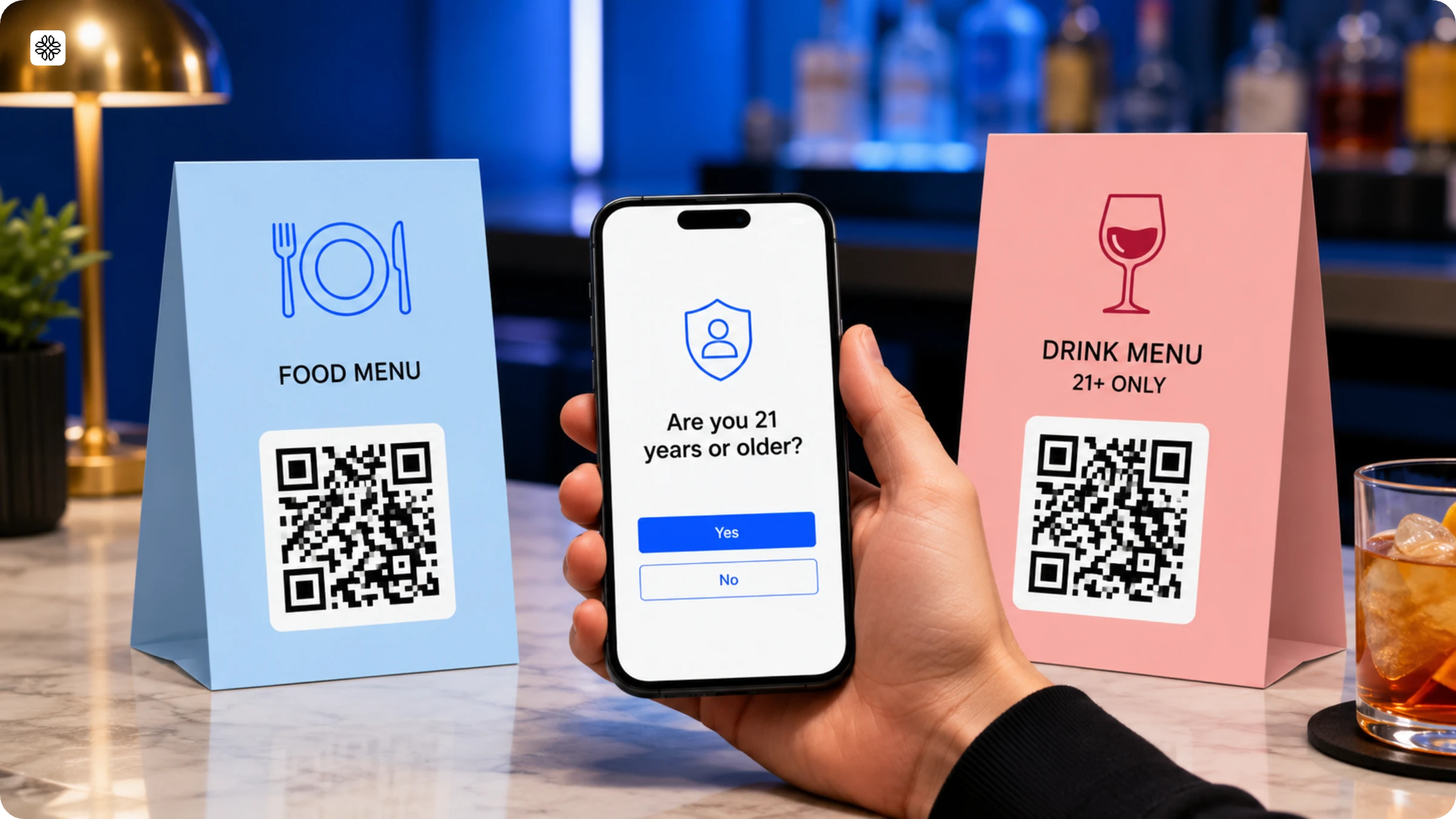
A bar or restaurant's drink menu requires age verification, unlike the food menu. A dynamic menu QR Code can restrict access to the alcohol menu for adults only, while the food menu remains available to all guests.
4. Seasonal and time-of-day menus
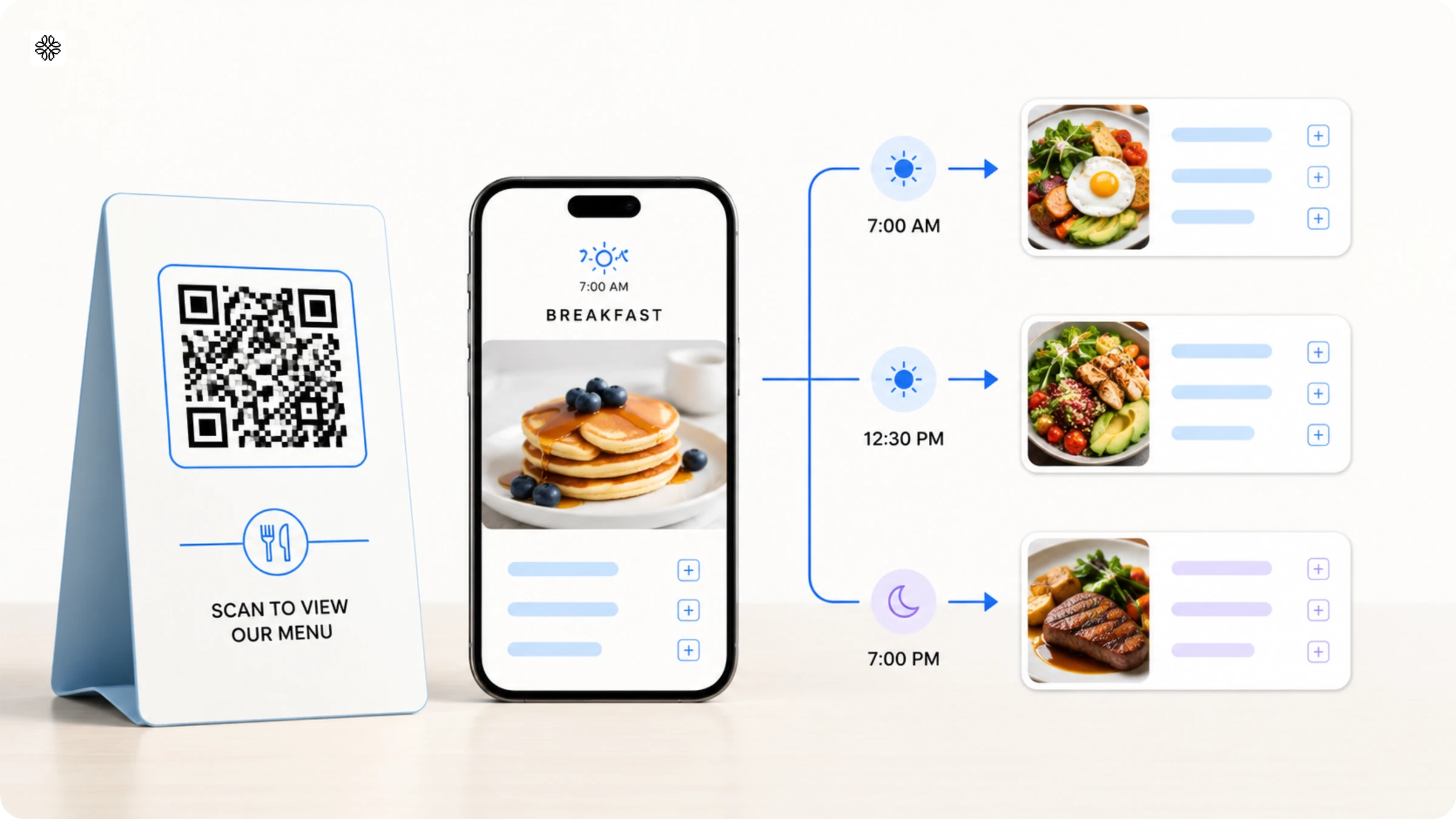
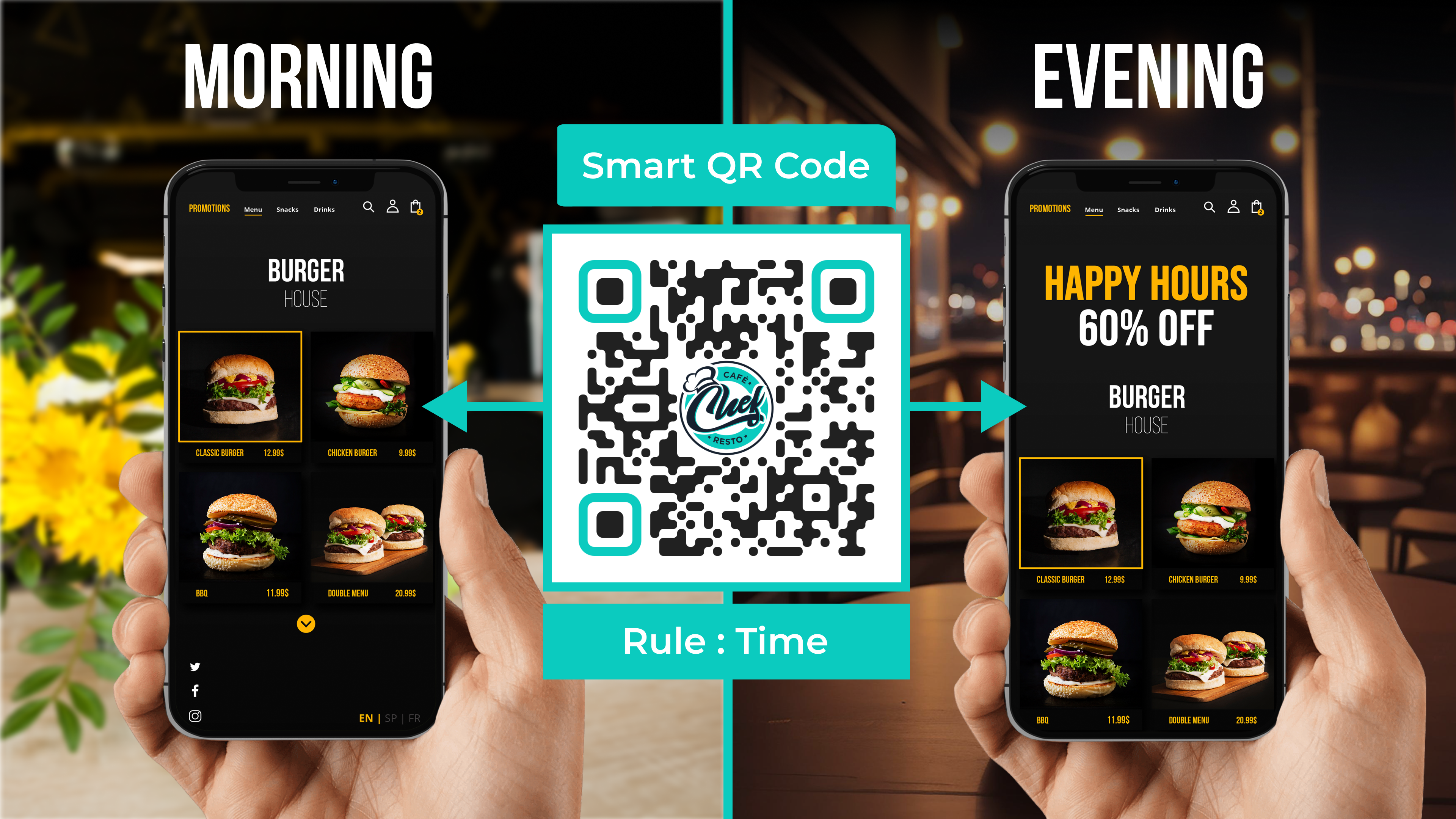
You do not need separate QR codes for breakfast, lunch, and dinner menus. A dynamic QR code automatically displays the appropriate menu based on the time of day, allowing the same table tent to show breakfast at 7 a.m. and dinner at 7 p.m. without replacing printed cards.
5. Multi-location and franchise menus
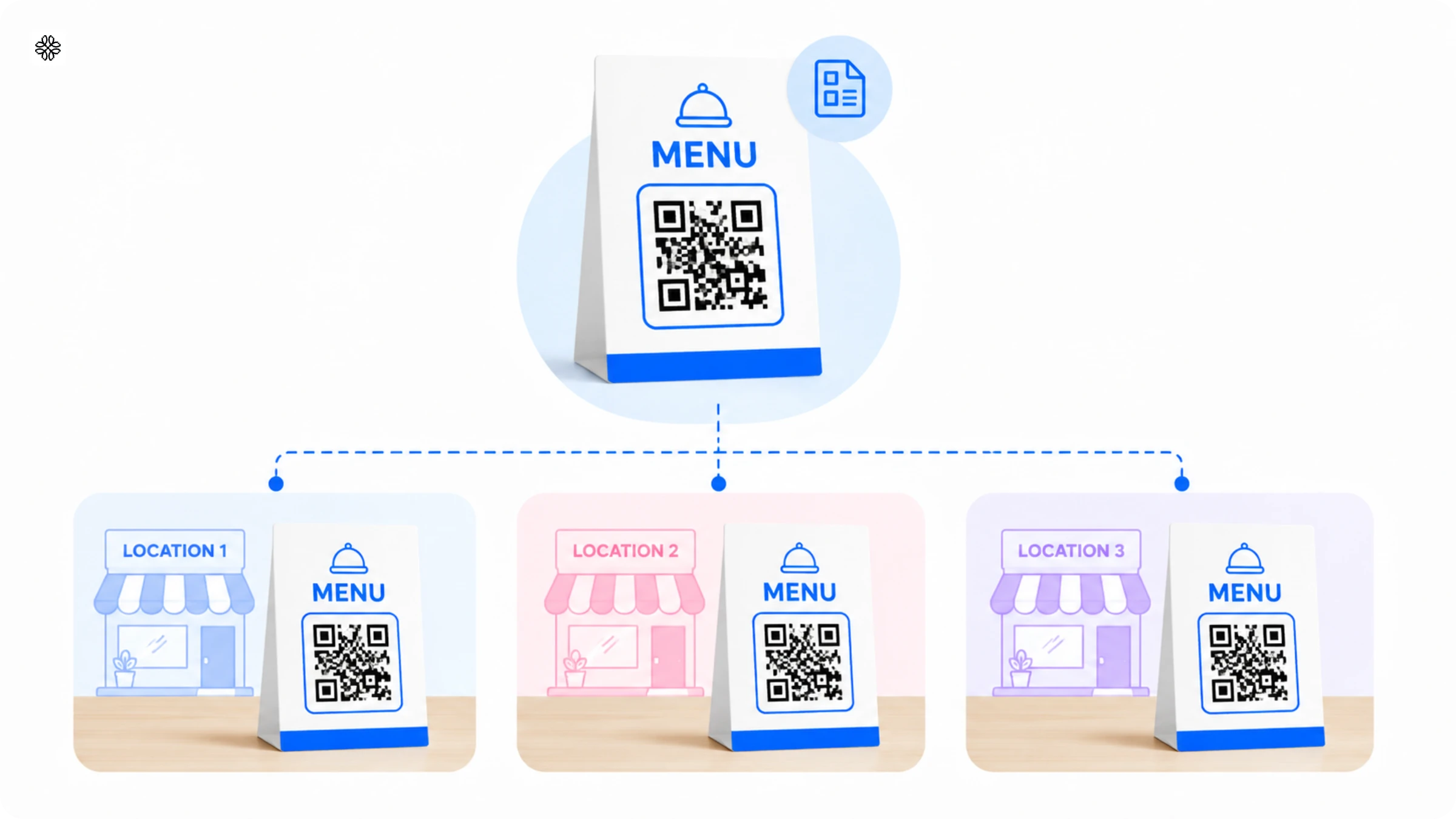
A multi-location chain can maintain a consistent appearance across all branches by using saved design templates. These templates ensure uniform logos, colors, and layouts for each menu QR Code, while allowing each location to have its own code and scan data.
6. Food trucks and pop-up events
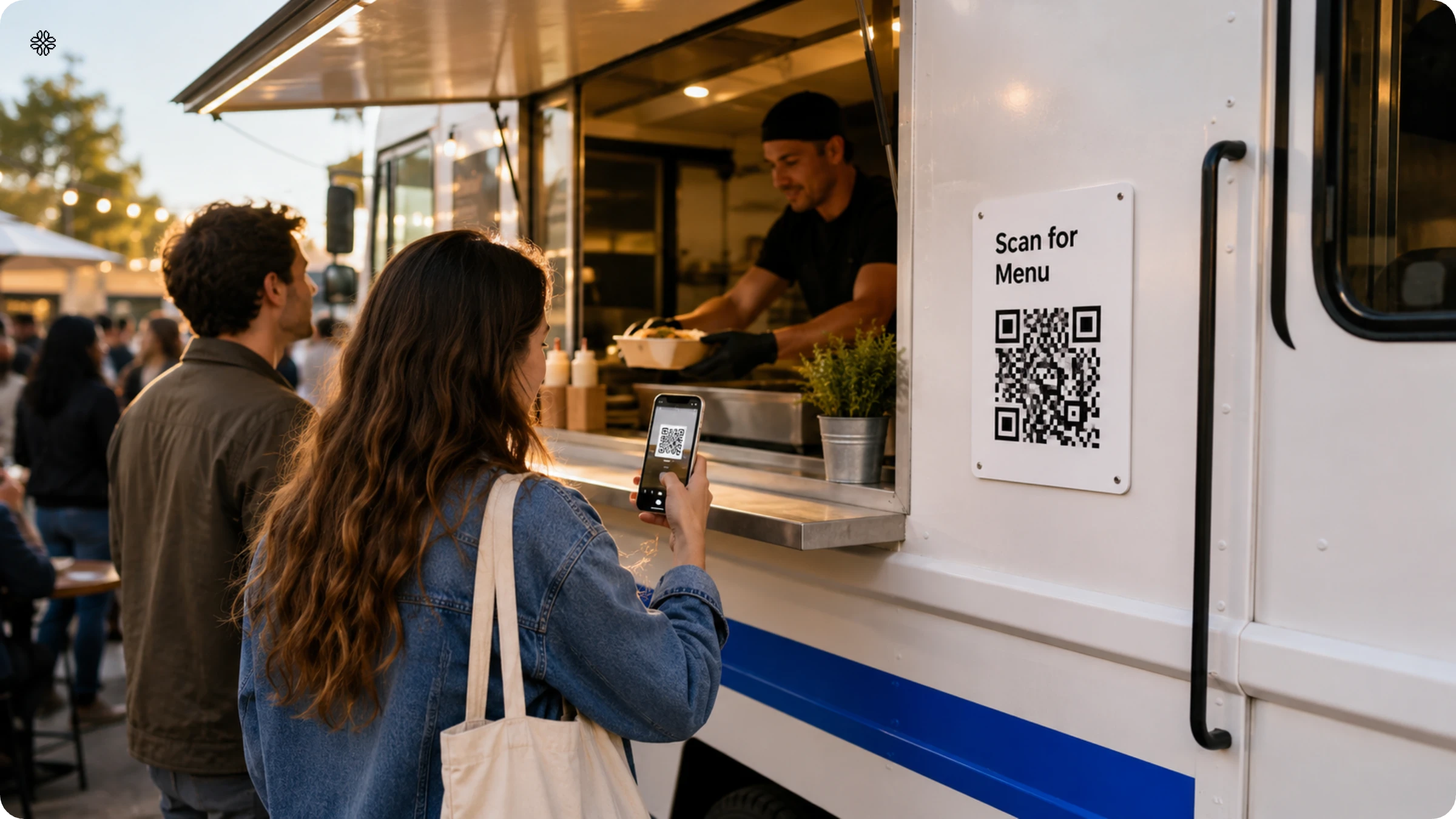
A food truck or one-time pop-up typically does not require a dynamic code. Since the menu is set in advance, a free static code is more practical. The QR code can be printed once on a sign or sticker, with no ongoing account management needed.
How does a menu QR Code help with marketing and sales?
A QR menu is, in essence, a link, so it automatically appears wherever your restaurant already has a presence, like Google, Instagram, delivery apps, and Yelp. It also sells differently than a paper menu, since you can highlight dishes, add photos, and push specials in ways print can't. Both benefits are easy to miss at setup because they show up later, in reach and sales, and not in daily operations.
By adding the menu link to platforms such as Instagram, Google Business Profile, or your official website, customers can view the actual menu before visiting, rather than only seeing a phone number or rating. Updating the menu link in the dashboard automatically refreshes it across all channels, as they all direct to the same source.
A digital menu also supports sales by making it easier to feature photos, highlight specials, and promote high-margin dishes. Updating daily specials is as simple as editing a single line in the dashboard, ensuring all information remains up to date.
Free QR Code menu or a paid one? Understanding the differences
A free static QR Code menu is suitable only if the menu will never change. A dynamic QR Code is the more cost-effective option if you need to update the menu even once, since static codes require reprinting whenever changes are made.
Static QR Codes cannot be updated after creation. Any change requires reprinting, making it impractical after the first update. It also lacks scan tracking, so you receive no data to guide business decisions.
A paid dynamic menu QR Code eliminates these limitations. You can update the menu at any time without reprinting. Upload a PDF version if preferred, and:
- Track scans, including peak hour activity, which is valuable for multi-location restaurants planning campaigns.
- Set age restrictions for alcohol menus.
- Manage multiple menus from a single dashboard.
A risk that is easy to miss is the dependency on someone else's hosting decision. A free QR Code menu generator that shuts down, gets acquired, or quietly retires its free tier takes every printed code with it. The code stays on the table; the destination just stops working, and nobody notices until a customer scans a dead link mid-service.
Where to place a menu QR Code
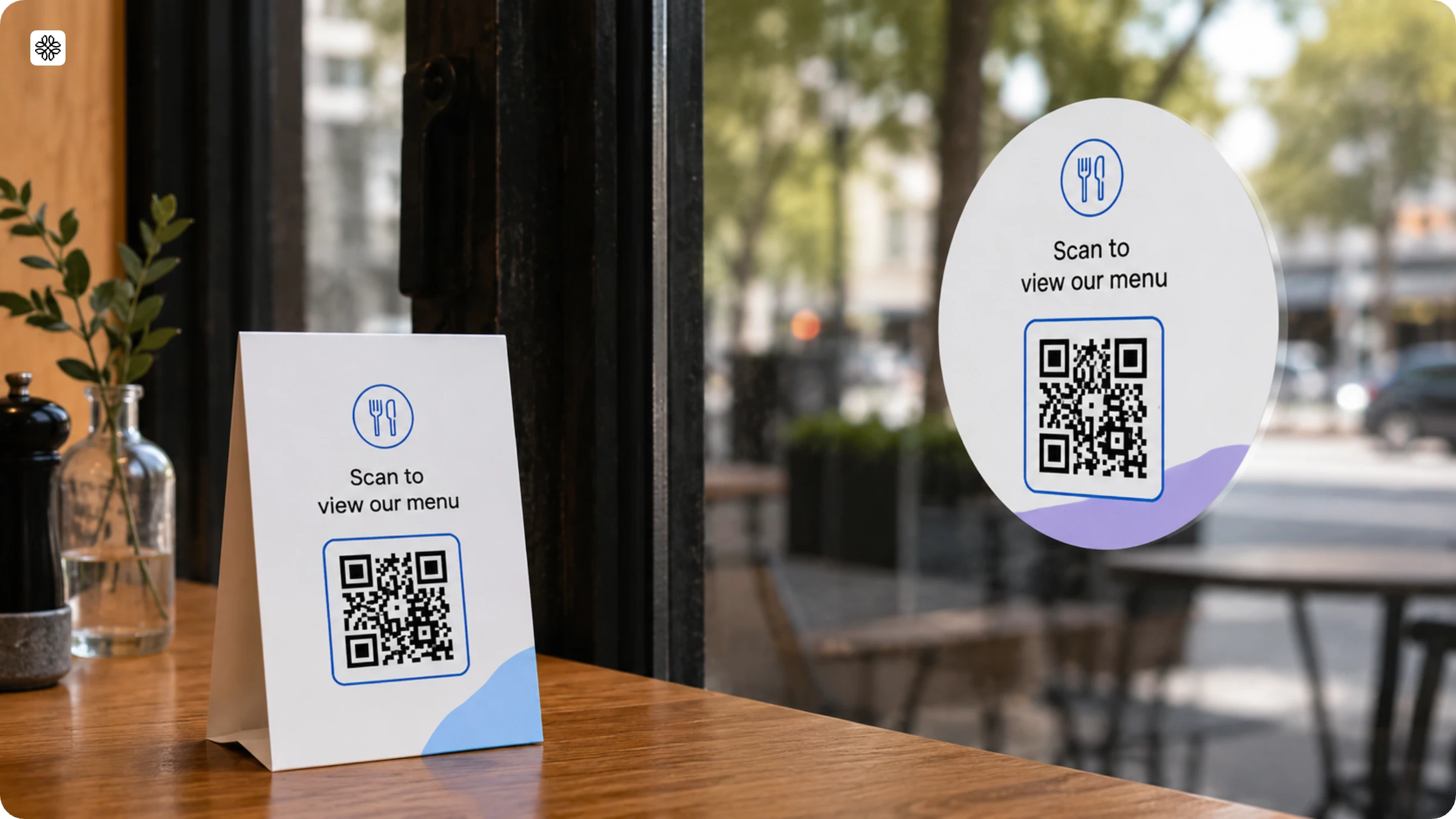
Table tents and laminated table cards are the standard placements for menu QR Codes. However, window clings, printed standees, and printed codes on receipts or business cards are also effective, provided the code remains legible from a typical reading distance.
Size and contrast determine whether a QR Code will be scanned successfully. For reliable scanning, use a minimum size of 2 x 2 cm (0.8 x 0.8 inches) for close-up use, and 3 x 3 cm to 5 x 5 cm for codes intended to be read from a distance. The recommended scanning distance is approximately ten times the code’s width; for example, a 3 cm code can be scanned from about 30 cm away. Ensure strong contrast between the code and its background, regardless of placement.
For multi-location restaurants, assign a unique dynamic QR Code to each location rather than using a single code for all branches. Shared codes combine scan data, making it difficult to track usage by location. Individual codes ensure scan counts and peak-hour data remain accurate and actionable for each site.
Best practices for creating a menu QR Code
Restaurants, cafes, and bars are already the single largest place people scan QR Codes: 58% of consumers who scan a code do it at a restaurant, cafe, or bar, according to Uniqode's State of QR Codes 2026 report, based on a survey of 1,000 US consumers in October 2025. Four practices turn that existing scanning behavior into a menu people actually use:
- Expect scanning to be the default, not a novelty. Menu QR Codes are now familiar to most diners and have become the expected format on restaurant tables. According to Uniqode, the hospitality industry averages 328 scans per code, making it the second-highest engagement sector.
- Keep physical menus on hand anyway. According to a blind Toast survey of 850 US adults in September 2024, 81% of diners prefer physical menus, while only 1% favor QR codes. This preference is even stronger among those aged 55 and older, with 90% choosing physical menus over QR codes. Offer a small stack of physical menus for anyone who asks, instead of assuming every table wants to scan.
- Trust the format's safety record. According to the State of QR Codes 2026 report, 71% of consumers find QR Codes at least somewhat helpful in daily life, and 58% feel somewhat or very confident in their safety. Hygiene concerns are no longer a significant barrier compared to the pandemic period.
- Design for contrast, not just style. Ensure the QR Code color contrasts clearly with its background, such as a table, menu holder, or window. Codes that blend into their background are unlikely to be scanned, even if diners trust the format
Make menus more accessible at your restaurant with Uniqode
Create QR Code menus by signing up for a free trial with Uniqode.
Every restaurant aims at providing a great customer experience. Menus being one of the first touch points, using QR Codes can help provide smoother access for customers to place orders.
You can customize the menu QR Codes to suit the theme and colors of your restaurant.
By upgrading to paid, dynamic QR Code menus, you also get the ability to track and edit the QR Codes.
Frequently Asked Questions
- What is the best free QR code generator for restaurant menus?
The best free QR code generators for restaurant menus include QR Code Generator, Canva, and QRCode Monkey, which allow unlimited static QR code creation without watermarks. These platforms support PDF linking, which is essential since restaurant menus typically require 4-8 pages of content. Most free versions provide QR codes up to 300 DPI resolution, which is sufficient for print materials up to A4 size.
- How much does it cost to make a QR code menu for a restaurant?
Creating a static QR code menu is completely free using platforms like QR Code Generator or Canva, with no recurring costs. However, dynamic QR codes that allow menu updates without reprinting typically cost between $5-15 per month for restaurant-specific plans. The one-time printing cost for professional table displays ranges from $2-5 per table tent or sticker.
- Can customers scan QR code menus without downloading an app?
Yes, 100% of iOS devices running iOS 11 or later (released in 2017) can scan QR codes directly through the native camera app without additional software. Android devices running version 9.0 or higher, which represents over 85% of Android phones currently in use, also have built-in QR code scanning capabilities. This means the vast majority of restaurant customers can access QR menus instantly by simply pointing their phone camera at the code.
- What size should a QR code be for a restaurant table?
QR codes for restaurant table displays should be a minimum of 2 x 2 cm (0.8 x 0.8 inches) for reliable scanning at close range. The optimal size for table tents and menu cards is 3 x 3 cm to 5 x 5 cm, which allows scanning from distances up to 50 cm. The scanning distance formula is approximately 10:1, meaning a 3 cm QR code can be scanned from 30 cm away.
- How do I update my QR code menu without reprinting?
Dynamic QR codes allow unlimited menu updates without reprinting by redirecting to a changeable URL while the printed QR code remains the same. Unlike static QR codes which permanently encode fixed information, dynamic QR codes act as redirects that can be modified in real-time through a dashboard. This feature typically requires a paid subscription ranging from $5-15 monthly but can save restaurants hundreds of dollars in reprinting costs when menus change seasonally or weekly.
- Are QR code menus safe and hygienic for restaurants?
QR code menus eliminate physical contact with shared surfaces, reducing pathogen transmission by up to 80% compared to traditional laminated menus according to hospitality hygiene studies. During the COVID-19 pandemic, the National Restaurant Association reported that 63% of diners preferred contactless menu options over physical menus. QR menus also eliminate the labor cost of sanitizing physical menus between each table use, which restaurants previously had to do 15-20 times per shift per menu.
- What happens if a free QR Code menu's link stops working?
A free, static QR Code can't be fixed once it's printed. If the free tool hosting the code's redirect shuts down or changes its terms, every copy already printed and placed on a table points at a dead link with no warning. A dynamic QR Code avoids this because the redirect lives on an account that can be updated, so the destination can move even if the original link changes.
- Can a QR Code menu show a different language depending on who scans it?
Yes. A dynamic QR Code menu can route to a different language version of the menu based on the scanner's device language, so a tourist-area restaurant prints one code instead of a separate code per language. Each visitor lands on the version their phone is already set to read.
- Can I age-restrict just the bar menu without blocking the food menu on the same code?
Yes. Age verification applies per menu, not per restaurant, so a bar or drink menu can require age confirmation before it loads, while a food menu on a separate code next to it stays open to everyone. This keeps alcohol content adult-only without adding friction to the rest of the ordering experience.
- Can I share a QR Code menu link without printing a physical code?
Yes. The same menu link that powers a printed QR Code works as a regular URL, so it can go directly into an Instagram bio, a Google Business Profile, or a restaurant's website. A customer researching where to eat sees the actual menu before they scan anything.
- Does a QR Code menu have a limit on how many items it can show?
No. A menu QR Code encodes a link to a hosted menu page or PDF, not the menu text itself, so the code has no size limit of its own. The only real limit is what the hosted page or PDF can hold, which is effectively unlimited for a standard restaurant menu.
About the Author
Ektha is a QR code expert with years of research and analysis into the evolution of QR codes. Having written over 70 in-depth articles on QR technology, she has developed a comprehensive understanding of how QR codes are transforming industries. Her insights, including The State of QR Report, have been featured in leading publications. With a passion for simplifying complex topics and providing actionable strategies, Ektha helps businesses leverage QR codes to enhance their 'phygital' connections.
Related Posts
Smart QR Codes Explained: What They Are and How to Create One
Static QR Code: Definition, Uses, Benefits & Limitations
Multimedia QR Code generator: turn audio, video, images, and PDFs into one scannable code
The Complete Guide to QR Codes: How They Work, Types, and Best Practices
Do QR Codes Expire? How Long They Last & Why