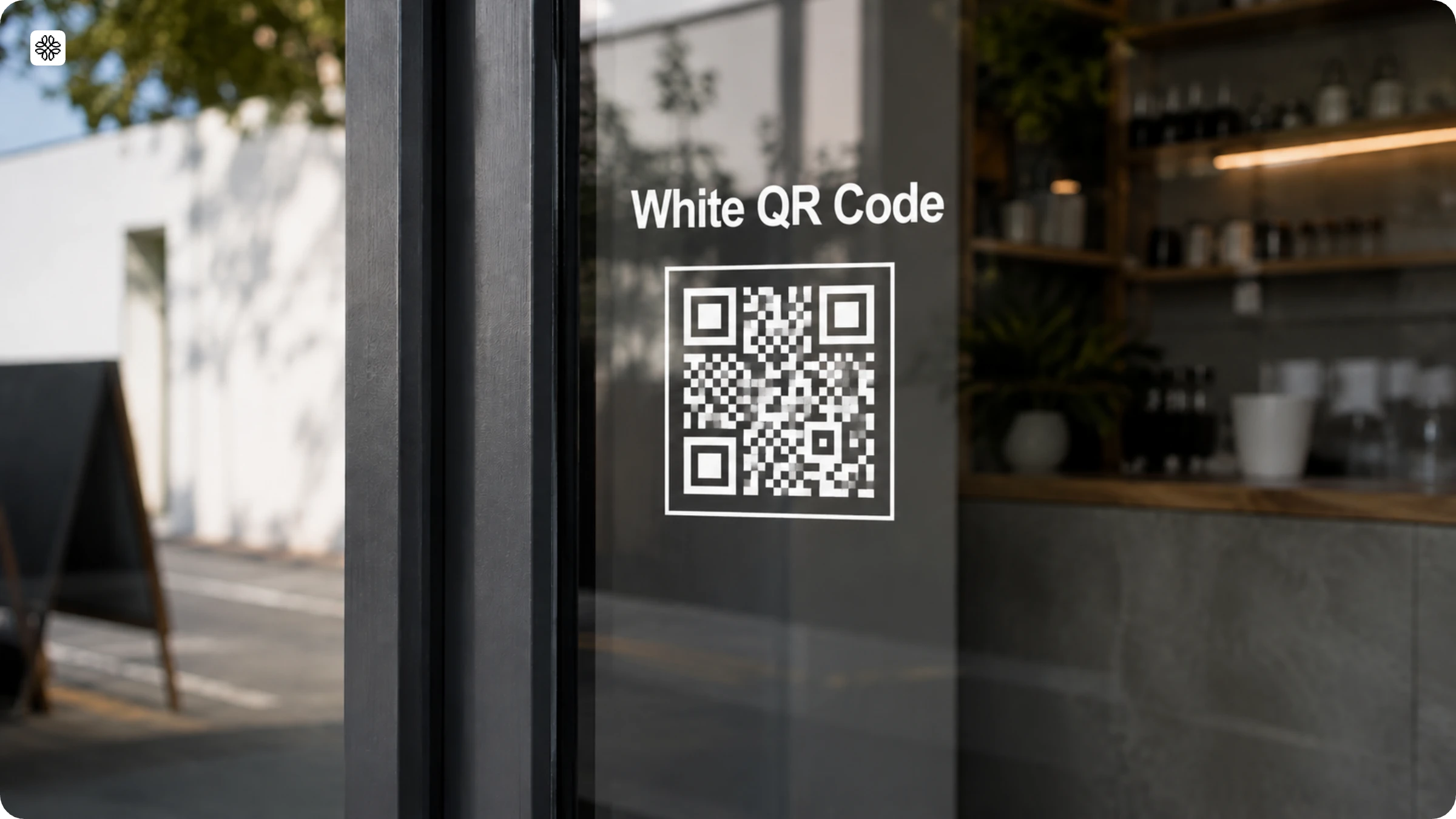
QR Code Frames: How to Add One (Step-Wise Guide and Free Templates)
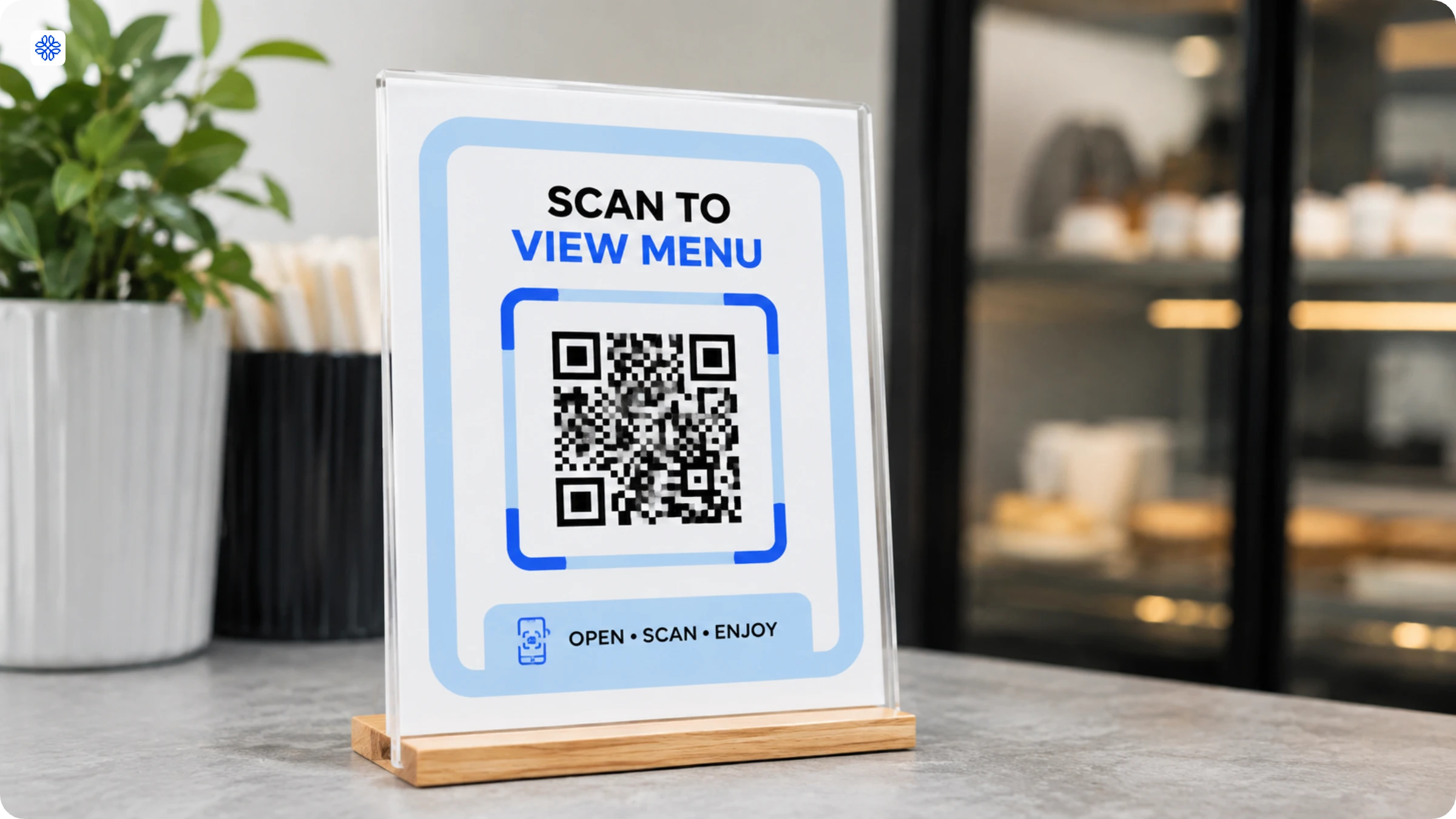
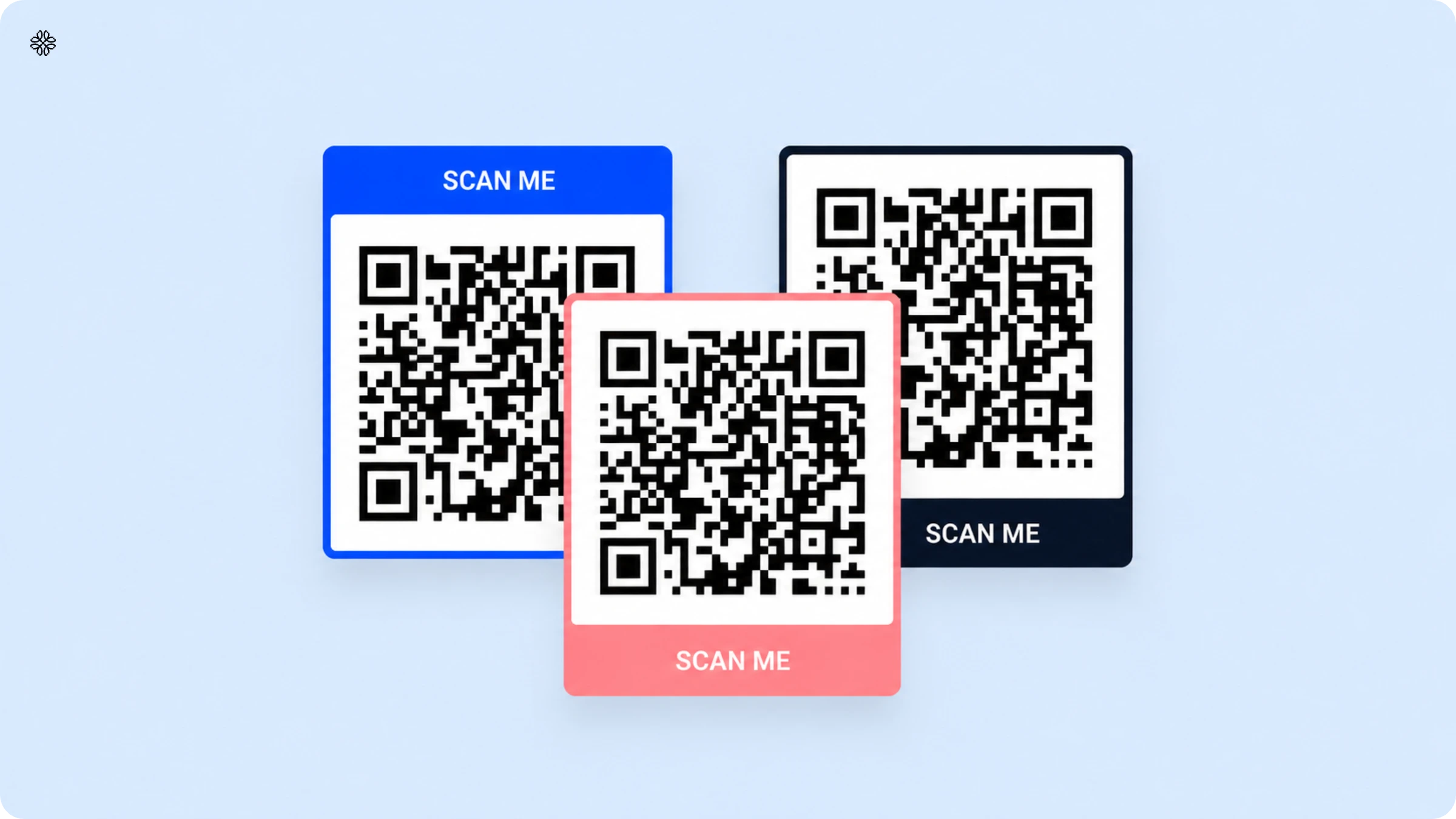
Every QR Code needs a frame the same way a great picture needs one. A frame doesn't just dress up the design; it turns a plain black-and-white square into something people actually notice and tap. Here's how to add one to yours.
Brief overview
- A QR Code frame is the visual border around a QR code, the CTA text, brand colors, icons, that tells people why to scan before they decide it's worth their attention.
- Two ways to add one: a QR Code generator with native frame support (maintains the quiet zone automatically, recommended) or Canva (more creative flexibility, manual spacing required).
- Includes 11 QR Code frame designs with 3 free templates, organized by use case (Scan Me, app download, social, vCard, video, survey, coupon, Wi-Fi, menu, seasonal).
A QR Code frame is the visual border that surrounds a QR Code and contains supporting elements such as call-to-action (CTA) text, brand colors, icons, or design accents. Its purpose is simple: tell people why they should scan the code before they decide whether it's worth their attention.
Frames do more than make QR Codes look polished. They help answer the question every user asks before scanning: *What happens if I scan this?* A bare QR Code provides no context, which creates a moment of hesitation. A clear frame removes that uncertainty by setting expectations upfront, often leading to higher scan rates.
The benefit, however, depends on whether the message matches the destination. A frame that promises "Scan for exclusive offers" but sends users to a generic homepage may increase scans while reducing conversions. The QR Code earns the click, but the experience fails to deliver on the promise. For the 50% of marketers who distribute QR Codes in print (State of QR Codes 2026, n=524 US marketers), that mismatch can remain in circulation until the next print run.
In this guide, you'll learn:
- What a QR Code frame is and how its components work technically
- How to add a QR Code frame in Uniqode and Canva, step by step
- What to write on a QR Code frame for different use cases, including the CTA alignment mistake that quietly hurts conversions
- Where to download free QR Code frame templates organized by use case
What is a QR Code frame?
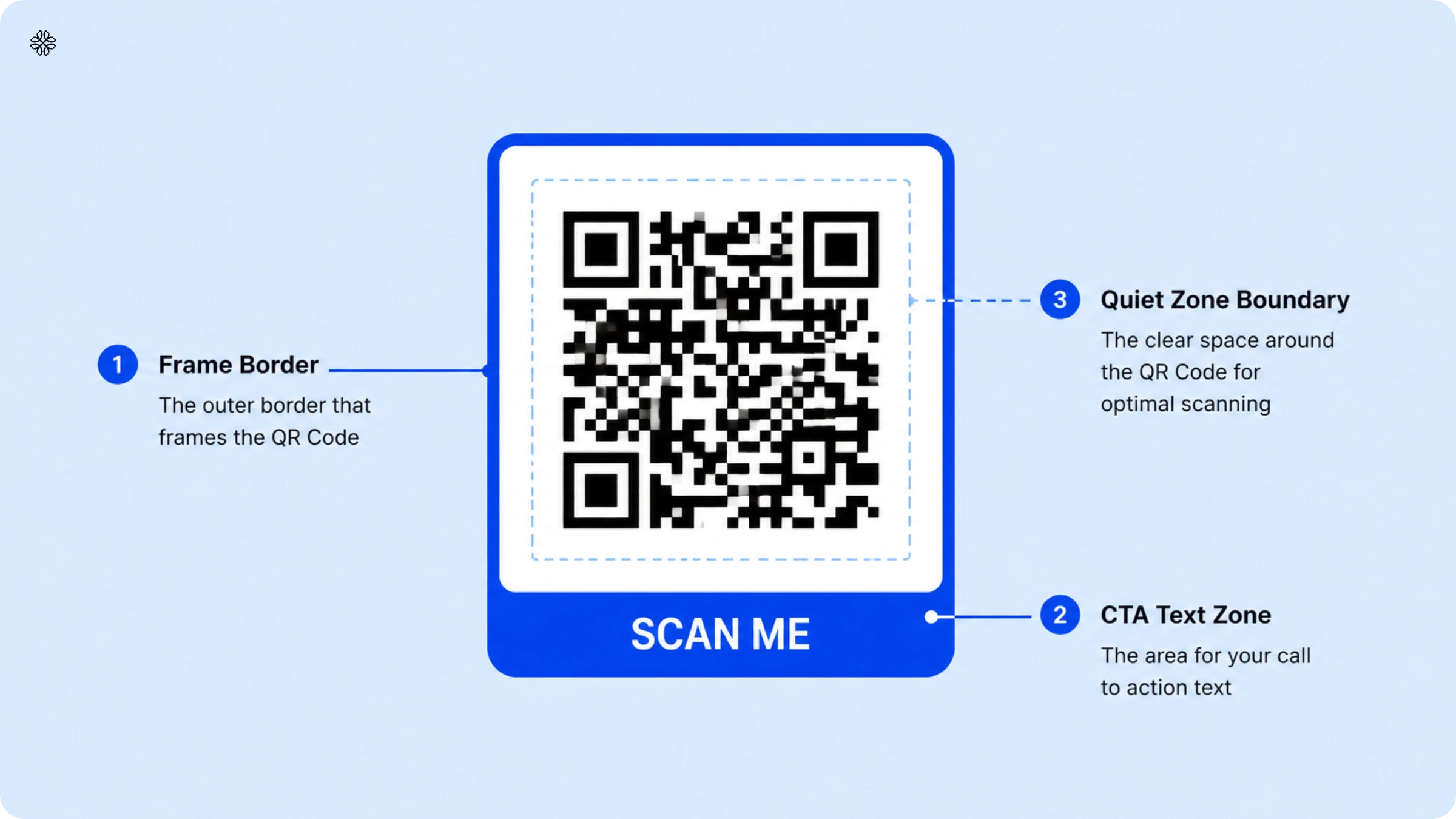
A QR Code frame is the space around the QR Code (occupying the outer edge of the quiet zone) that can contain CTA text, design elements, clip art, and branding such as "Scan me" or "View today's menu." Three components make up a complete frame: the outer border (shape, color, design), the CTA text zone (the band where the call-to-action text sits), and the quiet zone boundary (the buffer between the frame and the QR Code itself).
"Frame QR" by DENSO WAVE is a separate technology (a QR Code with a canvas area cut into its center for placing logos or images inside the code). Decorative CTA frames sit entirely outside the code. Both are called "QR code frame" in common usage. They are not the same thing.
For the QR Code to scan correctly, white space must surround it. This space is called the quiet zone (also called negative space). The quiet zone helps a scanning device identify the code and separate it from surrounding visual elements. ThisThe quiet zone must remain clear of any design elements: frames occupy the outer edge of this zone, not the zone itself.
Using the periphery of the quiet zone, a QR Code frame can add:
- Text-based CTAs ("Scan to order," "Get the Wi-Fi password")
- Brand colors and border shapes
- Themed or seasonal visuals for campaign-specific codes
Adding a text-based CTA is the most common use. The text communicates the scan's purpose before the scan happens, which reduces hesitation and improves response rates. In visually dense environments (a graphic billboard, a restaurant table with competing design elements, a product package with limited white space) a frame physically separates the QR Code from surrounding graphics, reinforcing the quiet zone boundary where it might otherwise get crowded.
For QR Code CTA text specifically, the framing and wording choices that drive scans are covered separately. The short version: specific beats generic every time.
How to add a QR Code frame
The easiest way to add a QR Code frame is to use a QR Code generator that has frame support built in. QR Code generators with native frame tools maintain the quiet zone automatically when applying a frame. External design tools offer more creative flexibility but require manual spacing, and an overlapping frame element can reduce scannability if the quiet zone gets compressed.
Two methods:
- Using a QR Code generator for text-based CTA frames (recommended)
- Using Canva for more complex, designer-built frames (optional)
Using a QR Code generator
Step 1: Log in and select the QR Code type
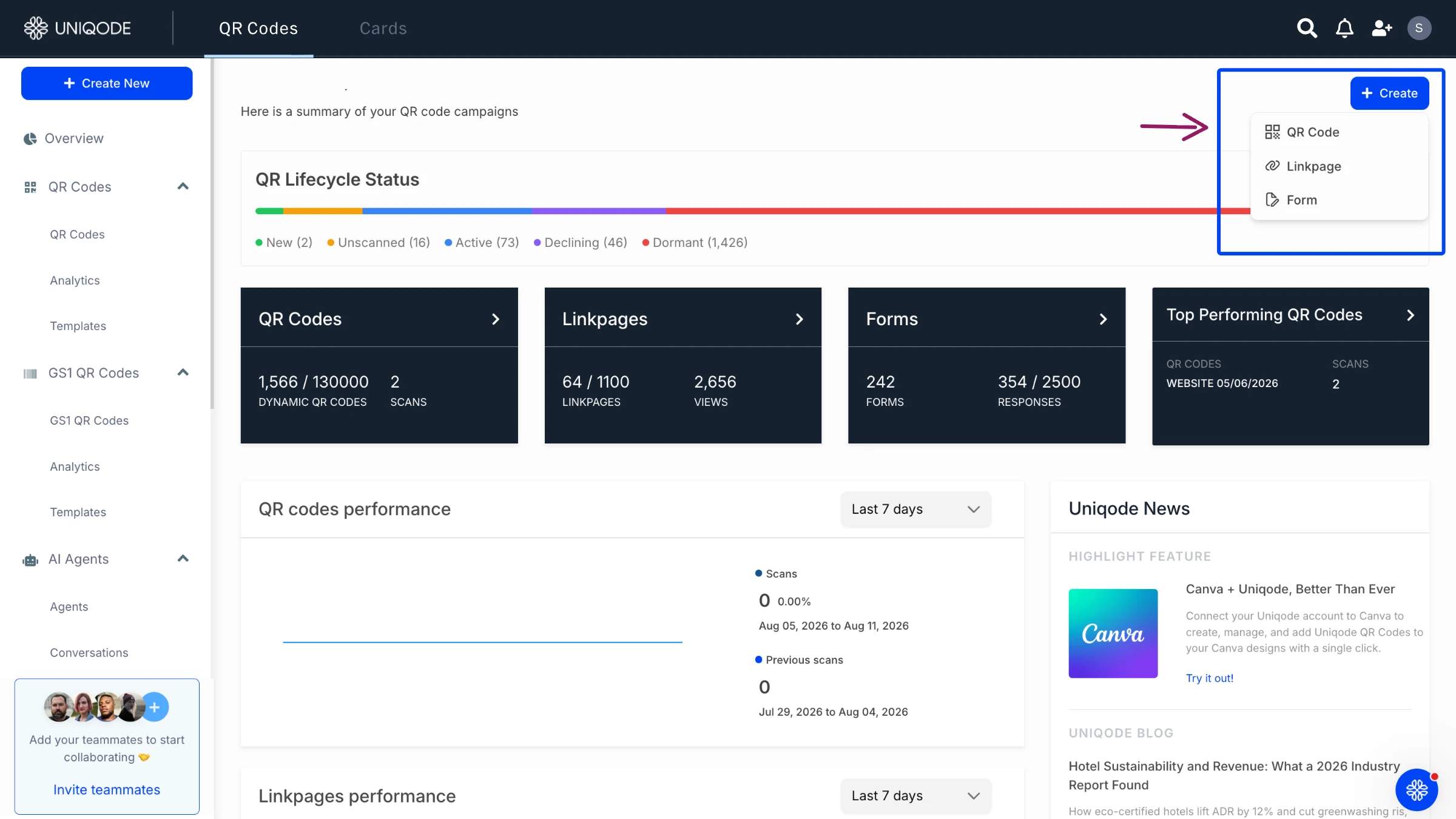
Log in to the Uniqode dashboard. Click "+Create" in the dashboard and select your QR Code type from the list. Frames work with any QR Code type you choose.
Step 2: Design your QR Code and add a frame
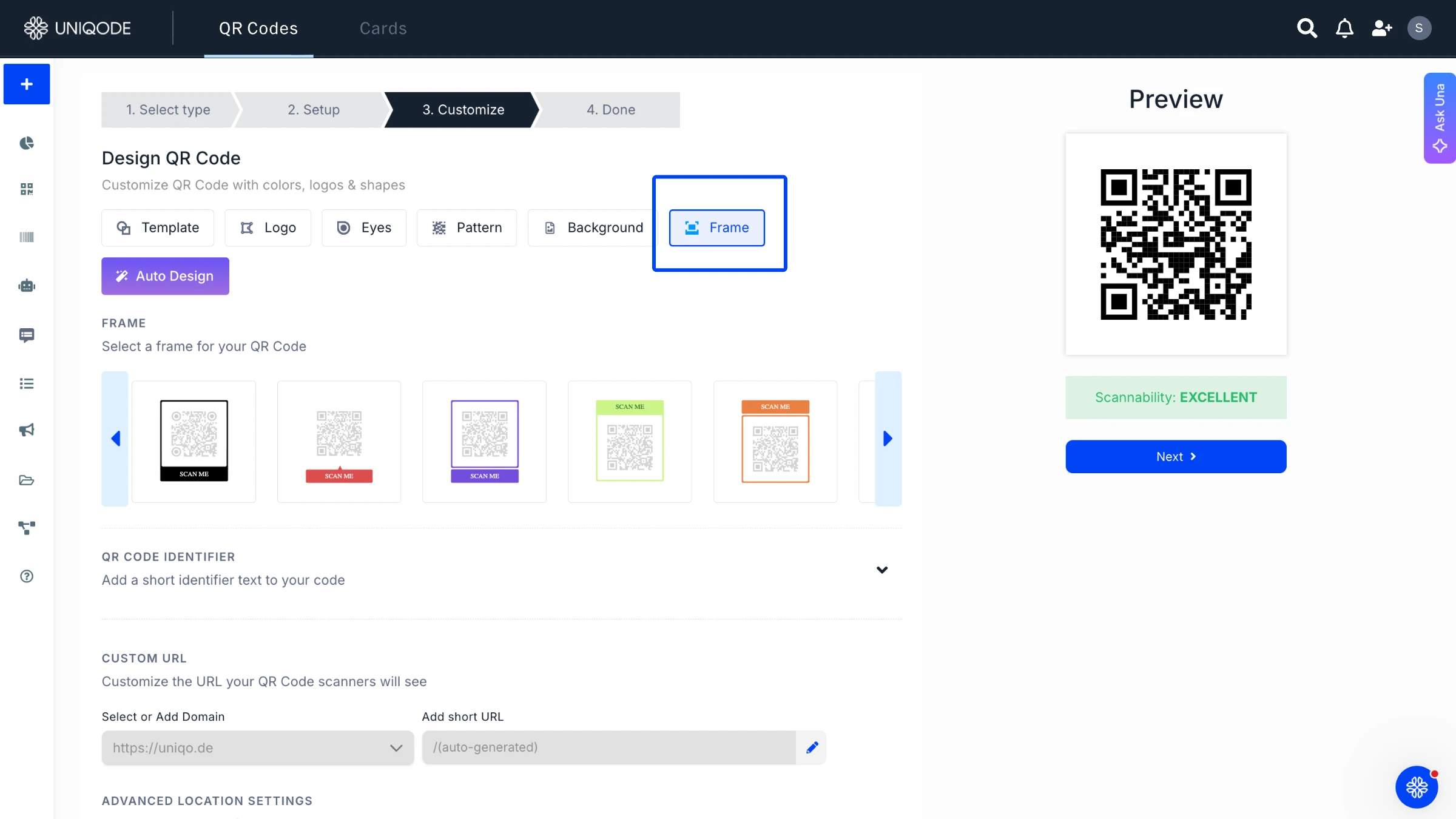
In the customization step, click "Frames" from the design menu. A selection of frame styles appears. Click a frame to apply it to your QR Code preview.
In Uniqode, you can customize:
- The text on the frame (CTA)
- Frame design and shape
- Frame color
- Text color
Once the frame looks right, click "Next."
Step 3: Download your framed QR Code
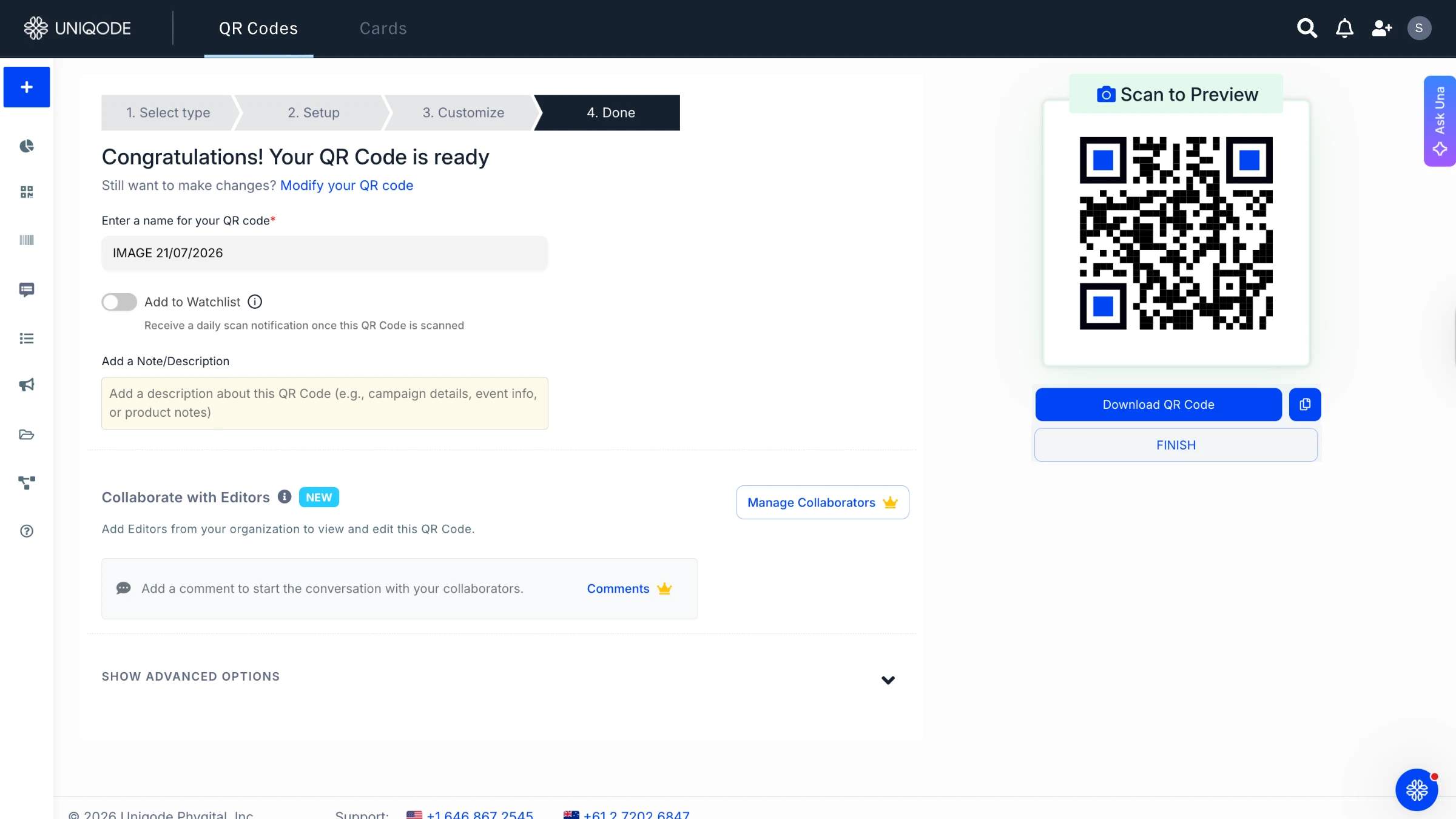
Click "Next" under the QR Code preview. Name your QR Code and add labels or tags under "Advanced options" if needed. Click "Download QR Code," choose the file format (PNG, SVG, or PDF for print), and click "Finish."
Before downloading, make one important decision: static or dynamic QR Code?
A static QR Code locks in its destination URL at creation, making the frame's CTA a long-term promise. If the frame says "Scan for this week's specials," the linked page must continue delivering exactly that for as long as the printed code remains in circulation.
A dynamic QR Code lets you update the destination URL at any time without reprinting or redesigning the frame. That flexibility helps keep time-sensitive CTAs accurate and reduces costly reprints. In fact, 28% of marketers using dynamic QR Codes report a significant reduction in printed materials, while 45% report some reduction in reprints (State of QR Codes 2026, n=524).
If your QR Code will appear on long-run print and the destination may change, start with a dynamic code.
Using Canva to add frames to QR Codes(optional)
Unlike a QR Code generator, Canva does not have frame controls built into QR Code creation. The process is: find or create a frame template, bring it into Canva, and layer your QR Code onto it manually. The frame template must exist before you place the QR Code.
Two ways to use the templates from this article:
- Download the frame templates from the Google Drive links in the section below and use them in any design tool, including Canva
- Use the Canva design link to open the template directly in the Canva editor
For both options, the Uniqode-Canva integration is the fastest way to place your QR Code inside the frame:
Step 1: Open the design on Canva
Once the frame template is open in Canva, click "Use template for new design." Log in to your Canva account (or create one) to access it.
Step 2: Integrate the “Uniqode QR” app to Canva
This is a one-time setup:
- Click "Apps" in the left-hand toolbar
- Search for "Uniqode QR"
- Connect the app via the integrations page on the Uniqode dashboard
Step 3: Place your QR Code to the frame template
After connecting, your Uniqode QR Codes appear in the toolbar. Click the code you want to frame. It drops into the design automatically. Drag it into the marked slot on the template.
Leave at least 10 pixels of clear space on all sides of the QR Code. Frame elements that overlap the quiet zone reduce scannability. When in doubt, test with a phone scanner before finalizing the design.
CTA text by use case
| Use case | Weak CTA | Strong CTA |
|---|---|---|
| Restaurant / cafe | Scan me | Scan for today's menu |
| Retail product | Scan here | Scan to check price |
| Event / conference | QR Code | Scan to register |
| Business card | Info | Scan to save my contact |
| Wi-Fi access | Wi-Fi | Scan to get free Wi-Fi |
| Discount / coupon | Scan | Scan for 20% off |
| Social media | Follow us | Scan to follow on Instagram |
| App download | Download | Scan to download the app |
11 QR Code frame designs to create and standardize across your organization
Organizations rarely create QR Code frames from scratch every time. Most standardize a set of approved frame designs for common use cases, allowing different teams to maintain brand consistency while creating new QR Codes.
In Uniqode, frame designs can be saved and reused across the organization. Once a frame is created, marketing, events, retail, sales, and operations teams can apply the same design to new QR Codes without rebuilding it from scratch. This keeps CTAs, colors, and branding consistent across campaigns while reducing design effort.
1. General-purpose "Scan Me" frames
Simple, versatile frames used across posters, flyers, packaging, and in-store signage. While more specific CTAs generally perform better, general-purpose frames are useful when the same design needs to support multiple destinations.

2. App download QR Code frames
App download QR Code frames are designed for campaigns that drive mobile app installs. Common placements include billboards, event signage, brochures, and retail displays. Typical CTAs include "Scan to download the app" or "Get the app."

3. Website and URL QR Code frames
Used to direct customers to landing pages, product pages, resource centers, or company websites. These frames work well when the destination itself provides the primary value.

4. Social media QR Code frames
Designed to grow followers and engagement across platforms such as Instagram, LinkedIn, TikTok, and YouTube. The CTA should clearly identify the platform users will reach after scanning.
5. Digital business card and vCard QR Code frames
Digital business card and vCard QR Code frames are used by sales teams, executives, and event attendees who want contacts saved directly to a phone. Clear CTAs such as "Scan to save contact" consistently outperform generic alternatives.
6. Video QR Code frames
Built for QR Codes that lead to product demos, training content, testimonials, or promotional videos. A video-specific CTA helps users understand the content format before scanning.
7. Survey QR Code frames
Commonly used on receipts, packaging, table tents, event materials, and post-purchase collateral. The frame should communicate the expected effort and value of completing the survey.
8. Coupon and voucher QR Code frames
Designed for discounts, loyalty rewards, limited-time promotions, and special offers. The most effective frames state the offer directly, such as "Scan for 20% off."
9. Wi-Fi QR Code frames
Frequently used in restaurants, cafés, hotels, retail stores, healthcare facilities, and co-working spaces. A clear Wi-Fi CTA removes friction and encourages immediate use.
10. Menu QR Code frames
Built for restaurant menus, table tents, food courts, and self-service ordering stations. The frame helps customers immediately identify the QR Code's purpose
11. Seasonal campaign QR Code frames
Used for recurring events such as Halloween QR code campaigns, Black Friday, and holiday promotions. The frame design can remain consistent year after year, while the destination is updated to reflect current offers and campaigns.
The most effective organizations treat QR Code frames as reusable brand assets rather than one-off designs. A standardized library of approved frames helps teams launch campaigns faster while maintaining a consistent scanning experience across every customer touchpoint.
Frequently Asked Questions
- 1. Does a QR Code need a frame?
A well designed QR Code with frame and CTA brings in more engagement and boosts conversion. Hence to boost these metrics, we recommend that the QR Codes you design have a frame and CTA.
- 2. Does having a ‘scan me’ QR Code frame help?
Having a ‘scan me’ QR Code frame is helpful as it provides a clear call to action to the end user who scans it. A QR code with frame allows space to insert the CTA, which boosts response rates and scans.
- 3. What is the quiet zone in a QR code and why is it important?
The quiet zone, also called negative space, is the mandatory white space surrounding a QR code that helps scanning devices identify and distinguish it from other visual elements. This border area is essential for scannability, and while you cannot place designs within the quiet zone itself, you can add frames to its outer edge without compromising scan functionality. Frames become especially critical in visually dense campaigns where multiple graphic elements compete for attention.
- 4. What is the best QR code generator for adding custom frames?
Uniqode is specifically recommended for adding text-based CTA frames to QR codes because it offers built-in frame customization tools that preserve scannability. The platform allows you to customize frame design, frame color, text color, and CTA messaging directly within the generator, ensuring the quiet zone remains intact. Unlike external design tools where improper frame placement can interfere with scanning, dedicated QR code generators with frame support maintain proper spacing automatically.
- 5. What can you customize on a QR code frame?
When using a QR code generator like Uniqode, you can customize four key frame elements: the text on the frame (such as CTA messaging), the frame design or shape, the frame color, and the text color. These customization options allow you to match the frame to your branding while maintaining the code's scannability. The frame occupies the outer edge of the quiet zone without interfering with the scanning area itself.
- 6. Should I use a QR code generator or Canva to add frames?
A dedicated QR code generator is the safer choice for adding frames because it automatically maintains the required quiet zone, whereas design tools like Canva require manual layering that can accidentally compromise scannability if not done carefully. QR code generators have built-in frame features that ensure proper spacing, while Canva requires you to create frame templates separately and then layer the QR code on top. If you're not experienced with design spacing requirements, using a QR code generator prevents scanning errors.
About the Author
Ektha is a QR code expert with years of research and analysis into the evolution of QR codes. Having written over 70 in-depth articles on QR technology, she has developed a comprehensive understanding of how QR codes are transforming industries. Her insights, including The State of QR Report, have been featured in leading publications. With a passion for simplifying complex topics and providing actionable strategies, Ektha helps businesses leverage QR codes to enhance their 'phygital' connections.
Related Posts

How to Design a QR Code: Best Practices, Mistakes to Avoid, and Real Examples
High Resolution QR Code : Ensure Clarity and Scannability
Vector QR Codes Explained: SVG vs EPS, DPI, and Print-Ready Setup
QR Code with a Background Image: How to Create One That Still Scans
How to Add a QR Code Border (and Keep It Scannable)