Launch dynamic QR Codes that connect offline moments to results you can measure.
Create & Brand
Design beautifully branded QR Codes that drive action from every scan.
Collect Leads & Insights
Turn every scan into qualified leads and actionable insights with Forms and Pages.
Optimize with Analytics
Refine campaign performance and unlock smarter retargeting with analytics.
Manage & Scale
Centralize control, automate management, and scale QR campaigns confidently.
Generate a QR Code
UNIQODE CARDS
Capture contacts and engagement with branded Digital Business Cards built to scale.
Collect & Convert Leads
Instantly capture and sync leads from every card exchange.
Personalize & Brand
Customize every card to strengthen brand presence at every touchpoint.
Measure Every Interaction
Track every interaction and prove ROI with real-time engagement data.
Manage & Scale Teams
Automate provisioning and scale card management without losing oversight.
Download the Uniqode Cards app
PLATFORM
Integrations
Connect Uniqode to your stack to turn engagement into automated action.
...and more
Security
Protect every scan and exchange with enterprise-grade security and compliance.
SOC 2
HIPAA
GDPR
ISO
2FA
SSO
Why Uniqode?
Choose a platform built for reliability, security, and performance at every stage of growth.
Book a demo
Start Free Trial
BY INDUSTRY
Retail
Consumer Goods
Healthcare
Finance
Hospitality
Education
BY USE CASE
QR Codes for Marketing
QR Codes for Product Packaging
QR Codes for Events
Business Cards for Field Sales
Business Cards for C-Suite Executives
Business Cards in Email Signatures
More Use Cases
BY BUSINESS
Enterprise
Mid-sized businesses
Small businesses
BLOGS
Best QR Code Generators
Free vs. Paid QR Code Generators
Static vs. Dynamic QR Codes
How to Edit a QR Code
Guide to Safe QR Codes
COMPARE
Uniqode vs. Flowcode
Uniqode vs. Bitly
Uniqode vs. QR Tiger
UNIQUE ANGLES
The QR Code Marketing Guide to BFCM
Playbooks
Expert Speak
Newsletter
QR Code Scan Index
HELP CENTER
How to design a custom QR Code
How to restore a lost QR Code
How to duplicate a QR Code
Uniqode’s solution has made our lives a lot easier. Creating QR Codes is quick, and being able to track their performance has proven to be essential for our business.
A Google Drive QR Code links any scanned device directly to a file or folder in Google Drive. Instead of pasting a Drive URL into a chat or email, you place the QR Code on a document, handout, or screen, and anyone with a camera can reach the file instantly. You can create a free static QR Code instantly on Uniqode, no credit card details required. If you want to upgrade a QR Code that can track how many people scanned your Google Drive QR Code, try out a dynamic QR Code for free.
What is a Google Drive QR Code?
A Google Drive QR Code is a QR Code that directs users to a specific file, photo, video, or folder in Google Drive when scanned. Google Drive does not generate QR Codes natively. You can create one using a QR Code generator and the Drive shareable link.
QR Codes work for any file type Google Drive supports, including Google Docs, Google Sheets, Google Slides, PDFs, videos, images, and folders. If you want to share a training video stored in Drive, a QR Code on a printed handout lets attendees access it without typing a URL. If you want to share a folder of onboarding documents, a QR Code on a welcome card gives new hires immediate access.
For folders, the QR Code points to the folder itself rather than a single file. This means any document added to the folder after the QR Code is created becomes accessible to anyone who scans it, making folder QR Codes useful for onboarding packages, course material libraries, or project resource hubs that grow over time. For photos and videos, make sure the file is fully uploaded and processed before generating the QR Code, as large files can take a few minutes to become viewable via a shared link.
How to create a QR Code for a Google Drive link
Creating a Google Drive QR Code takes under two minutes. Set sharing permissions on your file or folder first, then generate the code with a free QR Code generator like Uniqode.
Step 1: Open your file or folder in Google Drive and click “Share”
Make sure the access is set to “Anyone with the link.” Choose the appropriate role: Viewer lets anyone see the file, Commenter lets them annotate it, and Editor lets them make changes. Copy the link to the folder.
Step 2: Generate a QR Code
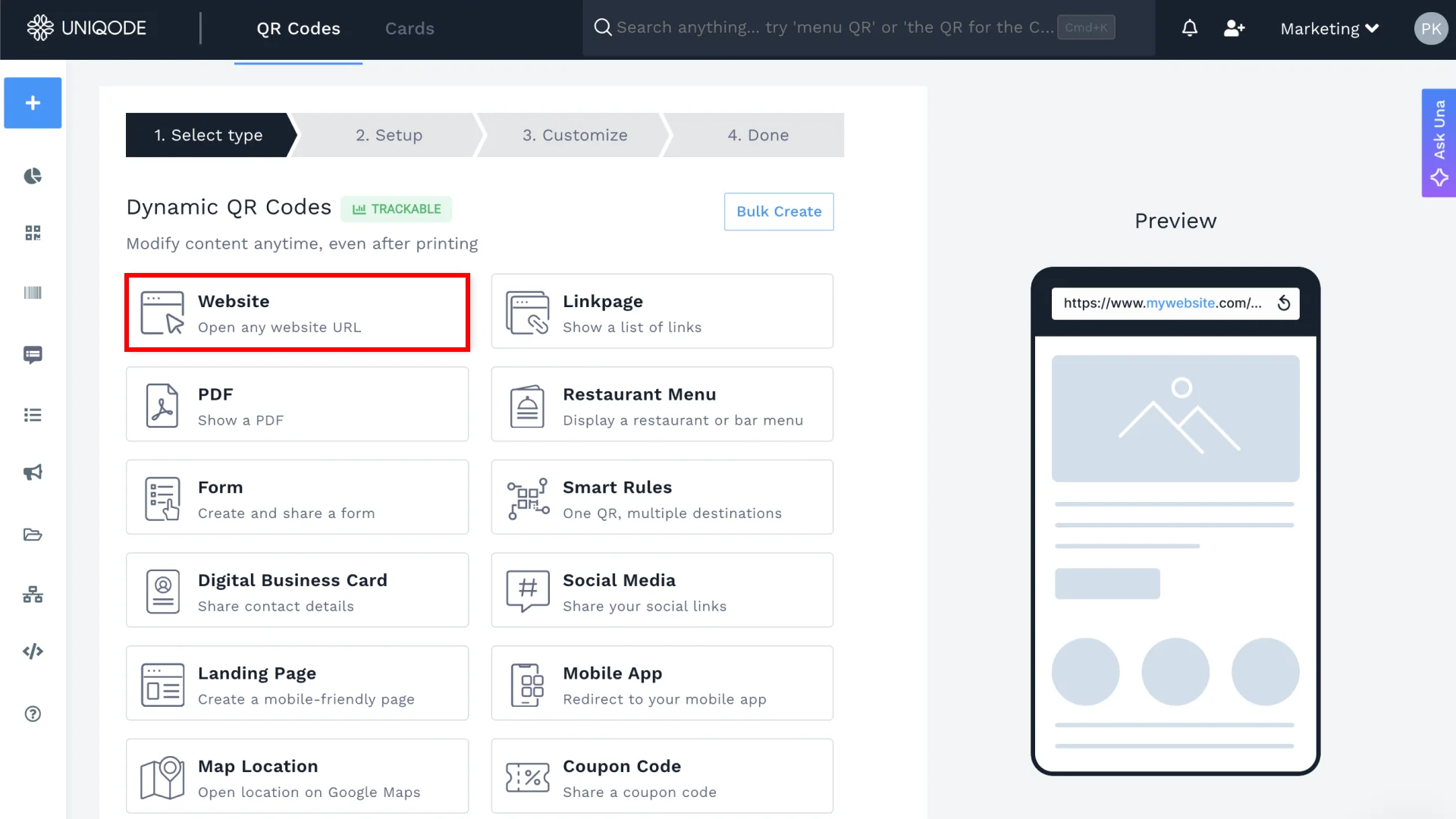
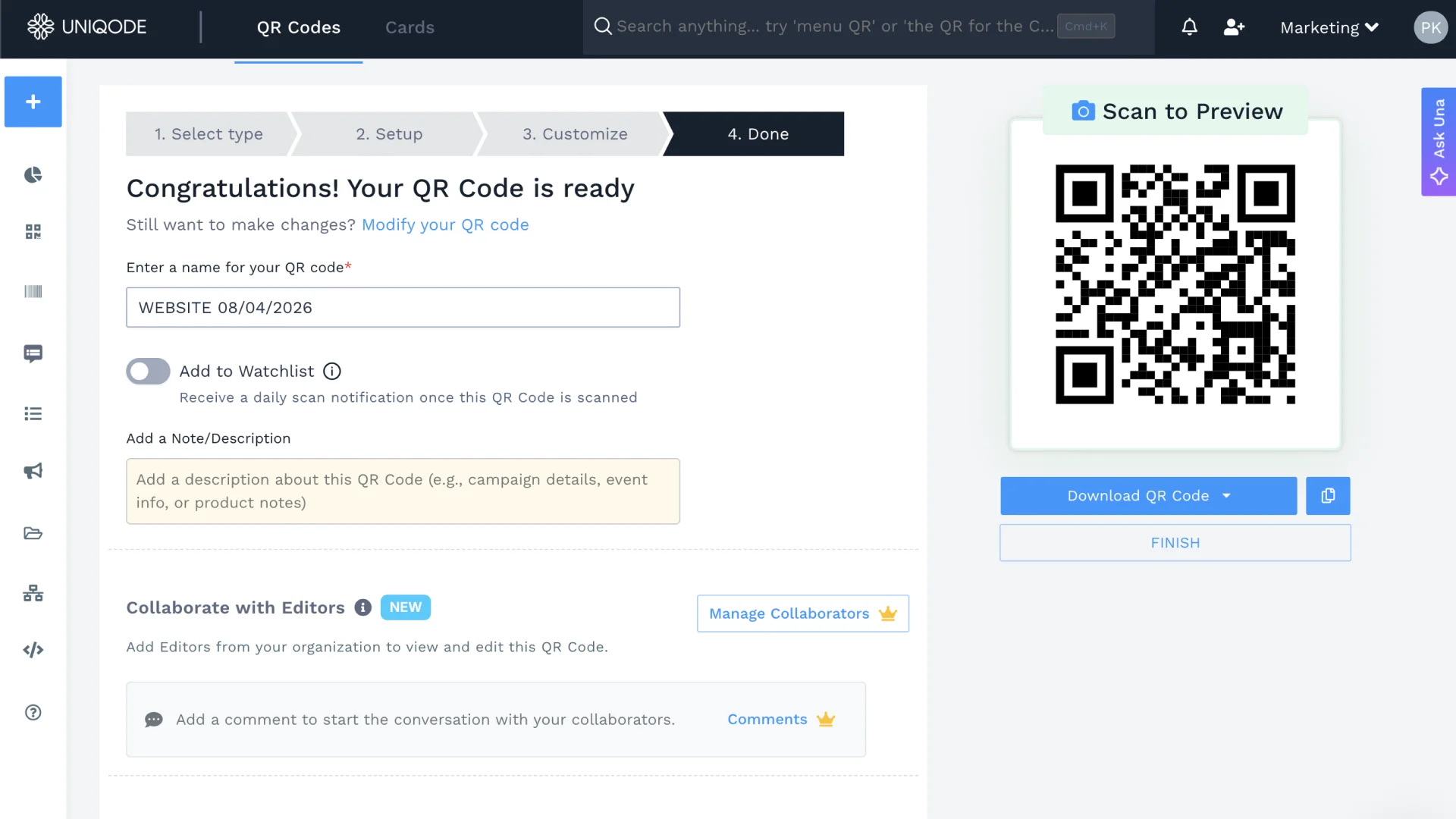
Open Uniqode’s QR Code generator. Select Website as the QR Code type and paste the Drive link. The QR Code generates immediately.
Step 3: Customize the design if needed and download
To customize your QR Code, click on the Customize tab. You can customize the color, pattern, and frame colors.
Step 4: Check scannability and download
Check the real-time scannability score on the left-hand side of the dashboard. Make sure it shows GOOD or EXCELLENT. Download the QR Code in your desired format, such as PNG, JPEG, or SVG.
⚡Pro tip: If you're linking to a confidential file like a contract, an internal report, or sensitive onboarding documents, don't rely on Google Drive permissions alone. Uniqode lets you add a password to any QR Code so scanners see a prompt before the file loads. Anyone who finds the printed material but shouldn't have access hits a wall before reaching the Drive link.
Yes. Uniqode’s bulk QR Code generator creates up to 2,000 QR Codes at once from a CSV file, each pointing to a different Drive URL. For teams distributing QR Codes across dozens of documents, onboarding packages, or event resources, this replaces hours of manual generation with a single upload.
You can also automate Google Drive QR Code generation through Zapier. Three trigger options connect directly to Drive events:
New file added to Google Drive
New file added to a specific folder
New folder created in Google Drive
When the trigger fires, Zapier creates a new QR Code in Uniqode automatically. HR teams building onboarding document libraries and education teams managing course material sets use this to keep QR Codes current without any manual tracking. A new policy document appears in Drive; a QR Code for it appears in Uniqode.
For individual Drive files, the generator in the how-to section above is all you need. For recurring or large-scale generation, the bulk QR Code generator handles it automatically.
Best practices for creating a Google Drive QR Code
Whether you’re sharing a Google Drive video, a PDF, a doc, or an entire folder, a few best practices can help ensure your QR Code works exactly as intended. The following tips will help you avoid access issues, maintain proper permissions, and deliver a smooth scanning experience for anyone accessing your Google Drive content.
Set Drive permissions before generating the QR Code. The most common mistake with Google Drive QR Codes is generating the code before confirming the sharing settings. Set the file or folder to “Anyone with the link can view” first. Also, ensure that all sub-files inherit the correct permissions.
Test-scan before printing. Scan the QR Code on a device not logged into your Google account and confirm the file opens correctly for someone who is not the file owner. Catching a broken permission setting before 500 handbooks go to print takes 30 seconds.
Use a dynamic QR Code for any print run with a shelf life longer than two weeks. Free generators produce static codes. Static codes cannot recover if the Drive link changes. This is the same decision covered in the previous section. It belongs in the pre-distribution checklist because it is the step most commonly skipped.
Password-protect sensitive content. For confidential Drive files shared on printed materials, Uniqode’s security features let you add a password. Scanners see a prompt before the file loads.
Where to use Google Drive QR Codes
A Google Drive QR Code works anywhere you would otherwise paste a link but can't. Print, physical spaces, and live events are the most common situations where scanning beats typing.
Printed handouts and workbooks: Add a QR Code to printed training materials so readers can access the latest version of a Google Doc or PDF without you reprinting anything.
Onboarding kits: Place a QR Code on a welcome card or printed guide that links to a Google Drive folder. New hires get every document in one scan.
Event signage and presentations: You can use QR Codes for events so attendees can download a Google Slides deck, agenda, or resource list during the session.
Product packaging: Link to a Google Drive PDF for instruction manuals, warranty documents, or setup guides without printing them inside the box.
Classroom and course materials: Print QR Codes for classrooms to use on a syllabus that links to a Drive folder. Students access readings, videos, and assignments as the folder updates.
Conferences and trade shows: Add a QR Code to a badge or booth display that links to a portfolio, case study, or media kit stored in Drive.
Create and manage QR Codes for your Google Drive files
Managing QR Codes for Google Drive files gets harder as your team and content grow. Uniqode is built for that scale, with clear workflows, consistent scan quality, and the ability to update destinations without replacing existing codes.
Uniqode also meets security standards such as SOC 2 Type 2 and GDPR and includes safeguards like MFA, custom domains, and phishing detection. These features make Uniqode a good fit for organizations that share Google Drive files frequently or need a dependable way to keep distributed materials up to date.
Frequently Asked Questions
Can you get a QR Code for Google Drive?
Do Google Drive QR Codes expire?
What is the difference between a QR Code for a Google Drive folder and a file?
How do I make a QR Code for a Google Drive folder?
Can I password-protect a Google Drive QR Code?
Is a free QR Code generator safe for a Google Drive file I plan to share long-term?




 Templates
 Logo
 Design
 Frame