
Add an extra layer of security to your documents and easily share sensitive content using QR Codes with password. Explore the different ways to use password-protected QR Codes.
A password-protected QR Code adds an authentication step between scanning and accessing the destination, giving organizations direct control over who gets in and reducing unauthorized sharing. That control matters more than ever as QR Code phishing attacks rise, even as consumer trust in the technology remains strong.
Microsoft's analysis of 8.3 billion phishing threats found a 146% increase in QR Code phishing attacks in Q1 2026. Yet Uniqode's State of QR Codes 2026 report found that 58% of consumers believe QR Codes are safe to scan. As adoption and trust grow together, attackers get more opportunities to exploit that confidence.
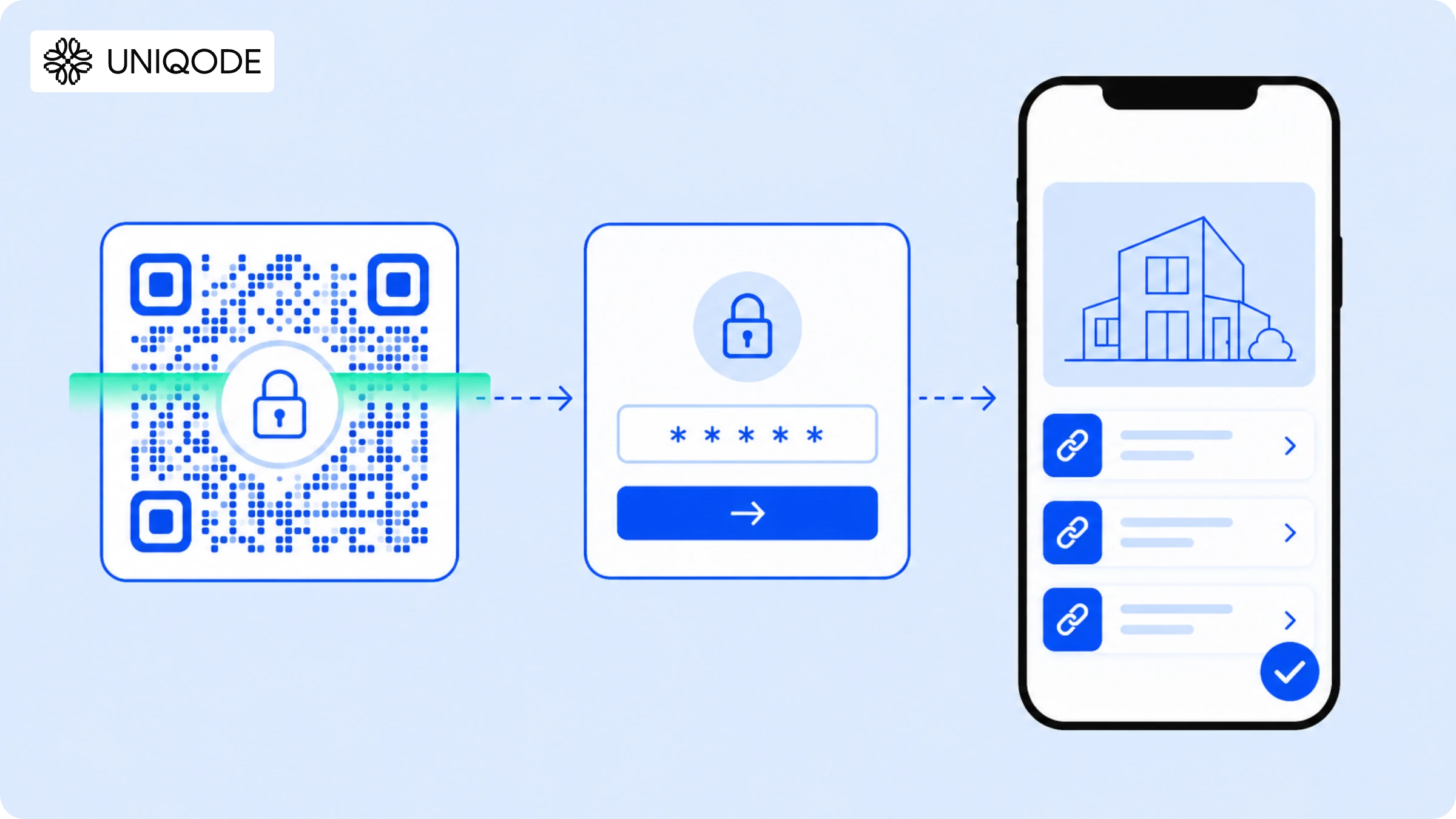
Here's how it works: a password-protected QR Code is a dynamic code that routes scans to a secure landing page before revealing the destination URL. The password prompt appears on that web page and not within the QR pattern itself. Users enter the correct credentials after scanning to access the linked content.
Password protection controls access, but it doesn't encrypt the QR Code or secure the underlying file. What it does do is create an access event for every scan, capturing the timestamp, device type, and geographic location. Administrators can use these records to monitor usage and detect suspicious activity. Without that visibility, a compromised password can go undetected until unauthorized access has already happened.
This guide explains how password-protected QR Codes work, how they differ from encryption, and why they're an important security layer as QR phishing attacks increase. You'll also learn how to create, manage, and audit password-protected QR Codes in Uniqode, including the limitations of password protection and the additional safeguards you need for stronger security.
What is a password-protected QR Code?
A password-protected QR Code is a type of dynamic QR Code that requires authentication before revealing its destination. That access gate is enforced at the server level and not within the QR module itself.
Password protection requires the dynamic format for a reason. Static codes embed the destination URL directly, with no server layer to intercept the scan and enforce authentication. Dynamic QR Codes route through a server, and that's where authentication happens.
When someone scans a password-protected QR Code, they land on a secure HTTPS page with a password entry field. Enter the correct password and you get access; enter the wrong one and you're blocked with an error. The printed QR Code itself never changes, update the password or the destination in the dashboard and the code on your banner, packaging, or event badge stays valid. No reprinting required.
That server-side control also matters for security. A password gate provides one layer of defense against credential harvesting in QR phishing attacks.
Pro Tip: Pair your passcode rule with a date- or time-based Smart Rule. This allows you to create limited-time, gated experiences, such as early-access drops, embargoed press kits, or timed event materials. The QR Code won’t unlock the content until the exact date you choose.
How does password protection work on a QR Code?
Password protection on a QR Code is a server-side authentication mechanism, not data embedded in the QR module itself. The QR Code module contains a redirect URL, that URL points to a secure gateway page and the gateway page handles authentication.
The five-step flow:
- A user scans the QR Code with any standard camera app.
- The camera sends the user to a secure HTTPS URL.
- That URL loads a gateway page with a password entry field.
- The user enters the password. A correct password triggers a redirect to the destination. An incorrect password returns an error and blocks access.
- Each scan attempt, successful or not, registers as an event in the scan analytics log.
Step 5 is where most businesses leave value on the table. The scan log does more than track engagement, it records who accessed the content, on what device, from what location, and how often. Unusual patterns in Uniqode's scan analytics dashboard are an early breach indicator, and reviewing them regularly is how you catch problems before they escalate.
The password lives on the server, not in the code. Update the password or destination URL and every printed code linked to that server URL enforces the new credentials immediately, no physical changes, no reprinting.
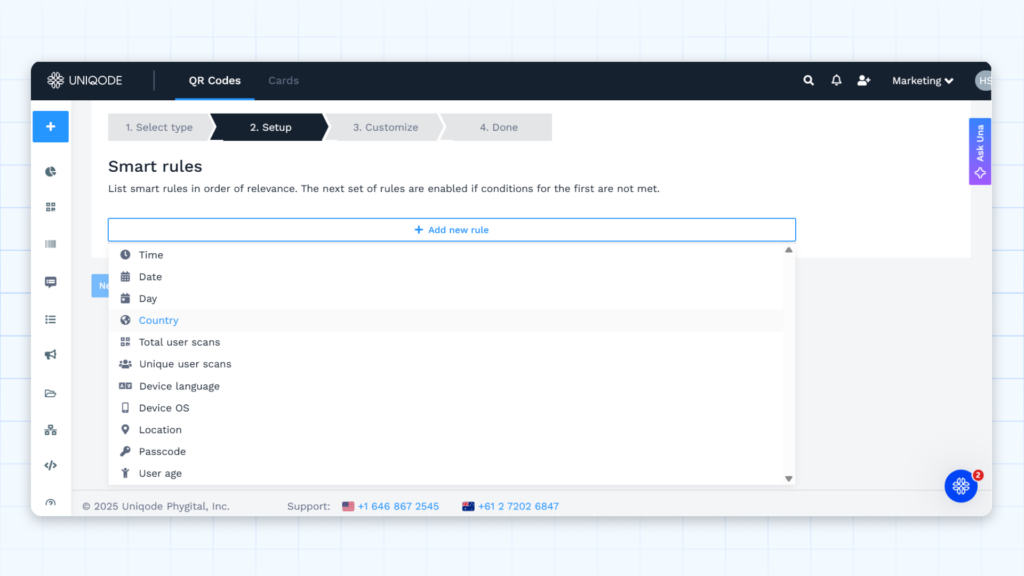
In Uniqode, the password gate is one of 11 Smart Rules conditions, alongside routing based on time, location, device type, and scan count. Combine the password with a time window, a scan count limit, or a geographic restriction, and each condition adds another layer of access control, all manageable from the dashboard without touching a single printed code.
How to create a password-protected QR Code with Uniqode
You can create password-protected QR Codes directly in Uniqode's dashboard, no developer configuration required. The process runs five steps, with password protection enabled in the Advanced Settings panel during the Customize step. The same system manages access control across 188+ million scans on the Uniqode platform.
Step 0: Start a new QR Code
Navigate to dashboard.uniqode.com. Select +Create New, then QR Code. Choose your content type: URL, PDF, video, or any supported destination format. Password protection works across all content types on dynamic QR Codes.
Step 1: Select Dynamic
Choose Dynamic as the QR Code mode. Static QR Codes do not support password protection.
Step 2: Add your content
Enter the destination URL, upload your PDF, or paste the video link. This is the content users will see after passing the password gate.
Step 3: Enable password protection
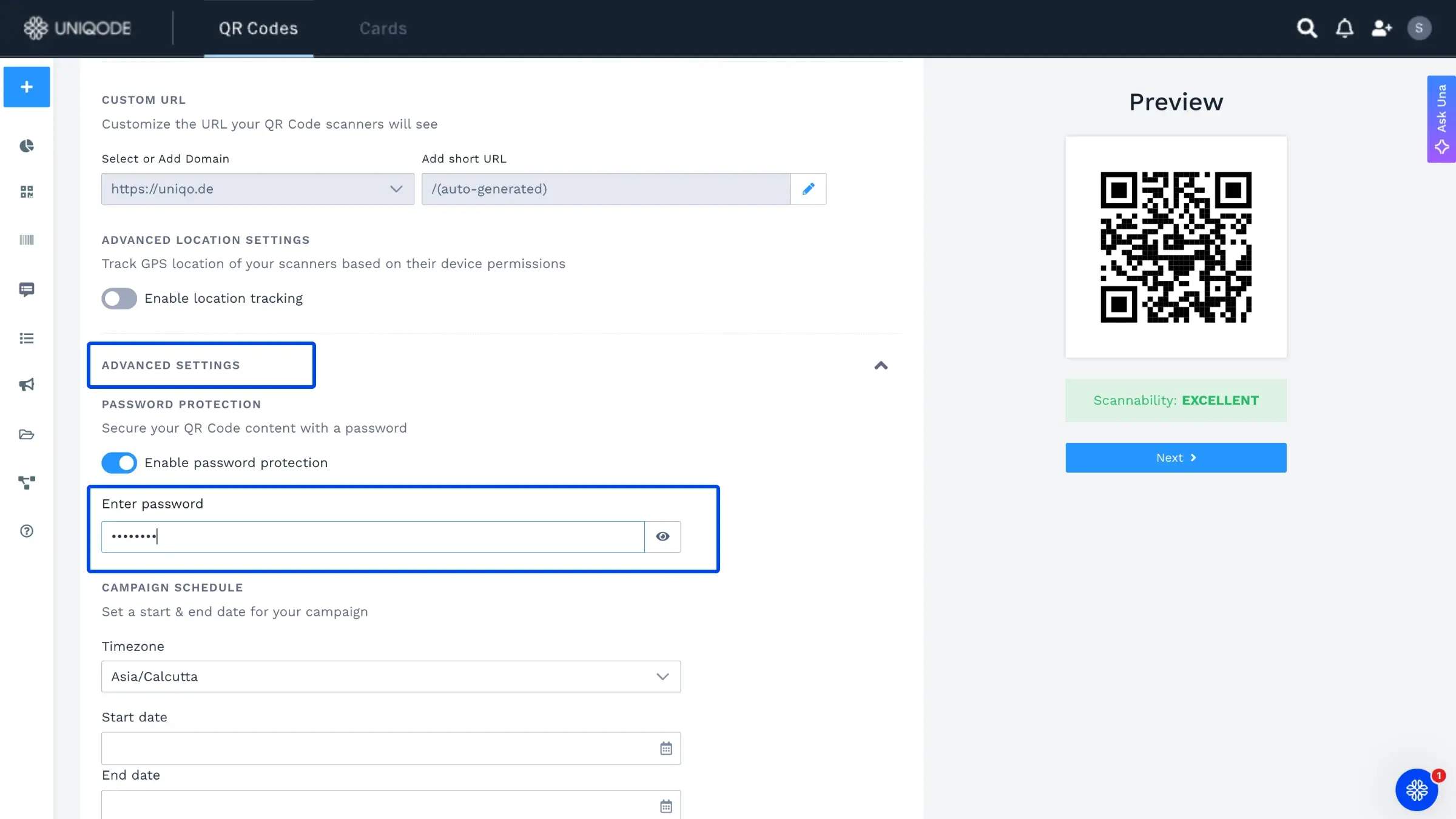
In the Customize step, open Advanced Settings. Toggle on Password Protection. Set your password with a minimum of 12 characters, using a mix of letters, numbers, and at least one special character. Avoid dictionary words and predictable patterns.
Smart Rules are available in the same panel. Stack the password gate with a time window (access restricted to business hours), a scan count limit (caps the number of successful authentications), or a geographic gate (access restricted to scanners in a specific country). Conditions layer on top of the password without requiring separate codes.
Step 4: Customize the design (optional but recommended)
Apply your brand colors, logo, and frame. Branded QR Codes signal legitimacy to scanners and reduce the "is this safe?" hesitation that causes abandonment on first scan.
Step 5: Download and test
Download the QR Code in your required format: PNG, SVG, PDF, JPEG, or EPS. Before distributing, scan the code yourself to verify the password gate appears and authenticates correctly.
The test scan verification is not optional. After confirming the gate works, open the Uniqode dashboard, navigate to the code's Analytics panel, and confirm the test scan registered as a logged event. That confirmation means your audit trail is live. Every subsequent scan will create a time-stamped access record.
How to change or remove a password on a QR Code
Changing or removing a password on a dynamic QR Code is a dashboard operation that takes under 30 seconds and requires no reprinting. Every physical code that points to that server URL immediately enforces the updated credentials.
When a credential rotation is warranted:
- An employee with password access leaves the organization
- A contract period ends and you want to close access to a former partner or vendor
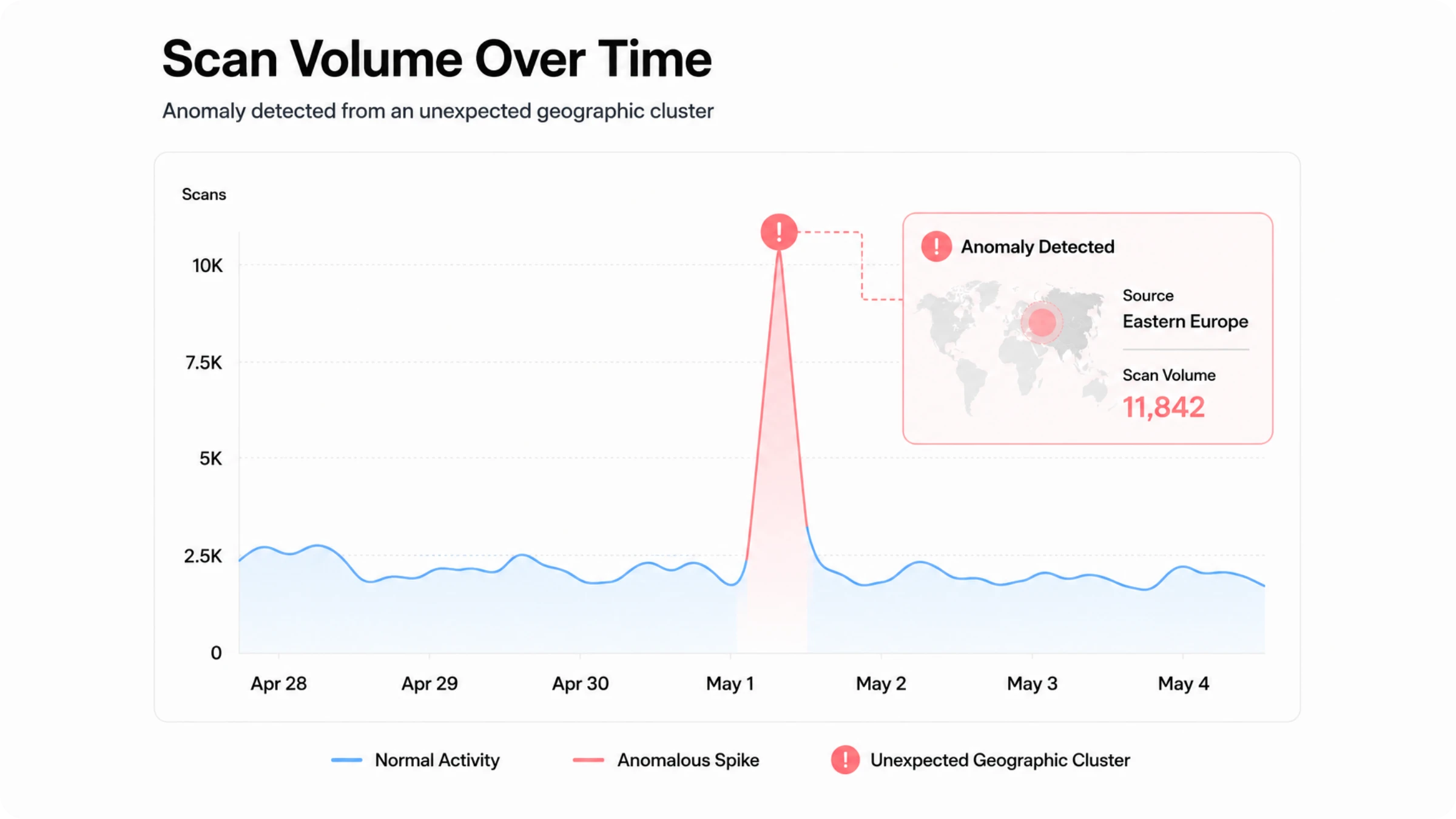
- The scan audit log shows an unusual access pattern (volume spike, unfamiliar geography, unexpected device type cluster)
- A scheduled rotation date arrives (90 days for high-security use cases; 180 days for standard marketing applications)
The process:
- Log in to dashboard.uniqode.com
- Select the QR Code from your listing
- Open the three-dot menu and select Edit
- Navigate to Advanced Settings
- Update the password or toggle password protection off to remove it entirely
- Save
The live code updates immediately. Every physical material carrying this code enforces the new state within seconds of saving.
The scan log is also the signal that tells you when to rotate. A spike in access attempts outside your team's normal business hours, or scans from a country you don't operate in, registers in the analytics panel before it escalates into a formal security incident. Review the analytics for high-security QR Codes on a weekly cadence. For time-sensitive deployments (event access codes, quarterly report links), review on the same schedule as your password rotation.
Encrypted QR Code vs password-protected QR Code
An encrypted QR Code and a password-protected QR Code are different security mechanisms protecting different layers of the QR Code experience. Encrypted QR Codes scramble data inside the QR module; a standard camera shows only ciphertext. Password-protected QR Codes contain a normal URL but redirect through an authentication gateway before showing the destination.
| Encrypted QR Code | Password-protected QR Code | |
|---|---|---|
| How it works | Data scrambled inside the QR module; requires a decryption app | Standard URL inside the code; access gate lives on a server |
| What it protects | The data payload inside the code | Content access after scanning |
| Scanning requirement | Dedicated decryption app | Any standard QR Code scanner |
| Code density | Higher (more complex pattern, harder to scan at small sizes) | Same as a standard dynamic QR Code |
| Credential rotation | Requires generating and printing a new code | Update the password in the dashboard |
| Best for | High-security data payloads where the code pattern itself must be unreadable | Controlled content access with operational flexibility |
Neither approach is universally superior. Encryption secures data within the code module which is the right choice when interception at the physical layer is a real risk, such as pharmaceutical track-and-trace, GS1 retail compliance, and supply chain serialization. Password protection manages access after scanning, making it the right choice when content changes, audiences rotate, or access windows expire.
Encrypting large data payloads increases QR Code pixel density. Denser codes demand larger print sizes or high-performance scanners for reliable reading, a trade-off that makes encryption impractical for most business deployments.
Uniqode uses server-side password protection. The QR Code stays clean and scannable at any size, and you update credentials from the dashboard without reprinting.
QR phishing (quishing): why password protection is your first defense
Quishing (QR phishing) is the fastest-growing phishing attack vector in 2026, and a password gate is a direct countermeasure: an access-control layer that blocks credential harvesting at the scan stage. In early 2025, Keepnet Labs identified 4.2 million QR phishing threats, with 68% targeting mobile users.
The exposure at the leadership level is striking. C-level executives are 40 times more likely than average employees to fall victim to QR Code phishing, according to Keepnet Labs and the financial impact reflects that, with average business losses exceeding $1 million per quishing incident.
What makes this trend particularly dangerous is the trust gap. Consumer trust in QR Codes has grown 26% year-over-year, according to Uniqode's State of QR Codes 2026 report. As trust rises, attackers accelerate thereby creating conditions where quishing thrives.
"By their very nature, QR codes are not human-readable," said Alex Mosher, Global Vice President at MobileIron, in an analysis published by CSO Online. "The ability to alter a QR code to point to an alternative resource without being detected is simple and highly effective."
A password gate restricts what an attacker can extract. When a user scans a legitimate Uniqode-powered QR Code with password protection, any intercepted scan hits a gateway page that requires server-verified credentials. Attackers cannot replicate that server-side verification as password protection closes the access vector at the scan stage.
That said, password protection secures Uniqode-powered content from unauthorized access. It does not prevent users from scanning malicious QR Codes that imitate a Uniqode-style gateway. Attackers can build convincing fake gateway pages, which means user education and source verification remain essential defenses. Understanding that distinction is what separates a partial security measure from a comprehensive security posture.
Before scanning any QR Code in the field, consult the QR Code safety verification checklist for inspection guidelines.
Static vs dynamic QR Codes: the security case for going dynamic
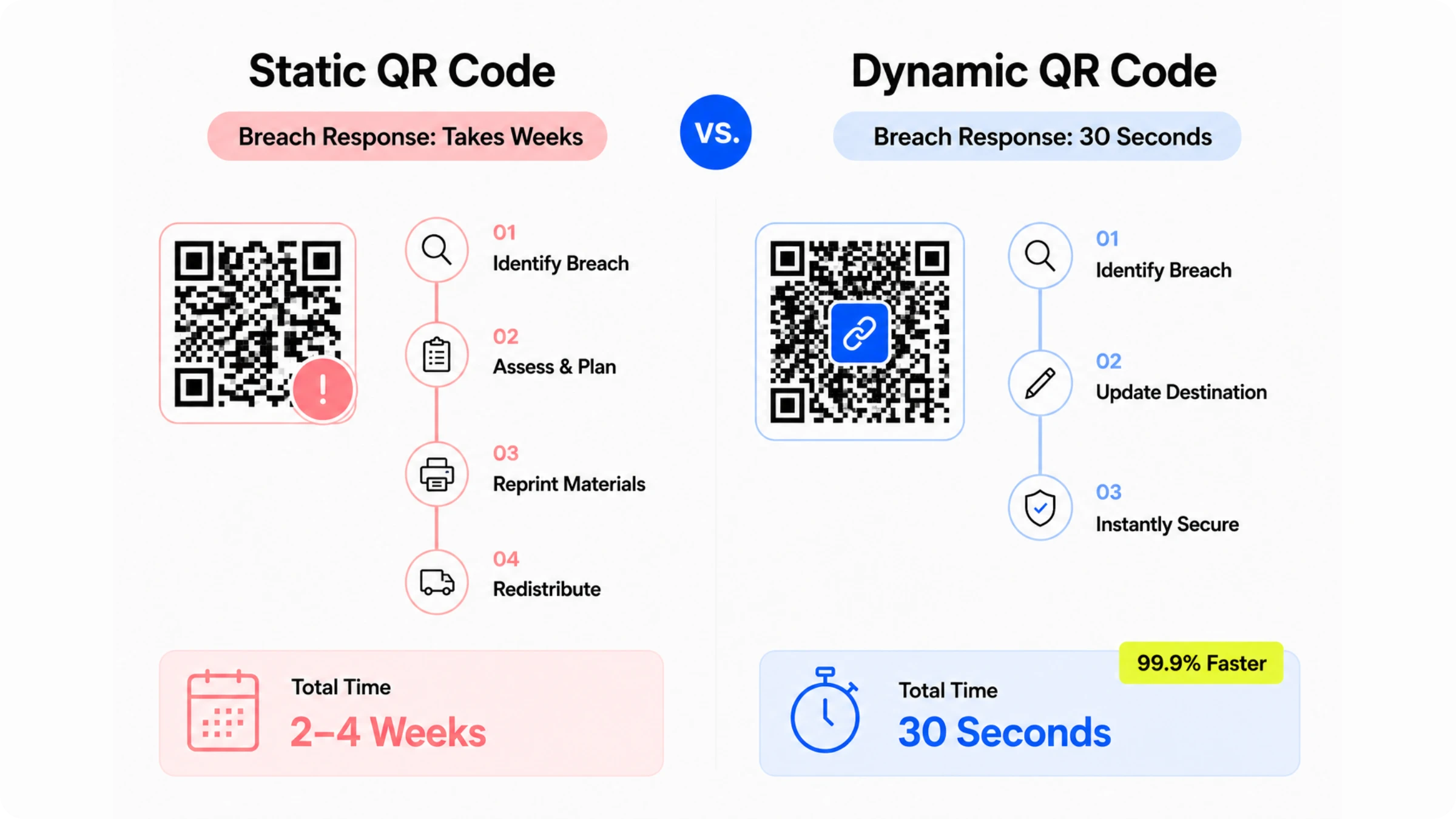
Dynamic QR Codes are the only format that supports password protection and that distinction goes beyond a feature comparison. A compromised URL on a static QR Code creates a permanent vulnerability. There's no server layer to intercept, no dashboard to update, no way to close the gap without a full reprint. The complete guide to dynamic QR Codes covers the technical differences in depth, but from a security standpoint, the format you choose determines whether a breach response takes minutes or weeks.
Static QR Codes store the destination URL at creation. Once printed, nothing changes. If that URL is compromised, remediation means locating every piece of printed material carrying the code, coordinating with the print team, reprinting, and redistributing. At enterprise scale, that process runs three to six weeks and carries significant reprinting and logistics costs. Every day between discovery and completion leaves the compromised code active in the field.
Dynamic QR Codes route through a server-managed URL. When a password is compromised or a destination needs to change, you open the code in Uniqode, update the password or destination URL, and save. Every physical material carrying that code enforces the new credentials instantly. No print files are touched and no reprints are ordered.
The analytics layer adds another operational advantage. According to Uniqode's State of QR Codes 2026 report, 44% of marketers consider analytics the most critical feature to improve and most are thinking about engagement tracking. But for organizations that have caught a password leak through a scan spike anomaly in the analytics panel, that same feature doubles as breach detection. A spike in off-hours scans shows up in the dashboard before your security team files a formal report. That lead time is the operational value of dynamic QR Codes.
| Static QR Code | Dynamic QR Code | |
|---|---|---|
| Password protection | Not available | Applicable |
| Change destination after printing | Cannot | Dashboard update |
| Rotate password after a breach | Not applicable | Under 30 seconds |
| Scan analytics (audit trail) | None | Full log per scan |
| Breach detection signal | None | Geographic spike, volume anomaly |
| Remediation for a compromised URL | Reprint all physical materials | Dashboard update |
Maesa, a global beauty and personal care brand, used Uniqode QR Codes for product authentication across its supply chain. The audit trail (tracking which codes were scanned, from where, and when) was the mechanism behind preventing $10 million in losses.
How businesses use password-protected QR codes
Password-protected QR Codes give organizations direct access control over digital content distributed through print, physical spaces, and objects. The authentication gate limits access to authorized users, while the scan log creates an audit trail, recording who accessed the content, from where, and when.
Marcelo Yanez, Product Manager at Nestlé Waters, put it directly: "Being able to track their performance has proven to be essential for our business." In security-sensitive deployments, tracking performance means reviewing access logs for anomalies and not measuring click-through rates.
1. Healthcare and pharmaceuticals
Healthcare organizations use password-protected QR Codes to control access to HIPAA-protected patient education materials, clinical trial documents, and pharmaceutical supply chain verification. The scan log produces a documented record of every access event giving compliance teams the evidence they need when audits require proof of access control.
PatientPoint uses QR Codes to deliver condition-specific patient education content across its healthcare network. Password protection ensures sensitive materials reach the intended audience, and Uniqode's HIPAA compliance, SOC 2 Type II certification, GDPR compliance, and ISO 27001 certification confirm that password-protected codes for regulated healthcare content operate within a fully compliant security framework.
2. Corporate and financial services
Corporate teams use password-protected QR Codes to share internal documents, board decks, due diligence materials, and pre-release financial content. The audit trail ensures accountability by recording who accessed each document, when, and from which location.
If a document is leaked, the access log provides a time-stamped record of access events, helping to narrow the investigation window.
3. Education and e-learning
Education providers use password-protected QR Codes to secure premium course modules, exam materials, and staff training content. Scan audit trails can reveal credential sharing; for example, a late-night access spike from an unfamiliar device may indicate that a student shared their login credentials with someone outside the enrolled group.
4. Events, hospitality, and conferences
Event teams use password-protected QR Codes to manage VIP access, backstage credentials, exclusive pricing, and private content. After the event, scan logs track attendee access to each resource, supporting sponsor reporting and future capacity planning.
5. WiFi access: the password-sharing use case most guides skip
Hotels, conference centers, and corporate offices use WiFi QR Codes to provide network access without displaying the password. In contrast, posting the password on a sign or card makes it visible to all, including visitors who may photograph it.
A WiFi QR Code encodes the network SSID and password so that devices can connect automatically without displaying the password, users scan and connect. In corporate settings, the QR Code should link to a guest network SSID that is isolated from the main network to prevent guest access to internal resources.
When the guest network password changes, such as during weekly rotations in high-traffic venues, update the router credentials and regenerate the WiFi QR Code in Uniqode. The printed code in the lobby remains valid without needing to be reprinted.
6. Manufacturing and supply chain
Manufacturing teams use password-protected QR Codes on components, tools, packaging, and shipping materials that link to restricted technical documentation, safety data sheets, and maintenance manuals. The scan log identifies which factory floor locations or field technicians accessed which documents, creating a compliance-auditable record.
For guidance on product authentication in cases where physical counterfeiting is a concern, please refer to the QR Code product authentication guide.
4 QR Code security limitations: what a password alone cannot protect against
A password on a QR Code controls access to content after scanning but it doesn't address every security risk. Understanding where it falls short is what makes it an effective layer rather than a false ceiling. Four key limitations apply.
1. Shared, guessed or social-engineered passwords
The security of a password-protected QR Code depends entirely on how well recipients protect the password. Distribute it to 200 event attendees and its confidentiality drops fast. To counter this, use Uniqode's scan log to detect unusual activity like unexpected volume spikes or access from unfamiliar locations. Such activities signal that the password has spread beyond its intended audience. Monitor the analytics panel during and after large-scale distributions.
2. Physical QR Code replacement
Attackers can cover printed QR Codes with stickers that redirect to malicious sites, bypassing your authentication entirely because users never reach your gateway. Counter this by inspecting QR Codes for tampering before campaigns go live, verifying destination URLs before distribution, and using branded QR Codes with visible logos to make unauthorized replacements easier to spot.
3. Fake phishing gateways
Password protection secures your Uniqode-powered content from unauthorized access but it does not stop an attacker from building a convincing fake gateway page and directing users to it via a separate malicious QR Code. A user who scans that code and enters their credentials has handed them directly to the attacker. The defense here is user education and source verification: scan only QR Codes from known, trusted physical sources.
4. Mobile device vulnerabilities
"Mobile devices in general tend to be less secure than laptops or computers," noted Rahul Telang, Professor of Information Systems at Carnegie Mellon University's Heinz College, in an analysis published by CSO Online. "Since QR codes are used on mobile devices, [the] possibility of vulnerability is higher, too." A compromised device can expose content accessed through a legitimate password-protected QR Code, a vulnerability that sits entirely outside the QR Code's control.
These limitations don't make password protection ineffective. They define its role: one layer in a comprehensive defense strategy, working alongside credential rotation, scan log monitoring, user education, and physical code inspection. Each layer covers the gaps the others leave open.
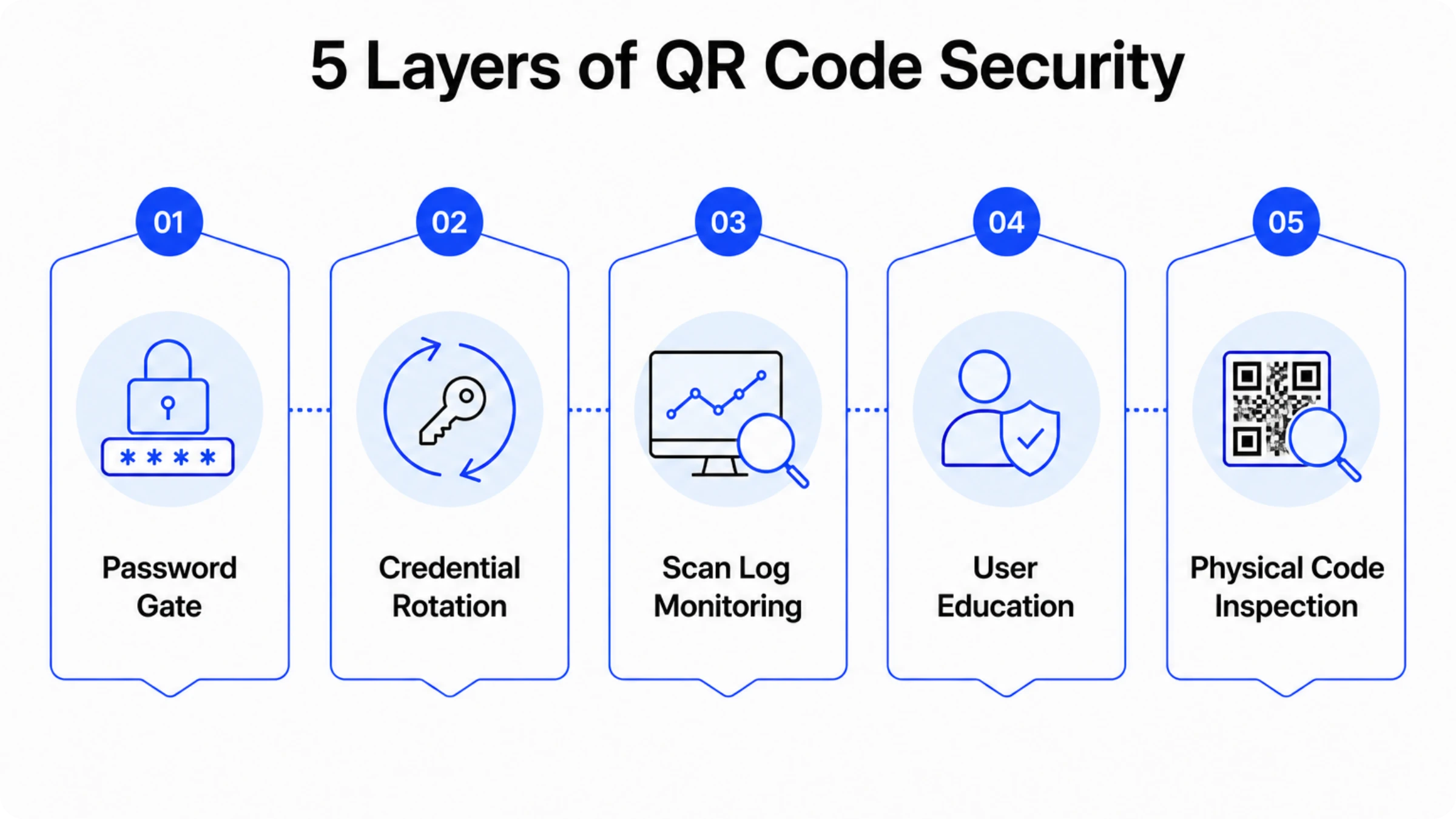
4 best practices for secure, password-protected QR Codes
Four practices close the gaps that password protection alone leaves open. Apply all four to any QR Code carrying sensitive content.
1. Create strong, unique passwords that resist guessing
Set QR Code passwords at 12 to 16 characters, mixing uppercase and lowercase letters, numbers, and at least one special character. Avoid dictionary words, names, dates, and repeating patterns. Passwords built from company names and years, even ones that look complex, are easy for attackers to guess.
Give each password-protected QR Code its own unique password. Reusing credentials across multiple codes means a single breach compromises all of them.
2. Use a secure password manager
Storing QR Code passwords in shared documents or email threads increases the risk of credential exposure, regardless of the QR Code. A business-grade password manager securely stores, encrypts, and manages team access to credentials.
Options such as 1Password, Bitwarden, LastPass, and Nordpass Business all support team credential sharing with access controls. Select the solution that best integrates with your current security stack.
3. Set expiration dates for QR Codes
Time-limiting access ensures credentials don't stay valid past their intended use. In Uniqode's Advanced Settings, Campaign Scheduling lets you set start and end dates for any QR Code. Once the end date passes, the code displays a custom error page instead of the password gateway, the content becomes completely inaccessible.
Use this for event access codes, promotional content, seasonal documents, or any deployment with a defined end date. Set the expiration at creation and access revokes automatically when the period ends.
4. Rotate and audit passwords regularly
Rotating passwords on a regular schedule limits exposure when credentials are compromised. For high-security deployments like healthcare, finance, legal data, rotate every 90 days. For standard marketing and operational use, every 180 days is sufficient.
Before each rotation, open the Uniqode analytics panel and review the previous period's scan log. Look for geographic clusters outside your usual distribution area, unexpected scan volumes, or device types that don't match your audience profile. Treat any anomaly as a potential breach indicator.
After rotating, verify the new password works by scanning the code and completing authentication yourself before sharing updated credentials with your team.
Start creating password-protected QR Codes with Uniqode
Password protection is the access gate. The scan log is the alarm system. Running the gate without watching the alarm leaves half of the security value on the table.
Before your next QR Code deployment, run a three-point audit: check whether any of your printed codes are static (reprint trap risk), review your scan logs for the previous 30 days (audit trail check), and confirm when you last rotated any active passwords (rotation gap).
Dynamic password-protected QR Codes close all three gaps from a single dashboard. Start a free 14-day trial with Uniqode and create your first password-protected QR Code in under five minutes, or use the dynamic QR Code generator to explore the format before committing.
Frequently Asked Questions
- How do I put a password on my QR Code?
You can add a password to your QR Code by enabling password protection and setting up a password on the Uniqode dashboard.
Here’s how you can put a password to your QR Code:
- Go to Uniqode’s dashboard
- Choose your QR Code campaign type
- Set up the QR Code
- Customize the QR Code
- Add a password to your QR Code
- Download or print the QR Code, which is now password-protected.
- Can I make a QR Code expire after a set time?
Yes. If you’re using a dynamic QR Code platform like Uniqode, you can easily set an expiration date or disable a QR Code whenever needed. This means your QR Code will stop redirecting to its content once the expiry time is reached, even if someone scans it later.
- What’s the difference between encrypting and password-protecting a QR Code?
Password protection controls who can access the content. It adds an authentication layer; only users with the password can unlock the link or file.
Encryption, on the other hand, protects the data itself. The information behind the QR Code is converted into unreadable code and can only be decrypted with the right key.
Uniqode combines password protection with secure HTTPS encryption to ensure your data and your users’ credentials remain private and tamper-proof during every scan.
- What should I do if my password-protected QR Code stops working?
If your password-protected QR Code isn’t opening or prompting for a password, it’s usually due to one of a few common issues:
The linked file or destination has been moved, updated, or deleted
The password was recently changed, making older access links invalid
The QR Code has expired, if an expiry date was set
Here’s how to resolve it:
Log in to your Uniqode dashboard
Check the QR Code’s status, password settings, and destination URL
If needed, reset the password or reactivate the QR Code
Test it again by scanning on multiple devices
Dynamic QR Codes ensure that you can always edit, reactivate, or troubleshoot without having to recreate or reprint the code.
- Can I use password protection with already printed QR codes?
Yes, but only if the printed QR Code is dynamic, not static. You can update the destination behind a dynamic QR Code to require a password. This lets you secure access without needing to reprint the code.
- Can you add a password to a static QR Code?
Static QR Codes do not support password protection. Password protection requires a server layer to enforce the authentication gate. Static QR Codes embed the destination URL directly in the QR module with no server mediation. Dynamic QR Codes route through a server, which is where the password gate runs. Password protection requires the dynamic format.
- Can password-protected QR Codes stop QR phishing attacks?
Password-protected QR Codes protect Uniqode-powered content from unauthorized access. An attacker who intercepts a scan reaches your server-verified gateway, which they cannot replicate. Password protection does not prevent a user from scanning a separate, attacker-controlled QR Code that mimics your gateway. An attacker who builds a convincing fake gateway page and distributes it via a malicious QR Code operates entirely outside your authentication system. The defense against that scenario is user education: scan only QR Codes from known, trusted physical sources and verify the URL before entering credentials.
- How do I change the password on an existing QR Code?
Log in to your Uniqode dashboard. Select the QR Code, open the three-dot menu, and choose Edit. Navigate to Advanced Settings and update the password. Save. The live code updates immediately. All physical materials carrying that code enforce the new password without reprinting.
- Can I use a QR Code to share a WiFi password without displaying it on screen?
A WiFi QR Code encodes the network SSID and password so that the scanning device connects automatically without the password string appearing on screen. The user scans and connects. For corporate environments, point the WiFi QR Code at a dedicated guest network SSID isolated from the corporate network. Rotate the guest password on a regular schedule (weekly for high-traffic venues) and regenerate the WiFi QR Code in Uniqode. Printed codes in the lobby or guest rooms stay valid without reprinting.
- What happens if the wrong password is entered too many times?
The behavior depends on the platform configuration. Uniqode's password protection returns an error on failed authentication. Contact Uniqode support to configure lockout behavior for high-security deployments where brute-force protection is required.
- Can I password-protect any type of QR Code content?
Password protection is available for all content types supported by dynamic QR Codes on Uniqode: URLs, PDFs, videos, and other supported destination formats. The authentication gate applies regardless of the content type linked behind it.
- Do password-protected QR Codes work without an internet connection?
The gateway page requires an active internet connection because authentication runs on a server. A device without connectivity cannot complete the password authentication flow and cannot reach the destination content. This is a function of how server-side authentication works, not a platform limitation specific to Uniqode.
About the Author
Ektha is a QR code expert with years of research and analysis into the evolution of QR codes. Having written over 70 in-depth articles on QR technology, she has developed a comprehensive understanding of how QR codes are transforming industries. Her insights, including The State of QR Report, have been featured in leading publications. With a passion for simplifying complex topics and providing actionable strategies, Ektha helps businesses leverage QR codes to enhance their 'phygital' connections.
Related Posts
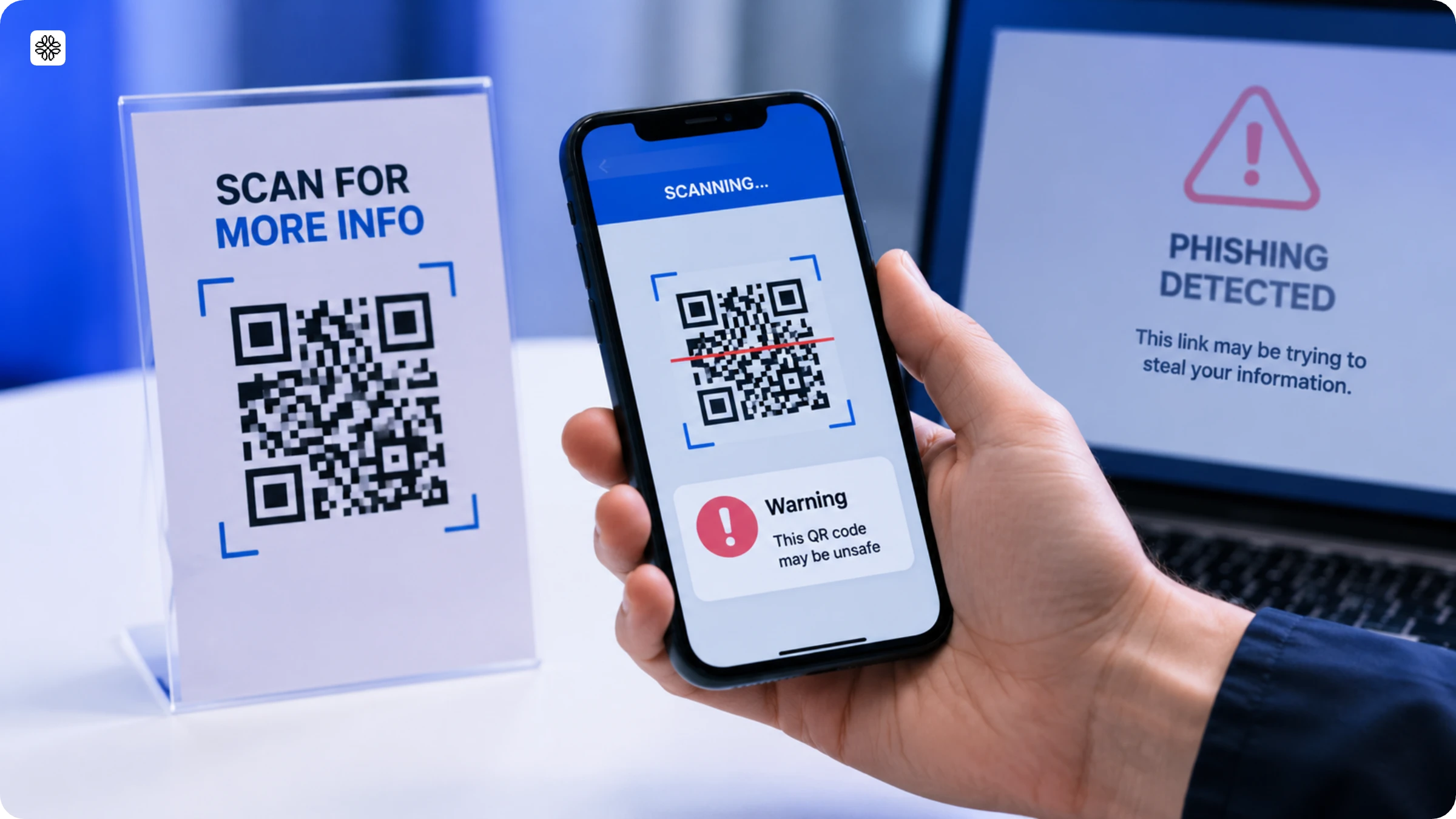
How to Secure QR Codes Against Phishing and Quishing Attacks in 2026
How to Implement QR Code Product Authentication: Anti-Counterfeiting Guide
Are QR Codes Safe? How to Check if a QR Code is Safe
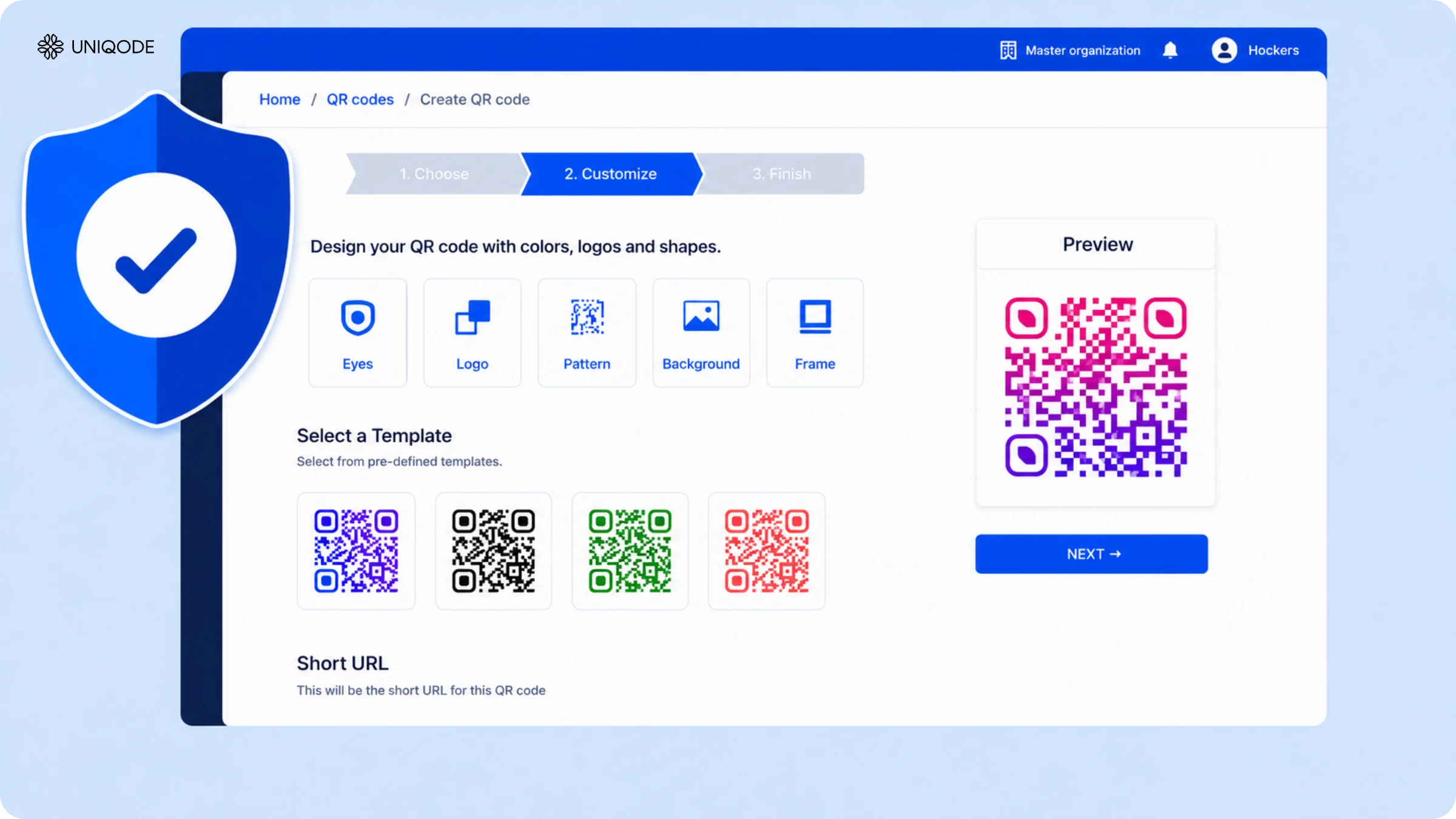
Is a QR Code Generator Safe? 10 Security Features to Check Before You Print
How Internet Outages Impact QR Codes and How Brands Can Stay Resilient