How to Create a Canva QR Code: Optimize Your Canva Designs
Integrate QR Codes into your designs to elevate your marketing. Create Canva QR Codes with two simple methods. Find out unique ideas to use your Canva QR Codes and make your design stand out.
💻 Key takeaways:
1. Unlike dynamic QR Codes, Canva QR Codes cannot be edited after they are created as they are static. This means that if the information linked to the QR Code changes, the QR Code will no longer work.
2. If the content linked to a Canva QR Code is removed or the link is broken, the QR Code will no longer work and will display a 404 error message.
3. If you need a QR Code that can be edited, and customized along with a host of other features, it’s best to opt for a dynamic QR Code generator.
If you’re a marketer, you probably have these two marketing tools at your disposal: Canva and QR Codes. QR Codes see a lot of use in marketing for obvious reasons. And Canva, let’s just say it makes a marketer’s life a whole lot easier. Blend these two fantastic tools, and here’s what you get: a Canva QR Code.
You don’t need any design experience to create fantastic-looking visuals these days. Not when you can just turn to Canva. It makes graphic design so convenient that it has gathered over 60 million monthly active users.
What is a Canva QR Code?
A Canva QR Code is just as it sounds, a QR Code incorporated into a Canva design. QR Codes link the physical and digital worlds together. They’re convenient, practical, and easy to create. You can use a QR Code just about anywhere, including that ready-for-print visual piece you’ve just edited.
How to create a QR Code in Canva
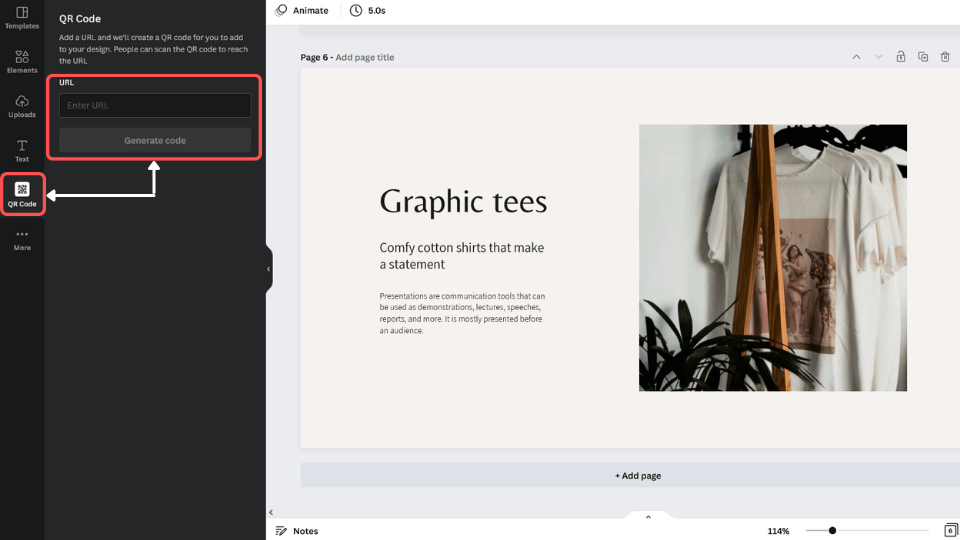
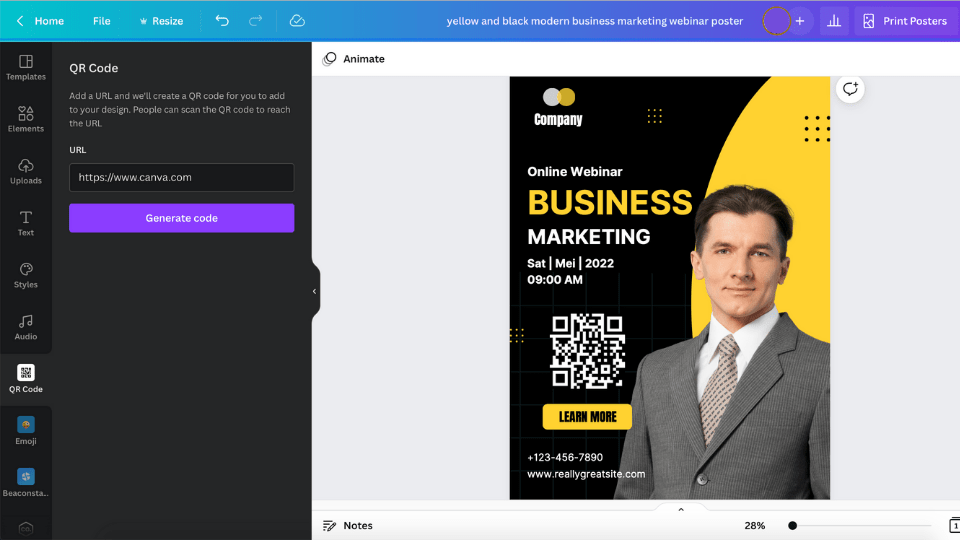
There are actually two main ways to generate a QR Code for your Canva design. The first is by creating the QR Code directly on the platform, which is really easy to do. Here’s how:
- Go to Canva and create the design where you want to place a QR Code.
- Navigate to the left menu and click on “More.” It’s the one with a three-dot icon.
- Choose “QR Code” from the available app options.
- Enter your QR Code’s destination URL in the box provided and hit “Generate code.”
- A static QR Code will appear on the “Uploads” menu.
- Click on the QR Code image to move it onto your design.
Once you get the code on your design, you can customize two elements: background color and size. Now, all of this takes less than a minute to do, which is super convenient if you ask me.
Still, there’s one significant drawback to this native Canva QR Code; you can only have them as static.
Canva QR Code: pros and cons
While Canva QR Codes are free and instant to generate, they don't support edits, tracking, or customization beyond basic colors. Here is a quick look at where Canva's native QR Code falls short and where it holds up.
Pros:
- Free with any Canva plan
- Built directly into the Canva editor, no separate account or tool required
- Fast to generate: destination URL in, code out, in under a minute
- Good enough for a one-off, never-changing link
Cons:
- Canva does not have dynamic QR Codes: once generated, the destination URL can never be changed
- No scan analytics: no scan count, location, or device data
- Limited customization at creation: only background color and size
- No way to retarget or measure whether a scan led to a conversion
Canva's QR Code tool vs. Uniqode's dynamic QR Code generator
Canva's QR Code app and a dynamic QR Code generator like Uniqode solve different problems, not competing versions of the same one. Canva makes a code exist. A dynamic generator makes a code that can change, get measured, and get acted on. Five differences decide which one a given project actually needs.
| Feature | Canva | Uniqode |
|---|---|---|
| Editability | One destination, set once, permanent | Destination stored on a server; edit anytime from the dashboard, no reprint |
| Analytics and tracking | None: no scan count, location, or device data | Scan analytics on every self-serve plan; Insights add-on (Business Plus+) tracks scan-to-conversion |
| Customization | Background color and size only | Shape, foreground color, logo placement, frame styles, reusable templates |
| Retargeting | Not possible: no data to connect to an ad platform | Meta Pixel and Google Ads retargeting on Business Plus+; retargeted scanners are 43% more likely to convert |
| Cost | Free with any Canva plan | Paid self-serve tiers; Insights gated to Business Plus |
- Editability: Canva's code is static: one destination, set once, permanent. Uniqode's dynamic code stores its destination on a server, so updating where it points is a dashboard edit, not a reprint. For a wedding invitation that will never be reused, editability doesn't matter. For a menu, a product label, or anything tied to a campaign that runs more than once, it's the entire reason to choose a dynamic code.
- Analytics and tracking: Static Canva codes track nothing. Uniqode's dynamic codes capture scans, location, device, and time of day across every plan, backed by over 188 million real scans. Teams needing deeper insight can connect scans to on-site conversions through the Insights add-on.
- Customization: Canva allows two adjustments after generating a code: background color and size. Uniqode's generator adds shape, foreground color, logo placement, frame styles, and reusable templates, so a brand's codes look consistent across every piece of collateral instead of one-off.
- Retargeting: A static code cannot connect to an ad platform, because it produces no data to connect. Dynamic codes on Uniqode's Business Plus plan and above integrate with Meta Pixel and Google Ads, so people who scan but don't convert can see a follow-up ad instead of disappearing entirely. Uniqode's own data puts retargeted scanners at 43% more likely to convert than a cold audience.
- Cost. Canva's QR Code app is free; Uniqode's dynamic codes start on paid tiers. Choose Canva if your link is permanent and tracking doesn't matter. Choose Uniqode the moment you need edits, scan data, or proof the campaign worked.
How to create a dynamic Canva QR Code on Uniqode’s dashboard
It’s going to take less than a minute to create a dynamic QR Code on Uniqode’s custom Canva QR Code generator – unless you got too caught up with customizations. Let’s go over the five easy steps:
Step 1: Sign up or log in to Uniqode and go to the dashboard
You’ll need access to Uniqode’s dashboard. You can sign-up for a 14-day free trial if you still don’t have an account. And no, you don’t need a credit card.
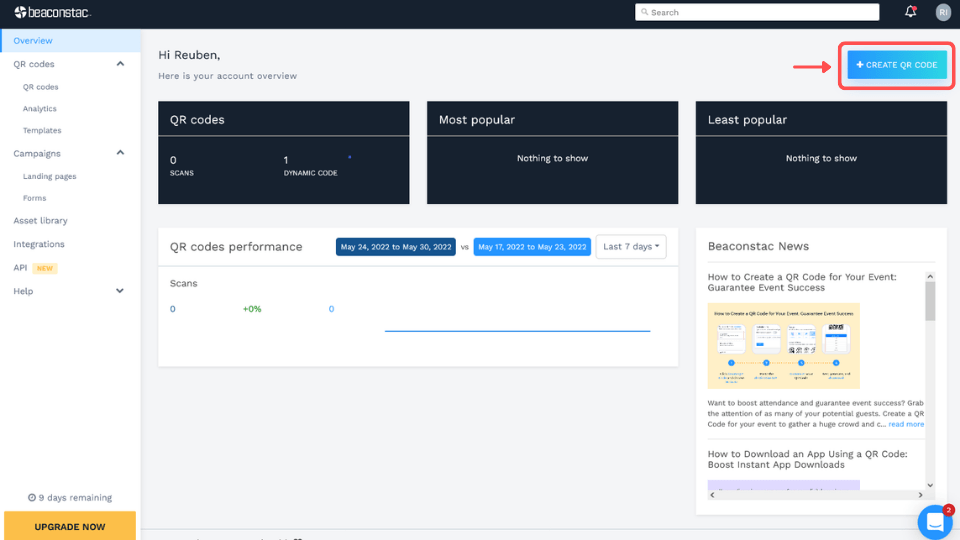
Once you get to the dashboard, click “+Create QR Code” in the upper-right corner.
Step 2: Choose the QR Code type you want to generate
Uniqode lets you create any kind of QR Code you need for your application. Need to increase landing page traffic? Or maybe you’re trying to get an audience to your social media pages? Of course, we’ve got you covered.
Simply choose the QR type you want to create. Say you need to link your code to a product checkout page. In this case, go for “Website.”
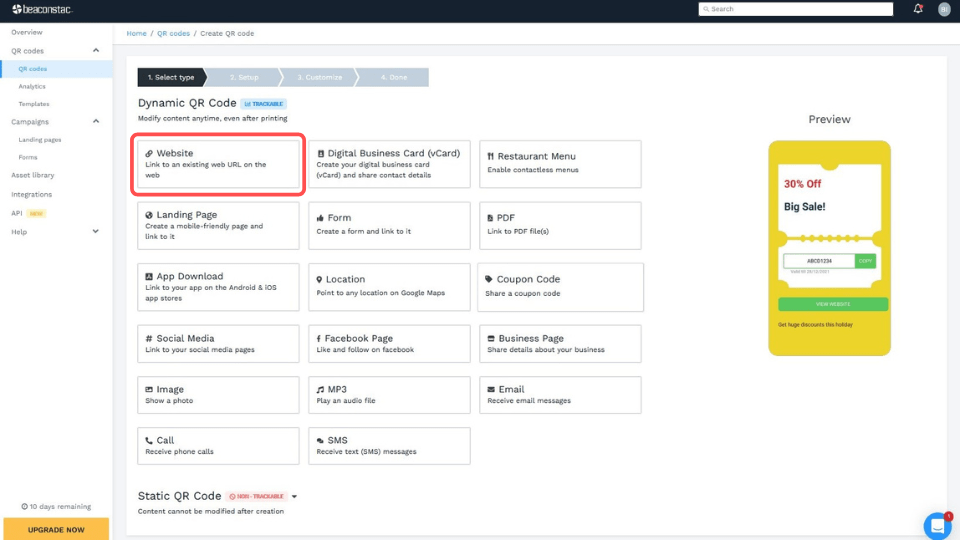
Step 3: Enter all the relevant details for your Canva QR Code
Since we chose “Website,”we’ll need to enter the URL to which we’d like the QR Code to link.
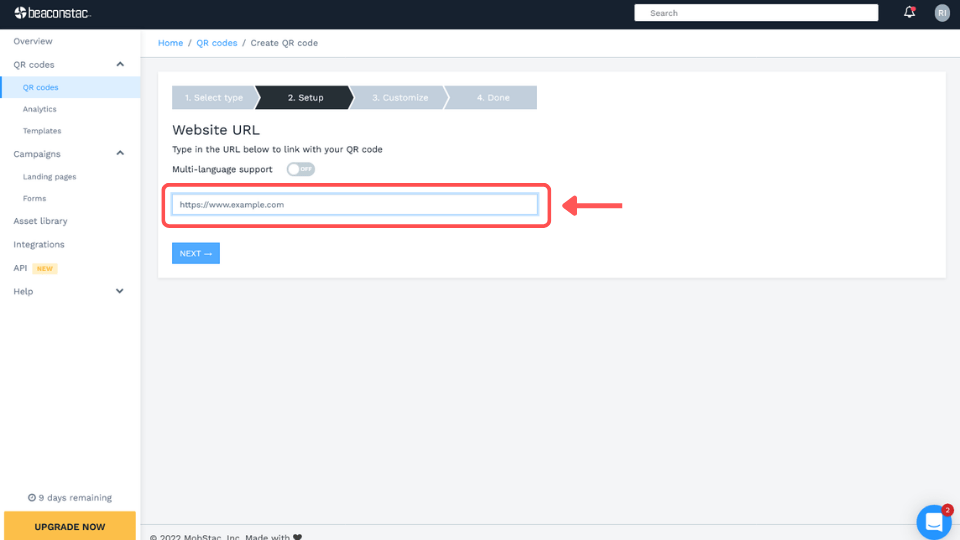
Now, the details you’ll need to enter depend on the type of QR Code you’re generating. If you choose “Coupon Code” instead, your setup screen will look a bit different since you’ll need to enter your coupon’s redemption details.
Step 4: Customize your QR Codes
Uniqode provides you with the customization tools you need so that you won’t need to do anything once your code gets to Canva. Choose different shapes, sizes, templates, and other aesthetic alterations for your QR Codes. You can also add your logo and a custom call-to-action QR Code frame.
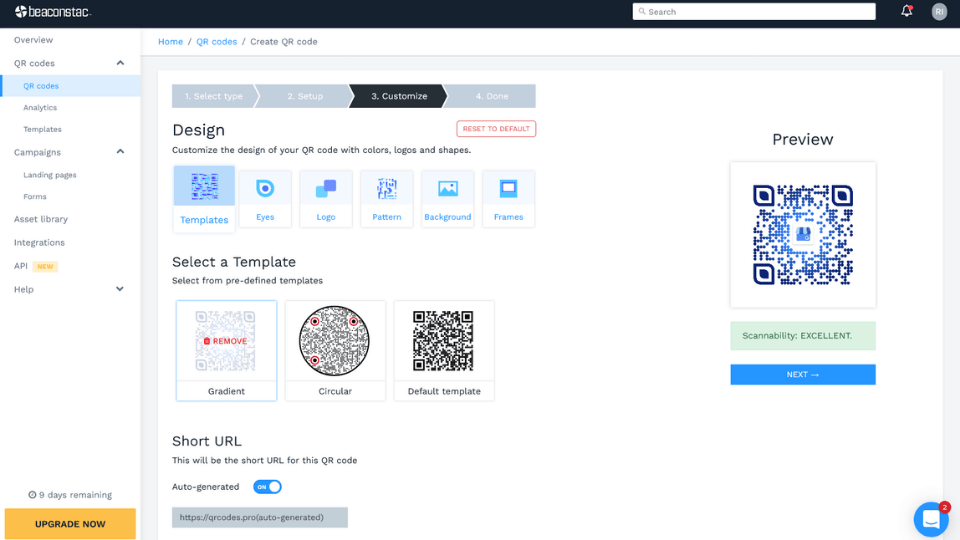
Step 5: Test, generate, and download
Once you’re happy with your QR Code’s design, it’s only a matter of testing it to see if it works and generating it on the platform. You can download your QR Code in different file formats or copy it directly to your Canva design.
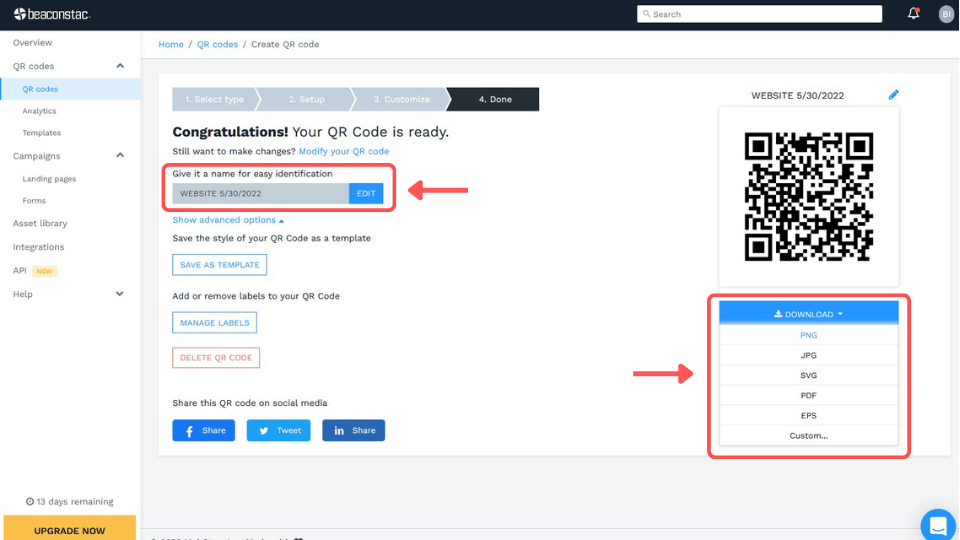
An easier way to get dynamic QR Codes on Canva
Uniqode added Canva recently to its collection of app integrations. This means you can now access all the QR Codes you've created right on Canva while editing your design.
You won't need to go back to the dashboard or upload a QR Code image file when you need to use a dynamic QR Code you've created on Uniqode. Here's how to do it:
Step 1: Find the Uniqode app on Canva
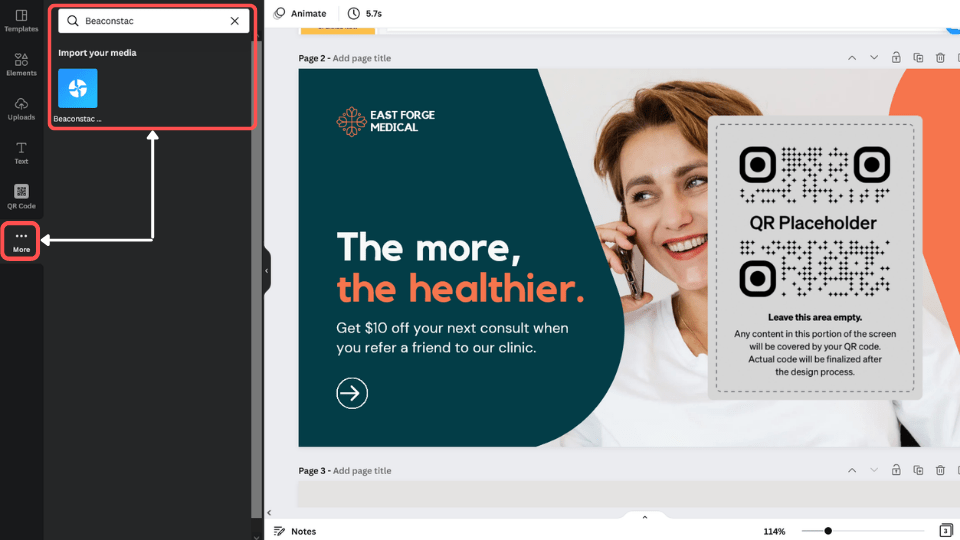
Go to your Canva design, navigate to "More" on the left panel, search for "Uniqode," and click the app icon.
Step 2: Connect your Uniqode account
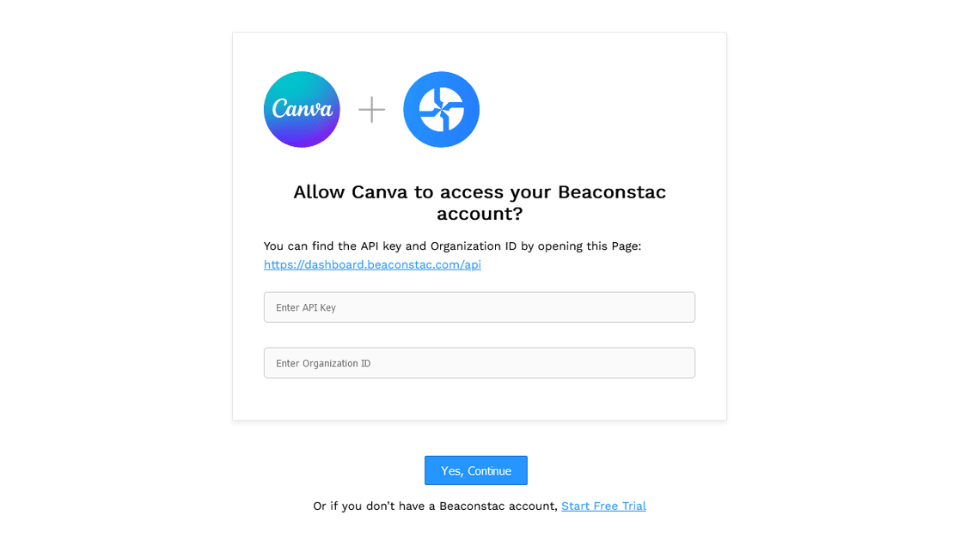
Click Connect Uniqode, then sign in or create a new account. Once connected, you land on the home screen where all your QR Codes and folders are visible.
Step 3: Select or create a QR Code
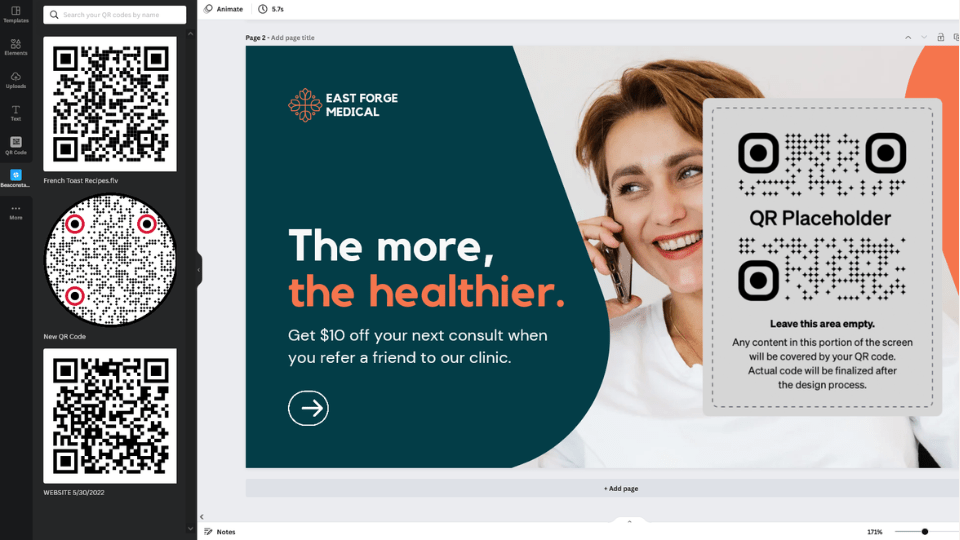
Browse your existing QR Codes, or click Create QR Code to build a new one. Choose from Website, PDF, or Mobile App types, customize it, and add it directly to your design.
⚡Pro tip: With the Uniqode app in Canva, you can create QR Codes for websites, PDFs, and mobile apps without leaving the editor. Customize each code with logos, colors, frames, and templates, organize them into folders, and add any code to your design in one click.
Where can you use a Canva QR Code?
Ready to get creative? Canva is the perfect go-to for anyone looking to create compelling visuals, even without photo editing know-how. For documents and other visual materials, a Canva PDF editor can also make it easier to prepare and refine files before sharing them.
Whether you’re gathering an audience for a personal purpose, marketing, or any application, you can always complement your designs with QR Codes. Let’s look at a couple of great examples:
Canva Print Ads
Banners, posters, flyers, billboards, you name it. They’re essentially built for one thing: to gather attention. As you know, you can create and edit these materials on Canva. But for every print ad, you’ll need a powerful call to action. After all, you want your audience to take the action you want.
You can create custom QR Codes for print to help you out with this. You can also include a QR Code in the OOH collaterals you’re designing. Link these codes to any digital destination that makes sense, whether it’s a page showing supplementary info or a product checkout page if you’re targeting a conversion.
Canva Business cards
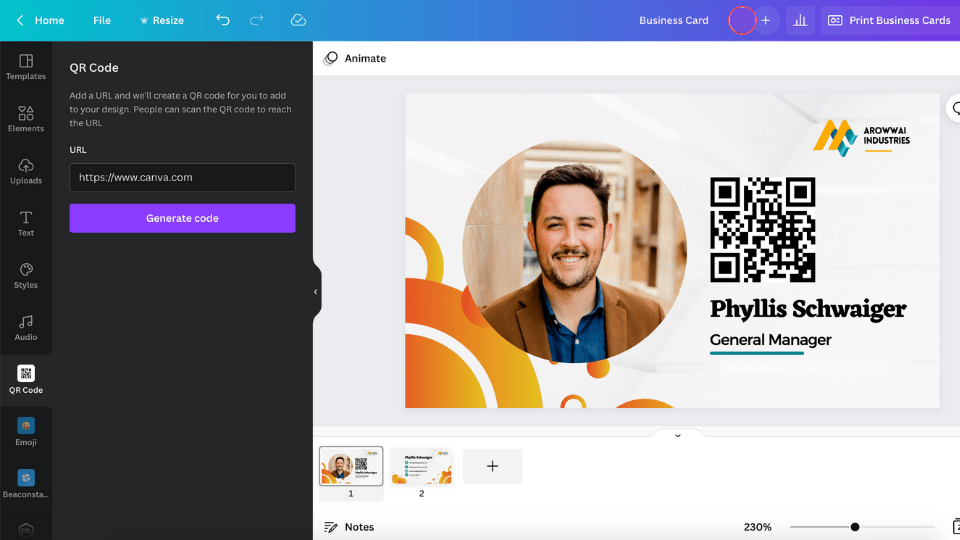
Yes, digital business cards. They make life easier for you as a pro. And you can design one yourself on Canva. But a vCard isn’t complete without a QR Code that takes an audience to the added information you’d like to show.
Needless to say, any print material has limited real estate. There’s only so much you can show off on your physical business card before running out of space. Good thing you can rely on QR Codes to show any leads, prospects, or potential partners as much additional information you like.
Canva Custom invitations
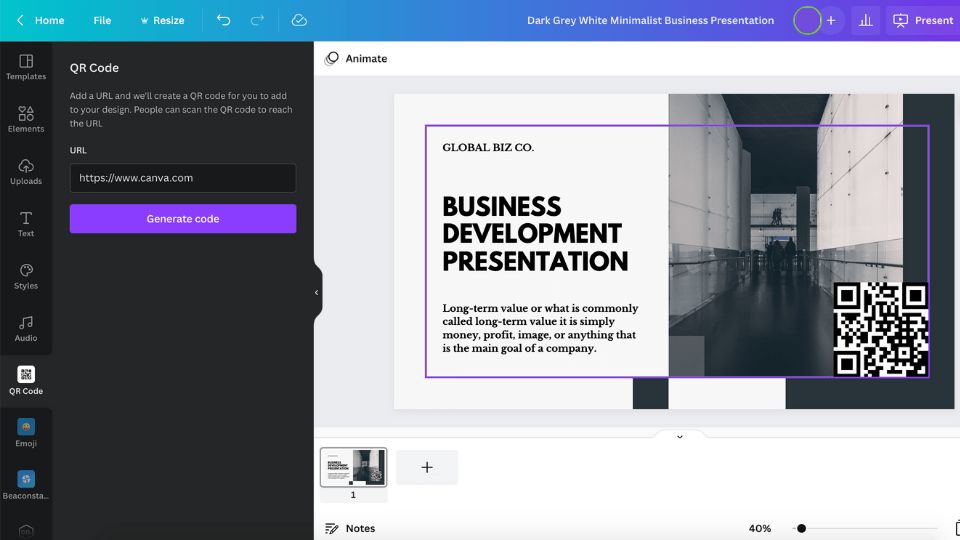
Whether you’re doing complex event marketing or just want to create something attractive for a private event, you can use Canva to create personalized invitations. But, again, something as small as a printed invitation card might not be enough to show all the info you want.
Luckily, as always, QR Codes have got your back. Whether you’d like to show an event page, prompt a calendar “save the date” on a smartphone or show the event venue, you can link all of these into an event QR Code you’ve placed on your physical invitations.
Social media content
Any marketer can use Canva, especially those who dabble in social media. That’s no wonder since it allows you to create a design without getting in touch with a professional designer. It can be used as a social media tool that helps design Instagram stories, Pinterest posts, or on a YouTube carousel slider. Canva also makes sure your Instagram story dimensions and other social media posts and story dimensions are perfectly in place.
We all know how Social media content can go viral quickly if you do it right. When designing your visual content on Canva, you’d want to include a Canva QR Code to help fuel that content’s virality. Just pair your codes with a solid call to action, and you could be looking at more shares and engagements.
Final thoughts: Add a digital experience to your Canva designs
Compelling visuals are essential to engaging and converting an audience. Canva knows that, so it does its best to provide you with the design tools you need to create any visuals that grab attention. Still, visuals are just one element of a successful campaign.
You’d want to take your audience directly where they can take action. And if you’ve made it this far, you’d know that QR Codes are your ticket to doing just that.

Frequently Asked Questions
- How do I create a QR Code in Canva?
You can create a Canva QR Code both on and off the platform. Canva actually has a built-in app that you can use to create instant static QR Codes. It’s one of the Canva apps available on the platform. Follow these steps to create a QR Code using the on-platform method:
- Go to Canva and create the design where you want to place a QR Code.
- Navigate to the left menu and click on “More.” It’s the one with a three-dot icon.
- Choose “QR Code” from the available app options.
- Enter your QR Code’s destination URL in the box provided and hit “Generate code.”
- A static QR Code will appear on the “Uploads” menu.
- Click on the QR Code image to move it onto your design.
As convenient as they are to make, some Canva QR Code limitations might not be ideal, depending on your applications. Since these QR Codes are static, you won’t be able to edit their content. You also can’t track any scanning activity around them.
The second way to create a QR Code for Canva is via a custom dynamic QR Code generator. Dynamic QR Codes allow unlimited content changes and valuable data tracking to help you get better outcomes in any ongoing campaign.
- Can you create dynamic QR Codes in Canva?
Canva allows you to generate QR Codes right on its platform, but these codes are static, not dynamic. If you want to create dynamic QR Codes that allow you to edit their destination URLs, you’ll have to use a third-party custom QR Code generator.
- Do Canva QR Codes expire?
Yes, QR Codes generated in Canva expire. This is because Canva generates static QR Codes, which can expire if your website has a 404 error, if the QR Code is tampered, or if the URL that it leads to is wrong. Even when customers scan it, it may not lead them to any content. This makes editable, dynamic QR Codes a better option for long term projects.
- Are Canva QR Codes free?
Yes. Canva's built-in QR Code app is included with any Canva plan, free or paid. Making that code dynamic, editable, and trackable requires a separate tool like Uniqode, which has its own pricing structure.
About the Author
Ektha is a QR code expert with years of research and analysis into the evolution of QR codes. Having written over 70 in-depth articles on QR technology, she has developed a comprehensive understanding of how QR codes are transforming industries. Her insights, including The State of QR Report, have been featured in leading publications. With a passion for simplifying complex topics and providing actionable strategies, Ektha helps businesses leverage QR codes to enhance their 'phygital' connections.