Launch dynamic QR Codes that connect offline moments to results you can measure.
Create & Brand
Design beautifully branded QR Codes that drive action from every scan.
Collect Leads & Insights
Turn every scan into qualified leads and actionable insights with Forms and Pages.
Optimize with Analytics
Refine campaign performance and unlock smarter retargeting with analytics.
Manage & Scale
Centralize control, automate management, and scale QR campaigns confidently.
Generate a QR Code
UNIQODE CARDS
Capture contacts and engagement with branded Digital Business Cards built to scale.
Collect & Convert Leads
Instantly capture and sync leads from every card exchange.
Personalize & Brand
Customize every card to strengthen brand presence at every touchpoint.
Measure Every Interaction
Track every interaction and prove ROI with real-time engagement data.
Manage & Scale Teams
Automate provisioning and scale card management without losing oversight.
Download the Uniqode Cards app
PLATFORM
Integrations
Connect Uniqode to your stack to turn engagement into automated action.
...and more
Security
Protect every scan and exchange with enterprise-grade security and compliance.
SOC 2
HIPAA
GDPR
ISO
2FA
SSO
Why Uniqode?
Choose a platform built for reliability, security, and performance at every stage of growth.
Book a demo
Start Free Trial
BY INDUSTRY
Retail
Consumer Goods
Healthcare
Finance
Hospitality
Education
BY USE CASE
QR Codes for Marketing
QR Codes for Product Packaging
QR Codes for Events
Business Cards for Field Sales
Business Cards for C-Suite Executives
Business Cards in Email Signatures
More Use Cases
BY BUSINESS
Enterprise
Mid-sized businesses
Small businesses
BLOGS
Best QR Code Generators
Free vs. Paid QR Code Generators
Static vs. Dynamic QR Codes
How to Edit a QR Code
Guide to Safe QR Codes
COMPARE
Uniqode vs. Flowcode
Uniqode vs. Bitly
Uniqode vs. QR Tiger
UNIQUE ANGLES
Playbooks
Expert Speak
Newsletter
QR Code Scan Index
The State of QR Codes 2026
HELP CENTER
How to design a custom QR Code
How to restore a lost QR Code
How to duplicate a QR Code
Uniqode’s solution has made our lives a lot easier. Creating QR Codes is quick, and being able to track their performance has proven to be essential for our business.
A PDF QR Code is a scannable code that opens a PDF document when scanned, using the device's built-in camera with no app required. It works on iOS 11 and Android 9 or later natively.
PDF QR Codes are most commonly used to share restaurant menus, product manuals, compliance documents, course materials, employee handbooks, and any document that needs to reach people through a printed medium without requiring them to type a long URL. The static vs. dynamic choice is the one that determines whether those materials still work in two years.
A PDF QR Code stores a short URL that redirects to the location where the PDF is hosted. A static QR Code, will stop working if the PDF is deleted. This means you can’t change the destination after the QR Code is live. A dynamic PDF QR Code stores a redirect address you control. The document can be moved, updated, or replaced at any time without changing the printed code.
How to create a PDF QR Code?
The easiest way to convert a PDF to a QR Code is using Uniqode’s PDF QR Code generator in four steps, no credit card required.
Step 1: Open Uniqode QR Code generator
Login to the Uniqode dashboard and select QR Code. Select PDF as the QR Code type.
Step 2: Upload your PDF or paste a PDF URL
Upload a PDF file directly or paste a URL to a PDF hosted on Google Drive, Dropbox, or any accessible location. If you upload a file, Uniqode hosts it. If you paste a URL, the code redirects to your hosted file.
The code is dynamic by default. You can return to your dashboard at any point and replace the PDF, update the URL, or switch the destination entirely. The printed code is unaffected either way.
Step 3: Customize the design
Customize the QR Code before downloading:
Shape: Square or circular
Colors: Match the code pattern and background to your brand palette
Logo: Add your brand or document logo to the center
Background: Solid color, image, or transparent
Frame and CTA: Add a label around the code ("Scan to view menu," "Access training guide," "View product manual")
Adding a frame with call-to-action text gives people context before they commit to scanning. A labeled code consistently outperforms a naked one — it removes the "what is this?" hesitation before the scan.
Step 4: Download, test, and deploy
Download your PDF QR Code in PNG, SVG, EPS, or PDF format. Test on an actual iOS and Android camera (not a third-party QR scanner app) before printing. A code that scans on iPhone can fail on Android 14 at the same size on certain print substrates. Verify both before committing to a print run.
To update the linked document later: open your dashboard, find the code, select Edit, and replace the PDF file or URL. The printed code never changes.
⚡Pro Tip: Before creating a PDF QR Code, optimize your PDF for fast loading. Use PDF compression tools or built-in optimization features in your PDF editor to reduce file size before uploading. An optimized PDF ensures quicker downloads, smoother viewing, and a better overall scan experience.
Why use a PDF QR Code instead of printing the document?
Printing a document locks the content at the moment it ships. A PDF QR Code keeps the content live and updatable without touching the physical material. Here is what that unlocks in practice.
Update the document without reprinting. Change the linked PDF from your dashboard at any time. The printed code stays the same. A policy update, a menu change, or a revised manual reaches everyone through the existing printed material.
Make long PDFs easier to access on mobile. A QR Code scan opens the document instantly on any smartphone. No typing, no searching, no emailing files. The full document is one scan away.
Track scans and document engagement. See how many people scanned, when, where, and on what device. Static print offers none of that visibility.
Reduce printing and distribution costs. One printed code replaces repeated reprints every time the underlying document changes.
Should you use dynamic QR Codes to share your PDFs?
Most free PDF QR Code tools host your file on their own servers. The code works on day one. The problem arrives later. Free tools change pricing models, get acquired, or shut down. The failure is silent, and the first person to discover it is usually a customer or employee scanning material that looks perfectly legitimate.
Uniqode's dynamic QR Code Generator solve this at the root. Instead of encoding the final PDF URL into the printed pattern, the code stores a permanent redirect address you control. Update the document, change the destination in your dashboard, and the printed code stays the same.
The results are measurable:
Marriott Aruba eliminated $150,000 in annual printing costs by switching to QR-linked menus
73% of marketers using dynamic QR Codes report reduced printed material costs.
If your materials will be in circulation for more than 12 months, use a dynamic QR Code.
PDF QR Code capabilities for teams managing documents at scale
Basic PDF QR Code generation covers the common case. Teams managing large volumes of documents, international distribution, or confidential materials need the features below.
Smart Rules: route one QR Code to different PDFs based on context. One QR Code, multiple destination PDFs, determined by conditions set at the platform level. A product package can carry one printed code across every market and route to the correct language manual based on the scanner's location. A restaurant table code can load a lunch menu at noon and a dinner menu at 6 PM. The printed code never changes.
Password-protected PDF QR Codes. Some documents need access control. After scanning, the user sees a password prompt before the PDF loads. Maesa used QR-linked compliance documentation to help prevent $10M+ in potential regulatory exposure, ensuring inspectors always accessed the most recent version. Reserve password protection for contracts, offer letters, and compliance documentation. For public-facing materials, the extra friction reduces scan completion.
Bulk PDF QR Code creation. Generate hundreds of unique PDF QR Codes from a CSV file. Each row specifies a different document URL or uploaded file. Uniqode generates all codes in one batch, branded to the same design template. Organize codes into folders by department or location and assign edit access by team.
Scan analytics and real-time tracking. Every scan generates data: total scans, unique scanners, device type, location, and time of day. Set up weekly email reports and add active codes to the watchlist for daily alerts when scan activity drops unexpectedly. For a full overview, see QR Code tracking and analytics.
Edit and replace your PDF any time. Open the code, select Edit, and replace the file or update the destination URL. All prior scan history is preserved. Any collaborator with folder access can make the change without involving the original code creator.
Where PDF QR Codes make the most impact
PDF QR Codes allow users to view or download a PDF with a simple scan. Here's how various industries can use PDF QR Codes:The five industries below each have a different reason why PDF QR Codes matter. Dynamic PDF QR Codes are most useful when the document changes more often than the printed material around it. That could be a restaurant menu, product manual, compliance sheet, course handout, event schedule, or employee handbook.
1. PDF menus for restaurants and hospitality
Restaurant menus change more often than they get reprinted. When a dish is removed, a price adjusts, or a seasonal menu rotates, a QR Code-linked menu absorbs the update without touching the printed material. The table tent, wall card, or receipt insert stays the same; the PDF reflects the current menu.
Marriott Aruba updated restaurant menus, breakfast spreads, dinner selections, and seasonal specials without reprinting a single table tent, reducing $150,000 in annual printing costs. The QR Codes on every table stayed fixed. The PDFs changed whenever the kitchen did.
Smart Rules extends this further: the same code automatically routes to a lunch menu at noon and a dinner menu at 6 PM.
🤯 Pro tip: You can use Uniqode’s smart rules to create a QR Code with multiple PDF menus. These PDFs can be automatically switched based on the time of day, the day of the week, age, location, etc.
Course syllabi, library guides, and exam prep materials linked to PDF QR Codes on printed student planners or classroom posters stay current each semester without reprinting the physical materials. Professors distribute lecture notes and supplementary readings via QR Code rather than handing out paper. The QR Code on a student's printed planner from September still leads to the current version of the syllabus in November.
For higher education and K-12 institutions, see QR codes for education for use case walkthroughs specific to academic settings.
3. QR Codes in packaging for CPG
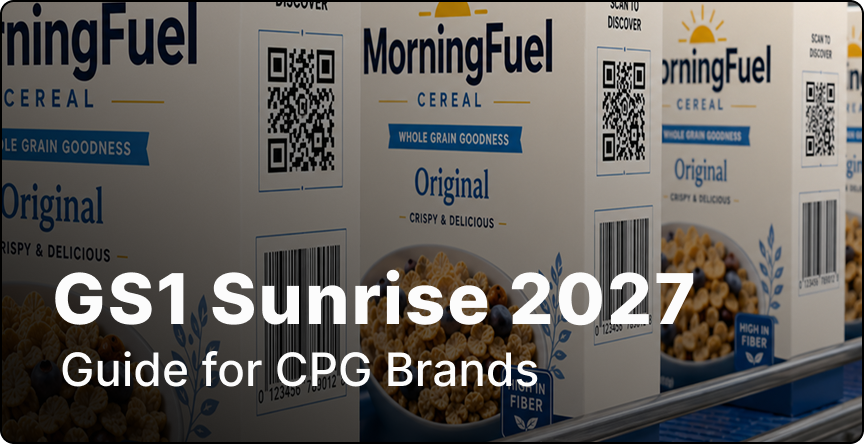
The QR Code on product packaging connects to the current version of the user manual, compliance document, or safety sheet. When the product spec changes, the manufacturer updates the PDF. The packaging doesn't change.
Maesa used QR-linked compliance documentation across its product lines to help prevent $10M+ in potential regulatory exposure, ensuring inspectors always accessed the current document regardless of when or where the product was manufactured. For global manufacturers, Smart Rules routes the same printed code to the correct-language compliance sheet based on the scanner's geographic location.
4. Events and conferences
Event programs, speaker schedules, and sponsor kits linked to PDF QR Codes on printed badges or programs update in real time when sessions change. After the event ends, the same QR Code is redirected to post-event recordings or recap materials. One physical asset, two distinct use phases.
5. Manufacturing & Construction
The manufacturing and construction industries rely on clear communication and easy access to crucial information, such as blueprints or product usage information. PDF QR Codes can play a vital role for:
Assembly and maintenance guides: Integrate detailed assembly and maintenance instructions in downloadable PDFs linked with QR Codes on product packaging or equipment. This empowers users with self-service and reduces reliance on physical manuals.
Best practices for PDF QR Codes
Here are a few best practices you can follow to ensure that you create a scannable QR Code for your PDF file.
Use dynamic QR Codes for print materials. Dynamic QR Codes separate the printed pattern from the destination URL, so you can update the linked document anytime without reprinting.
Host PDFs on reliable storage. Avoid free third-party hosting for long-lived print materials. Use your own storage (Google Drive, AWS S3, or Uniqode's built-in hosting) so you control the redirect.
Set a minimum size of 2cm × 2cm. Smaller codes fail on faded, textured, or low-contrast surfaces. Always test at actual print size on the actual substrate before a full production run.
Test on both iOS and Android before printing at scale. Native camera apps process QR codes differently across platforms. Verify scanning on real devices, not third-party scanner apps.
Add password protection only when necessary. Reserve it for confidential documents like contracts or internal reports. For public-facing materials, the extra friction reduces scan completion rates.
Monitor scan analytics over time. A sudden drop in scan activity signals that materials may be degraded or out of circulation, letting you schedule a reprint before the asset goes dark.
Test loading speed on a mobile connection before printing at scale. A file that loads instantly on Wi-Fi can stall on a 4G connection. Test on an actual mobile device using cellular data before committing to a print run.
Frequently Asked Questions
1. How do I create a PDF QR Code for free?
2. Is a PDF QR Code free?
3. Can I update the PDF linked to my QR Code without reprinting it?
4. Can I password-protect a PDF QR Code?
5. Do I need an app to scan a PDF QR Code?
6. What happens to my PDF QR Code if I cancel my Uniqode subscription?


.png)


 Templates
 Logo
Logo
 Design
 Frame
Frame







.webp)





.webp)


.webp)

.webp)
.webp)