Launch dynamic QR Codes that connect offline moments to results you can measure.
Create & Brand
Design beautifully branded QR Codes that drive action from every scan.
Collect Leads & Insights
Turn every scan into qualified leads and actionable insights with Forms and Pages.
Optimize with Analytics
Refine campaign performance and unlock smarter retargeting with analytics.
Manage & Scale
Centralize control, automate management, and scale QR campaigns confidently.
Generate a QR Code
UNIQODE CARDS
Capture contacts and engagement with branded Digital Business Cards built to scale.
Collect & Convert Leads
Instantly capture and sync leads from every card exchange.
Personalize & Brand
Customize every card to strengthen brand presence at every touchpoint.
Measure Every Interaction
Track every interaction and prove ROI with real-time engagement data.
Manage & Scale Teams
Automate provisioning and scale card management without losing oversight.
Download the Uniqode Cards app
PLATFORM
Integrations
Connect Uniqode to your stack to turn engagement into automated action.
...and more
Security
Protect every scan and exchange with enterprise-grade security and compliance.
SOC 2
HIPAA
GDPR
ISO
2FA
SSO
Why Uniqode?
Choose a platform built for reliability, security, and performance at every stage of growth.
Book a demo
Start Free Trial
BY INDUSTRY
Retail
Consumer Goods
Healthcare
Finance
Hospitality
Education
BY USE CASE
QR Codes for Marketing
QR Codes for Product Packaging
QR Codes for Events
Business Cards for Field Sales
Business Cards for C-Suite Executives
Business Cards in Email Signatures
More Use Cases
BY BUSINESS
Enterprise
Mid-sized businesses
Small businesses
BLOGS
Best QR Code Generators
Free vs. Paid QR Code Generators
Static vs. Dynamic QR Codes
How to Edit a QR Code
Guide to Safe QR Codes
COMPARE
Uniqode vs. Flowcode
Uniqode vs. Bitly
Uniqode vs. QR Tiger
UNIQUE ANGLES
The QR Code Marketing Guide to BFCM
Playbooks
Expert Speak
Newsletter
QR Code Scan Index
HELP CENTER
How to design a custom QR Code
How to restore a lost QR Code
How to duplicate a QR Code
Uniqode’s solution has made our lives a lot easier. Creating QR Codes is quick, and being able to track their performance has proven to be essential for our business.
Marcelo Yanez
Product Manager
Read all customer stories
Book a demo
Start Free Trial
Whatsapp QR Code Generator: Turn Every Scan Into a Chat
A WhatsApp QR Code opens a pre-filled chat the instant someone scans it. Uniqode lets you create, track, and edit yours without reprinting.
A WhatsApp QR Code is a QR Code that stores a short URL to a WhatsApp business chat or personal profile. This URL is known as a short link and is usually found in the following format: https://wa.me/message/<alphanumeric-text>
This QR Code can be quickly scanned to open a WhatsApp Business chat, add a contact, or enter a WhatsApp group.
While it can be used to share personal profile information such as your WhatsApp number, It is most prominently used by businesses or entrepreneurs for business chats, marketing, sales, and networking.
How to create a WhatsApp QR Code
You can easily create a WhatsApp QR Code using Uniqode’s custom WhatsApp QR Code generator.
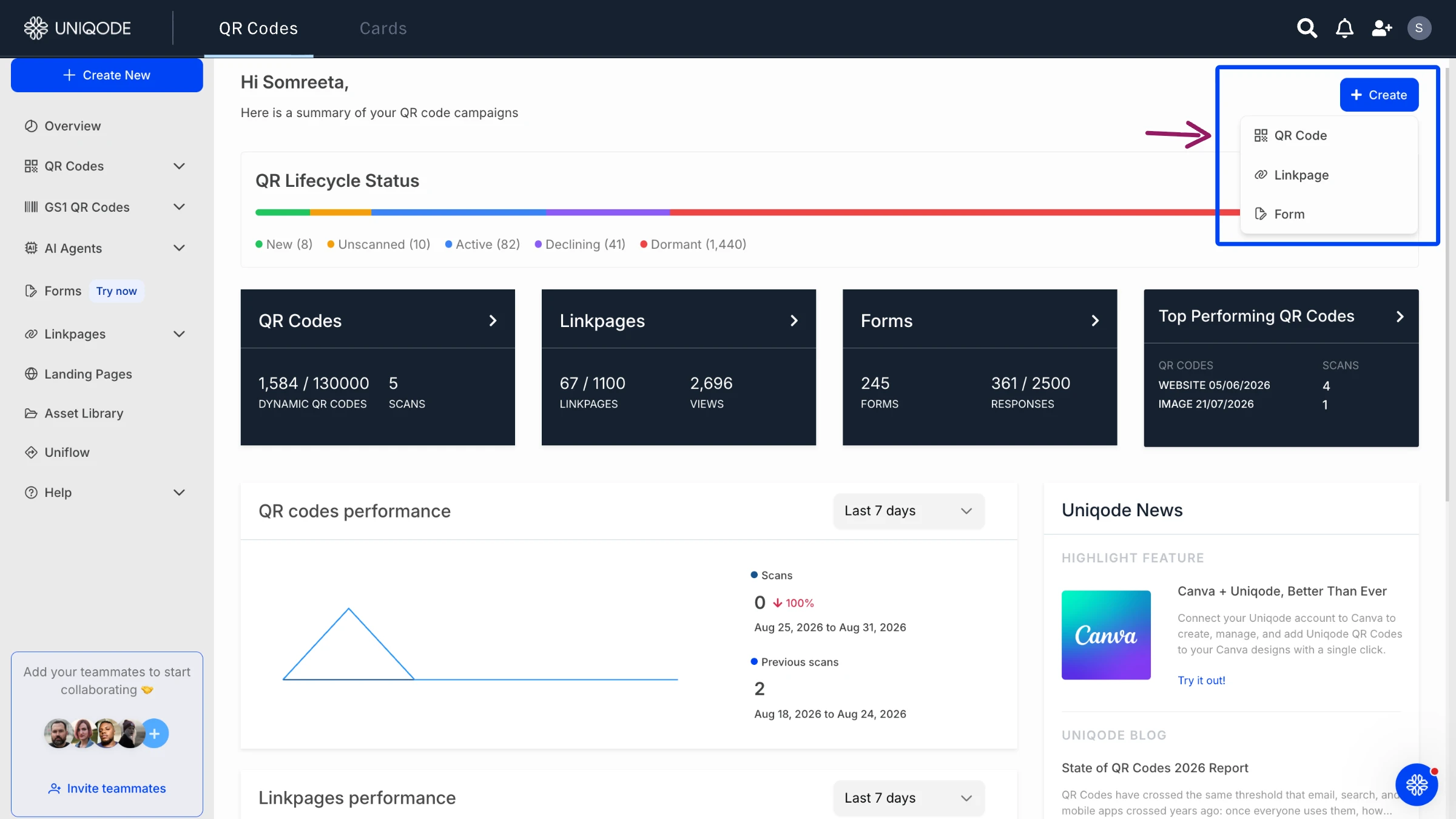
Step 1: Go to QR Code generator dashboard
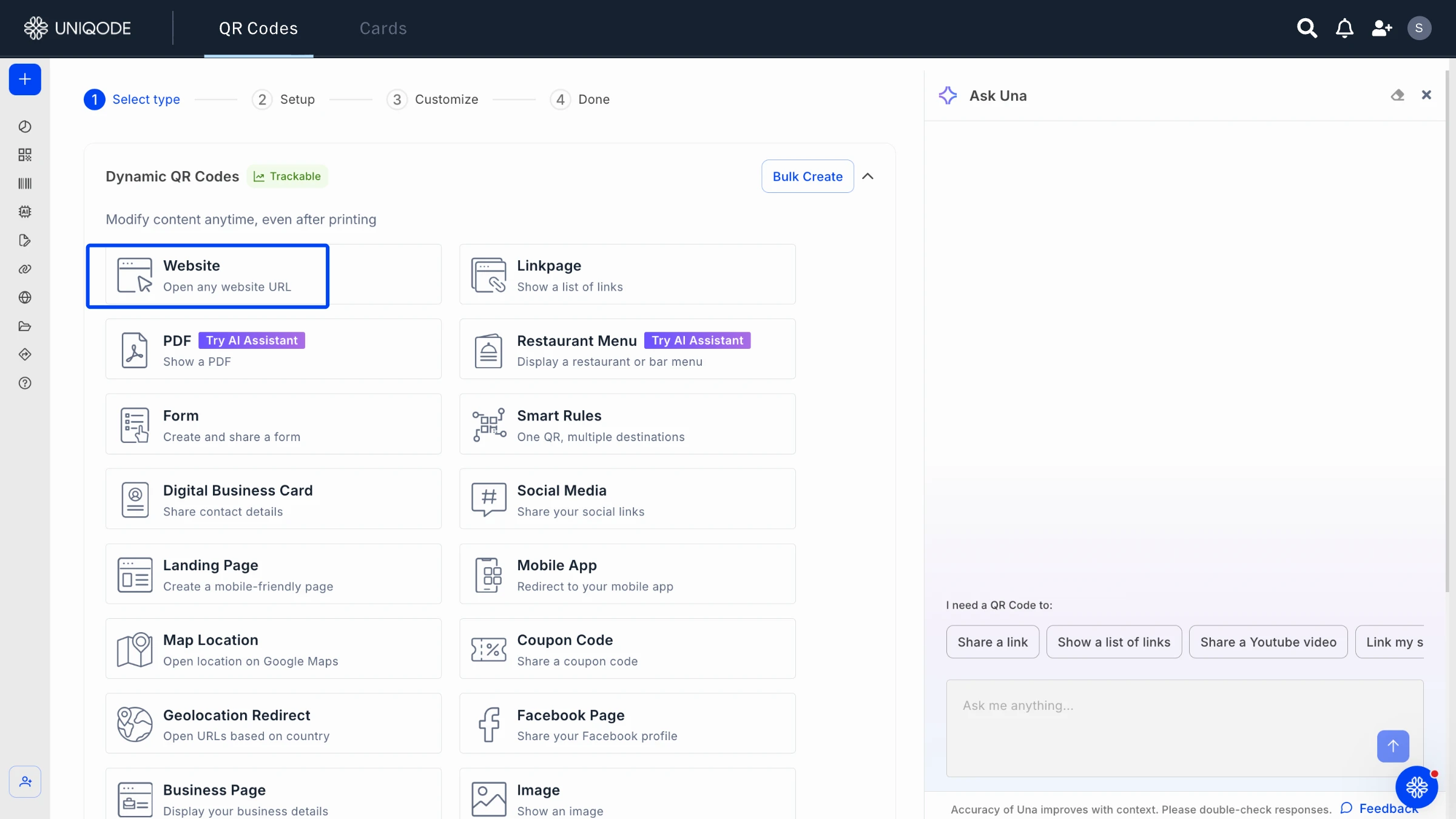
Login to the Uniqode dashboard and navigate to the QR Code tab and click on “Create QR Code.” Select the “Website” option.
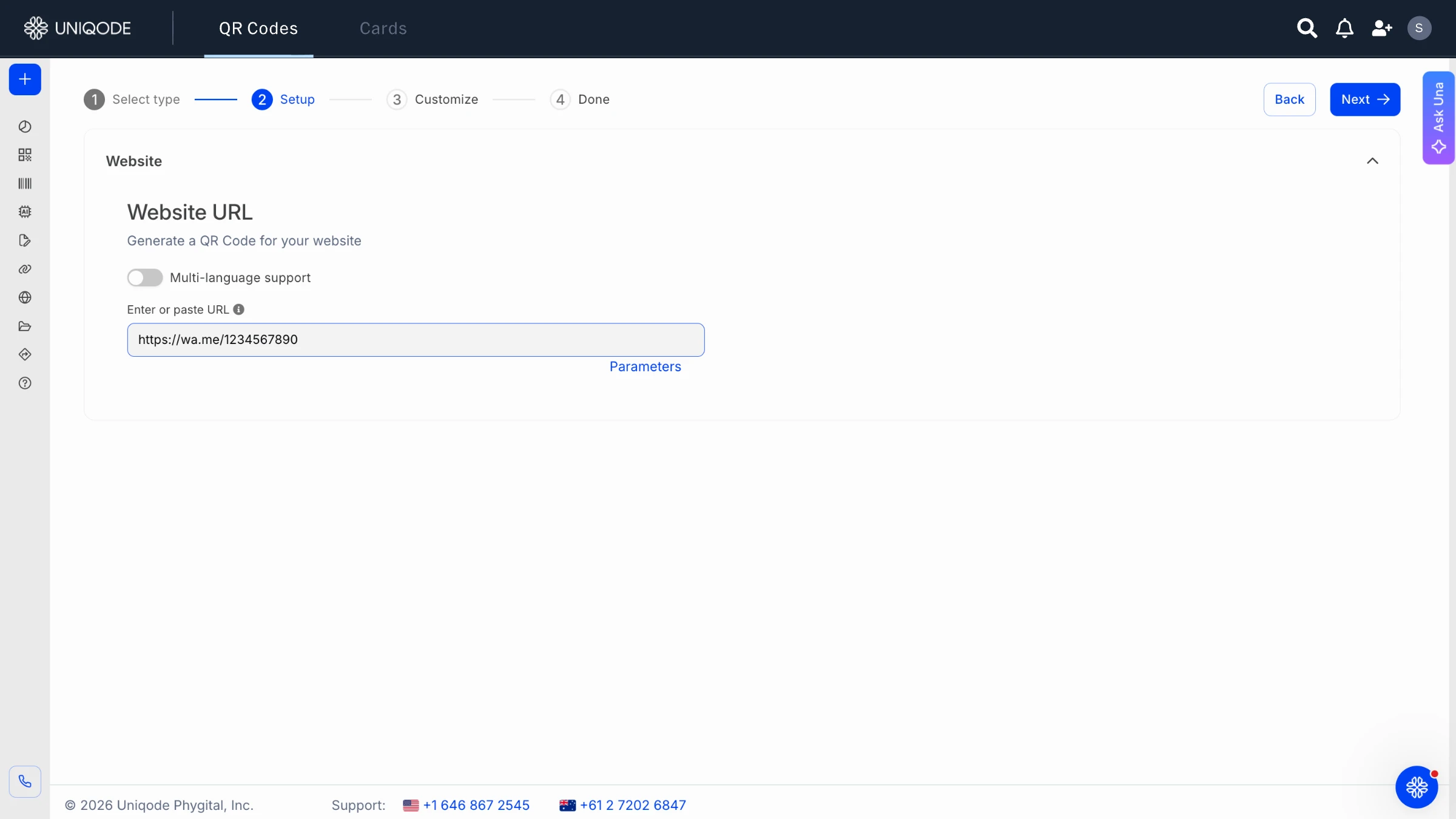
Step 2: Add your WhatsApp profile short link
You can add your WhatsApp Business profile’s short link to your QR Code. To get access to it, you can go to your WhatsApp business app and click on “Settings” > “Business Tools” > “Short Links.” You can also add a pre-filled message that customers can edit and send when they enter your chat.
Step 3: Customize your QR Code
You can customize your QR Code Generator to make it more visually appealing and reflect your brand identity. Once done, click on “Next.”
Step 4: Test and download your QR Code in the required format
Once done, you can preview and test it by scanning it. Click on “Finish” to download your QR Code in the required format and print it out for use.
Uses of a WhatsApp QR Code
A WhatsApp QR Code is a versatile tool, serving six key business needs: marketing campaigns, customer support, sales conversations, bookings and reservations, networking, and even e-commerce catalog access. While the QR Code may take on a different role in each scenario, the process remains simple and consistent. Just scan, and you are instantly connected to a pre-filled chat.
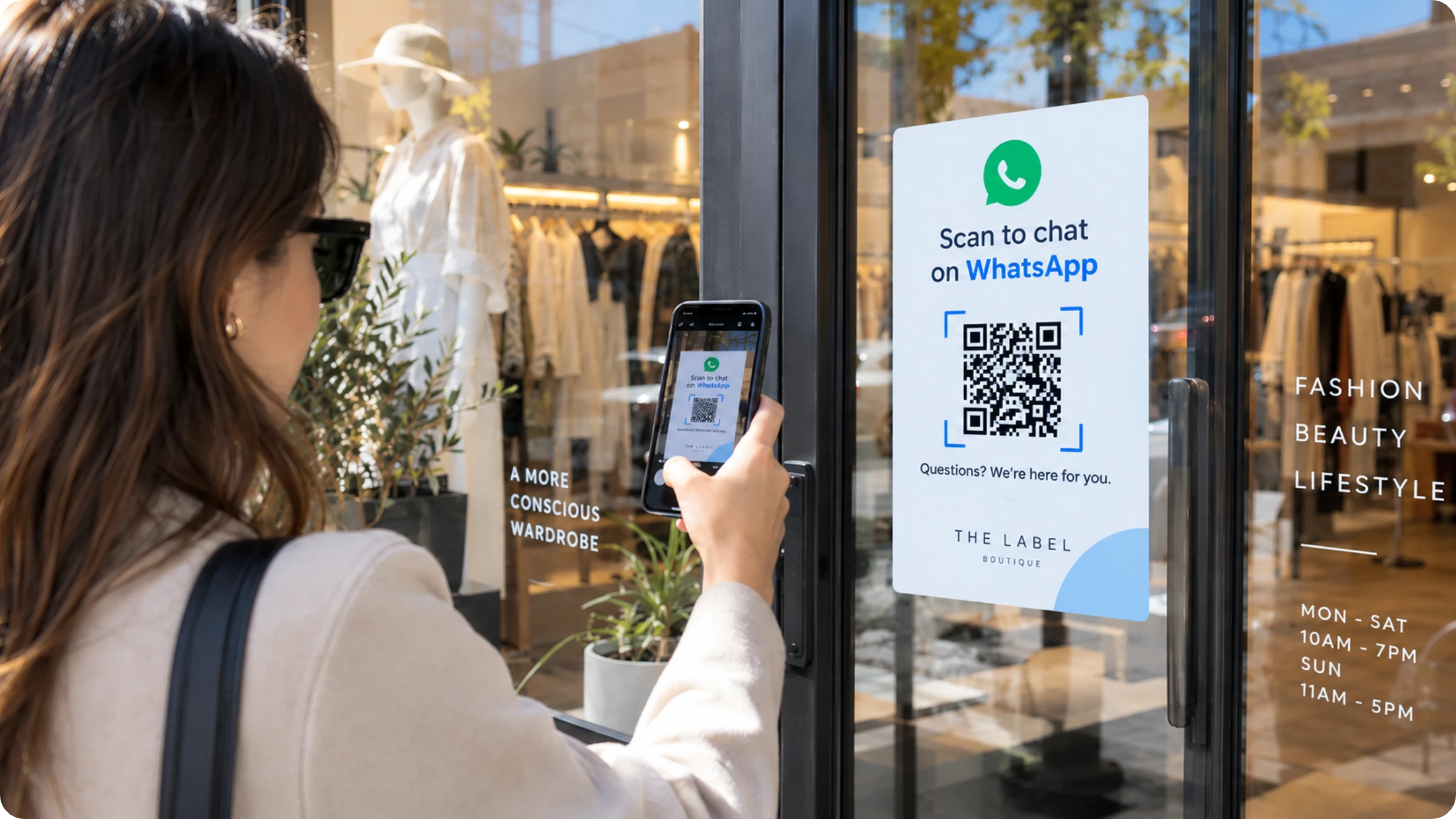
Marketing campaigns: a QR Code for WhatsApp on a flyer, packaging insert, or storefront window turns a passive ad into a live conversation instead of a phone number nobody dials.
Customer support: a code on a receipt or order confirmation email opens a direct line to support, skipping the hold queue a phone call requires.
Sales conversations: a QR Code in an email signature or on a business card starts a sales chat before the prospect has typed a single word.
Bookings and reservations: a code at a front desk or on a menu opens a chat to confirm a table, a room, or an appointment slot.
Networking: a code on a name badge or a profile lets a new contact start a chat without either person typing a phone number. A digital business card over WhatsApp extends this to a full profile, not just a chat.
E-commerce catalog access: a code on a storefront or on packaging opens a chat tied to a WhatsApp Business catalog, letting a shopper browse products and ask questions in the same thread.
Why use a WhatsApp QR Code
A WhatsApp QR Code can instantly turn a printed number into a live chat, making it easy for customers to reach you. But here’s the catch: only a dynamic QR Code keeps working if you ever need to change your number or update the message. Static codes stop working the moment anything changes. If your business updates its number, switches to the WhatsApp Business API, or wants to reuse the same printed code for a new campaign, a static code won't work. The code still scans, but it opens a chat with a number that may no longer be yours, or worse, now belongs to someone else.
There’s another problem with these codes: you have no idea who scanned your WhatsApp QR Code, where they scanned it, or if it led to a real conversation. With a static code, tracking is impossible because there’s no redirect layer to capture that data. Dynamic codes, on the other hand, are built for tracking, so you can see exactly how your QR Codes are performing.
When you use a dynamic QR Code generator for WhatsApp, your code is dynamic and trackable from the very first scan. Need to update the number or the pre-filled message? You can do it right from the dashboard in less than a minute, and your printed code keeps working.
Benefits of a WhatsApp QR Code
A WhatsApp QR Code offers three key benefits that you can access with any generator. But if you opt for a dynamic, tracked version, you unlock four additional advantages that take your experience to the next level.
Benefits available with any generator:
Works instantly, with no separate app download needed beyond WhatsApp itself
Removes manual number entry, so no typo stands between a customer and a conversation
Gives a permanent way to start contact, since the code never needs re-sharing once printed
Benefits available only with a dynamic QR Code generator:
A code that matches your brand: logo, color, and frame, instead of a plain black-and-white square that reads as improvised. Auto Design generates on-brand variations automatically for teams that would rather not pick every detail by hand.
A destination you can edit without reprinting, the same dynamic capability covered in the section above.
QR Code scan analytics that show who scanned, from where, and on what device, closing a gap every audited competitor leaves open.
A compliance posture, SOC 2 Type II, GDPR, and ISO 27001, that lets a security team clear a vendor review without a scramble.
According to Uniqode's State of QR Codes 2026 report, nearly half of marketers consider analytics and reporting their top priority when it comes to QR Code features. Surprisingly, most WhatsApp QR Code generators you’ll find here do not offer these capabilities at all.
If your needs are met by the first three benefits, a free generator will serve you well. However, if you are looking for tracking, branding, or need to conduct a security review, the next set of features becomes essential.
Best practices for WhatsApp QR Codes
When printing a WhatsApp QR Code, make sure it is at least 8cm by 8cm in size, or 302 by 302 pixels, as recommended by WhatsApp’s own guidelines for sticker templates. Remember to leave a quiet zone of at least 4 modules on every side, which is the standard clear border for QR Codes. If you follow both these steps, you will avoid most scanning issues. These guidelines are not just for WhatsApp, but apply to QR Code printing in general.
Five best practices cover the rest:
Keep a 4-module clear border around the code on every side. A code crowded by text or images fails to resolve even at the correct print size.
Test contrast and lighting before mass printing. A printed code under glare or low contrast is one of the most common, and most avoidable, causes of a failed scan.
Add a clear call-to-action next to the code, like "Scan to chat," so the person scanning knows what happens before they do it.
Confirm the WhatsApp app is current on the test device before declaring a code broken. An outdated app version is a frequent, invisible cause of scan failure.
Re-test after any redesign. A logo, frame, or color change can push a code below the contrast threshold it passed at first print.




 Templates
 Logo
 Design
 Frame