Launch dynamic QR Codes that connect offline moments to results you can measure.
Create & Brand
Design beautifully branded QR Codes that drive action from every scan.
Collect Leads & Insights
Turn every scan into qualified leads and actionable insights with Forms and Pages.
Optimize with Analytics
Refine campaign performance and unlock smarter retargeting with analytics.
Manage & Scale
Centralize control, automate management, and scale QR campaigns confidently.
Generate a QR Code
UNIQODE CARDS
Capture contacts and engagement with branded Digital Business Cards built to scale.
Collect & Convert Leads
Instantly capture and sync leads from every card exchange.
Personalize & Brand
Customize every card to strengthen brand presence at every touchpoint.
Measure Every Interaction
Track every interaction and prove ROI with real-time engagement data.
Manage & Scale Teams
Automate provisioning and scale card management without losing oversight.
Download the Uniqode Cards app
PLATFORM
Integrations
Connect Uniqode to your stack to turn engagement into automated action.
...and more
Security
Protect every scan and exchange with enterprise-grade security and compliance.
SOC 2
HIPAA
GDPR
ISO
2FA
SSO
Why Uniqode?
Choose a platform built for reliability, security, and performance at every stage of growth.
Book a demo
Start Free Trial
BY INDUSTRY
Retail
Consumer Goods
Healthcare
Finance
Hospitality
Education
BY USE CASE
QR Codes for Marketing
QR Codes for Product Packaging
QR Codes for Events
Business Cards for Field Sales
Business Cards for C-Suite Executives
Business Cards in Email Signatures
More Use Cases
BY BUSINESS
Enterprise
Mid-sized businesses
Small businesses
BLOGS
Best QR Code Generators
Free vs. Paid QR Code Generators
Static vs. Dynamic QR Codes
How to Edit a QR Code
Guide to Safe QR Codes
COMPARE
Uniqode vs. Flowcode
Uniqode vs. Bitly
Uniqode vs. QR Tiger
UNIQUE ANGLES
The QR Code Marketing Guide to BFCM
Playbooks
Expert Speak
Newsletter
QR Code Scan Index
HELP CENTER
How to design a custom QR Code
How to restore a lost QR Code
How to duplicate a QR Code
Uniqode’s solution has made our lives a lot easier. Creating QR Codes is quick, and being able to track their performance has proven to be essential for our business.
Marcelo Yanez
Product Manager
Read all customer stories
Book a demo
Start Free Trial
Spotify QR Code Generator: Create, Customize, and Share a Playlist Code
Turn any Spotify song, album, playlist, or artist into a scannable QR Code that works on any phone camera, not Spotify's own in-app Code
A Spotify QR code is a standard QR Code, following the ISO/IEC 18004 format, that takes you straight to a song, album, playlist, or artist page on Spotify. All you need to do is point your phone’s camera at it, and the Spotify page opens right away. You do not need the Spotify app or any special scanner for this.How to create an event QR Code in 4 steps
Spotify Code vs. Spotify QR Code: What's the difference
A Spotify Code and a Spotify QR Code are different. A Spotify Code uses Spotify’s own pattern, which encodes a Spotify URI and only works with Spotify’s in-app camera. In contrast, a Spotify QR Code is a regular QR Code that follows the ISO/IEC 18004 standard, just like any other QR Code you might scan. You can open it with any phone’s camera. Spotify Codes only link to Spotify content. Spotify QR Codes can link to a Spotify URL too, but you don’t need the Spotify app to scan them.
Why a generated QR Code beats a native Spotify code
A generated QR Code isn't a downgrade from Spotify's own Code. In fact, it’s the smarter, more durable choice. While a Spotify Code offers no scan analytics and cannot be updated once printed, a dynamic QR Code gives you the upper hand. It tracks who scans it, where, and on which device, and you can change its destination anytime, no need to reprint your posters. According to Uniqode’s State of QR Codes 2026 report, 71% of consumers already find QR Codes at least somewhat helpful in daily life. Clearly, generated codes have become the trusted, mainstream option.
How to scan a Spotify QR Code
Scanning a Spotify QR Code uses the phone's built-in camera app. You don’t need the Spotify app for this, just point your camera at the code and tap the link that pops up. However, scanning a Spotify Code is different. To do that, open the Spotify app, go to Search, tap the camera icon in the search bar, and point the camera at the code. The Spotify scanner only works with its own code format and can’t read regular QR Codes like your camera app can.
How to create a Spotify QR Code
Creating a Spotify QR Code takes four steps: get the share link, choose a generator, customize it, and download it. The steps are identical whether the link is a song, an album, an artist, or a playlist.
Step 1: Get the Spotify share link
Open Spotify, tap the three-dot menu on the song, album, artist, or playlist, and choose Share, then Copy Link. The exact same menu works for a playlist you own or follow: there's no separate playlist-only flow. Yes, you can create a QR Code for a Spotify playlist, and building one takes the same four steps as any other Spotify link.
Step 2: Paste it into Uniqode's QR Code generator
Sign up for a free trial, no credit card required, and click +Create QR Code. Choose the Website QR Code campaign type, then paste the Spotify link. Uniqode reads the link and prepares the code instantly.
Step 3: Customize the design
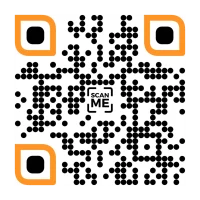
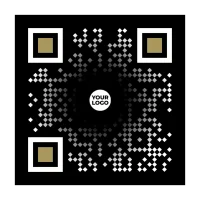
Pick a shape, color, logo, and frame that match the release art, and add a call-to-action like Scan to Listen. The rest, shape, color, logo, frame, takes about as long as picking a font.
Step 4: Test, generate, and download
Download the finished code in PNG, JPG, SVG, EPS, or PDF, ready for a poster, a vinyl sleeve, or a business card without redoing the artwork. The code tracks scans from the moment it's live, no extra setup.
The whole flow, from copying the link to holding a finished, trackable file, takes a few minutes start to finish.
Can a Spotify QR Code work if someone doesn't have Spotify?
A Spotify QR Code does not have to lead only to Spotify. Instead, you can direct it to a Linkpage, which is a single hosted page that offers listeners a choice among Spotify, Apple Music, and YouTube Music. With just one scan, your audience lands on a simple page with all three options, so they can pick their preferred platform. Each click is tracked separately, giving you a clear picture of which service your listeners actually use. Imagine a fan at your merch table scanning a poster to hear your latest single. If the QR Code only opens Spotify and they use Apple Music, nothing happens. But with a Linkpage, that same scan becomes a seamless experience, letting every listener choose their own platform.
5 ways to use a Spotify QR Code
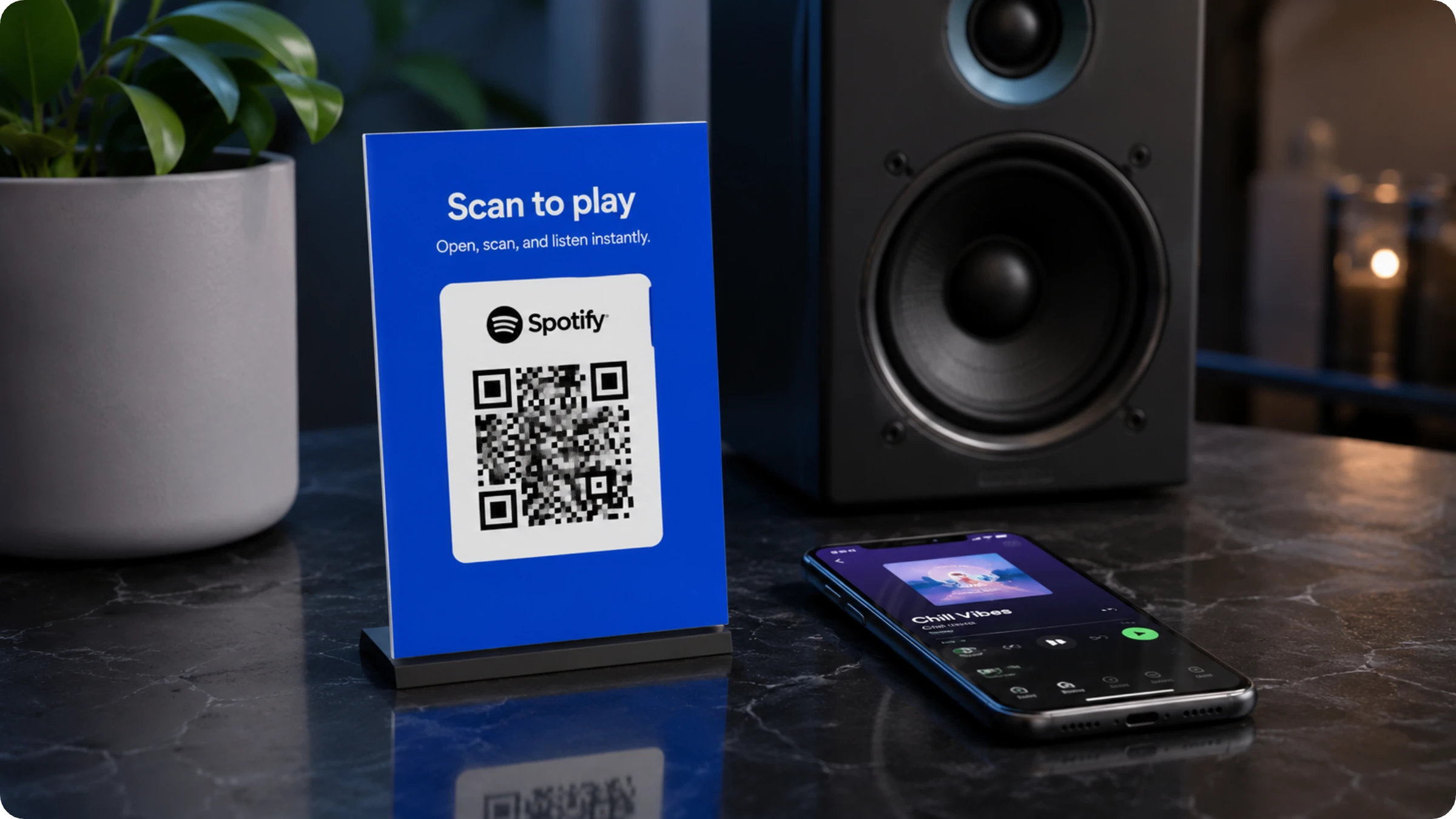
A Spotify QR Code shows up anywhere a listener needs one scan to reach a song, album, playlist, or podcast: release promo, concerts, merch, podcasts, and social.
Release and album promo
If you are looking to promote a new single or album, consider using a poster or press kit. With a code that takes listeners directly to Spotify, you eliminate the need for them to search, making the experience seamless and efficient.
Concerts and events
Whether it is venue posters, merch booth signage, or even on-screen visuals during a concert, each can display a unique code. This approach offers attribution tracking that a simple printed setlist simply cannot provide.
Merch and packaging
Vinyl sleeves, clothing tags, and posters can connect directly to a tracklist. For example, Adidas has added codes to shoe tongues that link to playlists made for specific regions during a product launch.
Podcast promotion
With a podcast flyer, business card, or newsletter graphic, listeners can jump right into an episode without having to type anything.
Social media and bio-link sharing
You can use a single code in a bio or story to open a playlist, so you don’t have to type in a search.
Why a Spotify playlist QR Code should always be dynamic
Spotify playlists are constantly changing. Songs are added, shuffled around, or removed, and sometimes entire playlists disappear. If you use a static QR Code for a Spotify playlist, it stops working the moment any of these changes happen. But with a dynamic QR Code, you avoid this problem entirely. Imagine a festival where QR Codes are printed on wristbands, each linking to that year's official playlist. When the festival ends and the playlist is taken down, those wristbands would normally lead to a dead link. However, if the QR Code is dynamic, you can simply update it to point to next year's playlist, saving everyone the hassle of reprinting.
Best practices for Spotify QR Codes
The fastest way to a Spotify QR Code that actually gets scanned is getting the basics right before it ever goes to print.
Test scan distance before printing at scale. A festival banner needs bigger modules than a business card.
Add a short line near the code, like Scan to Listen. A bare code with no context gets ignored.
Match the code's color and logo to album art or brand.
Choose the exact playlist or song, not a generic artist profile. A code landing one tap from the content converts better than one landing on a homepage.
Use a dynamic code for anything printed in volume: if the destination changes, only a dynamic code avoids a reprint.
Spotify QR Code vs. Spotify Code vs. Apple Music QR Code vs. Generic Audio QR Code
Once printed, a Spotify QR Code remains both editable and trackable, giving you flexibility and insights even after the fact. In contrast, a Spotify Code becomes fixed as soon as it is printed and does not offer any public analytics. Curious how these options compare? Let’s see how a Spotify QR Code measures up against Spotify’s own Code, an Apple Music QR Code, and a standard audio QR Code.
Attribute
Spotify Code
Spotify QR Code
Apple Music QR Code
Audio QR Code
Mobile Text
Works with any phone camera
Mobile Text
No, in-app only
Mobile Text
Yes
Mobile Text
Yes
Mobile Text
Yes
Mobile Text
Editable after printing
Mobile Text
No
Mobile Text
Yes, dynamic
Mobile Text
Yes, dynamic
Mobile Text
Yes, dynamic
Mobile Text
Scan analytics (count, location, device)
Mobile Text
No, zero public analytics
Mobile Text
Yes
Mobile Text
Yes
Mobile Text
Yes
Mobile Text
What it links to
Mobile Text
Spotify content only
Mobile Text
Any Spotify URL, or a Linkpage (a single hosted page routing to multiple platforms) for multi-platform routing
Mobile Text
Any Apple Music URL
Mobile Text
Any hosted audio file, cloud link, or streaming link


.png)


 Templates
 Logo
Logo
 Design
 Frame
Frame


%20(1).webp)
.webp)
%20(1).webp)
.webp)
.webp)
.webp)
.webp)
.webp)
.webp)
.webp)