How to Create a QR Code for Microsoft Forms and Boost Responses
Wondering how to get more participants to fill out your form? Create a QR Code for Microsoft Forms, keep it easily accessible, and get more responses.


Microsoft Forms is a versatile option for collecting feedback, recipient details, conducting surveys, etc. But the number of responses you will get depends upon how you distribute them.
Manually sharing the forms with a large audience using bulk emails and messages often leads to unnecessary processes. An email or message can go unnoticed or remain unreached on your recipient’s end.
An easier way to share your Microsoft Forms—especially with offline audiences—is using QR Codes.
All you need is the form URL and Uniqode’s QR Code generator. You can create a QR Code for your Microsoft Form, customize it, and share easily.
You can also track your QR Code performance and determine the success of your QR Code campaign.
In this post, you’ll learn how to make a QR Code for Microsoft Forms in six simple steps and how to customize the QR Codes to make them on-brand and attractive.
How to create a QR Code for Microsoft Forms?
Here is a quick guide to making a QR Code for Microsoft Forms. You can use the same steps to create QR Code for forms via any platform.
Before you make a QR Code for Microsoft Forms:
- Log-in or sign-up for our 14-day free trial to access the Uniqode dashboard
- Keep the form and its URL that you want to use ready
Let’s start!
1. Go to the Uniqode dashboard and click “+CREATE QR CODE”

2. Choose “Website” as the campaign type

Since your Microsoft Forms come with a web URL, you can link it to the QR Code as a website.
Note: You can create your own form directly on this dashboard to share it as a QR Code and populate them through scans. Navigate under “MORE QR CODE TYPES” section and choose “Forms” to start creating forms from scratch.
3. Paste the Microsoft Forms URL in the box provided

4. Toggle on “Multi-language support” for form campaigns in more than one language

If you plan to deploy the forms on a global scale in multiple languages, toggle on “Multi-language support”. The QR Code will automatically redirect scanners to a form—based on their mobile device locale.
You would have to create Microsoft Forms in the languages you need (e.g: Portuguese and Cantonese), and paste the URLs in the required fields.
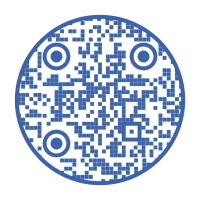
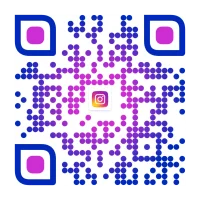
5. Customize the Microsoft Form QR Code by adding a logo, frame, and background

Customize the QR Code from the available options to change frames, color, pattern, and more.
However, you need to create dynamic QR Codes if you want to make advanced customizations, such as
- Adding your logo to the QR Code
- Changing the QR Code color to match your organization’s color code
- Choosing from different QR Code frames
- Adding different styles of frame text
- Change the QR Code eye (the three larger dots in the corner of the QR Code) shape
- Add background to the QR Code
6. Download the Microsoft Form QR Code

Once you’re done with your customization, clicking “NEXT” will lead to the download page. Download the QR Code in your choice of file format.
🤌Pro tip: If you’re making QR Codes for multiple iterations of forms, make it easy to identify them by naming and labeling each Microsoft Forms QR Code you create. You can create a QR Code template on the Uniqode dashboard. You can access the list of different QR Codes and templates from the dashboard later.
Static or dynamic QR Code—which is better for making a Microsoft Form QR Code?
You can create static and dynamic QR Codes on Uniqode for Microsoft Forms. However, you can decide which one to opt for based on what fits your purpose.
Static QR Codes are great for a one-time use case if you are not looking to edit or customize the forms later.
But if your target audience is diverse, you need to monitor how many people accessed the forms via QR Codes and update them after deploying; here’s how the dynamic option can help:
- Customize the Microsoft Forms QR Code: You can add logos and backgrounds to your QR Code for your users to resonate with your brand. It builds trust by communicating it is a safe QR Code to scan.
- Track user interactions with the QR Codes: You can access user-engagement metrics such as the number of scans or best-performing QR Codes and more on the Uniqode dashboard. You can use the metrics to optimize your distribution strategy to get more responses.
- Change or update the form’s URL: Edit the destination Microsoft Forms without creating a new QR Code. If you have to change the form, you can do it by replacing the old URL with the new one.
You can easily stand out with the customizations, boost engagement and gather metrics on the go with dynamic QR Codes. This makes your experience with QR Codes friction-free.
Best practices to follow while creating a QR Code for Microsoft Forms
Now that you have learned how to create a QR Code for Microsoft Forms, here are some tips to elevate the experience for your audience:

Make it easy to fill out your Microsoft Forms with Uniqode
Get more participants to complete your survey by sharing it via a QR Code using Uniqode. Create your first Microsoft Forms QR Code for free if you need basic redirection to forms.
Use dynamic QR Codes if you want customizable and trackable ones for enhanced user experience.
Uniqode is also SOC® 2 Type 1 and Type 2-certified and is GDPR-compliant, which means survey responses collected and any data stored on the dashboard are secured end-to-end.
Wondering how to create a QR Code for Microsoft Forms? Start a free trial on Uniqode.
Frequently Asked Questions
- Can you track how many people scanned your Microsoft Forms QR code?
Yes, dynamic QR codes provide complete tracking capabilities that let you monitor scan performance in real-time. You can track metrics including the total number of scans, geographic location of users, time and date of each scan, and the device type used (iOS or Android). This data helps you measure campaign success and understand which distribution channels are generating the most form responses.
- What is the best QR code generator for Microsoft Forms with customization options?
Uniqode offers comprehensive customization features specifically suited for Microsoft Forms, including the ability to add company logos, custom color schemes matching brand guidelines, multiple frame styles with text, and custom eye shapes for the three corner modules. The platform also supports multi-language form campaigns where a single QR code automatically redirects users to forms in their device's language locale. Dynamic QR codes from Uniqode include unlimited edits and detailed scan analytics to track form response rates.
- Can one QR Code link to Microsoft Forms in multiple languages?
Yes, by enabling multi-language support when creating your QR Code, a single code can automatically redirect users to different language versions of your form based on their mobile device locale settings. You need to create separate Microsoft Forms for each language (such as Portuguese and Cantonese) and input each form's URL into the QR Code generator. This eliminates the need to print and distribute separate QR Codes for each language, reducing costs and simplifying global campaign management.
- How to create a QR Code for Microsoft Forms?
You can create QR Codes for Microsoft Forms using Uniqode in five steps:
- Copy the URL of the form
- Go to Uniqode dashboard and click “+CREATE QR CODE”
- Choose “Website” as the campaign type and paste the URL
- Customize the QR Code
- Download in the format of your choice
- Is there a Microsoft QR Code generator?
No, Microsoft does not offer a robust QR Code generator. It only offers the option to share forms with static, non editable QR Codes.
About the Author
Nidhi is a content marketer with a background in literature and a passion for clear, impactful communication. She specializes in simplifying complex products, making them more relatable and engaging for audiences. Currently, she focuses on QR code solutions, crafting content that bridges the gap between technology and everyday users.