Having trouble sharing files directly from Dropbox? Use Dropbox QR Codes and share files and folders from Dropbox easily with a scan. No more unnecessary logins or manual link sharing.
START 14-DAY FREE TRIALVIEW PRICING
💻 Key takeaways: 1. A Dropbox QR Code is a QR Code that can be scanned by mobile devices to share information such as a link to a Dropbox file or folder. 2. Dynamic QR Codes are editable, so you can update the link they point to without recreating the QR Code. This is especially useful for Dropbox links, which can change over time. 3. QR Codes can be a convenient way to share Dropbox links with others. They are easy to scan and edit and avoid the need to type lengthy URLs.
There are more than 700 million people registered with Dropbox, constantly sharing and uploading essential documents, files, or memories. Users find Dropbox easy and convenient to use as they can access their files or folders anytime, anywhere.
But when it comes to sharing files and folders directly from Dropbox, most users find it inconvenient to log in to their Dropbox account, copy the link to the file they want to share, and send it to someone else. This is especially true when they need to share their chosen file with multiple people.
This is where a Dropbox QR Codecomes in handy.
Instead of sending Dropbox links to multiple individuals, you can create a Dropbox QR Code using Uniqode for a file or folder in a matter of minutes and share the code in the most suitable format—JPG, PNG, PDF, EPS, SVG, etc.
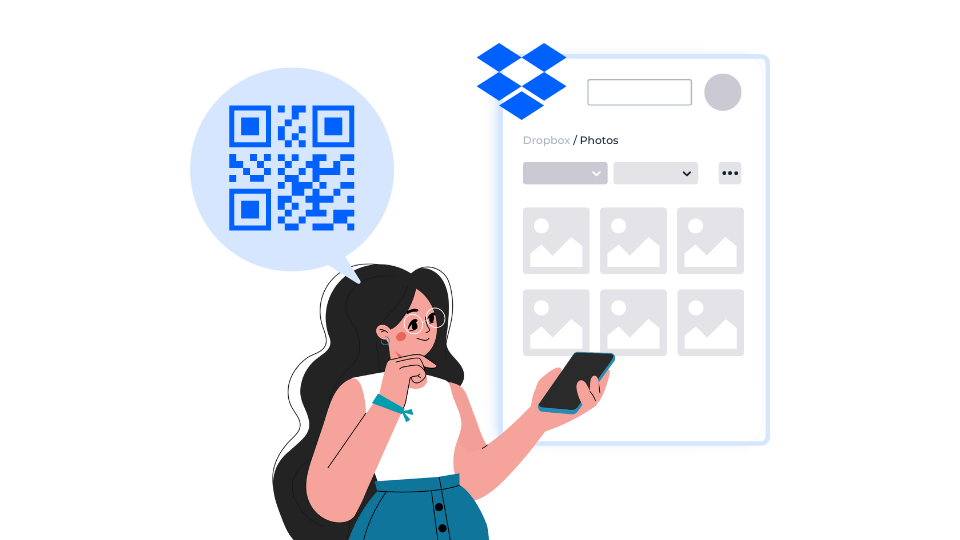
This way, you don’t have to log in to your Dropbox account because people only have to scan the QR Code with their smartphone to access the specified Dropbox file or folder.
In this article, we will discuss several methods to create a QR Code for a Dropbox file or folder.
How to create Dropbox QR Codes in bulk
Why should you choose Uniqode to create a Dropbox QR Code?
What is a Dropbox QR Code?
A Dropbox QR Code is a type of QR Code that redirects users to a dedicated folder, file, video, image, or document inside your Dropbox account.
How to create a QR Code for a file or folder in your Dropbox account
Uniqode’s custom QR Code maker provides you with several options to create a Dropbox QR Code.
- Create a URL QR Code for your Dropbox file or folder
- Connect Uniqode with Zapier to automate Dropbox QR Code generation
Method 1. Create a URL QR Code for your Dropbox file or folder
A URL QR Code for a Dropbox, upon scanning, opens a specific file or folder URL in your Dropbox account. Users simply need to scan the QR Code to access the file or folder in your Dropbox account.
Here’s how you can create a URL QR Code on Uniqode’s dashboard:
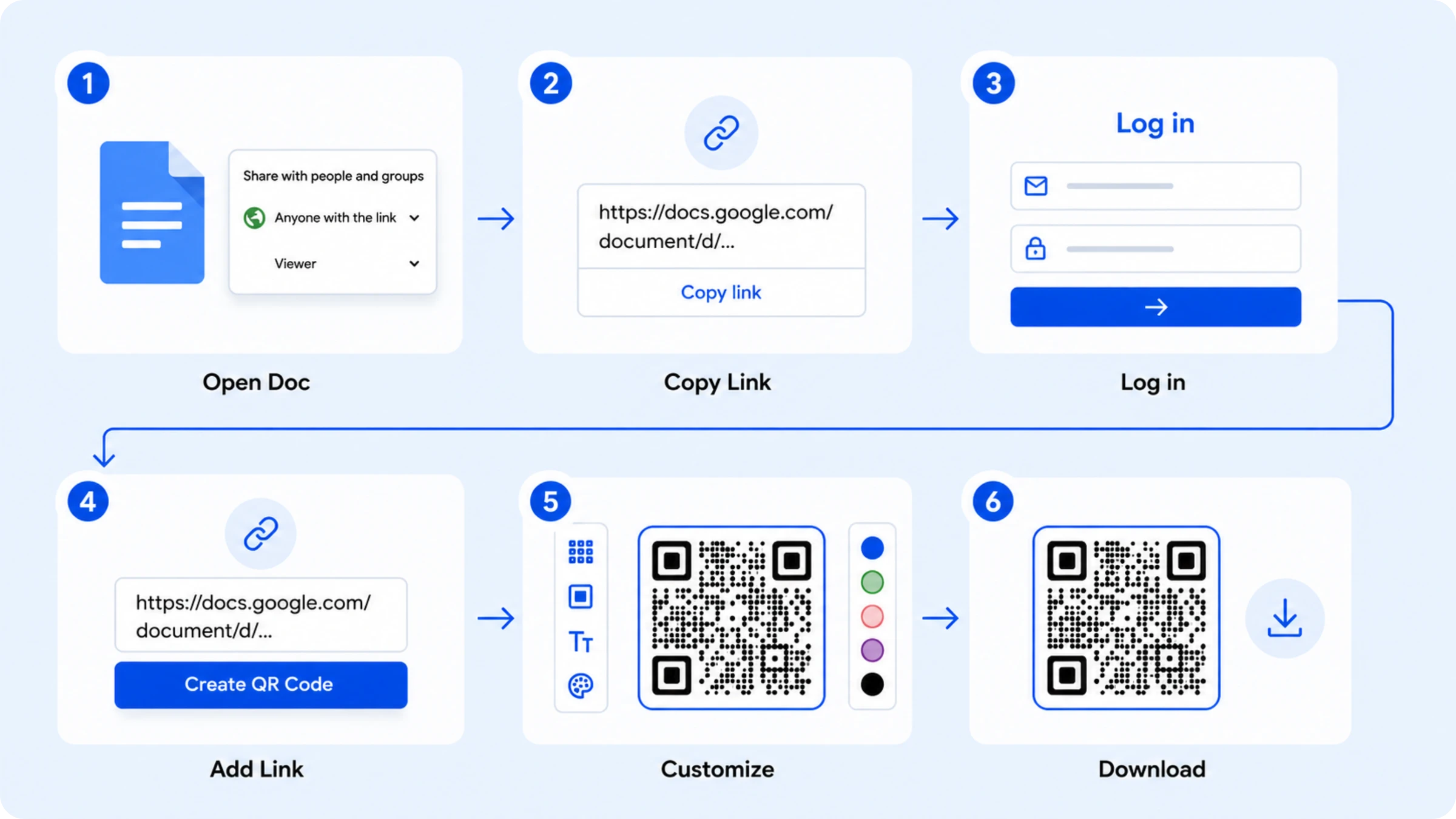
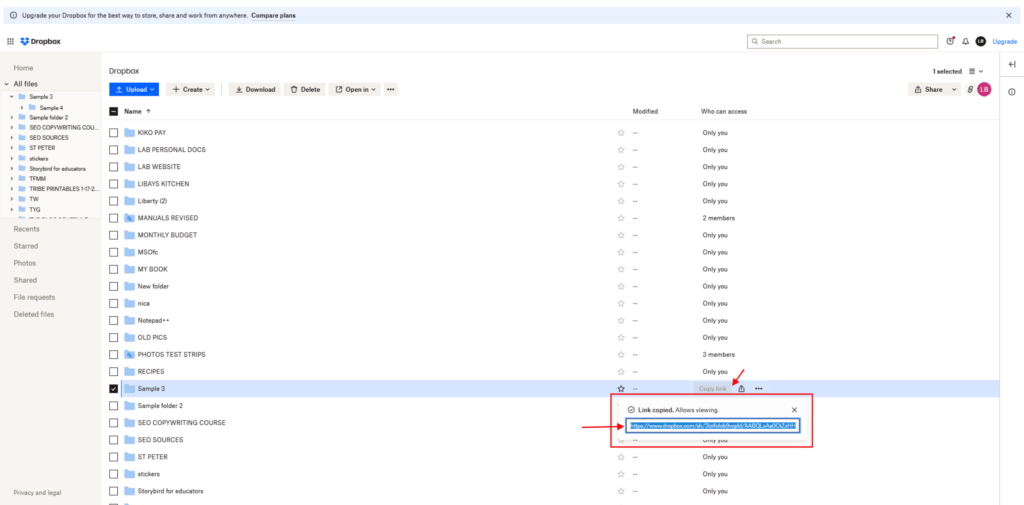
STEP 1: From your Dropbox account, get the link to the file or folder you want to share.
STEP 2: Log in to your Uniqode account and click ‘+Create’ at the top right corner of your screen.
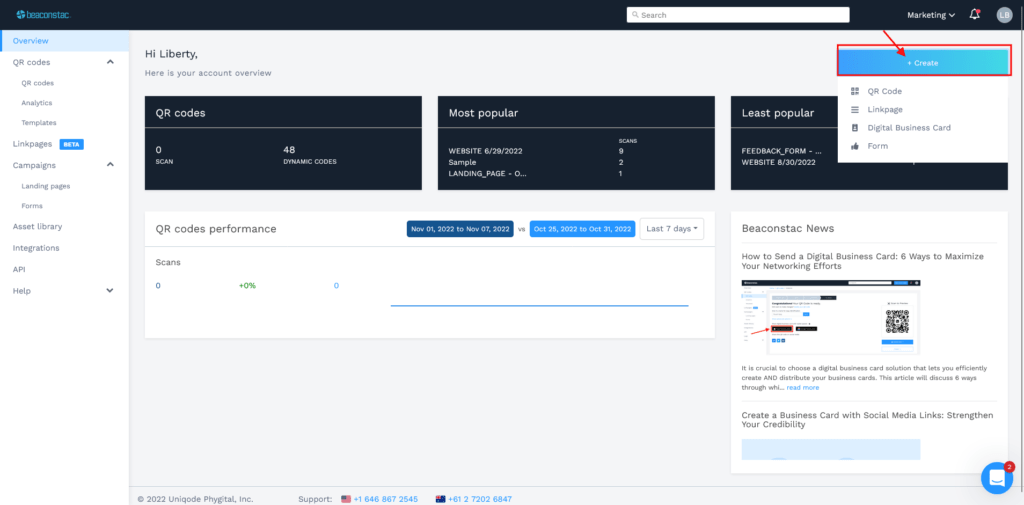
Choose QR Code from the list of options.
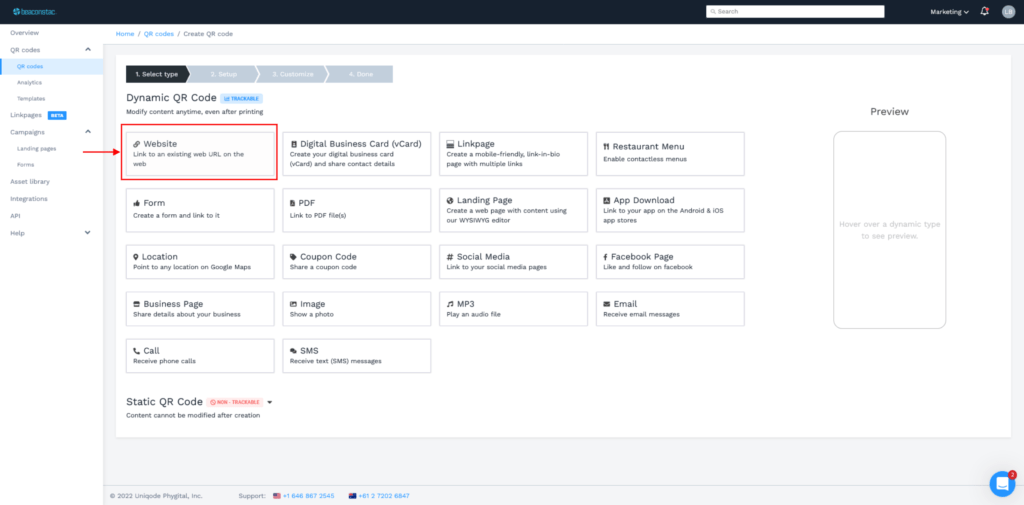
STEP 3: Select ‘Website’ from the list of dynamic QR Code campaign types.
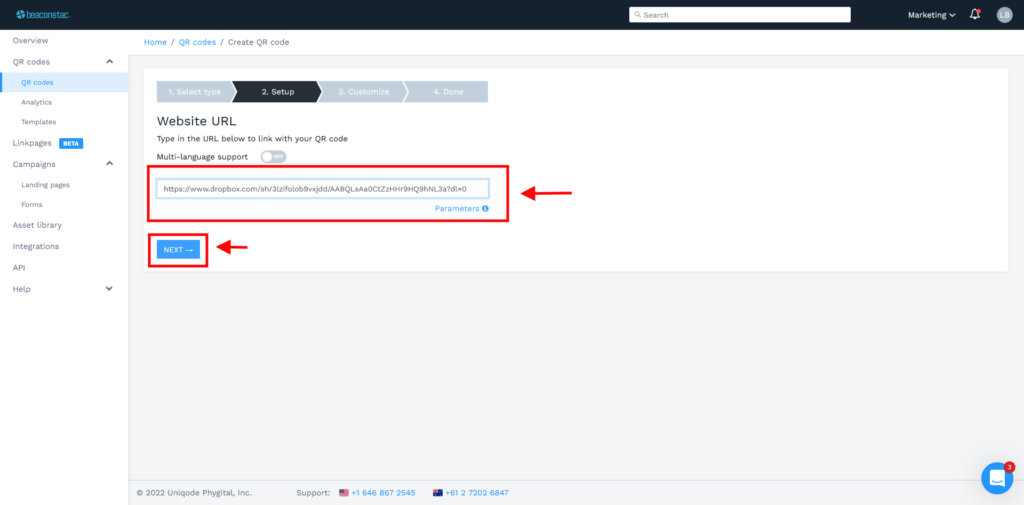
STEP 4: Paste your Dropbox link.
Click ‘Next’.
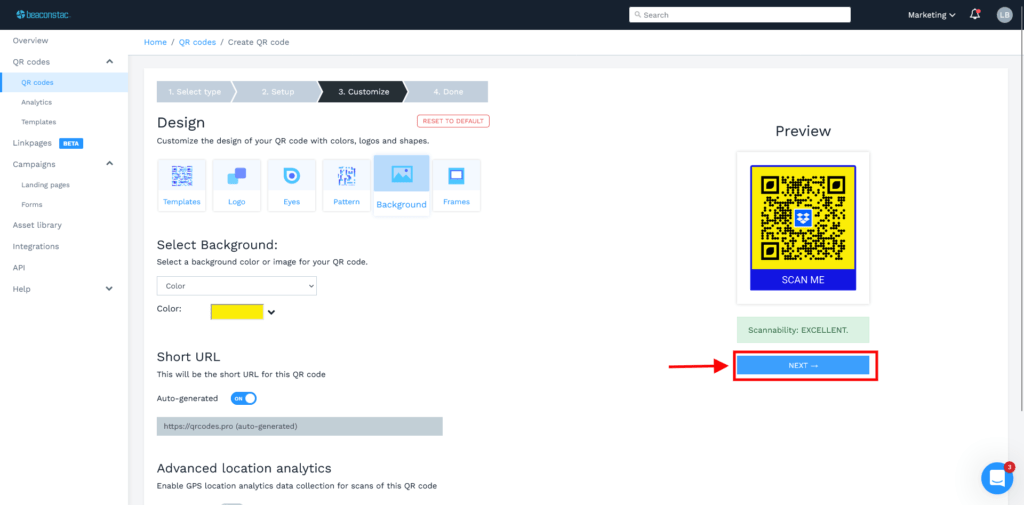
STEP 5: Customize your Dropbox QR Code.
If you already have a QR Code template ready in the Uniqode dashboard, you can reuse it.
Or you can add new QR Code customizations as per your requirements. We also recommend adding an actionable CTA frame text.
Then, click ‘Next’.
STEP 6: Give your Dropbox QR Code a name for easy identification.
Then save and download it in your preferred format: JPG, PNG, PDF, EPS, SVG, or a Custom format.
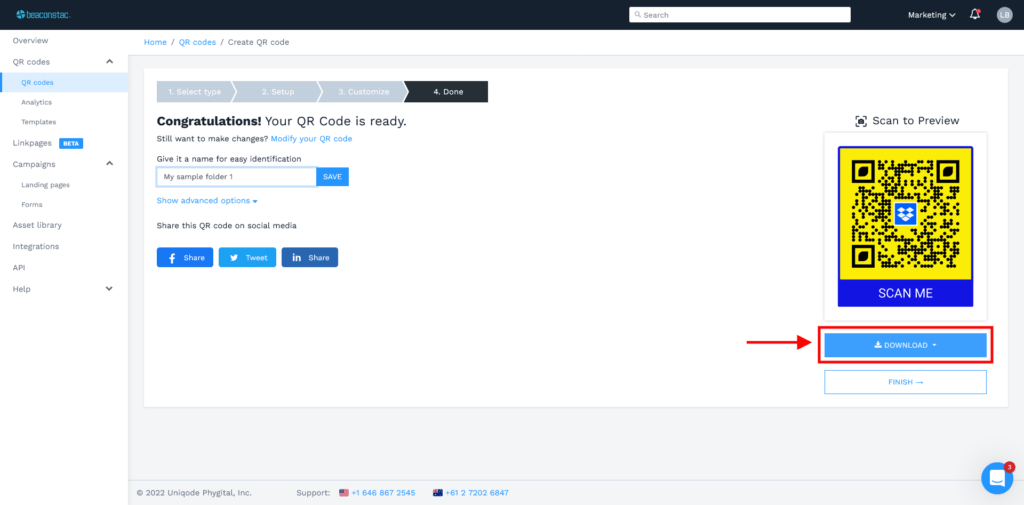
That’s it. Your URL QR Code for Dropbox is now ready to be shared.
Generate a Dropbox QR Code
Make file sharing easier!
START FREE TRIAL

Method 2. Connect Uniqode with Zapier to automate Dropbox QR Code generation
When you use Zapier, you do not need to manually generate a QR Code every time a new file or folder is added to your Dropbox account. By integrating Uniqode with Dropbox through Zapier, you can automatically make a Dropbox QR Code for such a situation.
First, you need tointegrate Uniqode with Zapier to access relevant links in your Dropbox account.
Below is a step-by-step guide on how to do it.
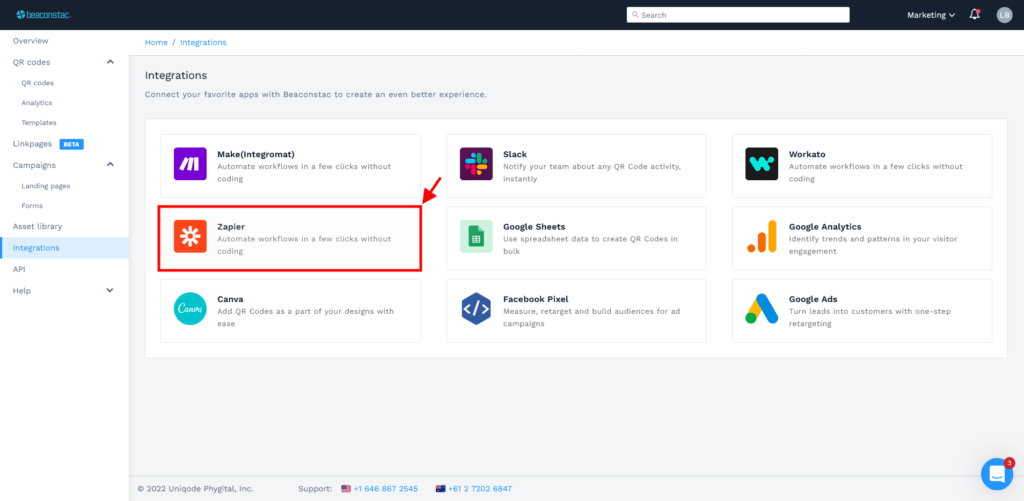
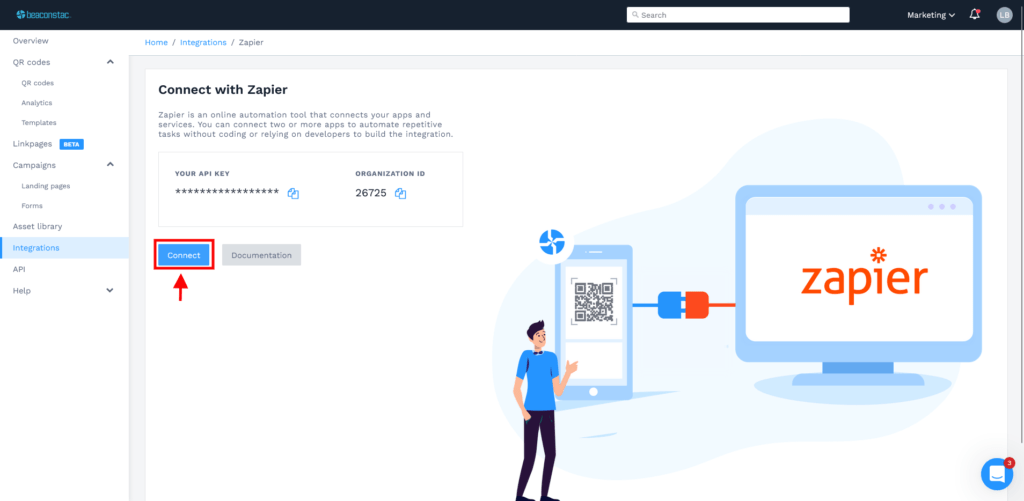
STEP 1: Log in to the Uniqode dashboard. Click on ‘Integrations’ from the left panel. Choose Zapier.
STEP 2: Click on ‘Connect’.
Note: Copy the API Key and Organization ID as this information will be used later while creating a Zap.
STEP 3: Click on ‘Accept Invite & Build a Zap’.
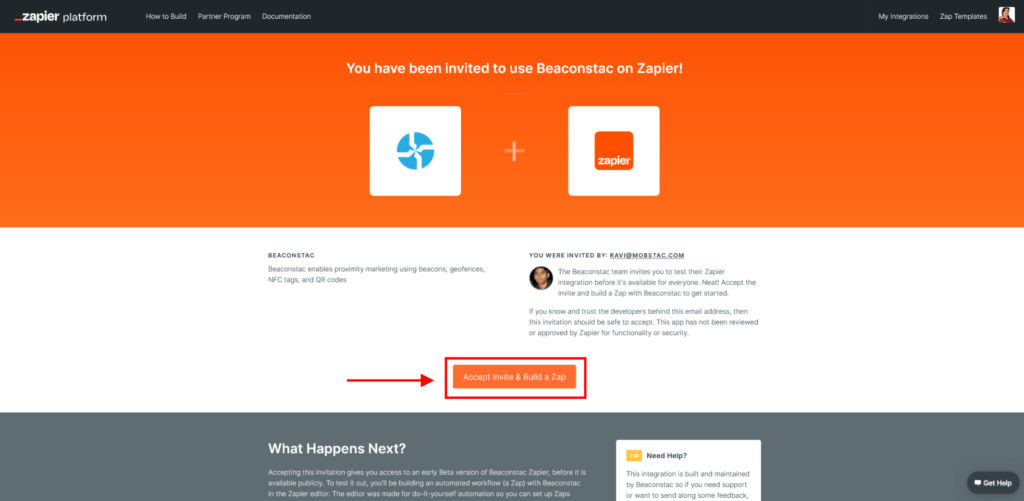
This will connect Uniqode with Zapier so you can log in to your Zapier account and create Zaps that will automate Dropbox QR Code creation.
How to create a Zap to automate QR Code generation for files or folders in your Dropbox account
Once you integrate Dropbox with Uniqode via Zapier, you’ll find several Zaps that can help you automate QR Code creation for files or folders in your Dropbox account.
Zaps are automated workflows that link your apps and services together. A Zap consists of a trigger (if this happens) and an action (do this). As soon as a Zap is activated, the corresponding action steps will be carried out each time the trigger event takes place.
Below are 3 triggers you can use to automate creating a Dropbox QR Code.
Trigger number 1: When Create a dynamic QR Code
With this trigger, a dynamic QR Code will be automatically created in your Uniqode dashboard whenever a new folder is added to your Dropbox account.
Configure your Trigger event: New Folder in Dropbox
- Choose app and event: Select ‘Dropbox’ and ‘New Folder’
- Choose account: Connect your Dropbox account
- Set up trigger: Select the folder you want to share
- Test the trigger and click on ‘Continue’
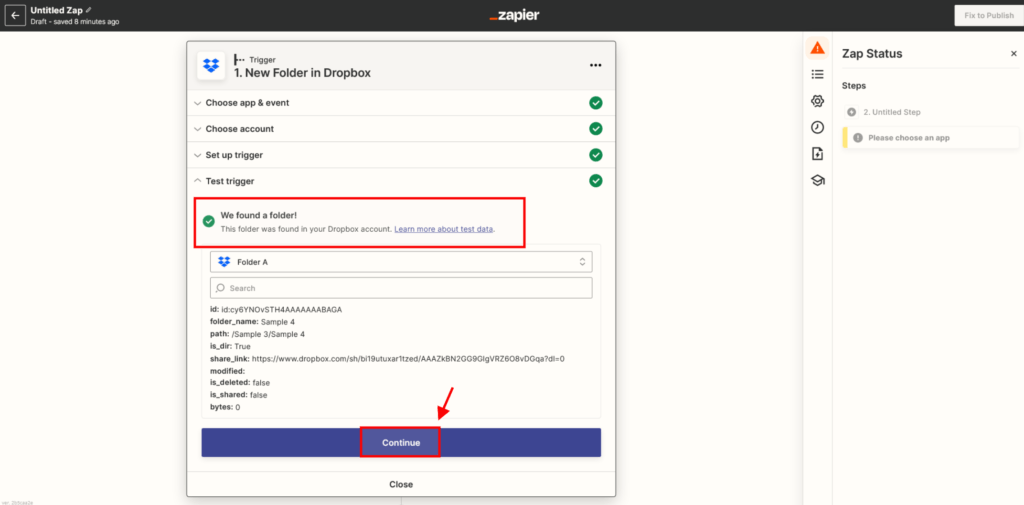
Configure your Action event: Create a Dynamic QR Code in Uniqode
- Choose app and event: Choose ‘Uniqode’ and ‘Create Dynamic QR Code’
- Choose account: Log in and connect your Uniqode account. Use in the API Key and Organization ID saved previously
- Set up action: Fill in the QR Code Name, ID, Design (enter manually or select from templates), Campaign Type (1 – Website), and Website URL
- Test the action: Test if your Zap works
Publish your Zap
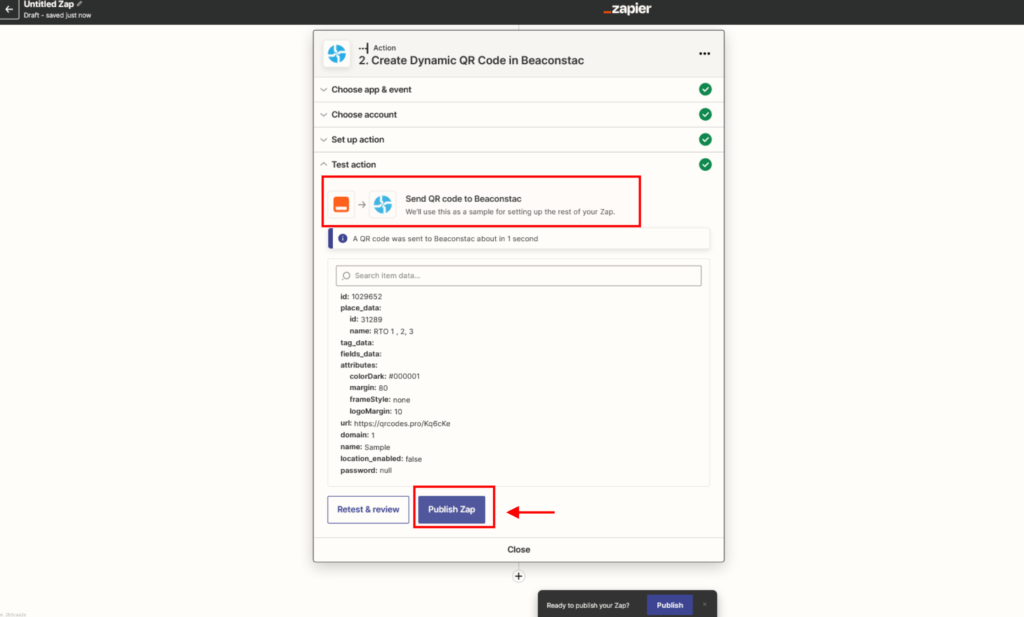
It’s time to publish your Zap. This will start the process of dynamic QR Code generation as new folders are added to your Dropbox account.
Click ‘Publish Zap’.
Trigger number 2: When Create a static QR Code
With this trigger, Uniqode will automatically generate a static QR Code each time a new file is added to a specific folder in your Dropbox account.
Here’s how it works:
Configure your Trigger event: New File in Folder in Dropbox
- Choose app and event: Select ‘Dropbox’ and ‘New File in Folder’.
- Choose account: Connect your Dropbox account.
- Set up trigger: Select the folder which will contain the file you want to share. Choose ‘Yes’ under ‘Include file contents’. Click on ‘Continue’.
- Test the trigger.
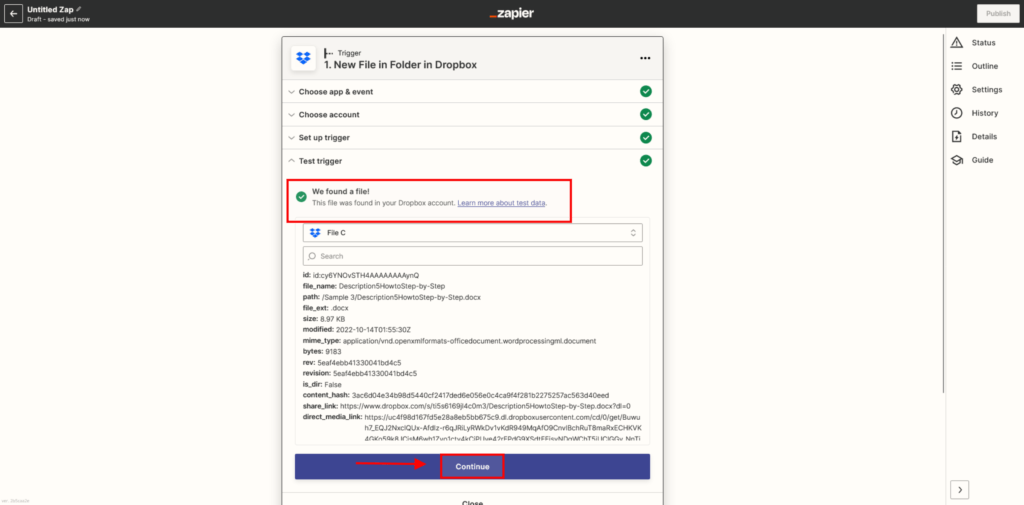
Configure your Action event: Create a Static QR Code in Uniqode
- Choose app and event: Select ‘Uniqode’ and ‘Create Static QR Code’.
- Choose account: Sign in and connect your Uniqode account.
- Set up action: Fill in the QR Code Name, ID, Design (enter manually or select from templates), Campaign Type (1 – Website), and Website URL.
- Test the action: Check if your Zap works. Click on ‘Test and continue’.
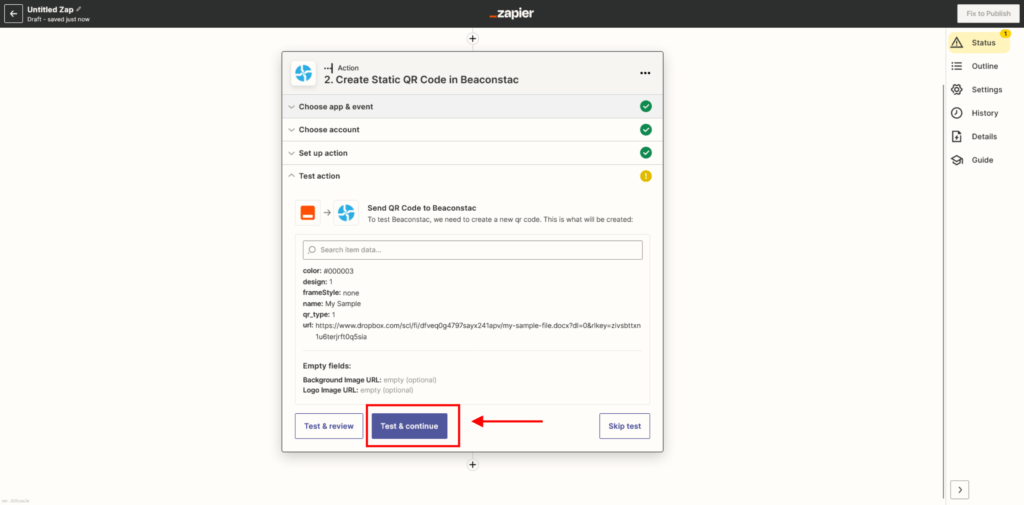
Publish your Zap
It’s time to publish your Zap. This begins the process of creating static QR Codes as new files are added to a specific folder in your Dropbox account.
Click ‘Publish Zap’.
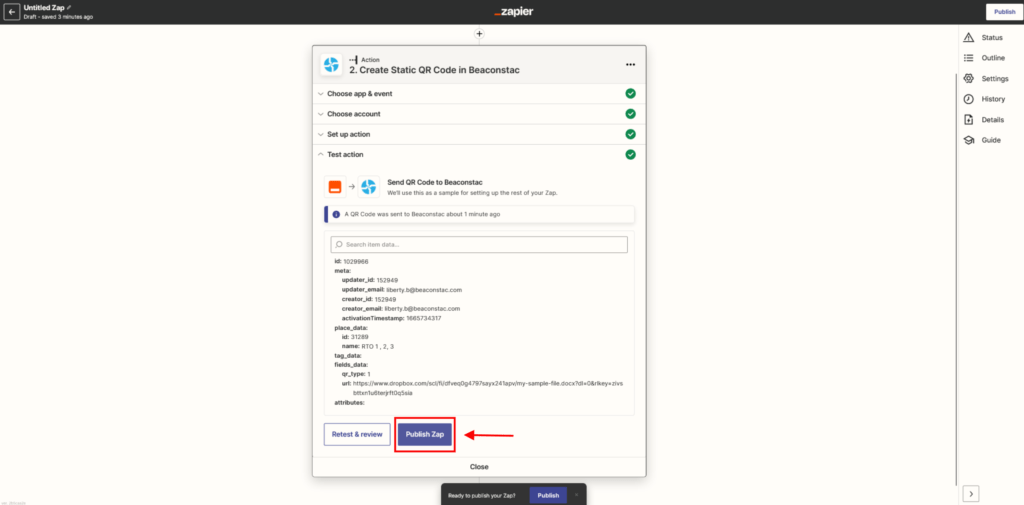
Trigger number 3: When Update a dynamic QR Code
With this trigger, an existing dynamic QR Code will be automatically updated in your Uniqode dashboard whenever a new file is added to a folder in your Dropbox account.
Configure your Trigger event: New File in Folder in Dropbox
- Choose app and event: Select ‘Dropbox’ and ‘New File in Folder’.
- Choose account: Connect your Dropbox account.
- Set up trigger: Check a specific folder for new files. Keep clicking to go inside folders.Take note: New files added to folders inside the folder you choose here will NOT trigger this Zap.
- Test the trigger. Click on ‘Continue’.
Configure your Action event: Update a Dynamic QR Code in Uniqode
- Choose app and event: Select ‘Uniqode’ and ‘Update Dynamic QR Code’.
- Choose account: Sign in and connect your Uniqode account. Enter the API Key and Organization ID saved earlier.
- Set up action: Fill in the QR Code Name, ID, Design (enter manually or choose from templates), Campaign Type (1 – Website), and Website URL.
- Test the action: Check if your Zap works.
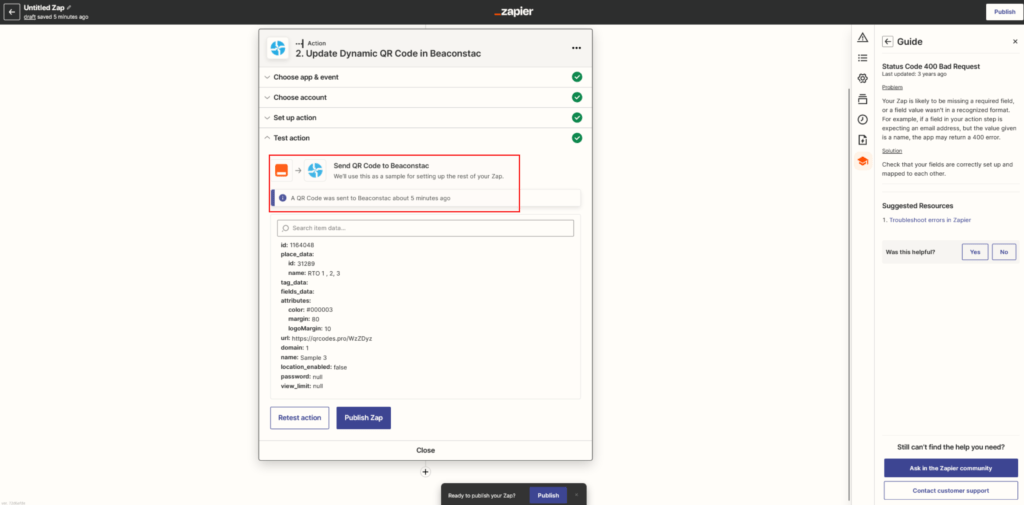
Publish your Zap
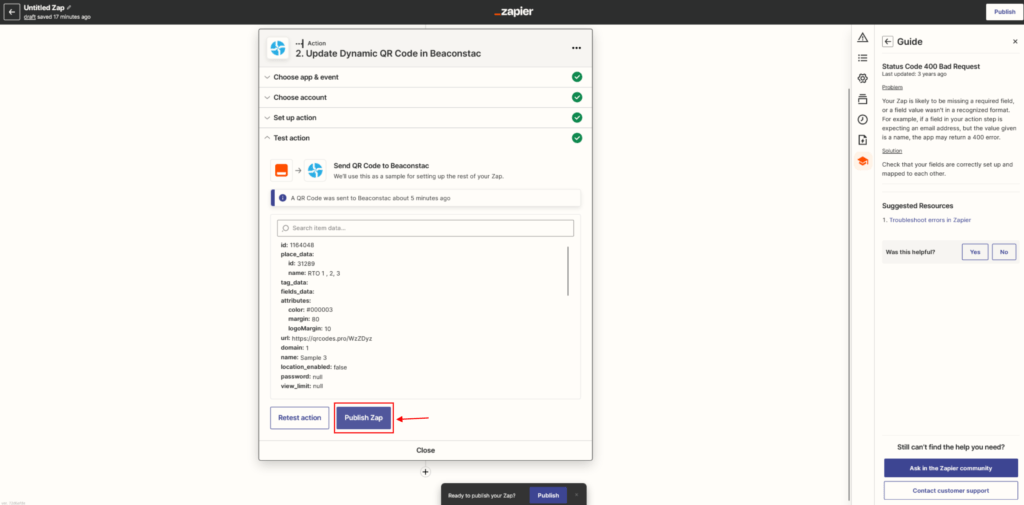
Once you publish your Zap, the QR Code you’ve chosen will automatically be updated whenever a new file is added to a specific folder in your Dropbox account.
Click ‘Publish Zap’.
Generate a QR Code for Your Dropbox file or folder
Share files, with just a scan!
START FREE TRIAL
How to create Dropbox QR Codes in bulk: Create up to 2,000 QR Codes in 5 minutes
What if you want to create Dropbox QR Codes in bulk—say hundreds or thousands of QR Codes in one go? Is that possible?
Yes, it’s possible with Uniqode’s bulk QR Code maker as you can bulk-generate up to 2,000 Dropbox QR Codes in less than 5 minutes.
Here’s how to do it:
STEP 1: Go to your Uniqode dashboard and click on the ‘QR Codes’ button in the left panel.
Then, choose ‘Bulk Upload’.
Now you have the option to generate static or dynamic QR Codes in bulk. You can select from a variety of use cases for your QR Code. In this example, we’ll create a collection of dynamic QR Codes connected to their respective web pages.
STEP 2: Upload QR Code data.
Once you’ve chosen the QR Code type you want to create, you need to upload the data for your QR Codes.
To do this, input the details of your Dropbox QR Codes into Uniqode’s predefined spreadsheet template. If you have not downloaded our template yet, click the ‘Download‘ button as highlighted.
This will prompt a download of our template in .csv and .xlsx formats.
The following spreadsheet will appear when you open the downloaded file.
Uniqode’s template for bulk URL QR Code creation has 3 columns: Name, URL, and Frame Text. You can change these columns according to your needs and preferences.
Return to the bulk upload page after finishing editing, then upload your spreadsheet under the “Upload your data” heading.
NOTE: The spreadsheet must be in .csv or .xlsx format.
STEP 3: Customize the QR Code batch. Click ‘Finish’.
STEP 4: Label your batch for easy identification. Click ‘Apply‘.
STEP 5: Submit a request for bulk QR Code creation.
You will receive an email to your registered email to view the generated QR Code batch once it is ready.
Why should you choose Uniqode to create a Dropbox QR Code?
1. Ease of use
With Uniqode’s QR Code maker, you get access to an intuitive and user-friendly dashboard. All instructions are written in an easy-to-follow language to help anyone create QR Codes effectively.
Here’s what our customers say about Uniqode’s ease of use on G2:



2. Access control and security
You can limit or restrict content sharing by creating a password-protected QR Code. Set a password and share it with a limited audience to access the Dropbox file or folder.
With Uniqode, you also get SOC® 2 and GDPR-compliant security, covering every interaction with your QR Codes. Not only does it add a layer of security, but it also makes file sharing and interaction more secure compared to using static Dropbox QR Codes.
3. Collaboration
With Uniqode, you can enable smoother collaboration than manually sending links for sharing access. You can also collaborate on the dashboard and assign different access levels to team members for editing or customizing the Dropbox QR Code.
4. Customization
Static QR Codes restrict you to their universal black-and-white appearance. But with Uniqode, you get to customize your QR Code, add a Dropbox logo, and even add a CTA such as “Scan to access photos” or “Scan to add files” to preview the content that the QR Code leads to.
5. Excellent customer support
At Uniqode, we strive to do our best to help our customers generate the best possible QR Codes.
We have a knowledge base that users can refer to if they need information urgently. If our customers need more assistance, they can easily reach out to our customer service who respond immediately.
Here’s what our customers say about Uniqode’s customer service on G2:


Make Dropbox QR Code creation easy with Uniqode
Uniqode offers several options on how to make a QR Code for a Dropbox file or folder. You can bulk-generate hundreds or thousands of Dropbox QR Codes or automate their creation using the Dropbox-Uniqode integration via Zapier (as we learned above).
If you need to create high-quality and reliable QR Codes for your Dropbox file or folder in just a matter of minutes, we recommend trying Uniqode. Check out our free trial today.
Frequently Asked Questions
- What is the difference between static and dynamic QR codes for Dropbox?
Dynamic QR codes are editable after creation, allowing you to update the Dropbox link they point to without recreating the QR code, which is especially useful since Dropbox links can change over time. Static QR codes permanently encode information that cannot be modified once generated. Dynamic QR codes also provide tracking analytics, while static codes do not offer any data on scans or user engagement.
- What file formats can you download a Dropbox QR code in?
Dropbox QR codes can be downloaded in six different formats: JPG, PNG, PDF, EPS, SVG, or custom formats. These multiple format options ensure compatibility across various use cases, from digital displays requiring JPG or PNG to professional printing materials that need vector formats like EPS or SVG. The PDF format is particularly useful for documents, while custom formats allow for specific technical requirements.
- What is the best QR code generator for Dropbox file sharing?
Uniqode is recommended for Dropbox QR code generation because it offers dynamic QR codes that can be edited after creation, multiple download formats (JPG, PNG, PDF, EPS, SVG), and integration with Zapier for automated QR code generation. The platform provides customization options including branded templates and actionable CTA frames, making it suitable for both individual users and businesses managing files among the 700 million registered Dropbox users. Uniqode also eliminates the need for manual link copying and repeated logins to share files with multiple people.
- How do you automate QR code creation for new Dropbox files?
You can automate Dropbox QR code generation by connecting Uniqode with Dropbox through Zapier integration, which automatically creates a QR code whenever a new file or folder is added to your Dropbox account. This eliminates the need to manually generate a QR code for each new file, saving significant time for users who frequently upload content. The automation workflow uses Zapier's trigger-action system to detect new Dropbox files and instantly generate corresponding QR codes without manual intervention.
- Do people need a Dropbox account to access files through a QR code?
No, recipients do not need to log in to a Dropbox account to access files shared via QR code—they simply scan the code with their smartphone to directly access the specified file or folder. This convenience is a major advantage over traditional sharing methods that require copying and pasting links or logging into accounts. The QR code approach streamlines file sharing among the 700 million registered Dropbox users and external recipients who may not have Dropbox accounts.
- How do I create a dropbox QR Code?
Here’s how you can create a Dropbox QR Code in 6 easy steps:
From your Dropbox account, copy the URL or link of the file or folder you want to share
Log into Uniqode’s dashboard and click on ‘Create’
Select ‘Website QR Code’ and click next
Paste your Dropbox file or folder link in the box
Customize your Dropbox QR Code shape, colour, and even add a frame and CTA
Save changes, and your QR Code is ready for download
Related Posts
How to Create Resume QR Codes (and Best Practices for a Standout Digital CV)
How To Create a QR Code for Sharing Photos
How to Create a QR Code for a OneDrive File
How to create a QR Code for Google Slides
How to Create a QR Code to Download a File: PDF, Word, Excel, Images, and More