Still managing QR Code campaigns manually? Connect Uniqode with Zapier and automate everything—from instant scan alerts in Gmail or Slack to auto-logging data in Google Sheets. Save time, reduce errors, and turn every scan into action. Start building smarter workflows today.
63% of companies that are outgrowing their competition are using automation. The reason?
It’s simple. Automation in marketing saves time, increases customer engagement, and drives upselling.
So, why aren’t more companies using it?
According to CircleResearch and B2B marketing, 61% of companies surveyed found the implementation process difficult.
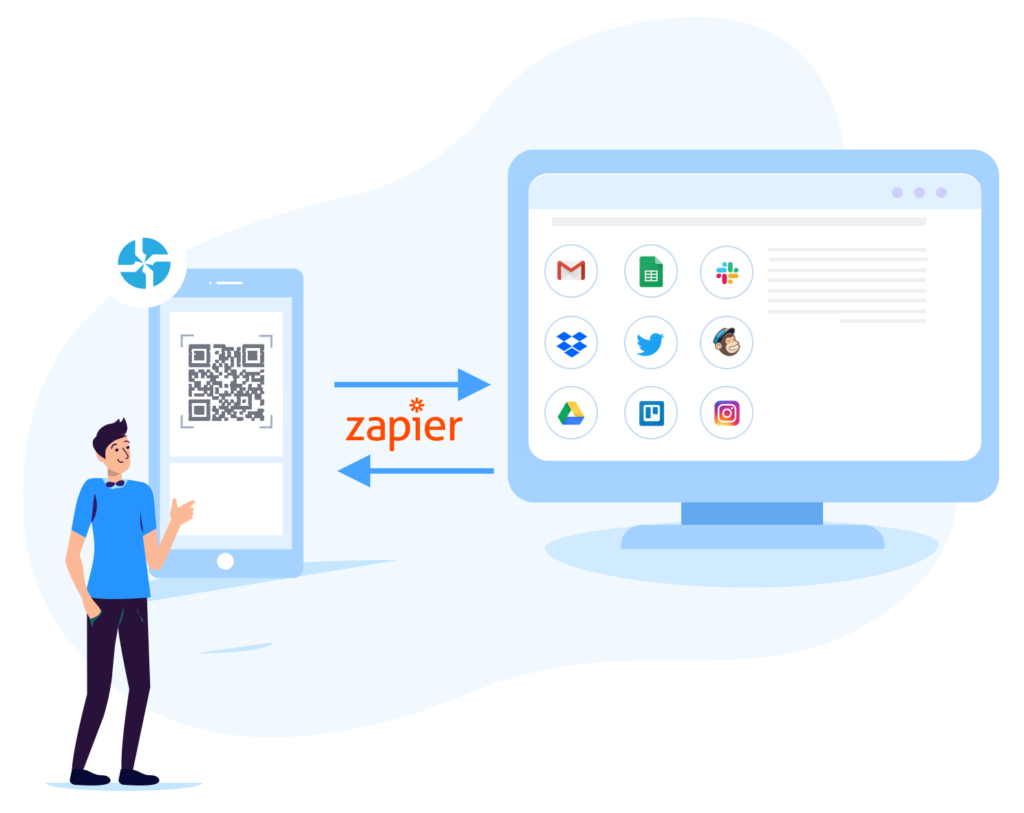
This is why we decided to help you automate your tasks better, faster, and make the process easier by integrating Zapier with our QR Code Solution.
What is Zapier?
Zapier is an online automation tool that connects over 1,500 apps. You can create custom workflows so that when one action is triggered, an automated task starts running in the background. And, you can do all this without any coding or relying on developers.
You might like: Getting Started with Zapier
How to set up your Zapier account
1. Sign up for Zapier using your email address or Facebook or Google Account.
2. On the Zapier dashboard, click on ‘My Apps’
3. Under ‘My Apps’, you will find ‘Connected Accounts’. Search for Uniqode and click on it.
4. A new window will pop-up. Enter your Developer Token and Organization ID here. (You can find this information under ‘My Account’ on the Uniqode dashboard.)
5. And, you’re done! Now you can start creating Zaps.
What can you do with the Zapier integration?
Get notified every time a user scans your QR Code
Need to know if your QR Code campaign is working?
Now, you or your team can get notified via Gmail or Slack whenever a user scans your QR Code. This is fruitful for pilot tests, split A/B testing, ensuring scannability when a customized QR Code has been used and the overall efficacy of a campaign.
Set up this Zap
Click on ‘Make a Zap’ on the dashboard
STEP 1: WHEN THIS HAPPENS
#1. Choose App & Event
Search for Uniqode in the list of apps
#2. Choose Account
Select your Uniqode account and click on Continue
#3. Find Data
Zapier tests if it is able to find data from your account. If you have created and scanned a QR Code, Zapier will pull in sample data.
STEP 2: DO THIS
#1. Choose App & Event
Search for the app you want to connect. Let’s say you want to connect to Gmail. Search for and select Gmail.
Now, Choose the Action Event. You can choose from a bunch of options – send an email, create a draft, or search for an email. For this particular Zap, choose ‘Send an Email.’
#2. Choose Account
Connect your Gmail account by signing in.
#3. Customize Email
Only 2 fields are mandatory here – the body and the subject. To trigger emails to your account, enter the email address in the ‘TO’ field.
#4. Send Data
Again, Zapier will test this integration to see if an email can be successfully sent.
Turn on your Zap to make it live.
You might like: How to create a custom QR Code (+ 9 Design Tips)
Automate repetitive data entry
Instead of sending notifications via email or Slack, you can also trigger the creation of a new row with data in a Google Sheet.
This can help you gather data effectively and present it to help you create a robust marketing strategy
Set it up
Follow Step 1 as mentioned above.
STEP 2: DO THIS
#1. Choose App & Event
Search for Google Sheets and select it.
For the Action Event, select ‘Create Spreadsheet Row’.
#2. Choose Account
Connect your Google account by signing in if you haven’t already.
#3. Customize Spreadsheet Row
The mandatory fields here are ‘Worksheet’ and ‘Spreadsheet’ so that you can create a new row in the right file.
#4. Send Data
Click on ‘Test & Continue’ to allow Zapier to test this integration to see a new row is created.
Turn on your Zap!
Additional read: Find out how you can integrate Microsoft Excel with Uniqode using Zapier
What more can you do with Zapier?
You can change the Trigger Event to ‘New Form Response’ and send leads an email when they leave their email address in a lead generation or feedback form. Realtors, retailers, and SMBs can use this to send leads or customers a welcome email, their latest newsletter, or use their email to start a drip campaign using MailChimp.
Instead of creating a one-step integration, you can also create multi-step Zaps to connect more apps.
You might like: The complete guide to multi-step Zaps
Tell us what tasks you would like to automate.
Frequently Asked Questions
- How does Zapier integration work with QR codes?
Zapier connects Uniqode's QR Code platform with over 1,500 apps to automate workflows without any coding required. When a QR code is scanned, it can trigger automated actions like sending email notifications via Gmail, posting alerts to Slack, or creating new rows in Google Sheets. This integration is particularly valuable since 63% of companies outgrowing their competition use automation to save time and increase customer engagement.
- How do you automatically track QR code scan data in Google Sheets?
You can automatically create a new spreadsheet row with scan data each time your QR code is scanned by connecting Uniqode to Google Sheets through Zapier. This eliminates manual data entry and helps gather metrics effectively for marketing strategy decisions. Since 63% of high-growth companies use automation, this workflow saves time while ensuring accurate, real-time data collection for campaign analysis.
- Why do companies struggle to implement marketing automation?
According to CircleResearch and B2B marketing surveys, 61% of companies find the automation implementation process difficult, which prevents wider adoption despite clear benefits. This difficulty barrier exists even though automation demonstrably saves time, increases customer engagement, and drives upselling for businesses. No-code solutions like Zapier integration with QR code platforms address this challenge by eliminating the need for developer resources.
About the Author
Ektha is a QR code expert with years of research and analysis into the evolution of QR codes. Having written over 70 in-depth articles on QR technology, she has developed a comprehensive understanding of how QR codes are transforming industries. Her insights, including The State of QR Report, have been featured in leading publications. With a passion for simplifying complex topics and providing actionable strategies, Ektha helps businesses leverage QR codes to enhance their 'phygital' connections.