Uniqode’s solution has made our lives a lot easier. Creating QR Codes is quick, and being able to track their performance has proven to be essential for our business.
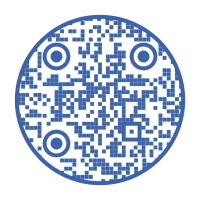
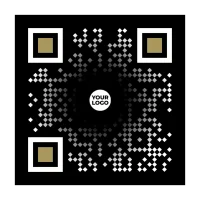
A QR Code with your brand logo in the center tells the person about to scan it that it is authentic. In fact, 31% of consumers say visible branding on a QR Code makes them more likely to scan it, according to Uniqode's State of QR Codes 2026 report.
But adding a logo to a QR Code creates a technical constraint. The logo sits within the code's error-correction zone, the layer designed to keep the QR Code scannable even when partially damaged or obscured. A logo that's too large, in the wrong file format, or with low contrast reduces scan reliability.
Uniqode's QR Code generator shows a real-time scannability score as you design. If your logo is pushing past the threshold, you'll know before you download, not after the print run.
How to create a logo QR Code in 4 steps
Simply pasting a logo in the center of a QR Code can make the QR Code unreadable. The best way to create a QR Code with a logo in the middle is to use Uniqode’s QR Code Generator, which integrates your logo from scratch and builds a QR Code around it.
Create a QR Code with a logo on Uniqode in four steps: choose a QR Code type, add your destination, design with your logo, and download it.
Step 1: Choose your QR Code type and add your destination
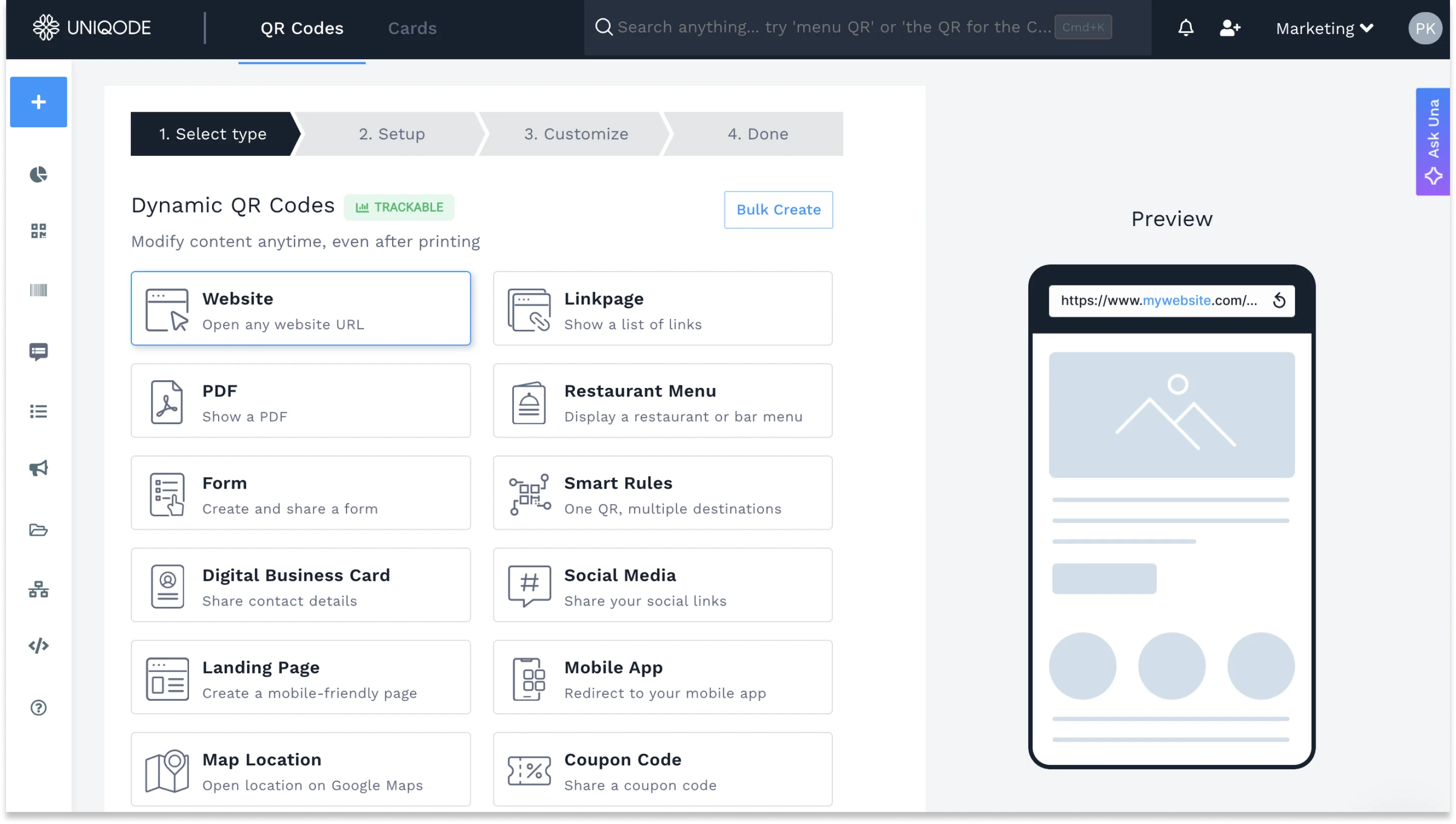
Log in to your Uniqode dashboard and select the content type (URL, PDF, app download, menu, etc.) and enter where you want people to go when they scan.
Step 2: Add your logo and customize your QR Code
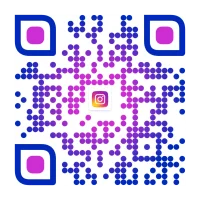
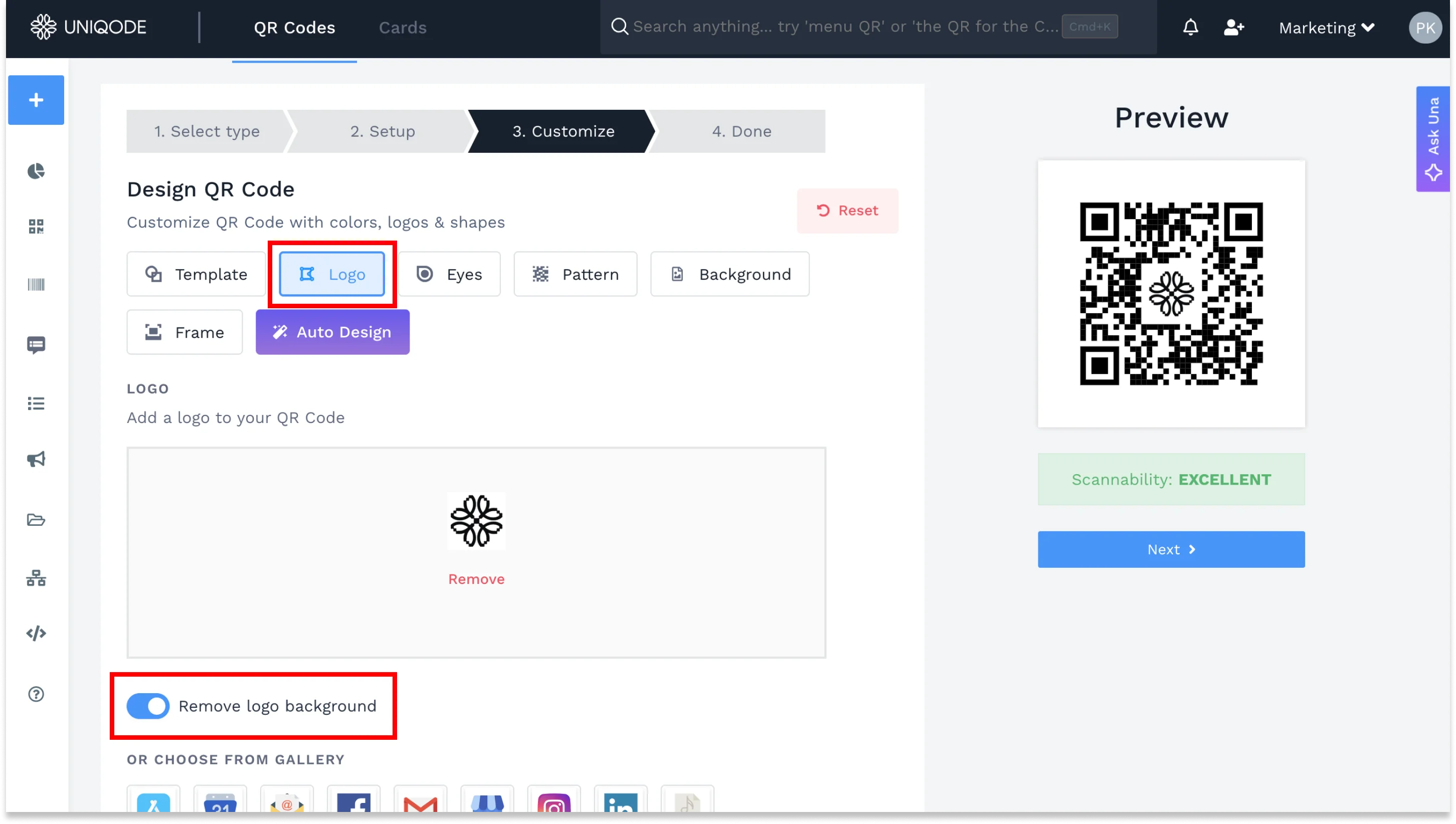
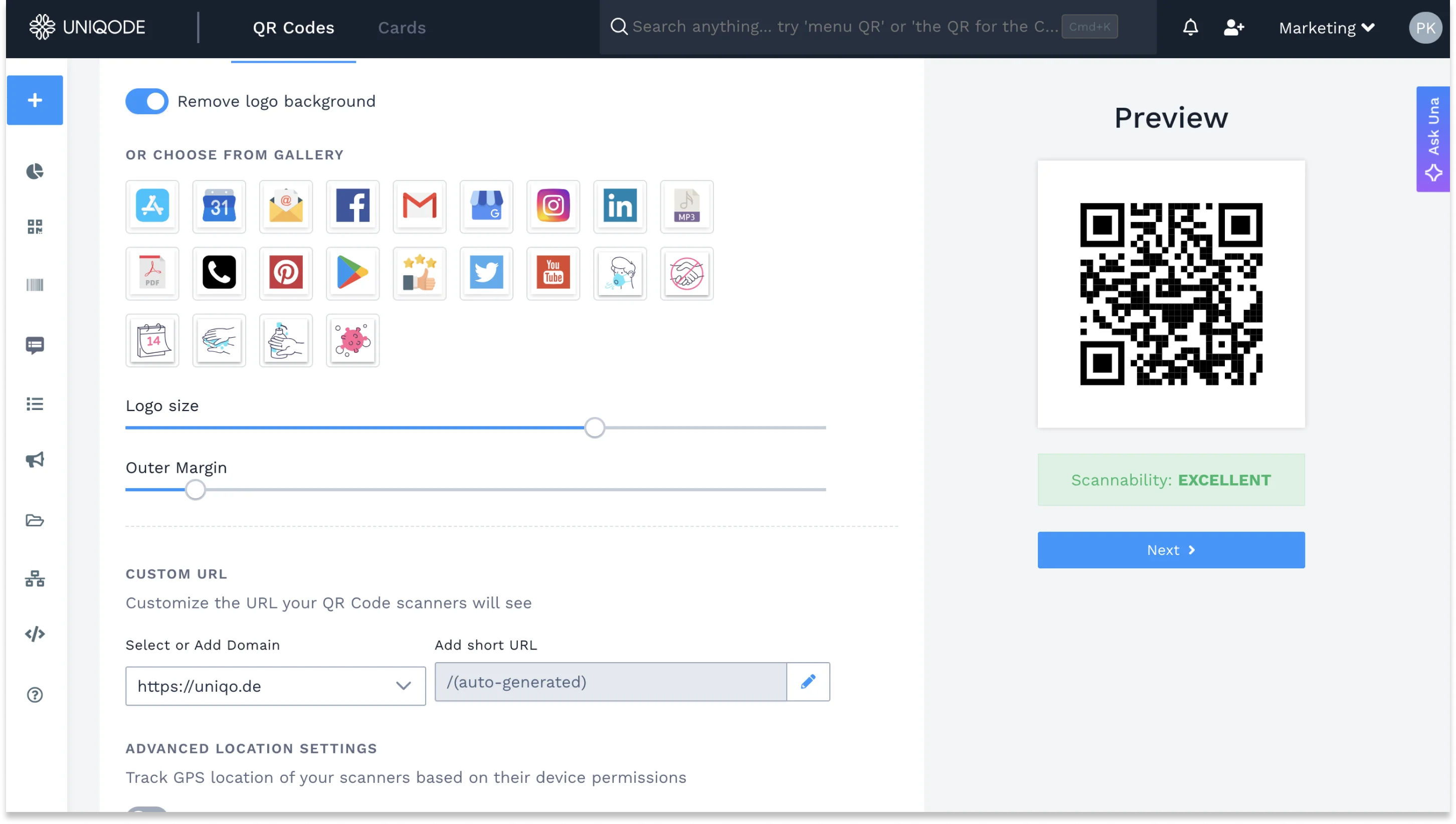
Under the Customize tab, click Logo. Upload your logo file (SVG or PNG preferred). Upload a logo file with a maximum file size of 5MB (192 × 192 px). You can also choose from a built-in gallery of common brand icons, including social media platforms.
Adjust the logo size and outer margin. The preview of your code will appear on the right-hand side of the dashboard.
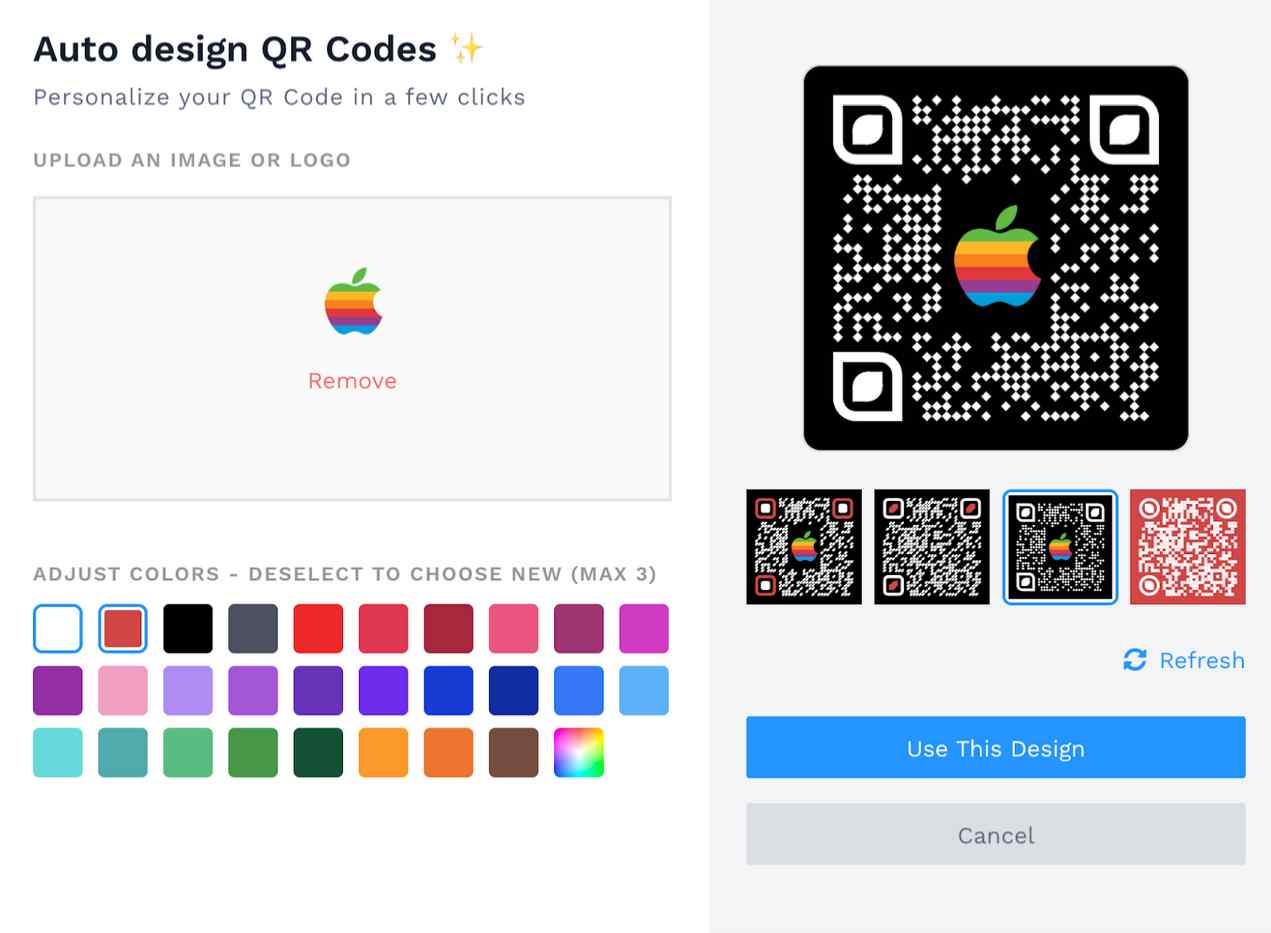
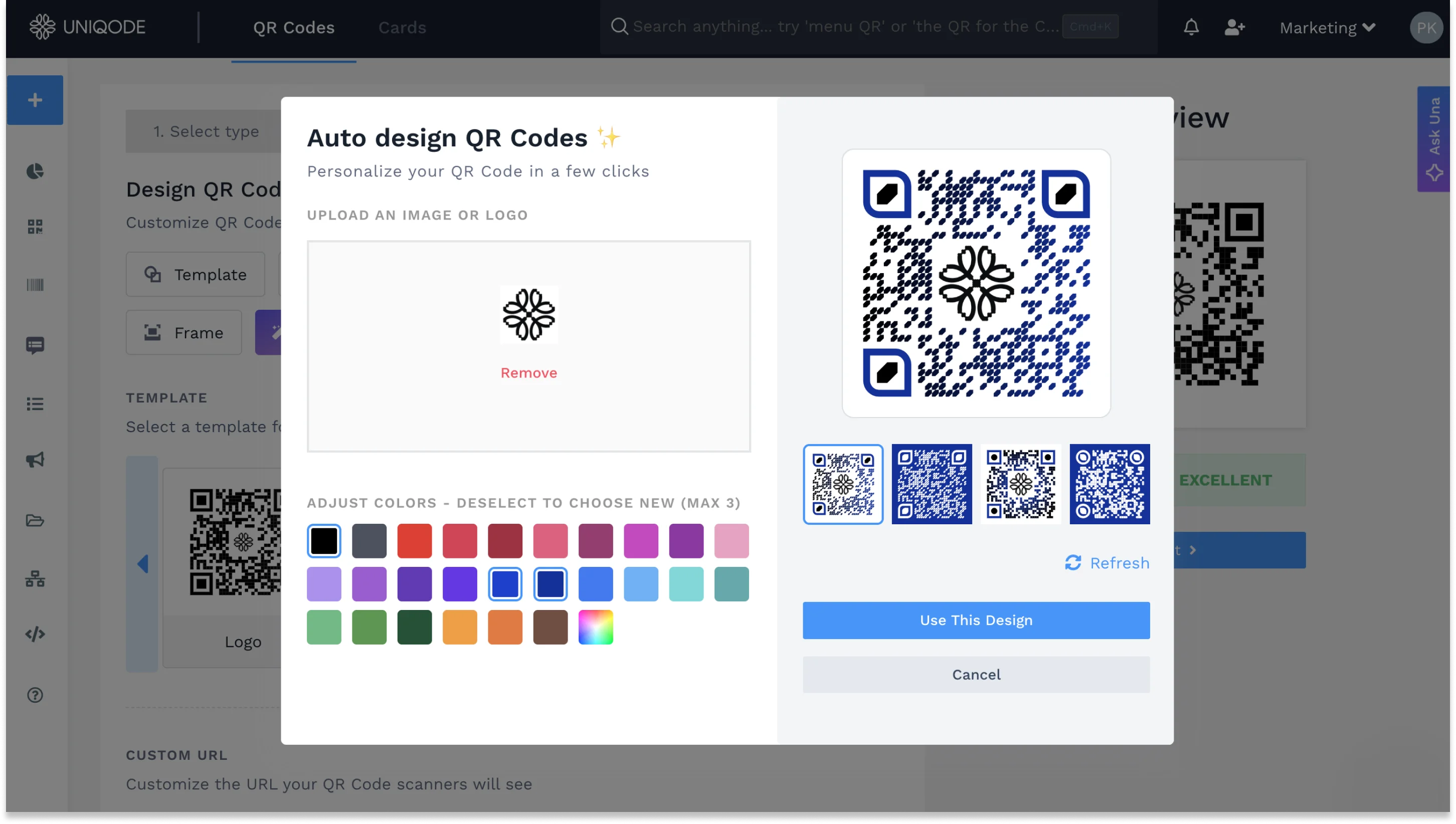
With Uniqode’s Auto Design algorithm (an AI-powered brand-matching feature), you can analyze your brand elements, visual weight, and overall identity while generating multiple on-brand QR Code variants.
Step 3: Check your scannability score and download
Before downloading, check the scannability indicator in the right panel. Adjust the logo and design until the scannability shows Excellent or Good. Your QR Code with a logo is ready. Download it in your desired format.
Best practices to follow when designing a QR Code with a logo
To make sure your QR Code with a logo looks professional and scans reliably across devices, keep these best practices in mind.
1. Use colors that contrast with your brand logo for better visibility
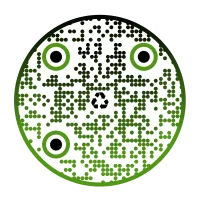
For example, if your brand logo image is black, try to use a contrasting color for your QR Code so that the logo stands out. On the Uniqode dashboard, you can choose from a variety of colors, shapes, and themes.
You can also use contrasting colors on the QR Code frame and the call to action (CTA) to make them stand out and look more attractive.
2. Use a dynamic QR Code with a logo for easy edits and quick customization
Let’s say you’re trying to generate a branded codefor your product packaging. Given that this is a long-term campaign, in this case, we recommend generating a dynamic QR Code instead of the static (free) QR Code.
With a dynamic QR Code, you can experiment, modify campaigns, and edit QR Codes without the hassle of creating a brand new QR Code every time any changes are made.
All you need to do is change the QR Code destination to the new landing page without having to create it again. Static and dynamic QR Codes differ in one key way: the destination for dynamic QR Codes stays editable long after printing.
3. Make your QR Code action-oriented with a frame and CTA
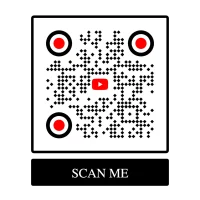
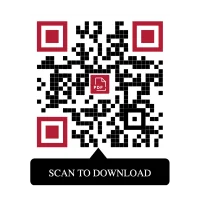
Add action-oriented CTA text below the QR Code within the frame. Clear, direct, and customized CTAs, such as “Scan for menu,” “Scan for video,” perform better than generic ones, such as “Scan me,” in marketing campaigns.
For example, if your QR Code links to a contest, instead of using “Scan now,” mention a more personalized CTA such as “Scan to participate.”
4. Don’t overdo customization and impact scannability
While you may want to customize your QR Code with a logo, brand colors, and other visual elements, make sure it doesn’t compromise scannability. Over-customizing a QR Code can affect how easily it scans. After creating your QR Code, be sure to test its scannability before deploying it for use.
5. Use high-quality QR Codes for print and place them on a suitable surface
Now that your QR Code is ready, you can download it in the format that suits you best. We recommend vector formats such as SVG and EPS if you are using them on larger digital screens. Whether on product packaging or a billboard, the QR Code should be placed on a smooth, clear, and scannable surface. Placing it on uneven surfaces can impact scannability and leave the QR Code ineffective.
How brands include logos in their QR Codes
Company logos on QR Codes drive brand engagement and eventually sales. From website QR Codes on product packaging to coupons, here are examples of brands that got it right with logo QR Codes.
Coca-Cola placed custom QR Codes on their cans to deliver a uniquely engaging experience which included exclusive access to coke studio songs, unseen footage, and the chance to win a smartphone!
Macy’s supplemented its Backstage Pass campaign with a customizable QR Code to deliver exclusive video content to a mobile device. Upon scanning, the Backstage Pass allowed consumers to view fashion tips and the latest trends from their favorite designers, such as Tommy Hilfiger.
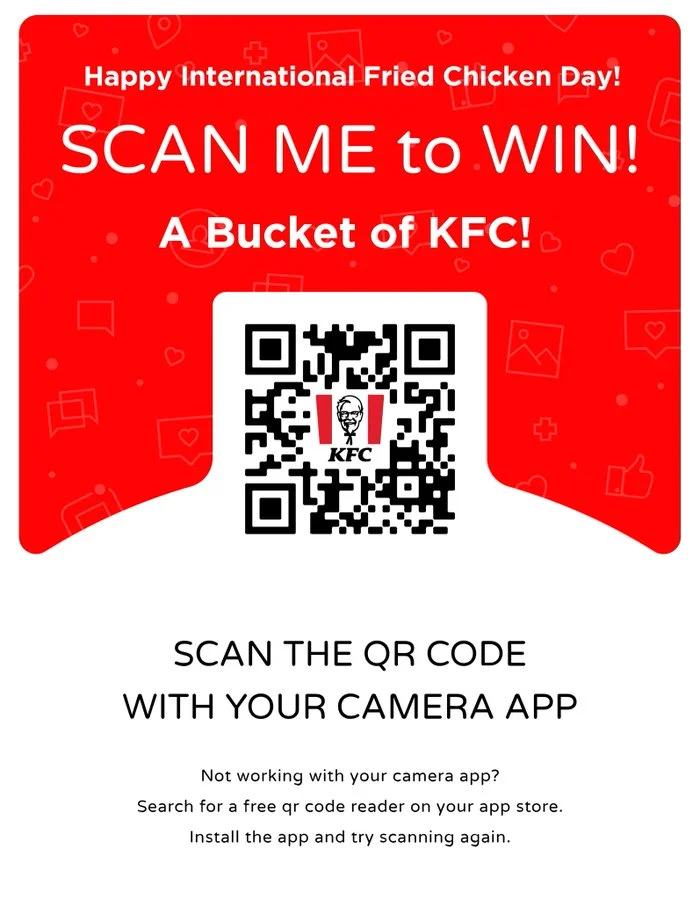
KFC used Logo QR Codes to promote offers on International Fried Chicken Day. Their social media campaign included a QR Code customized with the KFC brand logo. After scanning, people could win a free chicken bucket.
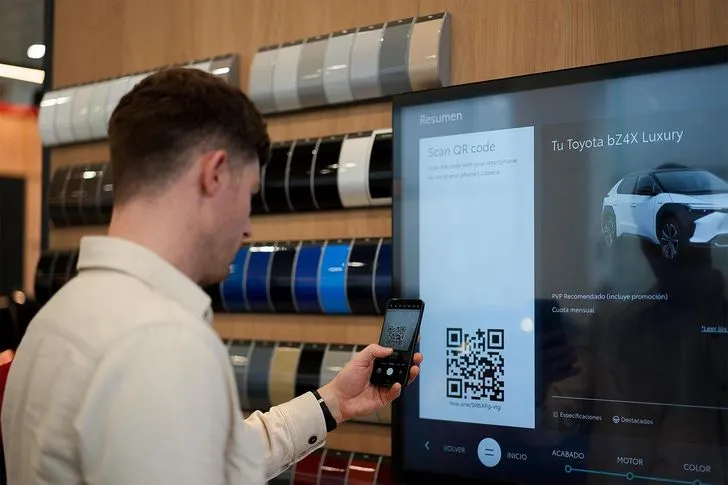
Toyota embedded its logo into a custom QR Code on an Urban Cruiser Hyryder digital ad campaign. People could scan directly from the display to explore the car's features and fill out an inquiry form.
#5 Levis
Levis used a QR Code with its logo in the middle to offer shoppers an interactive experience. Upon scanning, customers could view a video about the garment's features, among other content.
Generate custom branded QR Codes with logo. Boost branding.
Why choose Uniqode to create QR Codes with company logos
Uniqode helps you make branded QR Code creation fast, accurate, and designer-friendly. From real-time scannability feedback to AI-powered design suggestions, you can create a branded logo QR Code with less manual effort.
1. Real-time scannability score as you design the QR Code
Uniqode’s real-time scannability score helps you design QR Codes that scan reliably with a live preview and instant scannability score as you customize colors, shapes, and logos.
Some design choices, especially large logos or low-contrast backgrounds, can reduce scan performance. Instead of testing after you finish, you can spot issues immediately and adjust as you design. The score updates in real time, helping you save time and create a QR Code that balances branding with functionality.
2. Personalized pro tips throughout the creation process
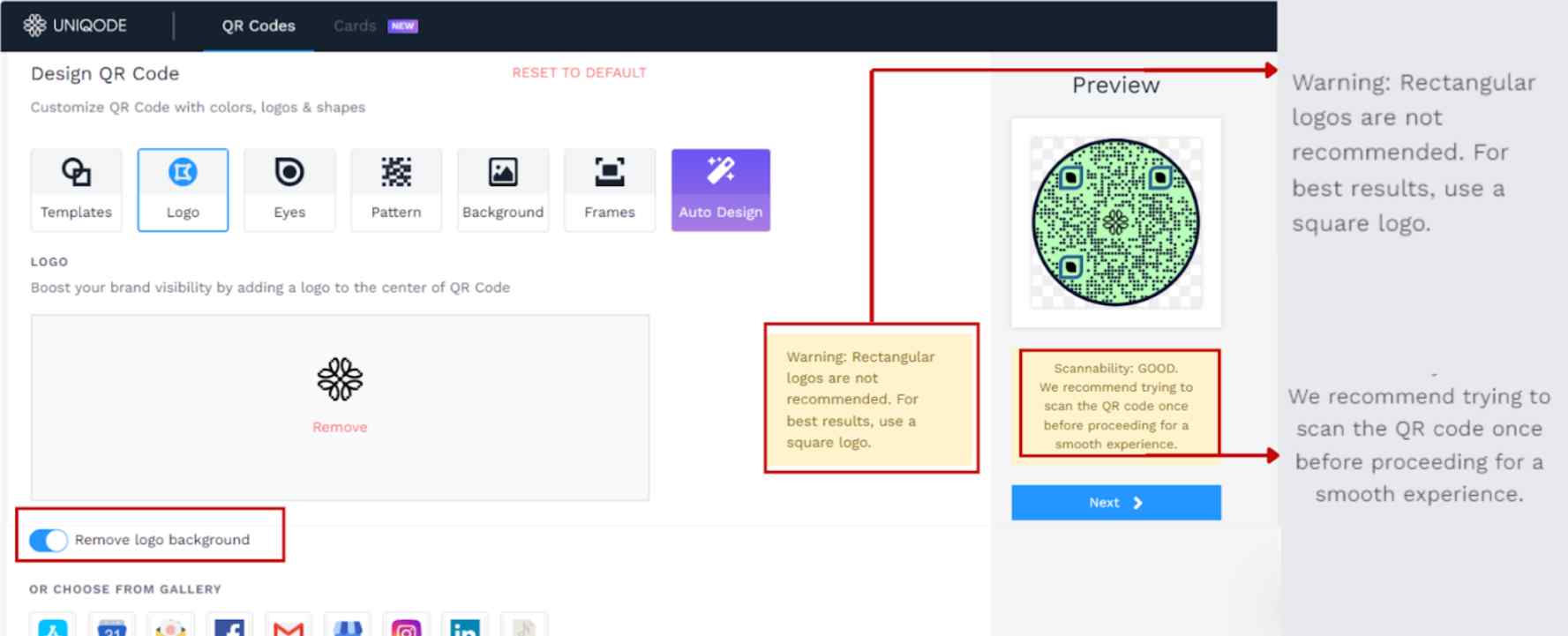
Uniqode’s QR Code maker shows real-time insights, tips, and warnings based on your logo and how well it integrates with the rest of the QR Code design.
For example, in the image above, the uploaded logo has a rectangular frame. Uniqode immediately detects that and asks you to use a square logo for the best results. You can fix this quickly by natively enabling the Remove logo background toggle on the platform.
3. Auto Design iterates QR Codes with logo based on your brand elements
Uniqode’s Auto Design feature can analyze your brand's design identity (based on the logo you upload) and provide suggestions aligned with the latest design trends in your industry. It takes the manual effort out of designing QR Codes and reduces designer dependencies.
It further analyzes brand elements such as favicons and button colors from campaigns such as your website URLs, restaurant menus, and business pages to generate multiple custom-designed QR Codes.
4. Bulk create multiple QR Codes with a logo in a few clicks
With Uniqode’s bulk QR Code generator, you can create multiple branded QR Codes in one go. You can manage the QR Codes and even check QR Code analytics from a single dashboard.
How do you ensure all the designs are uniform and adhere to the brand or company guidelines? You can set up template access (before bulk upload) and assign specific QR Code design permissions across the organization. It ensures everyone follows the brand guidelines and adds a logo to their QR Code.


.png)


 Templates
 Logo
Logo
 Design
 Frame
Frame


%20(1).webp)