
The Best Guide To Using Corporate Virtual Backgrounds & Networking Like a Pro
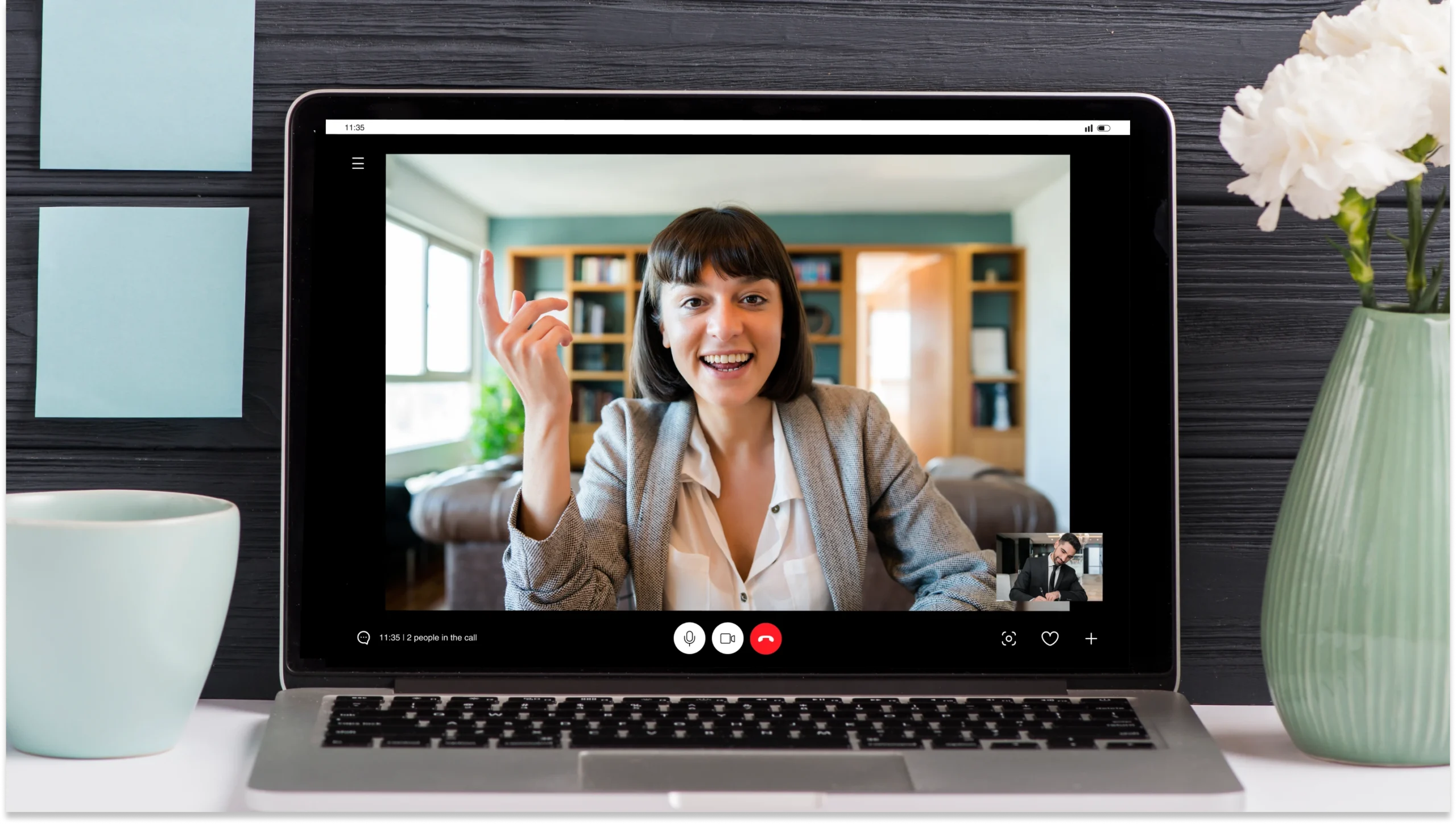
Discover how to create stunning professional virtual backgrounds to create a memorable first impression, network efficiently, and boost credibility in every virtual meeting.
What else matters during a corporate virtual meeting apart from your professionalism? It’s your virtual background.
Blurred or clear, bookshelves or plants, homely or novel, what’s immediately visible beyond your face in a video call was found to impact a person’s perception, according to a study conducted by a UK-based University.
So, what impression are you leaving in your virtual meetings? 🤔
In this article, I will discuss how to choose the best virtual background and how to improve its functionality by adding a QR Code as a tool to capture leads.
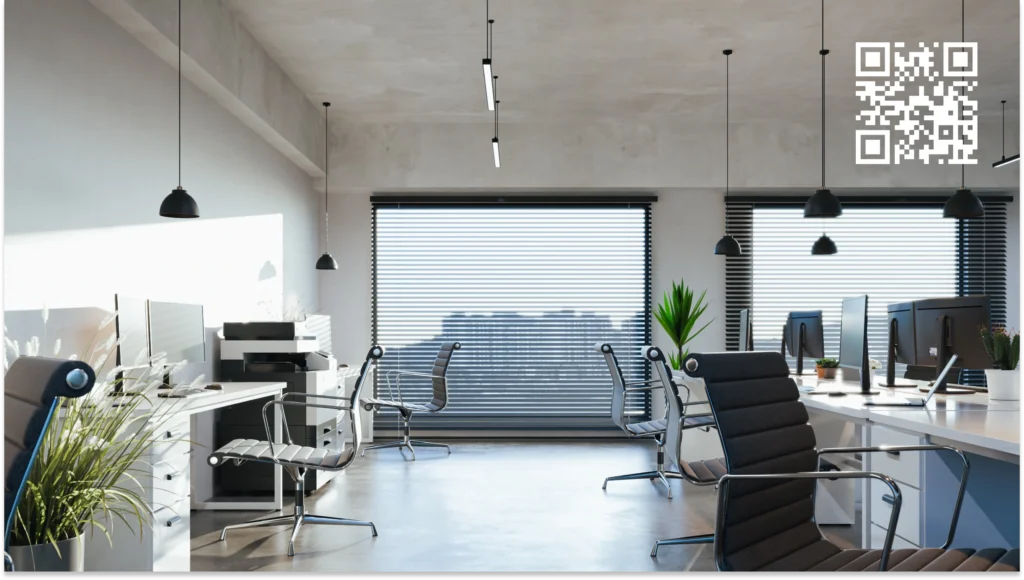
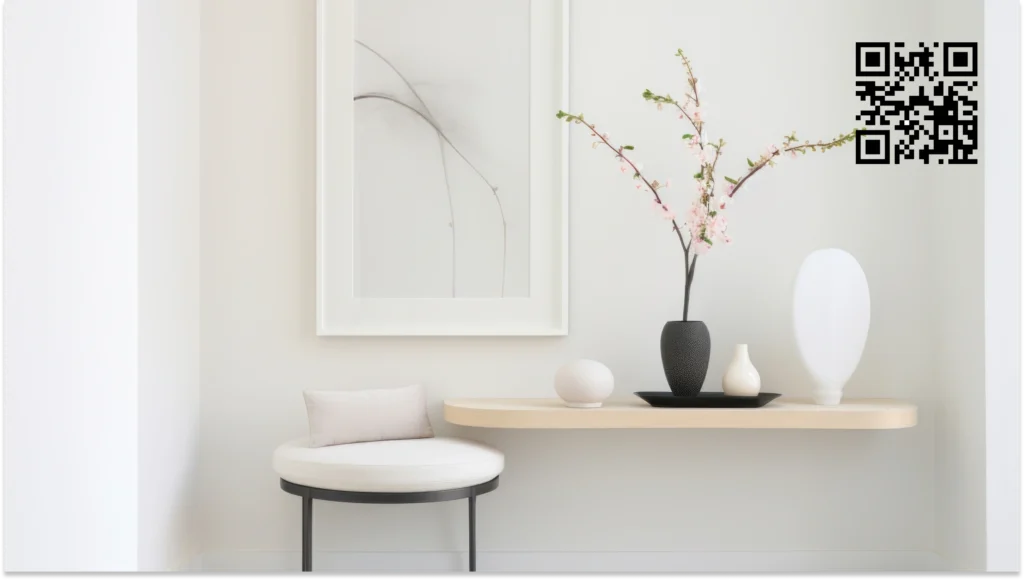
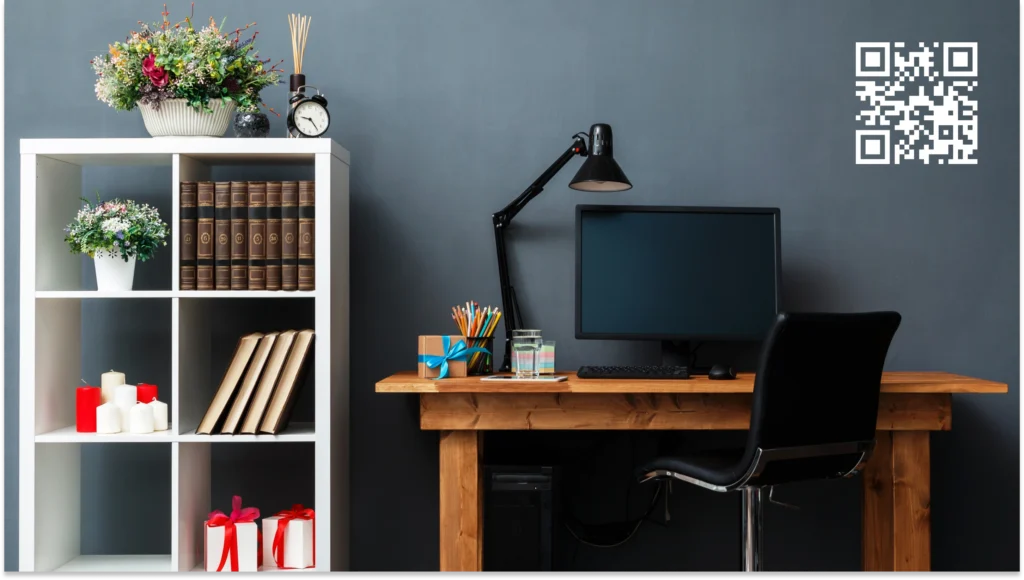


Love these professional virtual backgrounds?
We’ve got even more waiting for you! Download now—click below to access.👇
What is a professional virtual background?

A professional virtual background is a visually appealing digital backdrop used in video conferences and online meetings.
It enhances the professionalism and impact of virtual interactions by creating a polished and focused environment instead of revealing the raw and potentially unkempt real-life backdrop that can be distracting.
Whether a simple solid color, a thoughtfully designed scene, or something in between, a purposeful background can transform your digital interactions and make a powerful first impression.
How to choose the right corporate virtual background
In the following sections, I will provide you with some action-oriented strategies to help you select the perfect virtual background that aligns with your professional goals:
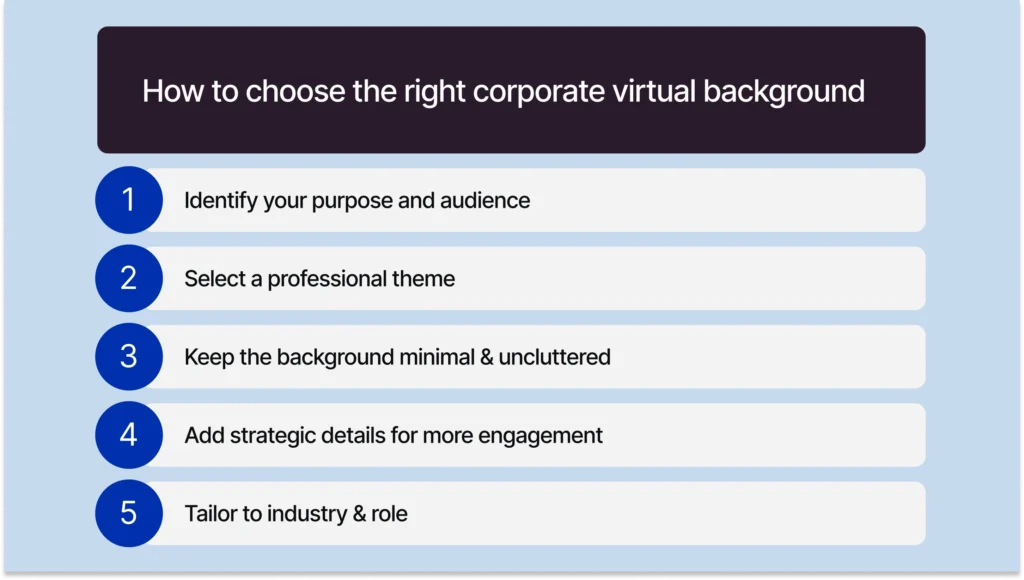
1. Start by identifying your purpose and audience
Spend some time mulling over what your frequent or recurring virtual meeting type is, based on which you can choose your corporate virtual background:
Team meetings: Opt for a neutral background. For example, experts consider blank walls a safe choice for corporate virtual meetings, but they might not be the most engaging. They provide a neutral backdrop without positive or negative cues.
Client presentations: Prioritize a professional virtual background that fosters trust, such as a minimalist office setting or a bookshelf filled with relevant literature.
2. Select a professional theme
Go for natural or intellectual elements: Plants or bookshelves can convey trust and competence. These elements in virtual backgrounds consistently received high ratings for trustworthiness and competence, which is crucial for a professional image.
Avoid overtly personal backgrounds: Avoid showing your living space or novelty themes that might appear casual or distracting in a virtual corporate meeting. Maintaining a professional setting ensures that the meeting recording is clear and suitable for sharing with absent team members. In dynamic environments where multiple meetings occur daily, an AI Note Taker ensures your campaign ideas and product feedback are always retained. These elements, per experts, are perceived as less professional, possibly due to their association with a lack of conscientiousness.
Blur if necessary: If you cannot create a visually appealing setup, experts suggest using a blurred background for a clean, neutral look.
3. Keep the background minimal and uncluttered
Stick to static images: Opt for static images for a clean and professional look. Animated or video backgrounds can be visually overwhelming and impact video call quality.
Declutter your digital space: Ensure your background is free of distracting elements. According to another study, a minimalist approach helps maintain focus on you and your message, enhancing your overall impact.
4. Add strategic details for more engagement
Add conversation starters: Consider incorporating subtle props into your background, such as a framed certificate, a piece of art, or a unique plant. These elements can serve as conversation starters and provide a glimpse into your interests and expertise.
⚡Pro tip: Add a digital business card QR Code to your virtual background for innovation and added functionality. Users can scan the code to view their digital business cards, save your contact details, and even share their contacts from the same card.
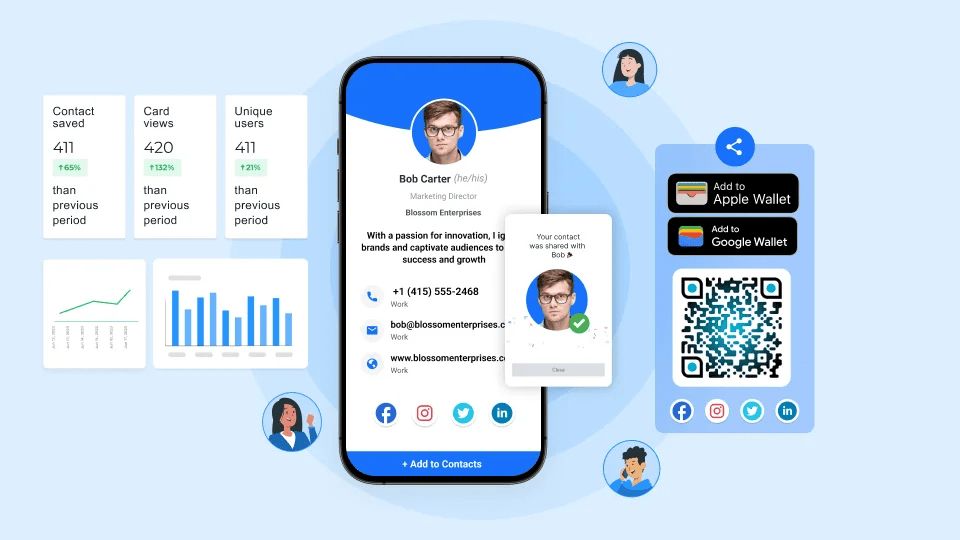
Personal touches: Let your personality shine through minimal decor that complements your professional image. A carefully chosen virtual background with a piece of art or a personalized touch can add a touch of individuality to your virtual space.
5. Tailor to industry and role
Include industry-specific touches: Subtle nods to your profession in your virtual background can elevate your image. For example, a lawyer might include a bookshelf filled with legal texts, while a tech professional could display a sleek gadget or coding screen.
Focus on your role: Your role within an organization can influence your background choice. For example, a senior executive might opt for a minimalist look (a beige backdrop or an image of the New York skyline!) to convey authority and experience.
On the other hand, a creative professional may choose a more dynamic and expressive background (e.g., a graphic designer might choose a UX design for a webpage they designed) to showcase innovation and personality.
3 Reasons to add QR Codes to your virtual background
Integrating a QR Code linked to your digital business card into your virtual background offers many benefits:
- Effortless networking: Attendees can scan the QR Code from your virtual background with their mobile device to instantly find your contact information, saving time and effort.
- Increased engagement: With an interactive element like a QR Code in your virtual background, you encourage more interactions and potential collaborations by providing a touchpoint to your services. This especially holds during virtual breaks or when you’re off for something, and the attendee can scan the QR Code to learn more about you.
- Measurable results: Adding a digital business card QR Code to your background adds a measurable element to your virtual calls. This is because you can track the number of scans and analyze the data to gauge the effectiveness of your networking efforts. For example, a salesperson can check several card views to gauge customer interest in your product.
Learn: How to track and analyze digital business card engagement metrics
3 easy steps to add a digital business card QR Code to your virtual background
Let’s see how to generate a QR Code-linked virtual business card and add it to your background. The easiest way is to create a digital business card on Uniqode.
Before you proceed…
If you don’t have a digital business card or a QR Code ready, you need one to add to your virtual corporate background. You can create a digital business card for free in three steps on Uniqode.
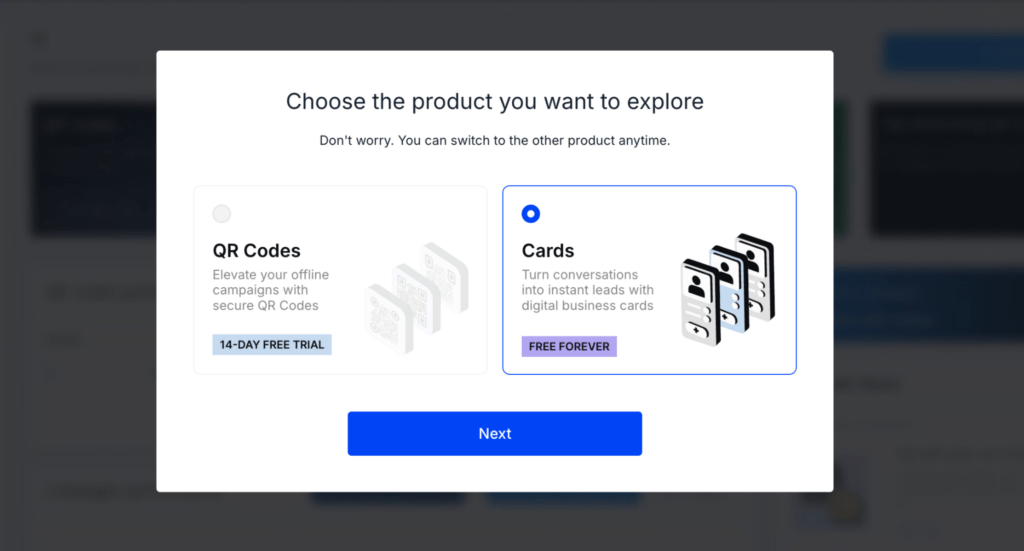
Once you log in to the dashboard, follow these steps below to supercharge your networking:
Step 1: Click the “SAVE & SHARE” button on the top right corner
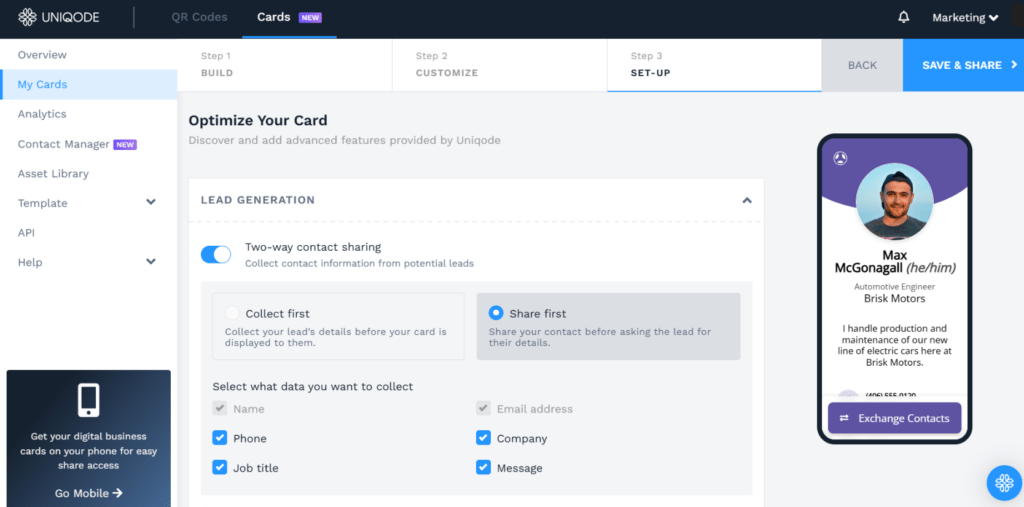
You will see a small window to the right of the screen. The window will have a QR Code linked to your e-business card.
Step 2: Click “Download” next to the QR Code
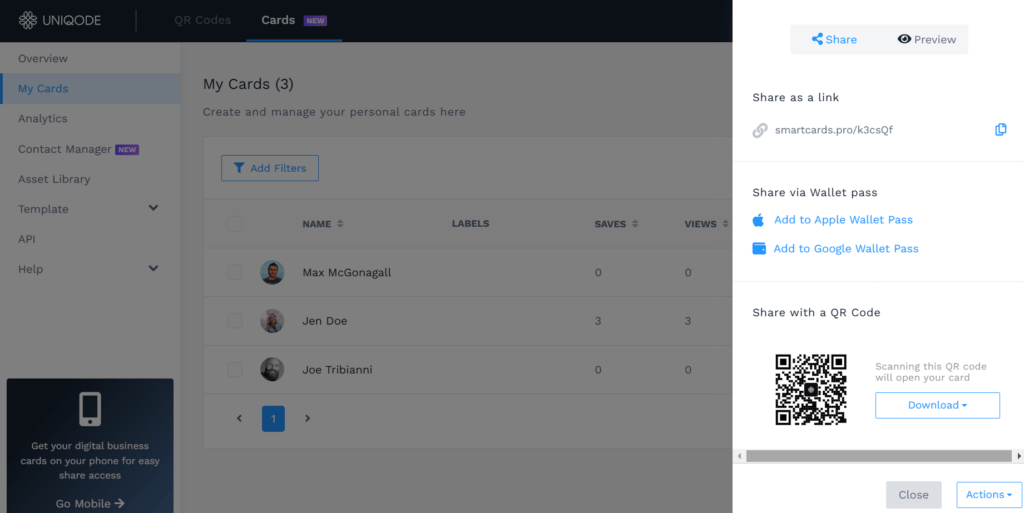
You can download your QR Code in the following formats:
- JPEG
- PNG
- SVG
- EPS
- Customize the format in which you’d like to download the QR Code.
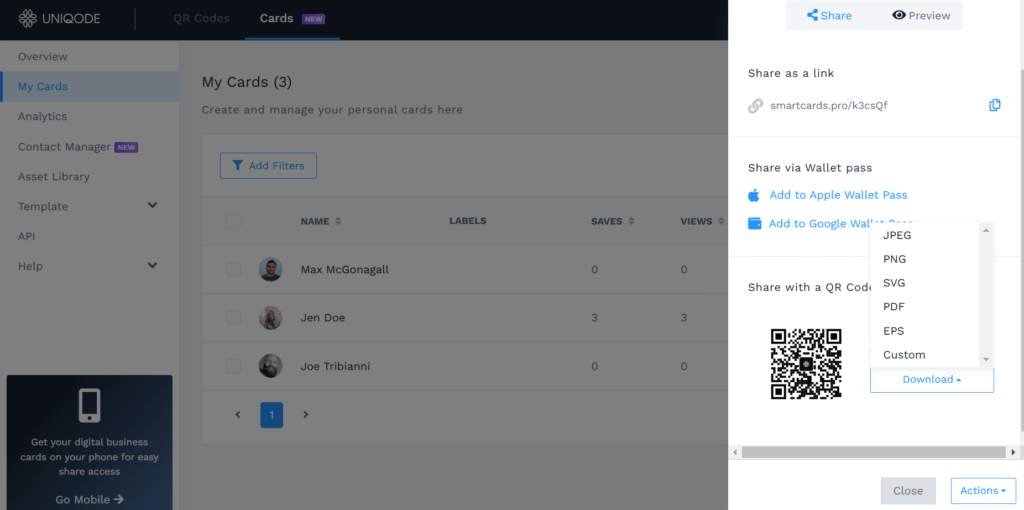
Step 3: Download the QR Code and integrate it with your virtual background
Once you download your QR Code, you can embed it on any virtual background and upload it to Zoom, Google Meet, or Microsoft Teams.
How to add virtual backgrounds on the 3 most popular video conferencing platforms
Let me walk you through the ways to add a virtual background on the three most popular platforms:
1. Zoom
Step 1: Log in to Zoom and click the “Settings” icon in the top right corner
Once you click “Settings,” you will see a pop-up.
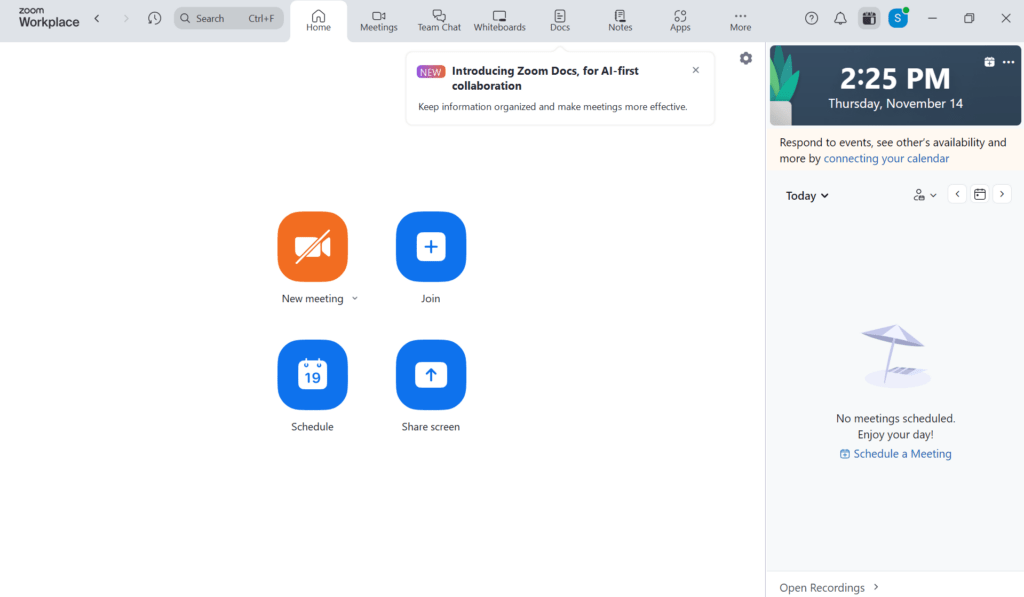
Step 2: Click on the “Background and Effects” button
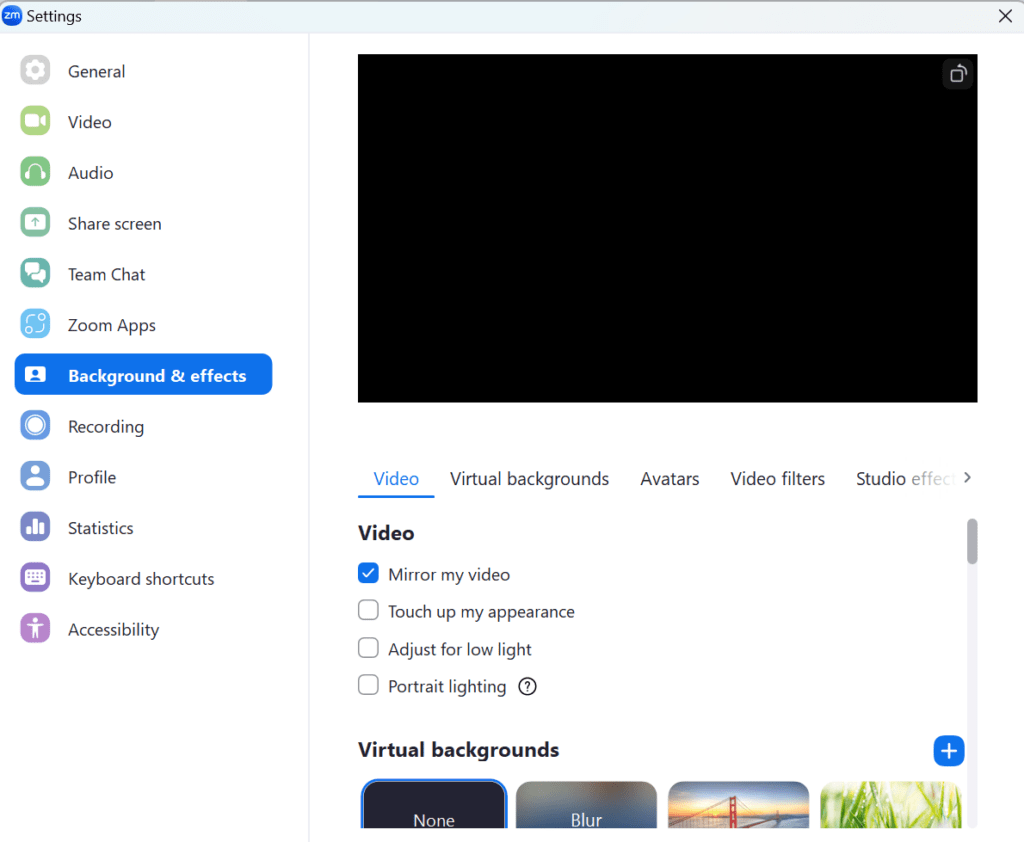
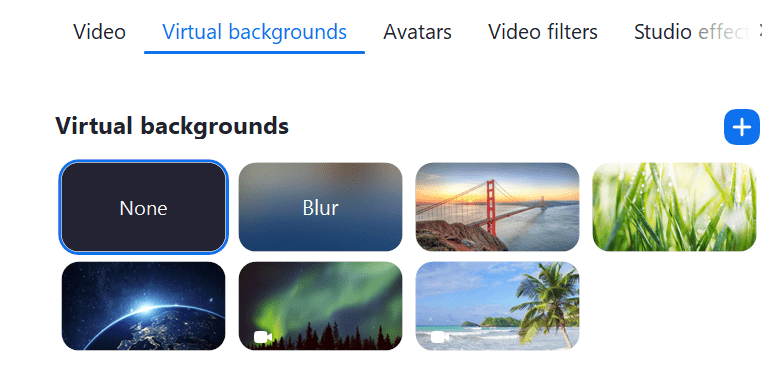
Once you do, click the “Virtual backgrounds” option. You will be taken to a window with Zoom’s pre-existing virtual backgrounds, avatars, video filters, etc.
Step 3: Click the blue plus button in the top right corner
The app will direct you to upload the corporate virtual background you’ve created and downloaded on your system.
2. Google Meet
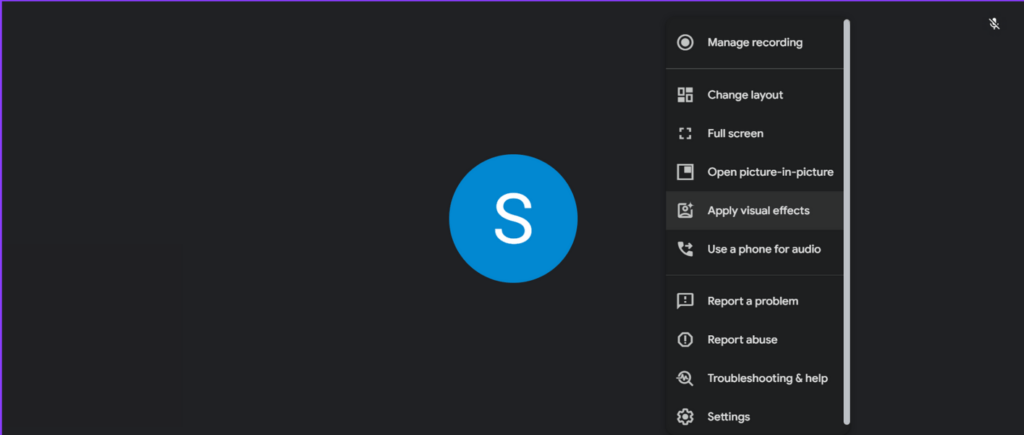
Step 1: Join a Google Meet link and click the three dots in the bottom right corner

Once you do, you will see a pop-up appear.
Step 2: Click “Apply visual effects” option
Step 3: Click the “Add your own personal background” option
Under the heading “Blur and personal backgrounds,” select the third option titled “Add your own personal background” option.
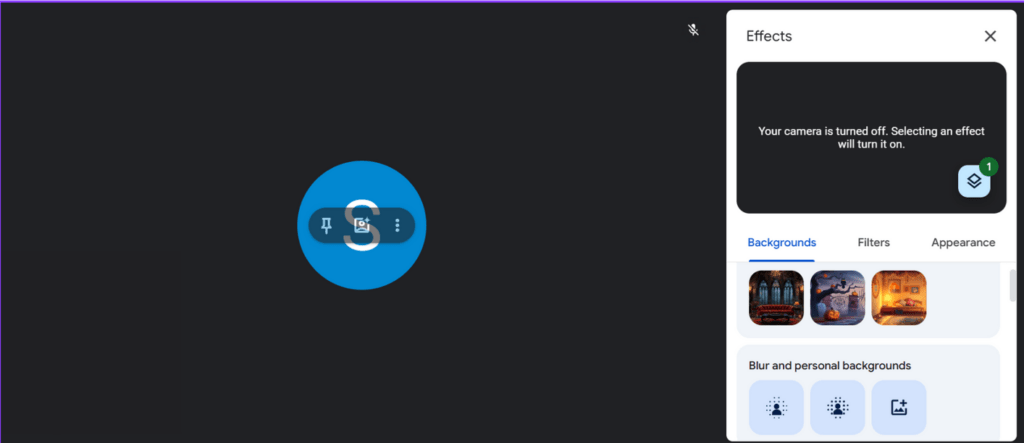
Google Meet will direct you to upload the professional virtual background you’ve created and downloaded on your system.
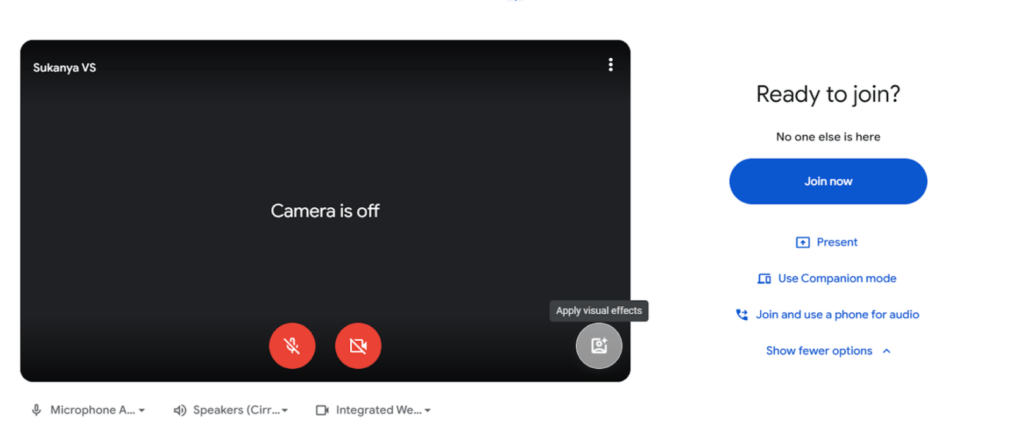
Alternatively, you can add a corporate virtual background before joining a meeting.
Here’s how you can do that:
Step 1: Click on your meeting and click the “Apply visual effects” button
Step 2: Click “Add your own personal background”
Under the heading “Blur and personal backgrounds,” select the third option titled “Add your own personal background” option.
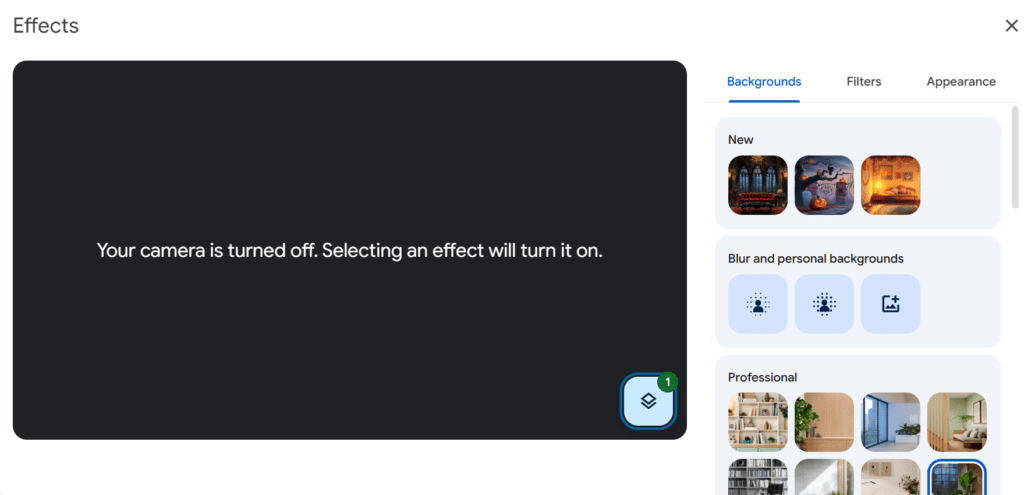
Upload your custom virtual background embedded with a QR Code, and have a great time networking!
3. Microsoft Teams
Step 1: Log in to Teams and click the meeting link
Click “Join” when a pop-up window opens.
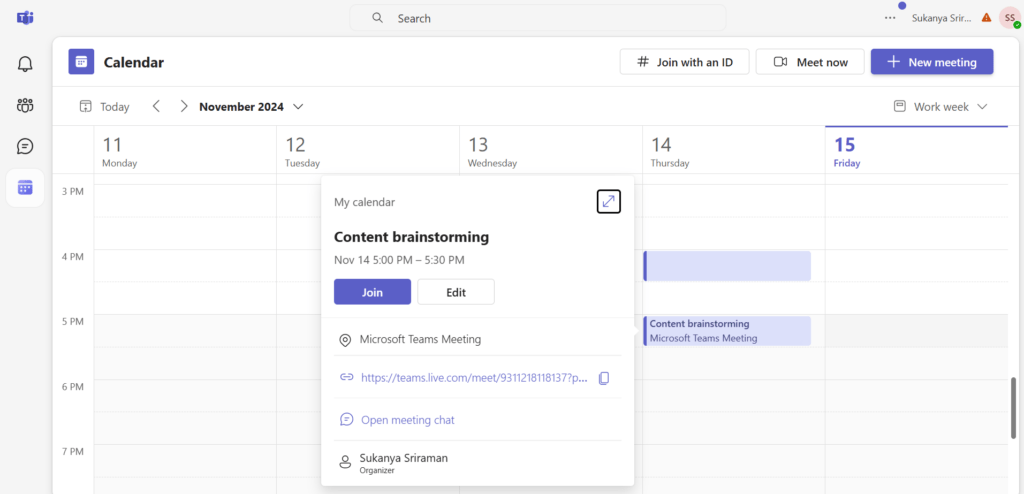
Once you click the button, the app will redirect you to another window.
Step 2: Click the “Background filters” button
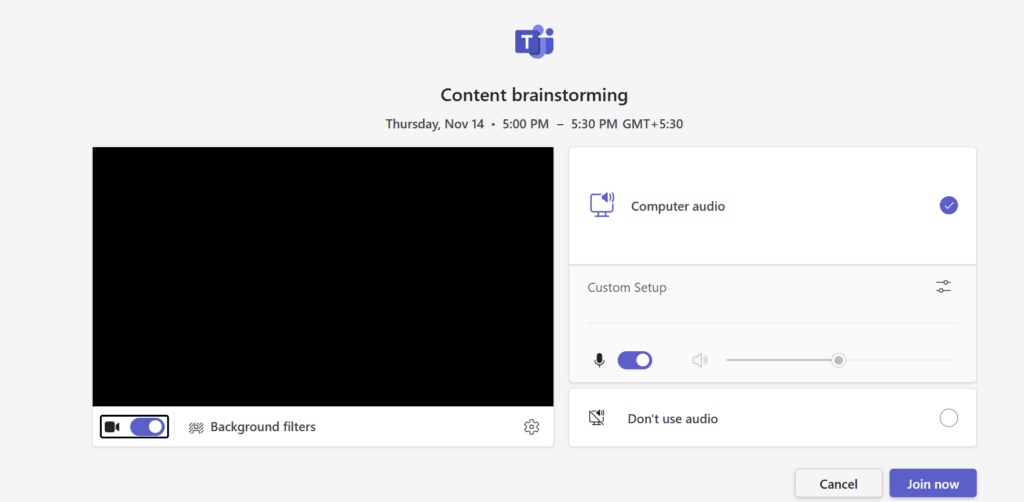
Step 3: Click the “New+” button to upload an image from your device
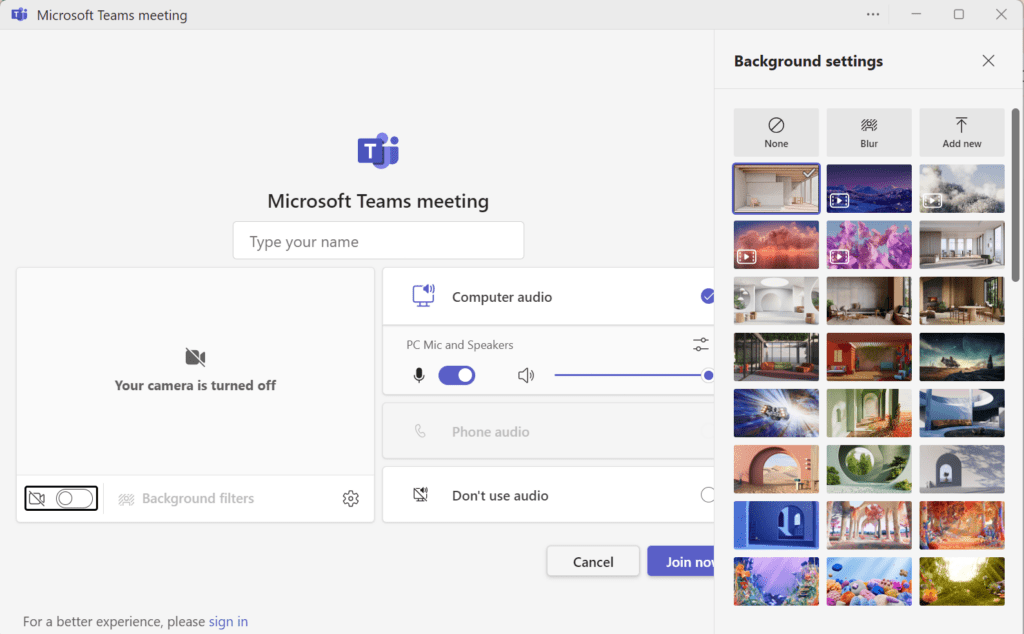
Upload your custom virtual background embedded with a QR Code, and network effortlessly!
Why should you use a professional virtual background
1. Create an unforgettable first impression
Research revealed that having clutter-free virtual backgrounds is key to forming first impressions. According to the study, virtual backgrounds with plants or bookcases were more effective in enhancing perceived trustworthiness than no background at all.
This highlights the potential of professional virtual backgrounds to create a favorable first impression.
2. Strengthen your brand identity
Incorporating brand colors, logos, or imagery in your virtual background is crucial. A study says businesses that brand consistently are 3.5 times more likely to get strong brand visibility than inconsistent brands.
So, doubling down on branding elements on a professional virtual background helps increase brand recognition and recall. Use your brand fonts, add a QR Code with your brand’s logo in the middle, add graphics, etc., to make your background on-brand.
3. Build instant rapport and trust
A study found that while blank walls or blurred backgrounds project professionalism, they can compromise perceptions of authenticity and trustworthiness compared to showing one’s actual room.
Using a consistent background across various platforms strengthens brand recognition and recall. For example, you could assign a single virtual background for your team with your organization’s logo and brand colors. This will instantly help people associate your brand with certain shades and logos.
4. Create consistency across all interactions
A consistent virtual background across different platforms is essential for ensuring a cohesive brand experience, as it reinforces your professional image and enhances recognition among clients and partners.
For example, companies that present a consistent brand identity across all interactions can increase their revenue by up to 23%. Consistency minimizes distractions and signals reliability and commitment, fostering trust with clients and enhancing the overall effectiveness of communication.

Add functionality and purpose to your virtual presence with a digital business card QR Code
Your virtual presence is not just a digital footprint. If used correctly, it can be a powerful tool to connect, engage, and inspire. By integrating professional virtual backgrounds with QR Code-linked digital business cards, you can elevate your online persona to new heights.
Prospects and colleagues can instantly find your contact information, portfolio, and social media profiles with a simple scan. This innovative approach streamlines the networking process, making it more efficient and impactful.
Don’t miss this opportunity to make a lasting impression. Create your free digital business card with Uniqode and unlock the future of networking.
Frequently Asked Questions
- Can adding a QR code to my virtual background help me generate leads?
Adding a digital business card QR code to your virtual background provides an innovative way to capture leads during video meetings by allowing participants to instantly scan and save your contact information. This strategy transforms your virtual background from a passive visual element into an active networking tool that enhances engagement. The QR code serves both aesthetic and functional purposes, making it easier for meeting attendees to connect with you after the call without disrupting the conversation.
- What is the best virtual background for client presentations versus team meetings?
For client presentations, use professional backgrounds that foster trust such as minimalist office settings or bookshelves with relevant literature, as these consistently receive high ratings for competence and credibility. For internal team meetings, neutral backgrounds like simple walls are considered safe choices that won't distract from collaboration. The key difference is that client-facing meetings require more polished, trust-building backgrounds, while team meetings can afford to be more neutral and functional.
- How can I create a professional virtual background?
Here is how you can create professional virtual backgrounds:
Use design tools: Utilize Canva or Adobe Photoshop to create custom backgrounds aligned with your brand identity.
Choose high-quality images: Opt for high-resolution images to ensure clarity and sharpness.
Consider lighting: Ensure proper lighting to avoid shadows and reflections.
Keep it simple: Avoid cluttered backgrounds that can distract viewers.
- What are the benefits of using a digital business card over a traditional one?
Instant sharing: Easily share your contact information with a simple scan.
Update: Keep your contact details current without printing new cards.
Trackable analytics: Gain insights into how your card is being used.
Eco-friendly: Reduce paper waste and contribute to a greener planet.
About the Author
Sukanya is a content marketer who previously worked as a journalist. She has been passionate about writing from a young age and now helps businesses boost engagement through content. Currently, she is exploring innovative tools, such as digital business cards, and their transformative impact on various aspects of business.
Related Posts
Are Digital Business Cards Safe and Secure? All You Need To Know
Social Media Business Cards: Design Guide & Examples (2026)
How to Share a Digital Business Card: 9 Ways to Maximize Your Networking Efforts
Digital Business Card Benefits: 10 Reasons to Use Them in Your Networking

How To Share a Digital Business Card on WhatsApp—& 7 Reasons Why
