How to Update Your Digital Business Cards in Less Than 5 Minutes
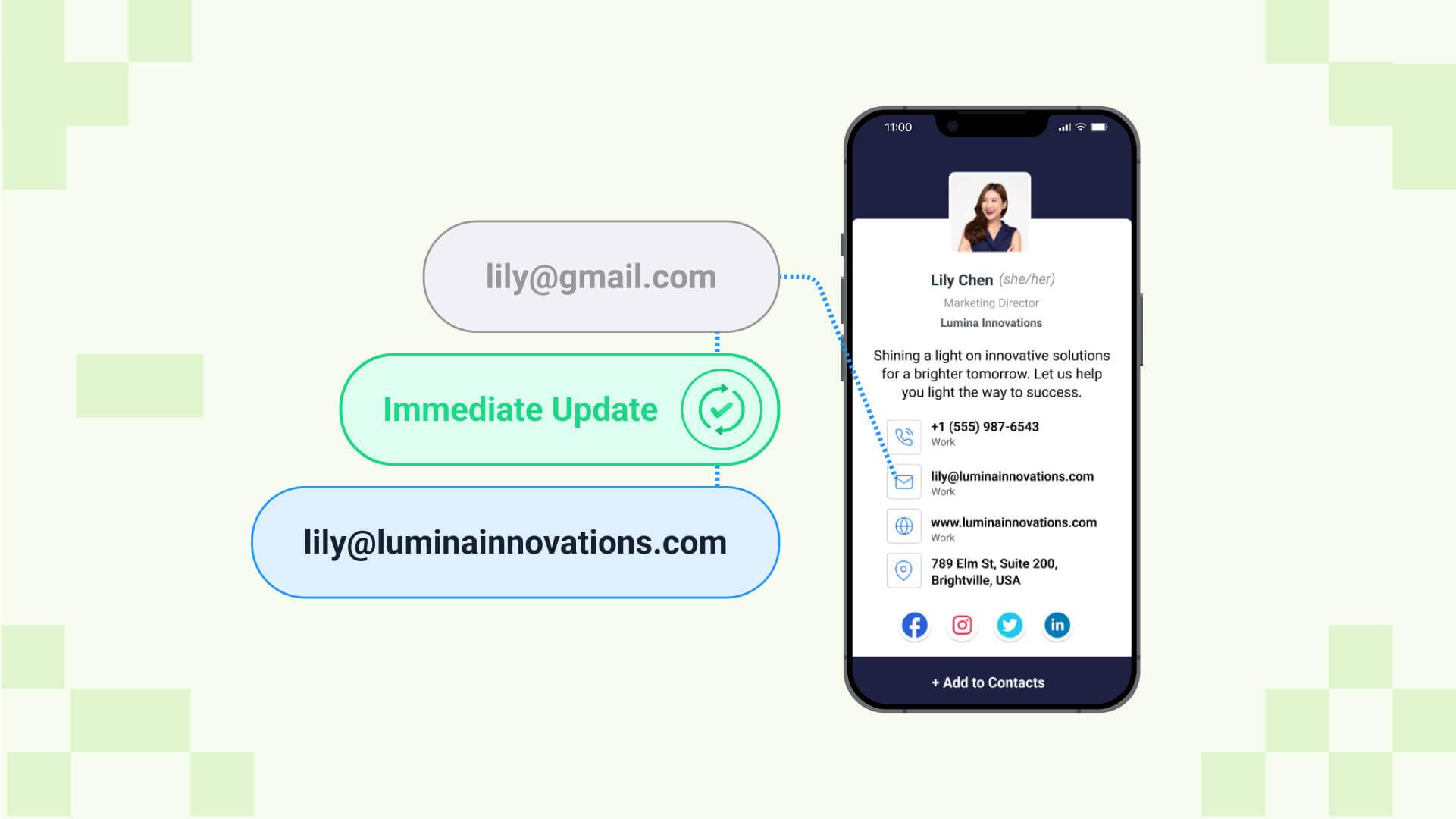
Updating your digital business cards is easy and happens in real-time, unlike updating paper business cards. Learn how to update your digital business card in less than 5 minutes and save the time and money associated with re-printing and re-distributing paper business cards.
Traditional business cards are being replaced by their smarter counterparts—digital business cards.
Case in point: The search trends for paper vs. digital business cards in the last two years show the latter being preferred significantly more than its traditional alternative.
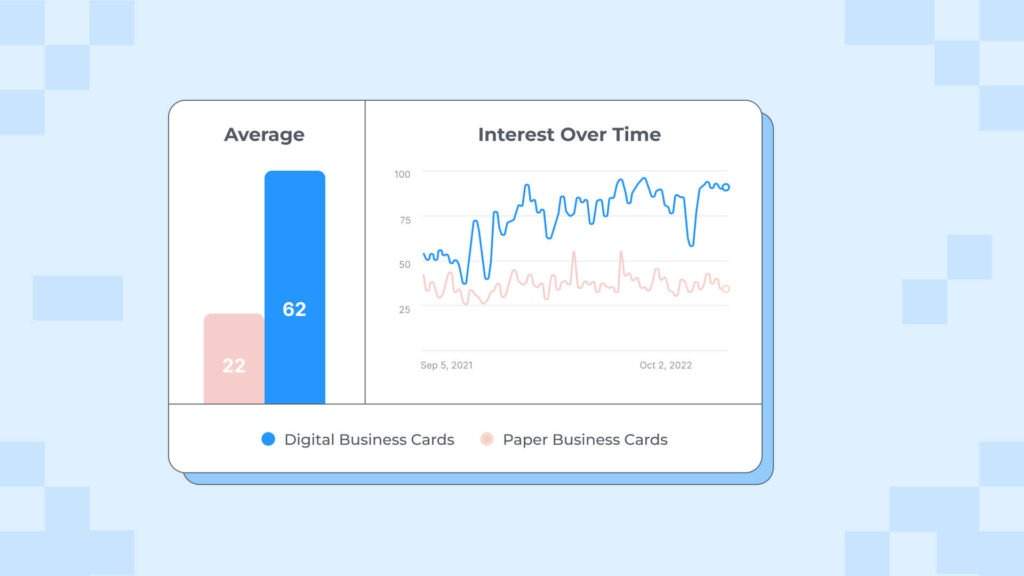
This massive shift is associated with the various benefits digital business cards offer, particularly the ability to make real-time updates to your card without recreating and resharing it.
Consider this scenario:
Let’s say you are a sales executive relocated to a different office. Evidently, this has led you to change your contact information.
Now, if you are using a paper business card, you must update your contact information, reprint the card, and share it with your recipients. This can result in a loss of time, money, and effort.
But with a digital business card, you can eliminate this hassle. You just need to update your details at the backend (on your digital business card provider’s dashboard) and save the changes. Moreover, you don’t have to recreate or resend the card to your clients; your updated information will automatically be reflected on the recipient’s end.
In this guide, we will show you how to update your existing digital business card to save time and money associated with recreating and reprinting it.
How to quickly update your digital business card
Updating a digital business card is as simple as modifying your details on a social media channel. The entire process only takes a few minutes.
Let’s explore the process, one step at a time, using Uniqode’s digital business card solution.
1. First, create your digital business card
Start off by creating a professional digital business card.
Select a card template, add your profile details and relevant links, and customize the design to suit your company branding. Then, share it with your clients.
Note: To learn about these steps in detail, you can follow our simple guide on how to create a digital business card.
2. Next, update your digital business card
Follow the simple steps below:
Step 1: Log in to your Uniqode account
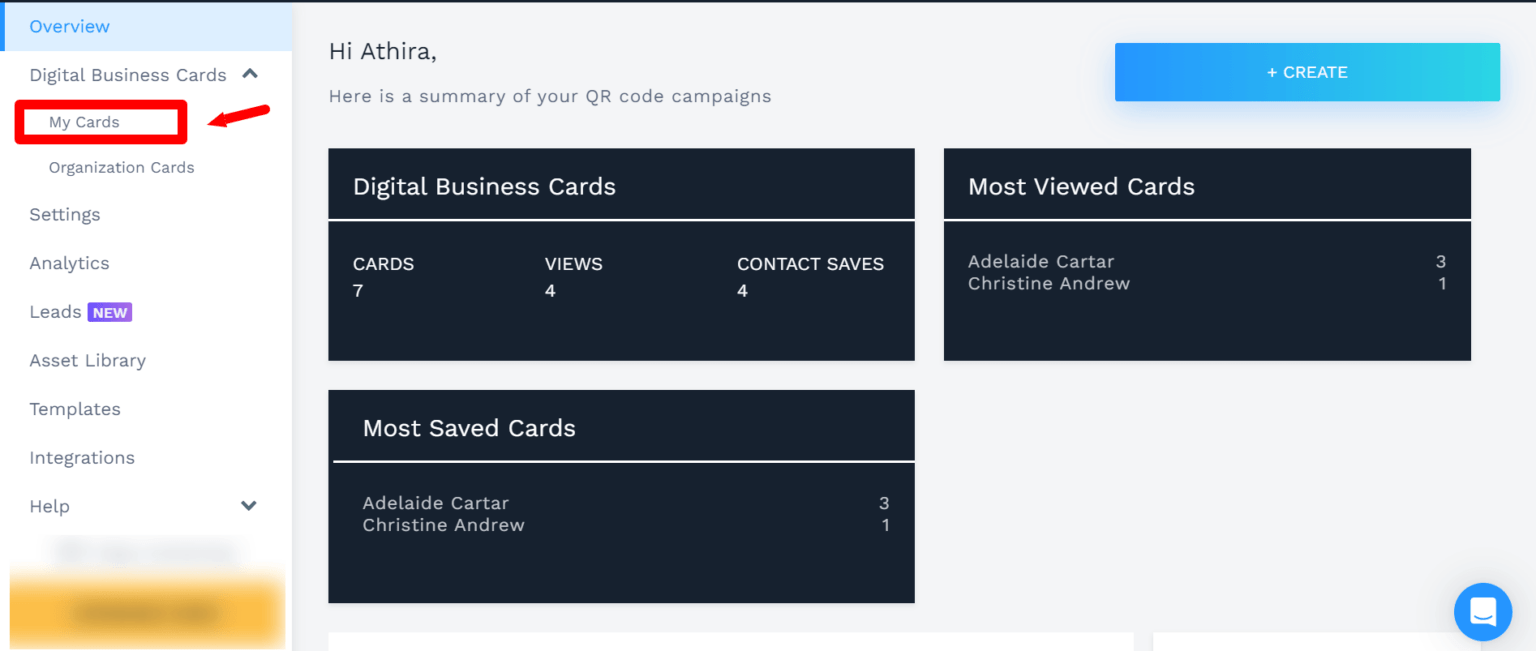
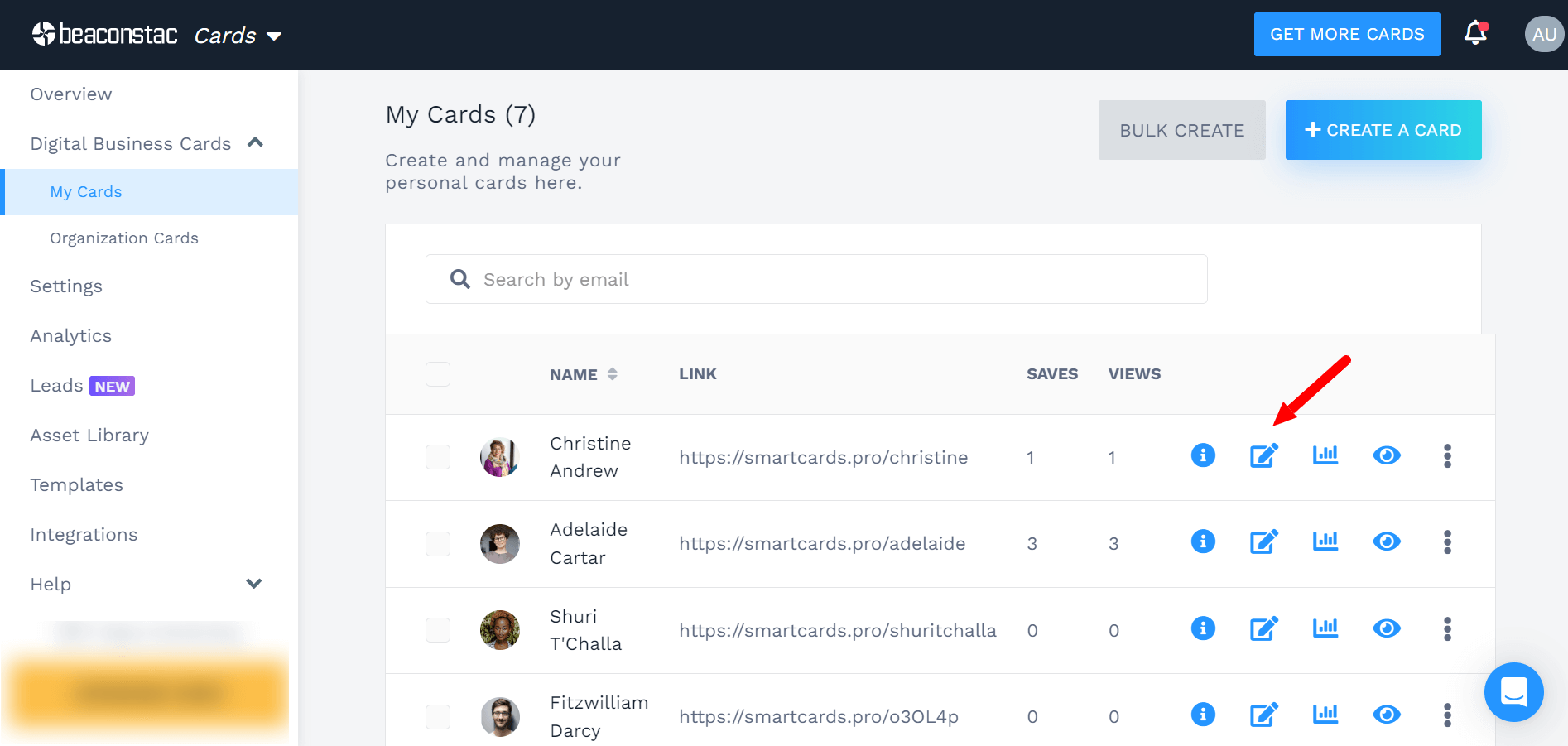
After logging in to your Uniqode account, click My Cards (under Digital Business Cards) from the left-hand sidebar.
Step 2: Choose the card you want to update
Upon clicking My Cards, you will be taken to a dashboard containing all the cards you have created to date.
Now, choose the card you want to modify by clicking the corresponding edit icon.
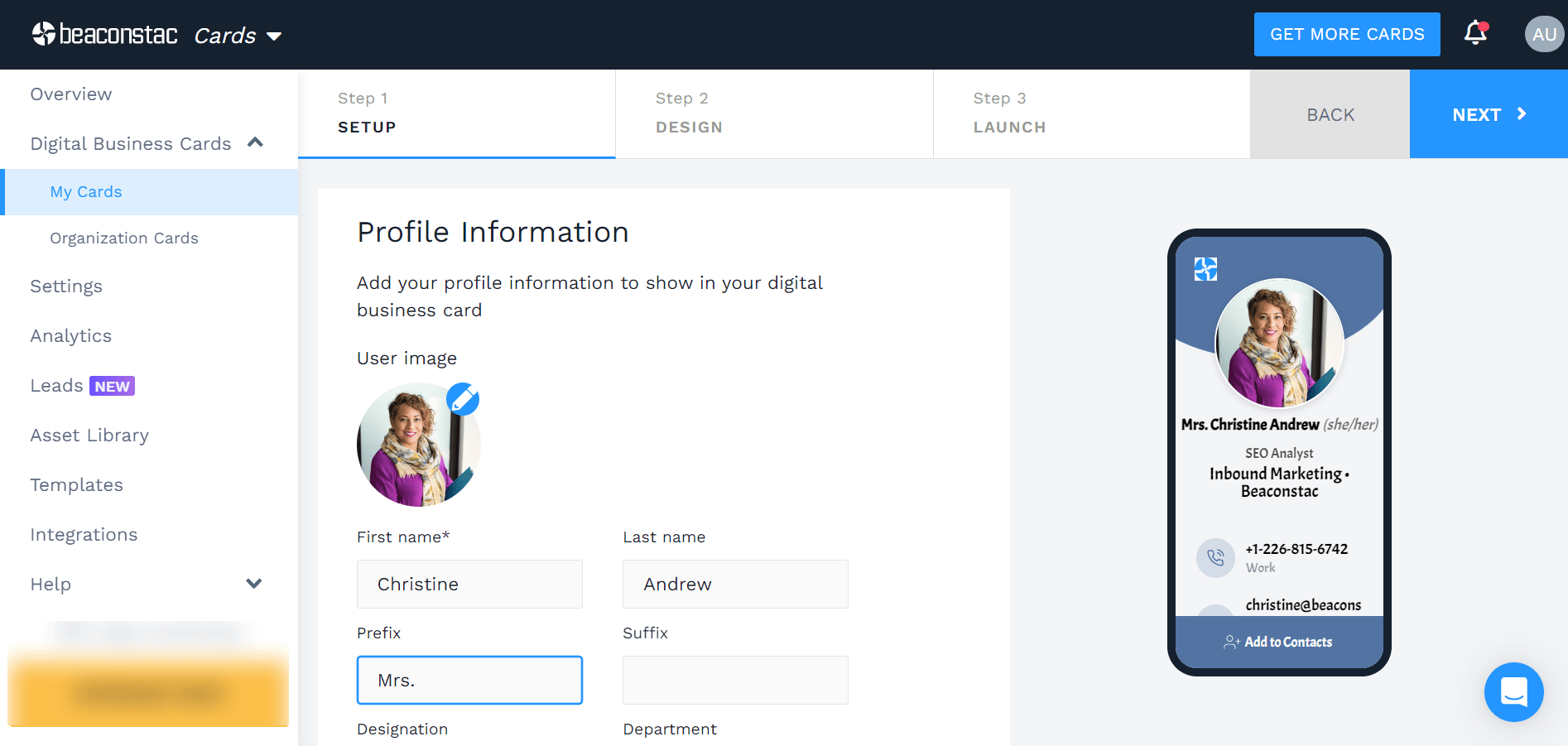
Step 3: Update your profile information, contact details, and social links
Under the SETUP tab, modify your profile details in the Profile Information section. This section includes your first and last name, designation, department, prefix, suffix, pronouns, company, summary, and logo.
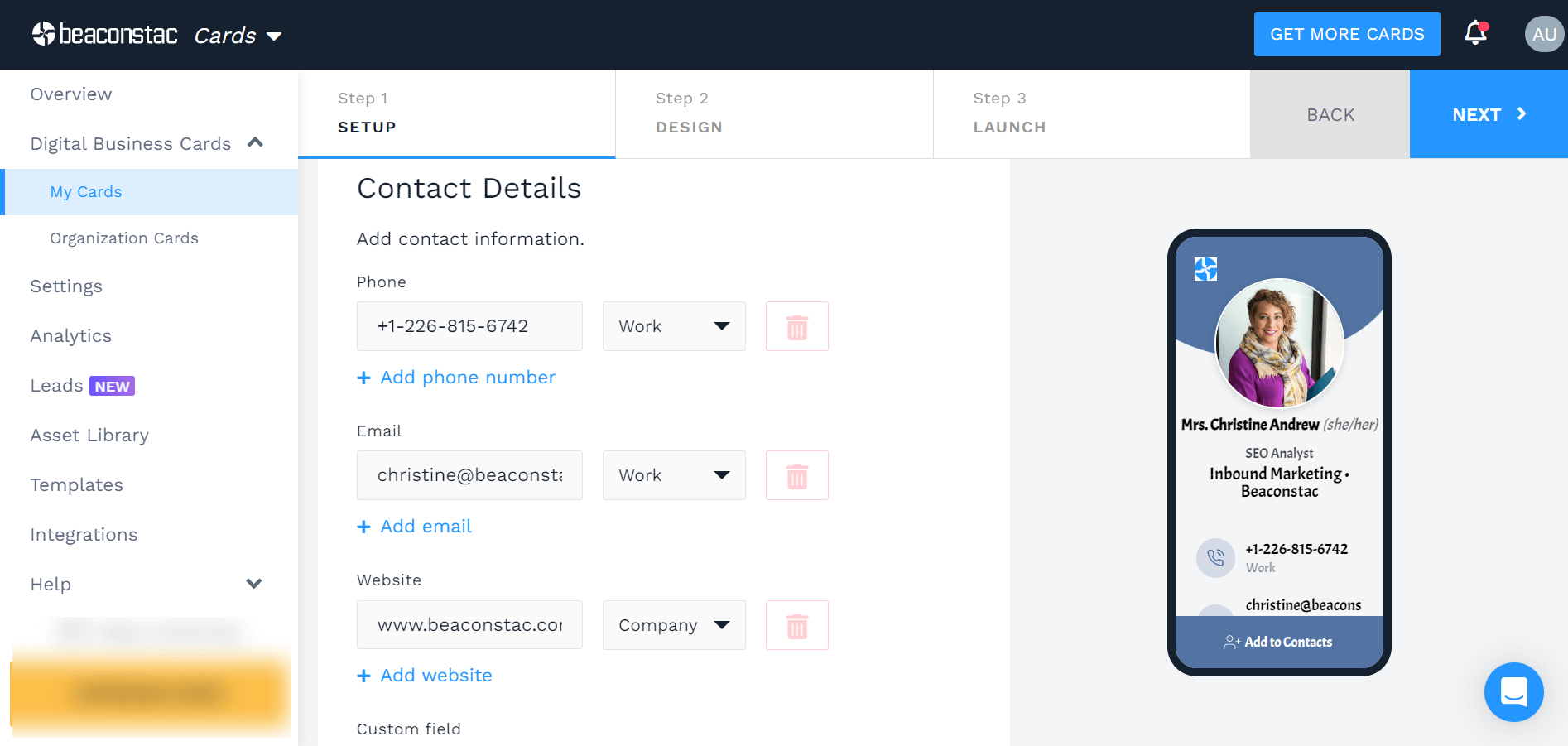
Under the Contact Details section, you can update your contact information, such as phone number, email, website, and Google Maps location.
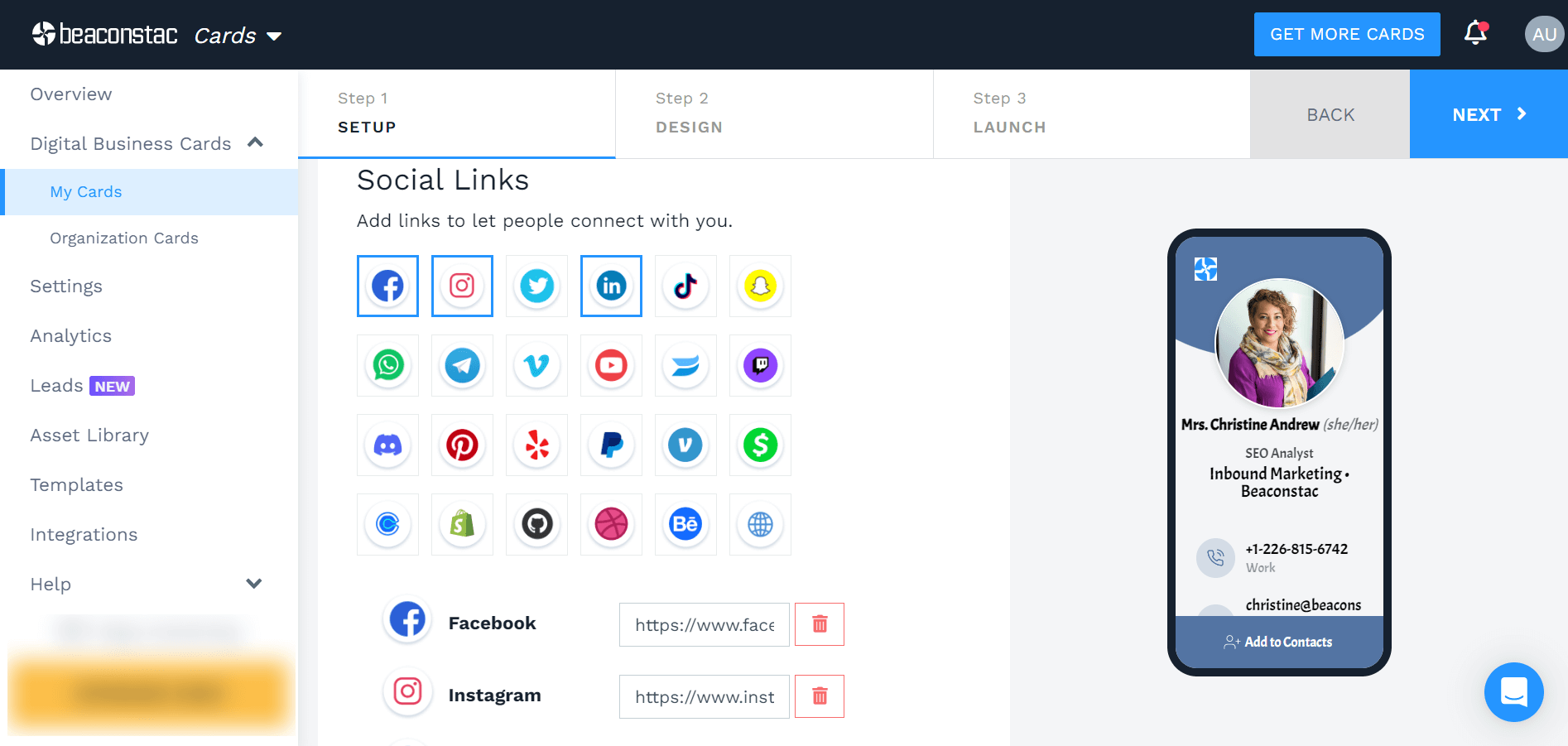
Finally, at the bottom of the SETUP tab, you can find Social Links, where you can update the links to your personal and professional social profiles.
You can make the modifications in the editable field, or if you want to add a new social link, simply click on the associated icon (from the 20+ options available).
Step 4: Update your card design
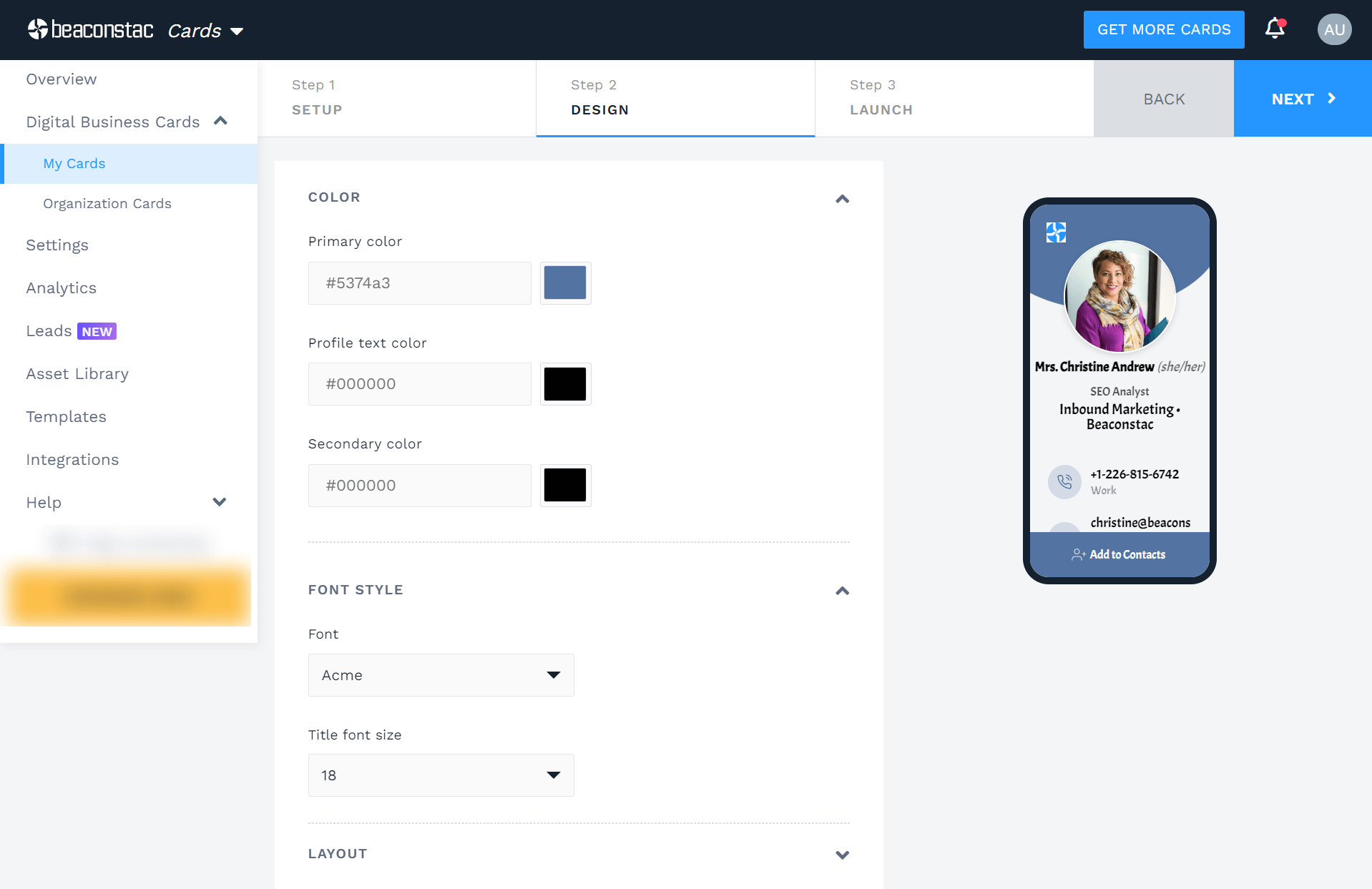
Click on the DESIGN tab to modify the design elements of your digital business card. Here, you can change the colors, font style, and layout.
Step 5: Enable/disable networking features
After editing the design, click on the LAUNCH tab to change the settings of networking features such as Download on Scan, GPS Location, and Lead Collection. Apart from these, you can even change the template of your qr code business card.
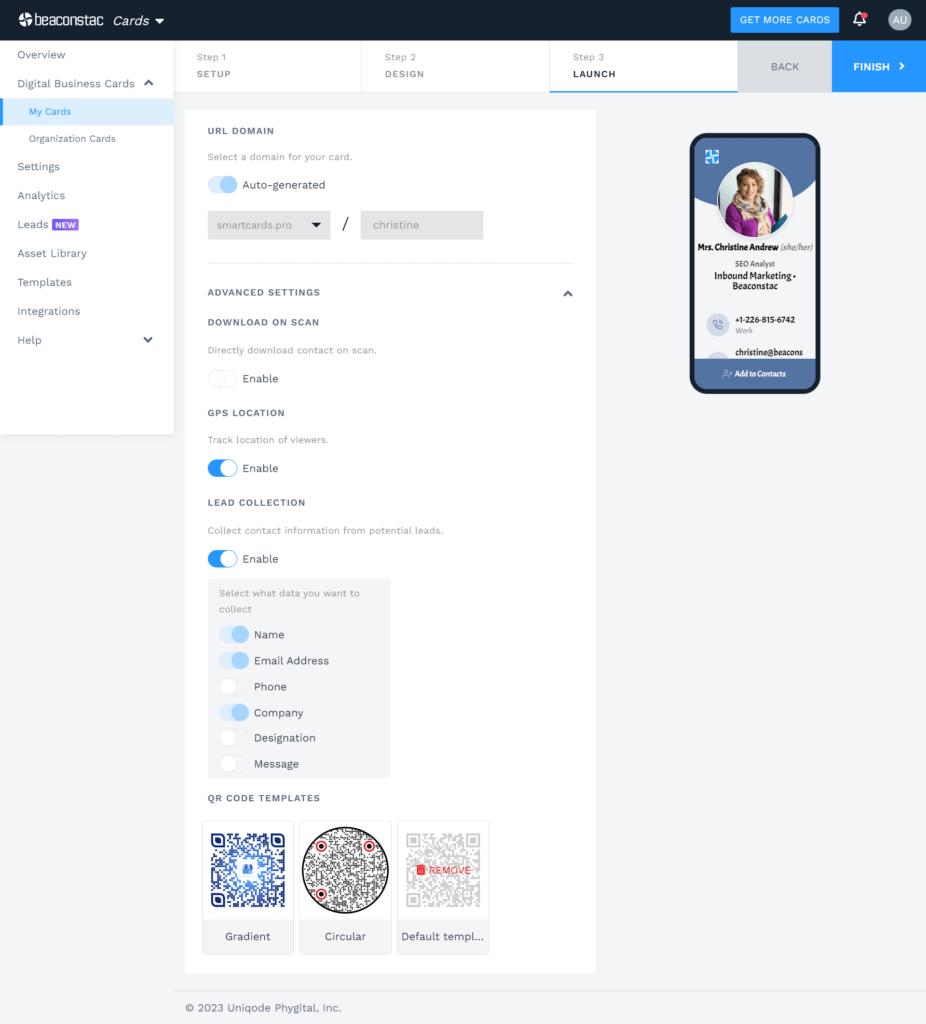
Note: If you wish to update your card URL, opt for our Team Plan or higher-pricing plans.
Step 6: Save the updates
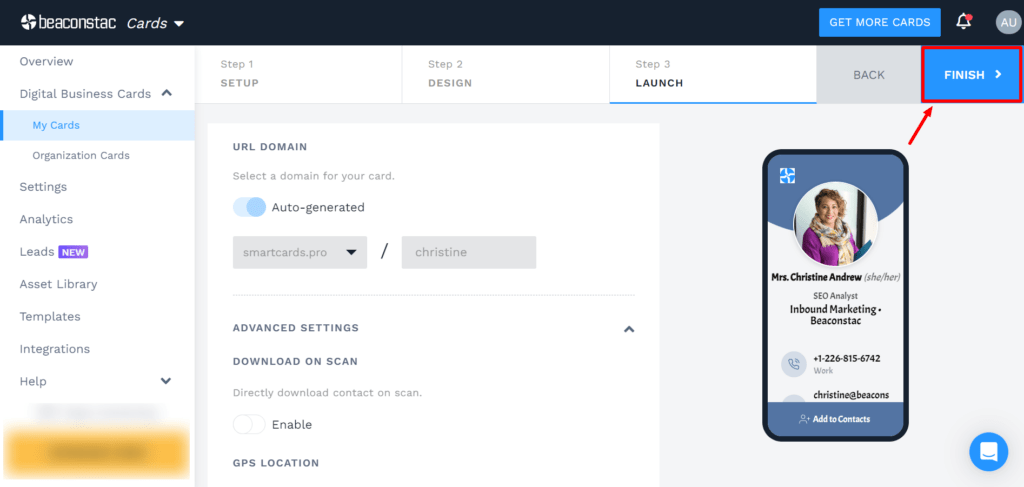
Click on the FINISH tab to save all the updates made to your digital business card. Upon clicking FINISH, your digital business card will reflect all your changes.
How do these card updates reflect on your client’s end? Do you need to reshare your card?
Not at all. You don’t have to recreate or reshare your digital business card in any way.
This is because all changes made to your card take place at the backend of your digital business card provider (Uniqode’s dashboard in this scenario). Your recipients can continue to scan the same digital business card QR Code and access your updated contact information.
That being said, you probably have one more question—What if I update my digital business card after an existing client scans it?
The answer is that you still don’t have to reshare your card. All your client has to do is refresh the business card landing page (that they must have visited after scanning your digital business card QR Code or clicking your card URL) to view your updated card details.
As an admin, what if you entered the wrong information while creating cards for your team members?
Usually, you would have to revisit the members’ cards and change the details individually and manually, resulting in double work for you. This is where Uniqode’s self-serve portal comes in handy.
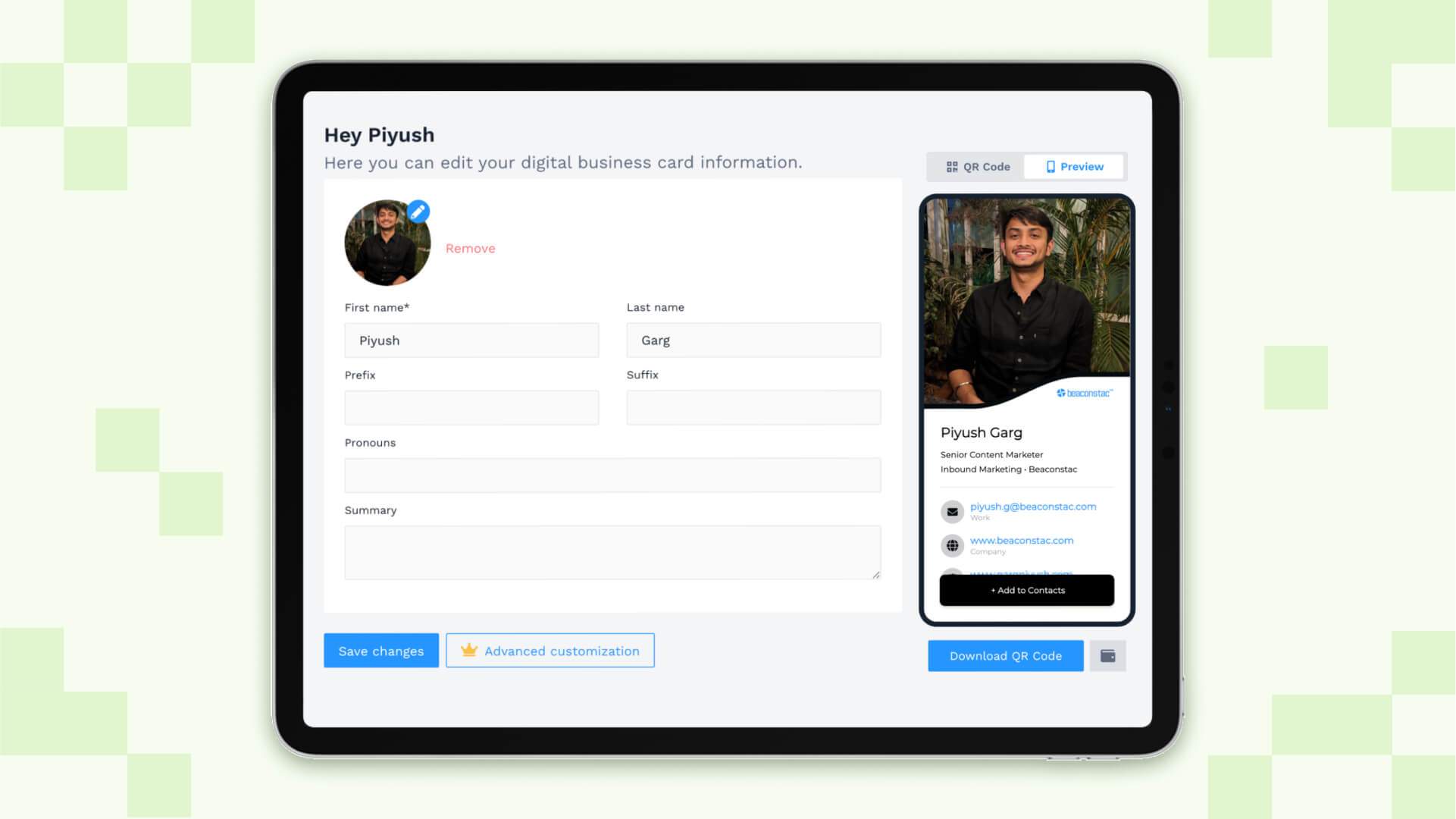
Through this portal, your team members can self-edit their card (only the fields you allow them to) without logging in to the dashboard. This is how the process works:
1. Share the digital business card via email with the respective team member. This email will contain the link to the self-service portal.
2. The team member can then access the portal via the link and update the fields (such as name, pronouns, prefix, etc.) you have given them the authority to edit.
3. Once updated, you, as the admin, can approve the changes made. That’s it. With Uniqode’s self-serve portal, a few minutes is all it takes to update your team members’ information.
Create and manage digital business cards with Uniqode for instant, ROI-driven networking
There you go—that’s how easy it is to update digital business cards with Uniqode.
In addition to letting you effortlessly update your digital business cards, Uniqode lets you instantly create thousands of them in bulk. Thus, helping you scale and efficiently manage multiple digital business cards.
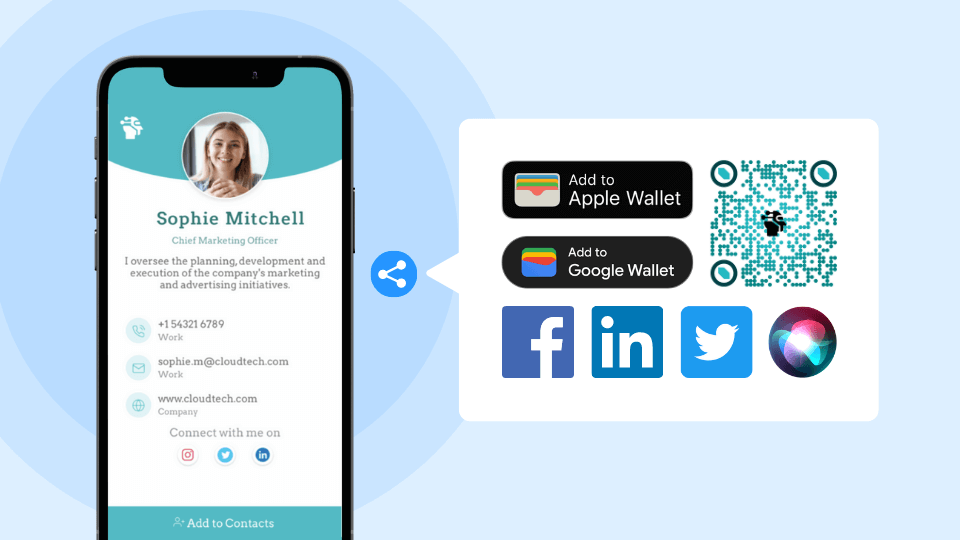
Furthermore, you can share these cards contactlessly and digitally by adding them to your mobile device’s Apple Wallet or Google Wallet. Also, through your digital business card, you can enable two-way contact sharingto capture your client’s contact information as soon as you share your card.
All these capabilities are available to you without downloading any additional app.
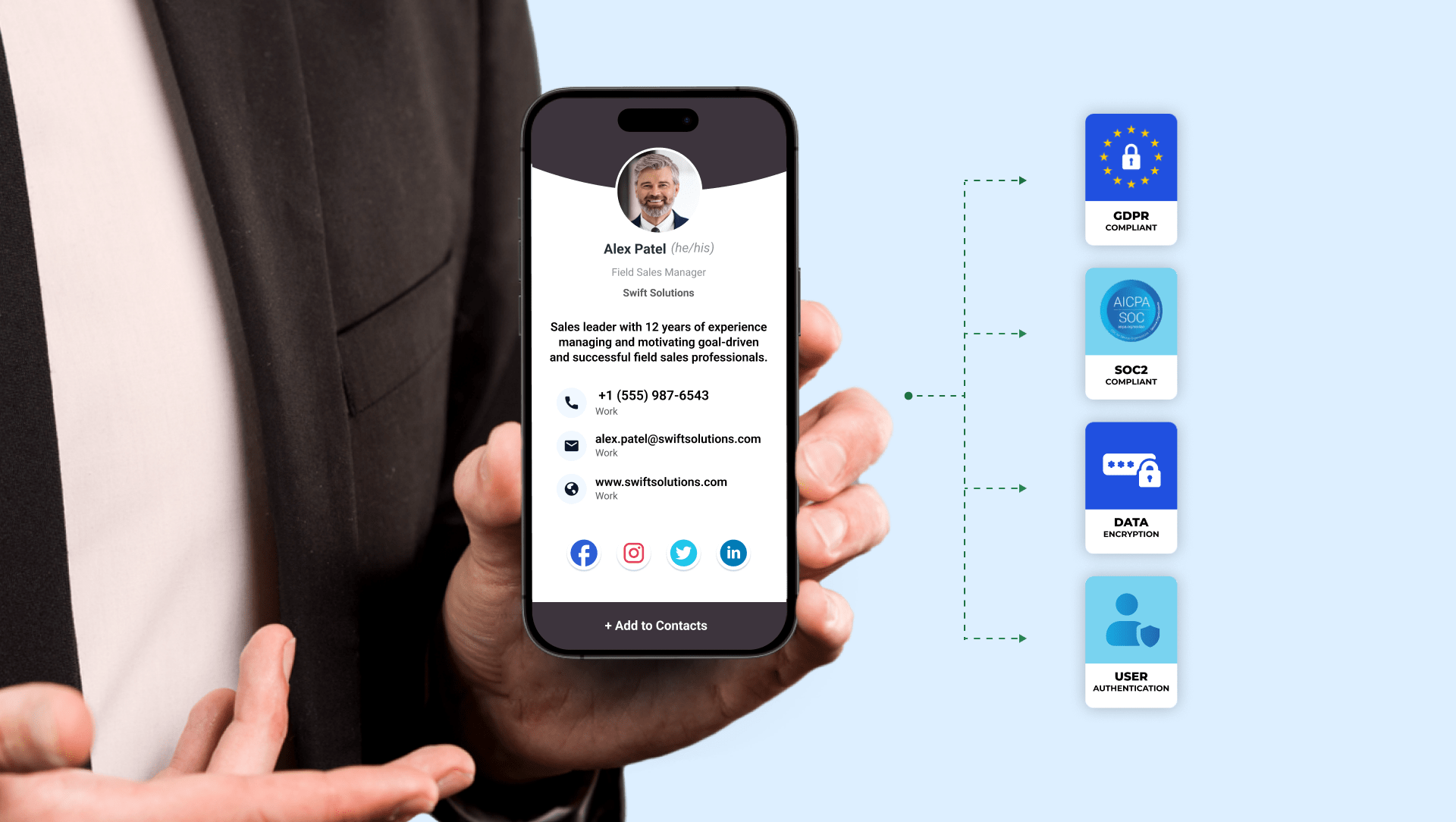
Lastly, Uniqode secures all your business card activities through enterprise-grade security measures such as GDPR and SOC 2 Type 2 compliance, SSO login, strong data encryption, and more.
Further reading: The 6 Best Digital Business Card Solutions: Compare and Decide
Frequently Asked Questions
- What information can you update on a digital business card?
You can update profile information including your first and last name, designation, department, prefix, suffix, pronouns, company, summary, and logo. Additionally, you can modify contact details such as phone number, email, website, and Google Maps location, as well as links to over 20+ social media profiles. Design elements like colors, font styles, and layouts are also customizable, along with networking features such as Download on Scan, GPS Location, and Lead Collection settings.
- How many times can you edit a digital business card?
Digital business cards can be edited unlimited times after creation and distribution, with each update taking less than 5 minutes to complete. Unlike paper business cards that require reprinting for every change, digital cards allow you to continuously update your profile information, contact details, social media links, and design elements through your provider's backend dashboard as many times as needed throughout your career.
- How do I update a digital business card?
Here’s how you can update a digital business with Uniqode’s digital business card solution:
- Log in to your Uniqode account and click on My Cards.
- From the dashboard, choose the card you want to update and click on the corresponding edit icon.
- Update the information you wish to modify—your profile information, contact details, or social links.
- Next, you can update the design and networking feature settings.
- Save the updates by clicking on Finish.
- How does a digital business card work?
The way digital business cards work is quite simple. It starts with the creation process, followed by distribution, and ends with your recipient saving your contact details and interacting with your card. Check out this resource to get a complete understanding of how digital business cards work.
About the Author
Kritika is a Senior Content Marketer at Uniqode, where she helps readers navigate networking in a phygital world. She has over 4 years of experience in breaking down complex technology trends into practical insights for the SaaS domain. Her blogs talk about how businesses can opt for smarter and sustainable networking practices with digital business cards. When she’s not writing, you’ll probably find her baking something new or hanging out with her dog—who, by the way, has her own digital contact card too.
Related Posts
Are Digital Business Cards Safe and Secure? All You Need To Know
Social Media Business Cards: Design Guide & Examples (2026)
How to Share a Digital Business Card: 9 Ways to Maximize Your Networking Efforts
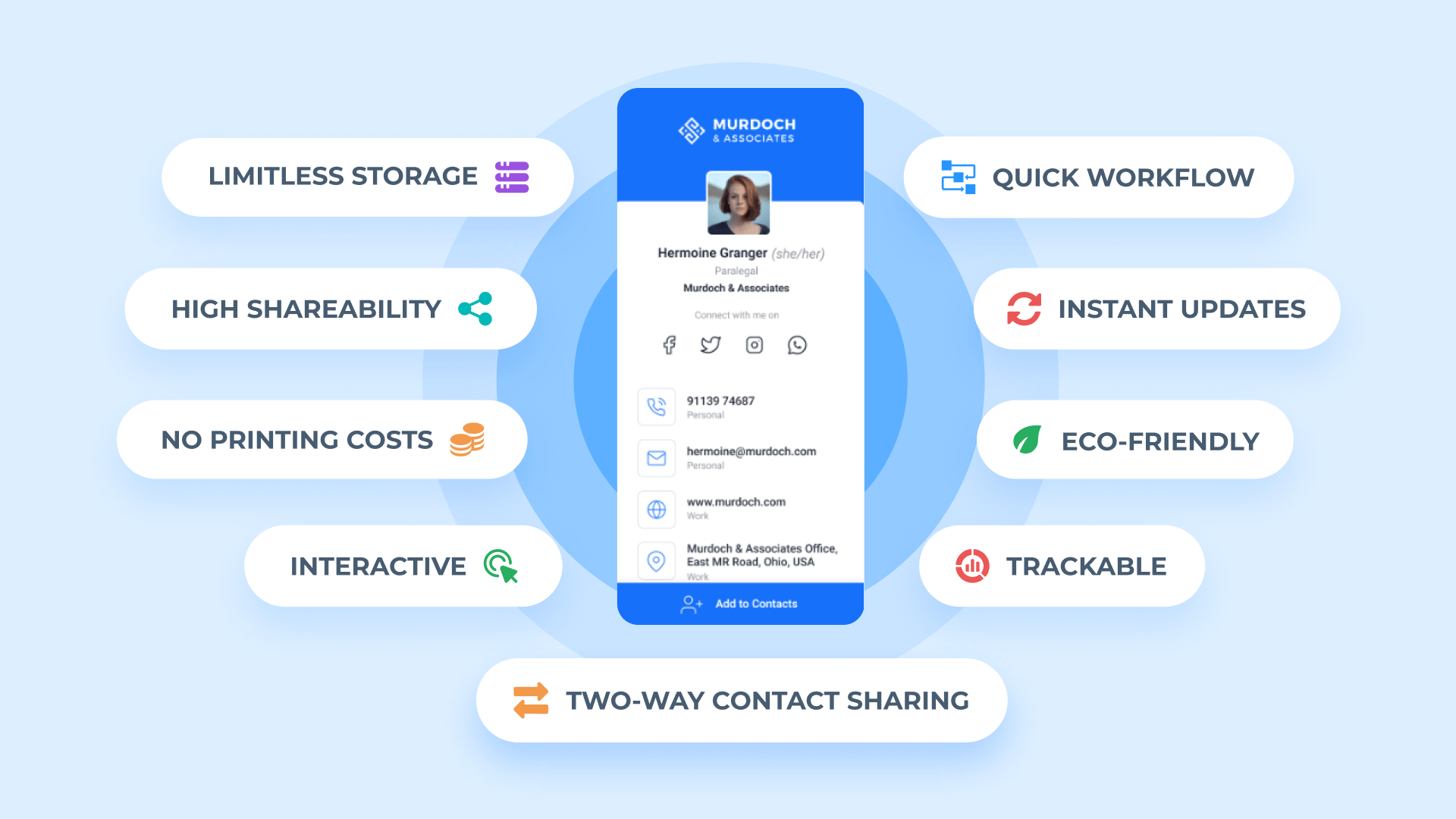
Digital Business Card Benefits: 10 Reasons to Use Them in Your Networking

How To Share a Digital Business Card on WhatsApp—& 7 Reasons Why