A Quick Guide To Creating a QR Code for Wedding Photos
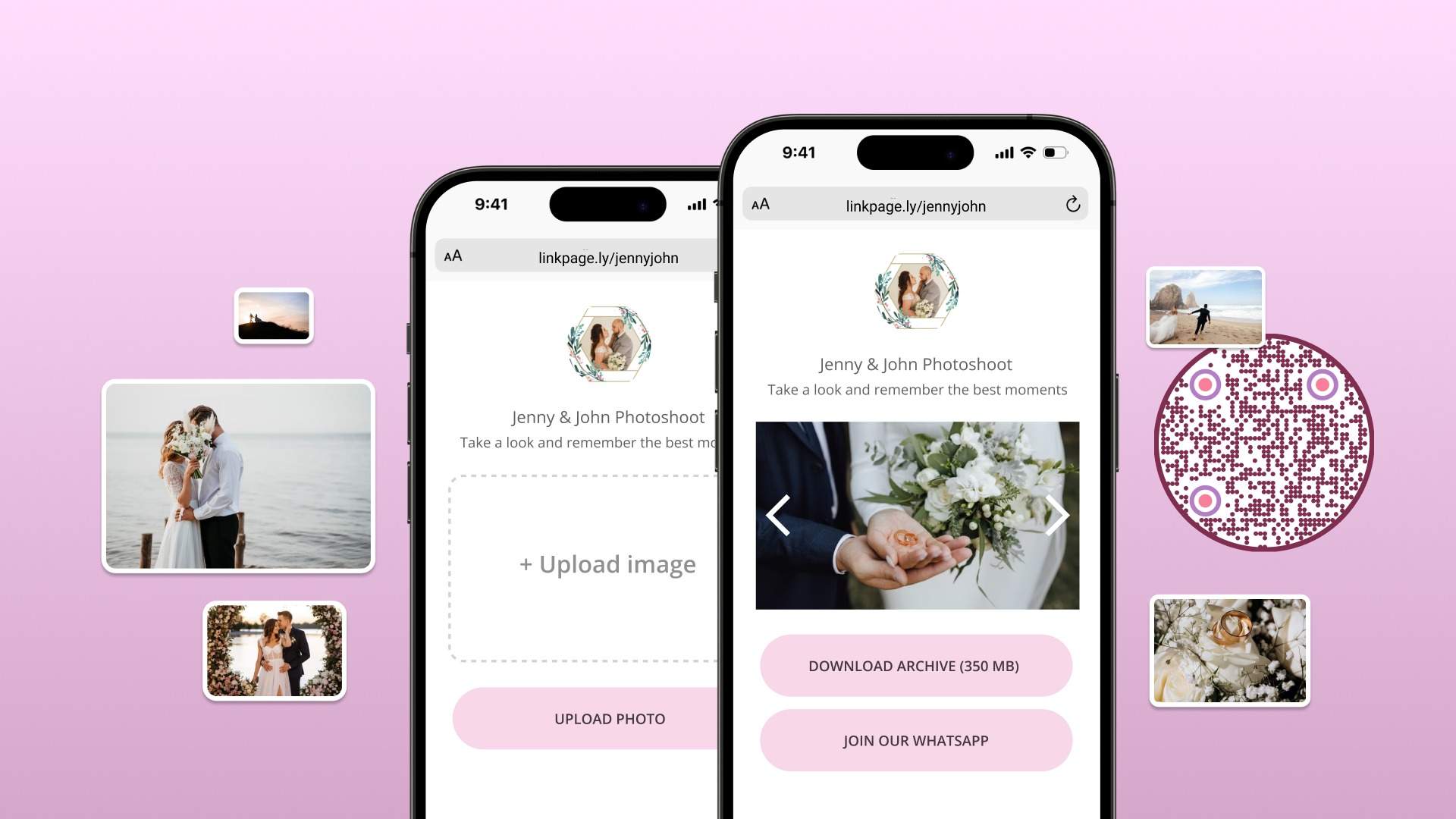
Learn how to make a QR Code for wedding photos and discover how QR Codes can help you share wedding memories, make uploads easier for guests, and photographers.
Wedding guests capture more candid photos on their phones during a single reception than most hired photographers shoot all night. Almost none of it reaches the couple.
A QR Code fixes this two ways: a free dynamic QR Code pointed at a shared Google Photos, iCloud, or Dropbox album you already control, or a dedicated wedding photo-sharing platform like Kululu or GuestPix, built around no-login guest uploads. Neither path is objectively "the best." What decides it is how much friction you'll let guests hit before they give up on uploading.
Let’s look at how you can create a QR Code to share wedding photos.
What are wedding photo QR Codes and how are they used

A wedding photo QR Code is a scannable code that directs guests to a shared album where they can upload, view, or download photos from the event. Instead of chasing people for pictures after the wedding, couples share one code that does all the collecting for them.
Wedding photo QR Codes are typically used to:
- Gather guest photos by linking to a shared Google Photos, iCloud, or Dropbox album guests can upload to directly
- Share a curated album of professional or couple-selected photos after the event
- Replace disposable cameras on tables with a modern, zero-cost alternative
- Direct guests to a photo booth upload link or slideshow running live at the reception
- Send thank-you galleries after the wedding by linking the same code to a final album
How to create your own QR Code for wedding photos
This is one path among several covered in this article, not the only way to get a QR Code in front of your wedding guests. It's also the fastest and cheapest, so it's worth doing right.
Step 1: Upload your photos to a shared album
Upload your photos to an online gallery such as Google Photos, iCloud, or Dropbox and create a shared album. Then, copy the album link.
Step 2: Go to the Uniqode dashboard and click "+Create"
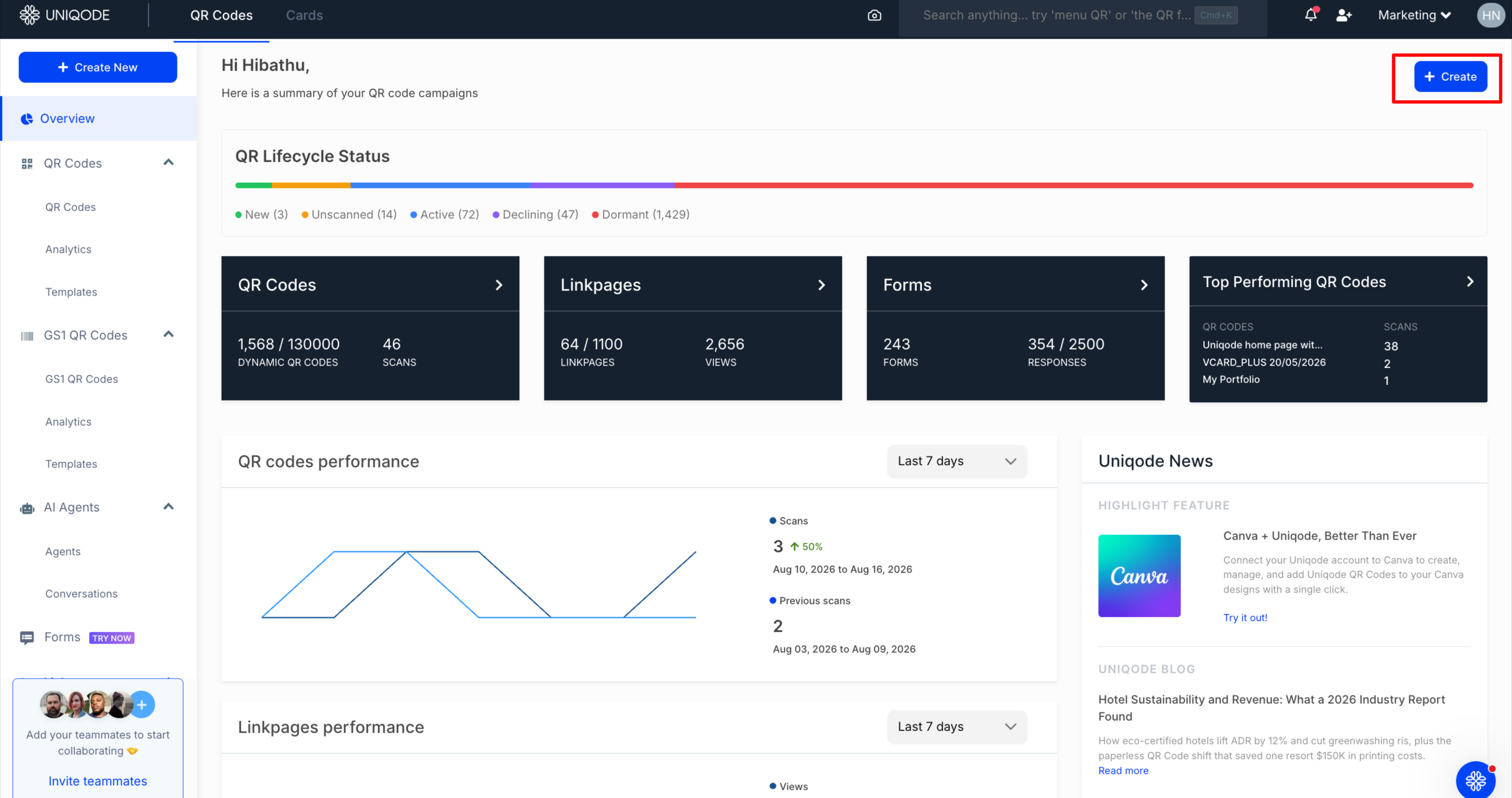
Go to the Uniqode dashboard and click +Create. First-time users can sign up for a 14-day free trial to get here.
Step 3: Select "Website" and paste the album link

Select Website as the QR Code type and paste the album link into the URL field.
Step 4: Customize your QR Code
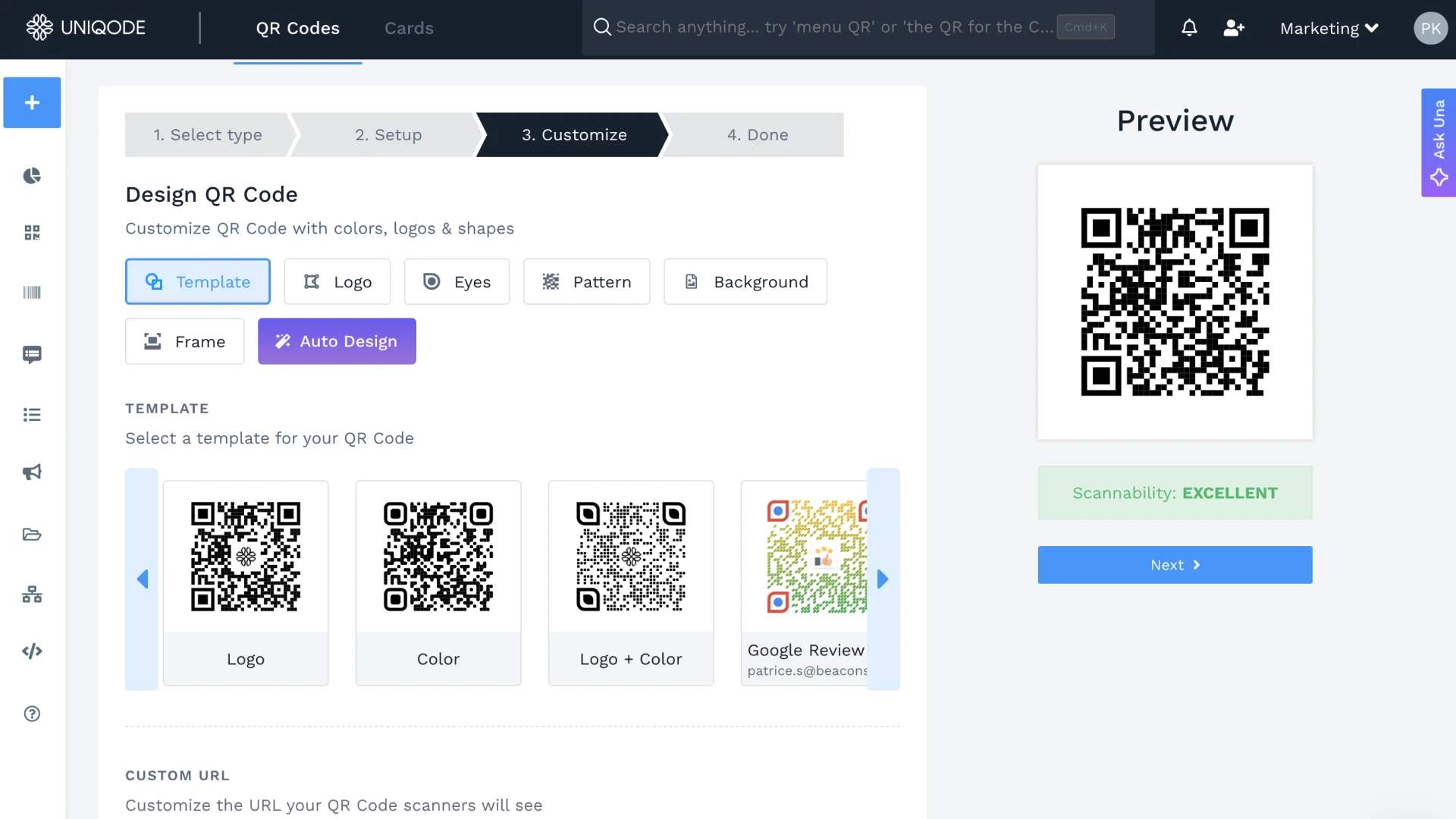
Customize your QR Code: colors, a frame, maybe a "scan to add your photos" caption.
Step 5: Test and download
Test the QR Code, then download it in the format you need for signage or invitations.
Static or dynamic QR Code: which one to choose for wedding photos
A wedding QR code needs to work from the moment invitations are printed to weeks after the last guest uploads their photos.
A free static QR Code for wedding photos locks in whatever you decide the day you generate it:
- You can't edit the album link if you uploaded the wrong one
- You can't track how many times the code got scanned
- You can't invite guests to keep adding photos after the fact
A dynamic QR Code avoids all three:
- Fix the destination at any point without reprinting
- Guests can keep uploading weeks after the wedding, since the code still resolves to whatever album it currently points at
- Password-protect the QR Code, useful if some of what guests upload is the kind of casual, candid material you'd rather keep inside the wedding party than sitting behind a link anyone who stumbles across it can open (this costs guests one extra step, typing a shared password, and means the album isn't protected by obscurity alone)
If your album link is final and you're not concerned about tracking or access, a static code is perfectly fine. If you want flexibility after the fact, dynamic is worth it.
Best practices for using wedding photo QR Codes
Whether the album lives in Google Photos, iCloud, Dropbox, or a dedicated platform, the same handful of checks prevent most of what actually goes wrong.
- Test the QR Code on cellular data specifically before it goes to print, not just your home wifi. A QR Code that resolves instantly on your phone can still fail on a guest's phone at a venue with one bar of signal.
- Print it big enough, with enough contrast and white space around it, to scan from across a table rather than only when held close to someone's face. A code shrunk to fit the corner of a place card isn't scannable at a normal reading distance.
- Keep a backup. A shortened link or a line of printed instructions next to the QR Code covers the guest whose camera app won't recognize it, more common than people expect on older phones.
- Label the QR Code. "Scan to add your photos" tells a guest what they're looking at. An unlabeled square of pixels on a table card doesn't, and plenty of guests will scroll past it assuming it's decorative.
Create wedding photo QR Codes in minutes
A wedding photo QR code is one of the simplest things you can add to your day, and one of the easiest ways to make sure no photo gets lost in someone's camera roll. Decide on your album link, pick your format, and you're done.
If your plans are set and you just need a QR Code that works, a static one is free. For more flexibility, a dynamic QR code lets you edit, track, and update your album link even after the wedding. Sign up with Uniqode and create your free QR Code for sharing wedding photos today.
Frequently Asked Questions
- What is the best QR Code for wedding photos?
There isn't a single best option. A free dynamic QR Code pointing at your own shared album covers most weddings. A dedicated platform like Kululu or GuestPix earns its price when you want no-login guest uploads, a live reception slideshow, or don't want to manage storage caps yourself. Match the tool to your guest list and timeline, not a generic ranking.
- How much does a QR Code for wedding photos cost?
A dynamic QR Code generator costs little to nothing for a single code pointed at your own shared album. Dedicated wedding photo-sharing platforms run $50 to $150 or more, depending on guest count and which features, a live slideshow or guestbook among them, you add on top.
- How do I create a QR Code for my wedding pictures?
Upload your photos to a shared album, copy the album link, and paste it into a dynamic QR Code generator, choosing "Website" as the type. Customize the design, test it, and download it for print or digital use. The full walkthrough is above.
Related Posts

How to Create a Black Friday Landing Page That Converts (2026)
BFCM Marketing Ideas for 2026: In-Store and Online
Christmas QR Codes: Ideas, Real Examples, and How to Create One
How to Create a QR Code for a Wedding Invitation
How To Create a QR Code for a Wedding Registry