
How to Create a QR Code for a Wedding Invitation
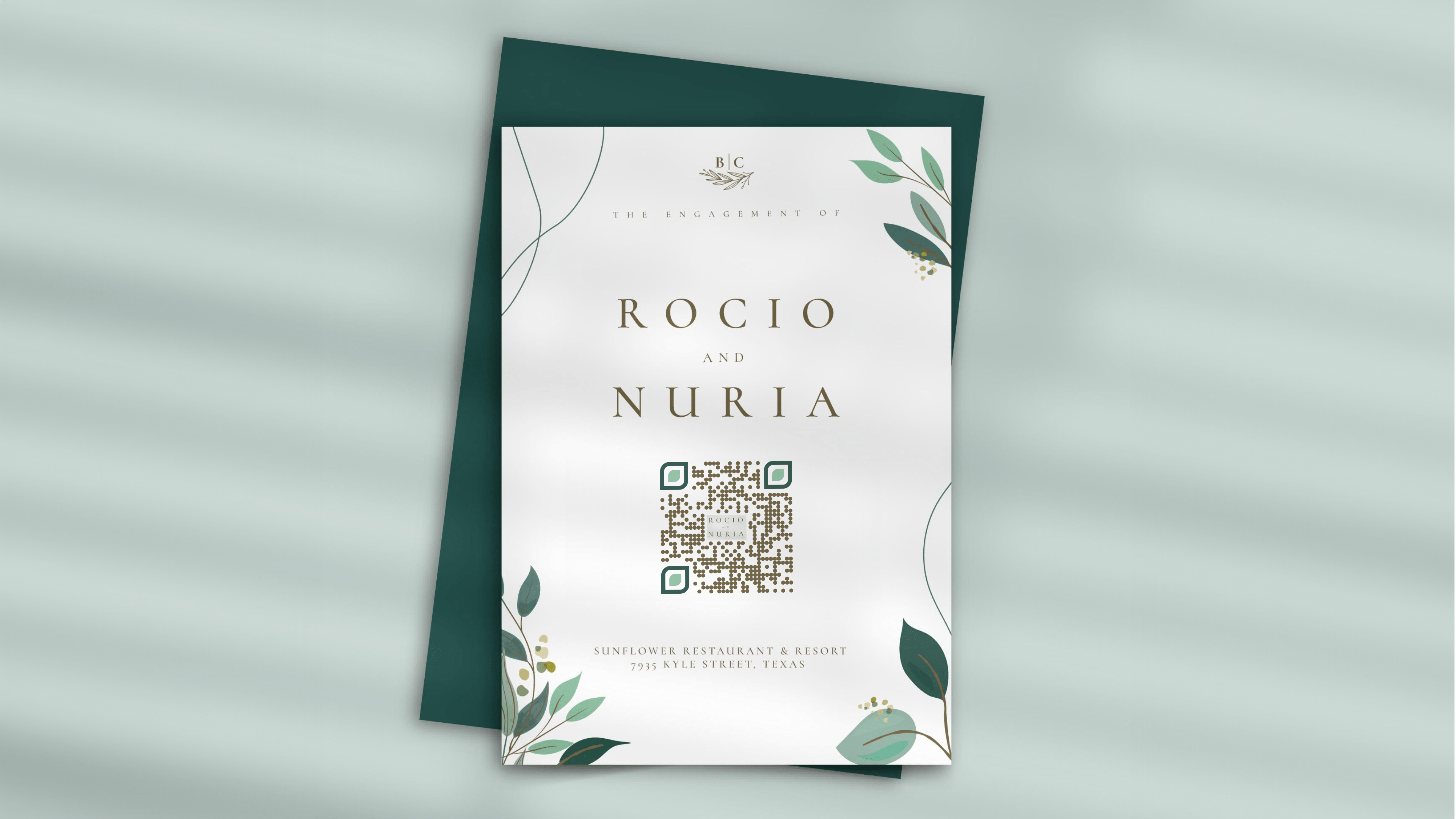
Learn how to create a QR Code for wedding invites and make program information-sharing easier. Share your wedding card, photos, and venue location with your guests with QR Codes.
A wedding invitation QR Code can do three things: link to your wedding website, pin your venue location, or open a shared photo gallery for guests. Most guides only cover the first one, but all three are useful depending on what you need.
This guide walks through building all three and shows you where each one fits on your invitation.
What is a QR Code for a wedding invitation?
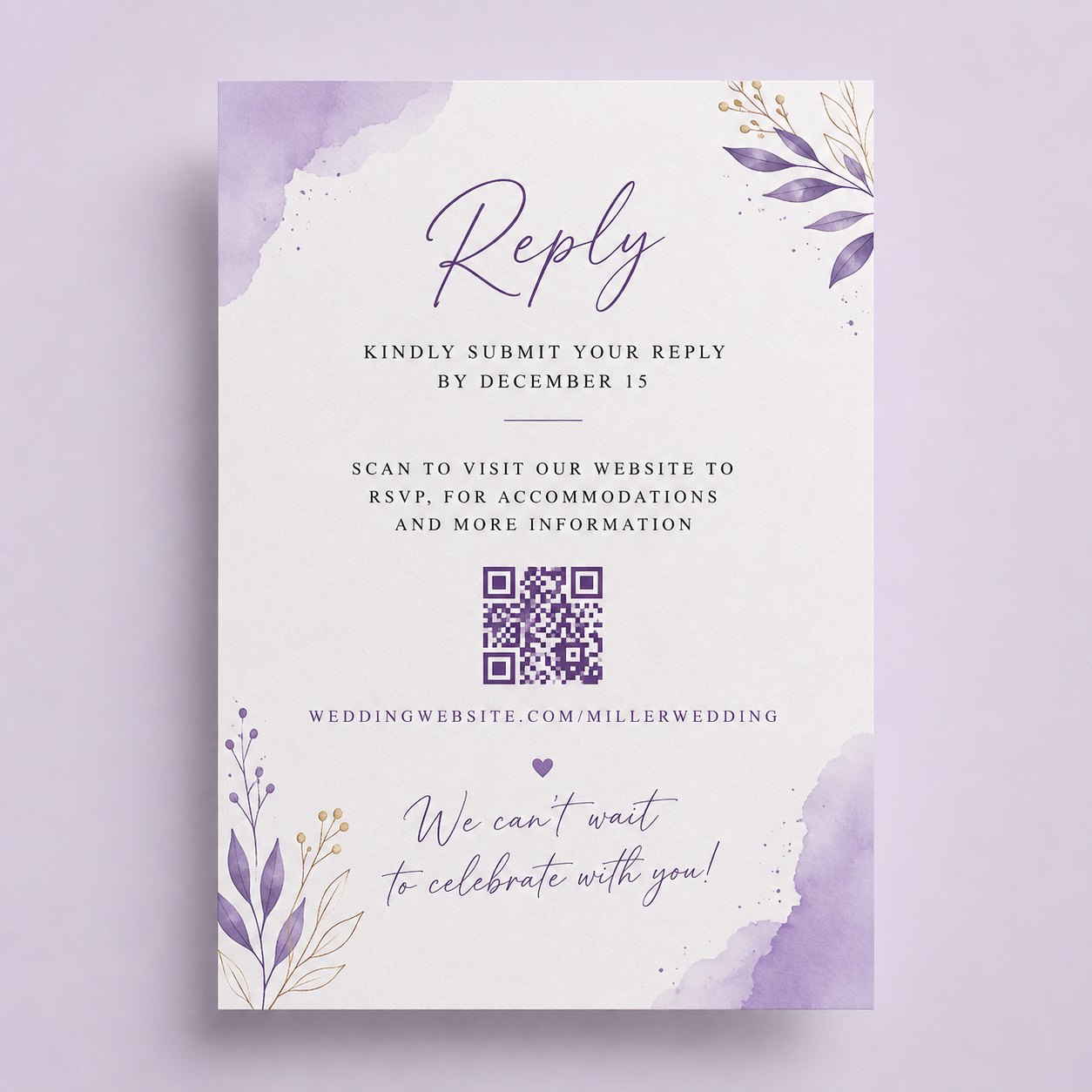
A QR Code for a wedding invitation is a scannable code printed on your invite that instantly connects guests to information they need. Instead of cramming venue directions, RSVP links, and registry details onto the card, you encode them into a single scan.
Guests point their phone camera at the QR Code and land on your wedding website, a map, or a photo gallery within seconds. You can update the destination anytime without reprinting, making it a practical and elegant alternative to cluttered invitation text.
How to use QR Codes in wedding invitations
A single wedding invitation can carry more than one QR Code, each pointing guests somewhere different:
- Wedding website: link straight to your site for RSVP details, registry links, and travel information.
- Venue location: open a Google Maps or Apple Maps pin so guests get turn-by-turn directions instead of hunting for an address, useful for a barn, a private estate, or anywhere autocomplete gets wrong.
- Photo QR Code: point guests to a shared album, like a Google Photos folder, so pictures from the day land in one place instead of scattered texts.
- Digital RSVP: skip the mailed-back card and link directly to an RSVP form guests fill out from their phone.
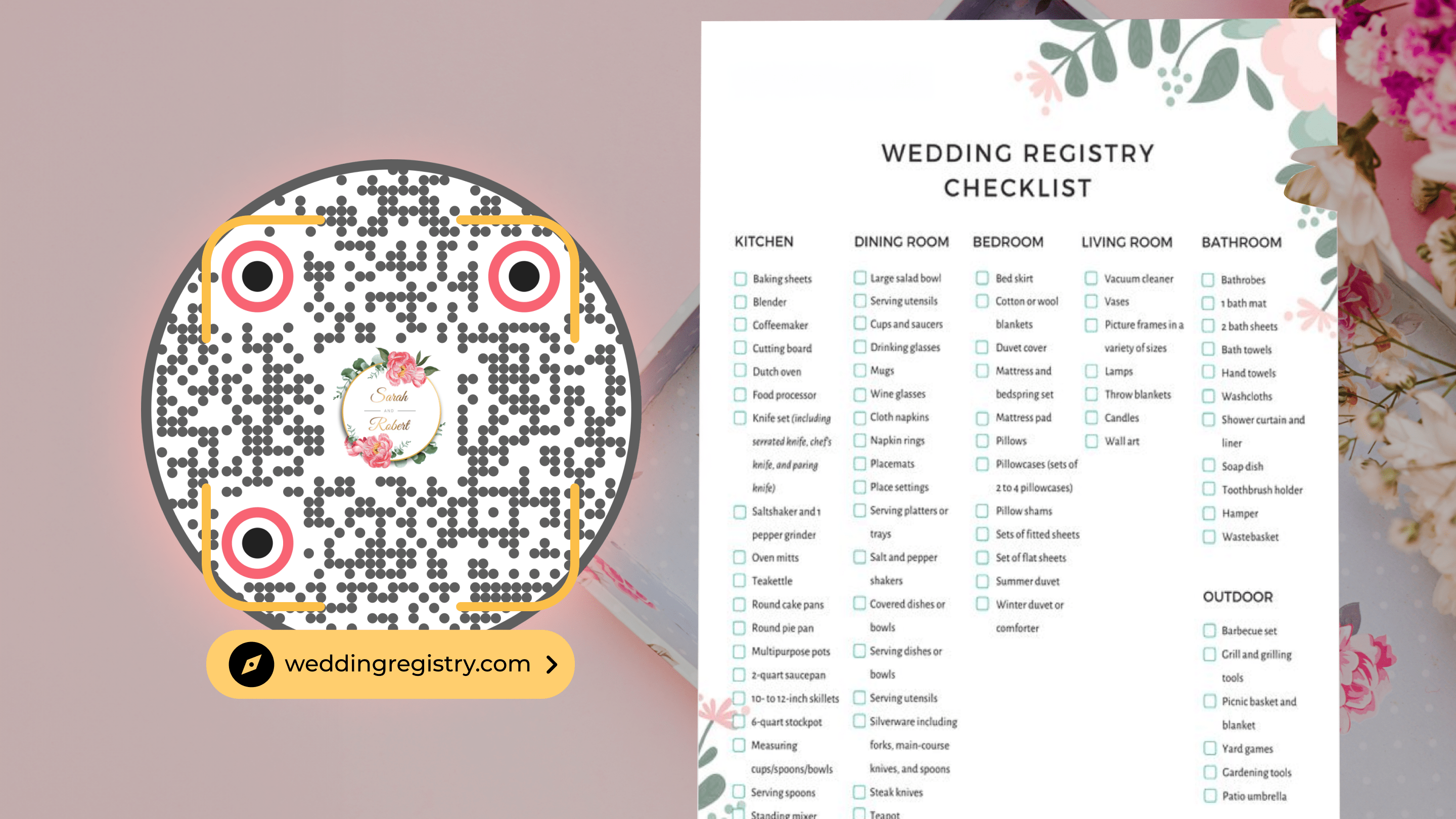
- Wedding registry QR Code: link directly to your registry on Amazon, Zola, Crate and Barrel, or any other platform so guests can browse and purchase gifts without typing a URL or searching by name.
How to create a QR Code for your wedding invitation
1. Copy your destination link
Grab the URL you want the QR Code to open: a PDF invitation, your wedding website, a Google Maps venue link, or a shared photo album. For this example, we’re choosing ă website.
2. Select "Website" as the campaign type
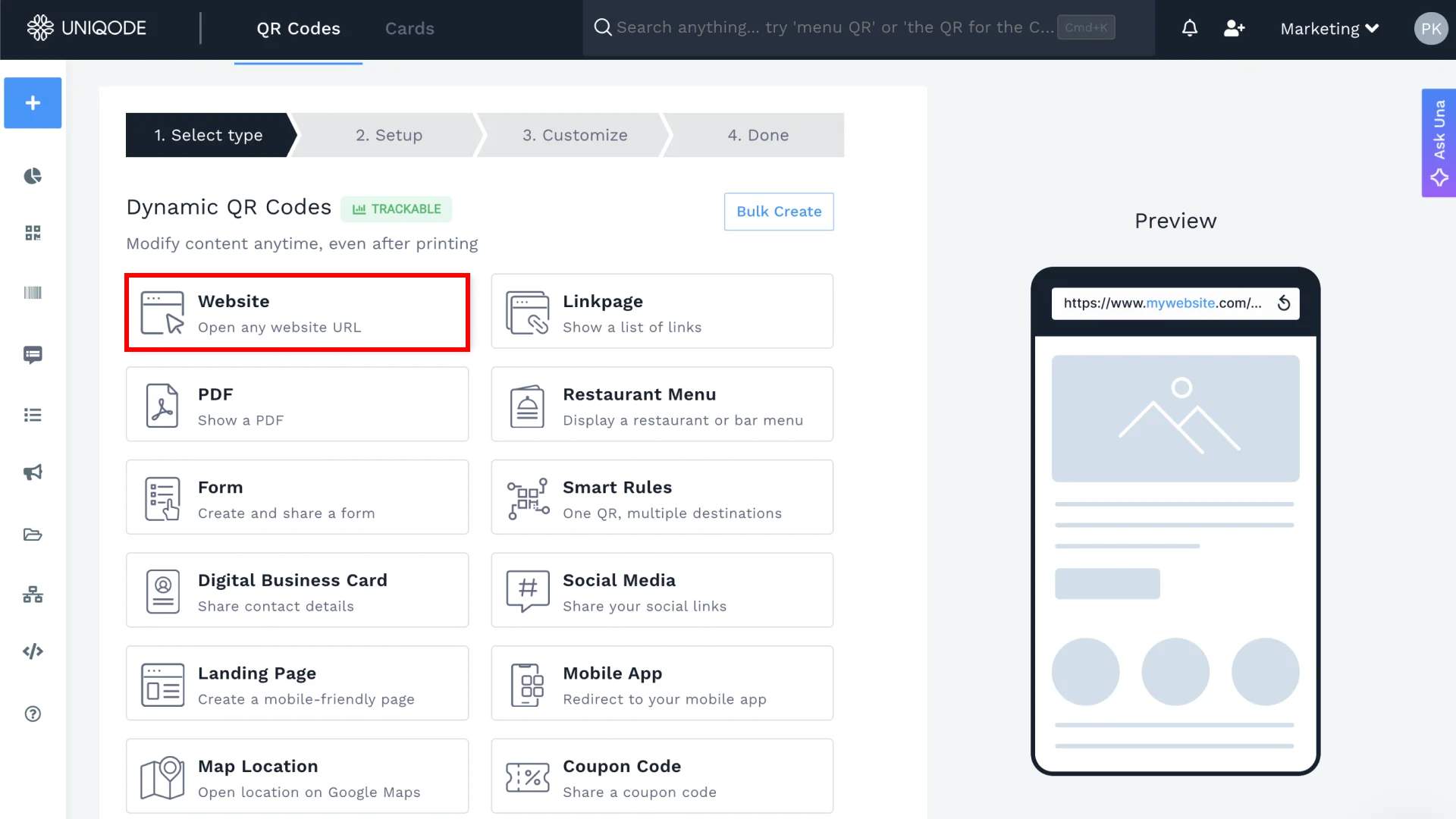
Go to the Uniqode dashboard. Select the Website as the campaign type.
3. Enter your website URL
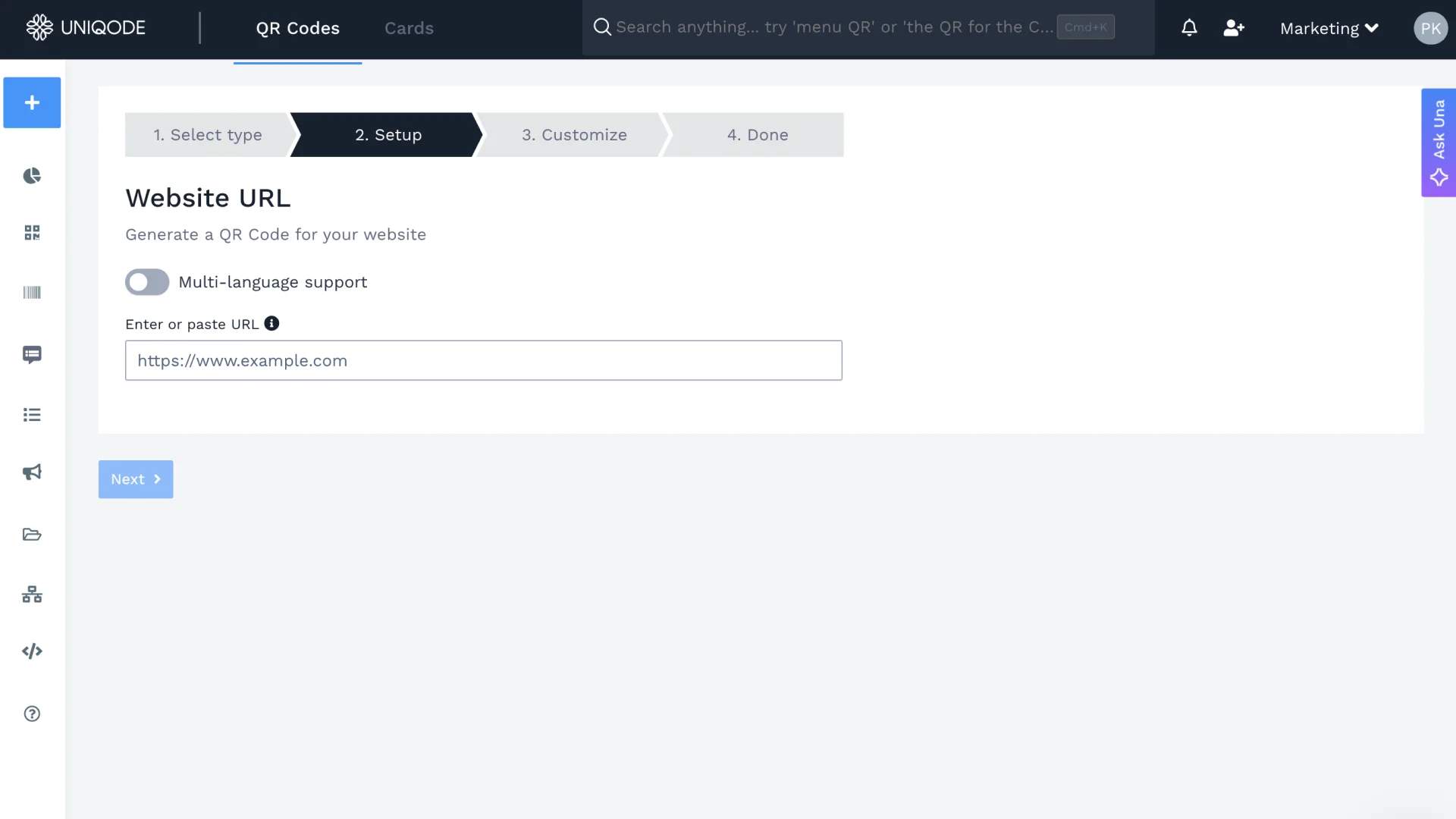
Paste your destination link into the field. This same campaign type handles all three link types.
4. Customize the design
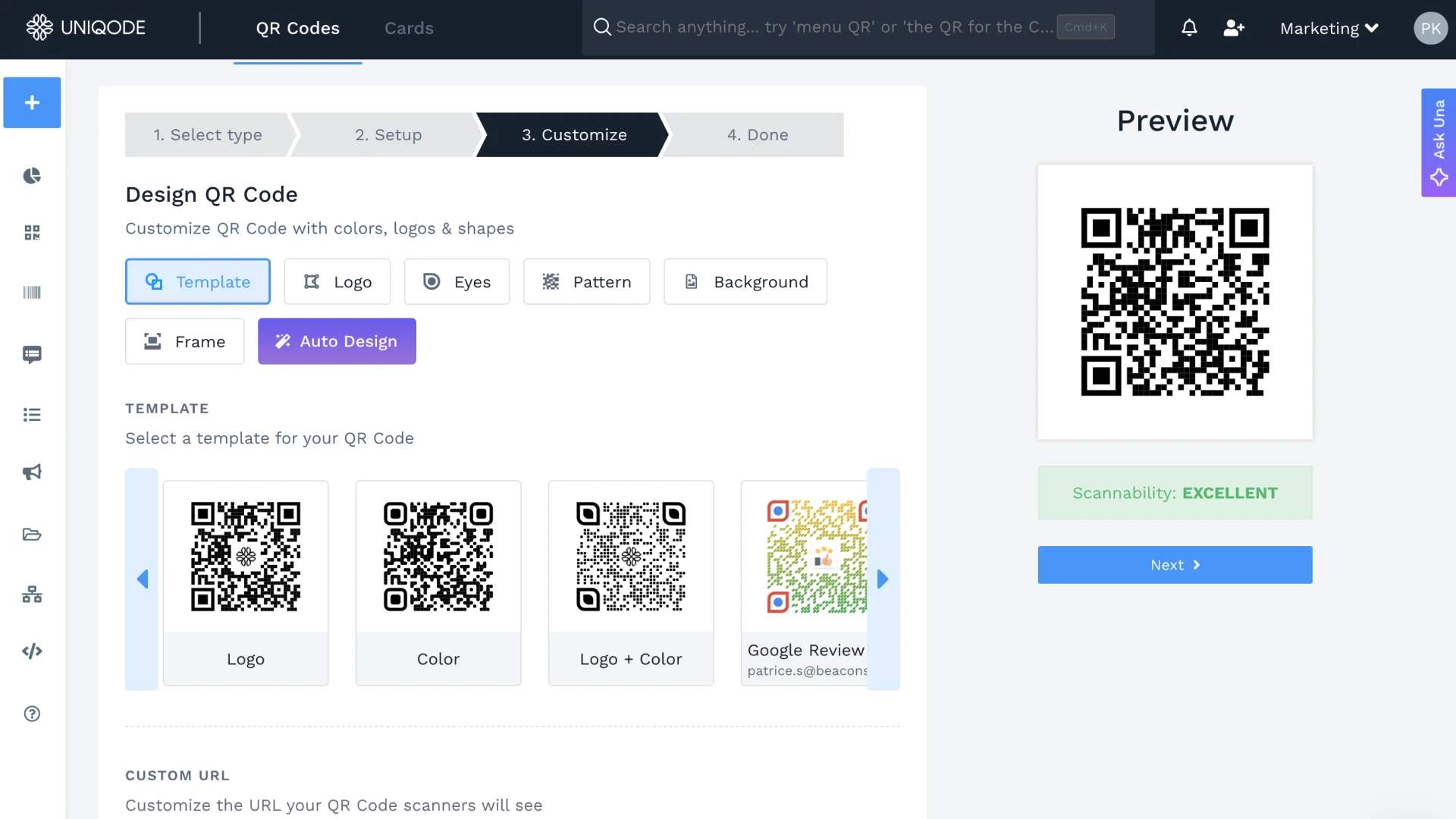
Change the shape, colors, and add a logo or frame so the code matches your invitation. Choose between a static or dynamic QR Code here too.
5. Test and download
Scan the code yourself first, then download it in the format your printer or invitation designer needs.
If your invitation is pointing guests toward a gift registry instead, the registry has its own considerations, mainly which platform (Amazon, Target, The Knot) you're linking and how long that link stays valid. Uniqode's guide to wedding registry QR Codes covers that separately.
Static or dynamic: picking the correct QR Code for your wedding invitation
You can use static QR Codes for a one-time use case, but they have a flaw: if you make a mistake, you can't fix it in the same QR Code. You also cannot make last-minute changes to the program, menu, venue, or accommodation details.
In contrast, a dynamic QR Code adds flexibility, convenience, engagement, and tracking capabilities. This can save you from stress and enhance the experience for your guests:
1. You can track scans
- Track how many guests have scanned the QR Code to keep tabs on who has viewed your invitation and who has not
- Make critical event management decisions based on analytics to save time and money
2. Engage your guests
- Dynamic QR Codes add an interactive element to your invitations
- Create an RSVP QR Code linking to a page where guests can RSVP and leave messages for the bride and groom
- Link the code to the invitation card, making it easier to invite guests
3. Edit QR Code destination
- Change the destination URL even after the QR Code has been printed
- Update wedding program details on your website without recreating the QR Code or reprinting invitations, saving time and cost
4. Give guests access to information easily
- A dynamic QR Code gives guests instant access to all the information they need
- Design the QR Code to suit your wedding aesthetic so guests can scan to find venue, menu, and accommodation details
Get started with your wedding invitation QR Code
Building the right QR Code for a wedding invitation comes down to matching the code to the job. Skip the location code if your venue is easy to find, and focus on the website or RSVP link. Add it if your venue is remote or the kind of address that confuses map apps. If you want a photo gallery guests can contribute to, that's a separate code, covered in Uniqode's wedding photos QR Code guide. Once you know which of these you need, the dashboard flow above gets you a print-ready code in a few minutes.
Sign up for a free trial on Uniqode and create a QR Code for your wedding invitation.
Frequently Asked Questions
- How do I create an RSVP QR Code?
You can create an RSVP QR Code by setting up an online RSVP form using a service such as Google Forms.
1.Copy the URL of your RSVP form
2.Go to Uniqode’s dashboard, click “+Create”
3.Choose “Website” as your campaign
4.Enter the URL in the given field
5.Customize it by adding a logo and frame
6.Download the QR Code in your desired format
- How do I create a QR Code for my venue?
You can create a QR Code for your venue using the address or location coordinates.
1.Generate a URL that links to a map of the venue
2.Copy the URL of your venue location
3.Go to Uniqode’s dashboard, click “+Create”
4.Choose “Website” as your campaign
5.Enter the URL in the given field
6.Customize it by adding a logo and frame
7.Download the QR Code in your desired format
- Do guests need a special app to scan a wedding invitation QR Code?
No. Every modern iPhone and Android phone scans QR Codes directly through the native camera app. Point the camera at the code and a notification pops up to open the link, no separate scanner app or download required.
- How do I make sure the QR Code actually scans once it's printed?
Test the code yourself on two or three different phones before the full print run goes out, and make sure it has enough size and contrast against the card's background to scan cleanly. A test print costs nothing. A failed scan on 150 mailed invitations costs the whole run.
Related Posts
How to Create a Black Friday Landing Page That Converts (2026)
BFCM Marketing Ideas for 2026: In-Store and Online
A Quick Guide To Creating a QR Code for Wedding Photos
Christmas QR Codes: Ideas, Real Examples, and How to Create One
How To Create a QR Code for a Wedding Registry