
Chrome QR Code Generator: 4 Ways to Create a QR Code in Chrome
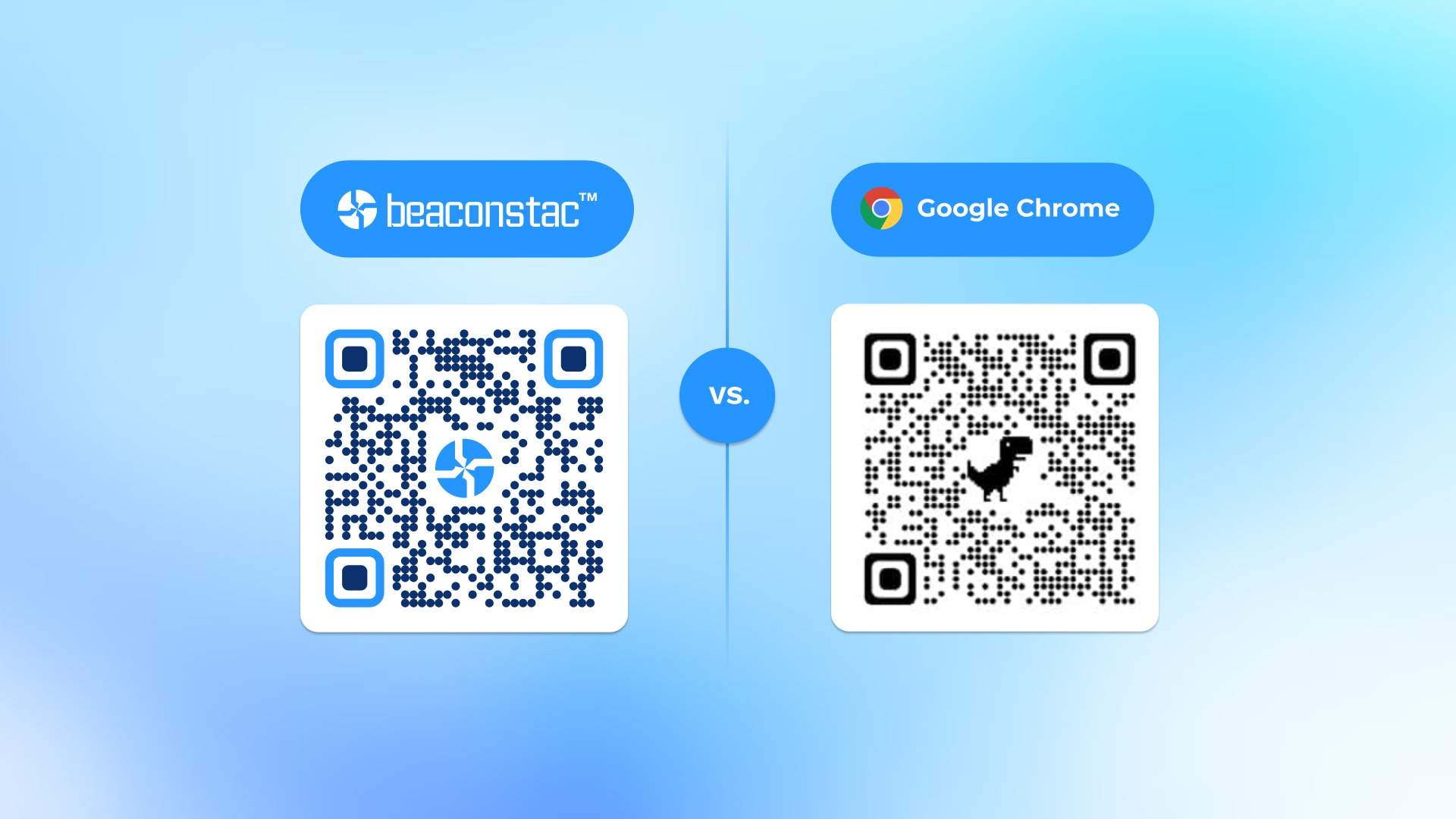
Learn how to create a free, static QR Code on Google Chrome. But if you want to use QR Codes extensively, run campaigns and track performance- leverage Uniqode’s QR Code solution.
Creating a QR Code in Google Chrome is quick and convenient. You can open any webpage in Chrome, click the three dots on the left-hand side of the address bar, and select Create QR Code to generate one in seconds. For more advanced needs, like customizing a URL, you’ll need a dynamic QR Code tool.
What is a Google Chrome QR Code?
A Chrome QR Code generator converts any webpage URL into a scannable QR Code. Google Chrome includes a free, built-in QR Code feature in the Share menu bar, so there's nothing to download or install. It works across desktop (Windows, Mac, Linux, Chromebook), Android, and iPhone, making it one of the most accessible ways to share a link on the spot.
When scanned, the QR Code instantly directs users to the encoded webpage, so there's no typing or copying long URLs. It's useful for quick, one-time sharing, like sending someone to a page during a meeting or pointing a phone at a screen to open a link. The built-in feature handles that job in a few clicks.
How to create a QR Code in Google Chrome (four methods)
Chrome gives you four ways to generate a QR Code. The right method depends on what you need the QR Code to do. The table below shows a quick comparison of all four options.
| Method | Best for | QR Code type | Editable after creation? | Tracks scans? |
|---|---|---|---|---|
| Chrome's built-in Share feature (desktop) | Sharing a URL from your Chrome desktop | Static | No | No |
| Chrome's built-in Share feature (iOS and Android) | Sharing a URL from Chrome mobile app | Static | No | No |
| Uniqode Chrome extension | Regular in-browser QR Code creation, clean output | Dynamic | Yes | Yes |
| Uniqode web QR Code generator | Print, campaigns, anything lasting | Dynamic | Yes | Yes |
Choosing between Chrome's built-in tool and Uniqode comes down to whether the QR Code is static or dynamic. Chrome's built-in tool encodes your destination URL directly into the pixel matrix at the moment of creation. Once created, the destination is permanent. Uniqode's QR Codes use a short redirect, so you can redirect the QR Code destination from the dashboard without generating a new code or reprinting anything.
If you're sharing a link for a quick meeting or sending someone to a page that will never change, Chrome's built-in tool does the job. If the code will be printed, distributed, or used anywhere, it needs to last beyond this browser session, so choose a third-party QR Code tool like Uniqode.
Method 1: Chrome's built-in QR Code generator (Windows, Mac, Linux, Chromebook)
Chrome has a QR Code generator in the browser's menu. It’s free, requires no additional installation, and generates a code for the URL in the address bar. Below are three steps to use Chrome’s built-in QR Code generator.
Step 1: Open the URL you want to share in Chrome.
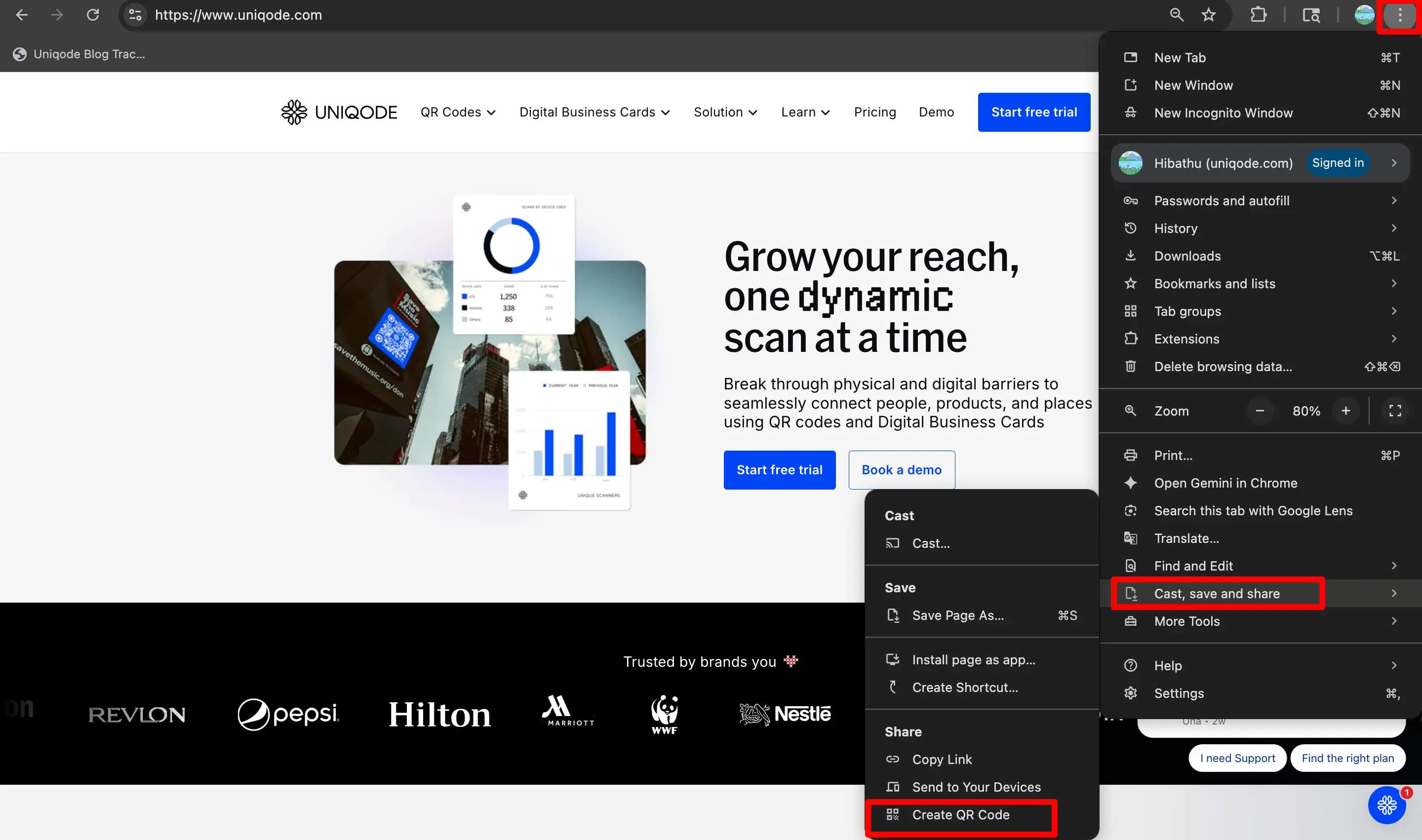
Step 2: Select the three dots from the left-hand side, and then choose Cast, save, and share. Click Create QR Code.
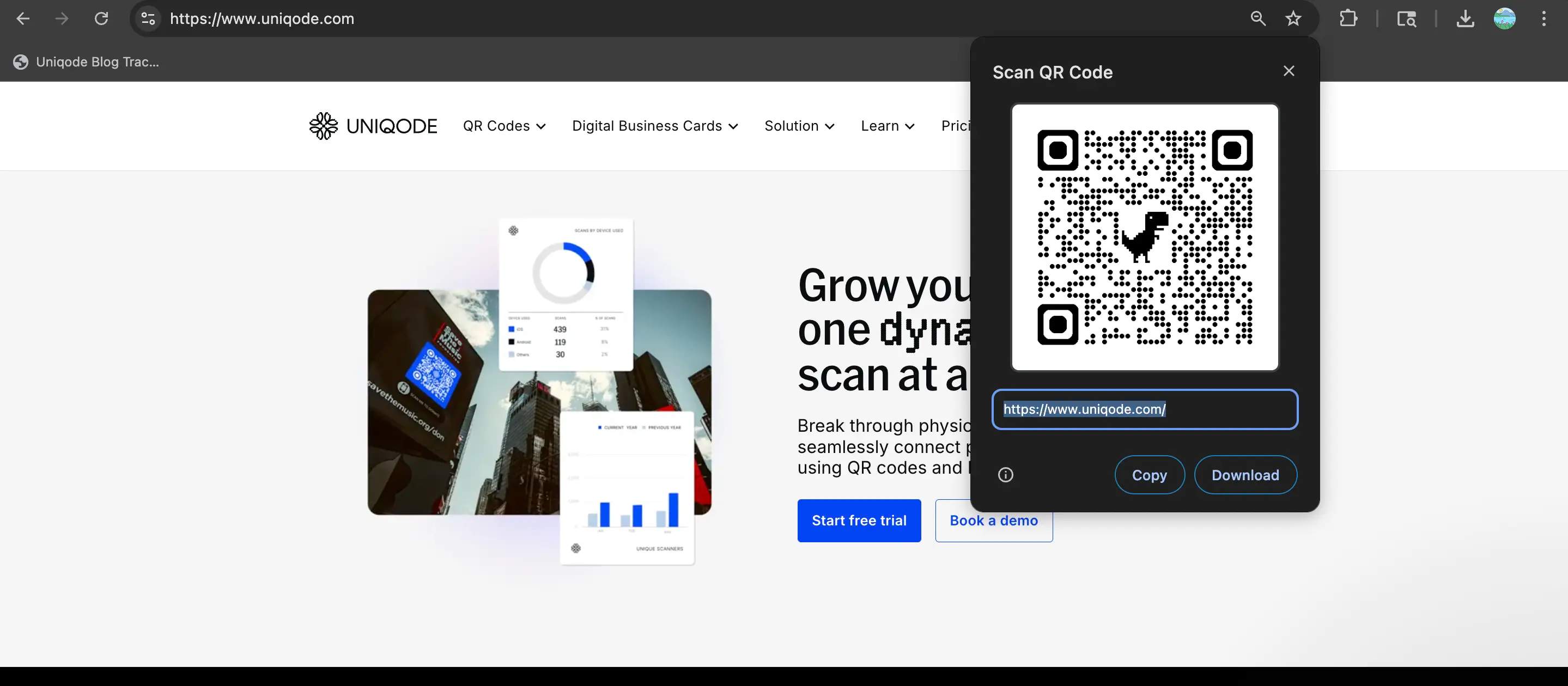
Step 3: The QR Code will instantly appear in a small pop-up panel. Click Download to save it as a PNG file.
Method 2: Using the mobile browser (Android/iOS)
Chrome's mobile app lets you generate a QR Code directly from the browser, without switching to another app.
Step 1: Open the Chrome app and navigate to the page you want to share.
Step 2: Tap the three dots on the left-hand side of the address bar. Scroll through the options and choose Share.
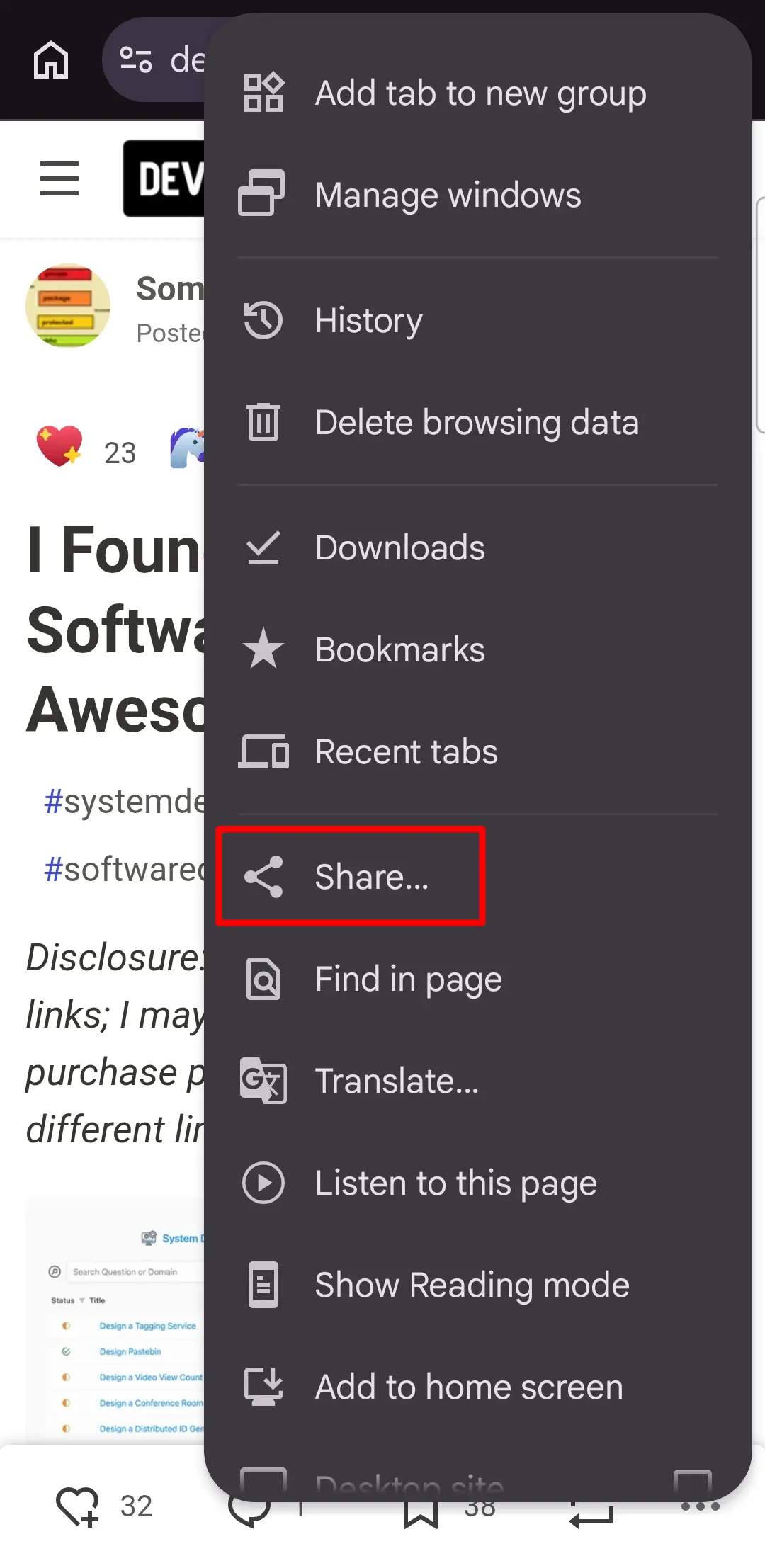
Step 3: Select QR Code from the share options.
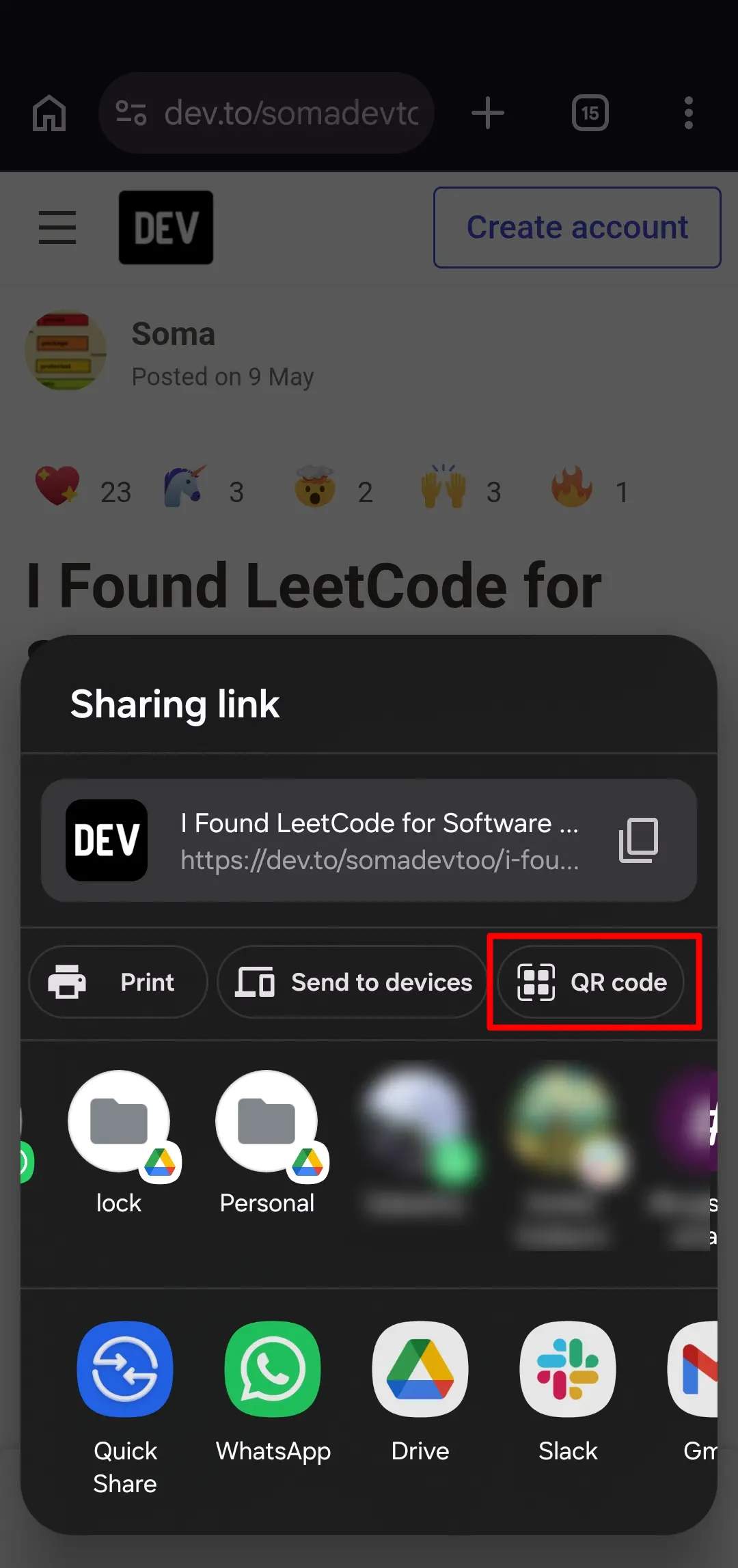
Step 4: The QR Code appears on your screen. Tap Download to save it, or use the share options to send it directly.
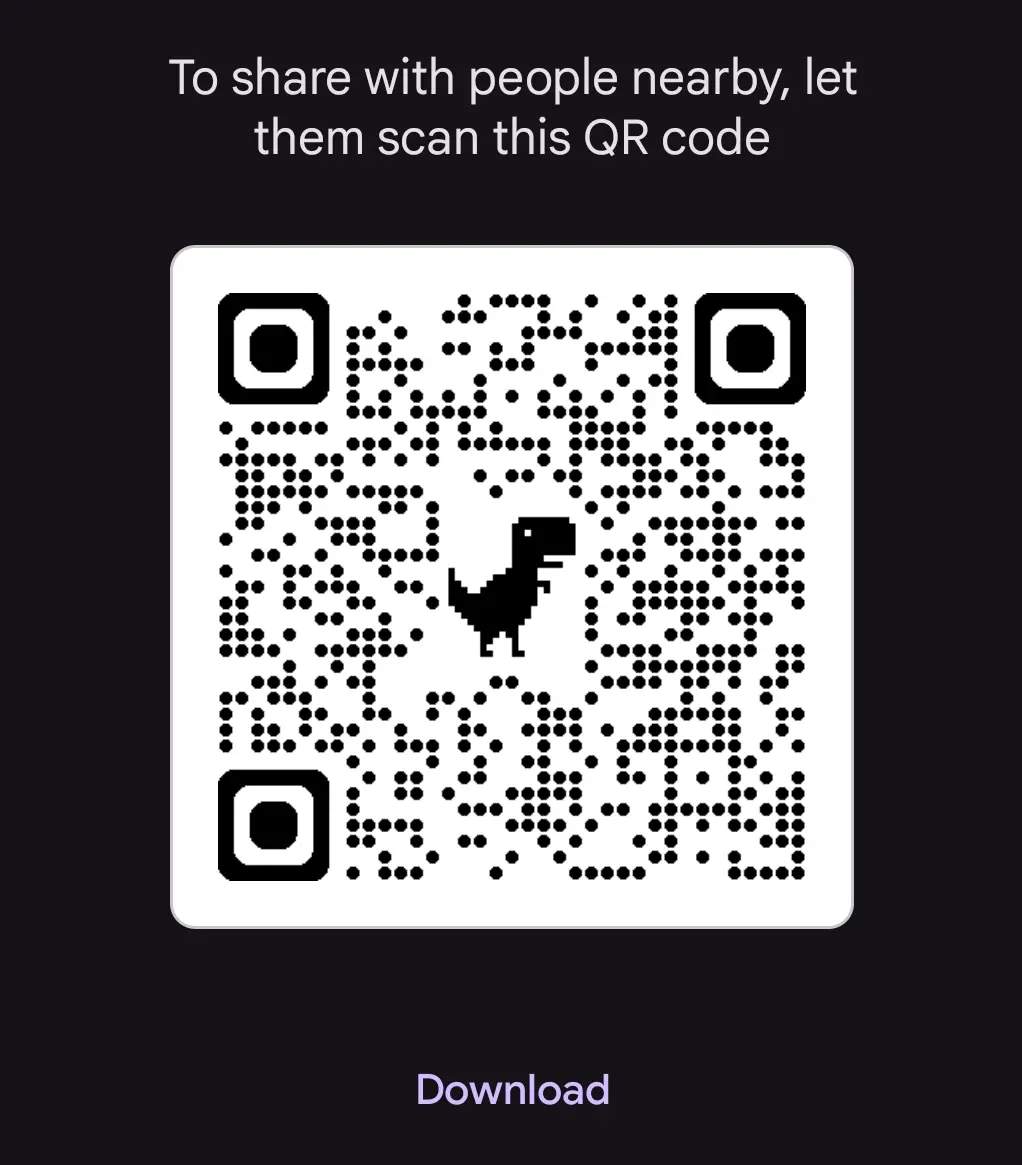
What Chrome's QR Code can't do
Chrome generates a static QR Code. The URL is burned into the pixel pattern at creation. After that:
- The destination cannot be changed.
- There is no scan tracking or analytics.
- If the destination URL breaks or changes, the QR Code continues scanning as normal, with no error, no alert, and no way to know whether visits are landing on a working page.
For a QR Code without the dinosaur, or without the permanent URL lock, Uniqode's Chrome extension (Method 3) or web generator (Method 4) handles both.
Method 3: Uniqode's Chrome extension QR Code generator (no dinosaur logo)
Uniqode's Chrome extension generates a QR Code for the current tab with a single click. You can create a dynamic QR Code and customize it. Here’s how to install and use the extension.
Step 1: Go to the Chrome Web Store and search for Uniqode QR Code Generator (or follow the full QR Code Chrome extension guide).
Step 2: Click Add to Chrome. The Uniqode icon appears in your browser toolbar.
Step 3: Navigate to the URL you want to create a QR Code for, then click the Uniqode icon.
Step 4: The QR Code for that page appears in the extension panel. Download it as PNG or SVG.
After installing the extension, creating a QR Code takes one click. Navigate to the page, click the Uniqode icon, and the QR Code is ready to download. No dinosaur logo, no black-and-white-only constraint. If you need to change the destination later, open the Uniqode dashboard and update the URL. The printed QR Code doesn't change; the destination does.
If your team generates QR Codes regularly in the browser (for internal documentation, event pages, or shared resources), the extension eliminates the need for tab switching every time. The codes are dynamic, so destinations can be updated without reprinting.
Method 4: Uniqode's web QR Code generator (for print, campaigns, and anything lasting)
For QR Codes that will be printed, distributed, or used in a campaign, the Uniqode web generator is the right tool. It takes about five minutes to go from URL to a finished, branded QR Code ready for print or distribution. Here’s how you can create a QR Code on Uniqode in five steps:
Step 1: Go to the QR Code generator. Select Website as the QR Code type.
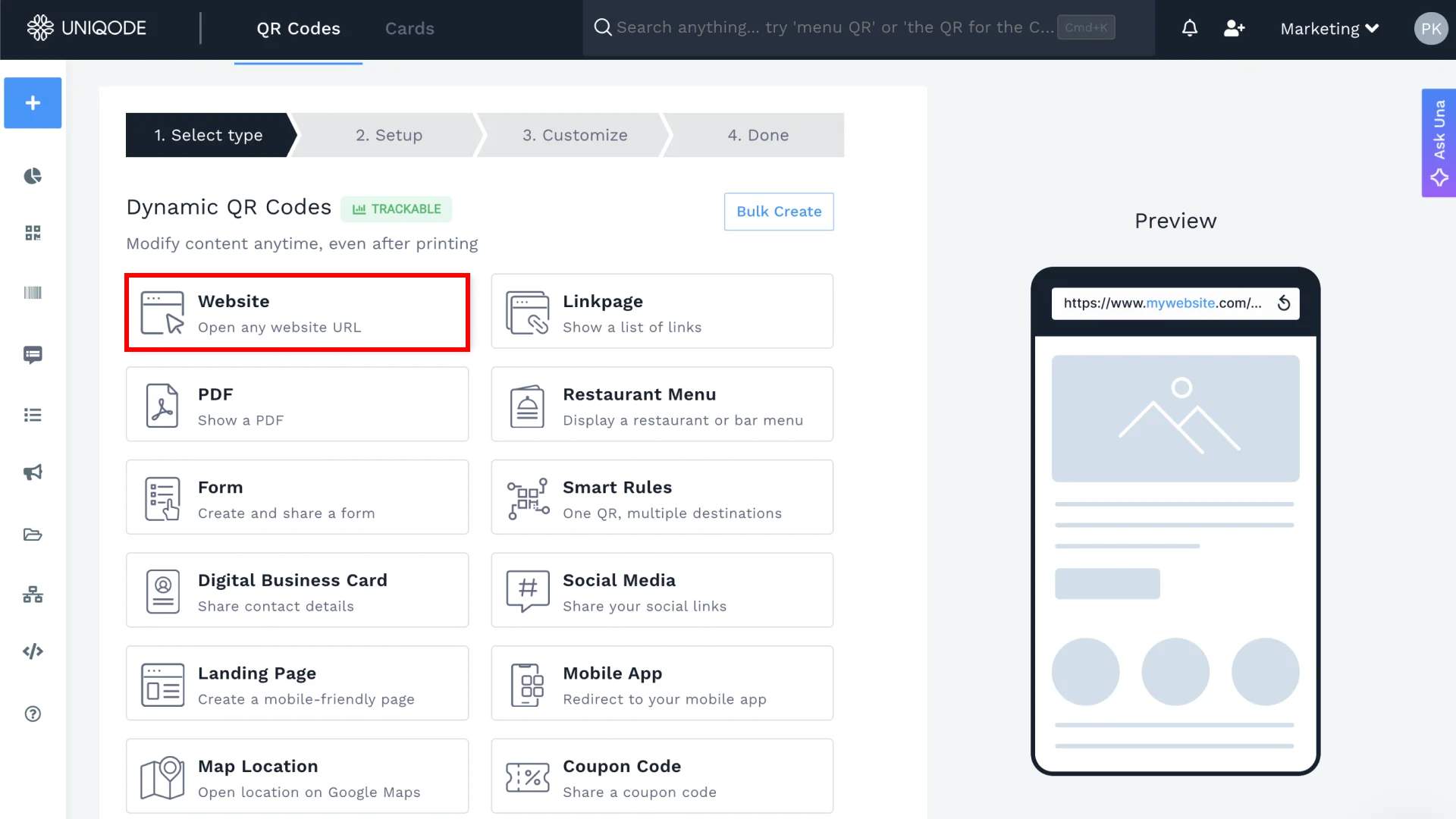
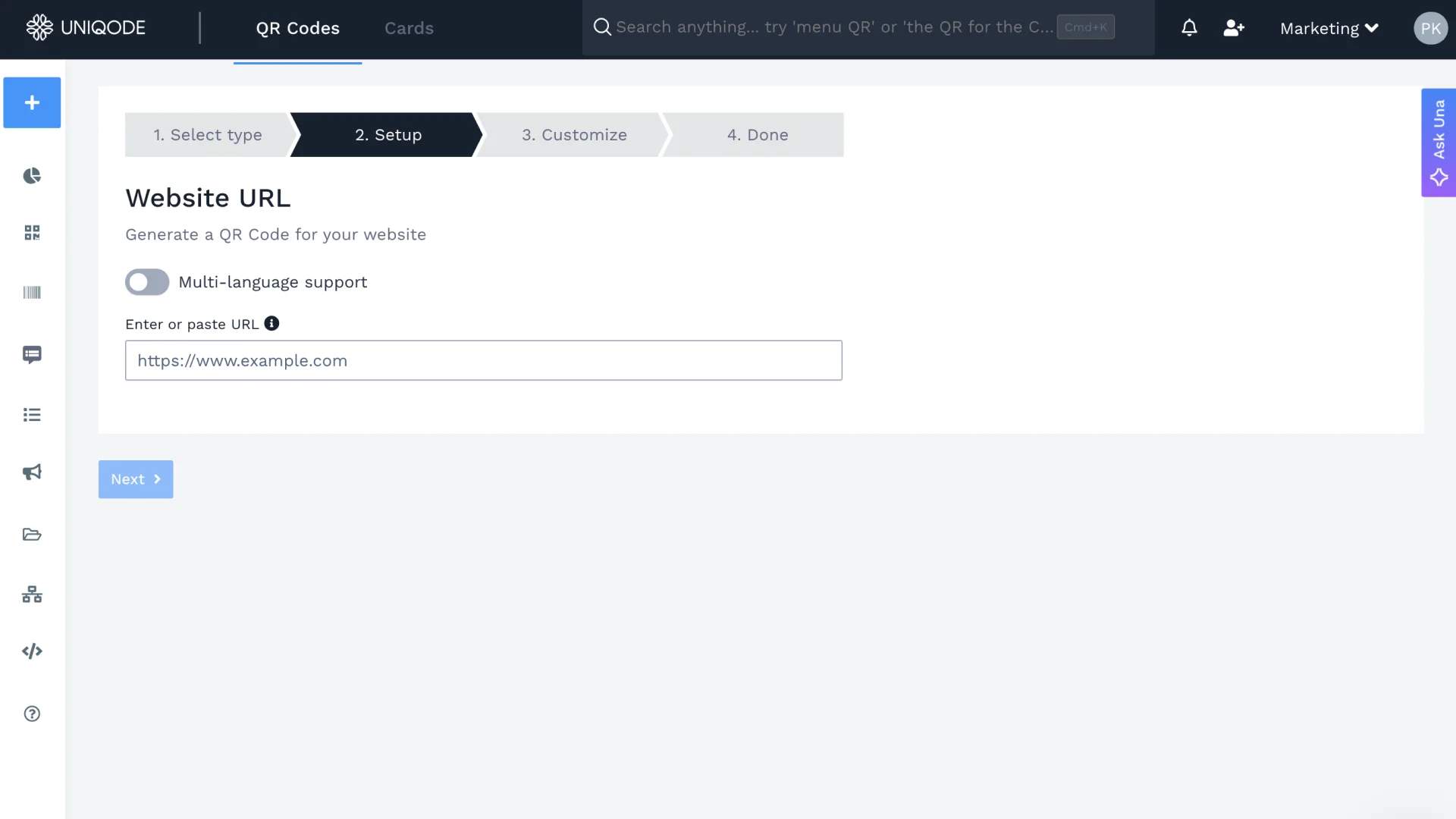
Step 2: Paste the destination URL in the input field.
Step 3: Customize the design if needed: choose colors, upload a logo, or adjust the shape of the modules. Skip this for a standard black-and-white code.
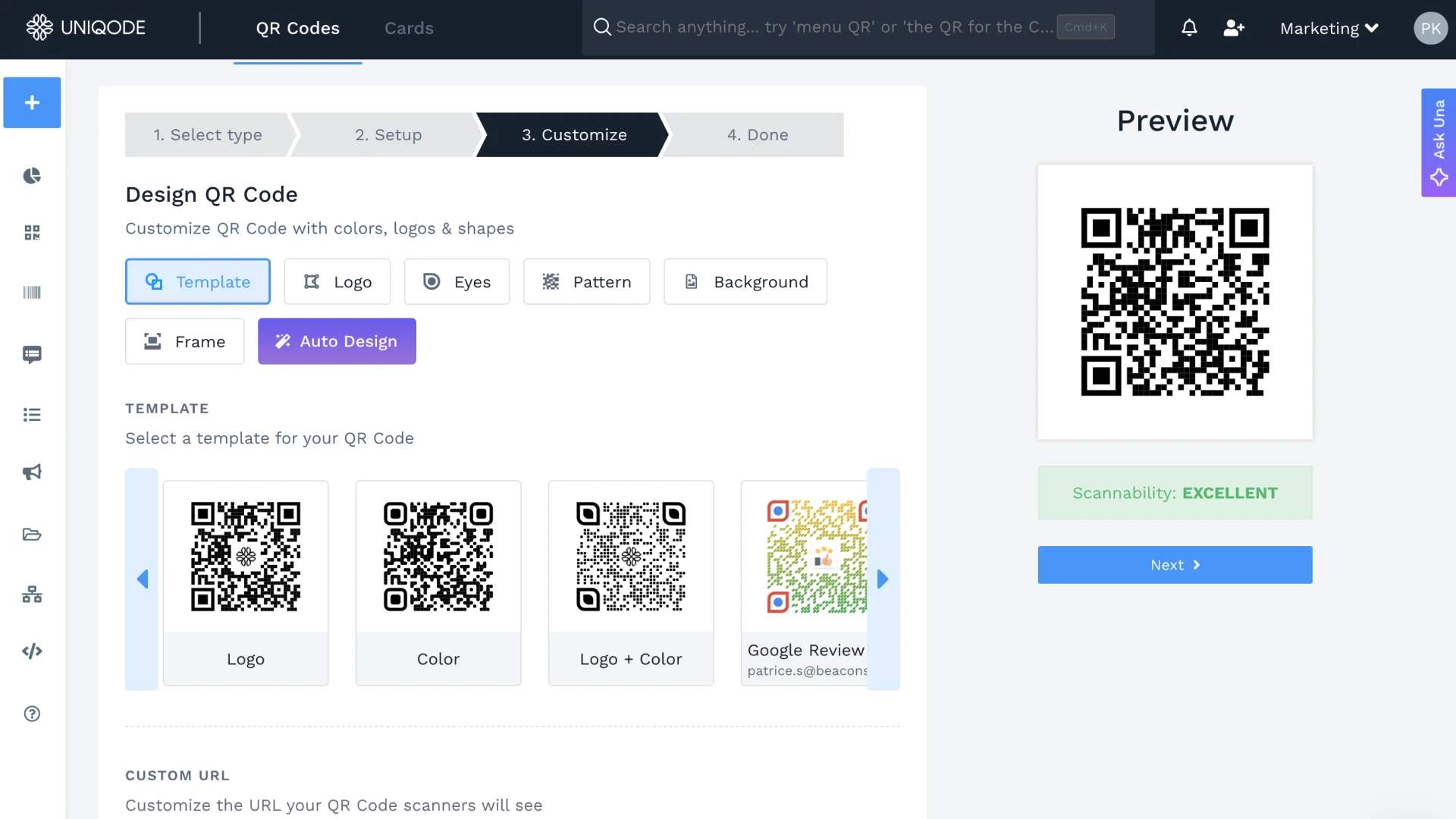
Step 4: Download in your preferred format: SVG for print, PNG for web, or PDF.
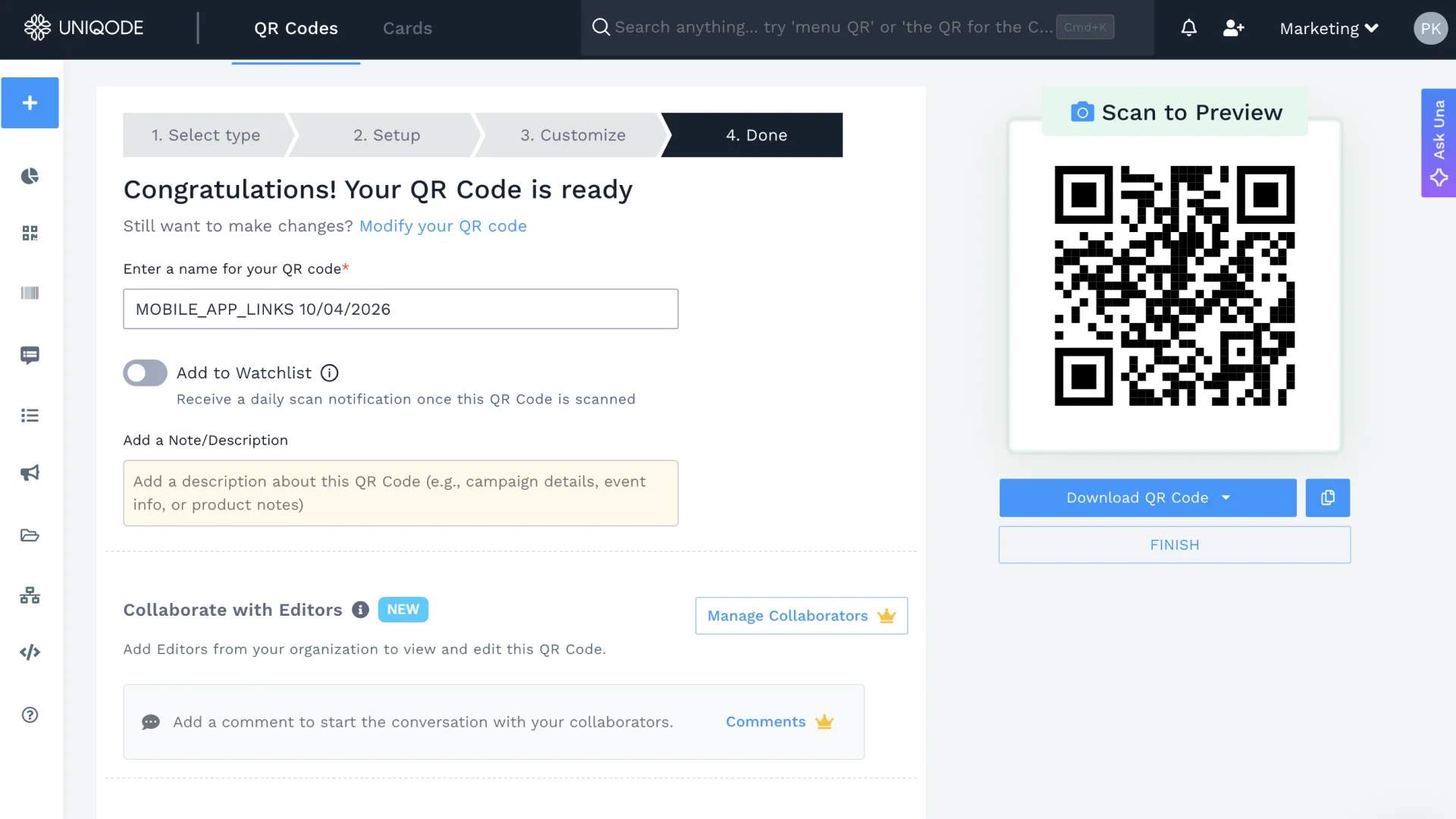
Because Uniqode generates a dynamic QR Code, the URL in the pixel matrix is a short redirect, not your final destination. If the page you're pointing to changes or breaks, open the Uniqode dashboard, update the destination URL, and every existing print of the QR Code instantly points to the new page. Nothing to reprint.
Every scan is logged in the analytics dashboard: location, device type, and time of day. If a QR Code on a brochure stops getting scans, the data shows the drop within hours, before anyone has to call you about it.
Chrome QR Code vs. Uniqode: which method is right for your use case?
Use Chrome’s built-in tool when you’re sharing a URL instantly, and the QR Code won’t be printed. Three clicks, nothing to install, fine for same-session sharing.
Use the Uniqode Chrome extension when you're creating QR Codes regularly from the browser, want clean output without the dinosaur logo, and need the destination to stay editable without leaving Chrome.
Use the Uniqode web generator when the QR Code will be printed, distributed, or used in any campaign with a shelf life longer than this browser session.
| Use when | Method | QR Code type | Editable? | Tracks scans? |
|---|---|---|---|---|
| Sharing a URL right now, never printing | Chrome built-in | Static | No | No |
| Regular browser-based QR Code creation, clean output | Uniqode extension | Dynamic | Yes | Yes |
| Print, campaigns, anything lasting | Uniqode web generator | Dynamic | Yes | Yes |
Best practices for QR Codes you create from Chrome
These apply whether you're using Chrome's built-in tool, the Uniqode extension, or the web generator.
- Use SVG or PDF for print, not PNG. PNG degrades when scaled up for large-format printing. SVG is resolution-independent and stays sharp at any size. If your designer or print vendor asks for a print-ready file, SVG or PDF is the answer.
- Keep the minimum QR Code print size at 1 inch × 1 inch (2.5 cm × 2.5 cm). Below that threshold, standard camera-based QR Code scanners struggle at normal reading distance. Go larger when the scanning distance is greater than arm's length. Signage and posters typically need at least 3 × 3 inches.
- Use dark modules on a light background. QR Code scanners read contrast, not color. Gradients applied directly to the QR Code zone, or light-colored codes on dark backgrounds, reduce scan reliability. Test any unusual color combination before committing to print.
- Test on both iOS and Android before distributing. Each platform's camera app processes QR Codes slightly differently. A code that scans instantly on one can take two to three seconds on the other. Test at the same distance a real user would scan from, and in the lighting conditions where the code will actually appear.
- Add UTM parameters if you're tracking campaign performance in GA4. A QR Code scan without UTM parameters shows up as direct traffic, hiding the source of the visit. If you're using Uniqode, UTM parameters attach automatically to the destination URL. Set the source, medium, and campaign name once in the dashboard, and every scan carries the attribution forward. No manual UTM building for each code.
If your QR Code needs to outlive this tab (for a brochure, a campaign, or anything physical), start with Uniqode. Editable destination, scan analytics, no dinosaur logo.
Chrome QR Code not working? How to fix common issues
Most Chrome QR Code problems come down to a few common causes. Below are a few quick fixes if your QR Code is not working.
- Wipe the camera lens and ensure the lighting is even with no harsh glare.
- Hold the device steady, about a foot from the code, and make sure nothing is blocking it.
- Clear your browser cache and confirm Chrome is updated to the latest version.
- Turn off Use hardware acceleration when available under Chrome Settings > System, then restart.
- If the camera app won't detect the code, try Google Lens instead.
Choose the right QR Code generator
Chrome’s built-in generator works well for quick, one-time sharing, but its limitations become clear the moment you need flexibility or insights.
If your QR Code is meant to live beyond a single session, whether on print, packaging, or campaigns, a dynamic option gives you far more control. You can update destinations, track performance, and avoid costly reprints.
You can try these features out for yourself by starting with our 14-day free trial.
Frequently Asked Questions
- 1. Does Google have a QR Code generator?
Google Chrome includes a built-in QR Code feature in its Share menu, but Google does not offer a standalone QR Code generator product. For a full-featured generator with dynamic QR Codes, tracking, and customization, use a dedicated QR Code platform.
- 2. Why does Chrome put a dinosaur in my QR Code?
Chrome adds the T-rex icon from its offline Dino game as a built-in branding element in every QR Code it generates. There’s no option to remove it. While the dinosaur logo doesn’t affect code scanning, it can make the QR Code look less professional. For business cards, packaging, or campaign materials, a cleaner QR Code without the icon is usually a better choice.
- 3. How to create a chrome QR Code without the dinosaur
Chrome doesn't offer a way to remove the T-rex logo from its built-in QR Codes. To generate a clean code without branding, use a third-party tool like the Uniqode. It generates a customizable QR Code for the current tab in one click, with no dinosaur and no black-and-white constraint.
- 4. Can I change a Chrome QR Code after I've created it?
No. Chrome generates a static QR Code that encodes the URL directly into the pixel pattern. Once created, the destination cannot be changed. If you need a QR Code where the destination can be updated later, use a dynamic QR Code generator instead.
- 5. Can I track how many people scan a QR Code I made in Chrome?
No. Chrome's built-in QR Code generator does not include any scan tracking or analytics. To track QR Code scans, use a QR Code platform. Uniqode logs every scan, including location, device type, and time of day, in a dashboard you can access from any browser.
- 6. How do I scan a QR Code in Chrome?
On desktop Chrome, right-click a QR Code image on a webpage and use the image search option, or install a browser extension with scanning capability. On Android, tap the Chrome address bar and look for the QR Code scanner icon. On iOS, the native Camera app handles QR Code scanning system-wide regardless of which browser you're using.
- 7. How long do Google QR Codes last?
Chrome QR Codes don't expire. The destination URL is encoded directly into the pixel pattern, so the code remains scannable indefinitely. The only way it stops working is if the destination page is taken down or the URL changes, since Chrome generates static codes with no way to update the destination.
- 8. Do Chrome QR Codes expire?
No. Chrome QR Codes are static, meaning the URL is permanently locked into the code at the time of creation. They don't expire, but they also can't be edited. If the destination URL breaks, the code will still scan and simply lead to a dead page.
- 9. Can I create a QR Code on Chrome mobile (Android or iPhone)?
Yes. The Chrome app on both Android and iOS has a built-in QR Code option in the Share menu. On Android, tap the Share icon next to the address bar. On iPhone, tap the Share icon at the top of the screen. Select QR Code from the options to generate and download one instantly.
![How to Make a QR Code on iPhone [Without an App]](https://cdn.sanity.io/images/0aocp9sp/production/a35a341de6fa5b80584622734c37856a8050e2f6-1920x1080.jpg?w=3840&q=65&auto=format&fit=max)