How to Create a QR Code for Waze Location
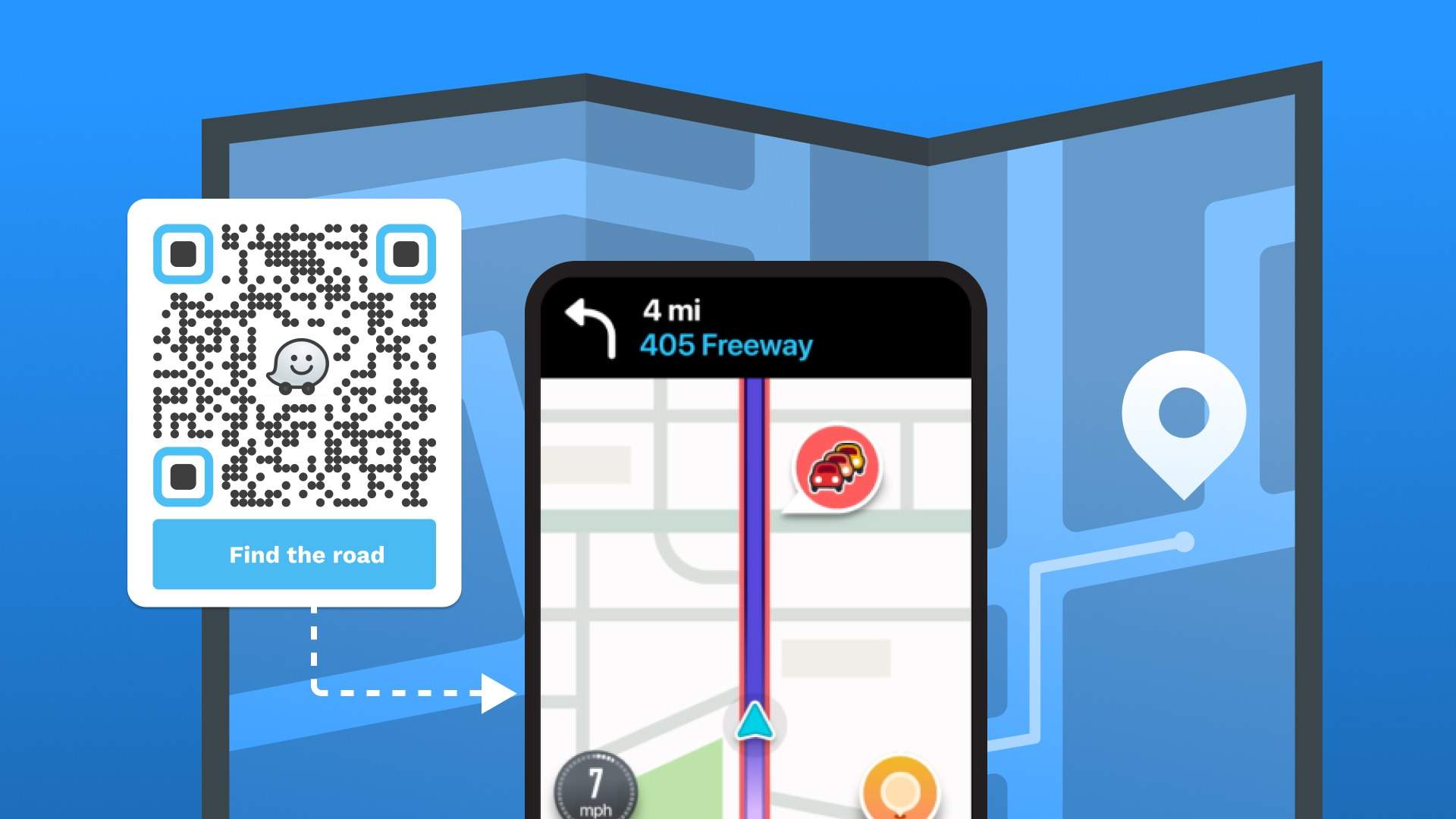
Learn how to create a Waze QR Code. Go beyond creating static location QR Codes, and track scans, edit destination, and share your dynamic Waze QR Codes with Uniqode.
Waze is America’s second-most downloaded satellite navigation app after Google Maps. It’s a popular first choice for individuals and businesses alike.
In fact, your prospective customers could be Waze users—wanting to navigate to your establishment after seeing your ads on billboards or brochures.
But imagine searching for your business and not finding it because of a typo! Or, your business may have multiple outlets, which may be inconvenient to manually search for.
Instead, you can simplify location-sharing via offline channels using a QR Code for Waze location.
Learn how to make offline ads interactive and use QR Codes to help your prospects visit your business. We’ll also show you why you should use dynamic QR Codes to share your Waze location.
What is a Waze QR Code?
A Waze QR Code is a scannable code that, when scanned, automatically opens the Waze navigation app and launches turn-by-turn directions to a specific destination.
Instead of manually typing an address into Waze, users simply scan the code with their smartphone camera, and the app opens with the destination pre-loaded and ready to navigate.
Common use cases include:
- Businesses placing them on websites, flyers, or storefronts so customers can easily find their location
- Event organizers adding them to invitations or posters for seamless venue navigation
- Real estate agents printing them on property listings for open house directions
- Hotels and restaurants embedding them in booking confirmations or marketing materials
Waze QR Codes are typically generated using a QR code platform by encoding a Waze deep link URL (https://waze.com/ul?...) with the target coordinates or address. They bridge offline-to-online navigation, making it frictionless for users to get directions instantly.
What if someone doesn't have Waze?
If Waze isn't installed, the scan typically redirects to the App Store or Google Play. To avoid a dead end, set a fallback URL, usually a Google Maps link for the same addres, so users still get directions without friction.
Waze QR codes are generated by encoding a Waze deep link URL (https://waze.com/ul?...) with the target coordinates or address, bridging offline-to-online navigation instantly.
How to create a QR Code for a Waze location
Here’s how to create a QR Code for a Waze location:
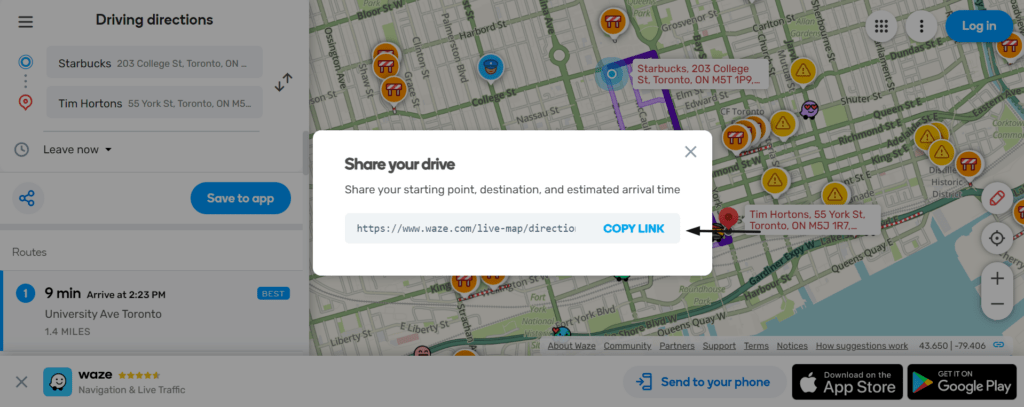
1. Copy the URL from Waze
Go to your Waze account and choose the location. Copy the URL from the share option.
2. Open the Uniqode dashboard and click “+ Create”
If you do not have access to the dashboard, you can easily sign up for a 14-day free trial on Uniqode. Choose +Create from the dashboard.
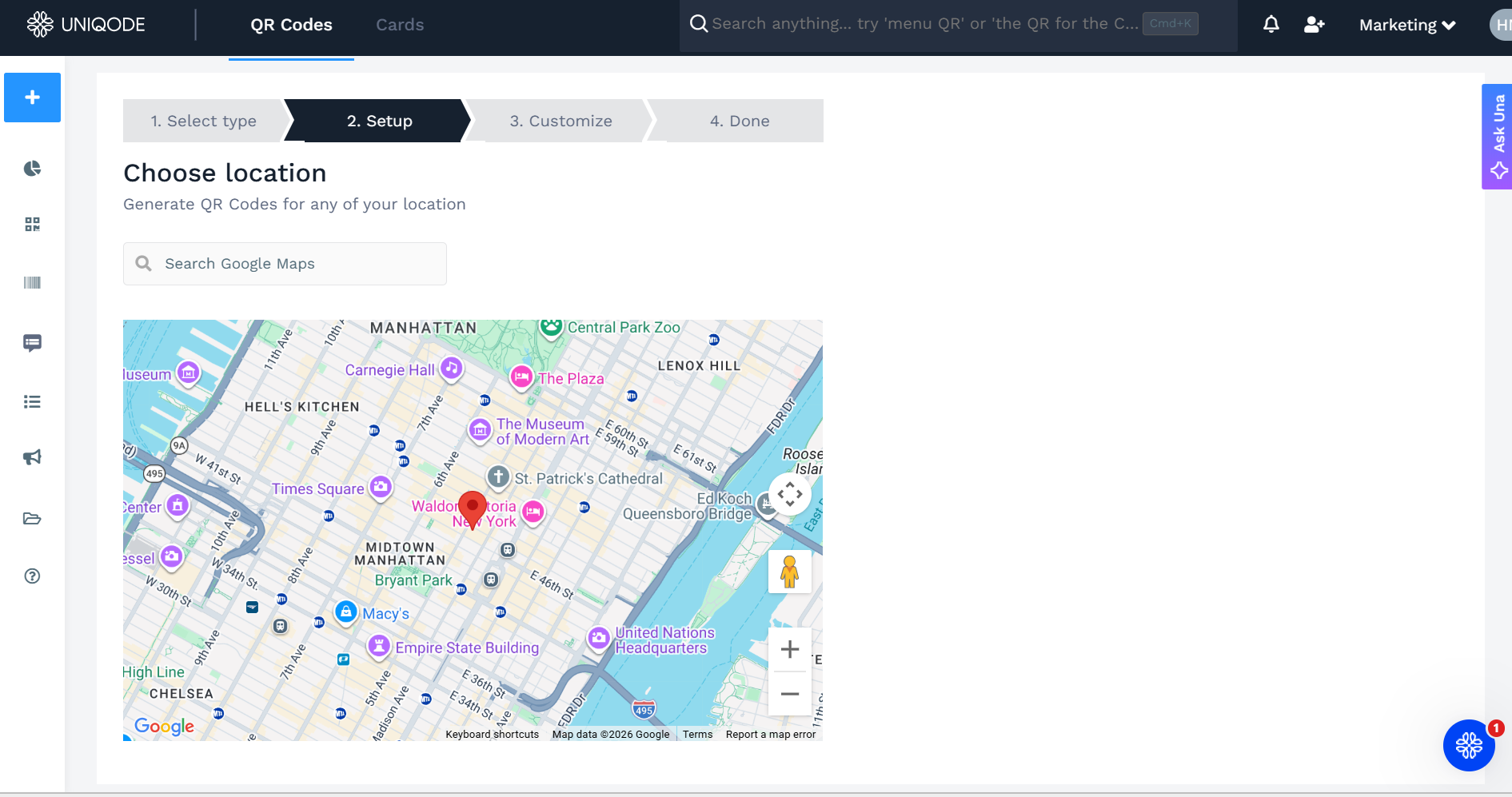
3. Choose Location as your QR Code type
From the QR Code type list, choose Map Location from the dynamic QR Code section.
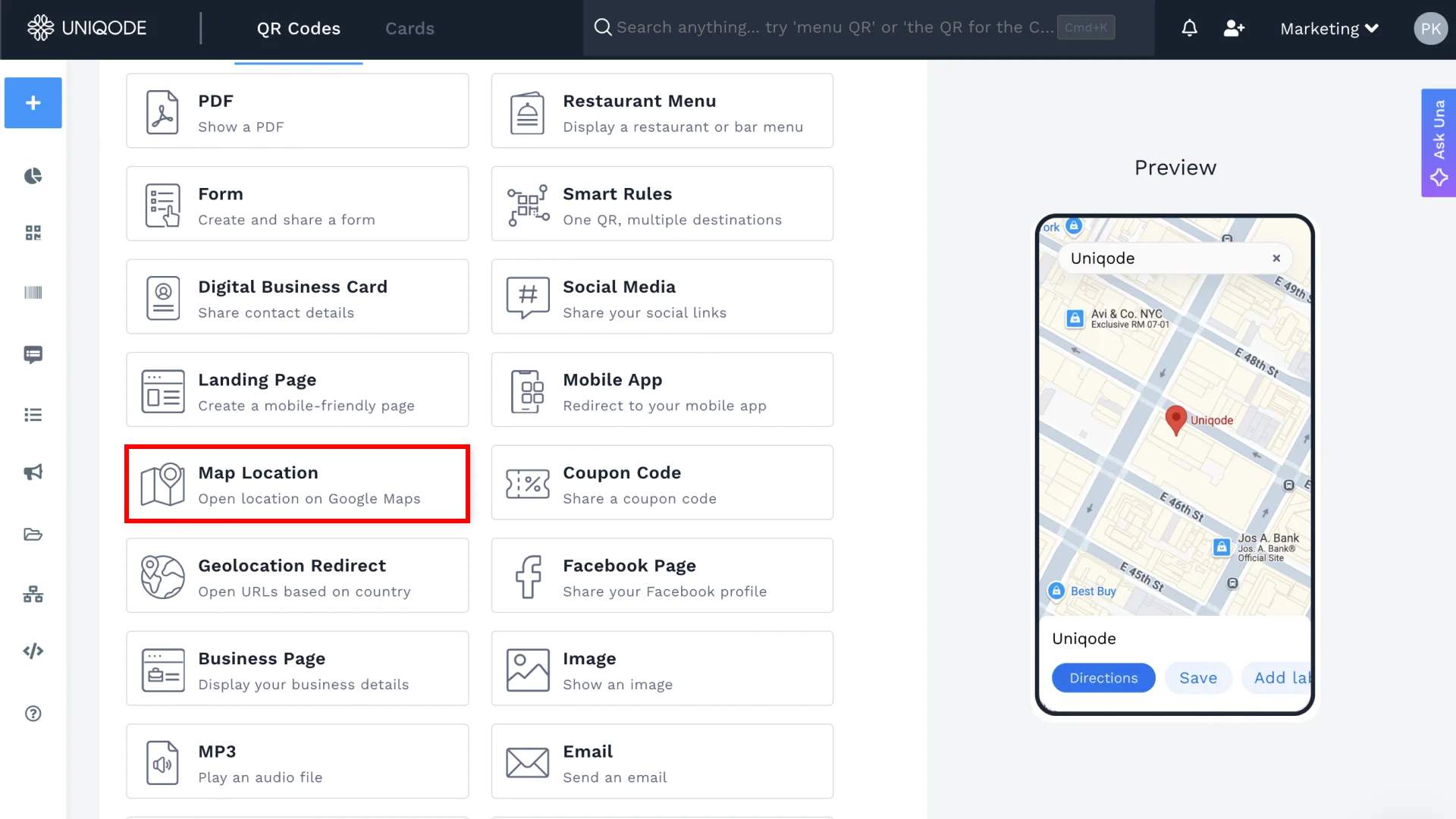
4. Insert the copied link/ Waze location URL in the given field
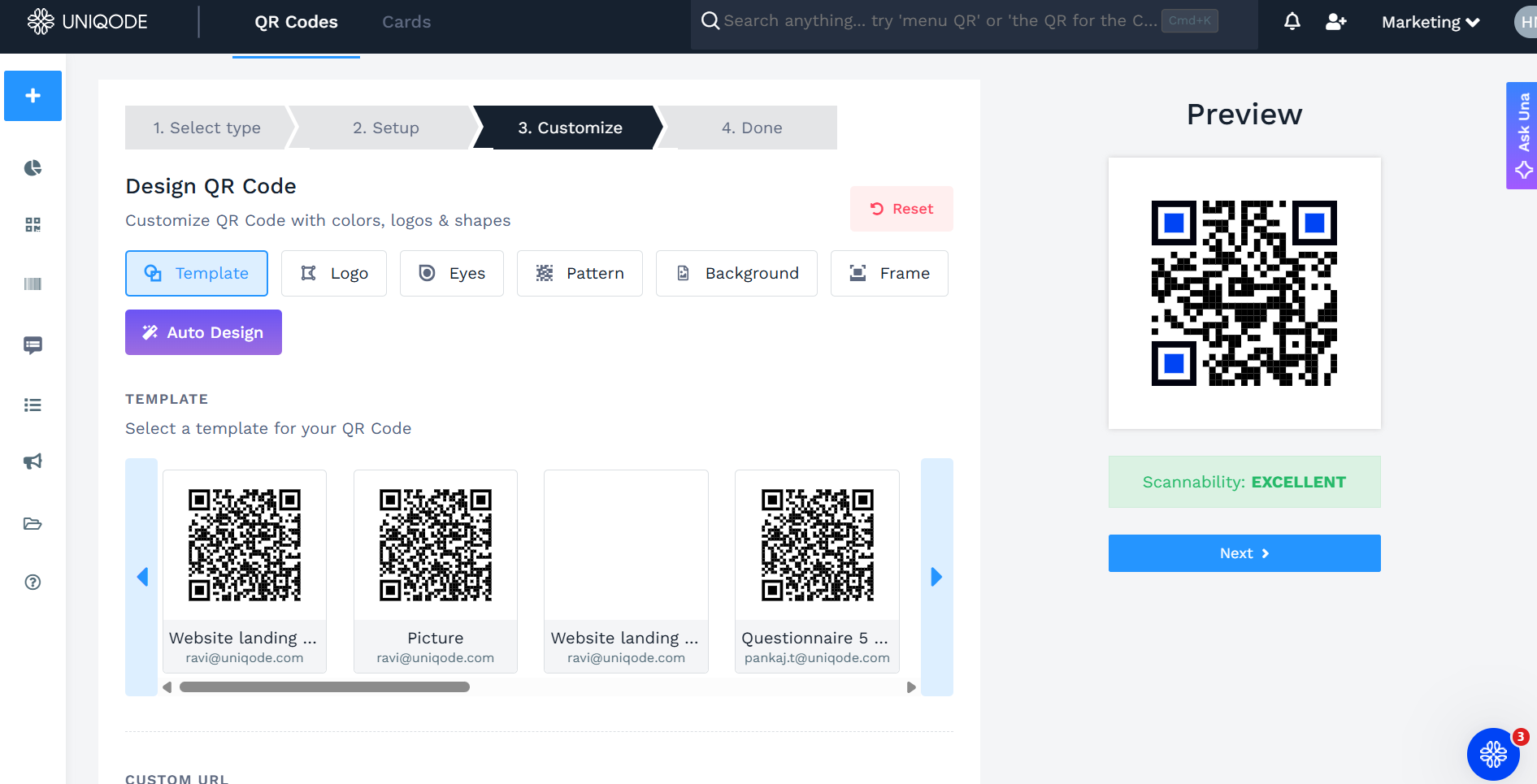
5. Customize the Waze QR Code
7. Download the Waze QR Code in the format of your choice
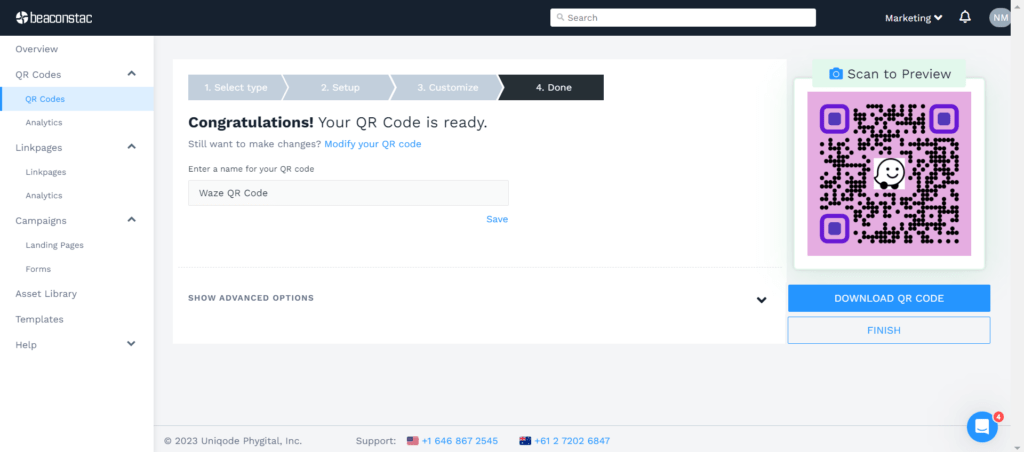
Now, you can share your Waze QR Code anywhere you want.
Static or Dynamic: What’s best for creating a Waze QR Code?
Using the share feature on Waze, you are limited to sharing the location only via a URL.
To convert your location to QR Code, you can use a dynamic QR Code creator like Uniqode to create a static Waze QR Code.
But creating a static Waze QR Code can have limitations :
- You cannot change the location once generated or shared.
- You cannot create multiple location QR Codes.
- You won’t have access to metrics such as the number of scans, engagement rates, etc.
For instance, if you were to use a Waze location for your wedding invitation, accidentally printing a static one with the wrong venue may confuse your guests.
But you can bypass these roadblocks by choosing dynamic QR Codes.
With Uniqode, you have the option to switch to dynamic QR Codes. This switch provides you features such as:
- Ability to edit the QR code destination content anytime
- Customize the QR Code and add logo
- Bulk generate QR Codes
- Track QR Code metrics such as scans, open rates, engagement, etc.
You do not have to reprint or reshare a new QR Code to do this. These are the features that provide you the upper hand while generating a Waze QR Code, compared to merely sharing them over a link or a static QR Code.
Static or dynamic: What’s best for creating a Waze QR Code?
Using the share feature on Waze, you are limited to sharing the location only via a URL.
To convert your location to QR Code, you can use a dynamic QR Code creator like Uniqode to create a static Waze QR Code.
But creating a static Waze QR Code can have limitations :
- You cannot change the location once generated or shared.
- You cannot create multiple location QR Codes.
- You won’t have access to metrics such as the number of scans, engagement rates, etc.
For instance, if you were to use a Waze location for your wedding invitation, accidentally printing a static one with the wrong venue may confuse your guests.
But you can bypass these roadblocks by choosing dynamic QR Codes.
With Uniqode, you have the option to switch to dynamic QR Codes. This switch provides you features such as:
- Ability to edit the QR code destination content anytime
- Customize the QR Code and add logo
- Bulk generate QR Codes
- Track QR Code metrics such as scans, open rates, engagement, etc.
You do not have to reprint or reshare a new QR Code to do this. These are the features that provide you the upper hand while generating a Waze QR Code, compared to merely sharing them over a link or a static QR Code.
Use Uniqode to create a QR Code for Waze location
With dynamic QR Codes for a Waze location, you can go beyond just sharing them, to using it as a tool to engage your customers.
You can customize the QR Code, choose from templates, edit, and track how your QR Codes are performing.
And if your business requirement involves multiple location QR Codes or location-specific events, you can easily create and manage them with Uniqode’s dashboard.
You can try these features out for yourself by starting out with our 14-day free trial on Uniqode.
Frequently Asked Questions
- 1. How do I make a QR Code for Waze location?
You can create a QR Code for Waze location in six simple steps:
- Copy the URL of the location from the “Share” option in the Waze app
- Open the Uniqode dashboard and click “+Create”
- Choose “location” as your campaign
- Input the URL in the given field
- Customize your QR Code and add a logo
- Test, and download the QR Code
- 2. Does Waze have location sharing?
Waze is a navigation app that allows you to share locations via URL. You can share this manually on your mobile device. You can also embed the URL in a QR Code and share it for users to scan and access the intended location.
- 3. What is the difference between static and dynamic QR codes for Waze locations?
Static QR codes contain fixed location data that cannot be changed once generated, while dynamic QR Codes use a redirect URL that allows you to update the Waze destination unlimited times after creation. Dynamic QR Codes also provide scan tracking analytics, whereas static codes offer zero tracking capabilities. This makes dynamic codes ideal for businesses that need flexibility to change locations or monitor campaign performance.
- 4. Can you track how many people scan a Waze QR code?
Yes, but only with dynamic QR Codes that include built-in analytics tracking. Dynamic Waze QR Codes can track metrics including total scans, unique users, scan locations, device types, and time-stamped scan data. Static QR codes provide zero tracking data since they directly encode the destination without any redirect layer to capture analytics.
Related Posts
QR Codes for Customer Service: Cut Support Costs, Not Corners

Stadium QR Codes: A Complete Guide for Venue Operators
How to Create a QR Code Menu (Step-by-Step Guide)

How QR Codes Boost Fan Engagement & Revenue in Events

Event QR Playbook: How to Use QR Codes Across the Event Lifecycle