GS1 QR Code Implementation Checklist for Sunrise 2027 (What Helping 50+ Brands Taught Us)
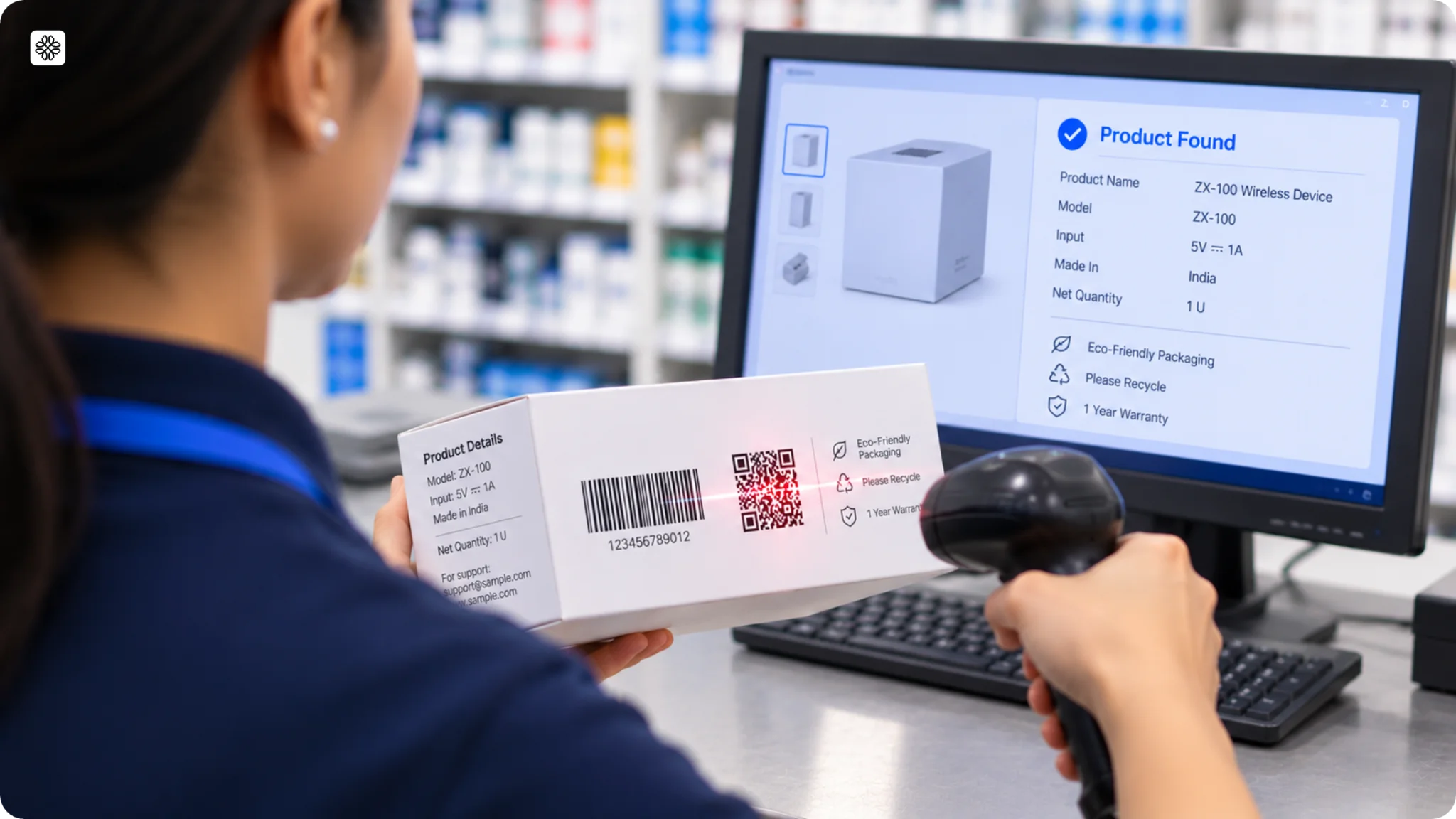
Get your GS1 QR Codes ready for packaging and checkout with nine practical steps, setup guidance, and a downloadable checklist to work through with your team.
Implementing GS1 QR Codes means getting product data, digital links, packaging, and production working together. Those decisions involve people from product, IT, marketing, and packaging, often with different priorities and print deadlines to meet.
After helping 50+ brands with GS1 QR Code implementation, we’ve put that work into a nine-step checklist. It walks you through what to encode, how to set up your GS1 Digital Links, and what to check before approving the finished package, with GS1 tools and the checks to complete before moving ahead.
To implement a GS1 QR Code, encode your Global Trade Item Number (GTIN) in a GS1 Digital Link on a domain you own, then print and verify it beside your existing barcode.
⚡Pro tip: Start with one SKU before committing the rest of your range to print. A pilot gives your product, IT, packaging, and production teams a chance to work through the details while changes are still manageable.
Follow these nine steps in order:
- List your GTINs and choose what to encode
- Choose a GS1 QR Code Solution Partner
- Build your domain and GS1 Digital Link
- Set up the page shoppers will open
- Generate and validate the GS1 QR Codes
- Run a print trial
- Set the size, quiet zone, and color
- Place the GS1 QR Code beside your existing barcode
- Verify the print and test scans
Download the GS1 checklist (PDF) to plan these steps with your packaging, IT, and print teams.
What is a GS1 QR Code?
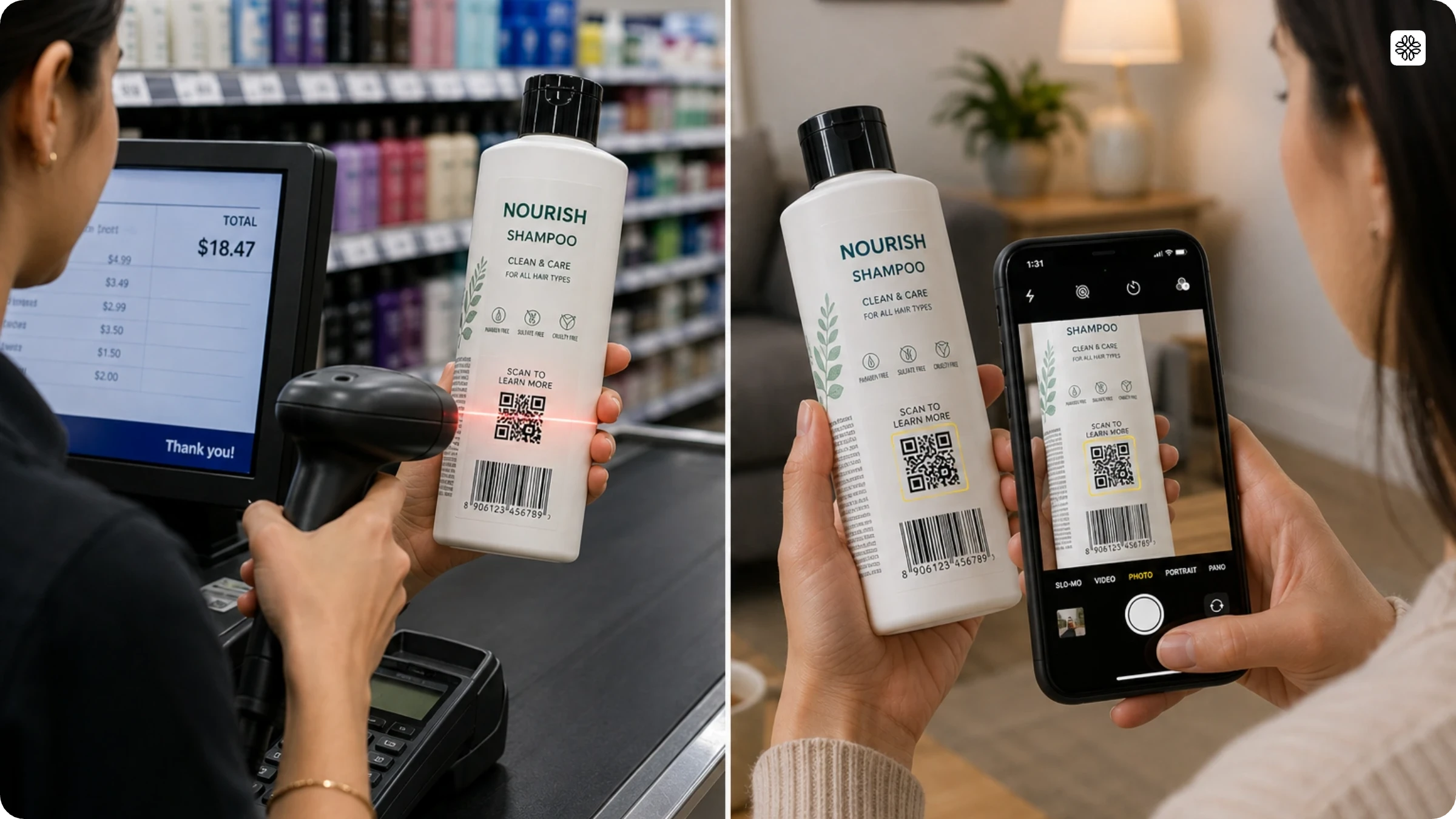
A GS1 QR Code, also called a GS1 Digital Link QR Code or a QR Code powered by GS1, is a QR Code that encodes a GS1 Digital Link, a web address with your product’s GTIN built in. A retail scanner can read the GTIN straight from the address, and a phone opens the same address as a regular link.
Sunrise 2027 is GS1’s industry goal for retail point-of-sale systems to read 2D barcodes by the end of 2027.
Step 1: Confirm your GTINs and choose what to encode
If your product already has a UPC or EAN barcode, you already have a GTIN. It’s the number printed beneath the barcode, usually 12 digits for a UPC or 13 for an EAN. Record it alongside the product name, size, and pack quantity. A single can and a 12-pack have different GTINs, so check which pack you’re working with.
If your product doesn’t have a GTIN, check with your product or packaging team first. They may have assigned a GTIN before the packaging was designed. If you need a new number, get it through your local GS1 organization.
⚡Pro tip: Check before you copy
Copy even the zeros at the beginning of the number. Use Verified by GS1 to check the company and the available product details.
The GTIN identifies the product. If you also need to identify a particular batch, track individual items, or include an expiry date via the code, include the fields below as well.
| What do you need the code to do | What to include |
|---|---|
| Identify the product at checkout and open its page | GTIN |
| Identify the batch it came from | GTIN and lot number |
| Identify an individual item | GTIN and serial number |
| Carry an expiry date | GTIN and expiry date |
Agree on these fields with your product and production teams before creating the codes. If the QR Code changes between batches or items, confirm with your printing partner or production team how the correct code will be printed on each pack.
✅ Mark as done when your list shows each product’s confirmed GTIN and any additional fields to encode.
Step 2: Choose a GS1 QR Code Solution Partner
Choose a GS1 QR Code Solution Partner that follows GS1’s 2D readiness criteria, because many QR Codes that scan on a phone fail at retail checkout.
Ask each provider to walk you through a sample using one of your GTINs. This lets you see how the service works before committing your packaging to it.
| What to check | What to ask |
|---|---|
| Product data | Can you include our GTIN and any lot numbers, serial numbers, or expiry dates we need? |
| Domain ownership | Can we use our own domain and keep the printed links working if we switch providers? |
| Content updates | Can we change the page shoppers open without reprinting the code? |
| Data checks | How do you check that the code follows GS1 Digital Link syntax and contains the correct data? |
| Print files | Can you supply vector files for our packaging design? |
Be clear about who handles the remaining work. Your provider may create and check the digital code, while your printing partner or production team arranges print-quality verification and checkout testing.
✅ Mark as done when you have picked a GS1 QR Code Solution Partner that meets all the required criteria.
Step 3: Build the link on your own domain
Your GS1 QR Code contains a web address called a GS1 Digital Link. This address starts with either your solution provider’s domain or a domain your business owns. Your GTIN and any additional product data follow it.
For example, if you use your own domain, the address could look like this.
https://id.yourbrand.com/01/09520123456788
Here, id.yourbrand.com is your branded domain, and the number after /01/ is your product’s GTIN.
GS1 recommends using a domain your business owns. This lets you keep the address printed on your packaging if you change providers.
Ask your solution partner for its custom-domain setup instructions and share them with your IT team. Once setup is complete, you can select the domain when creating your GS1 QR Codes.
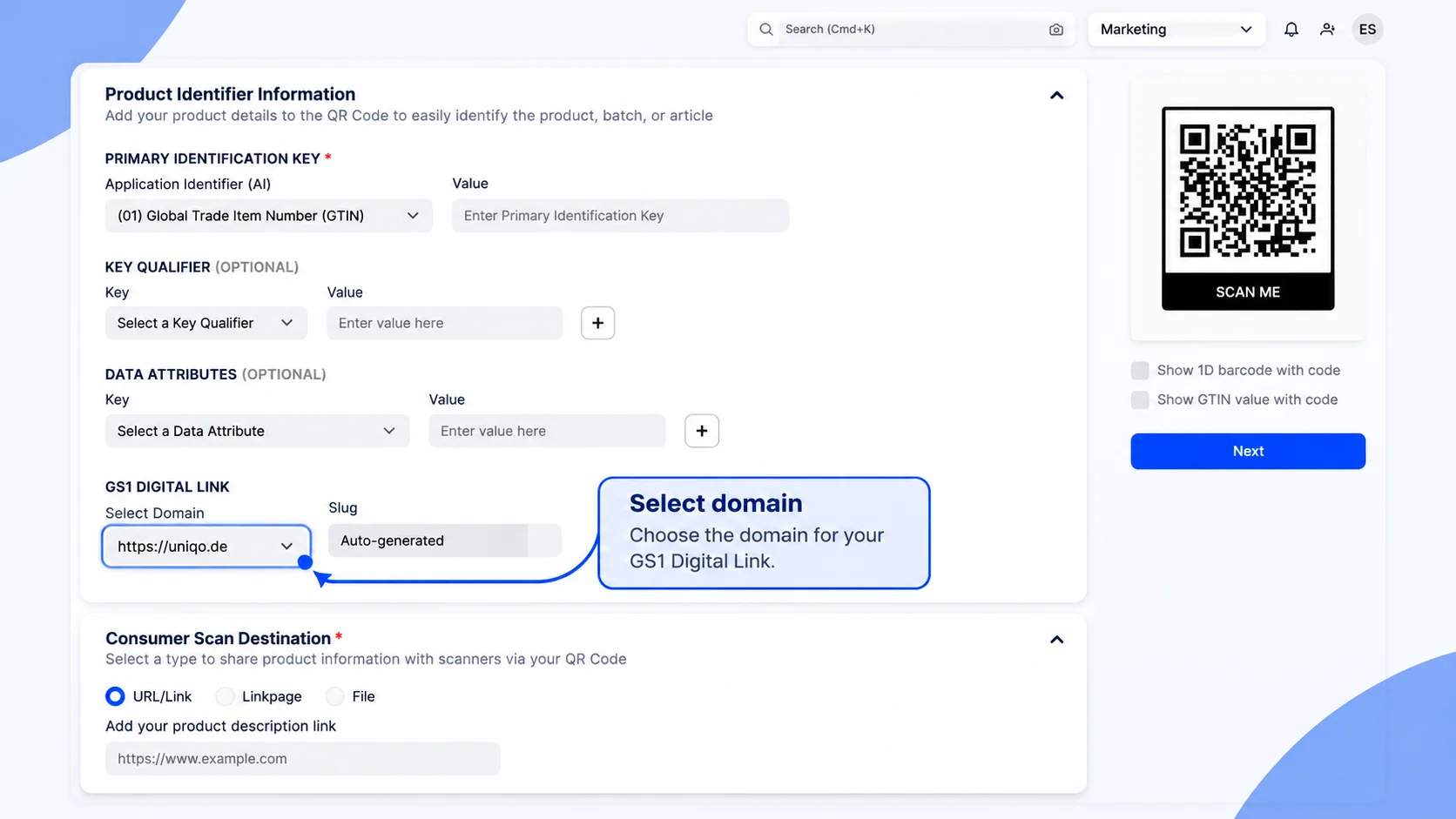
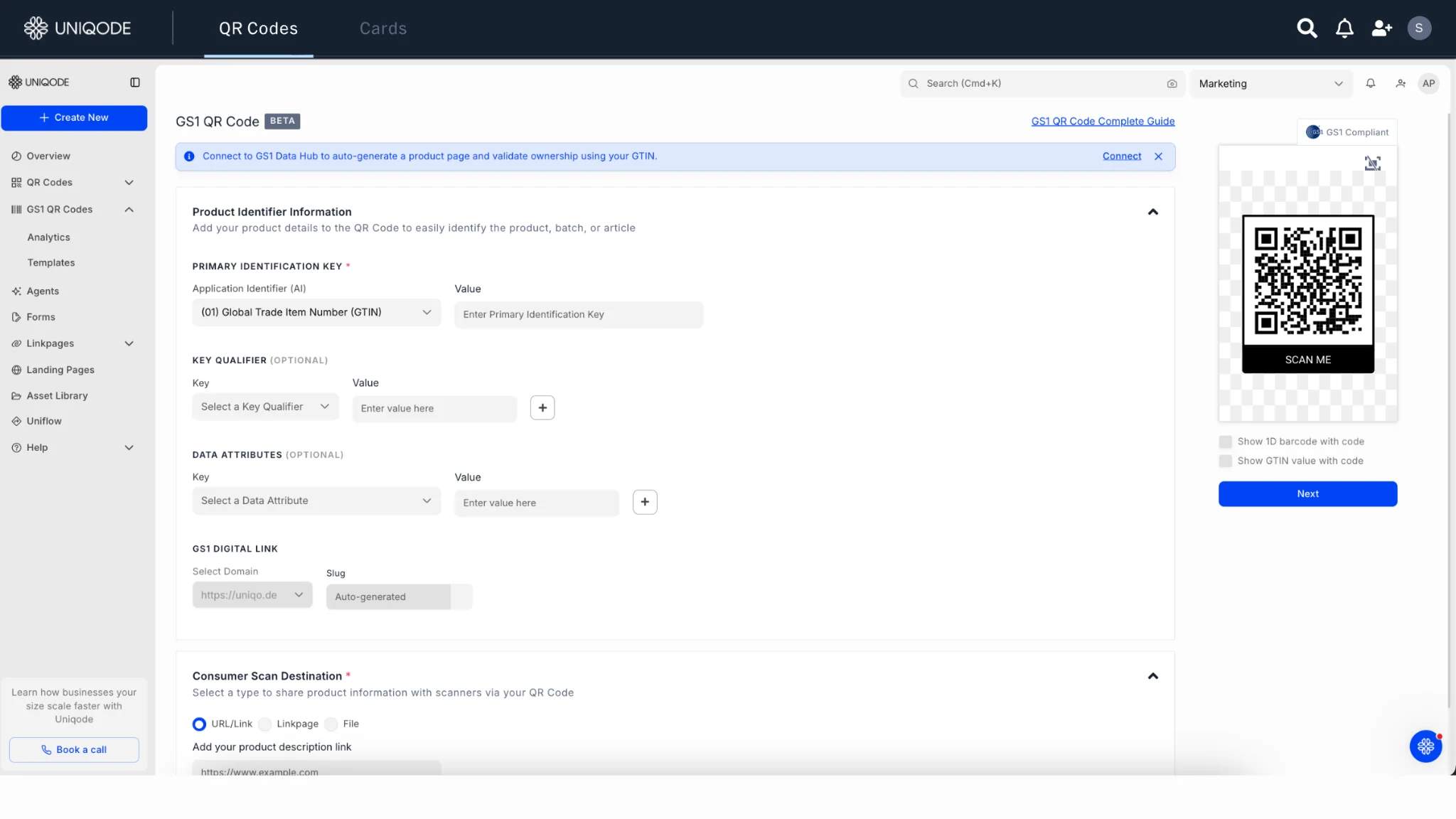
In Uniqode, complete the Product Identifier Information section.
- Enter your GTIN in the Value field beside (01) Global Trade Item Number (GTIN).
- Add any lot number, serial number, or expiry date you chose in step 1.
- Under GS1 Digital Link, select your connected domain from the Select Domain menu. Uniqode automatically generates the rest of the address, labeled Slug.
✅ Mark as done when your subdomain is live, and your GS1 QR Code Solution Partner’s sample link follows the GS1 format.
Step 4: Set up the page shoppers open
A GS1 QR Code gives you a direct channel to your customers. Use it to help shoppers make a purchase, get more from the product, or stay in touch with your brand.
| What do you want to help customers do | What to add behind the QR Code |
|---|---|
| Choose with confidence | Ingredients, sourcing details, or product specifications |
| Use the product | Recipes, setup videos, or care instructions |
| Get support | Warranty registration, troubleshooting, or replacement parts |
| Share their experience | A feedback form or review request |
| Come back for more | Reorder links, loyalty sign-ups, or relevant offers |
Your GS1 QR Codes are dynamic QR Codes, so you can update the destination while keeping the same QR Code on the packaging.
Need a page to bring it all together?
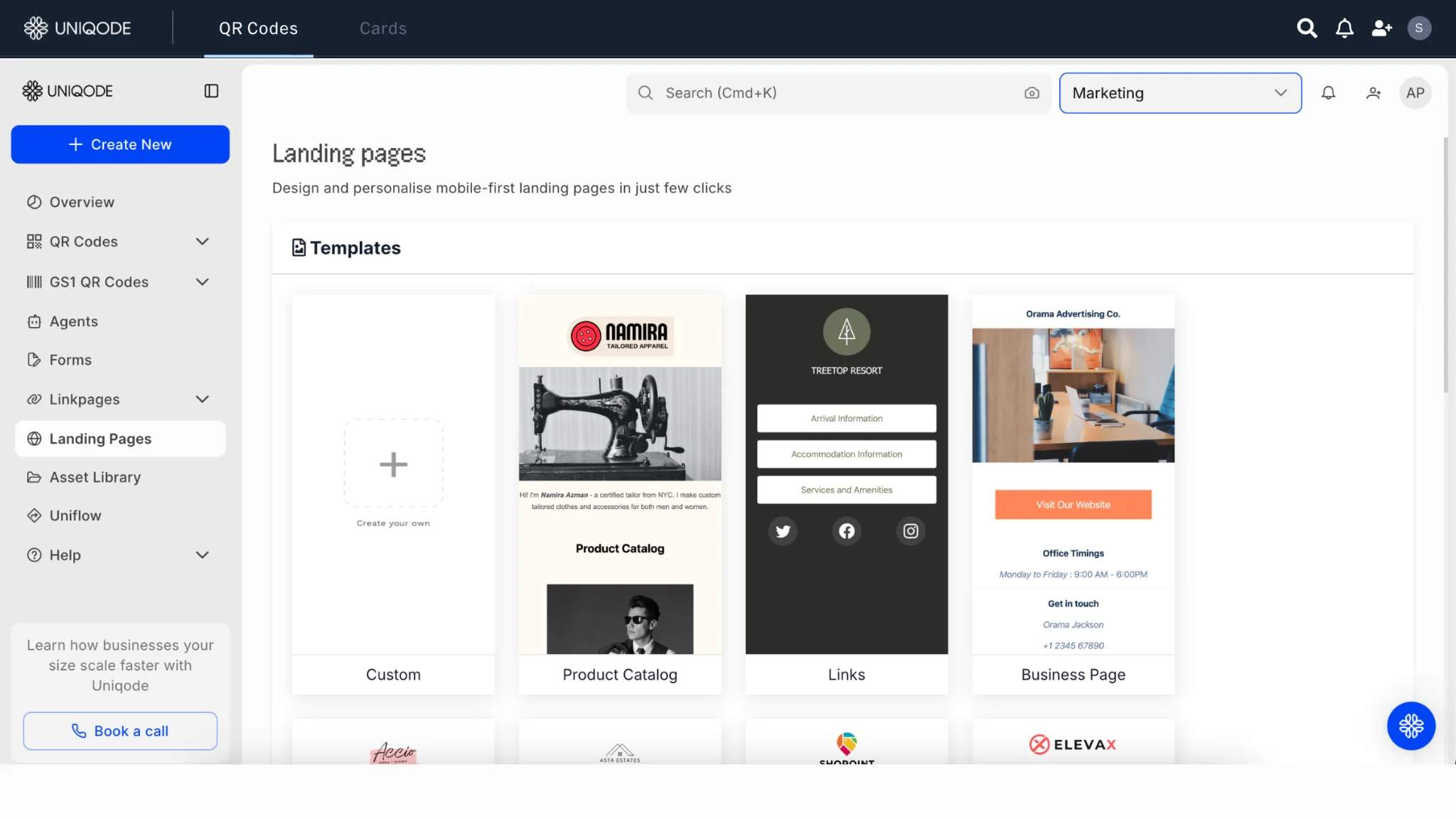
Use Uniqode Linkpages to add product details, how-to videos, feedback forms, and reorder links to a single mobile-friendly page. Choose from 100+ templates and connect the page to your GS1 QR Code. You can update the content even after your packaging is printed.
Assign someone to keep the page current. If the page is deleted or moved during a website update, shoppers scanning packs already on shelves could reach a broken link. Check the destination whenever your website changes.
✅ Mark as done when every scan opens the intended page on a phone, and your team knows who is responsible for keeping each page up to date.
Step 5: Generate and validate the GS1 QR Codes
With your product data, domain, and shopper destination in place, generate your GS1 QR Codes. Before sending them for printing, ask your solution partner to check that each QR Code follows GS1 Digital Link syntax and contains the correct GTIN and any additional fields from your product list.
In Uniqode, you can connect to GS1 Data Hub to validate GTIN ownership. Scan a sample code with your phone, too, to check that it opens the correct product page.
Download the approved QR Codes as vector files, such as SVG, for your packaging team. These stay sharp when resized. Include the product name or SKU in each filename so the team can match the QR Code to the right pack.
✅ Mark as done when each code passes the format check, matches your product records, and opens the intended page.
Have hundreds of SKUs to cover?
Use Uniqode’s bulk upload to create GS1 QR Codes from a spreadsheet. Connect Data Hub to validate your GTINs, then upload.
Step 6: Check that your printer can print it
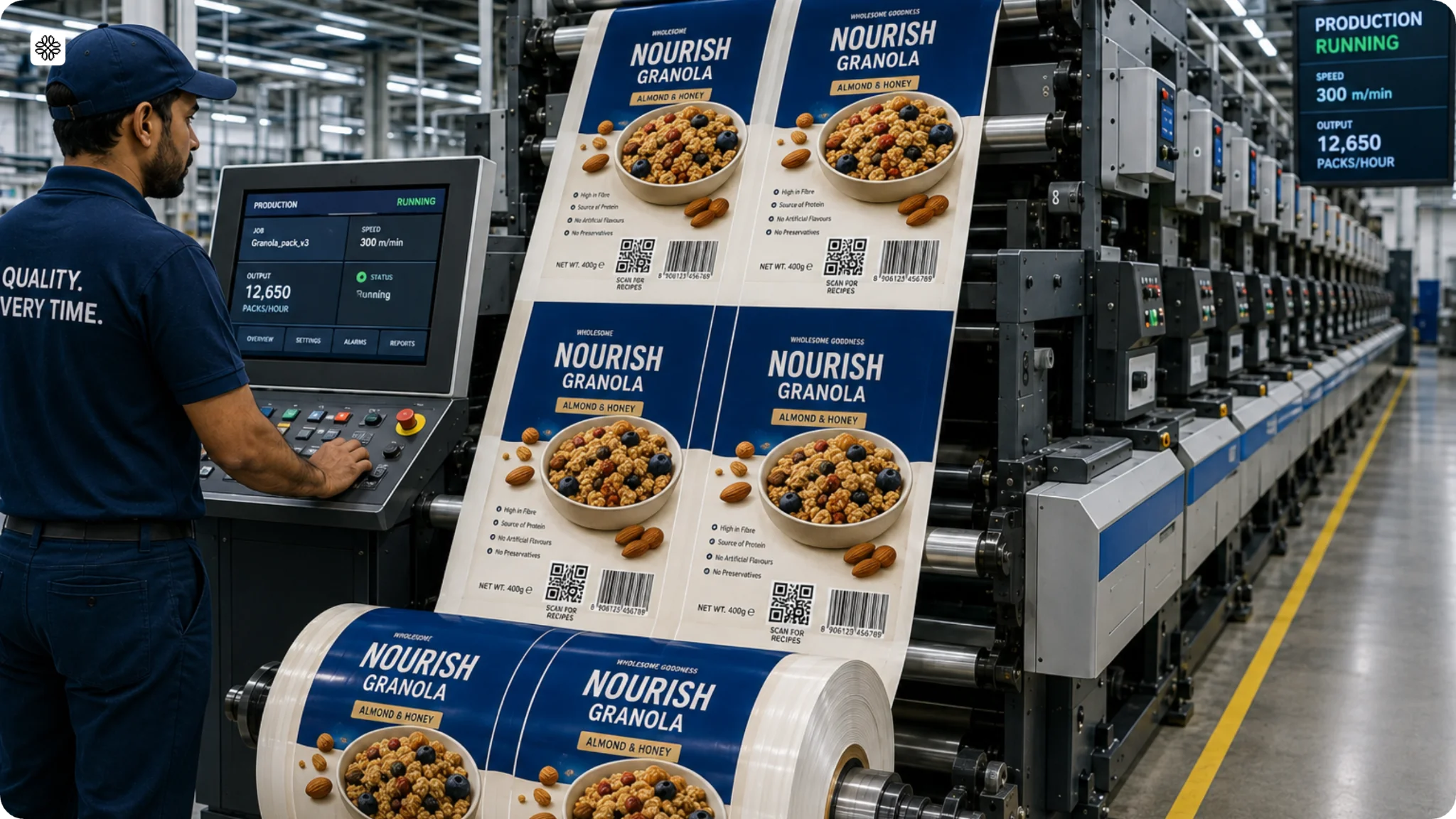
Share a sample QR Code with your printing partner or production team. Confirm how it will be applied to the pack, whether that’s printed directly on the packaging, included in a label, or added during production.
Ask them to run a trial using the intended equipment, packaging material, and production speed. If the QR Code includes changes to batch or unit data, check how those values reach the printing equipment and remain matched to the correct products.
Keep finished samples for the print-quality and scanning checks in step 9, including any coating, wrapping, or sealing that could affect the code.
✅ Mark as done when your team has confirmed the printing method and produced representative samples for testing.
Step 7: Set the size, quiet zone, and color
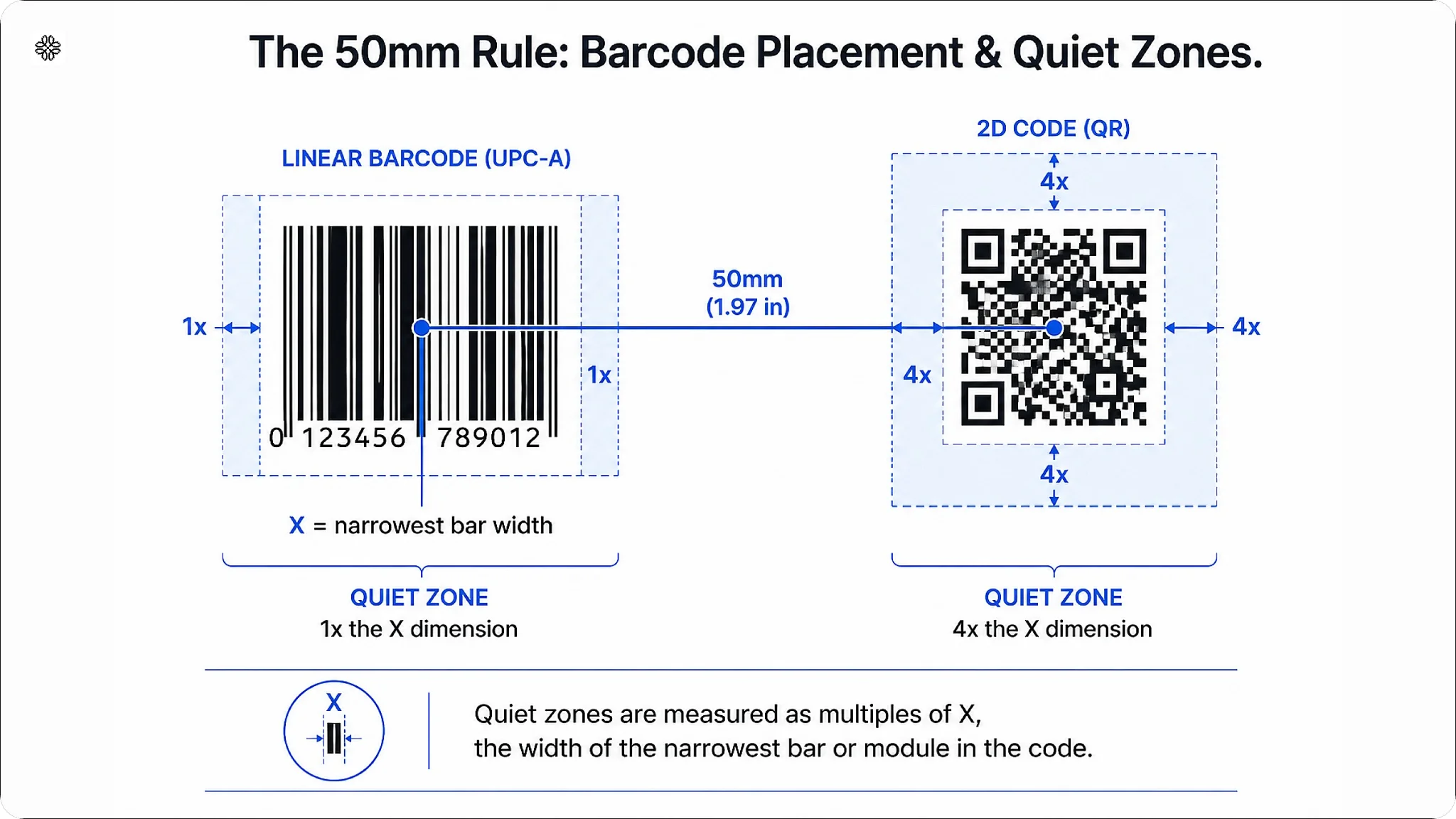
Print your GS1 QR Code at or above GS1’s minimum size, with clear space around it, in dark ink on a light background. GS1’s size estimator shows how large your QR Code will be.
Leave an empty margin, called the quiet zone, around the QR Code. Keep text and graphics out of it, including the printed GTIN, and check it again after cutting and finishing.
Use black or dark blue on white. Many checkout scanners use red light, so red, orange, yellow, and pastel QR Codes can fail.
✅ Mark as done when your artwork shows the GS1 QR Code with clear space around it, in dark ink on a light background.
Step 8: Place the GS1 QR Code beside your existing barcode
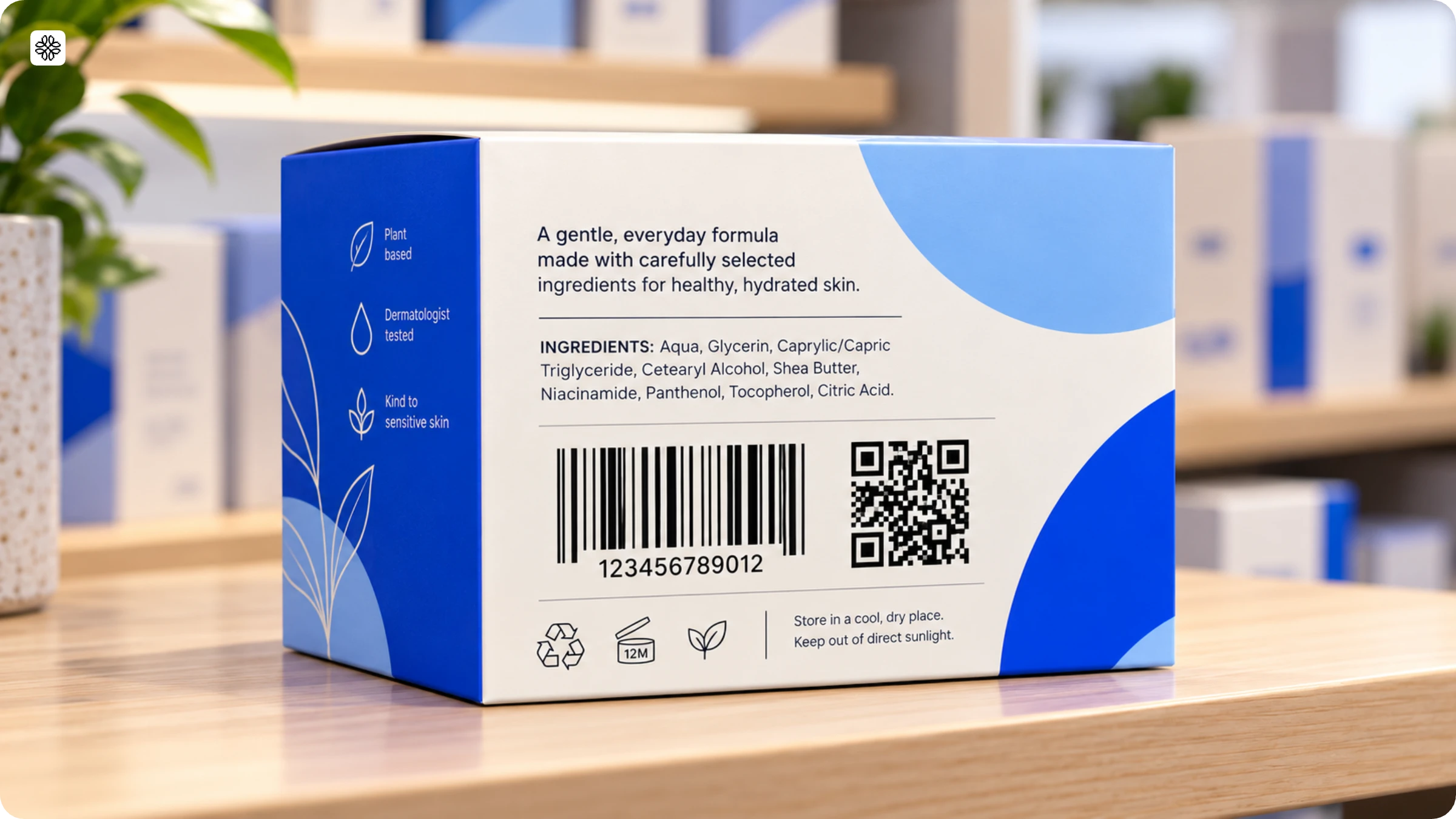
Keep your EAN or UPC barcode on the pack, and put the GS1 QR Code within 50 mm (1.97 inches) of the center of that barcode.
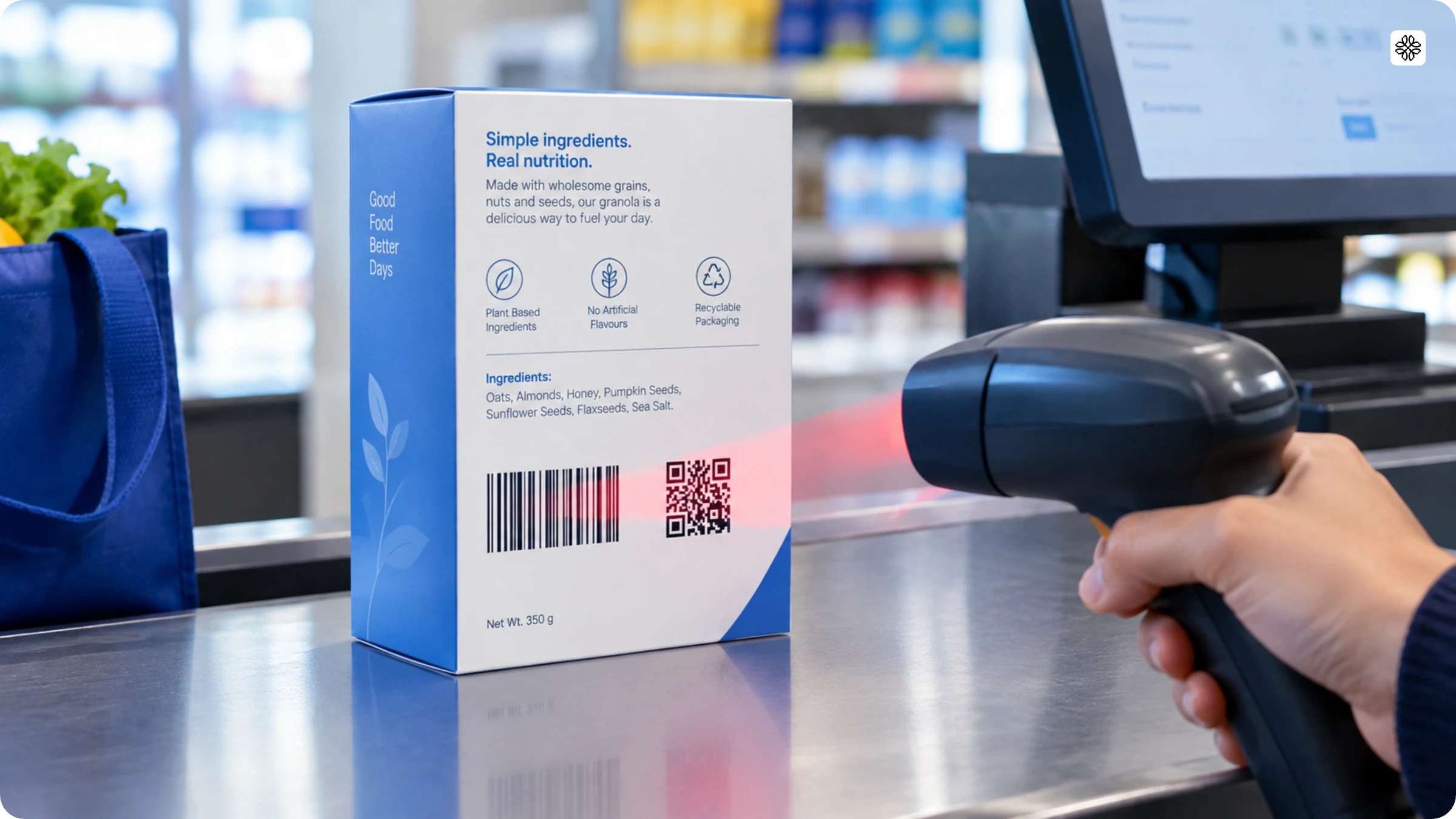
Retailers can continue scanning the existing barcode while upgrading their systems to read 2D barcodes. Keeping the codes close together helps maintain checkout scanning speed. GS1’s independent testing found that this 50 mm distance keeps checkout scanning fast enough.
Keep the QR Code clear of folds, seams, and cut lines. Check its position on an assembled pack, especially on curved or reflective surfaces that can make scanning harder.
✅ Mark as done when the entire QR Code sits within a 50 mm radius of the existing barcode’s center and stays clear of folds, seams, and cut lines on the finished pack.
Step 9: Verify the print and test scans
Test samples from your finished packaging before rolling out across your range.
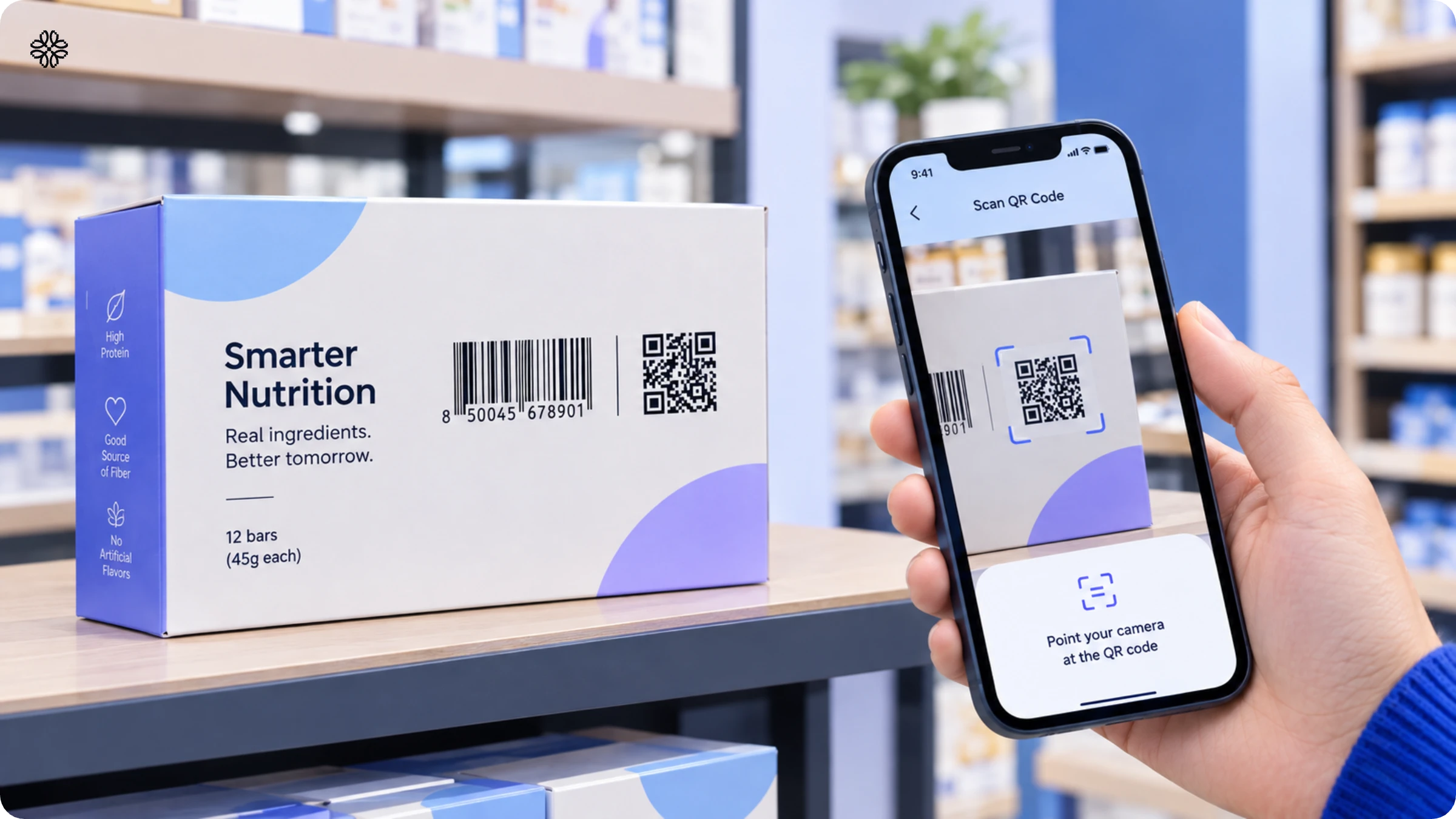
Start with a phone scan. Confirm that the correct product page opens and that its links, forms, and files work. Arrange testing with your retail partner to check that its checkout system identifies the correct product.
For print quality, GS1 highly recommends barcode verification. A barcode verifier measures the printed code against defined quality standards and helps identify printing problems that a successful phone scan can miss. Ask your printing partner whether verification is already part of its quality checks.
If you need an external service, use the GS1 US Solution Partner Finder and select Barcode Verification Service. Confirm any testing or reporting requirements with your retail partners before approving production.
✅ Mark as done when phone and checkout tests give the expected results, and your team has agreed on print-quality checks that meet your retail partners’ requirements.
How to plan the GS1 QR Codes rollout for Sunrise 2027 (with Uniqode)
Uniqode is a GS1 Executive Solution Partner. Enter your GTIN, add any lot, serial, or expiry data you need, and choose what shoppers see after scanning. Uniqode builds the GS1 Digital Link for you.
| Your GS1 implementation task | How Uniqode helps |
|---|---|
| Create GS1 QR Codes for your products | Generate GS1 QR Codes individually or from a spreadsheet for multiple SKUs. |
| Use your brand’s domain | Select your connected custom domain when creating the GS1 Digital Link. |
| Check GTIN ownership | Connect to GS1 Data Hub through the optional integration. |
| Give shoppers useful content | Link to an existing page or file, or build a mobile product page with Linkpages. Update the destination after printing. |
| Measure shopper engagement | Track phone scans and use labels to organize codes by product. |
| Manage access across teams | Use role-based permissions to control who can work on your QR Codes. |
More than 50,000 businesses use Uniqode, and it is rated 4.8 out of 5 on G2. It is SOC 2 Type 2 and ISO 27001:2022 certified, and GDPR and HIPAA compliant.
Planning your GS1 QR Code rollout?
Bring your product list, next packaging print date, and questions. We’ll help you work out the GS1 QR Code setup for your products.
Frequently Asked Questions
- Do I need my own domain for a GS1 QR Code?
No. A GS1 Digital Link can use your solution provider’s domain or your own. GS1 recommends using your own domain. It gives your business control over the printed address if you change providers, provided you move the link setup to keep existing QR Codes working.
- Does adding a GS1 QR Code mean I need a new GTIN?
No, a GS1 QR Code encodes the GTIN you already use on your UPC or EAN. You don’t register a new GTIN or SKU. Check that each GTIN is correct before you encode it.
- Does each of my product variants need its own GS1 QR Code?
Yes, each variant with its own GTIN needs its own GS1 QR Code. Units of one variant can share a GS1 QR Code. Adding a lot or serial number means a new GS1 QR Code for each one.
- Do I need to include a lot number, serial number, or expiry date?
You can start with just the GTIN in your GS1 QR Code. Add a lot number if you need to identify a batch, a serial number to identify an individual item, or an expiry date if it needs to be read during scanning. Check with your retail partners about which fields they need and can process.
- Is scanning a GS1 QR Code with my phone enough to test it?
No, a phone scan only shows that the link opens. It doesn’t test print quality or checkout scanning. Grade printed samples with a barcode verifier, then scan them with retail scanners.
- Do I keep my UPC or EAN barcode?
Yes, keep your UPC or EAN barcode on the pack. GS1 expects linear barcodes to coexist with 2D barcodes for the foreseeable future. Place the GS1 QR Code within 50 mm (1.97 inches) of its center.
- Can I reuse the QR Code already on my packaging?
No, a regular dynamic QR Code can’t become a GS1 QR Code, because the link must follow GS1’s required format. Create a new GS1 QR Code, and point it at the page your old QR Code opens.
- What can I change after a GS1 QR Code is printed?
You can update the linked content and change the destination page. The information encoded in the printed code stays fixed. Changing its domain, GTIN, lot number, serial number, or expiry date requires generating and printing a new GS1 QR Code.
- Will every retailer be able to scan my GS1 QR Code?
No. Retailers need compatible scanning equipment and systems configured to process GS1 Digital Link data. Confirm readiness with your retail partners and arrange testing before relying on the QR Code for checkout. Keep the existing UPC or EAN during the transition.
About the Author
Architaa is a Content Marketer at Uniqode, where she explores how QR Codes, Digital Business Cards, and phygital experiences are reshaping the way brands connect with their audiences. She transforms complex marketing trends and technologies into clear, actionable insights that help businesses strengthen engagement and build lasting connections with their customers. Outside of work, Architaa is most likely lost in a novel, following every ball of a cricket match, or binging her favorite shows.