
Uniqode Salesforce Integration: The Complete Setup and Dashboard Guide for Event Marketers (2026)

Find out how the Uniqode Salesforce integration works, including real-time Lead syncing and record-collision logic. You’ll also get a step-by-step guide to building your own Salesforce dashboard for event-lead attribution. This guide walks event marketers through every setup decision needed to get trade show leads into Salesforce, so your data stays clean, synced, and ready to report alongside your deals and revenue.
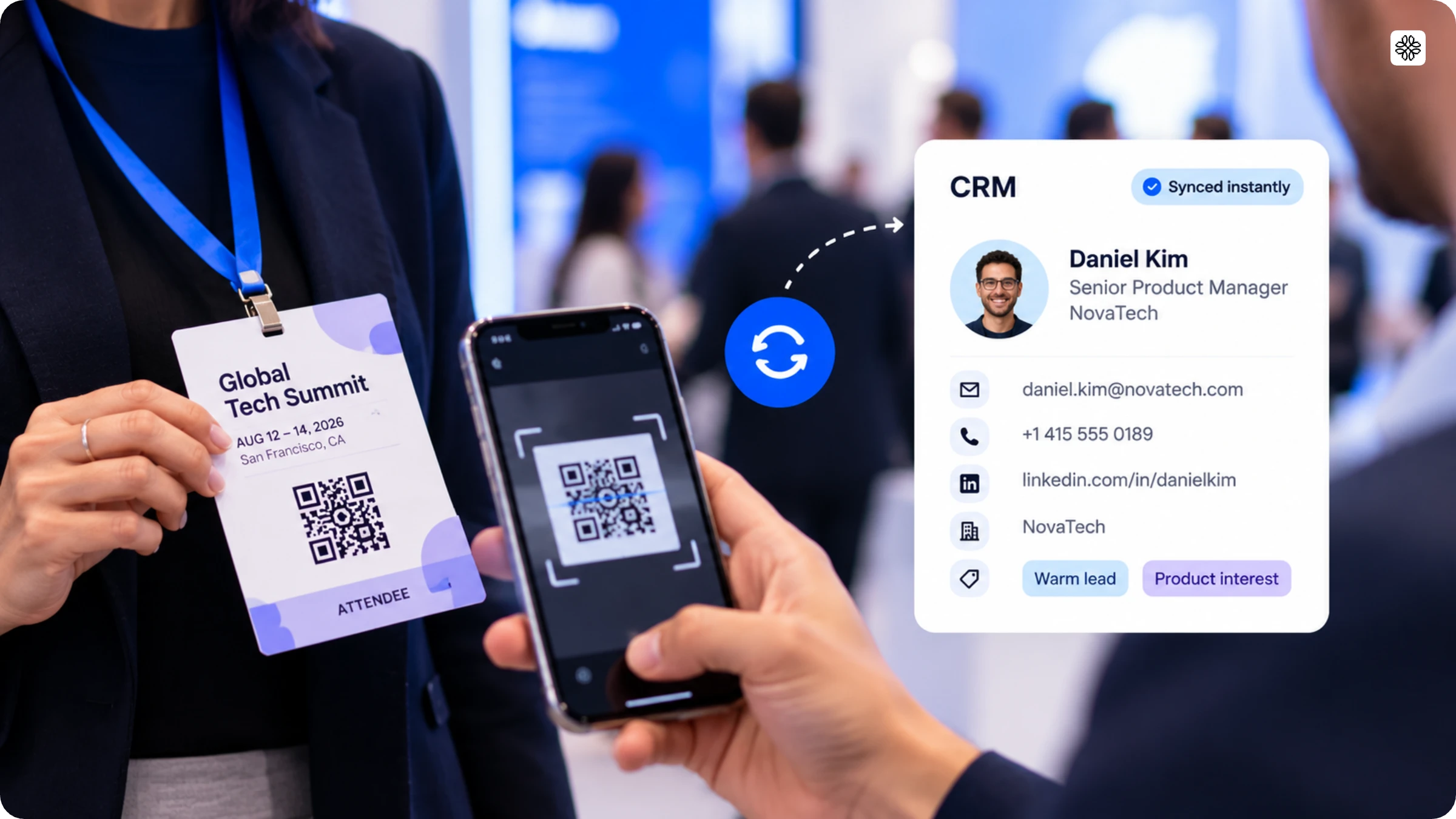
The Uniqode Salesforce integration connects event lead capture, Uniqode's badge and business card scanning app for trade shows and conferences, directly to Salesforce CRM. Every scanned contact syncs automatically, matches against existing Salesforce records by email, and lands as a lead, tagged to the event where it was captured, so your sales team sees it before the show floor even closes for the day.
Let’s face it: after a three-day conference, your rep returns with 150 badge scans on their phone. A week later, someone finally exports a CSV. By the time those leads make it into Salesforce, many have already gone cold, and the details like who said “call me Monday” are long forgotten. According to Uniqode’s own data, two out of three event leads never even reach the CRM.
In this guide, you’ll see what happens when a scanned contact already exists in Salesforce, how to connect both systems seamlessly, and how to create a Salesforce dashboard that reveals which events truly drive your pipeline.
What is the Uniqode Salesforce integration
Uniqode event lead capture is a mobile app that lets you scan badges and business cards at conferences, uses AI to enrich each contact, and sends the results directly to Salesforce or another CRM. This tool addresses a key issue: turning a scanned badge into a Salesforce record your sales team can use right away. Salesforce is just one of several built-in CRM integrations, along with HubSpot, Microsoft Dynamics, and more. If you use other tools, Zapier connects with over a thousand more.
Salesforce stands out from the other options because it’s the main system most sales teams use every day. Uniqode highlights this integration by promising that leads appear “before the next conversation starts,” instead of waiting for a CSV file to arrive in someone’s inbox.
How the Uniqode-Salesforce sync works end to end
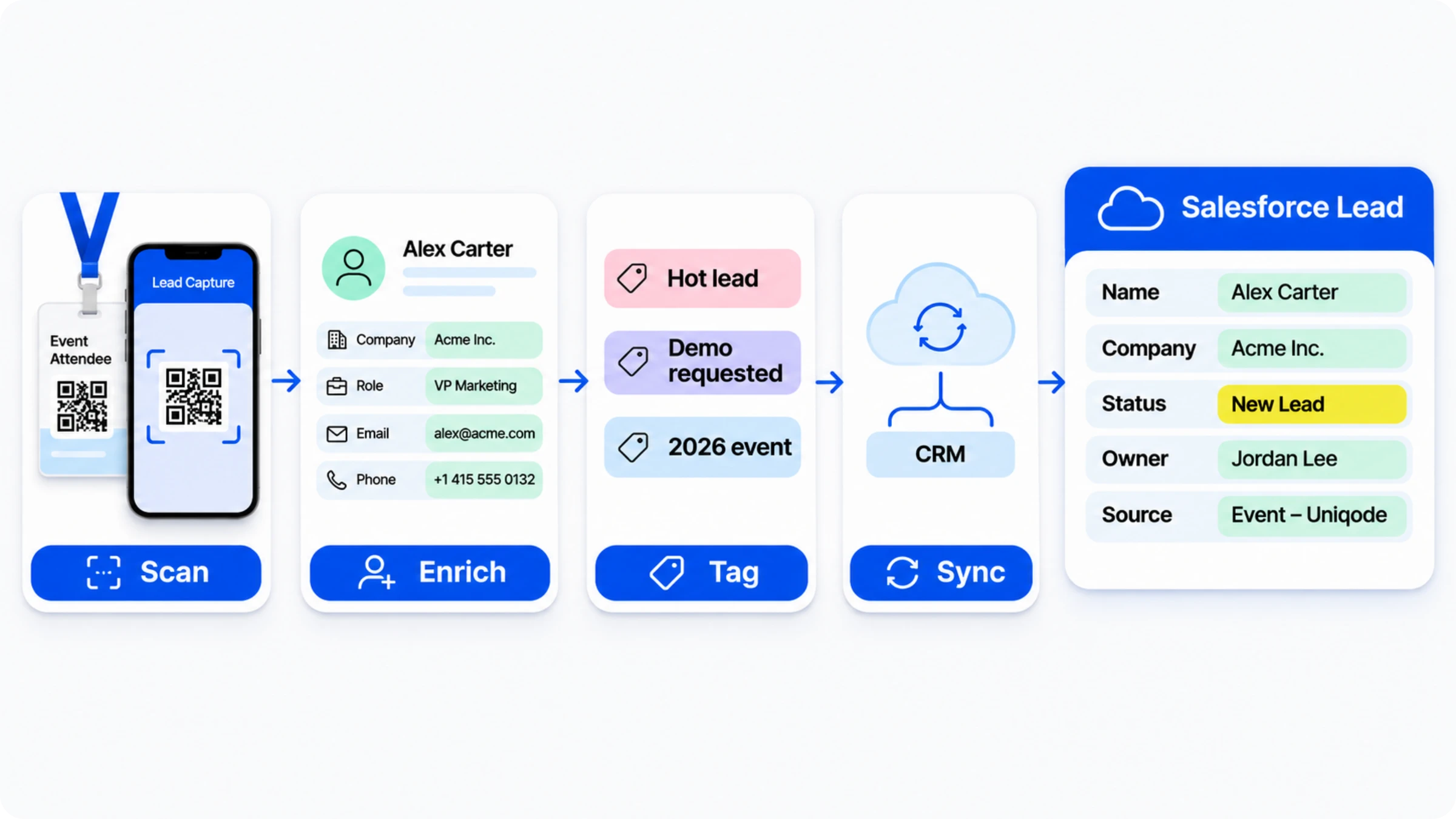
Let’s break down how the Uniqode-Salesforce sync makes life easier for your sales team. It’s a simple four-step process: scan, enrich, tag, and sync.
First up, scanning a badge or business card is a breeze, even if the venue wifi is patchy. The scan saves locally and syncs automatically as soon as you’re back online.
Next, AI enrichment steps in to fill the gaps, pulling verified emails, phone numbers, LinkedIn profiles, job titles, and company details from over 10 trusted data sources. While the conversation is still top of mind, your rep can quickly add a tag, record a voice note, or mark the lead as Hot, Warm, or Cold. And just like that, the enriched and tagged contact flows straight into Salesforce as a Lead record.
Now, here’s why that final sync step is a game-changer. Salesforce’s own 2026 State of Sales report reveals a surprising truth: sellers spend only 40% of their time actually selling. The rest? 74% of sales professionals are bogged down in data cleaning, like removing duplicates, fixing errors, and standardizing formats. Every manual export and upload after an event adds to this hidden tax on your team’s time. Real-time sync is designed to eliminate that burden, so your reps can focus on what they do best.
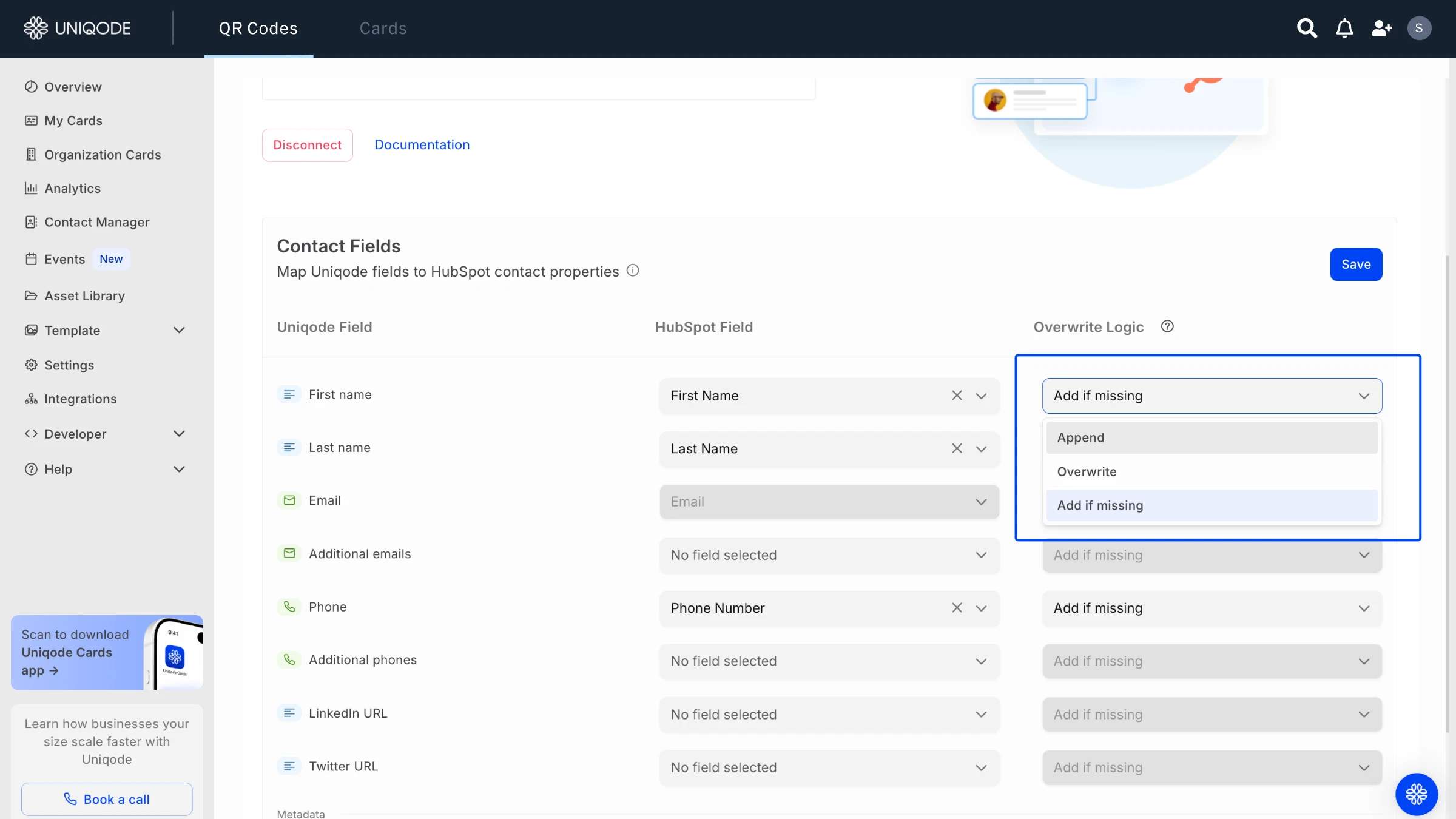
What happens to existing Salesforce records during field mapping?
There is no guesswork involved when it comes to updating contacts. If a scanned contact’s email matches one already in your records, the sync follows the update rule your team has set. You can choose from three straightforward modes: add information only to empty fields, overwrite existing details with the latest scan, or simply append the new value next to the old one. Since matching is based on email, any contact without an email or without a match will be added as a new lead, rather than updating an existing record.
What Salesforce object and fields does Uniqode sync to?
Uniqode’s interface labels these “contact” fields, but the record it writes to is Salesforce’s standard lead object, not a Contact. Salesforce requires two fields on every Lead: email address and company name. The remaining fields sync alongside those two:
- First name
- Last name
- Phone
- Job title
- LinkedIn URL
- Twitter URL
- Event details
- Profile summary
- Notes
- Labels
Does CRM syncs happen in real time, or should you plan automations around a delay?
Once Salesforce is connected, new leads sync in real time. However, leads captured prior to the connection are not automatically back-synced, which is an important limitation to note. Additionally, this integration is designed exclusively for Salesforce’s standard lead object. If your Salesforce org is built on person accounts rather than standard leads, support is not available at this time. Therefore, it is essential to verify object compatibility before proceeding, especially if your organization uses a customized data model.
Uniqode does not provide a bundled or hosted attribution or ROI dashboard for Salesforce. Instead, all reporting is constructed within Salesforce itself. For campaign-level attribution, event lead capture allows you to associate leads with a Salesforce campaign linked to the event. Any further routing, such as automatically assigning leads to a specific queue or triggering a Pardot rule, will need to be configured by your Salesforce administrator. Uniqode does not initiate Salesforce automation directly.
In practical terms, Uniqode enriches the Salesforce Lead record with additional fields, event associations, and tags. This means you can leverage Salesforce’s native tools, such as Reports, Dashboards, and Flow, to build on this data just as you would with any other synced source. If attribution across the full funnel matters to your team, pairing this setup with a structured approach to measuring event ROI closes the loop between a scanned badge and a closed lead.
How to connect Uniqode to Salesforce
Connecting Uniqode to Salesforce takes a few minutes and happens once per organization, not once per event.
- Sign in to your Uniqode dashboard.
- Open Integrations from the left-hand menu.
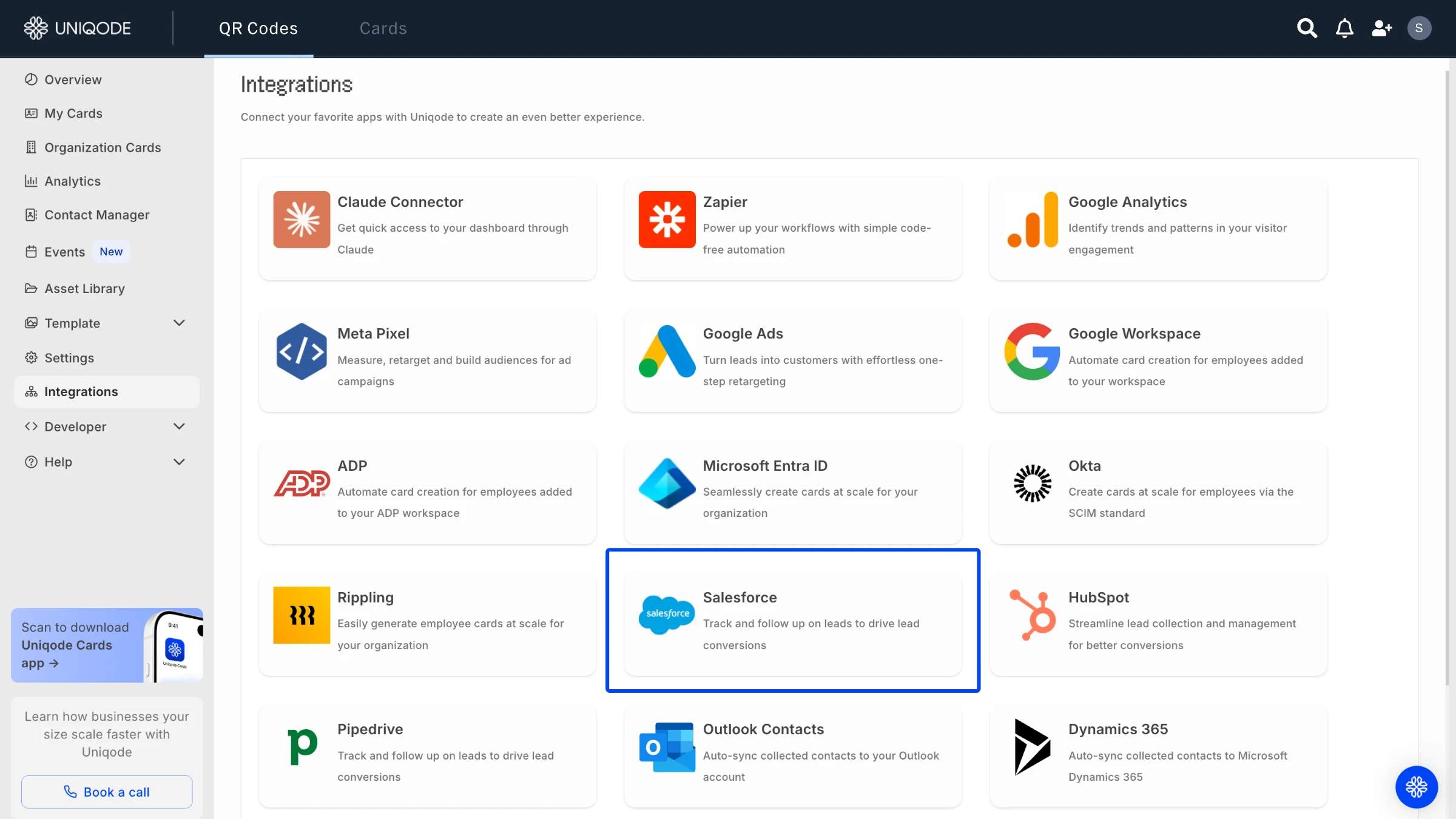
- Select the Salesforce card on the Integrations page.
- Click Connect.
- The first time only, install the Uniqode app in Salesforce, choosing Install for Admins Only.
- Review the requested permissions and grant access when redirected to Salesforce.
- Wait for Salesforce to redirect you back to the Uniqode dashboard, where the integration now shows a Connected status.
Once connected, every event afterward syncs through this same link. Nobody has to repeat these steps before the next trade show.
Picture a sponsorship-heavy events team running dozens of trade shows a year, each one justified by a five-figure sponsorship line. Before this setup, leads got scanned on badges, scribbled on notepads, or dumped into a spreadsheet, and by the time someone keyed them into Salesforce, the event that paid for the lead had no data to prove it worked. Real-time sync closes that gap the moment it happens, not a week later when the ROI conversation is already underway without the numbers to back it up.
Uniqode's other native integrations, including HubSpot, Microsoft Dynamics, and Pipedrive, follow a similar connect-once pattern. See Uniqode's full integrations list if your team runs more than one CRM across different regions or business units.

Track event performance with Uniqode's own event dashboard
Why wait to build inside Salesforce when Uniqode’s event Dashboard already gives you a clear picture of your event’s performance, with no configuration needed? In just a few minutes, you can set up your event in Uniqode and watch every badge scan appear instantly on a unified, real-time dashboard.
On this dashboard, four key numbers update in real time: total leads collected, leads captured via scan, estimated pipeline generated, and leads synced to your CRM. There’s even a leaderboard showcasing your team’s performance at a glance. All of this happens without you ever needing to adjust a Salesforce setting, and it works seamlessly whether Salesforce is connected or not. The only thing missing? Seeing this data right alongside your deals and revenue inside Salesforce.
How to build a Salesforce dashboard for event-lead attribution
Uniqode doesn’t offer a ready-made Salesforce dashboard, like it does for its event Dashboard. Instead, you’ll need to use Salesforce’s own Reports and Dashboards tools to build one. Most competitors with Salesforce event integrations only handle syncing and don’t go beyond that. The steps below use the fields Uniqode already sends to Salesforce: company, job title, lead owner, lead source, and the event or campaign each contact was tagged under.
Step 1: Confirm or create an event field
If you're already mapping an event or campaign field during setup, skip this step.
- Click the gear icon in Salesforce's top navigation bar to open Setup.
- Navigate to Object Manager and select Lead.
- Click Fields & Relationships, then New.
- Choose a field type (text or picklist works for most teams), name it something like “Event Name,” and save.
Step 2: Build a report broken down by event
- Navigate to the Reports tab and click New Report.
- Select Leads as the report type and click Continue.
- Add a filter for your Lead Source value (Uniqode's default suggestion is “QR Code Scan”) or your mapped event field.
- Group the report by the event field, and set the chart type to a bar chart under the Visualization tab.
- Click Run, then Save.
Step 3: Build the dashboard
- Navigate to the Dashboards tab and click New Dashboard.
- Name it something specific, such as “Event Lead Attribution,” and choose a folder.
- Set access to Private to owner or Everyone, depending on who needs to see it.
- Click Create, then + Component, and select the report you just saved.
Step 4: Add a second view
Repeat Step 2 with Lead Owner as the breakdown instead of event, since Uniqode's leaderboard data syncs into Salesforce as an owner field too. Two reports, leads by event and leads by rep, answer the two questions an event marketing manager actually gets asked: which show produced this pipeline, and which rep is closing it.
Get your event leads into Salesforce without the guesswork
Before you connect Uniqode to Salesforce, check four things: who has admin access on both platforms, which update mode you need (add-if-missing, overwrite, or append) to keep your Lead data clean, whether your organization uses the standard Lead object or a custom model like Person Accounts, and how repeat-attendee matching works if you run lots of events each year. Once you’ve sorted these out, setup is a one-time task, not something you’ll need to keep doing. After everything is set up, Uniqode’s event dashboard lets you see how each event is performing in real time, and your Salesforce dashboard shows which events are driving your pipeline, right alongside your deals and revenue. Want more information? Talk to sales.
Frequently Asked Questions
- What is event lead capture?
Event lead capture is the process of collecting and qualifying attendee information at trade shows and conferences, through badge scanning, business card capture, or a form, then moving that contact data into a CRM or marketing system for follow-up.
- What are Salesforce integrations?
Salesforce integrations connect Salesforce to outside tools so data moves between them without manual entry. Uniqode's version is a native integration: it syncs scanned leads directly into Salesforce's Lead object rather than routing through a separate middleware tool.
- Does the Salesforce integration create Opportunities or just Leads?
The integration creates Leads only. Converting a Lead into an Opportunity is a standard Salesforce action your sales team performs separately, once a lead is qualified enough to move into the pipeline.
- What's the best event lead capture tool for Salesforce users?
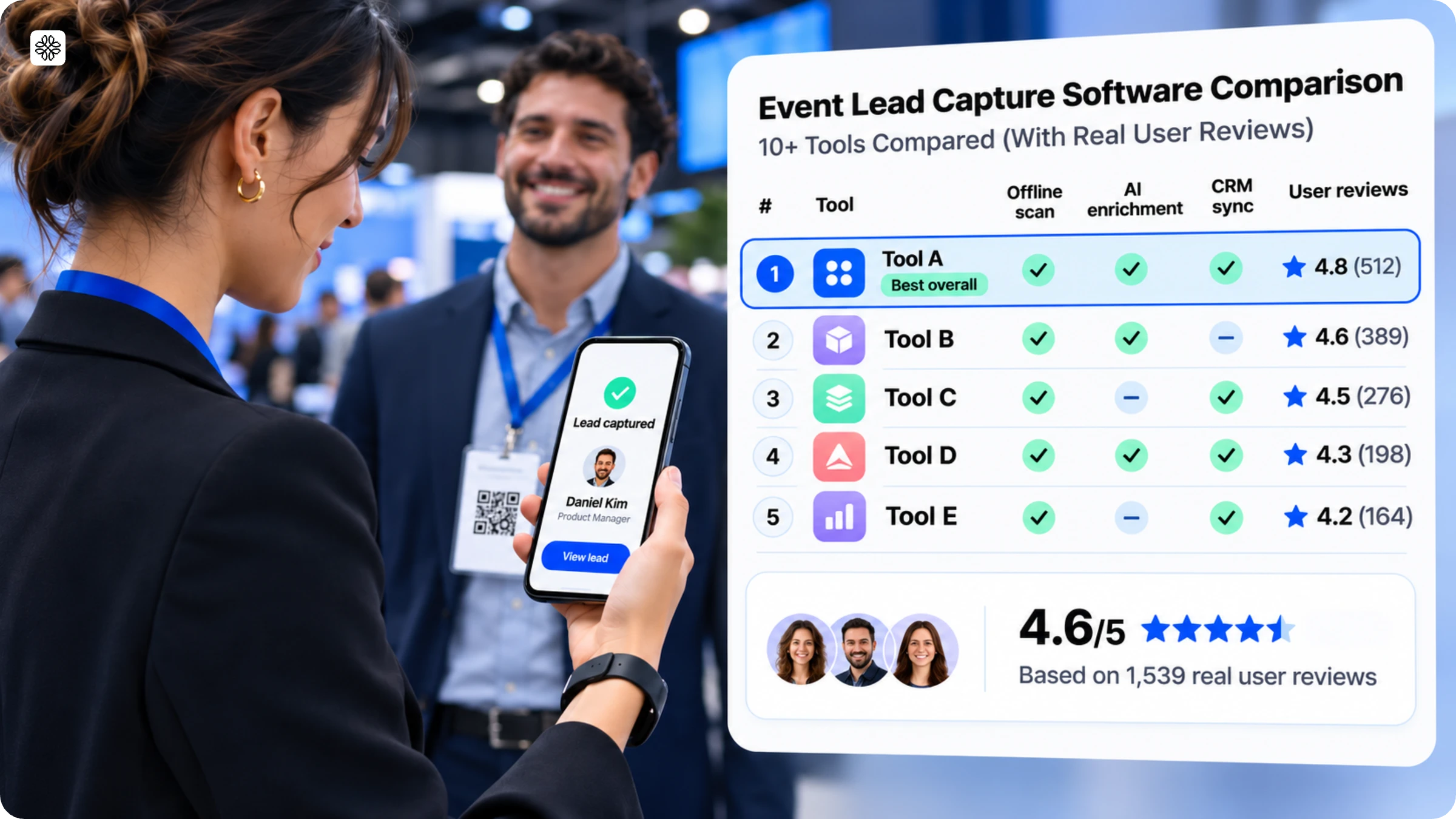
The criteria that matter most are how the tool handles existing Salesforce records, how fast data actually lands there, and whether setup is a one-time task or a per-event chore. Beyond that, the right choice depends on how deep your Salesforce workflow needs to go and how much you want to spend on dedicated scanning hardware versus a phone-based app, so there isn't one answer that fits every team.
About the Author
Somreeta is a Senior Content Marketer at Uniqode, where she writes about QR Code technology and how teams put it to work in the real world. She brings 8+ years of marketing experience to every piece, with a focus on turning product depth into content people actually use.
Related Posts
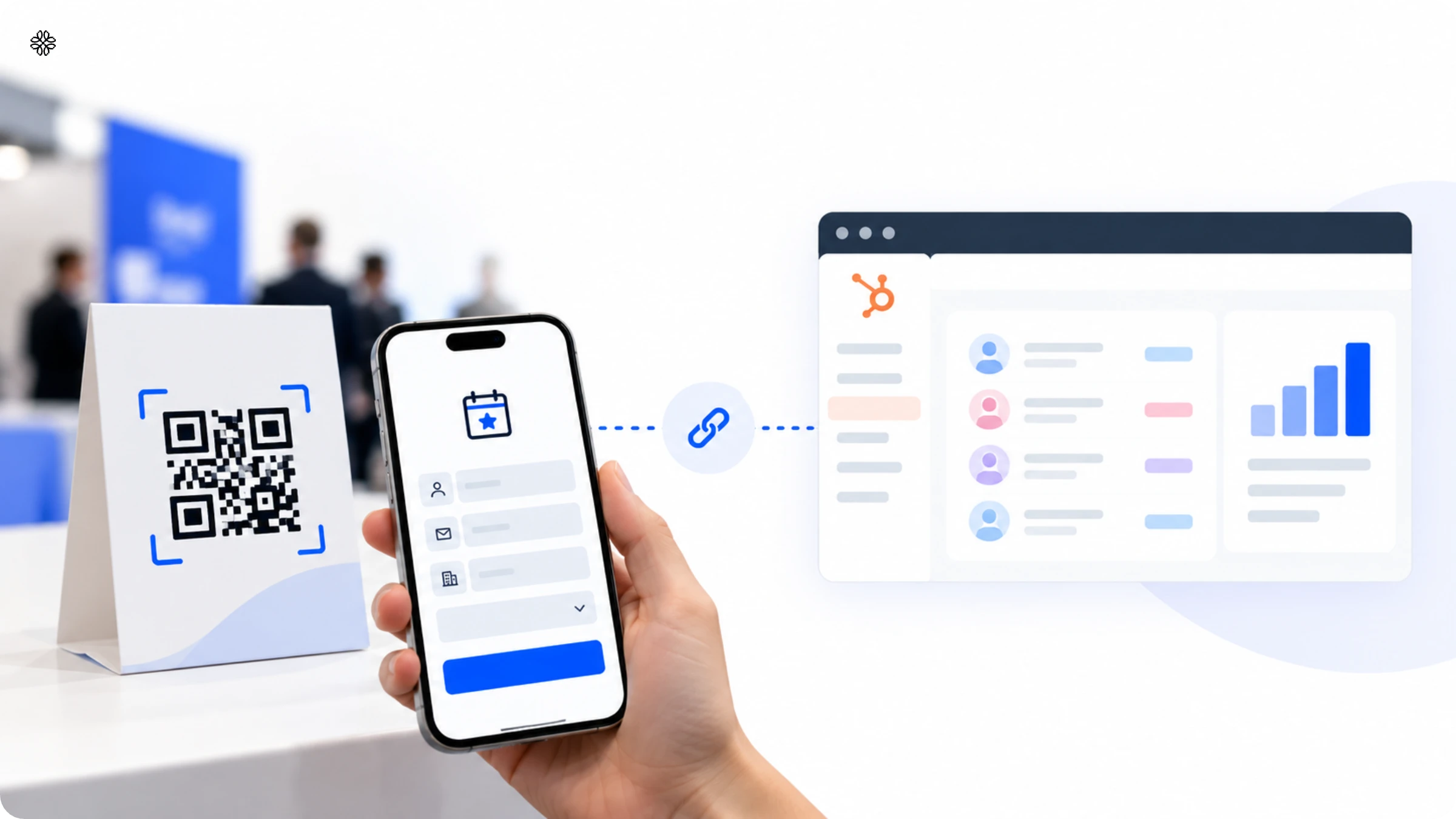
Uniqode HubSpot Integration: The Complete Setup and Dashboard Guide for Event Marketers

25 Questions to Ask on Every Event Lead Capture Demo (and the Answers That Should Worry You)
Instant CRM Sync: What It Means for Event Lead Capture
Best Event Lead Capture Software in 2026: 10+ Tools Compared (With Real User Reviews)