
Uniqode HubSpot Integration: The Complete Setup and Dashboard Guide for Event Marketers
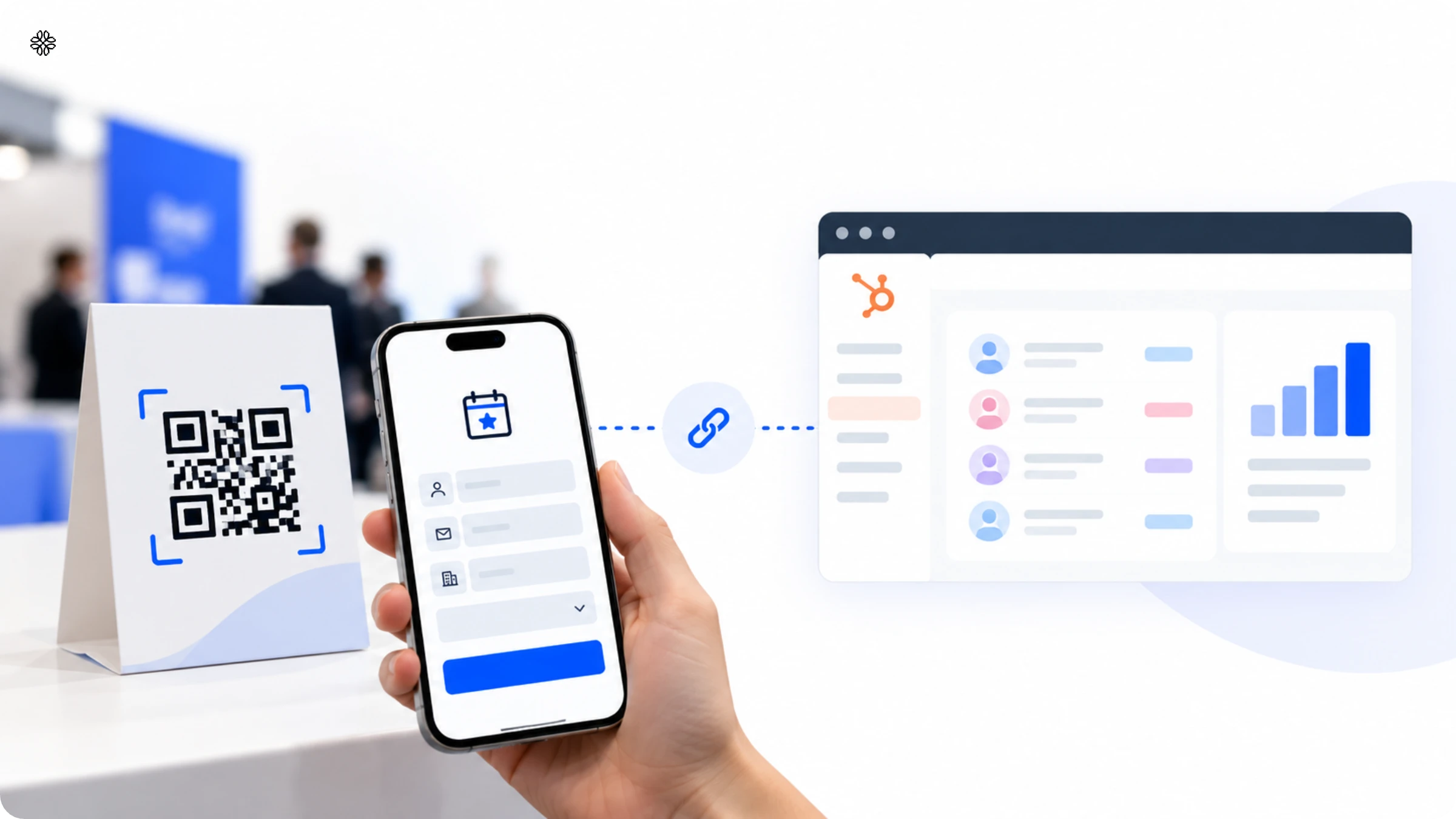
Learn exactly how to connect Uniqode Event Lead Capture to HubSpot CRM, from field mapping and update rules to building your own HubSpot dashboard for event-lead attribution. This step-by-step guide covers every setup decision event marketers need to get trade show leads into HubSpot clean, synced, and ready to report on.
The Uniqode HubSpot integration connects event lead capture, Uniqode's badge and business card scanning app for trade shows and conferences, directly to HubSpot CRM. Every scanned contact is automatically synced, matched to existing records by email, and neatly organized under the correct event campaign, so no more messy lists or lost opportunities.
Picture this: you leave the trade show floor with 80 badge scans saved on your phone. But the real challenge begins now. Will those scans become valuable leads, or will they get lost in the shuffle? What truly matters is how quickly that data is put to work and whether you can later track exactly which event contributed to your pipeline.
In this guide, we will take you step by step through connecting Uniqode and HubSpot, mapping your fields, deciding how to update existing contacts, and enabling automatic sync. You’ll also learn how to track event performance using Uniqode’s Event Dashboard, and how to build your own HubSpot dashboard for event-lead attribution. By the end, you will have a seamless CRM integration and a clear HubSpot report showing exactly which event brought in which leads.
How does the Uniqode HubSpot integration work
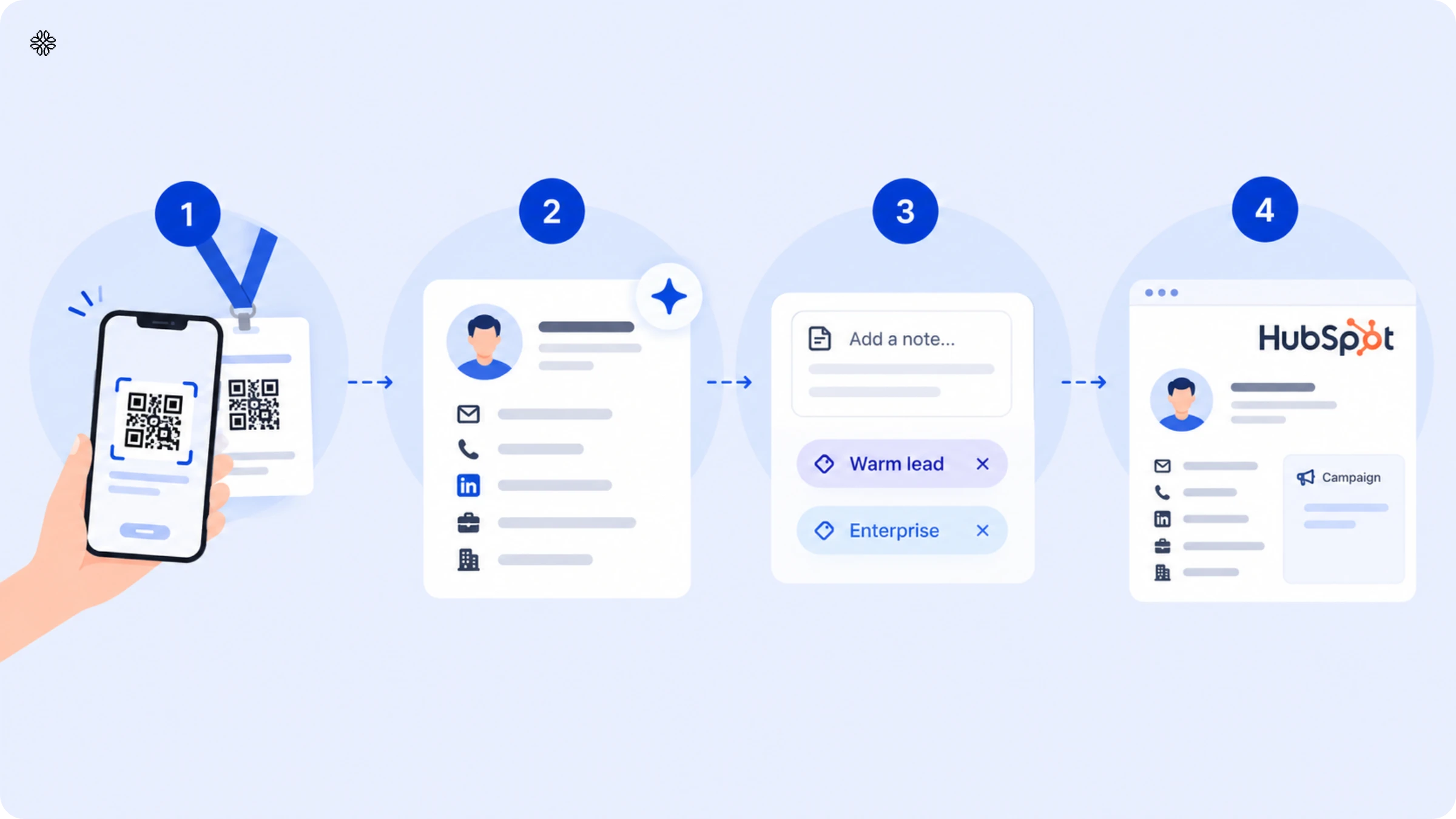
Uniqode event lead capture is a mobile app that helps event teams scan badges and business cards at conferences, uses AI to enrich each contact, and sends the information to a CRM. There are four steps to move a contact from your booth into HubSpot. First, you scan a badge or card, even without an internet connection. Next, the app enriches the contact by pulling verified email, phone, LinkedIn, job title, and company details from over 10 data sources. While the conversation is still fresh, you can add notes and labels like “Warm lead” or “Enterprise.” Finally, the app syncs the enriched and tagged contact into HubSpot, linking it to the event's campaign.
HubSpot is one of several CRM integrations available in Uniqode, along with Salesforce, Microsoft Dynamics, Pipedrive, and Outlook. For other tools, you can use Zapier. The next sections will show you how to connect and set up HubSpot.
How to connect Uniqode to HubSpot
Connecting the two systems takes a few minutes and only needs to happen once per account.
Before you start, confirm that you have a HubSpot account with administrator access. You require admin rights because the connection operates at the account level, not the event level.
- Sign in to your Uniqode dashboard.
- Open Integrations from the left-hand menu.
- Select the HubSpot card on the Integrations page.
- Click Connect.
- Choose the correct HubSpot account and click Choose Account.
- Review the requested permissions and click Connect app.
- Wait for HubSpot to redirect you back to the Uniqode dashboard, where the integration now shows a Connected status.
Once connected, this HubSpot account is linked for the whole organization. Every event afterward syncs through this same connection, so nobody has to repeat these steps before the next trade show.
How to map HubSpot contact fields and choose how existing contacts get updated
Connecting the integration doesn't automatically decide what data moves where. That's a separate, one-time configuration step.
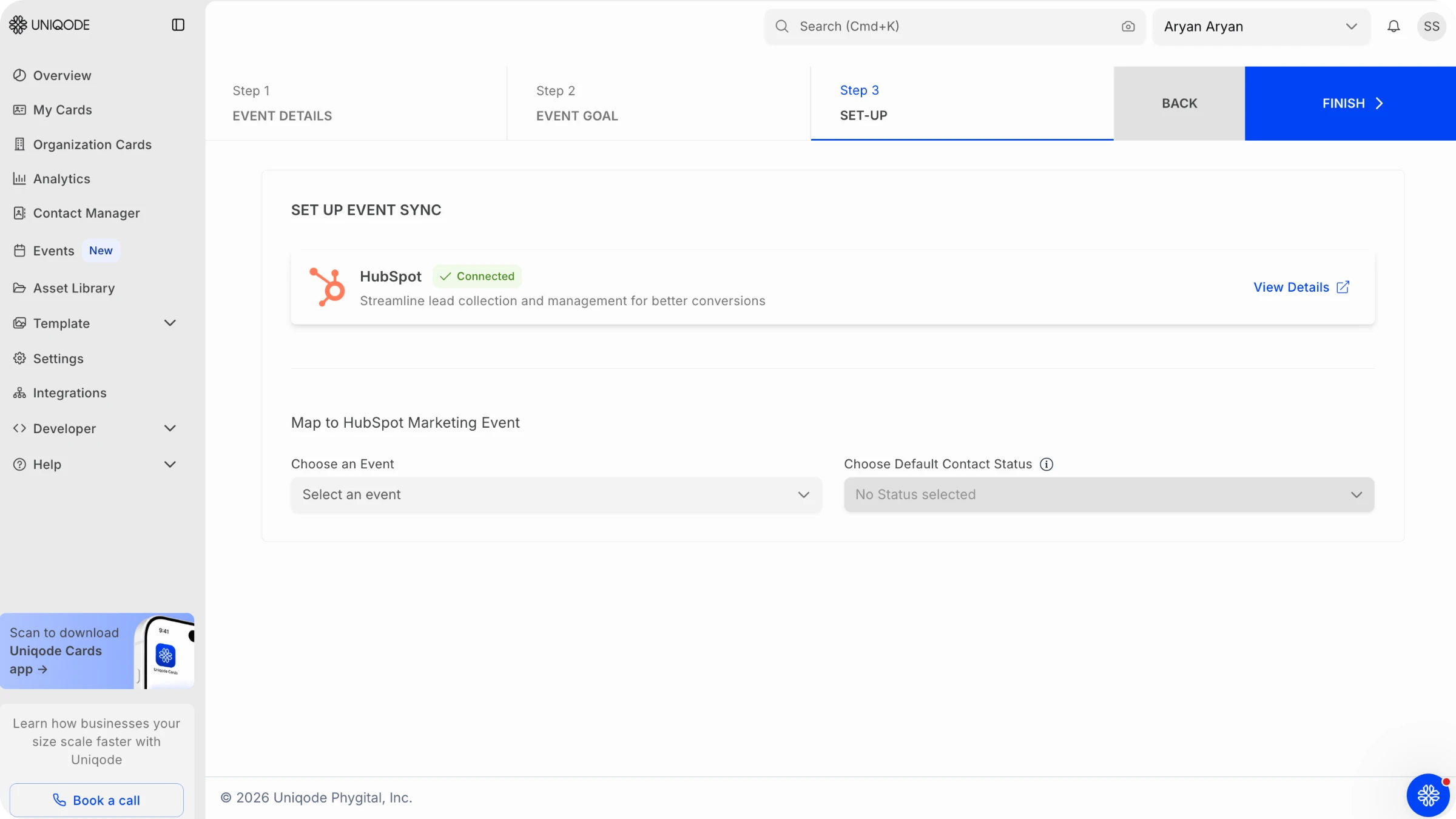
- Open the HubSpot field-mapping screen from the Integrations area.
- For each Uniqode field (name, email, phone, LinkedIn URL, job title, company name, company size, industry, tags, and notes), select the matching HubSpot contact property from the dropdown.
- Need a HubSpot property that doesn't exist yet? Create it in HubSpot first (see the dashboard section below for the exact steps), then return to this screen, it will appear in the dropdown once created.
- Choose how the sync should handle a scanned contact who already has a value in that HubSpot field.
- Click Save.
Step 4 is crucial as it determines whether your five-day trade show ends with a clean, reliable pipeline in HubSpot or a jumble of contacts no one can trust. With Uniqode event lead capture, if a contact already exists, it gets updated, not overwritten. So, when you scan a badge again, only the missing details are filled in, while the existing information stays safe and sound.
If your team needs more control, Uniqode's integration engine, shared with its Cards product, offers three clear options: add if missing (which only fills empty fields), overwrite (which replaces existing values), and append (which adds the new value next to the old one, separated by a semicolon).
If there’s no email match or if an email isn’t captured during the scan, a new HubSpot contact is created instead of updating an existing one. So, the real key to keeping your data clean is ensuring emails are consistently captured on the show floor, rather than relying solely on the update rule.
Read: Uniqode vs Popl comparison
How to sync contacts on HubSpot
Once fields are mapped, sync is automatically switched on and leads start flowing in.
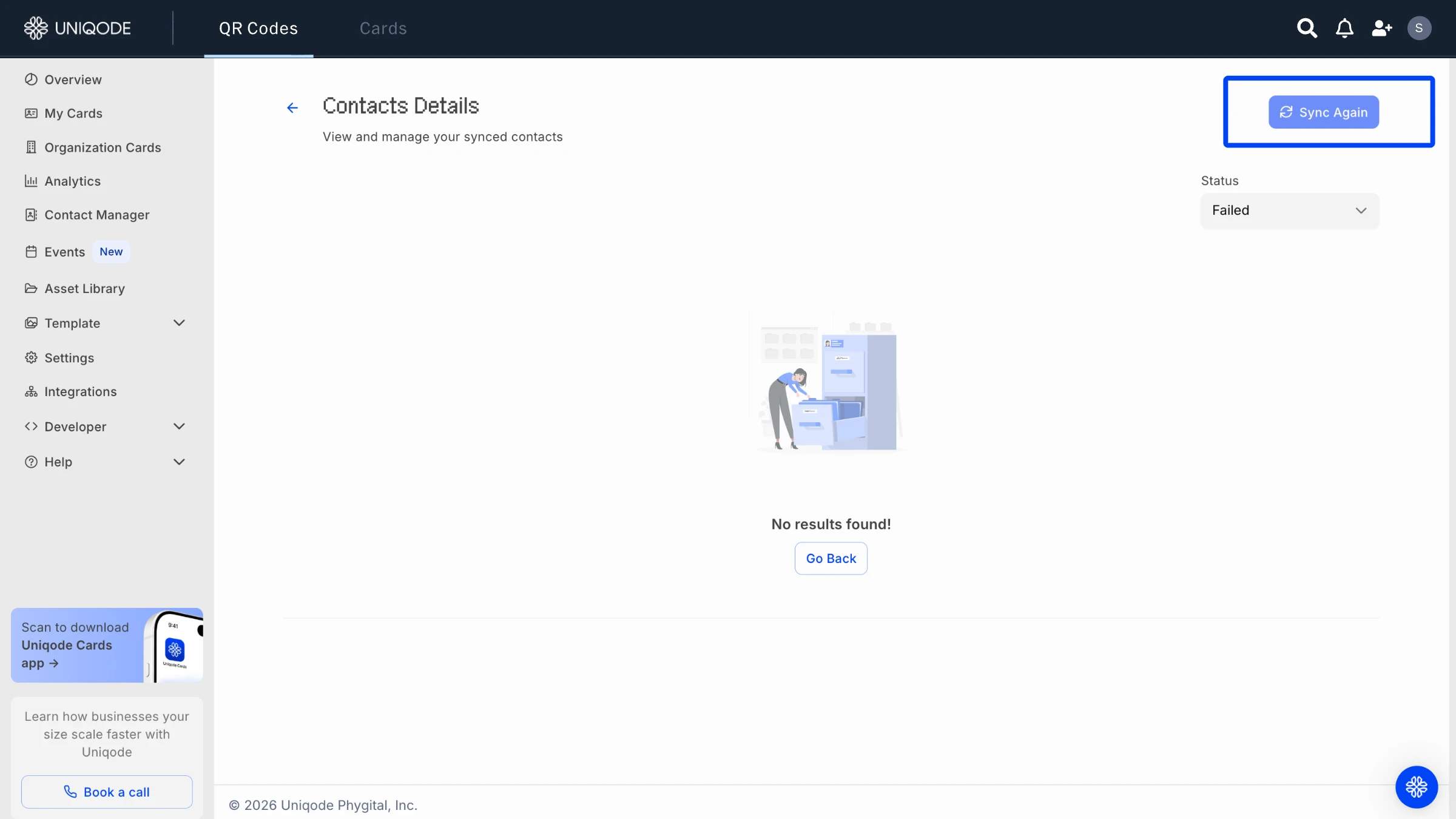
You will be able to see the list of both your synced and unsynced contacts.
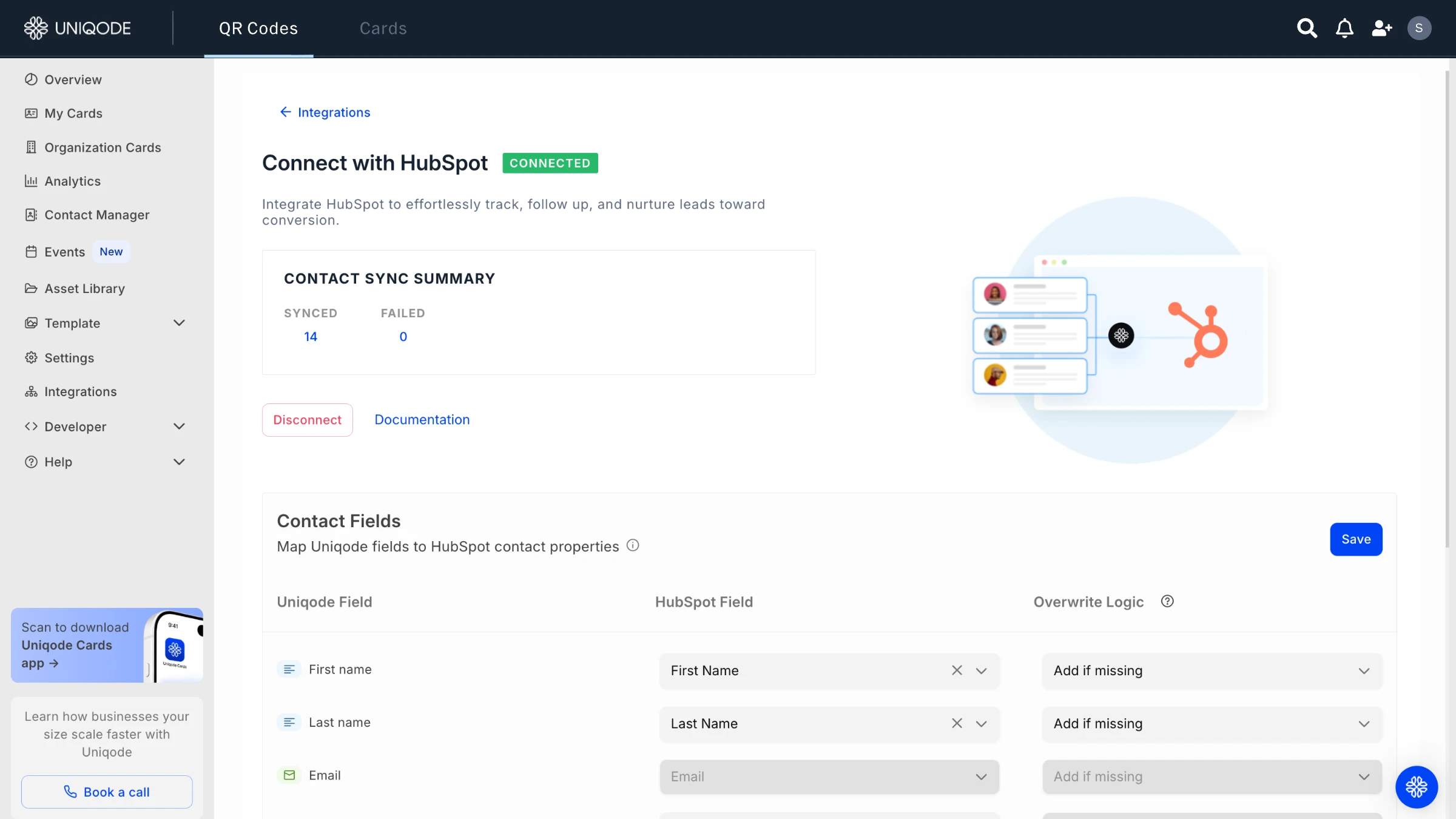
In case of unsynced contacts, you can just select the “sync again” button to ensure all your contacts are in the system.
Track event performance with Uniqode's own event dashboard
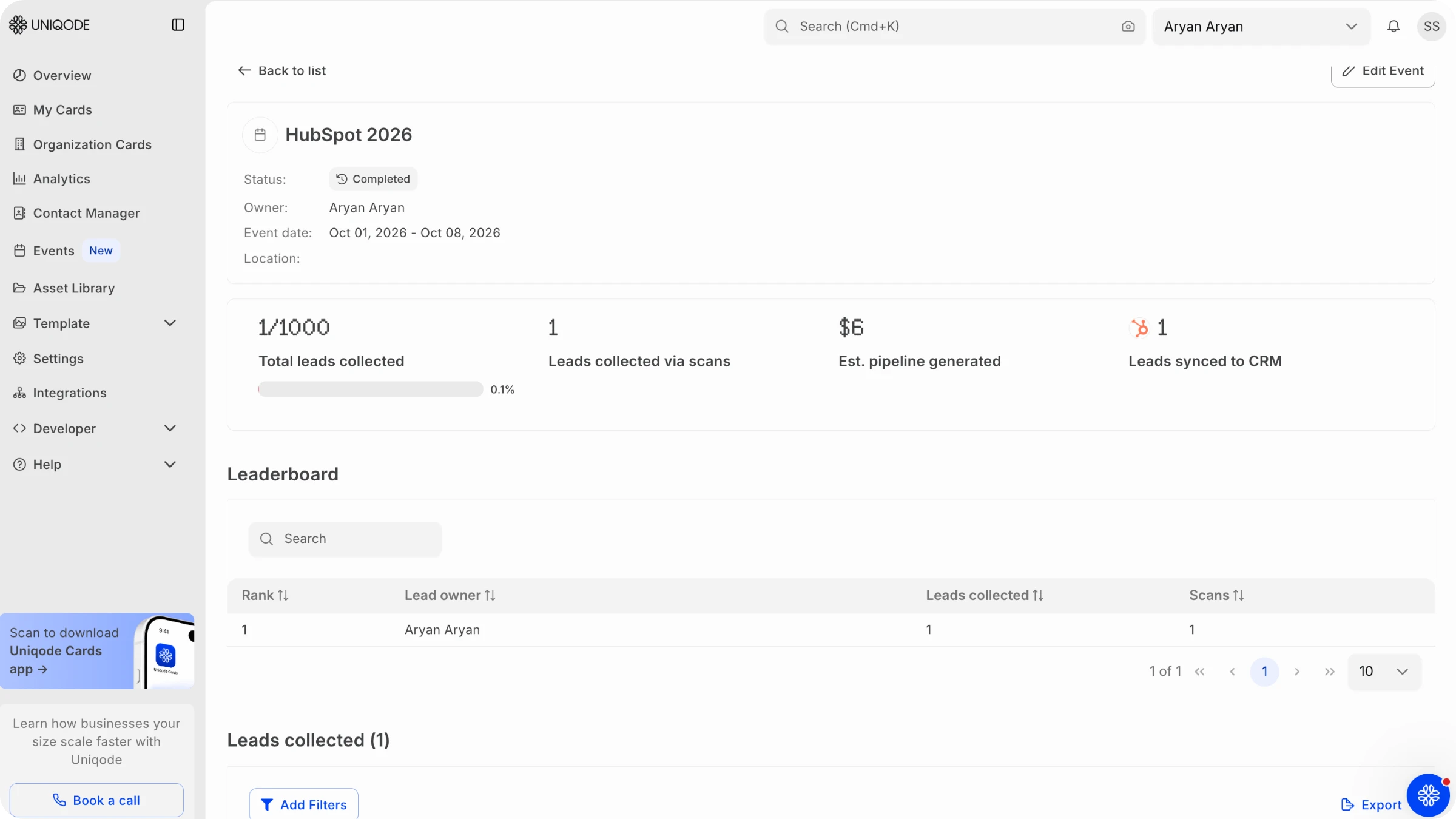
Before you start building anything in HubSpot, take a moment to see what Uniqode already offers out of the box. Setting up an event in Uniqode is a breeze and takes just a few minutes. Every badge scanned during the show is instantly captured and displayed in a single, live Uniqode dashboard.
On this dashboard, you’ll find four key numbers updating in real time: total leads collected, leads captured via scan, estimated pipeline generated, and leads synced to your CRM. There’s also a handy leaderboard that ranks your team members by lead count. The best part? You don’t need to configure anything in HubSpot to access this view. Whether you’re at the booth or following along from the office, you can instantly see how your event is performing. However, this dashboard does not reside in HubSpot alongside your deals and revenue data.
How to build a HubSpot dashboard for event lead attribution
Uniqode does not provide a pre-built HubSpot dashboard like its own Event Dashboard. Most competitors in this category do not offer one either. Instead, they share guides on how to build a dashboard using HubSpot's native reporting tools and the fields their integration syncs. The steps below show how to do this with the fields Uniqode sends to HubSpot: company, job title, industry, contact owner, tags, and the event each contact was tagged under.
Step 1: Create a custom property for your event, if you need one
Skip this step if you're already mapping an “event” or “campaign” field during setup. Otherwise:
- Click the settings icon in HubSpot's top navigation bar.
- Navigate to Properties in the left sidebar.
- Click the “Select an object” dropdown and choose Contact properties.
- Click Create property above the table.
- Enter a label (for example, “Event Name”), select a field type, and click Create property.
Step 2: Create the dashboard
- Navigate to Reporting > Dashboards.
- Click Create dashboard in the upper right.
- Click New Dashboard for a blank dashboard, rather than a pre-made template.
- Name it something specific, such as “Event Lead Attribution.”
- Set access to either Private to owner or Everyone, depending on who should see it.
- Click Create dashboard.
Step 3: Build a report breaking leads down by event
- Navigate to Reporting > Reports and click Create report.
- Select Single-object report and click Next.
- Choose Contacts as the data source and click Next.
- Click Add Contact Property and select your event or campaign field.
- Open the Visualization tab and choose a bar chart.
- Drag your event property into the Displaying section to set it as the breakdown dimension.
- Click Save report.
Step 4: Add the report to your dashboard
Then repeat Step 3 with a different breakdown property for a second view. Contact owner or rep name works well here, since Uniqode's leaderboard data syncs into HubSpot as a contact field too. Two reports, leads-by-event and leads-by-rep, cover the two questions most event marketing managers actually get asked: which show produced this pipeline, and which rep is closing it.
Read: 25 questions to ask before selecting an event lead capture vendor
How to set up a HubSpot workflow for event follow-up
Getting leads into HubSpot with the right properties sets up the second half of the job: making sure follow-up happens without someone manually working a list.
- In HubSpot, navigate to Automation > Workflows.
- Click Create workflow and choose Contact-based.
- Set the enrollment trigger to your synced event or tag field, for example, contacts tagged “Warm lead” from a specific event.
- Add actions such as assigning a task to the contact owner or enrolling the contact in an email sequence.
- Turn the workflow on.
Think of this as a dedicated mini-project, not just a last-minute addition to your setup. The contacts you sync from event lead capture are just the starting point. It is the workflow that transforms these raw details into meaningful action, the very day your event wraps up, instead of letting weeks slip by.
Get your event leads into HubSpot without the guesswork
Setting up Uniqode with HubSpot is refreshingly simple. All it takes is a one-time process: connect your account, map the fields, decide how you want existing contacts to be updated, and switch on the sync. Once you are set up, Uniqode’s Event Dashboard gives you real-time insights into how each show is performing. Meanwhile, your HubSpot dashboard, built from these steps, lets you see exactly which events are driving your pipeline, right alongside your deals and revenue figures.
See how Uniqode event lead capture works. Speak to sales.
Frequently Asked Questions
- What is event lead capture?
Event lead capture is the process of collecting and qualifying attendee information at trade shows and conferences through badge scanning, business card capture, or a form, then moving that contact data into a CRM or marketing system for follow-up.
- How does event lead capture work with HubSpot specifically?
Event lead capture works with HubSpot through the same scan-to-sync flow used everywhere else: a badge or business card scan triggers AI enrichment and tagging inside the Uniqode app, and the enriched contact syncs to HubSpot immediately after. HubSpot matches that contact by email against any existing record, updating it rather than creating a duplicate or overwriting what’s already there.
- Can I see which event a HubSpot contact came from?
Yes, you can see which event a HubSpot contact came from, if the event or campaign field is included in your field mapping during setup. Once mapped, that value becomes a standard HubSpot contact property you can filter, segment, and report on like any other field, including in the dashboard build described above.
- Do I need custom HubSpot properties to build an event attribution dashboard?
You need custom HubSpot properties to build an event attribution dashboard, only if the Uniqode field you want to report on, an event name or campaign tag, for example, doesn't already match an existing HubSpot property. HubSpot lets you create properties in Settings before mapping, and Uniqode's mapping screen picks up any property that exists at the time you map it.
- What's the best event lead capture tool for HubSpot users?
There isn't one honest answer that fits every team evaluating event lead capture software for HubSpot. The choice depends on how deep your CRM workflow needs to go, whether you want a native in-app event dashboard in addition to HubSpot reporting, and how much you're willing to spend on dedicated scanning hardware versus a phone-based app.
About the Author
Somreeta is a Senior Content Marketer at Uniqode, where she writes about QR Code technology and how teams put it to work in the real world. She brings 8+ years of marketing experience to every piece, with a focus on turning product depth into content people actually use.
Related Posts
Uniqode Salesforce Integration: The Complete Setup and Dashboard Guide for Event Marketers (2026)

25 Questions to Ask on Every Event Lead Capture Demo (and the Answers That Should Worry You)
Instant CRM Sync: What It Means for Event Lead Capture
Best Event Lead Capture Software in 2026: 10+ Tools Compared (With Real User Reviews)