Blurry QR Code: Why It Happens and How to Fix It
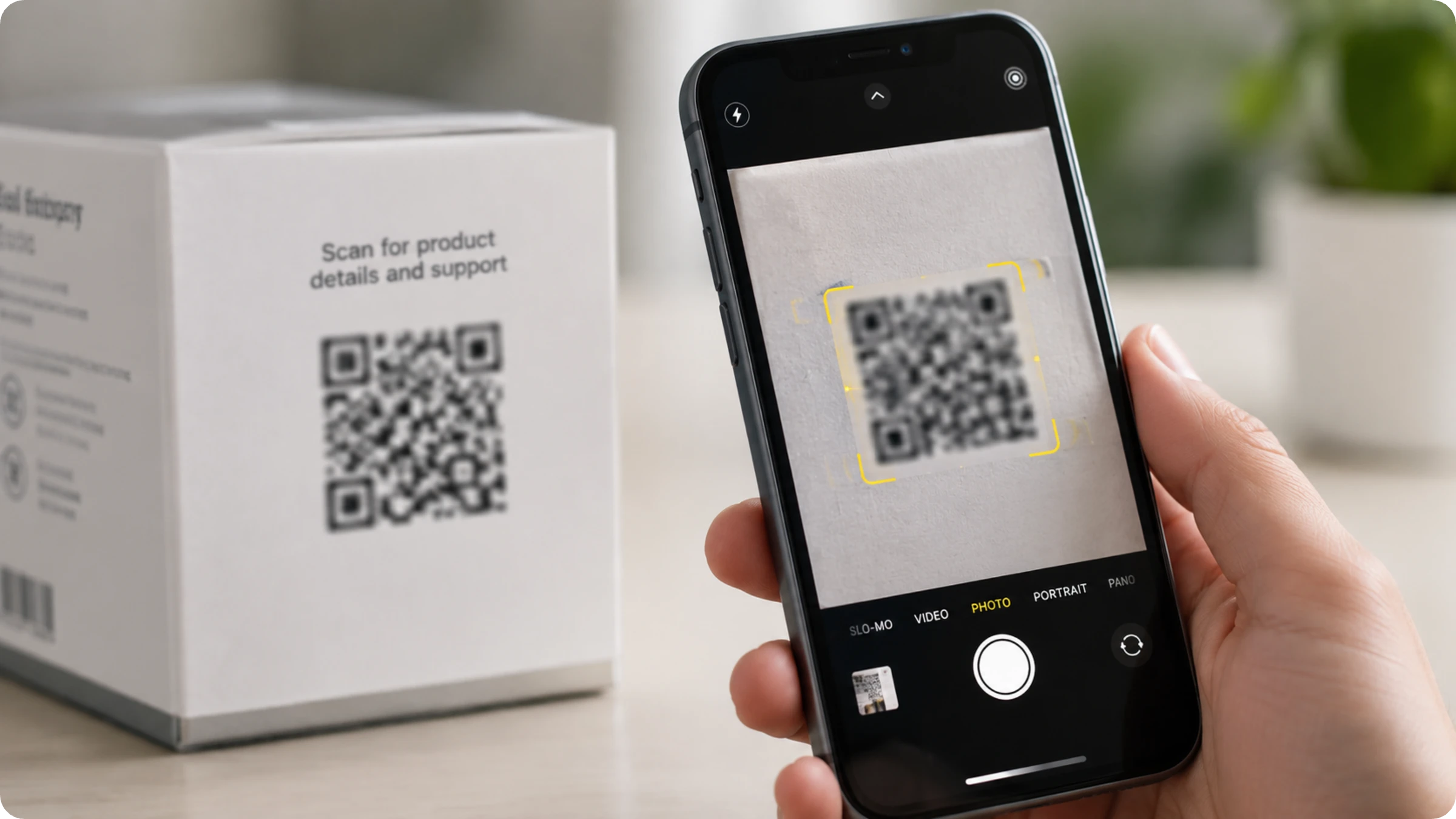
Blurry QR Codes will cause scans. Find out what causes a QR Code to be blurry and how you can fix it.
A QR Code that will not scan is not just a minor inconvenience. Businesses invest heavily in print campaigns, product packaging, and event collateral, and a blurry QR Code quietly undermines all of it.
Low-resolution exports, incorrect file formats, poor print settings, and design choices that compromise scannability can all converge to produce a blurry QR Code that fails to scan. Understanding exactly where the quality breaks down is the first step to preventing it. This guide covers every cause of a blurry QR Code and how to fix each one.
What causes a blurry QR Code?
Blurry QR Codes usually happen because of contrast issues, low image resolution, or printing errors. QR Codes rely on sharp, pixel-perfect contrast between dark and light modules. When the edges soften, it causes blurred QR Codes. Standard cameras fail to read the data matrix, resulting in scanning failures. Let’s look at each of the common causes in detail.
1. Design, contrast, and quiet zone issues
A poorly designed QR Code can be just as problematic as a bad file. Here are the most common design mistakes that cause blurry or unscannable QR Codes:
- Quiet zone and contrast: Every QR Code needs a clear margin of blank space around its edge, called the quiet zone, plus strong contrast between the foreground and background. A custom QR Code design that keeps both intact avoids scanning issues entirely.
- Incorrect scaling or resizing: Altering the aspect ratio or letting a logo or background overlap the quiet zone disrupts the pattern a scanner needs to read.
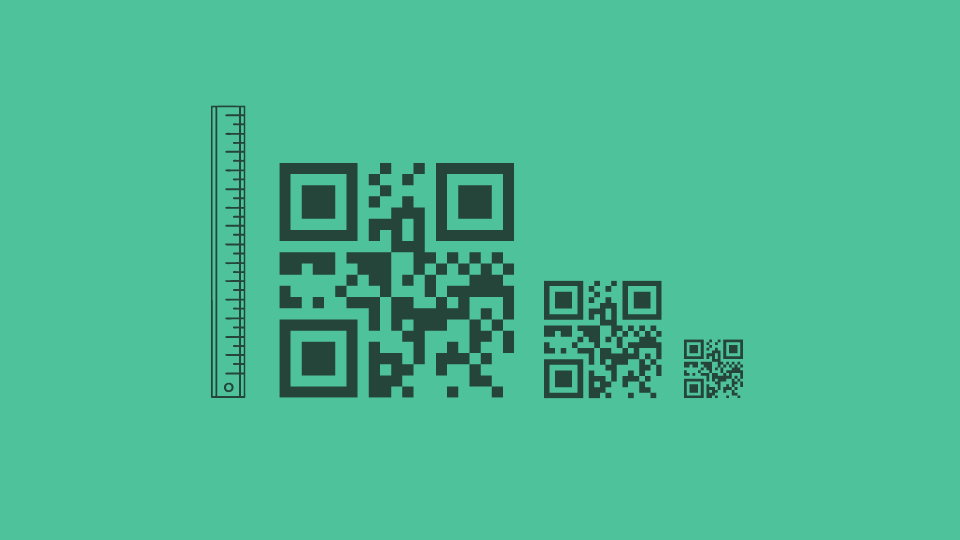
- Data overcrowding: There is a limit to the data QR Codes can hold, before it gets pixelated. Embedding long, complex URLs into static QR Codes generates tiny, dense modules, causing blurred QR Codes.
→Related: Best practices when designing a QR Code
2. Incorrect file handling
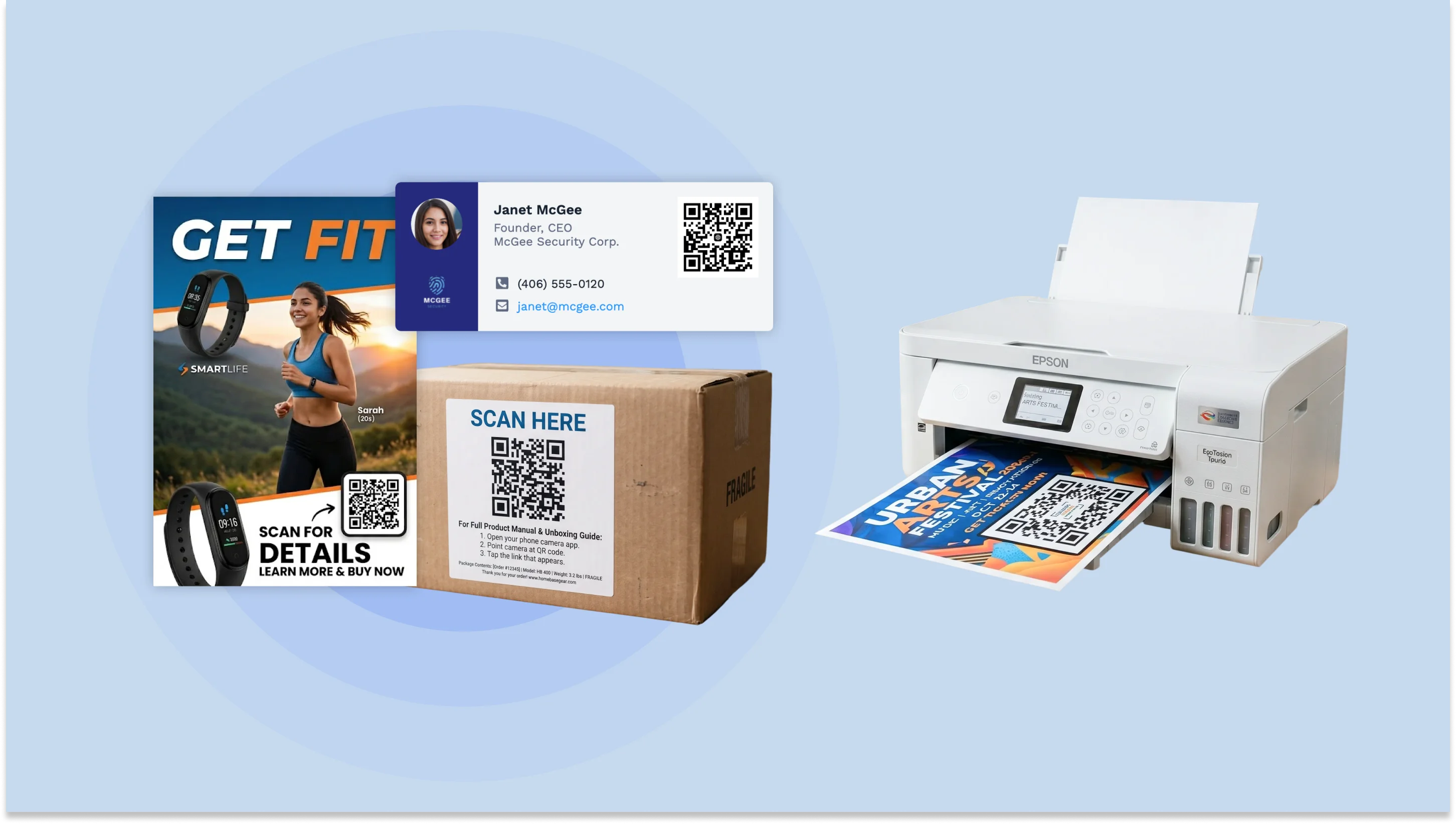
Many marketers make the mistake of not aligning their QR Code size and format with their marketing materials, which leads to low-resolution, pixelated QR Codes. Here are the most common file handling mistakes:
- Enlarging a small PNG or JPEG file: Stretching a small file blows up the pixels, creating fuzzy, pixelated edges.
- Low resolution file export: Many QR Code generators default to a low resolution output. Professional printing requires a minimum of 300 DPI, so make sure your generator exports in high quality.
- Saving in lossy formats like JPEG: This introduces compression artifacts that round off crisp corners, causing scanning failures.
- Taking a screenshot of a QR Code: Screenshots capture low display resolution instead of the native asset file, resulting in a blurry QR Code.
- Uploading to email or social media platforms: These platforms automatically compress images, causing additional quality loss.
→Related: QR Code formats
3. Printing errors
Poor-quality printing materials and low printer resolution are the major culprits for a blurry QR Code at the print stage. Here are the most common printing mistakes to watch out for:
- Poor quality printing materials: Low-quality paper and low printer resolution are the major culprits for blurry QR Codes at the production stage.
- Ink bleed: Printing on porous, low-quality paper causes ink to spread and merge fine spaces together, creating pixelated edges.
- Low DPI hardware: Cheap thermal or label printers with low dots-per-inch settings cannot form precise square matrices, resulting in a blurry output.
- Draft or speed print settings: Setting a printer to draft mode sacrifices quality to save ink, yielding blurred QR Codes.
4. Environmental factors
Even a perfectly printed QR Code can degrade after it ships. Here are the environmental factors that can affect scan performance:
- Poor lighting: Low or uneven lighting makes it harder for scanners to read QR Code modules accurately.
- Reflective or shiny surfaces: Glare from reflective surfaces interferes with a scanner's ability to detect contrast.
- Weather exposure: Rain, high humidity, and direct sunlight can all wear down a printed QR Code over time.
- Physical wear and tear: Scratches and folds from rough handling can damage the QR Code pattern, causing scanning failures.
How to fix a blurry QR Code
If you’ve created a QR Code and the design file or printed proof is blurry, use these steps to restore its sharpness:
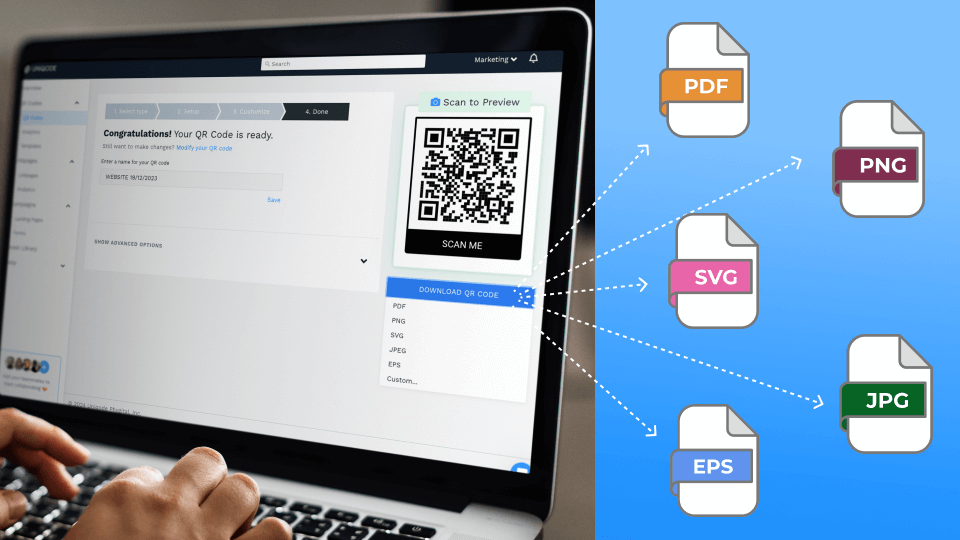
- Re-export as a vector file: Head back to your QR Code generator and download the file as an SVG, EPS, or PDF. Unlike pixel-based formats, vector files can be scaled scale to any size, including large format prints, without losing any sharpness. Vector QR Codes are important especially for larger materials like flyers or posters. If your QR Code generator does not support vector formats, consider using another tool that supports vector, like Uniqode.
- Raise the DPI for raster files: If a raster format (jpeg or png) is necessary, export at a minimum of 300 DPI. Web resolution (72 DPI) is far too low for print and will produce a visibly blurry result.
- Shorten your URL: A long, complex URL forces the QR Code to pack in more data, producing a dense matrix of tiny modules that bleed into each other. Using a URL shortener or a dynamic QR Code keeps the pattern open, clean, and easy to scan.
- Switch away from JPEG: JPEG compression introduces artifacts along high-contrast edges, which is exactly where a QR Code needs to be sharp. For digital use, save your QR Code as a PNG with a transparent or solid white background instead.
How to avoid blurry QR Codes
Blurry QR Codes are almost always preventable. The fixes are straightforward once you know where the problem is coming from. Here is what to get right from the start:
- Use high-resolution images: Pay close attention to QR Code size and file format. Selecting the right size and format automatically improves visual clarity. Export in a vector format (SVG, EPS) for anything that will be resized, since raster formats lose quality every time they are recompressed. If you use Uniqode, you can easily create high-resolution QR Codes and choose the right vector or raster file format for your use case.
- Keep the design simple: Avoid inverted colors, complex patterns, or backgrounds that crowd the quiet zone. Strong contrast between the foreground and background is key to keeping your QR Code scannable. If you use Uniqode, you can customize every element of your QR Code design and create highly scannable QR Codes.
- Check printing quality: Choose the right printer settings and high-quality printing materials. Partnering with a reliable printer makes a significant difference in how your QR Code holds up in the real world.
- Test before deploying: Always test your QR Code on multiple devices and scanners before distribution. This one step catches issues from all four causes before they reach your customer and saves both frustration and revenue losses. If you use Uniqode, you can preview your QR Code and run a live test before downloading it.
Create high-resolution QR Codes with Uniqode
A blurry QR Code is not just a design flaw. It is a missed scan, a lost lead, and a poor first impression. Getting it right from the start means choosing a generator that gives you control over every variable that matters: file format, resolution, design, size, and testing.
Uniqode's QR Code generator handles all of this in one place, so quality issues never make it to print. Sign up for a free 14-day trial and start creating QR Codes that scan correctly the first time.
Frequently Asked Questions
- Why is my QR Code blurry?
Your QR Code can be blurry due to several reasons: low image resolution, an incorrect QR Code size or file format, a compressed QR Code image, low print quality, or adverse environmental factors.
- What happens if my QR Code is blurry?
If your QR Code is blurry, then it will not be scanned correctly.
- How do I fix a blurry QR Code?
To fix a blurry QR Code, choose the right QR Code image size and file format, keep your QR Code design simple, invest in high-quality printing, and test your QR Code before deploying it. Keeping all of these in mind, from size and file format to printing quality and pre-deployment testing, is what keeps a QR Code scannable.
- How do I scan an unclear QR Code?
Improve the lighting, hold the phone steady and a little farther back so the camera can autofocus, and try a different scanner app if the first one will not read it. None of this fixes a QR Code that is too degraded to read. It gives a marginal code a better chance.
- How do I make QR Codes clearer?
Keep the quiet zone clear of logos and backgrounds, maintain strong contrast between the foreground and background colors, export in a vector format before resizing, and test the QR Code at its final print size rather than its preview size.
- Why is my QR Code not focusing?
Camera focus problems come from scanning too close, too far, at an angle, or in low light. Back away to a normal reading distance, angle the phone to face the QR Code directly, and add light if the room is dim.
- How can I fix an unreadable QR Code?
In most cases, you cannot fully reconstruct a QR Code that was blurry when it was captured or printed. The limited recovery that is possible only works for small, localized damage, not for a code that was degraded across the whole image. The reliable fix is catching the cause before the next print run.
Related Posts
QR Code Formats: File Types, Structural Formats, and What Each One Actually Means

Where to Place QR Codes for Maximum Engagement
QR Code Minimum Size Guidelines: How Small Can a QR Code Be?
Why Is Your QR Code Not Working? 13 Causes and Fixes (2026 Guide)