The State of QR Codes 2026: Usage, Trends & BenchmarksThe State of QR Codes 2026: Usage, Trends & BenchmarksThe State of QR Codes 2026: Usage, Trends & BenchmarksThe State of QR Codes 2026: Usage, Trends & BenchmarksThe State of QR Codes 2026: Usage, Trends & BenchmarksThe State of QR Codes 2026: Usage, Trends & BenchmarksThe State of QR Codes 2026: Usage, Trends & BenchmarksThe State of QR Codes 2026: Usage, Trends & BenchmarksThe State of QR Codes 2026: Usage, Trends & BenchmarksThe State of QR Codes 2026: Usage, Trends & BenchmarksThe State of QR Codes 2026: Usage, Trends & BenchmarksThe State of QR Codes 2026: Usage, Trends & Benchmarks

How to Make a Wedding RSVP QR Code: Your Complete Guide

Make managing weddding RSVPs super simple with QR Codes. Find out three different ways you can create a QR Code for wedding RSVP. Finally, learn which one can work best for you.

Shashank D
Last Updated:  September 26, 2025
Share
How to Make a Wedding RSVP QR Code: Your Complete Guide

Key takeaways:

1. RSVP QR Codes are a convenient and modern way for guests to confirm their attendance at your wedding with a simple mobile device scan.

2. You can create personalized RSVP QR Codes with your wedding theme. You can even link them to your wedding website, guest calendars, reservation or food preference forms, etc.

3. Utilize dynamic QR Codes to make editing possible, for instance, in the case of venue change.

“Can I make a QR Code for wedding RSVP?” This is a question typically asked by would-be brides and grooms or wedding planners who want a hassle-free event they can remember for all time.

After all, RSVP QR Codes can provide guests with more detailed information, allow them to respond to your invitation promptly, and help them find the wedding location faster.

Since information on QR Codes can be edited in a split second, couples can make changes anytime, anywhere. And because invitees can RSVP immediately, you can prepare a reception budget for a specific number of guests.

And the best part? creating RSVP QR Codes to make your wedding planning easier is as seamless as ever- with Uniqode.

Create an RSVP QR Code with Uniqode

What is an RSVP QR Code?

An RSVP QR Code is an easy and efficient way to manage guest RSVPs and registration. Instead of sending SMS, emails, or making a phone call, guests can simply scan a QR Code and let organizers know whether they will attend or not.

One of the most popular ways to use a RSVP QR Code is on wedding invitations. You can send out the invites and record all guest RSVPs easily via QR Codes. QR Codes can be easily accessed and scanned by guests using mobile devices or tablets, ensuring accessibility for all invitees regardless of their location.

How to create a QR Code for a wedding RSVP

With Uniqode’s custom QR Code generator, creating your very own QR Code for wedding RSVPs is a breeze.

There are 3 types of QR Codes you can create for your wedding RSVP:

  1. Landing page QR Code (an RSVP platform or a website where guests can confirm their attendance, select meal preferences, and provide additional information.)
  2. Calendar QR Code (that can integrate with the guests’ native calendar, help them align the bid day with their schedules, and notify them on the specified day)
  3. Form QR Code (to help guests RSVP for multiple for various events such as the ceremony, wedding reception, and pre-wedding festivities, track responses and view attendant statistics, and send personalized thank you or acknowledgement messages)

We’ve outlined the steps for each option below.

Method 1: Create a landing page QR Code

A landing page QR Code for wedding RSVP

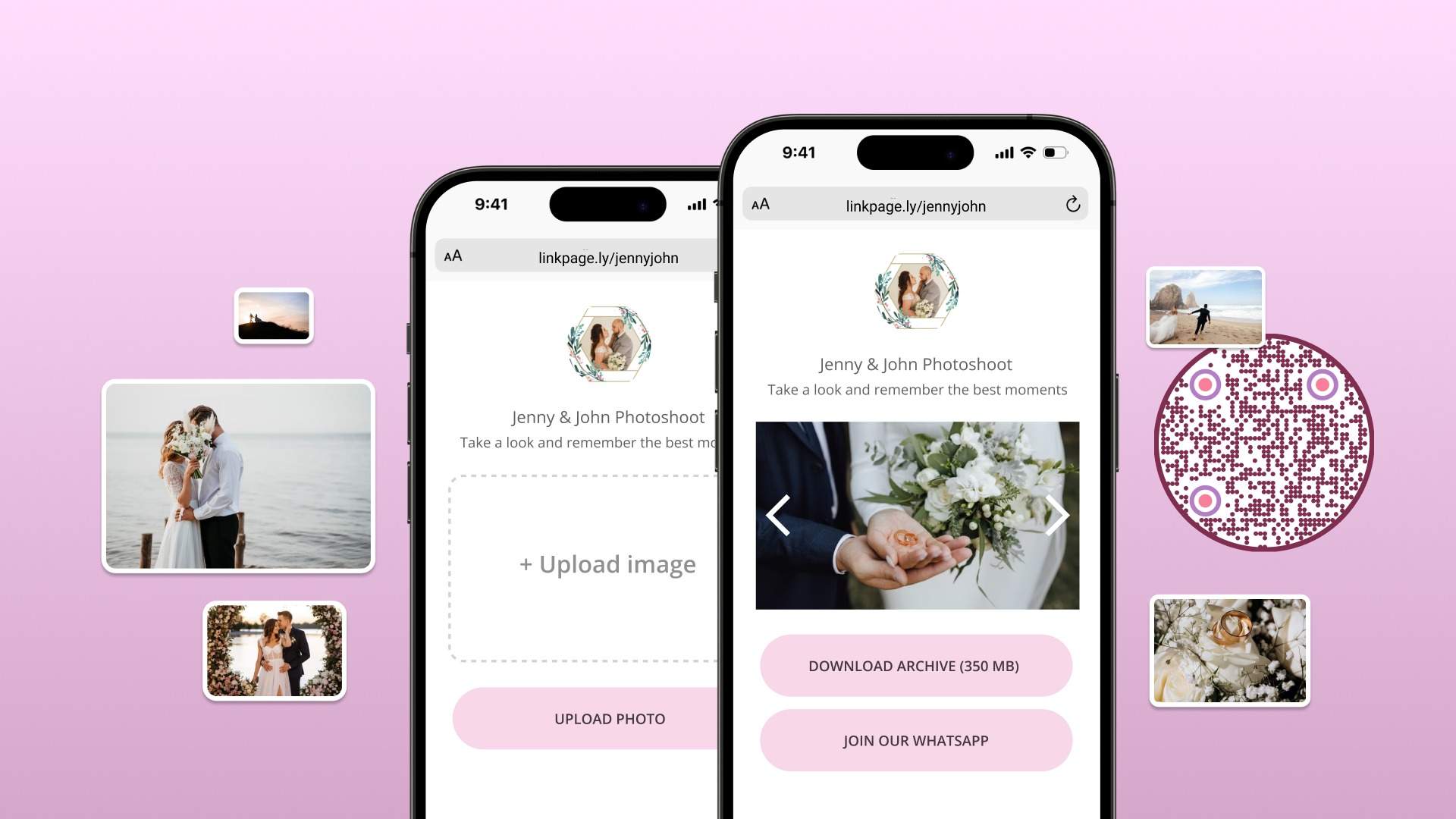
A QR Code landing page is a kind of QR Code that, when scanned, opens a specific landing page that you had created using Uniqode’s DIY landing page builder. You can use these QR Codes to let your wedding guests access multiple sources of information from a single landing page.

For example, you can share the date and time of your pre-wedding photoshoot. You can also create a QR Code for wedding photos. This way, after the wedding, your guests can still access the photos and videos uploaded to the landing page. You can also connect your QR code to a customized wedding guest book where guests can leave messages.

How to create a landing page on Uniqode

Step 1. Log in to the dashboard, and go to Campaigns> Landing pages.

Step 2. Click on +Create at the top right corner of your screen.

Create your landing page QR Code for Wedding RSVP

Step 3. Choose a template from the ones listed or build your landing page from scratch.

Choose a template from the ones listed or build your landing page from scratch

Step 4. Customize the content and design it as per your requirements. You can change fonts, colors, and upload images. Using a wedding invitation maker, you can also add a form that your invitees can fill out in response to your wedding invitation.

Give a title to your landing page and hit Save.

Customize your landing page QR Code for Wedding RSVPs

How to add a form to your landing page

Step 1. While you’re still on the landing page, click Add Form.

Add form to landing page QR Code for wedding RSVP

Step 2. Select a form from the list and add a CTA text for it. Click Insert once you’re done.

You can see a preview of your landing page with the form attached on the right side of your screen.

Add CTA to your wedding QR Code RSVP

Click Save.

Create your QR Code

Now that you have a landing page, you can proceed with creating your wedding invitation QR Code.

Step 1. Go to QR Codes and click +Create QR Codeat the top right corner of your screen.

Creating your landing page QR Code RSVP

Step 2. Select Landing Pagefrom the list of campaign types.

Select landing page QR Code for wedding RSVP

Step 3. Then, select your landing page from the list. You can view a preview of your landing page on the right side of your screen.

Click Next.

preview of your landing page on the right side of your screen

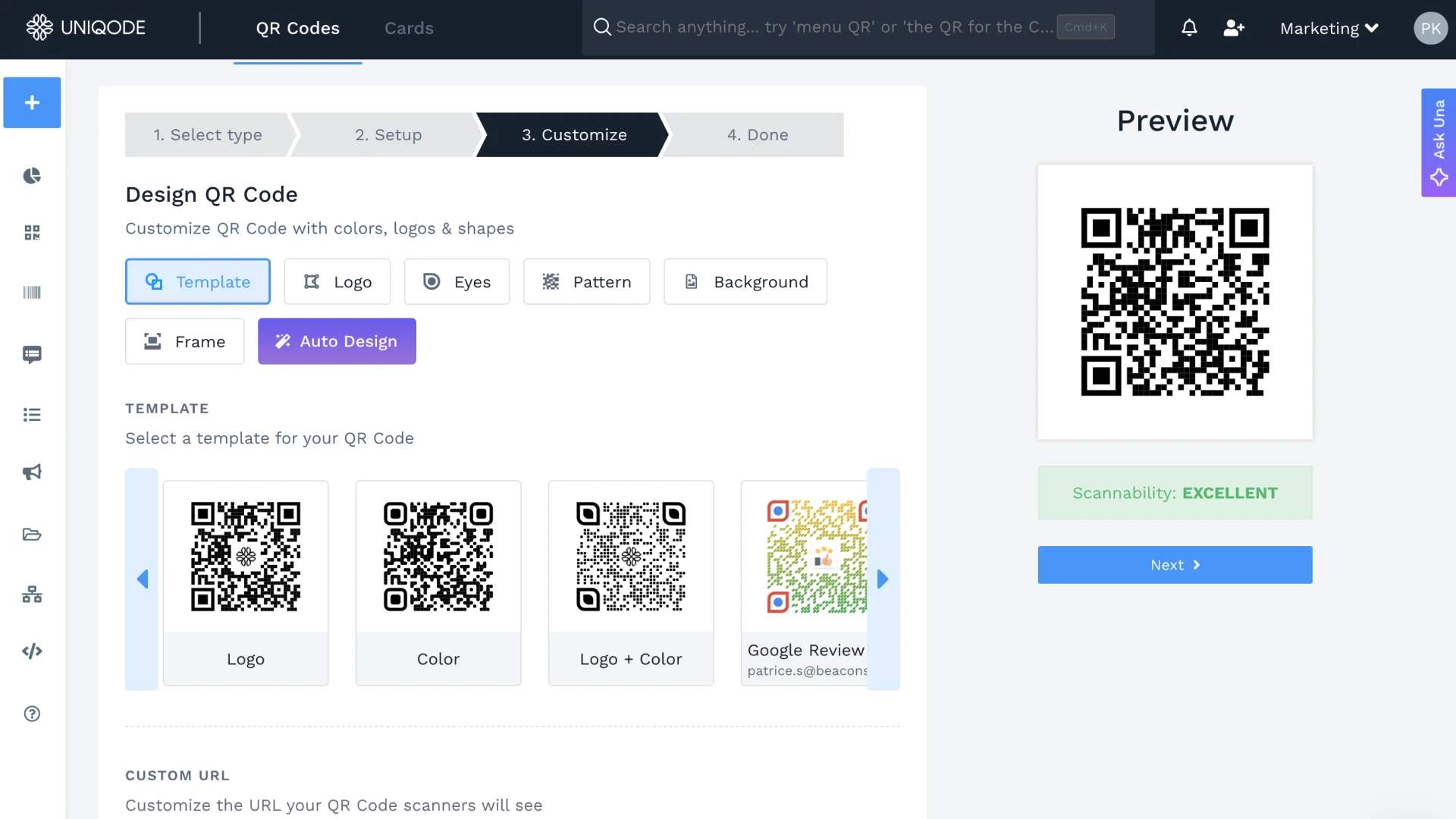
Step 4. Customize your RSVP QR Code according to your preference. You can add a logo, modify the eyes, color scheme, and background. You can also add an actionable CTA frame text.

As you apply each customization, Uniqode’s real-time scannability checker alerts you if your QR Code runs the risk of being unscannable.

Customize your landing page QR Code for Wedding RSVP

Additionally, you can enable GPS location tracking, add a password, and schedule your campaign.

Click Next.

Enable GPS location tracking for landing page wedding QR Code RSVP

Step 5. You can now test your QR Code by scanning it using your smartphone.

Step 6. Once you’ve tested your QR Code, you can download it in any of the 5 available formats – PNG, JPG, SVG, PDF, and EPS.

QR Code for wedding RSVP is ready to download

You can now share your RSVP QR Code on wedding invites or via social media channels. Invitees will be directed to your landing page when they scan your wedding QR Code.

Create a landing page QR Code

Maximize conversion rates using a QR Code for your landing page!

GET STARTED FOR FREE
Create a landing page QR Code

Method 2: Create a calendar QR Code

Create a calendar QR Code for wedding RSVP

A calendar QR Code contains an event link that you can add to your Google Calendar. Upon scanning, your visitors can save your wedding event on their personal calendars. This makes it easier for them to view all information about your wedding day in one place.

Step 1. Create an event on Google Calendar.

create an event on calender

create an event on calendar

Step 2. Click on Default visibility and change it to Public.

Click on Default visibility and change event to public

Step 3. After saving the event, click on the three dots next to the mail icon and select Publish event from the list.

Publish Google calendar event for wedding RSVP

Once you do this, you’ll get the link to the event, which you can copy.

How to create a calendar QR Code

Step 1. Log in to the Uniqode dashboard. If you’re not an existing user, you can sign up for our 14-day free trial.

Step 2. Go to QR Codes and click +Create QR Codeat the top right corner of your screen.

Create calendar QR Code

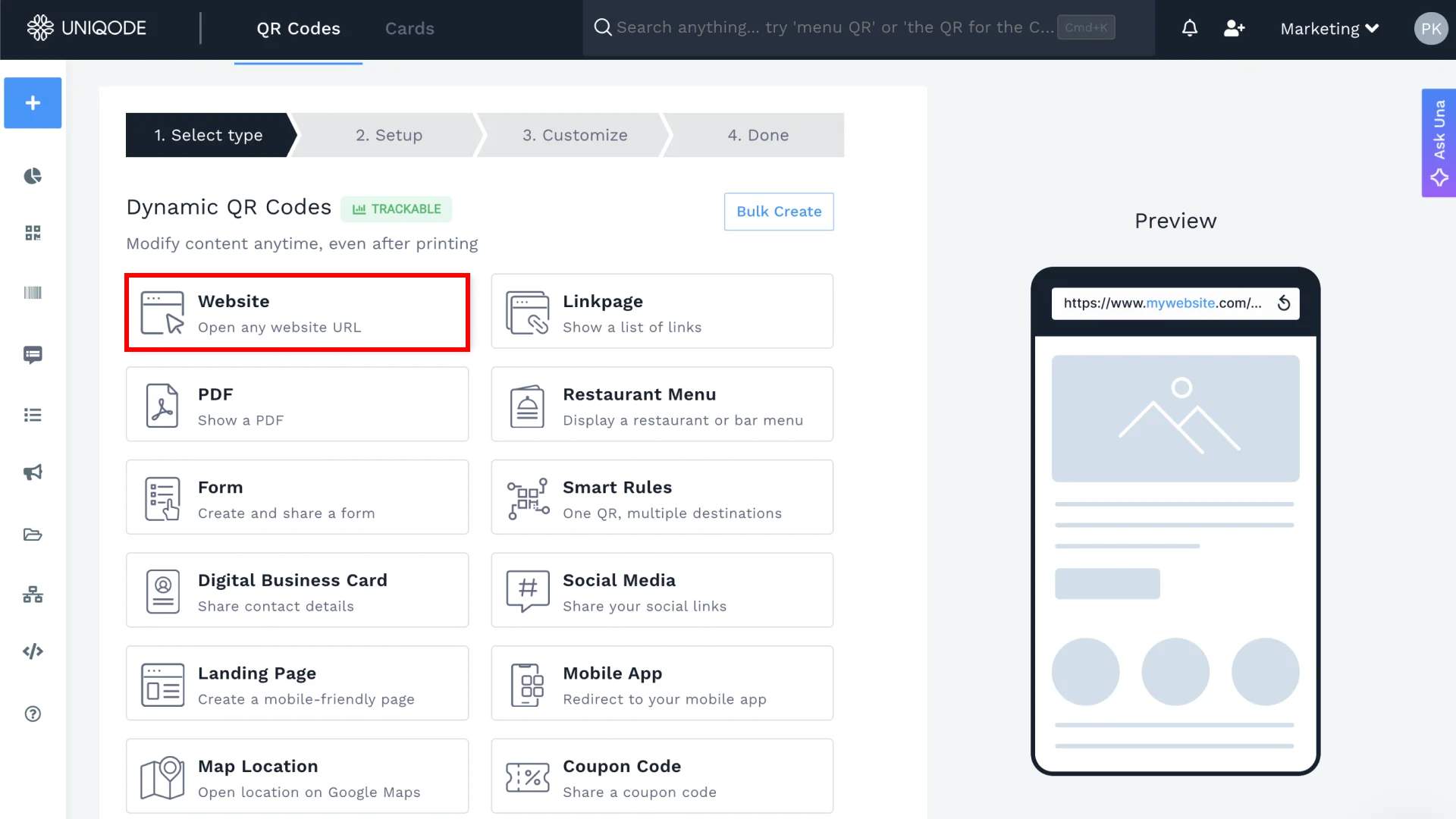
Step 3. Select Websitefrom the list of QR Code types.

Select website from Uniqode dashboard

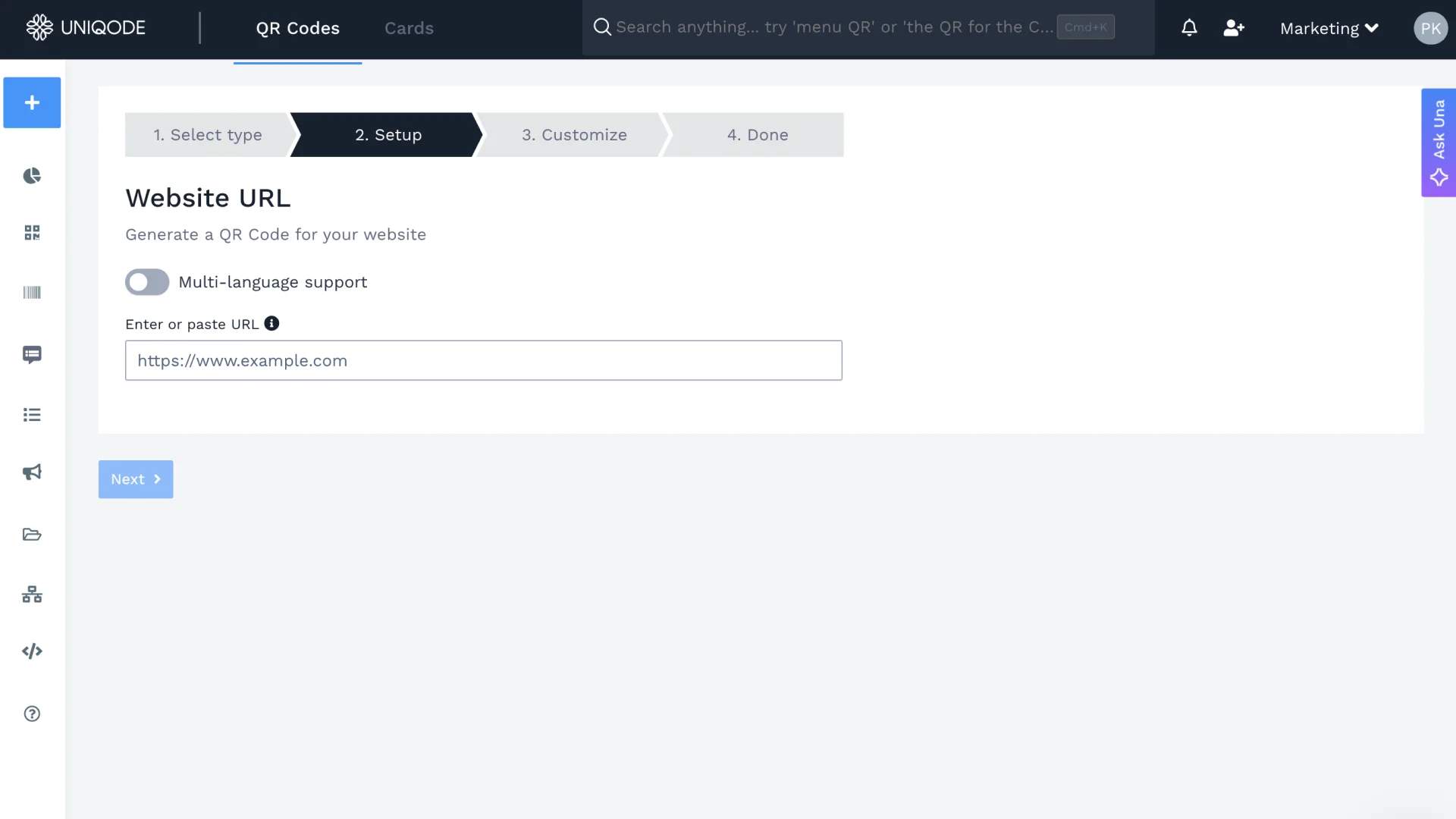
Step 4. Paste the link you got from your calendar. Click Next to proceed with customizing your QR Code.

Step 5. Select a predefined template, change the QR Code’s color scheme, add a logo, customize the QR Code’s eyes, add a background, and an actionable frame text. If you decide to add an image background, make sure to scan your QR Code before downloading it. We recommend doing this to check its scannability.

Customize your calendar QR Code for wedding RSVPs

Step 6. Generate and test the QR Code. If you feel like changing any aspect of your wedding QR Code, you can click on Modify your QR Code.

Generate and test your calendar QR Code for wedding RSVP

Step 7. Download your QR Code in any of the 5 available formats – PNG, JPG, SVG, EPS, and PDF.

Now, once your invitees scan the Wedding RSVP QR Code, they’ll be directed to your calendar event. Here, they can either respond Yes or No to your invitation. Either way, Google Calendar will notify you of your guests’ responses.

Create QR Codes for wedding RSVPs

Want a memorable wedding? Dynamic QR Codes can help.

START FREE TRIAL
Create QR Codes for wedding RSVPs

Method 3: Create a form QR Code

Create a form QR Code for wedding RSVP

A form QR Code is a type of QR Code that links to a form of your choice. Users can scan it with their smartphones to submit feedback, make reservations, or sign up for an event.

How to create a form on Uniqode

Step 1. Go to Campaign Forms and click on +Create at the top right corner of your screen.

Create form QR Code for wedding RSVP

Step 2. You can choose a ready-to-use template from the ones listed, or click Create New to build a new form from scratch.

Choose form template in Uniqode dashboard

Step 3. Fill in the questions for your RSVP form. For a wedding RSVP, we recommend using the Yes or No question type.

You can also view a preview of your wedding RSVP form on the right side of your screen.

Preview form QR Code for wedding RSVP

Step 4. You can also enable email notifications to let you know each time an invitee responds to your form.

Enable email notification for wedding RSVP QR Code

Click Save.

How to create a QR Code for your form

Step 1. Go to QR Codes and click +Create QR Code at the top right corner of your screen.

Create QR Code for a form

Step 2. Select Form from the list of QR Code types.

Select form in Uniqode dashboard

Step 3. Select your RSVP form from the list and click Next.

You can also view the preview of your form on the right side of your screen.

Select your RSVP form from the list

Step 4. Now it’s time to customize your QR Code. Pick a template and data pattern, modify the QR Code’s eyes, add a logo, background, and CTA frame.

Click Next.

Customize your form QR Code for wedding RSVP

Step 5. Your form QR Code is now ready. You can scan it using your smartphone to test it.

If your wedding QR code is working, it should lead your invitees to the form you created.

Step 6. You can now download your QR Code in the format of your choice.

Download QR Code in any format

Create a form QR Code for wedding RSVPs

Make your wedding hassle-free with a form QR Code!

START YOUR FREE TRIAL
Create a form QR Code for wedding RSVPs

Use the right QR Code solution for your wedding RSVPs

The right QR code generator will help you plan and organize your wedding efficiently. With the help of Uniqode’s QR Code platform, you’ll have everything you need to create an RSVP QR Code right at your fingertips.

Here are some key features that can help you out:

1. Create editable dynamic QR Codes

While you can use a static QR Code for your wedding RSVP, you can’t modify it once you create it. On the other hand, a dynamic QR Code allows you to change its destination URL after downloading it. So, if you decide to change the location of your wedding reception, you can easily modify your RSVP QR Code accordingly.

2. Access to advanced customization options

Uniqode’s dynamic QR Code generator provide you with plenty of design options to choose from. So even if you’re not an expert in design, you can easily customize your QR Code extensively based on your preferences.

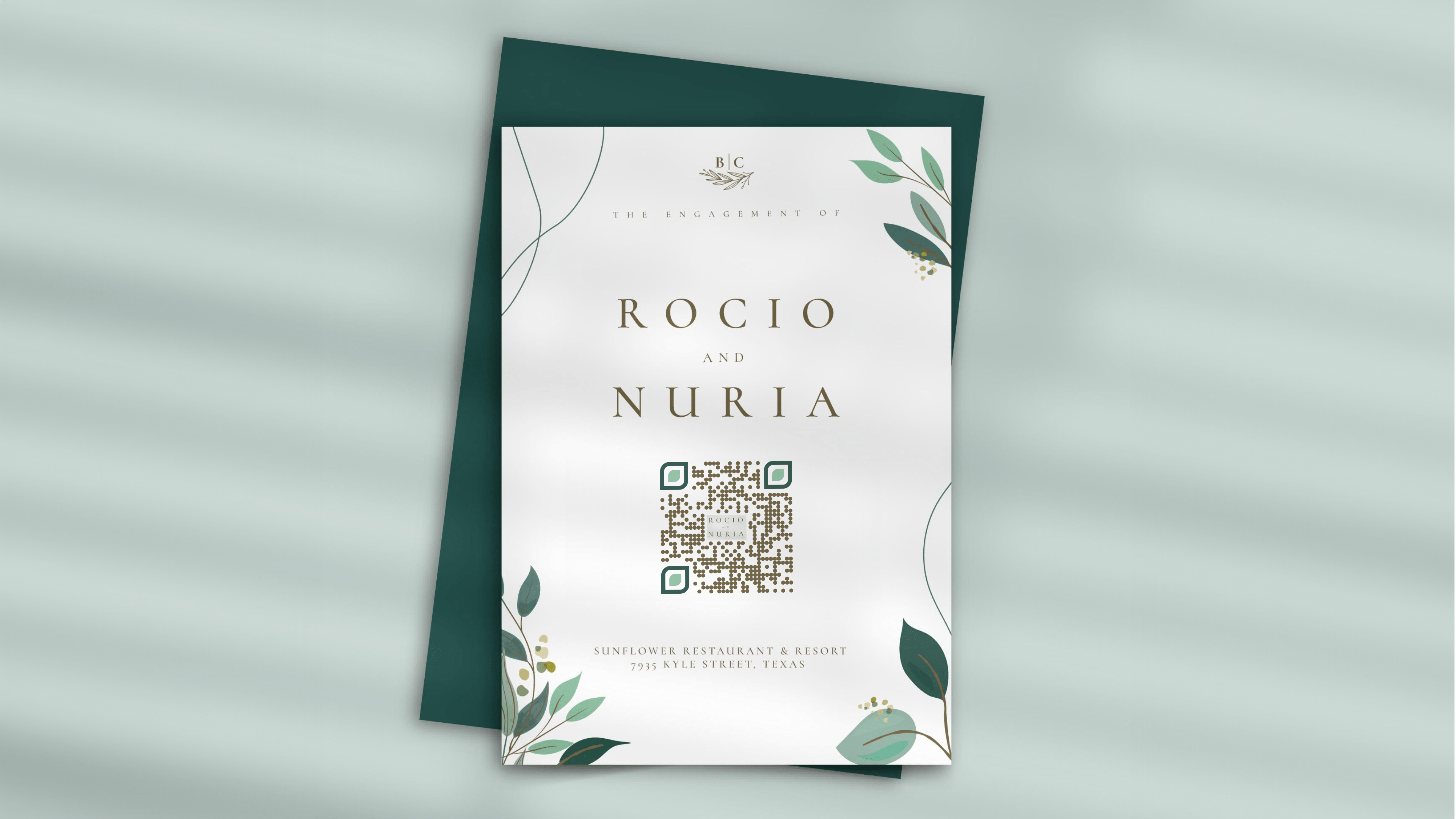
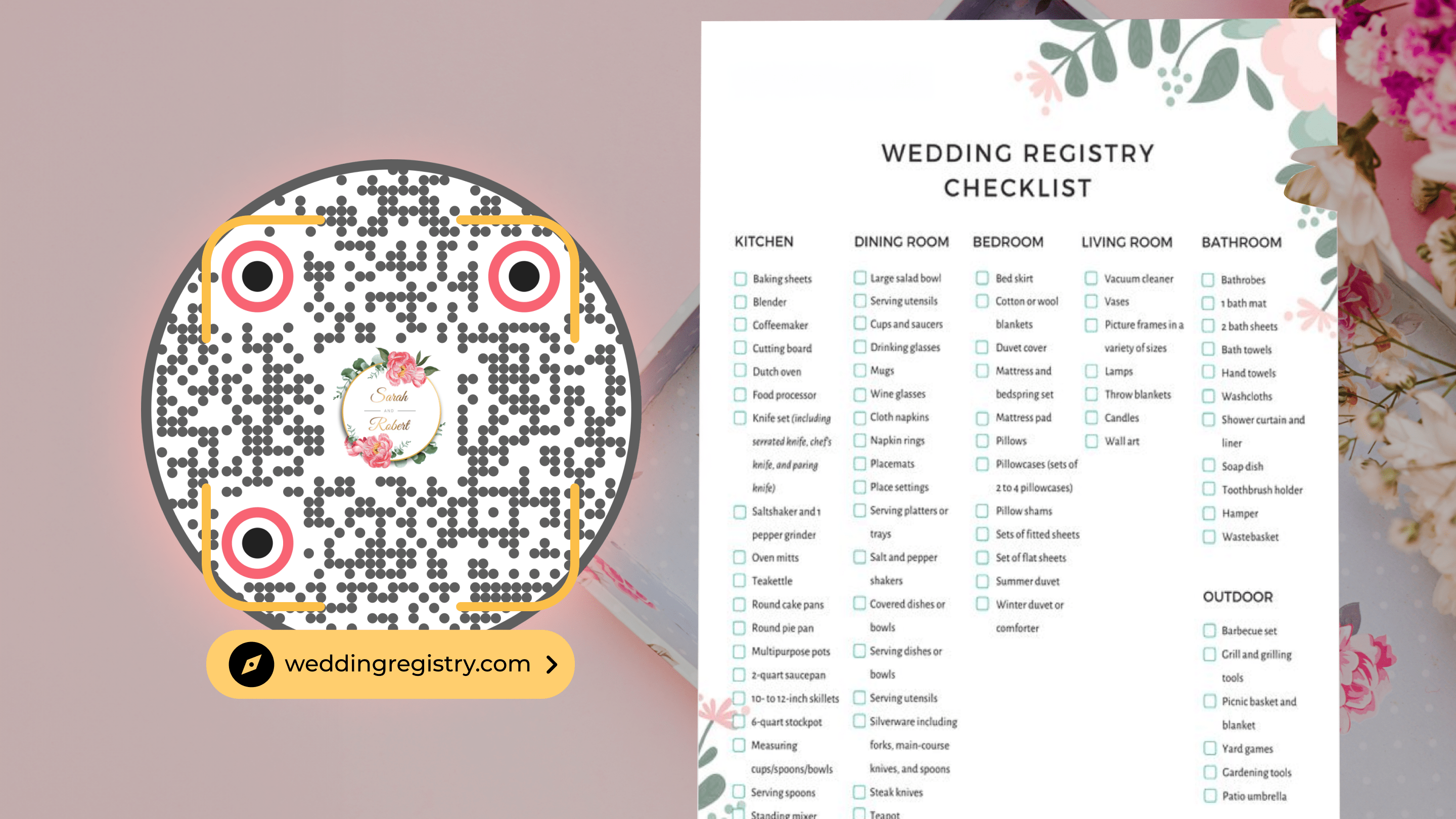
Let’s say that your wedding follows a theme. In that case, you can modify your wedding RSVP QR Code’s color scheme to match the theme of your wedding effectively. Additionally, you can choose from different templates, backgrounds, logos, data patterns, shapes, and more.

3. Easy to use and convenient dashboard

Besides QR Code creation, Uniqode’s platform provides a host of features that can come in handy. For instance, you can create forms and landing pages from within the dashboard, so there’s no need to create those on other websites.

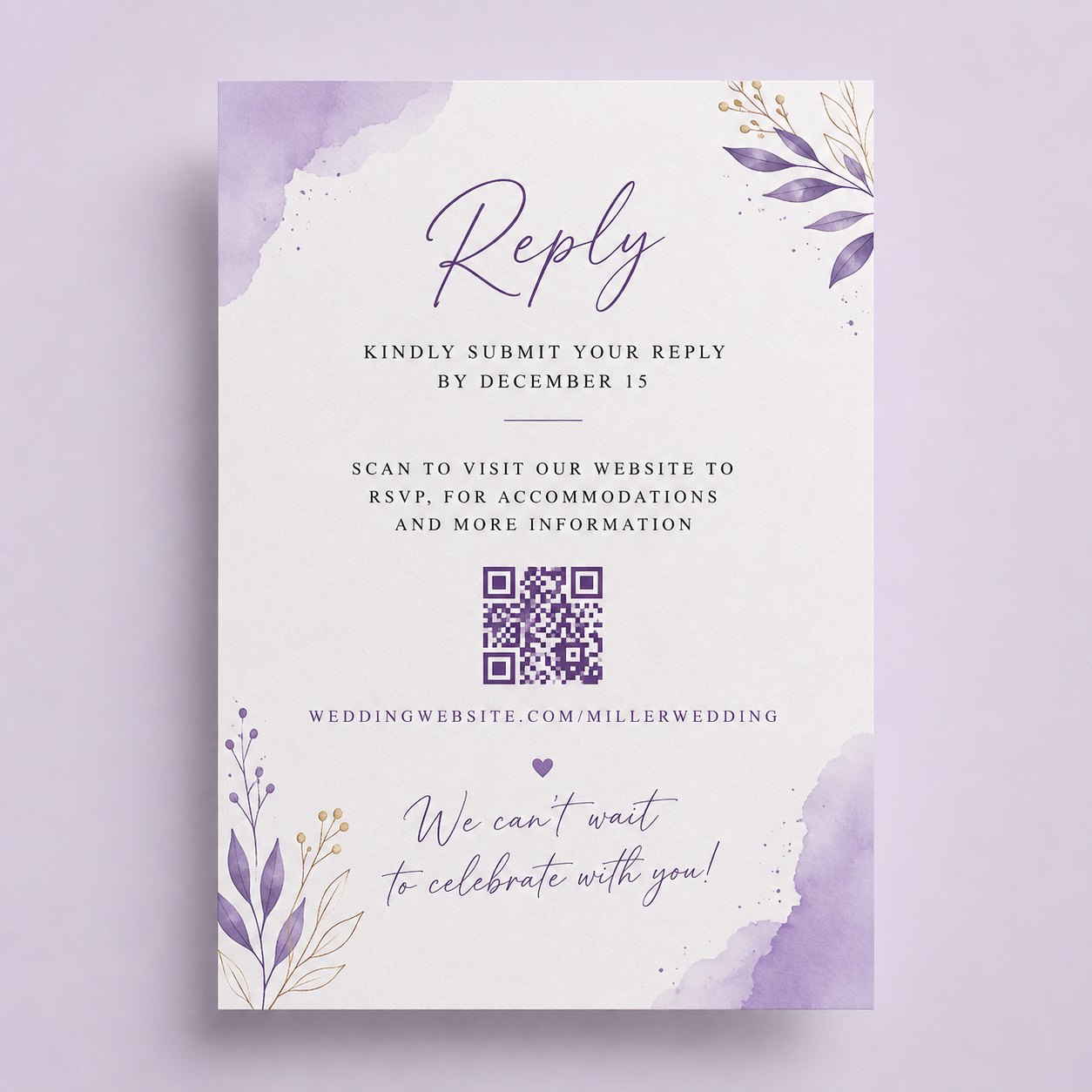
BONUS: You can even create a QR Code for wedding invitation, and link it to your personalized website, a food preference form, a landing page on the venue details, calendar invite, etc. This way, you add a personalized touch to every physical or e-invite you send out.

A wedding to be remembered

A wedding that’s well planned and organized is the hope of every bride and groom. Let Uniqode’s QR Code for wedding RSVPs help you achieve that.

Now that you’ve explored the different types of QR Codes you can create for wedding RSVPs, why not sign up for our 14-day free trial to create these QR Codes yourself and check out our other features?

Frequently Asked Questions

How to create a wedding RSVP QR Code?

Here’s how you can create a Wedding RSVP QR Code in 6 easy steps:

1.Choose the type of QR Code you want to create, such as a landing page, calendar or form QR Code

2.Log into Uniqode’s dashboard and click on ‘Create’

3.Select the type of QR Code from the options available on the dashboard and click next

4.If its a landing page, or Calendar, paste the URL link in the box. For forms, you can either paste a link or create a new form from the template

5.Customize your wedding RSVP QR Code shape, colour, and even add a frame and CTA

6.Save changes, and your QR Code is ready for download

About the Author

Shashank D

Shashank - Enthusiastic about marketing and improving the ROI of businesses.

Share

Related Posts