Manage Bulk QR Code Generation from a Single Google Sheet
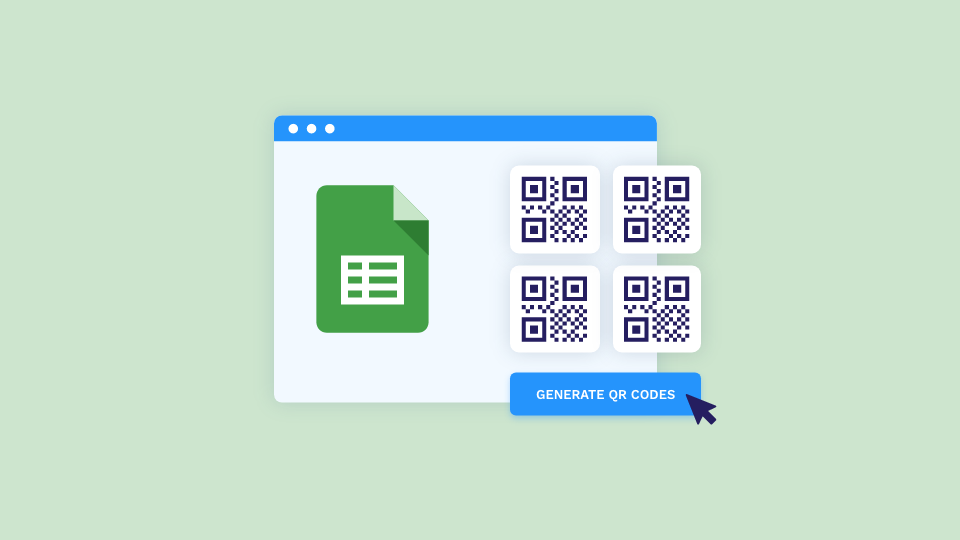
Generate and manage QR Codes in bulk using an all-in-one integration – the Google Sheets add-on. Save time, enhance team collaborations, and become more action efficient.
Generating QR Codes one at a time works fine for a handful of them. It breaks down at volume: 50 rows, 500 rows, 5,000 rows, each one demanding its own click-through, its own settings, and its own chance for a mistyped link that nobody catches until the batch is already printed. Two ways to fix that starting from a spreadsheet.
Uniqode's native bulk upload turns a CSV or Excel file into a finished batch of QR Codes in one pass, no third-party account needed. Zapier automation creates a new code the moment a fresh row lands in the sheet, worth adding once your data source updates itself instead of sitting still as a one-time export. This guide covers both, step by step, so you can pick the one that matches how your spreadsheet behaves.
How to create bulk QR Codes on Google Sheets using the Zapier integration
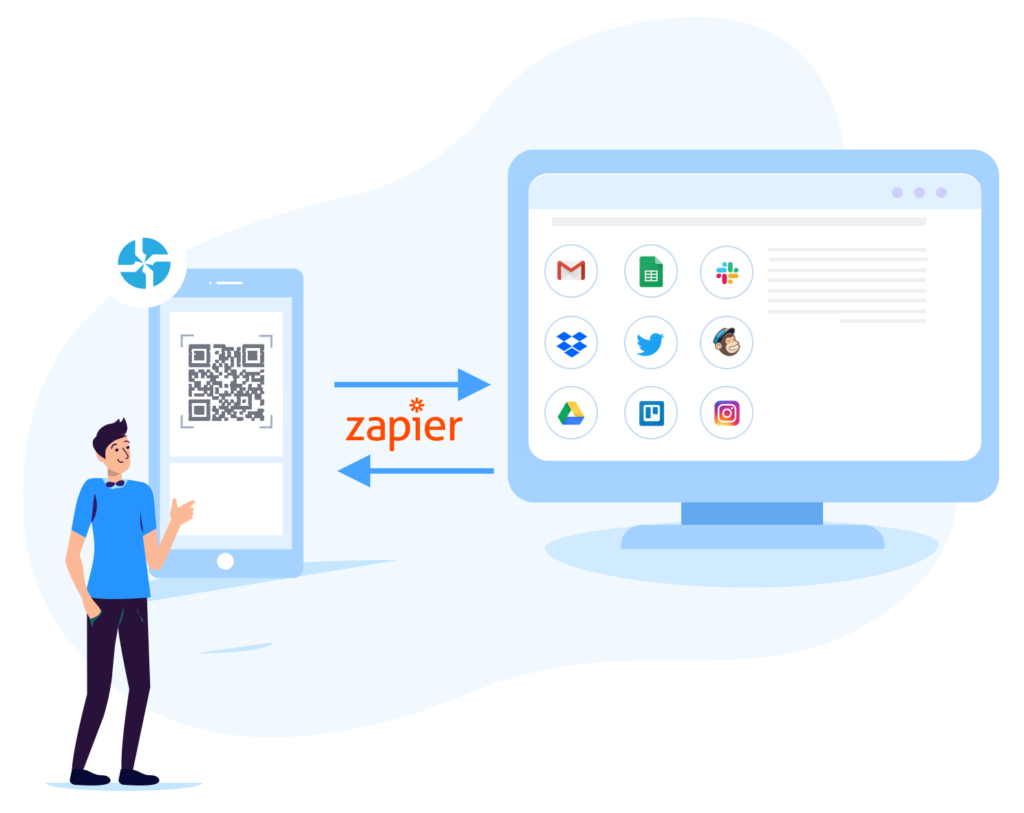
Zapier triggers QR Code creation the moment a new row appears in your sheet, rather than processing an entire spreadsheet at once. You can create bulk QR Codes on Uniqode with a Zapier integration.
Step 1: Sign up for Zapier
Create a free Zapier account if you don't already have one.
Step 2: Connect Uniqode to Zapier
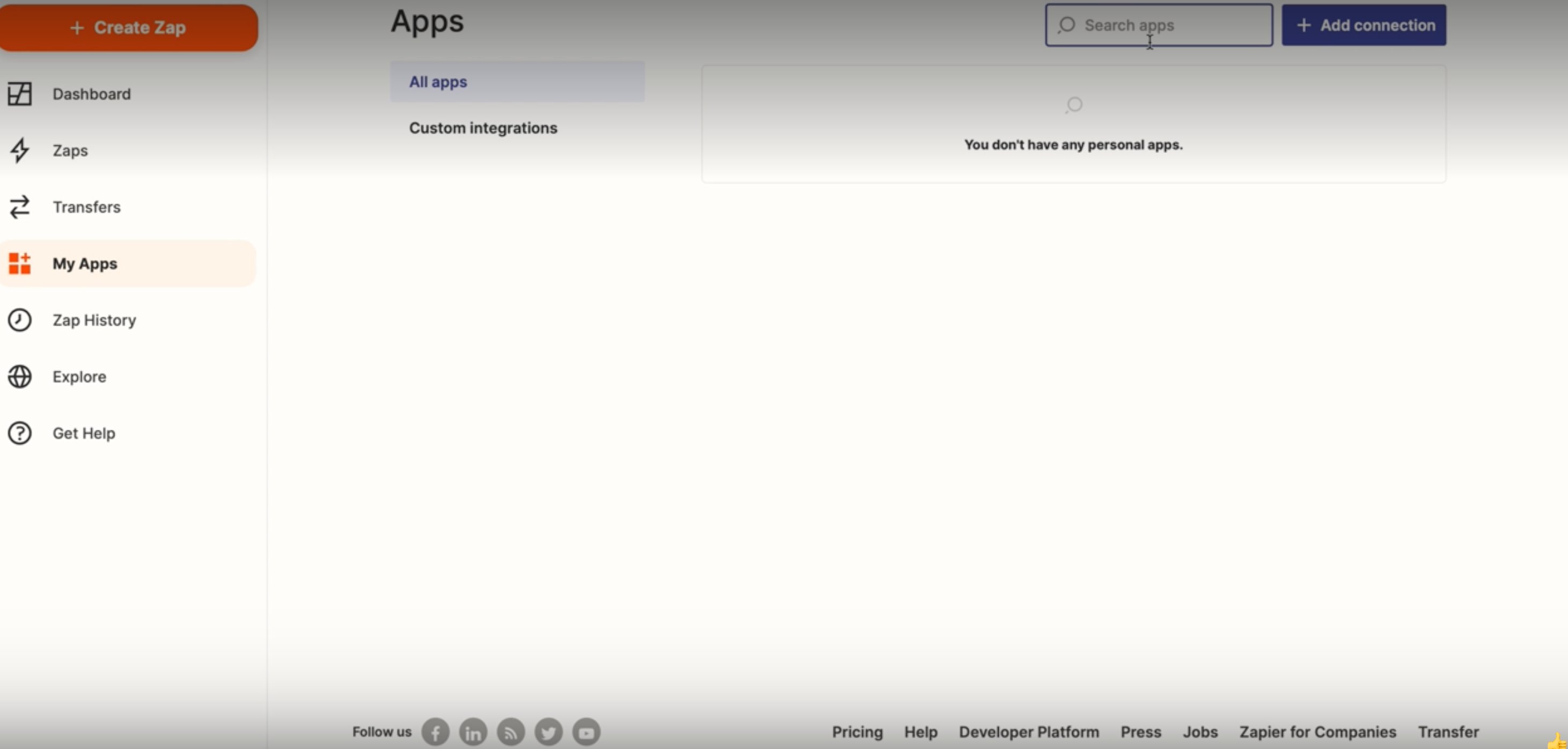
In the Uniqode dashboard, go to Settings > Zapier for the API key and organization ID, then connect the two accounts.
Step 3: Build the Zap
Set the trigger to Google Sheets > New Spreadsheet Row and the action to Uniqode > Create Dynamic QR Code. Map the destination URL field from your sheet to the QR Code's destination.
Step 4: Turn the Zap on
Codes will not generate while the Zap stays off.
The same connection runs in reverse for teams that want a paper trail: trigger on Uniqode > New QR Code Created, action on Google Sheets > Create Spreadsheet Row, and every new code's ID and URL logs into a spreadsheet automatically. Developers who want programmatic automation beyond Zapier can use the QR Code API directly.
How Uniqode's native bulk upload turns a spreadsheet into QR Codes
Uniqode's native bulk upload turns a spreadsheet into a full batch of QR Codes without routing through a third-party account.
Step 1: Select QR Code type
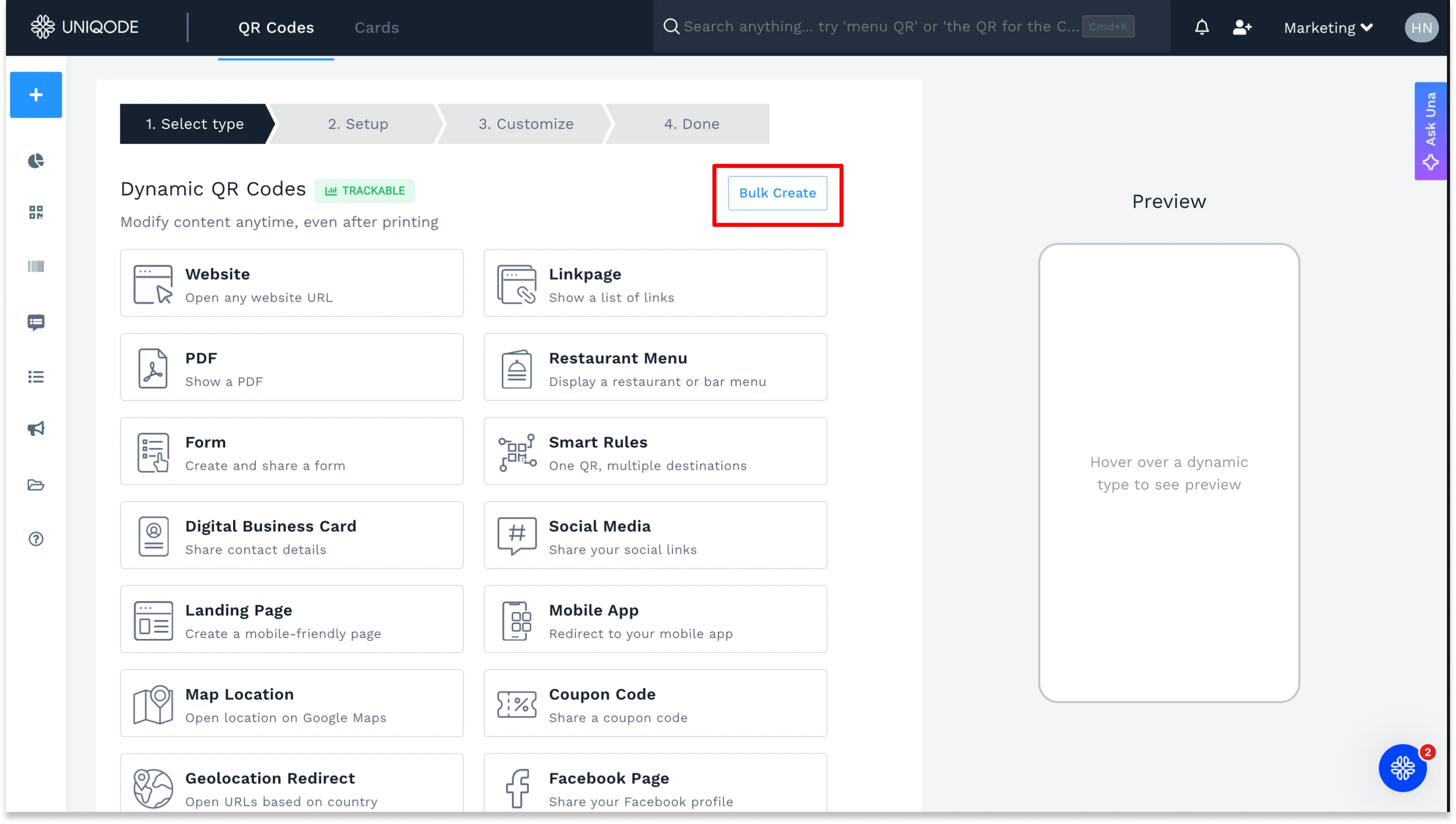
Log into the Uniqode dashboard, navigate to QR Codes in the left panel, and click Bulk Upload on the right side. Choose static or dynamic (dynamic lets you change the destination after the code is printed; static is fixed forever), then the QR Code type you need: website, email, and so on.
Step 2: Upload QR Code data
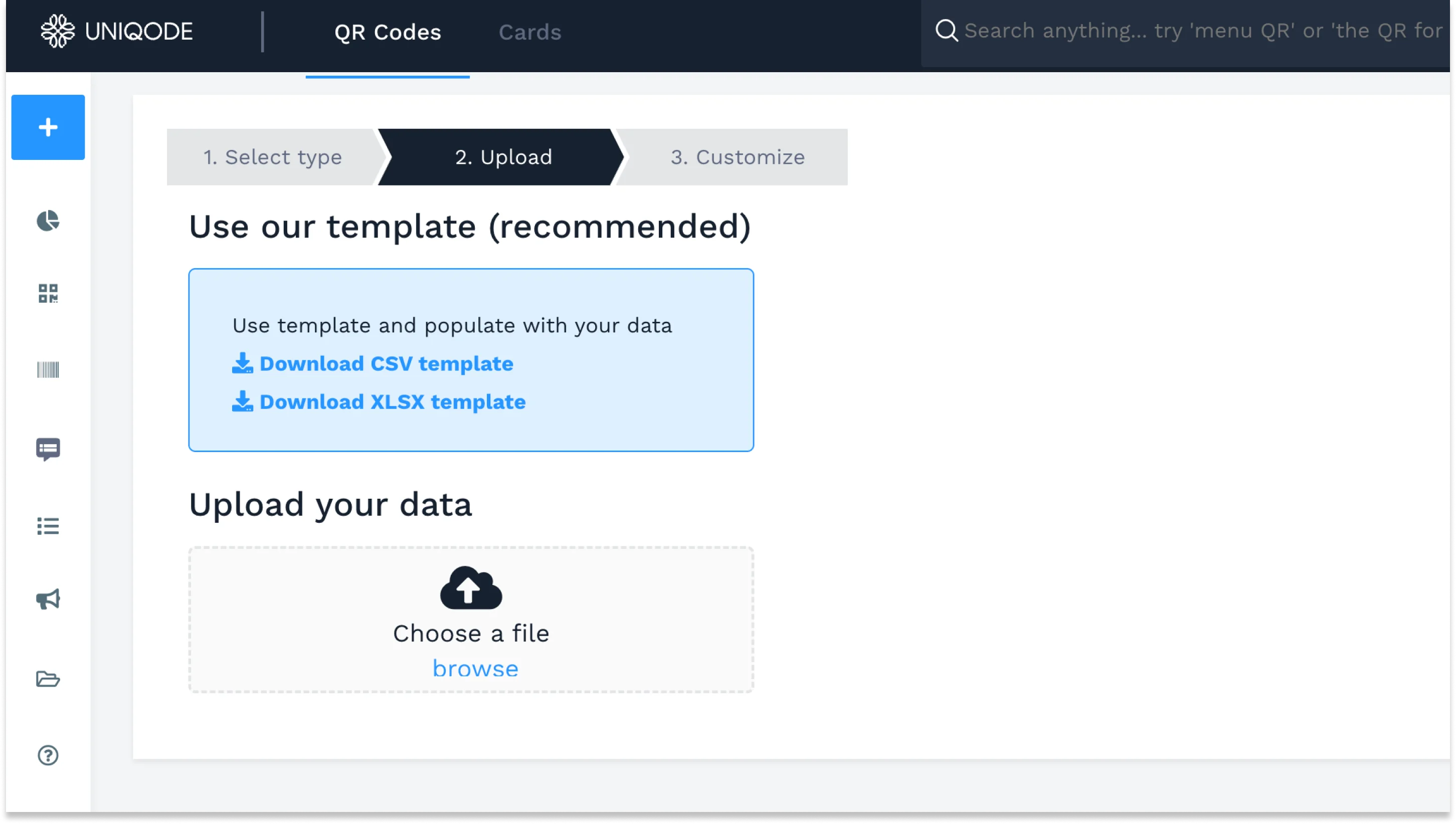
Download the bulk upload template, CSV or XLSX, from that same screen. Fill in the mandatory fields: QR Code Name and the primary destination field. From there, three optional sections let you do more per row without leaving the spreadsheet. "QR Settings" holds parameters, a custom domain, an alias, and a password. "QR Design" holds a template or styling choice. "Management" assigns a folder.
Once the file is complete, upload it in the Upload your data section. For the exhaustive template reference across every QR Code type Uniqode supports, see Uniqode's guide to bulk QR Code creation.

Step 3: Customize QR Code design
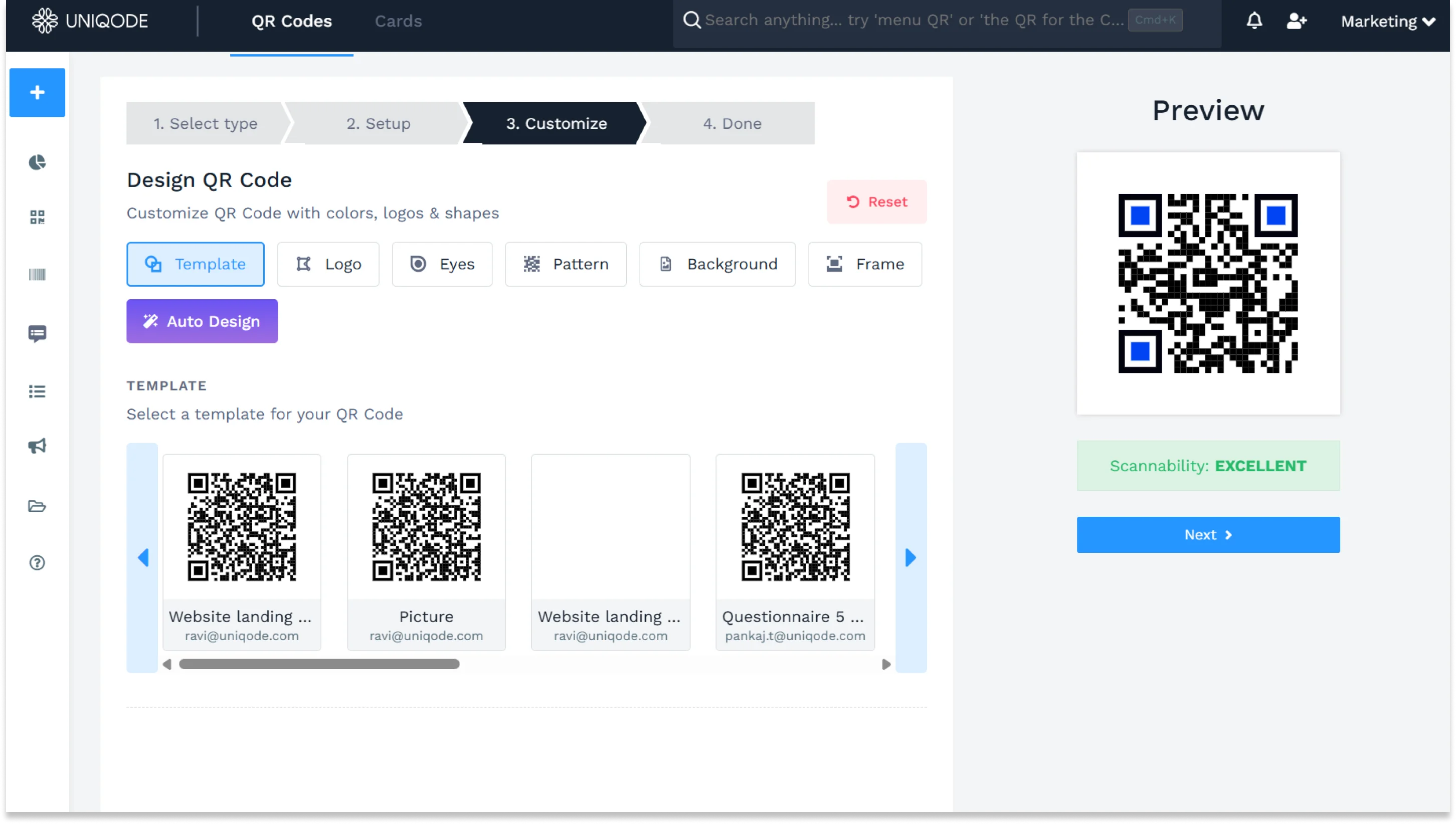
Adjust colors, patterns, and eye shapes, add a logo, or apply a saved design template. The design applies across the whole batch unless you override it row by row.
Step 4: Assign a batch label
Add a label to the batch so you can organize and filter it later, separate from any other batch you've uploaded.
Step 5: Submit for creation
Click Finish. Processing takes roughly one minute per 10,000 QR Codes. Rows that pass validation move forward even if other rows in the same batch fail: failed rows come back as a CSV emailed to you with suggested corrections, and you can re-upload just those rows without touching the rest of the batch. An email notification lands once the codes are ready.
Bulk QR Codes: Major use cases
Bulk QR Codes solve different problems depending on what's being tagged and tracked. Common use cases include:
- Field service and asset tracking: In field service environments managing large fleets of individually rented or serviced units, each asset typically needs its own QR Code linking technicians directly to that unit's specific documentation: manuals, parts lists, and service history. A single shared code across an entire fleet is not a viable option. Routing someone to the wrong unit's documentation is dangerous, not merely inconvenient. The stakes in this environment are high enough that an incorrect scan can have serious operational and safety consequences. Per-code volume pricing is also a common pressure point at this scale, and worth evaluating carefully when comparing platforms.
- Serialized physical goods: Inventory labels, event badges, product authentication tags. One row per unit, a serial number printed alongside the code, dynamic when the destination can change and static when the physical medium is permanent.
- Multi-brand enterprise batches: Accounts bulk-creating codes across multiple organizations or brands from a single CSV, a distinct workflow once volume spans business units rather than one team's spreadsheet.
Are bulk QR Code tools compliant with GDPR or CCPA?
Uniqode is SOC 2 Type II certified, GDPR compliant, HIPAA compliant, and ISO 27001 certified. That combination matters at bulk-upload scale because a single batch of QR Codes is also a batch of destination URLs, scan data, and, if you enable it, location tracking, all processed through one vendor's stack at once. GDPR compliance is the most directly relevant certification for CCPA-style concerns too: both regulations are built on the same core requirements around consent, data minimization, and a user's right to know what's collected.
If your batch touches healthcare data, patient forms, or medical asset tags, HIPAA compliance is the one to confirm specifically, not just GDPR. Ask any bulk QR Code vendor for these certifications by name, SOC 2 Type II, GDPR, HIPAA, ISO 27001, before you commit a production batch to their platform.
Frequently Asked Questions
- What is the best way to generate QR codes in bulk for business?
Google Sheets add-ons like Uniqode allow businesses to create and update hundreds of dynamic QR codes from a single spreadsheet within seconds. This method eliminates the need for third-party marketing automation software and enables real-time scan data tracking and team collaboration directly within the spreadsheet. The add-on is available on Uniqode's Pro plan and above, connecting your spreadsheets directly to your QR code management dashboard.
- Can you create QR codes directly from Google Sheets?
Yes, you can create QR codes directly from Google Sheets using dedicated add-ons available in the Google Workspace Marketplace. These add-ons let you bulk create and update dynamic QR codes by simply entering relevant campaign data in spreadsheet columns, then selecting the rows you want to convert into QR codes. The process requires authentication with your QR code platform account using an API token and Organization ID.
- What data can you track from bulk QR codes in Google Sheets?
Google Sheets add-ons enable you to capture the number of QR code scans in real-time directly within your spreadsheet without accessing a separate dashboard. You can create dedicated columns for download URLs, scan counts, and campaign labels to segment and organize your QR codes. This allows teams to monitor QR code performance collaboratively and eliminates the time spent manually exporting and transferring scan data.
- Can I bulk-generate QR Codes from an Excel file, not just Google sheets?
Yes. Both work the same way once exported to the CSV template format Uniqode's bulk upload expects. Is there a limit to how many I can generate in bulk? Yes, and the cap depends on your plan. Per Uniqode's bulk-creation documentation, the per-upload limit runs from 15 QR Codes on Essential, 50 on Lite, 250 on Pro/Core, 1,000 on Plus, 5,000 on Business+, up to 10,000 on Enterprise. The limit is the same whether you're creating static or dynamic codes. If your batch is bigger than your plan allows, split it into multiple uploads or check with your account team about upgrading.
- Can I regenerate or update individual QR Codes in the batch?
It depends on what you mean by regenerate. If a code is dynamic, you can update its destination anytime from the dashboard, no reprinting needed for the physical code itself. If specific rows failed during the original upload, per Uniqode's bulk-creation process you get a CSV back listing exactly which rows failed and why, and you can correct and re-upload just those rows independently of the rest of the batch. There's no mechanic for regenerating a static code's underlying pattern in place; a static code is fixed at creation, so a genuine correction means creating a new one.
- What happens to my QR Codes if I change the spreadsheet after printing?
It depends on whether the codes are dynamic or static. Static codes keep pointing at whatever was true when they were created. Dynamic codes update everywhere the moment you change the destination on the platform. Use dynamic when the underlying data can change after printing, and static only when the physical medium is genuinely permanent. Do I need a paid plan for bulk upload? Yes. Native bulk upload is a paid-plan feature. Check your plan before you build a workflow around it.